Sticky Contact remembers information previously entered by a visitor and uses it to pre-fill supported fields when they return to a form, survey, calendar, or order form. This article explains how Sticky Contact works, where to enable it, and important considerations when using it.
TABLE OF CONTENTS
- What is Sticky Contact?
- Key Benefits of Sticky Contact
- Where to Find and Enable Sticky Contact
- Sticky Contact in Forms
- Sticky Contact in Surveys
- Sticky Contact in Calendars
- Sticky Contact in Order Forms
- Frequently Asked Questions
- Related Articles
What is Sticky Contact?
Sticky Contact uses browser-stored data to remember information a visitor previously entered, such as their name, email address, or phone number. When the same visitor returns using the same browser and device, supported fields can be pre-filled with the saved information.
This reduces repeated data entry for returning visitors and can be used across supported forms, surveys, calendars, and order forms.
⛔ DON'T use Sticky Contact if:

- Your internal team members complete forms, surveys, or calendar bookings on behalf of customers.

- Multiple customers use the same shared device, such as a kiosk.

Sticky Contact stores visitor information on the device. When multiple people submit information from the same device, saved data can cause subsequent submissions to update the wrong contact record.

For these scenarios, disable Sticky Contact or make the required updates directly in the customer's Contact Record.
Key Benefits of Sticky Contact
Sticky Contact reduces repeated data entry for returning visitors by using information previously stored in their browser.
- Speeds up submissions for returning visitors.
- Reduces the need to enter the same contact information repeatedly.
- Supports multi-step funnel experiences.
- Works across supported forms, surveys, calendars, and order forms.
Where to Find and Enable Sticky Contact
Sticky Contact can be enabled in supported forms, surveys, calendars, and order forms. The setting is configured separately for each applicable asset.
Sticky Contact in Forms
Steps to Enable Sticky Contact in Forms:
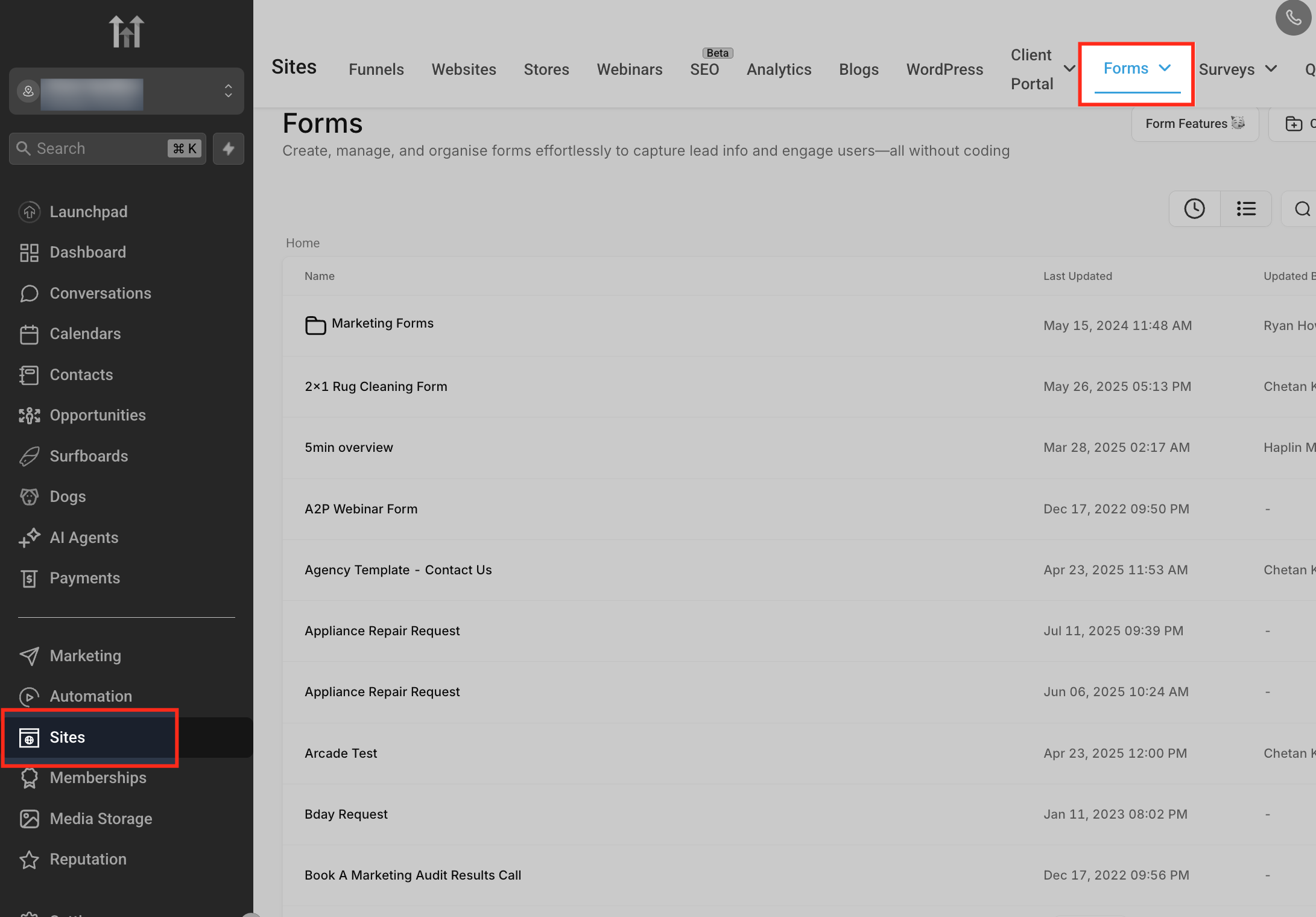
Navigate to Sites > Forms, then open the Form Builder.
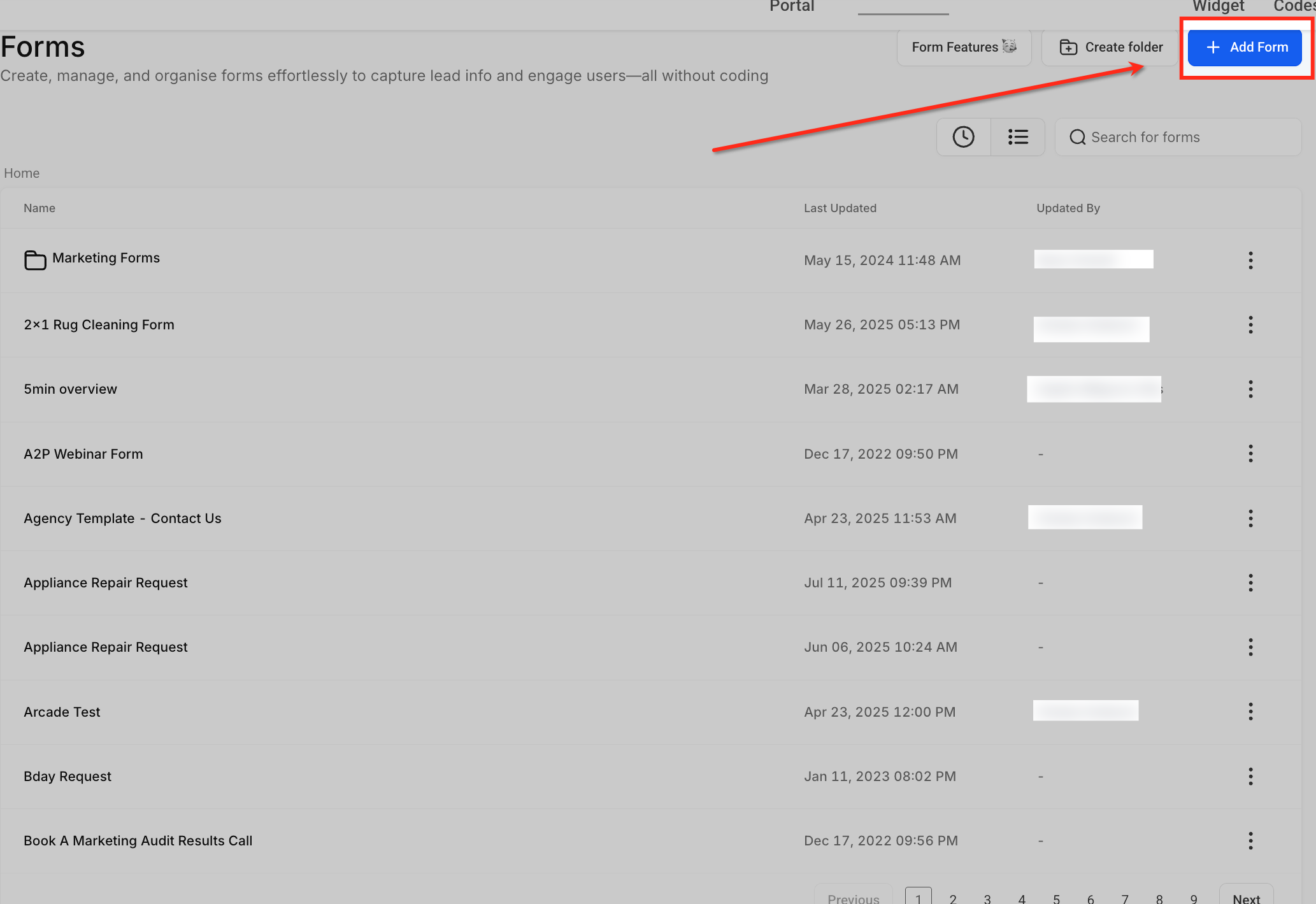
Select an existing form or create a new one.
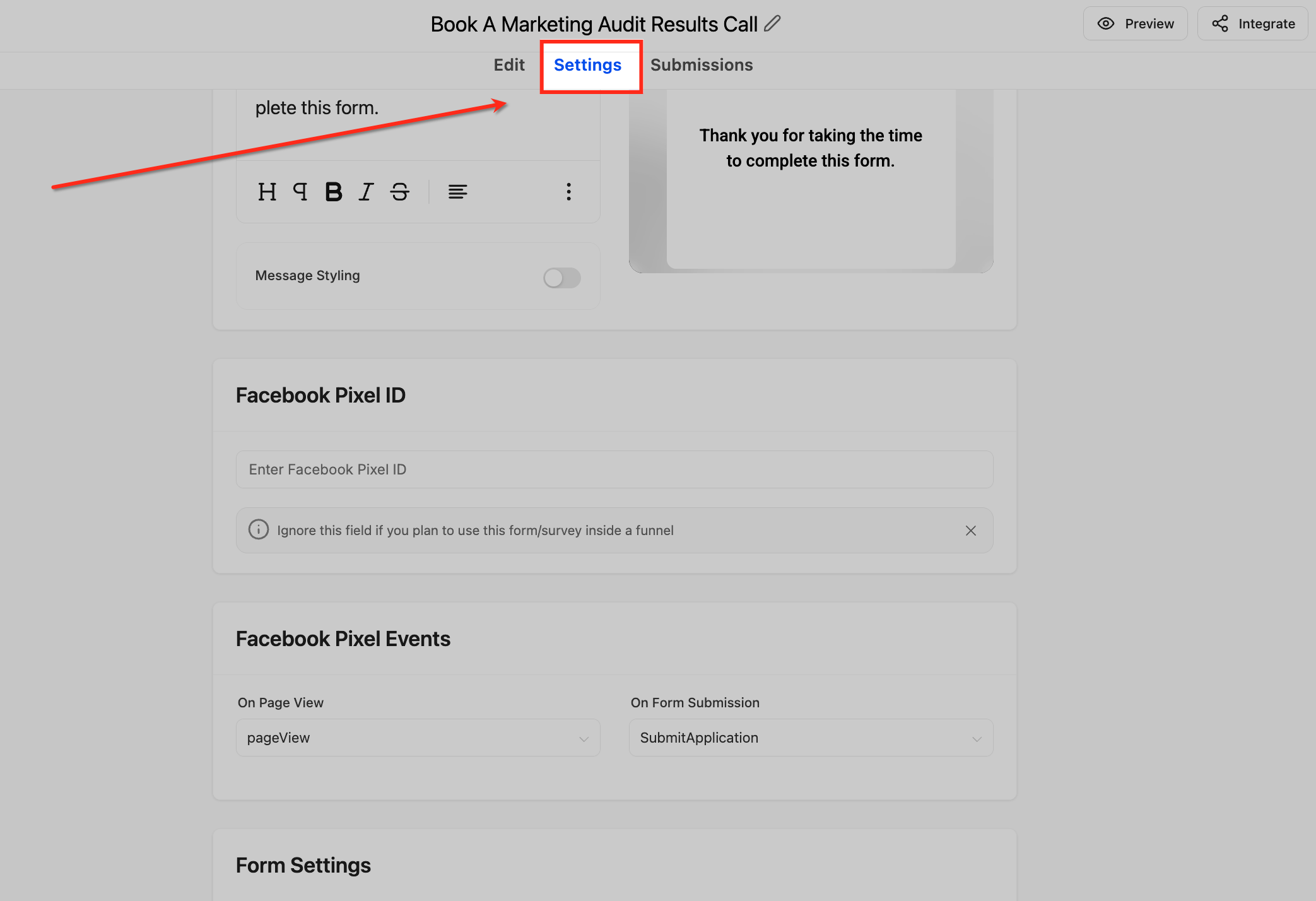
Click on the Form Settings tab.
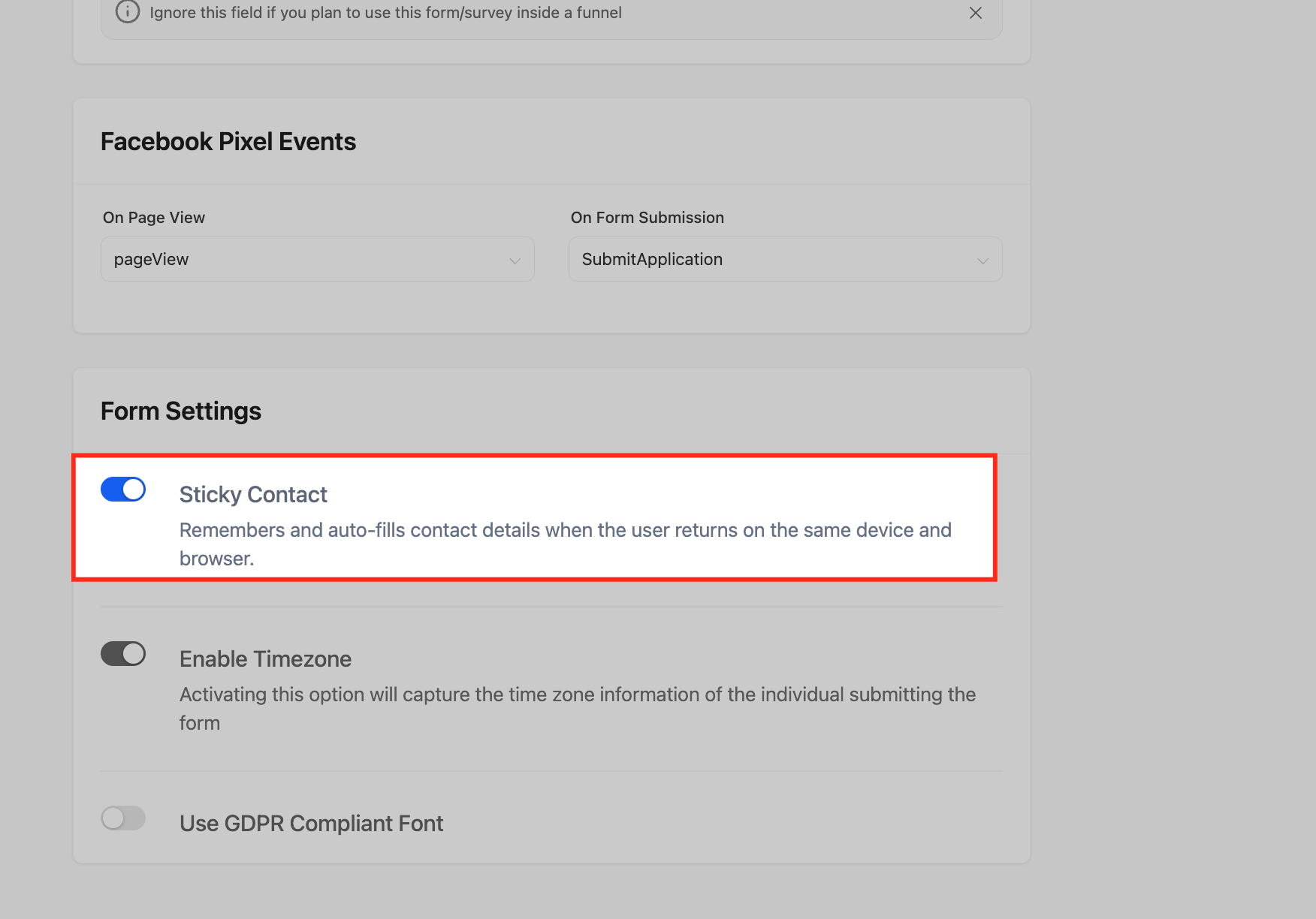
Toggle the Sticky Contact switch to “On”. Click Save to apply your changes.
Sticky Contact in Surveys
Sticky Contact can also be enabled in Surveys, allowing user data collected in forms to auto-populate survey fields—especially useful in funnel follow-ups.
Steps to Enable Sticky Contact in Surveys:
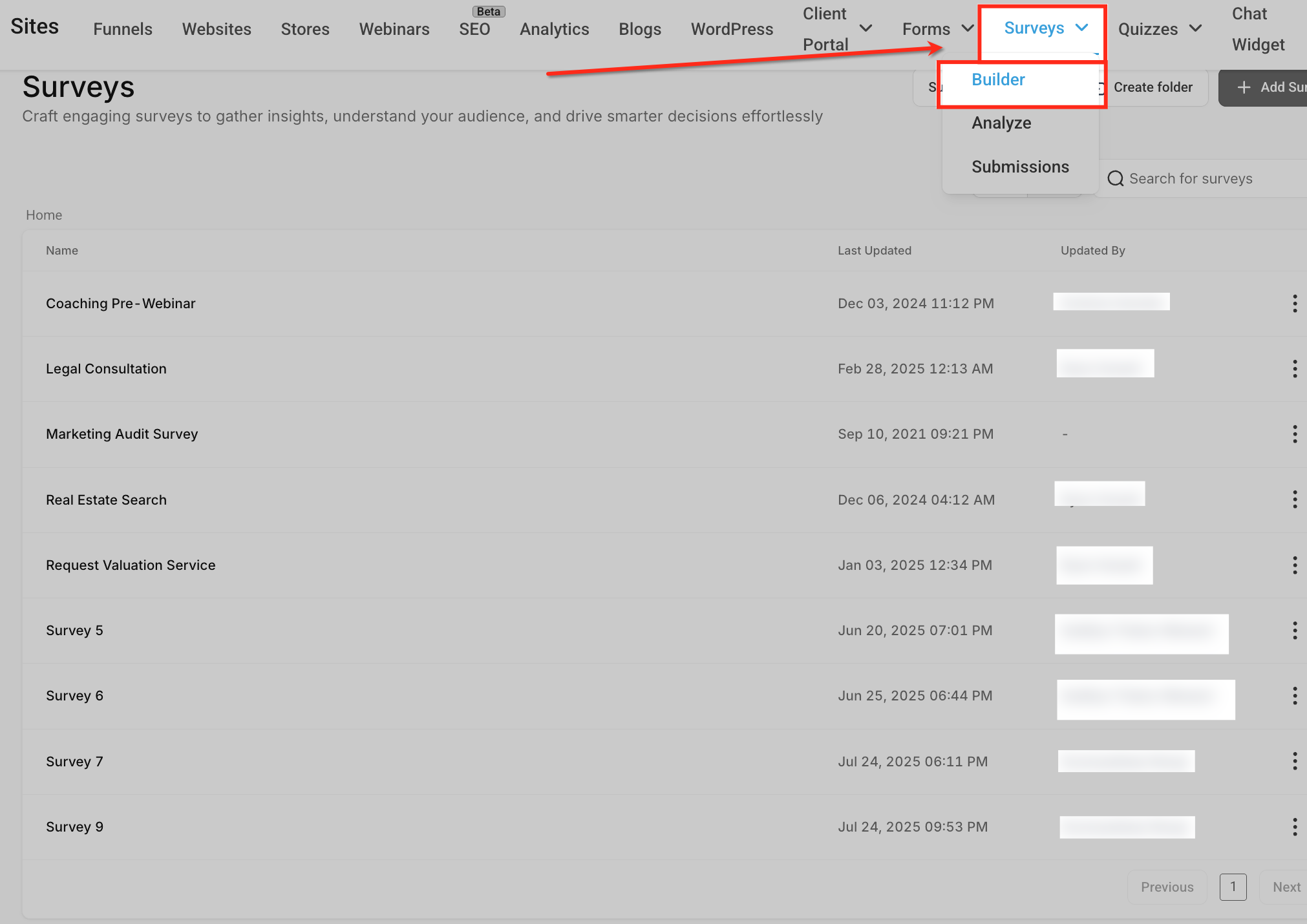
Go to Sites > Surveys, then launch the Survey Builder.
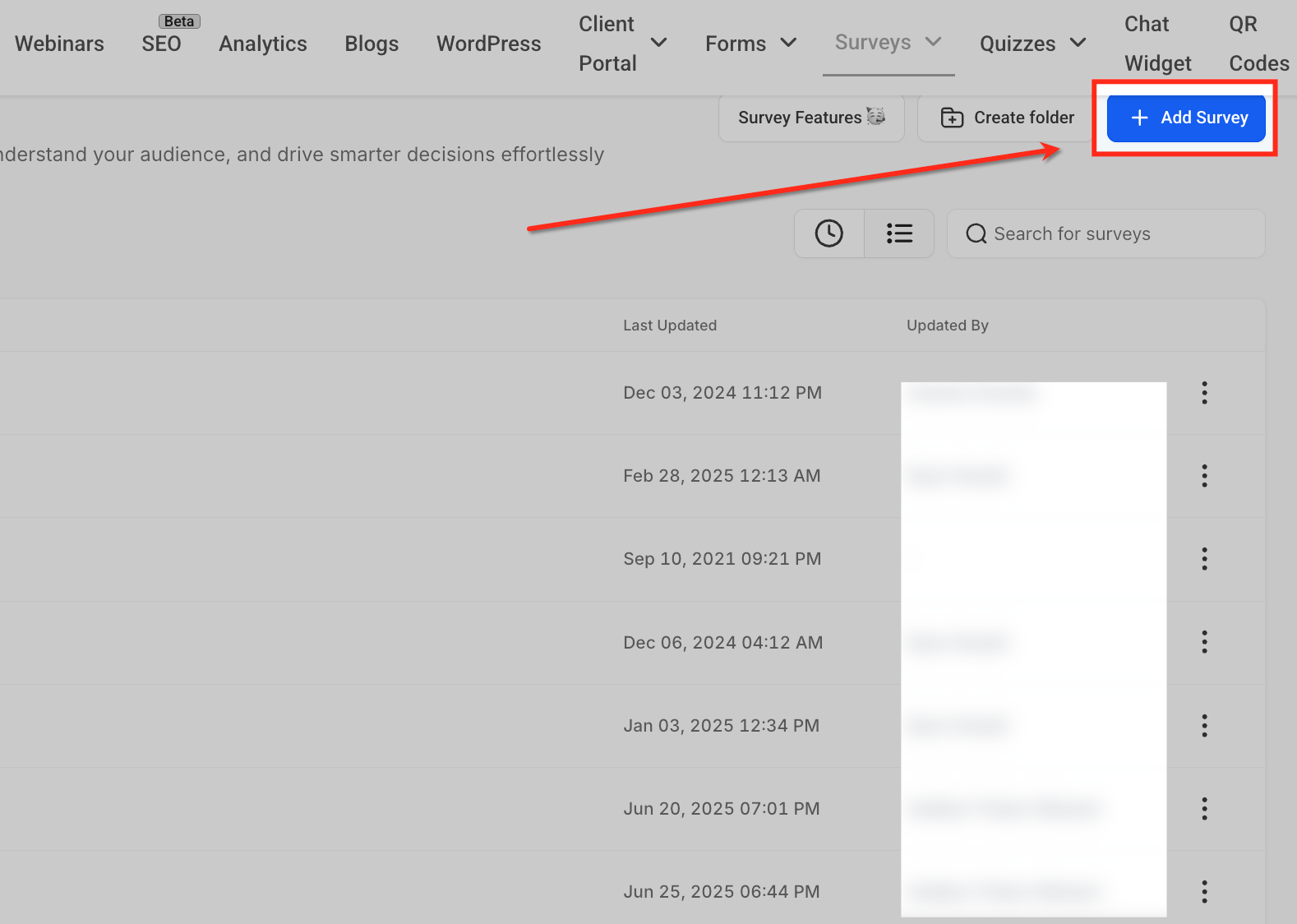
Open or create a survey.
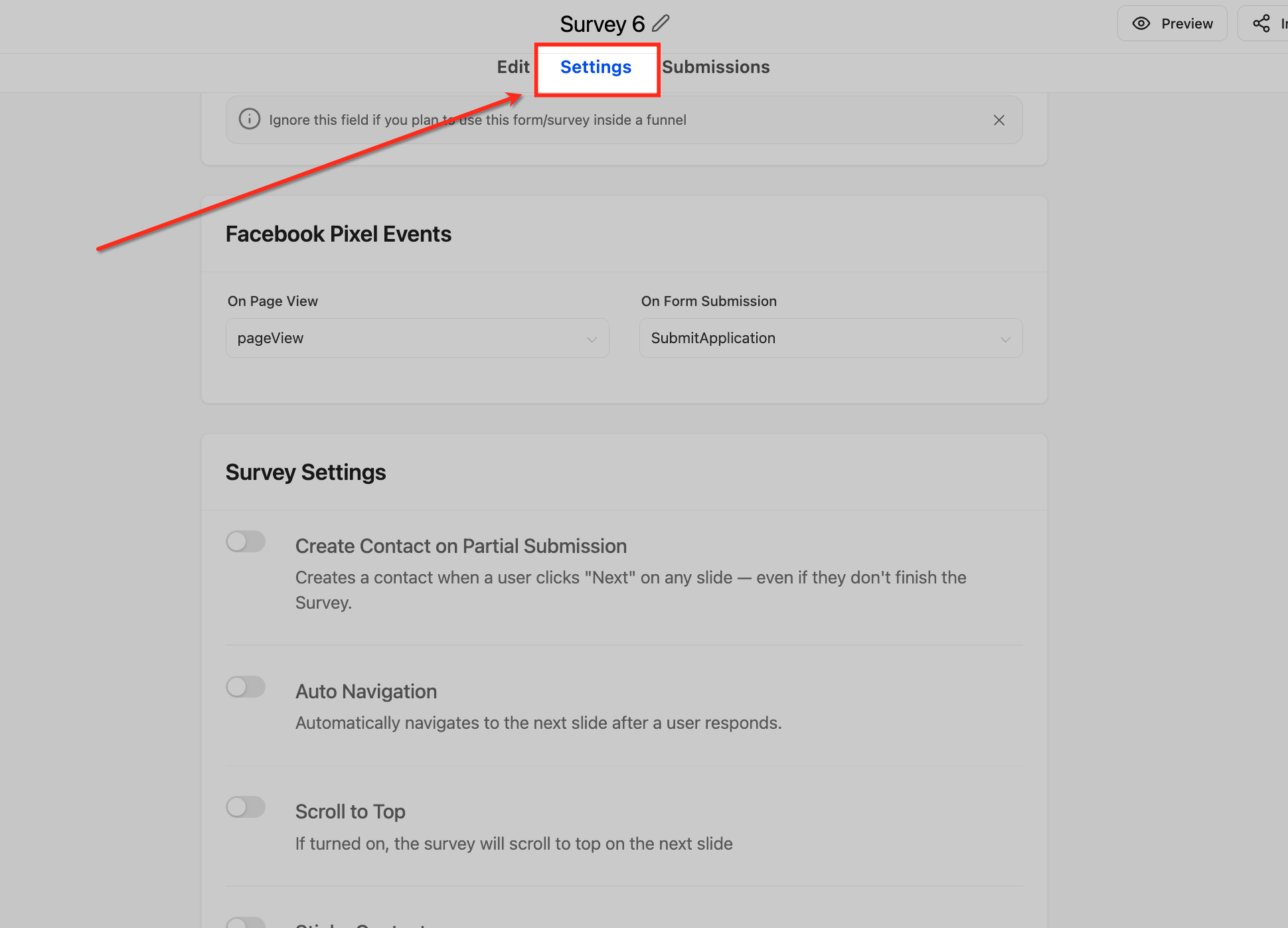
Navigate to the Survey Settings section.
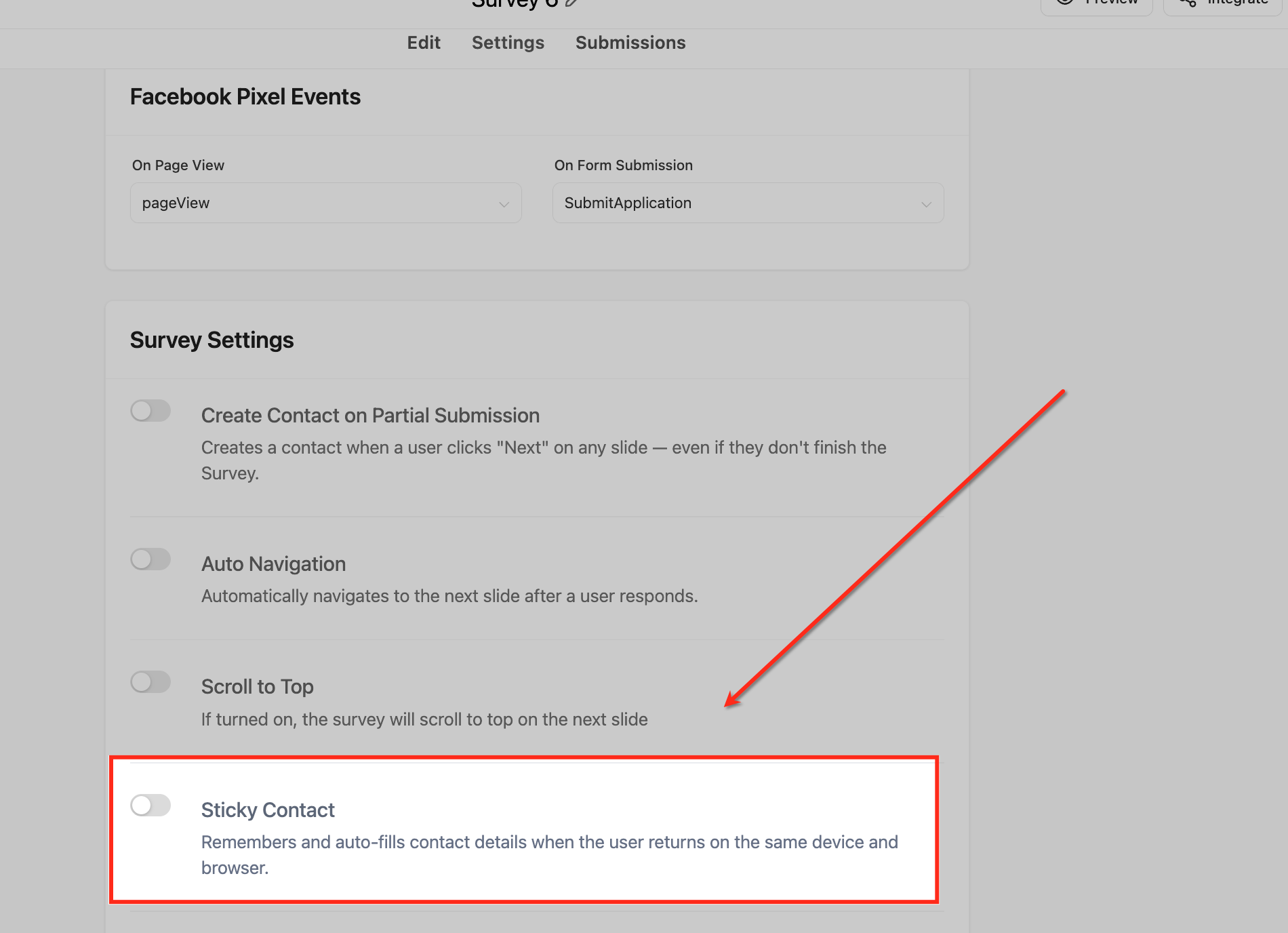
Toggle Sticky Contact to “On.” Save your settings.
Sticky Contact in Calendars
Calendars benefit from Sticky Contact by auto-filling user details for repeat appointment bookings.
Steps to Enable Sticky Contact in Calendars:
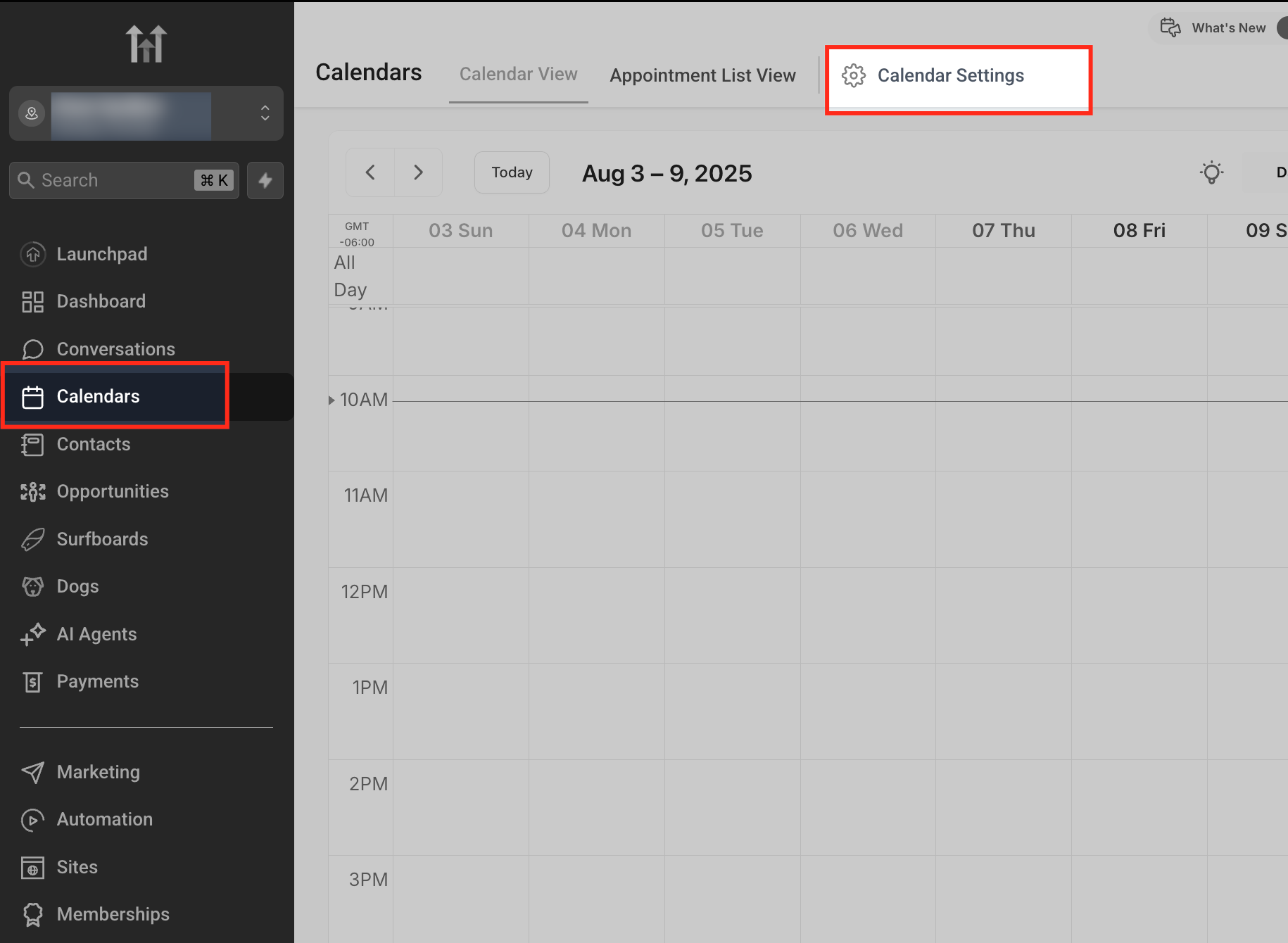
Go to Calendars > Calendar Settings.
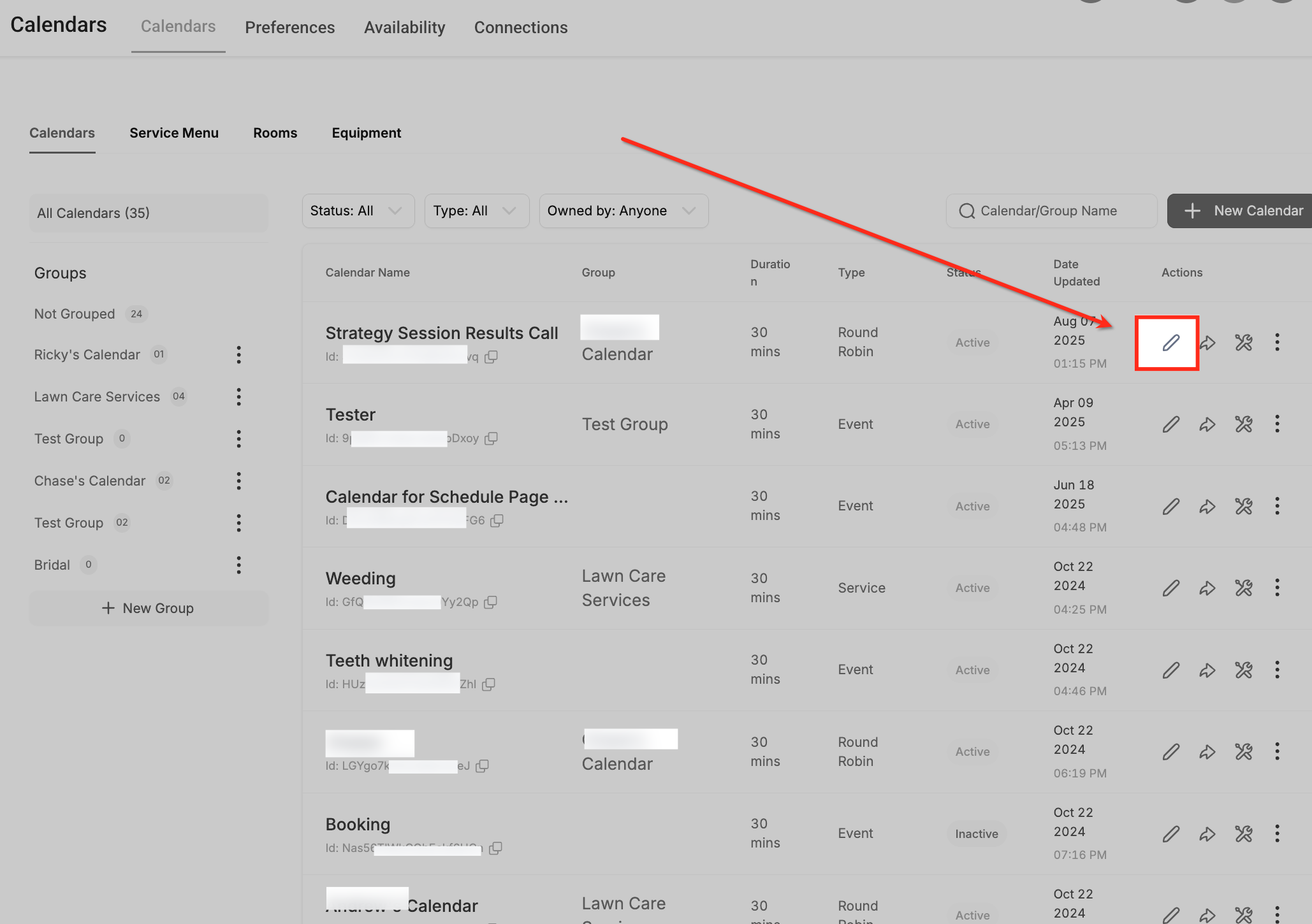
Select the calendar you’d like to edit.
Scroll to Forms & Payments
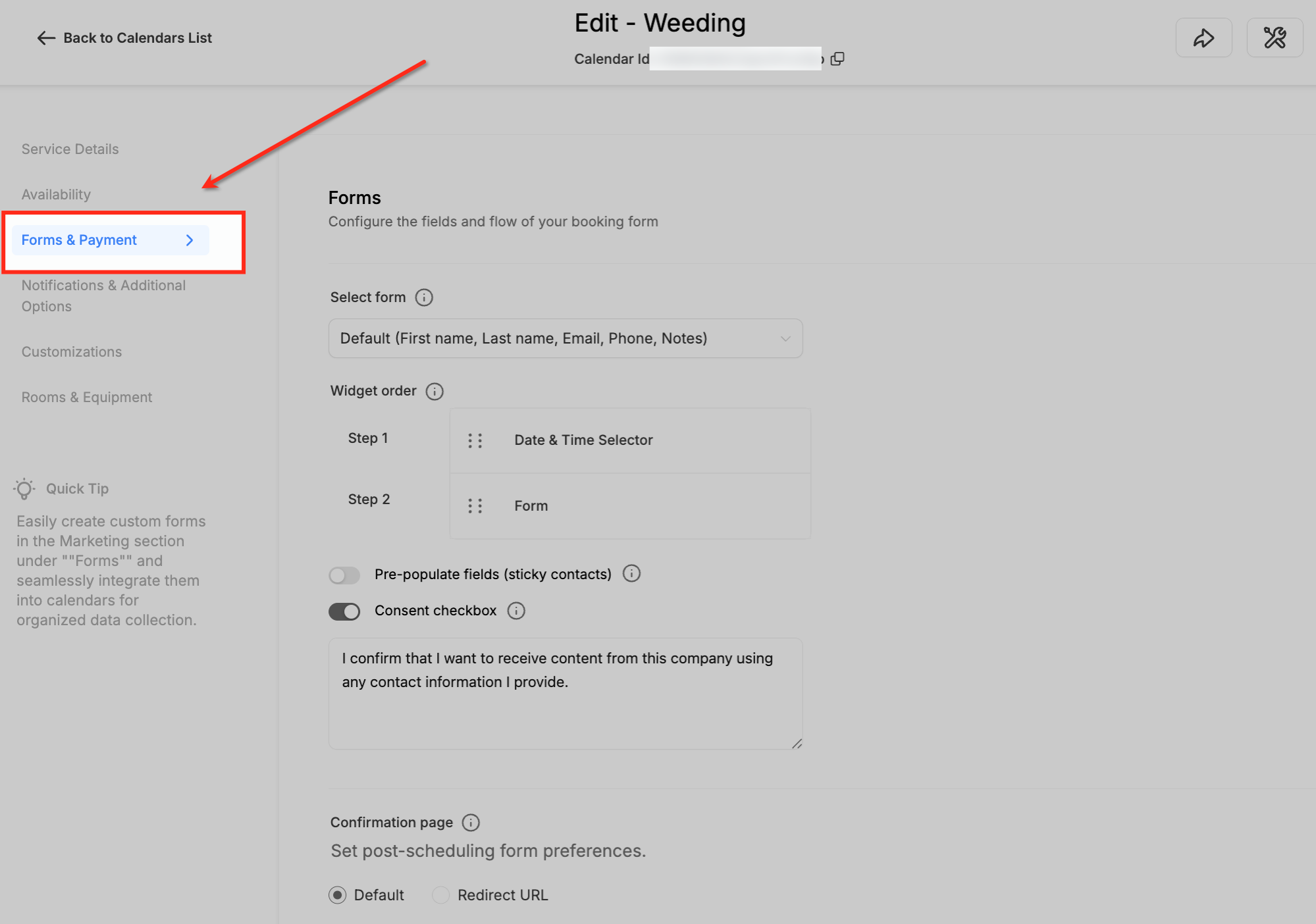
.
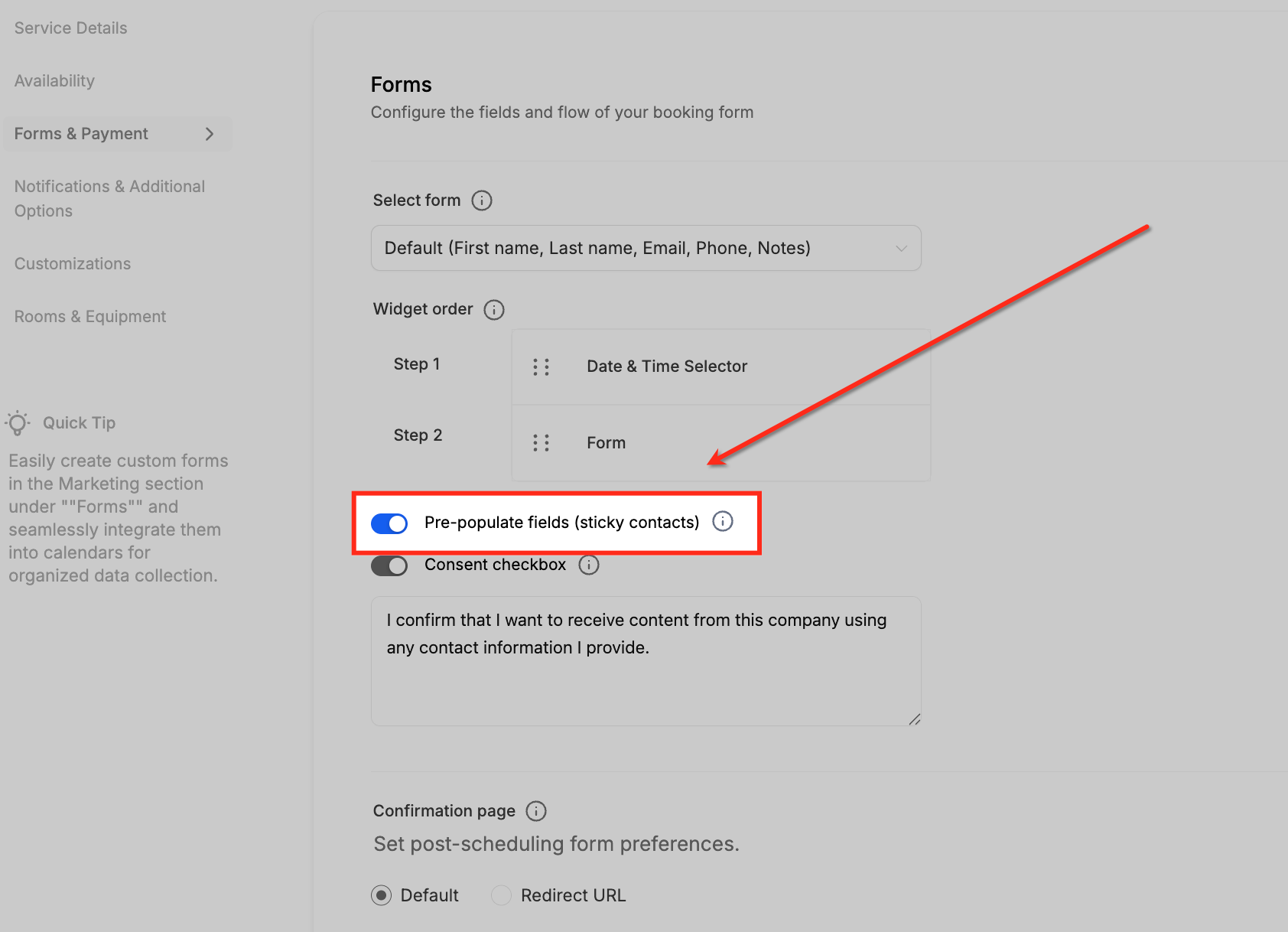
Turn on Sticky Contact using the toggle. Save your changes.
Sticky Contact in Order Forms
Sticky Contact can also be used with supported order forms in funnels. This allows returning customers using the same browser and device to have previously entered contact information pre-filled when they return to the order form.
Steps to Enable Sticky Contact in Order Forms:
Go to Sites > Funnels, then open the funnel and the step containing your order form.
Select the One-Step Order Form or Two-Step Order Form element in the funnel builder.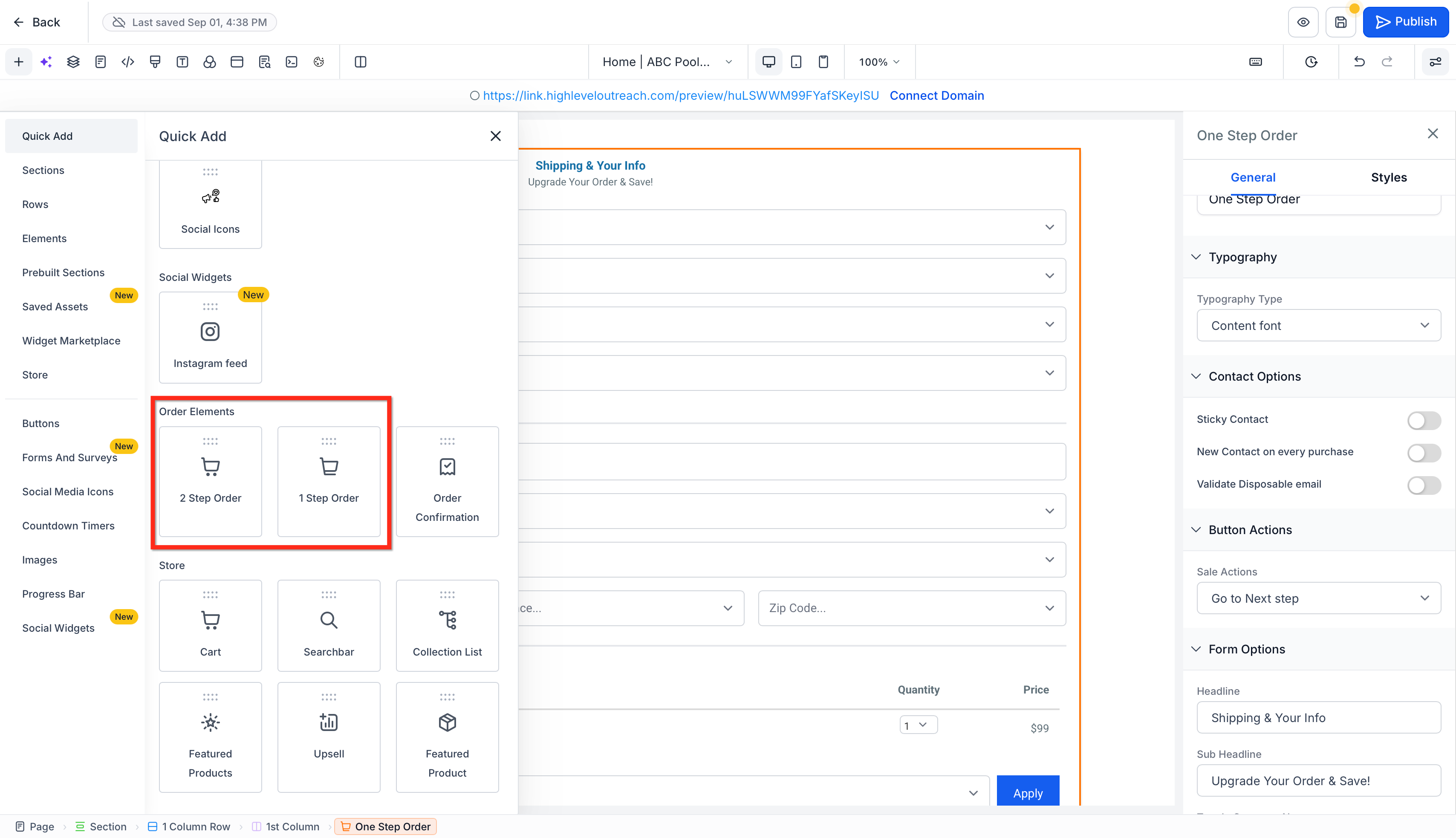
Open the order form settings and enable Sticky Contact.
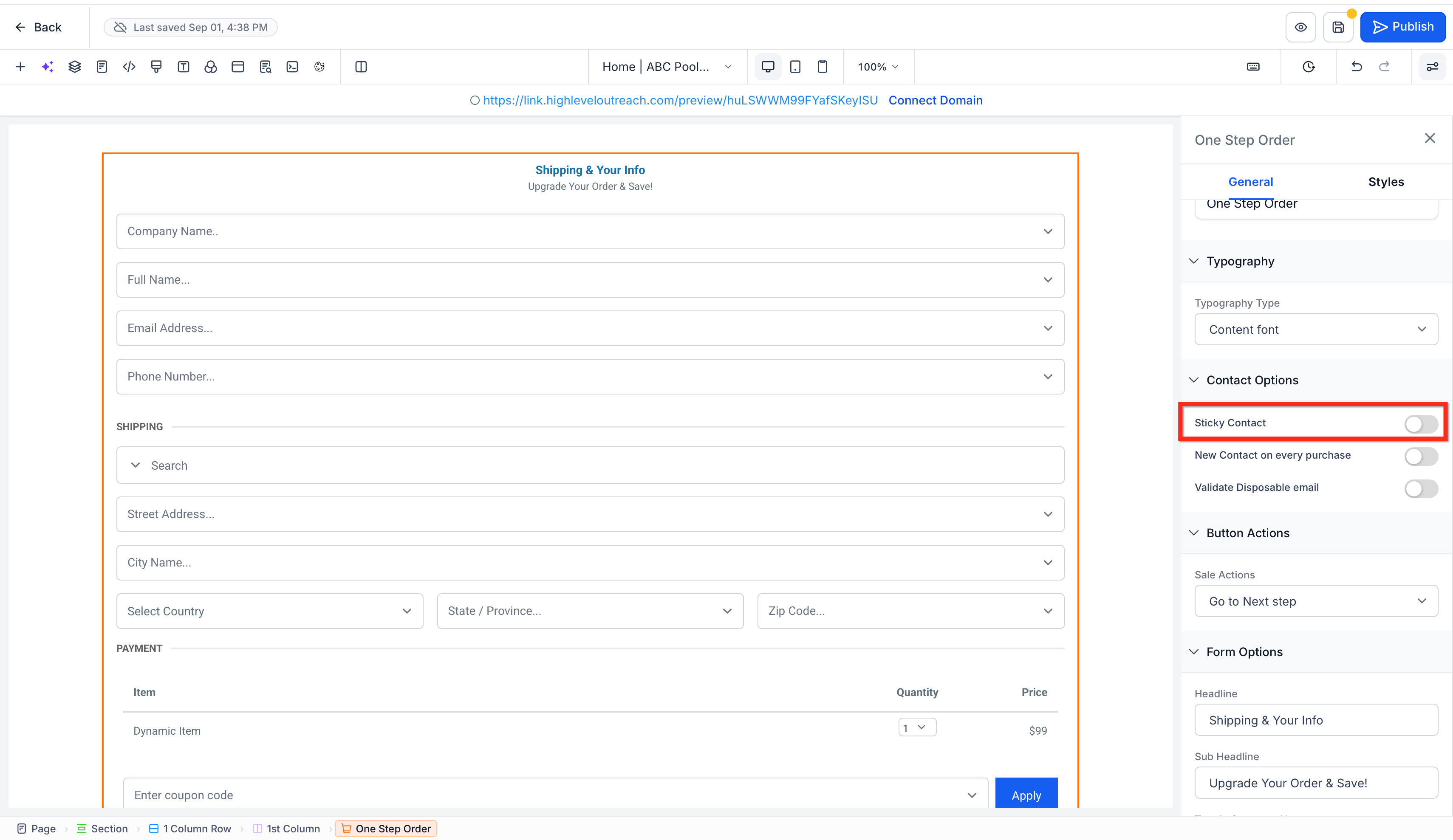
Save and publish your changes.
Frequently Asked Questions
Q: Can Sticky Contact work across subdomains?
No, Sticky Contact data is domain-specific. It cannot pre-fill forms across different subdomains.
Q: What happens if a user clears their cookies?
If cookies are deleted, Sticky Contact will no longer retain previously entered data, and fields will not be pre-filled.
Q: Is Sticky Contact GDPR-compliant?
Yes, but it’s essential to inform users about cookie usage and provide opt-out options to comply with data protection laws.
Q: Does Sticky Contact interfere with browser autofill?
No, Sticky Contact operates independently of browser autofill. However, the two can complement each other for a seamless user experience.
Q: Why isn’t Sticky Contact showing in my calendar settings?
If you use a custom form for calendar bookings, the Sticky Contact setting does not appear in the calendar settings. Enable Sticky Contact directly in the custom form instead. The calendar will use the Sticky Contact data stored by that form.
Related Articles
Was this article helpful?
That’s Great!
Thank you for your feedback
Sorry! We couldn't be helpful
Thank you for your feedback
Feedback sent
We appreciate your effort and will try to fix the article