Create websites, landing pages, and apps directly in HighLevel's Ask AI using simple prompts. The AI Studio agent builds your project, collects requirements, and lets you preview, edit, and publish without leaving the chat. You can also connect forms to your CRM and access the AI Studio editor for advanced customization.
TABLE OF CONTENTS
- What is AI Studio in Ask AI?
- Key Benefits of Building AI Studio Projects in Ask AI
- Creating Projects with Natural-Language Prompts
- Interactive Project Configuration and Approvals
- Monitoring Project Build Progress
- Previewing and Editing Projects
- Connecting Forms to CRM Tracking
- Publishing and Managing AI Studio Projects
- How to Build and Publish an AI Studio Project Using Ask AI
- Frequently Asked Questions
- Related Articles
What is AI Studio Projects in Ask AI?
AI Studio in Ask AI lets you generate websites and apps using natural-language instructions. Ask AI sends your request to the AI Studio agent, which handles project creation, configuration, and progress updates.
You can preview, refine, and publish the generated project directly from Ask AI using the existing AI Studio engine, which remains unchanged.
Key Benefits of Building AI Studio Projects in Ask AI
Ask AI simplifies project creation by bringing building, editing, and publishing into one guided conversation.
Prompt-Based Creation: Build websites and apps using plain-language instructions.
File Attachments: Use PDF briefs, logos, and reference images.
Interactive Setup: Choose layouts, colors, fonts, calendars, and integrations through clickable options.
Progress Tracking: Follow build tasks or stop an active build.
Live Preview: Review, refresh, or open your project in a browser tab.
Conversational Editing: Request changes or undo previous edits.
CRM Integration: Connect lead-capture forms to HighLevel CRM tracking.
Direct Publishing: Publish using the default domain without leaving Ask AI.
Advanced Editing: Open the project in AI Studio for additional customization.
Creating Projects with Natural-Language Prompts
Clear prompts help AI Studio generate projects that match your requirements. Describe your business, target audience, preferred design, required sections, and functionality.
Example:
"Create a luxury real estate landing page with a dark theme, gold accents, property images, a consultation form, and a services section."
You can also attach PDF briefs, logos, or reference images to guide the design.
Interactive Project Configuration and Approvals
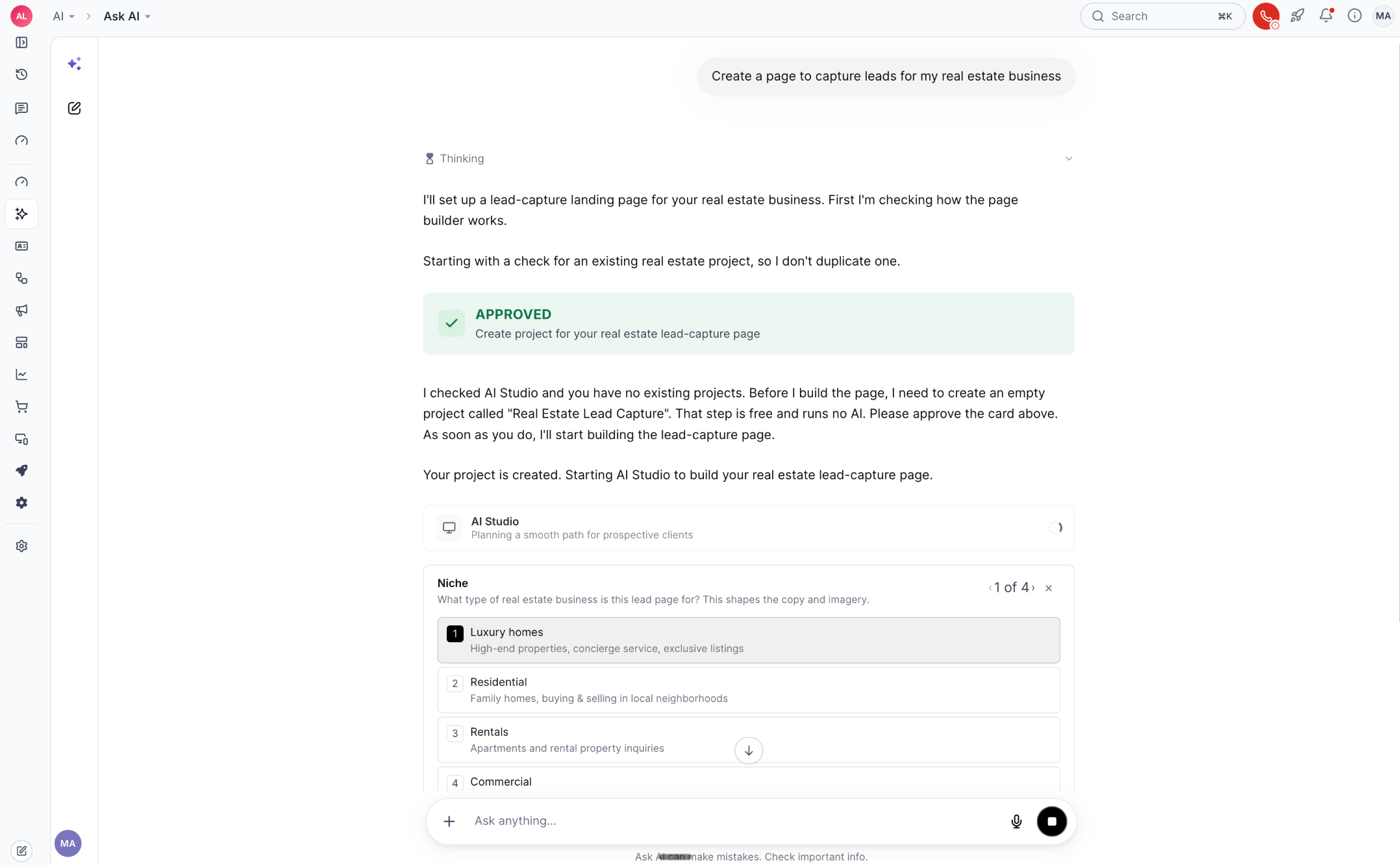
Ask AI may request additional details or approval before creating your project. You can answer questions directly in the chat using clickable options.
These may include business categories, target audiences, colors, fonts, layouts, calendars, and CRM integrations.
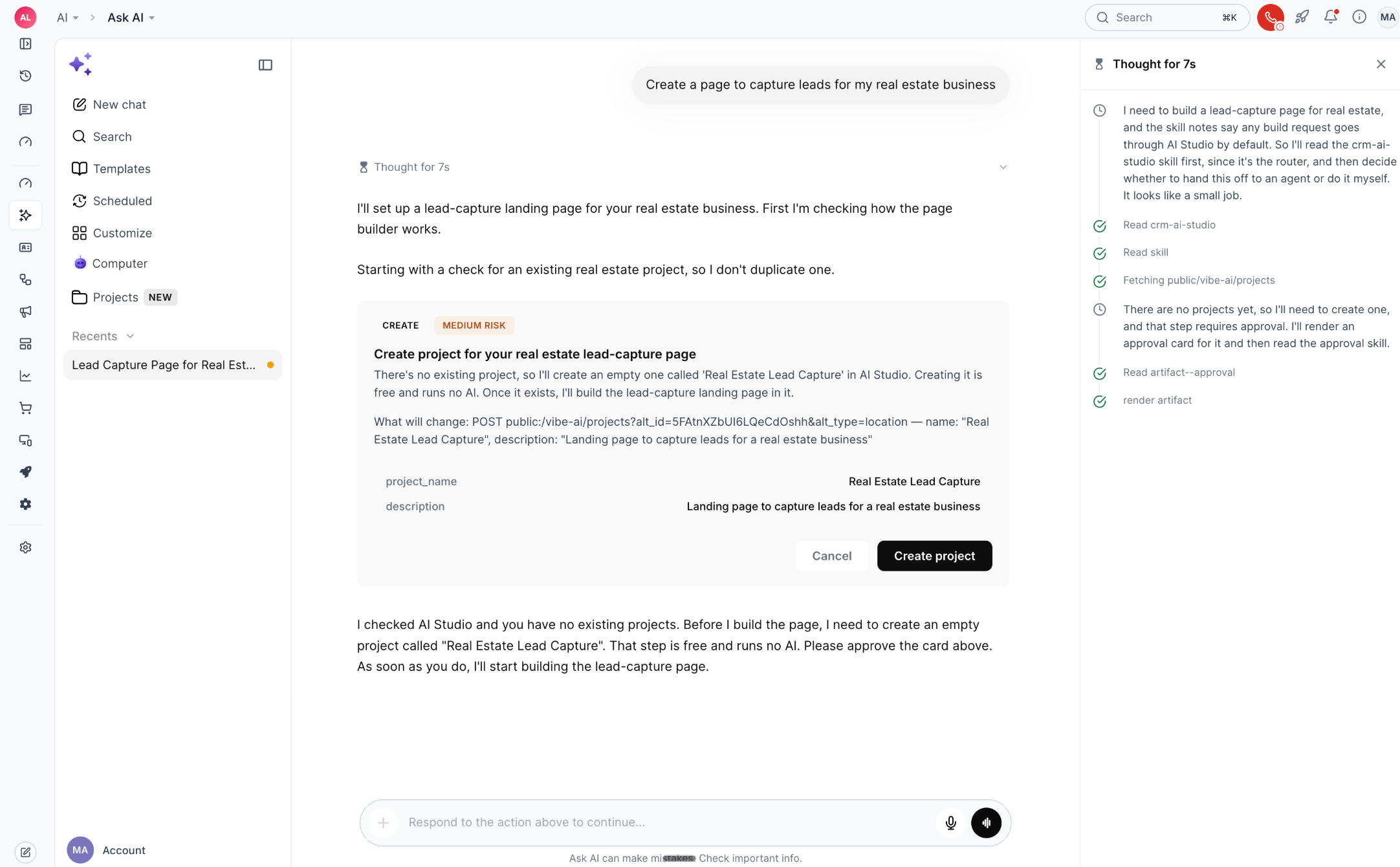
Project Approval: When prompted, review the proposed project name, description, and action details, then click Create project to proceed.
Monitoring Project Build Progress
Ask AI displays a progress checklist showing completed and ongoing tasks, including project creation, requirement processing, component configuration, and preview preparation.
Click Stop to cancel an active build.
Important: Builds and edits usually take a few minutes. Wait for the current request to finish before submitting another.
Previewing and Editing Projects
Once the build finishes, Ask AI provides a summary of completed work, added functionality, limitations, and recommended next steps.
Use the integrated preview to review the design, content, navigation, and interactive elements. You can refresh the preview or open it in a separate browser tab.
Making Changes
Request updates through chat, such as:
"Add an FAQ section below the testimonials."
"Change the primary button color to dark blue."
"Update the business phone number."
"Add a customer testimonials section."
"Change the homepage heading."
"Undo the last change."
The agent updates the existing project. Review the changes in the preview panel.
Important: Changes made after publishing require republishing to appear on the live website.
Connecting Forms to CRM Tracking
CRM tracking allows submissions from generated forms to be recorded in your HighLevel sub-account. Forms are not necessarily connected automatically.
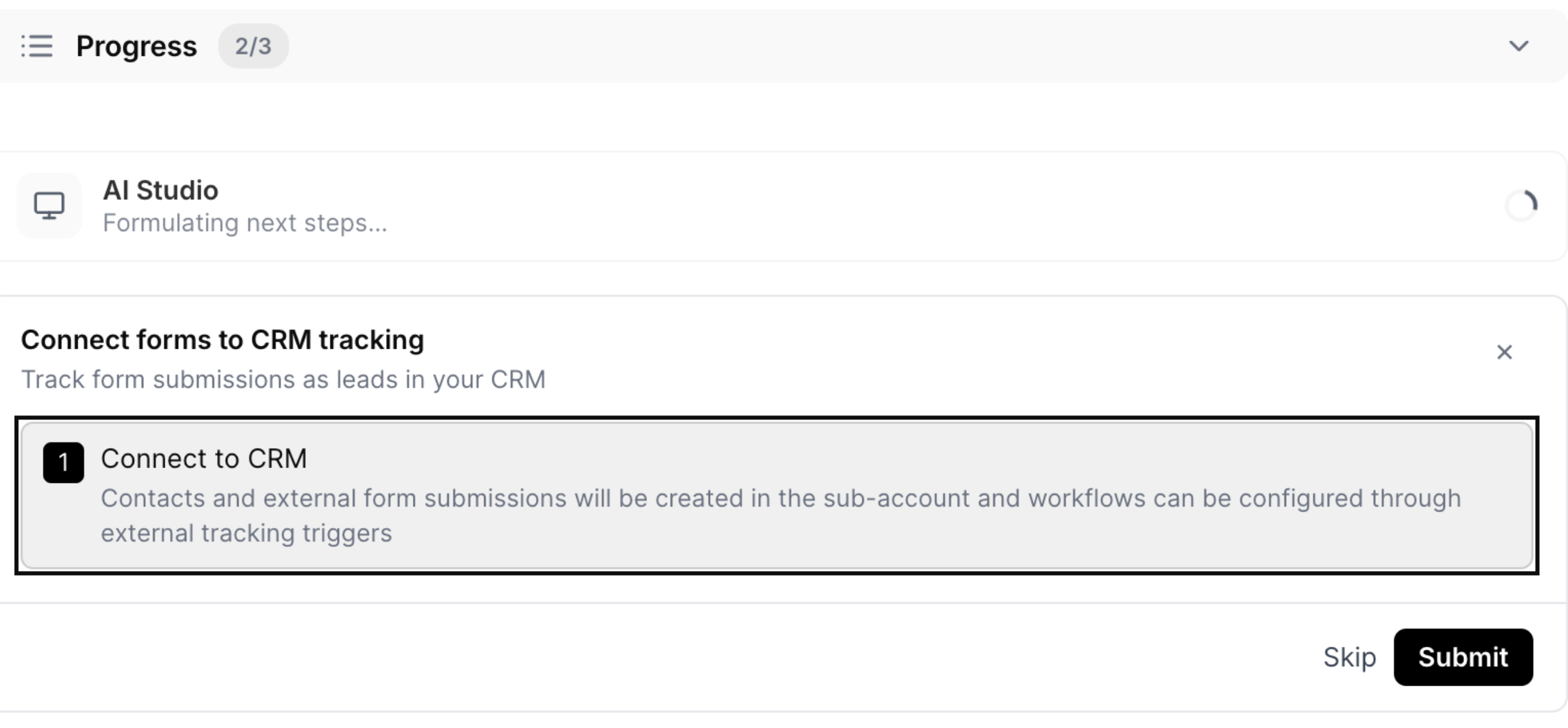
When the agent displays Connect forms to CRM tracking, select Connect to CRM and click Submit. Alternatively, select Skip and request the connection later.
Connected forms can capture information such as contact details, property interests, budget ranges, and preferred locations.
Depending on the integration, submissions can be accessed through Contacts or Sites > Forms > Submissions > External Forms.
For automated follow-ups, use the AI Studio Form Submitted workflow trigger. Existing supported External Tracking triggers can also continue to be used.
Learn more: Connect Forms and Calendars in AI Studio.
Publishing and Managing AI Studio Projects
Publishing makes your generated project accessible through a live URL. Click Publish in the preview panel, review the generated address, and confirm publication.
Keep the following in mind:
Republishing: Publish again after making changes. Ask AI can remind you when republishing is needed.
Custom Domains: Publishing from Ask AI uses the default domain. Configure custom domains in the AI Studio editor.
Sample Content: Replace placeholder text, testimonials, reviews, statistics, business claims, contact details, and legal information.
Final Review: Verify branding, operating hours, navigation, buttons, links, form fields, and CRM connections.
AI Usage: Builds and edits consume your account's AI usage. Limits, allowances, and charges depend on your plan and configuration.
Learn more: AI Product Pricing.
How to Build and Publish an AI Studio Project Using Ask AI
Follow these steps to create, configure, review, and publish a project using Ask AI.
Step 1: Open Ask AI and Enter a Prompt
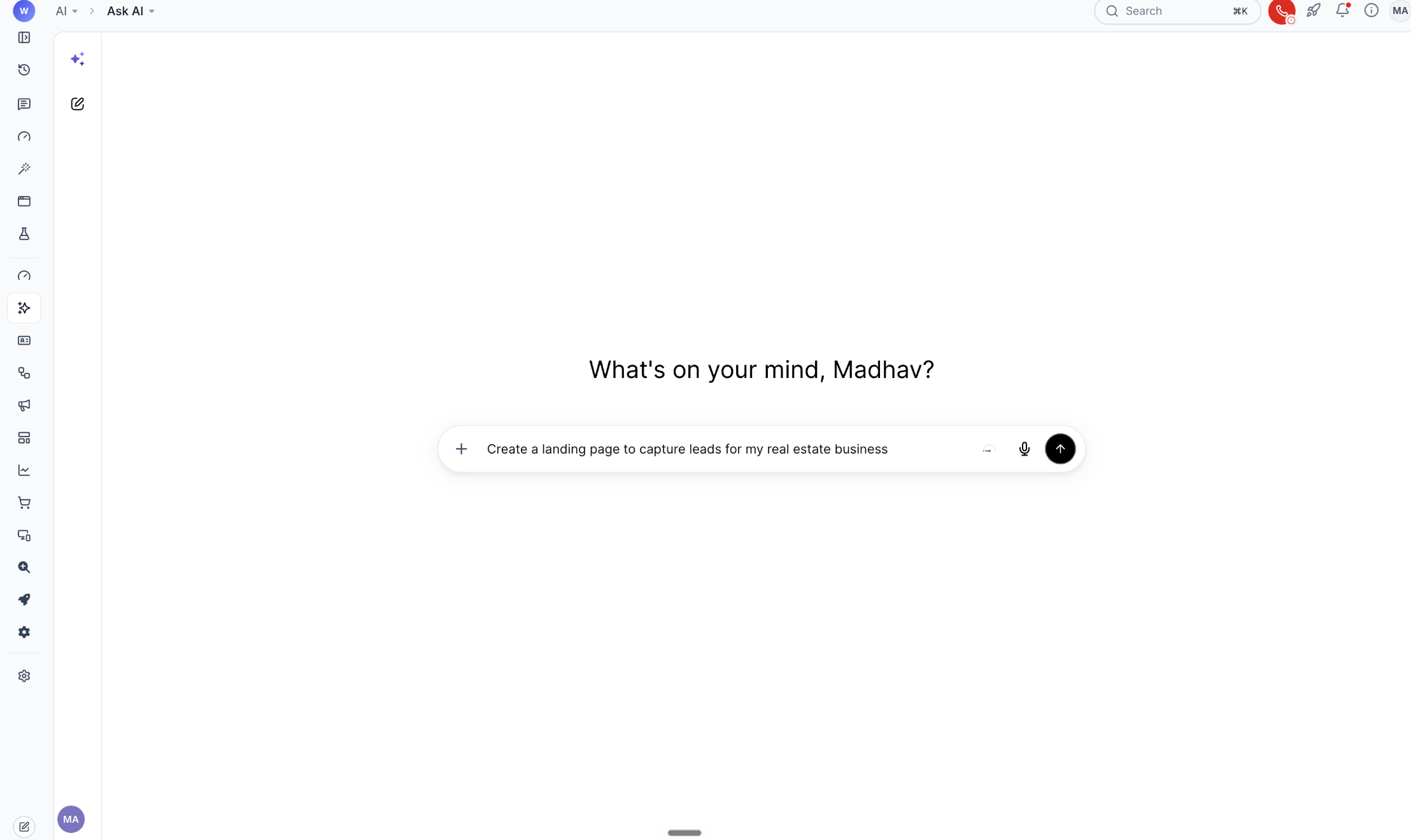
Log in to HighLevel and open Ask AI from the left navigation menu.
Click New chat.
Describe your project, such as "Create a landing page to capture leads for my real estate business."
Optionally, attach a PDF brief, logo, or reference images, then submit.
Ask AI sends the request to the AI Studio agent.
Step 2: Approve Project Creation
Review the approval card showing the project name, description, and action details. Click Create project to approve and begin the build.
Step 3: Answer Configuration Questions
Select the appropriate business category, design preferences, calendars, or integrations when prompted. Continue until the required information is provided.
Step 4: Connect Forms to CRM (Optional)
If your project includes a lead-capture form, select Connect to CRM and click Submit. Select Skip to configure it later.
Step 5: Monitor Build Progress
Follow the progress checklist and answer additional questions if needed. Allow the agent to finish, or click Stop to cancel the active build.
Step 6: Preview the Project
Review the completed build summary, including added functionality, limitations, and next steps. Test the design, navigation, and interactive elements in the preview panel. Refresh or open the preview in another tab if needed.
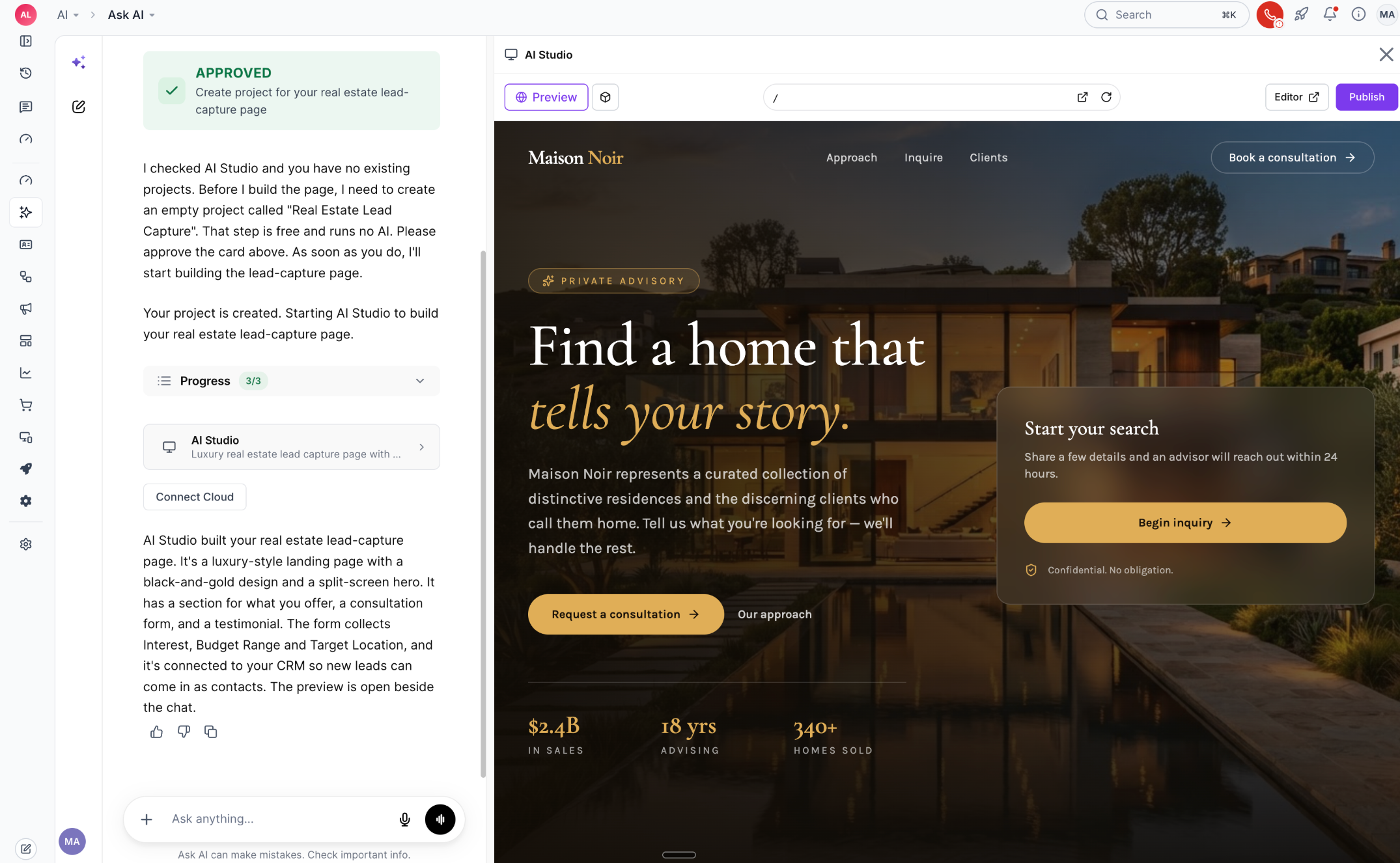
Step 7: Request Changes (Optional)
Ask AI to update content, colors, layouts, or functionality, such as "Add an FAQ section" or "Change the contact phone number."
Wait for the update, review the preview, and repeat if needed. You can also request an undo.
Step 8: Publish the Project
Click Publish in the preview panel.
Review the generated default-domain address.
Confirm publication and open the live URL to verify the website.
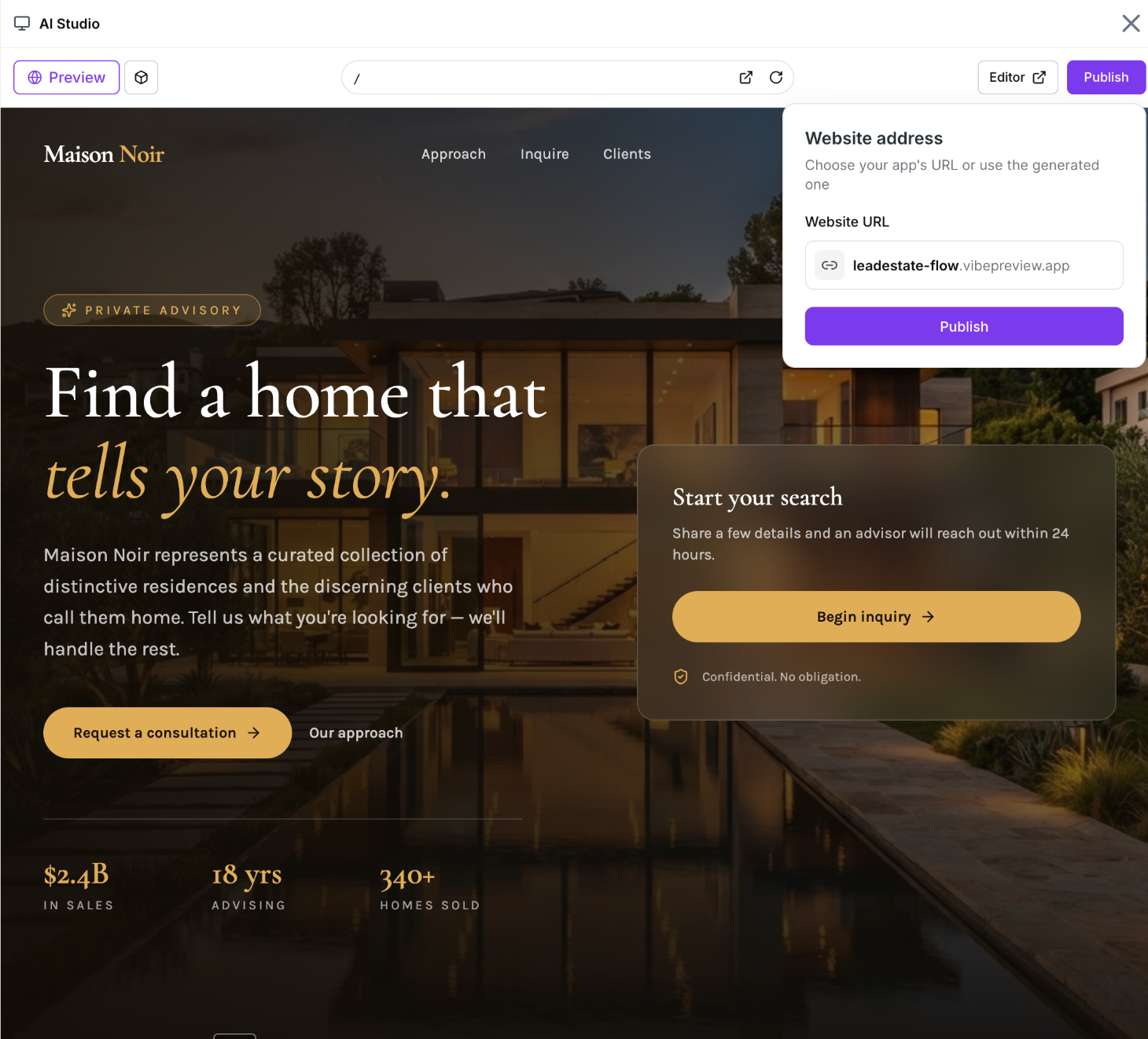
Step 9: Open the AI Studio Editor (Optional)
Click Editor in the preview panel for advanced customization or custom-domain configuration. Publish again to make subsequent changes live.
Frequently Asked Questions
Q: Do I need to open AI Studio separately?
No. You can create, preview, refine, and publish projects directly from Ask AI.
Q: Can I build apps as well as websites?
Yes. You can create websites, landing pages, and supported web apps based on AI Studio's capabilities.
Q: Can I upload logos or reference images?
Yes. Attach logos, images, or PDF briefs to guide project creation.
Q: What if the agent needs more information?
Ask AI displays follow-up questions with clickable options.
Q: Can I stop a build or undo changes?
Yes. Use Stop to cancel an active build or ask Ask AI to undo a change.
Q: Do edits automatically update a published project?
No. You must republish to make changes live.
Q: Can I publish to a custom domain?
Not directly from Ask AI. Configure custom domains in the AI Studio editor.
Q: Do generated forms automatically save leads to my CRM?
Not necessarily. Connect forms to CRM tracking to capture submissions.
Q: Does building or editing consume AI usage?
Yes. AI usage depends on your account's plan, allowances, and configuration.
Related Articles
Was this article helpful?
That’s Great!
Thank you for your feedback
Sorry! We couldn't be helpful
Thank you for your feedback
Feedback sent
We appreciate your effort and will try to fix the article