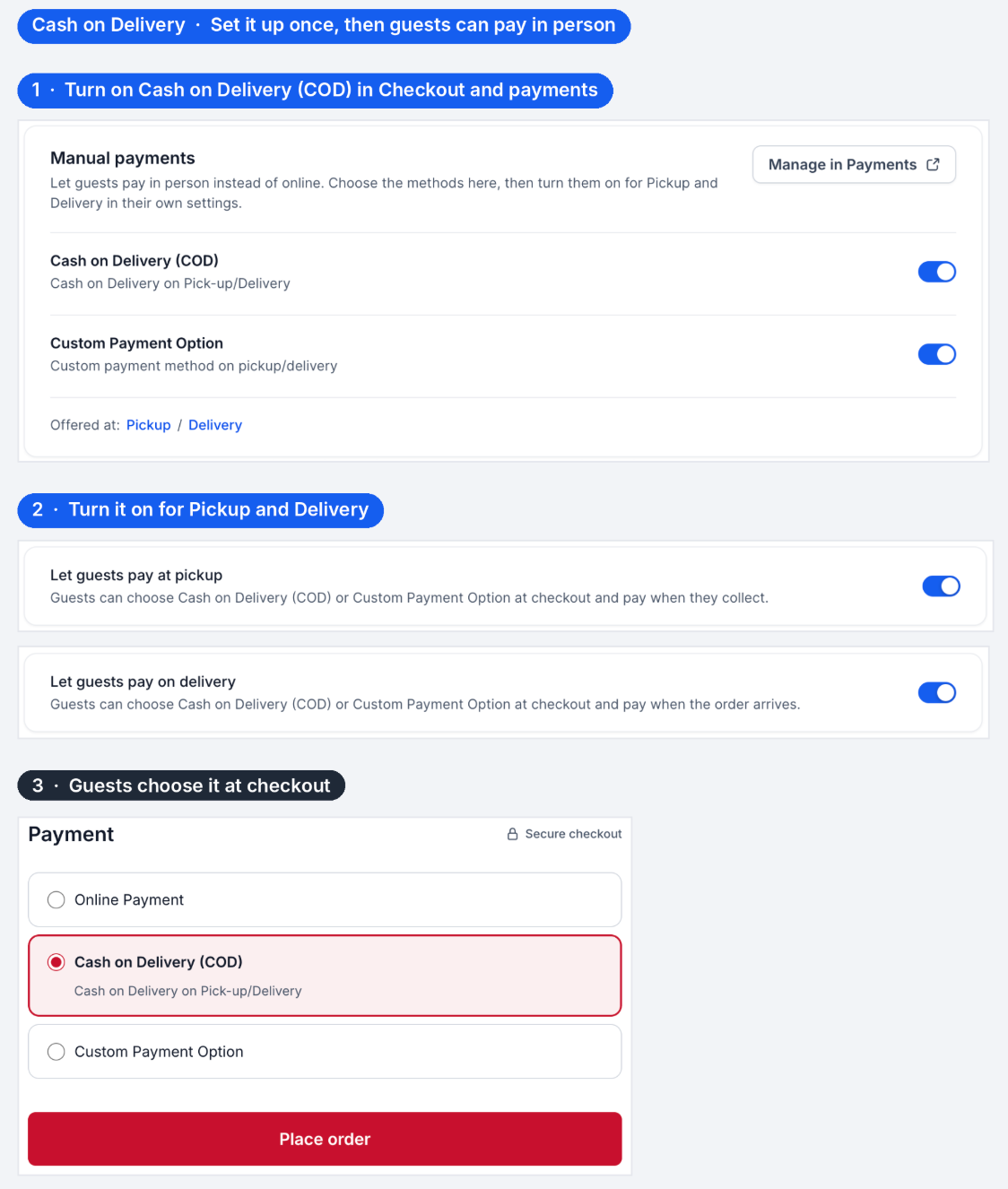
Cash on Delivery (COD) lets guests place online restaurant orders and pay in person at pickup or delivery instead of paying online. HighLevel Restaurants supports COD and custom manual payment methods, which can be enabled for Pickup, Delivery, or both. Guests can select these options at checkout without entering card details.
This article covers setup, payment settings, and the guest checkout experience.
TABLE OF CONTENTS
- What is Cash on Delivery for Restaurants?
- Key Benefits of Cash on Delivery for Restaurants
- Manual Payment Methods for Restaurants
- Managing Cash on Delivery in HighLevel Payments
- Cash on Delivery for Pickup and Delivery
- How Cash on Delivery Works at Checkout
- How to Set Up Cash on Delivery for Restaurants
- Step 1: Open Checkout and Payments
- Step 2: Configure Cash on Delivery
- Step 3: Enable the Payment Method in Restaurants
- Step 4: Enable In-Person Payments for Pickup
- Step 5: Enable In-Person Payments for Delivery
- Step 6: Verify the Guest Checkout Experience
- First-Time Setup: No Manual Payment Methods Available
- Frequently Asked Questions
- Related Articles
What is Cash on Delivery for Restaurants?
Cash on Delivery (COD) is a manual payment method that allows guests to order online and pay when collecting their food or receiving a delivery. HighLevel Restaurants supports two manual payment options:
Cash on Delivery (COD): Allows guests to pay in person for eligible pickup or delivery orders.
Custom Payment Option: Allows restaurants to offer an additional manual payment method with a customizable name and instructions.
Both methods are configured in HighLevel Payments and enabled under Restaurants → Restaurant Settings → Checkout and payments.
Important: To display a manual payment method at checkout, enable it in Checkout and payments and turn on in-person payments under Pickup, Delivery, or both.
Key Benefits of Cash on Delivery for Restaurants
Manual payments give guests more ways to pay while allowing restaurants to control how and where in-person payments are accepted.
Flexible Payments: Offer online payments alongside COD or custom manual payment methods.
Accessible Ordering: Accommodate guests who prefer paying cash or using another supported manual payment arrangement.
Independent Controls: Enable in-person payments for Pickup, Delivery, or both.
Custom Instructions: Display payment instructions at checkout and an optional message after ordering.
Centralized Management: Configure methods in HighLevel Payments and manage availability in Restaurant Settings.
Synchronized Settings: Enabling or disabling a method in Payments or Restaurants updates its enabled state in the other location.
No Card Processing Fees on Cash Orders: Cash transactions do not go through a card processor and therefore avoid card-processing fees.
Manual Payment Methods for Restaurants
HighLevel supports COD and Custom Payment Option for restaurant orders. Both can be enabled simultaneously and configured with instructions that help guests understand how to complete payment.
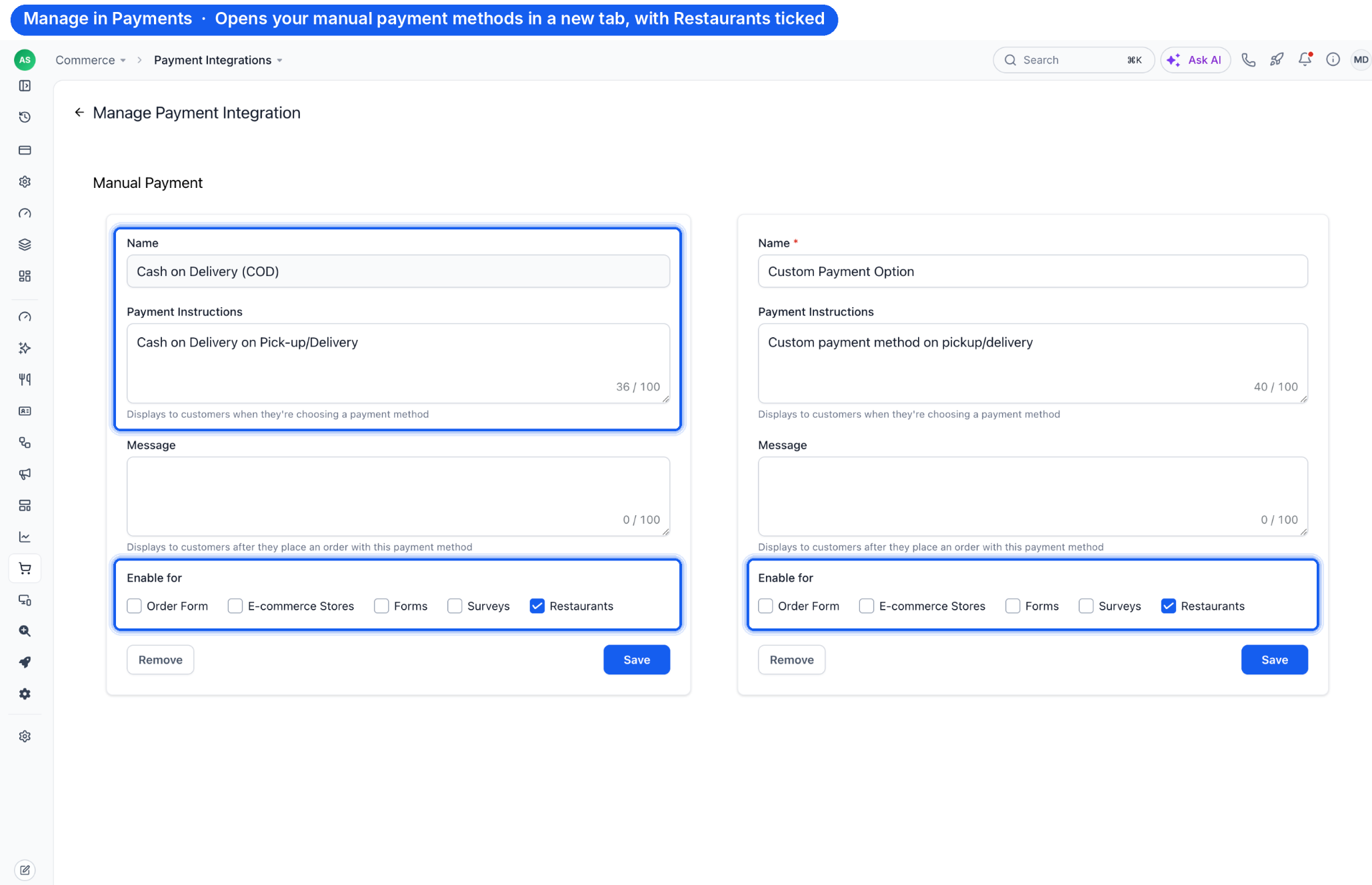
Each method includes these settings:
| Setting | Purpose |
|---|---|
| Name | Payment method name shown at checkout. |
| Payment Instructions | Instructions displayed when guests select the method. |
| Message | Message displayed after guests place an order using the method. |
| Enable for | Select supported channels, including Restaurants. |
| Save | Save the payment configuration. |
Important: Payment Instructions appear during checkout, while Message appears after order placement.
Managing Cash on Delivery in HighLevel Payments
Manual payment methods are managed centrally in HighLevel Payments. Restaurants provides direct access to these settings, so you can configure methods without navigating away from your restaurant setup workflow.
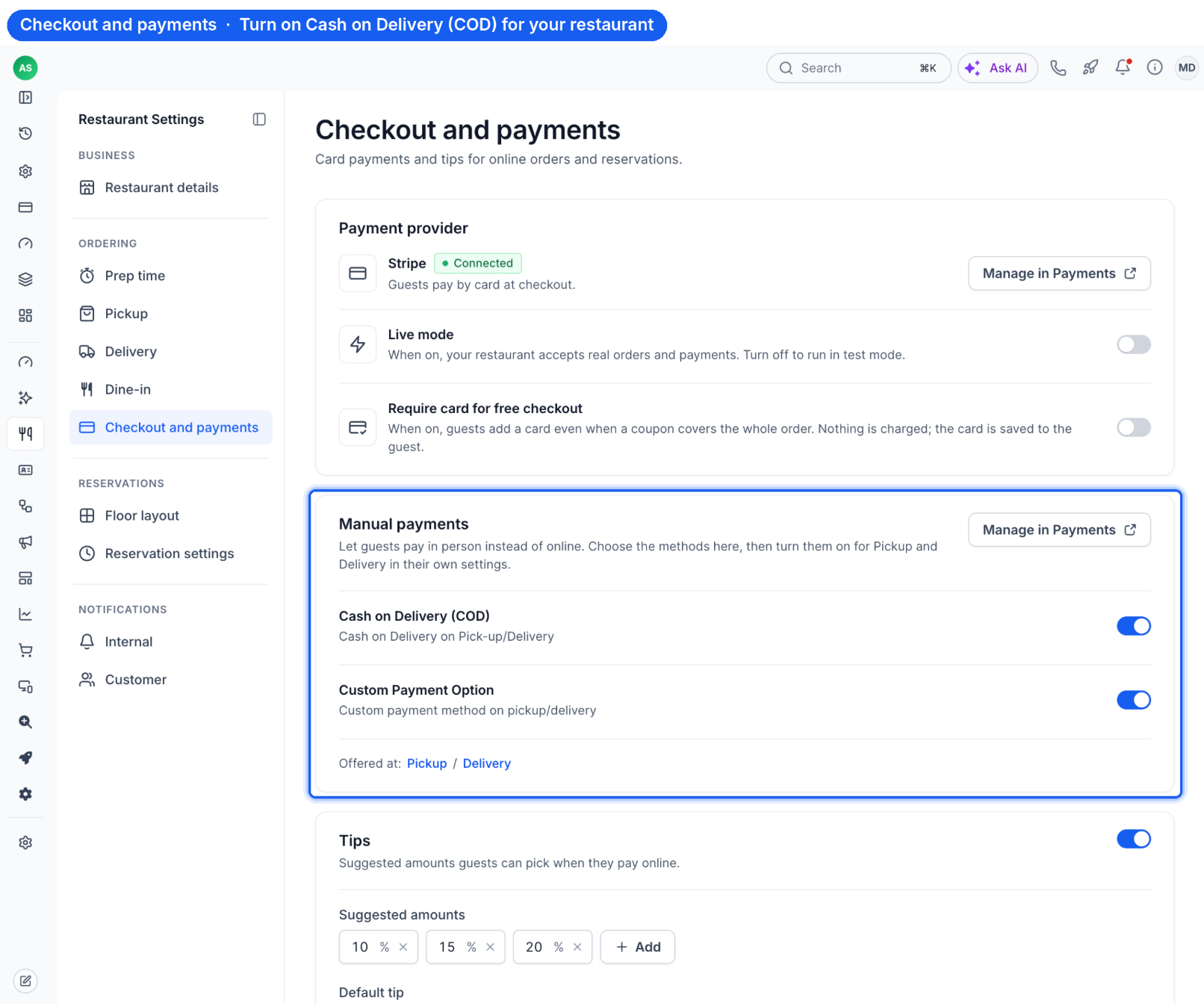
Go to Restaurants → Restaurant Settings → Checkout and payments.
Under Manual payments, click Manage in Payments or Set up in Payments.
In the new tab, locate Cash on Delivery (COD) or configure Custom Payment Option.
Update the Name, Payment Instructions, and optional Message.
Under Enable for, select Restaurants.
Click Save.
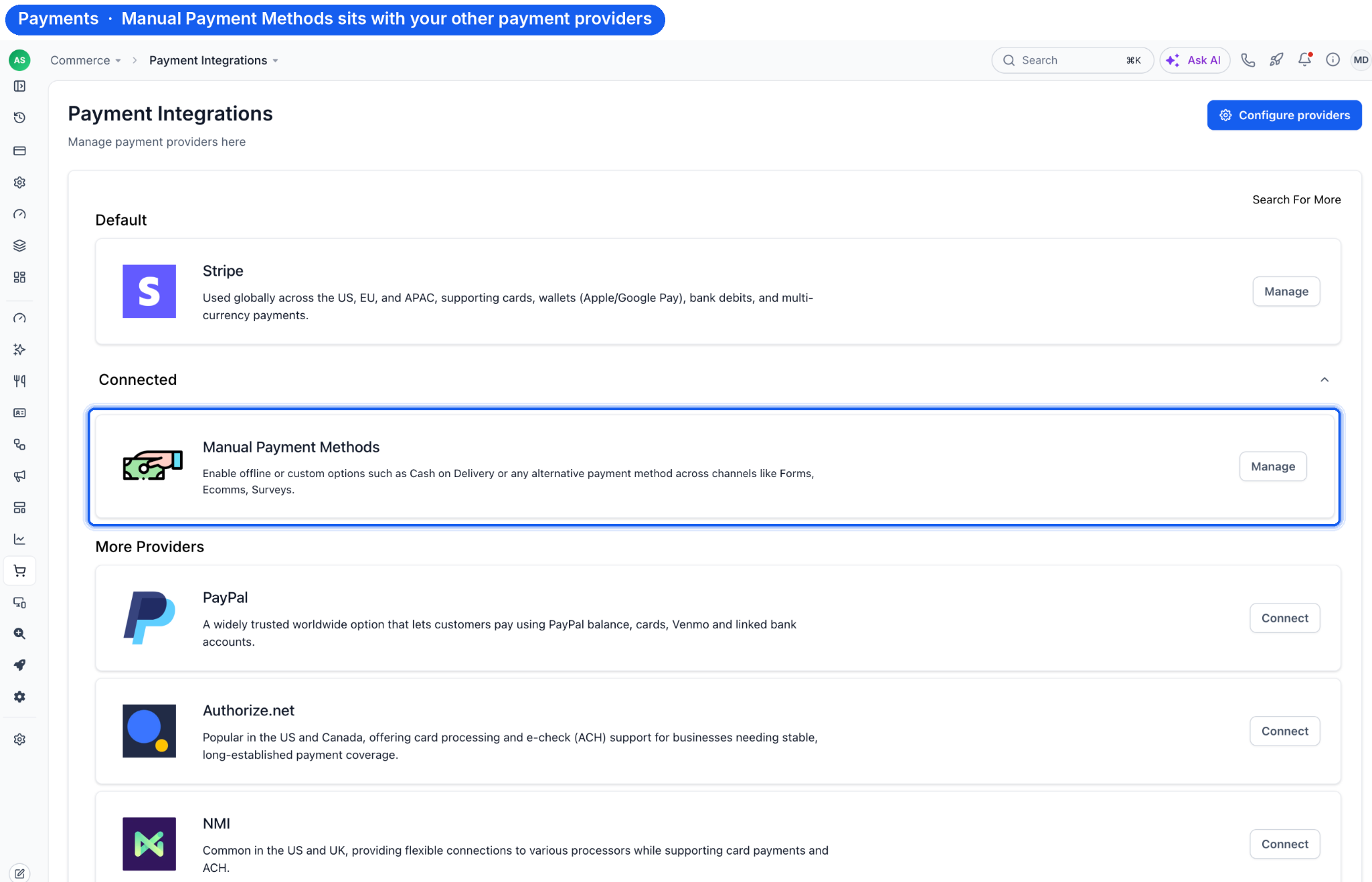
You can also navigate to Payments → Payment Integrations → Manual Payment Methods → Manage.
Synchronization Between Payments and Restaurants
Turning a manual payment method on or off in Payments or Restaurants synchronizes its enabled state between both locations.
However, enabling the payment method does not automatically enable it for Pickup or Delivery. Each ordering channel has its own in-person payment setting.
Cash on Delivery for Pickup and Delivery
Restaurants can independently control whether guests pay in person for pickup or delivery orders. This flexibility lets you offer manual payments for either ordering channel or both.
1. Cash on Delivery for Pickup Orders
Enable Let guests pay at pickup to let guests place online pickup orders and pay when collecting their food.
Go to Restaurants → Restaurant Settings → Pickup.
Turn on Let guests pay at pickup.
Click Save changes.
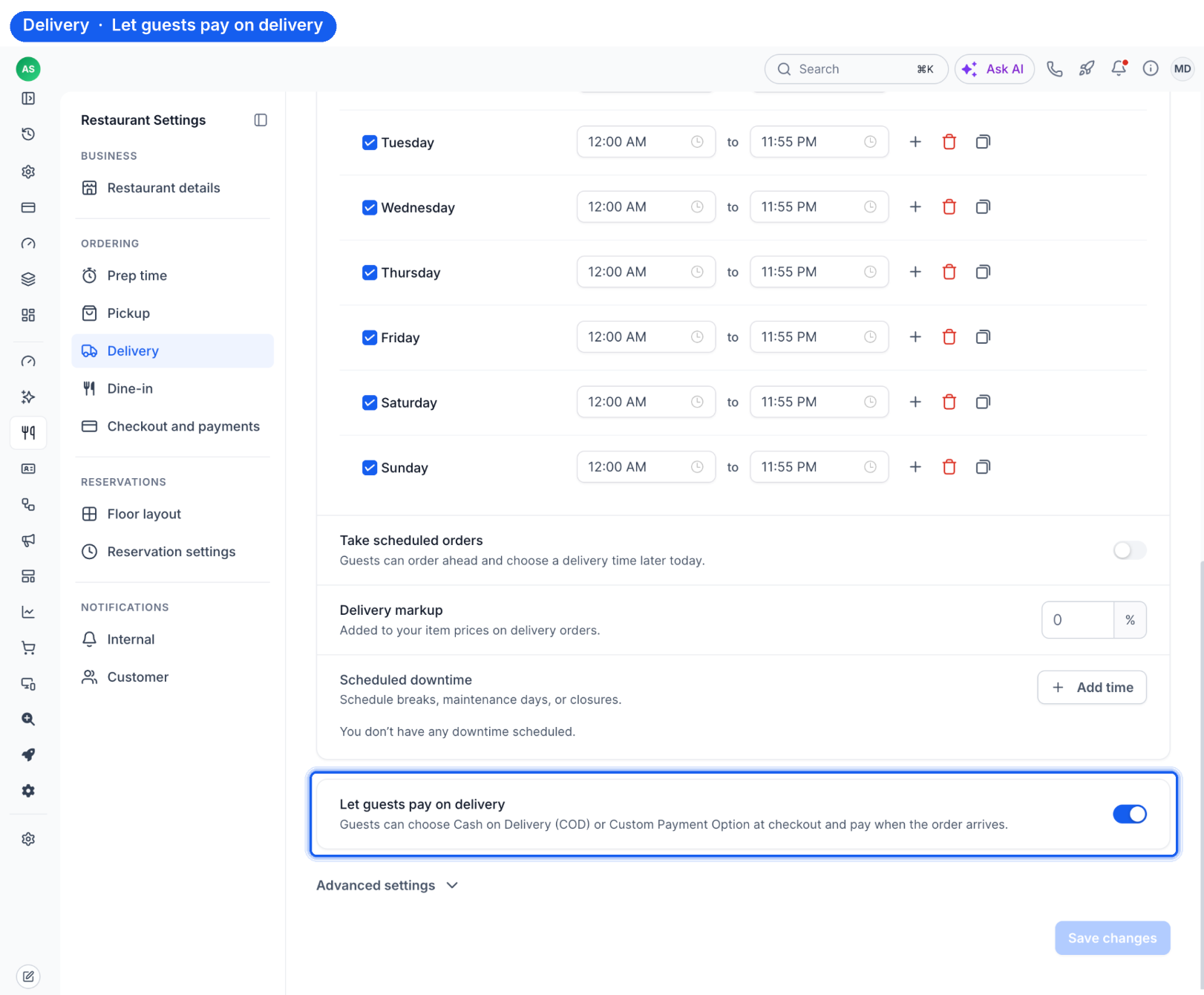
2. Cash on Delivery for Delivery Orders
Enable Let guests pay on delivery to let guests order online and pay when their food arrives.
Go to Restaurants → Restaurant Settings → Delivery.
Turn on Let guests pay on delivery.
Click Save changes.
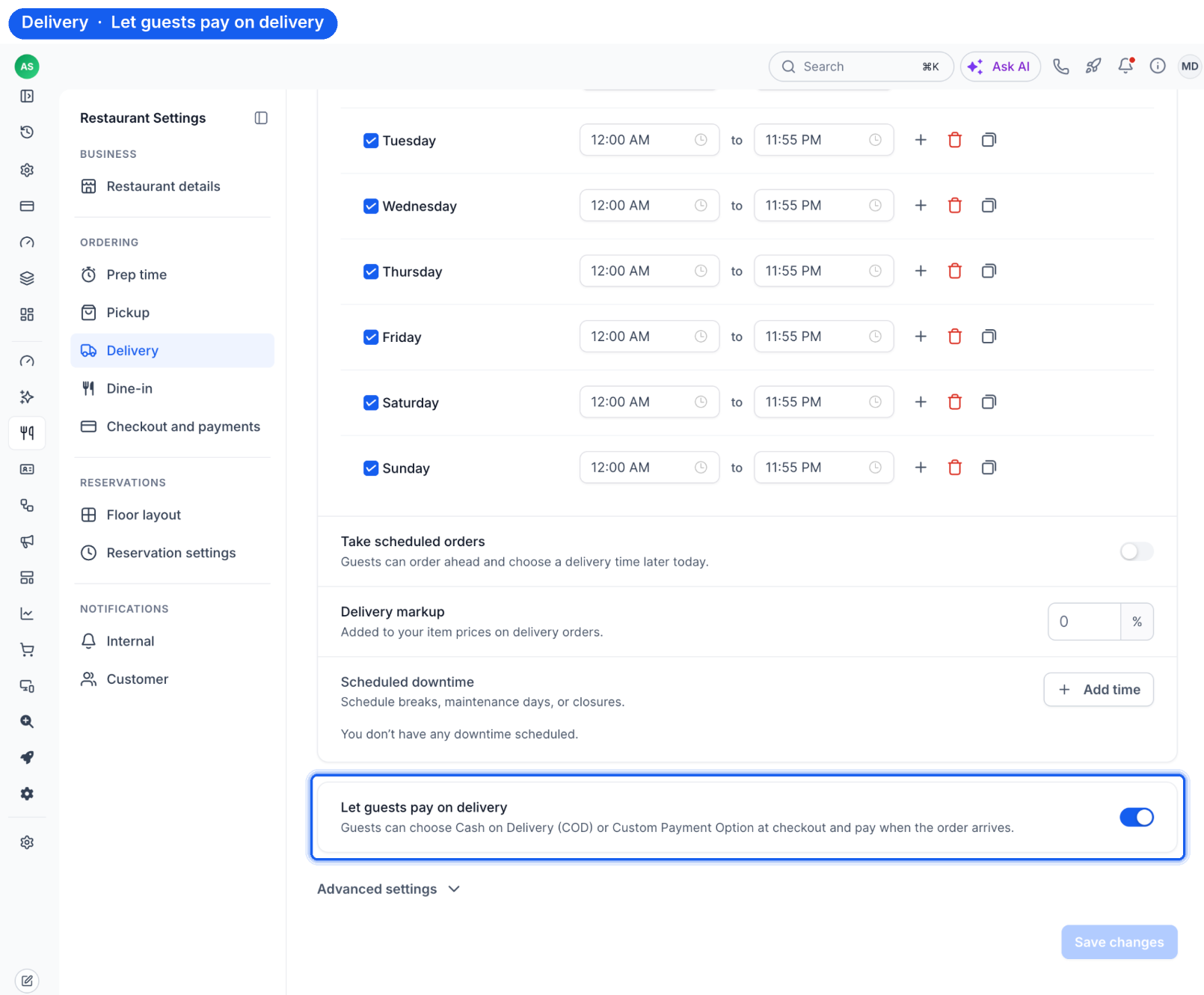
Note: Pickup and Delivery settings work independently. The Offered at: Pickup / Delivery links in Checkout and payments provide quick access to these settings.
How Cash on Delivery Works at Checkout
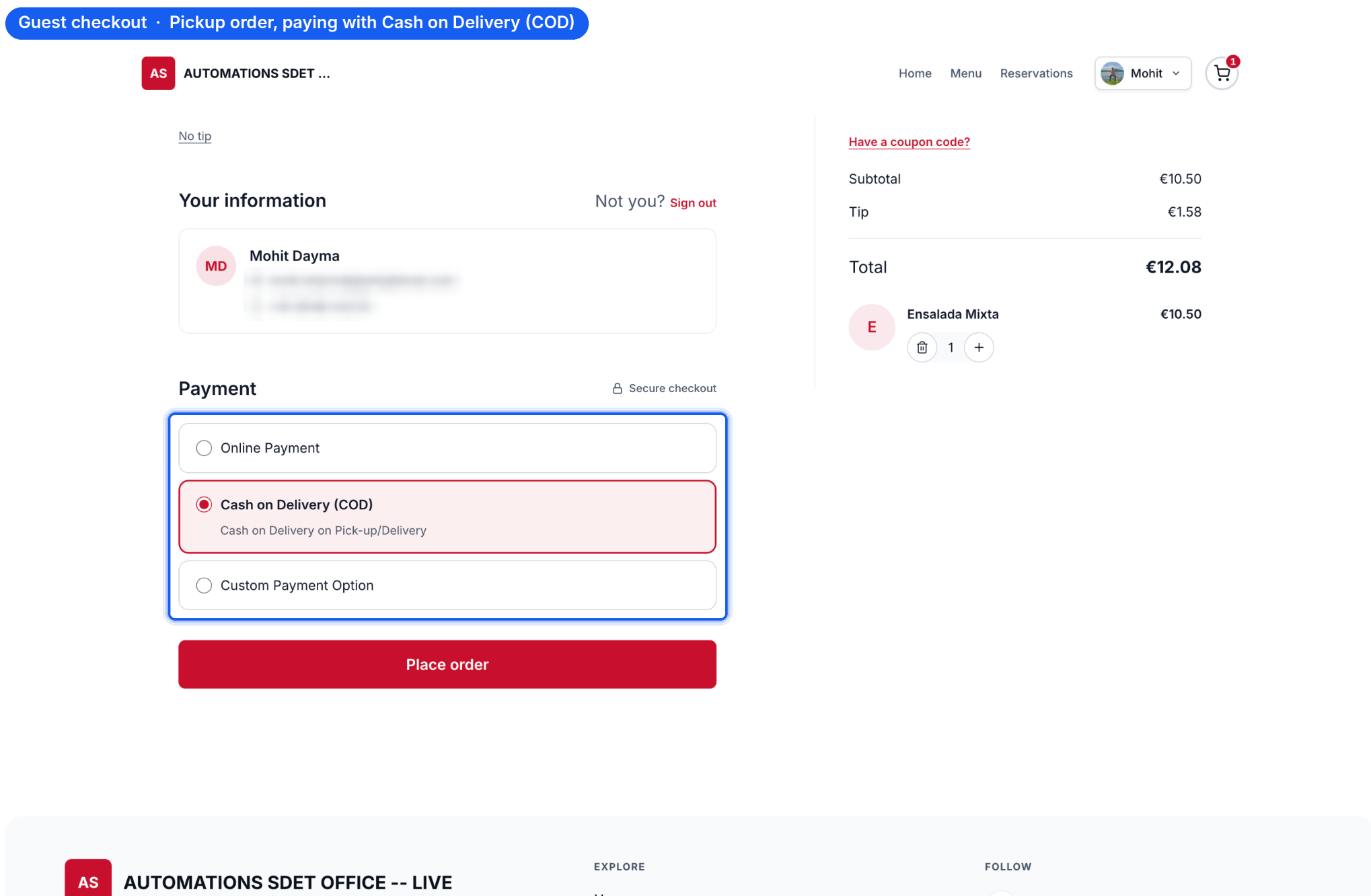
Once a manual payment method and its ordering channel are enabled, guests can select an available payment option while placing an order on the restaurant website.
Available options may include:
Online Payment: Pay online using an available online payment method.
Cash on Delivery (COD): Place an order and pay in person at pickup or delivery.
Custom Payment Option: Use the restaurant's configured alternative manual payment method.
Selecting COD displays the configured Payment Instructions beneath the option. Guests can then click Place order without entering card details for the manual payment.
If configured, the post-order Message appears after order placement. Guests complete payment in person according to the restaurant's instructions.
How to Set Up Cash on Delivery for Restaurants
Cash on Delivery requires enabling the payment method in Payments and Restaurants, then activating it for the intended ordering channels. Follow these steps to ensure guests can select the correct payment option at checkout.
Step 1: Open Checkout and Payments
Open your HighLevel sub-account.
Go to Restaurants → Restaurant Settings → Checkout and payments.
Locate the Manual payments card.
If no manual methods exist, the card displays No manual payment methods yet and Set up in Payments.
Step 2: Configure Cash on Delivery
Click Set up in Payments or Manage in Payments to open Payments in a new tab.
Locate or configure Cash on Delivery (COD).
Review or customize Payment Instructions.
Optionally add a post-order Message.
Under Enable for, select Restaurants.
Click Save.
For more information, see Manual Payment Method in E-commerce Stores & Order Forms.
Step 3: Enable the Payment Method in Restaurants
Return to Restaurants → Restaurant Settings → Checkout and payments.
Turn on Cash on Delivery (COD) under Manual payments.
Optionally enable Custom Payment Option if configured.
Step 4: Enable In-Person Payments for Pickup
Open Restaurant Settings → Pickup.
Confirm pickup ordering is enabled.
Turn on Let guests pay at pickup.
Click Save changes.
Guests can now select an enabled manual method and pay when collecting their orders.
Step 5: Enable In-Person Payments for Delivery
Open Restaurant Settings → Delivery.
Confirm delivery ordering is enabled and configured.
Turn on Let guests pay on delivery.
Click Save changes.
Guests can now select an enabled manual method and pay when their orders arrive.
Note: Skip Step 4 or Step 5 if you only want to accept in-person payments for one ordering channel.
Step 6: Verify the Guest Checkout Experience
Open your published restaurant website.
Add a menu item to the cart.
Choose Pickup or Delivery.
Continue to the Payment section.
Confirm Cash on Delivery (COD) appears.
Select COD and verify the Payment Instructions.
Repeat for the other ordering channel if both are enabled.
For website setup, see Restaurant Website: Customize and Publish Your Site.
First-Time Setup: No Manual Payment Methods Available
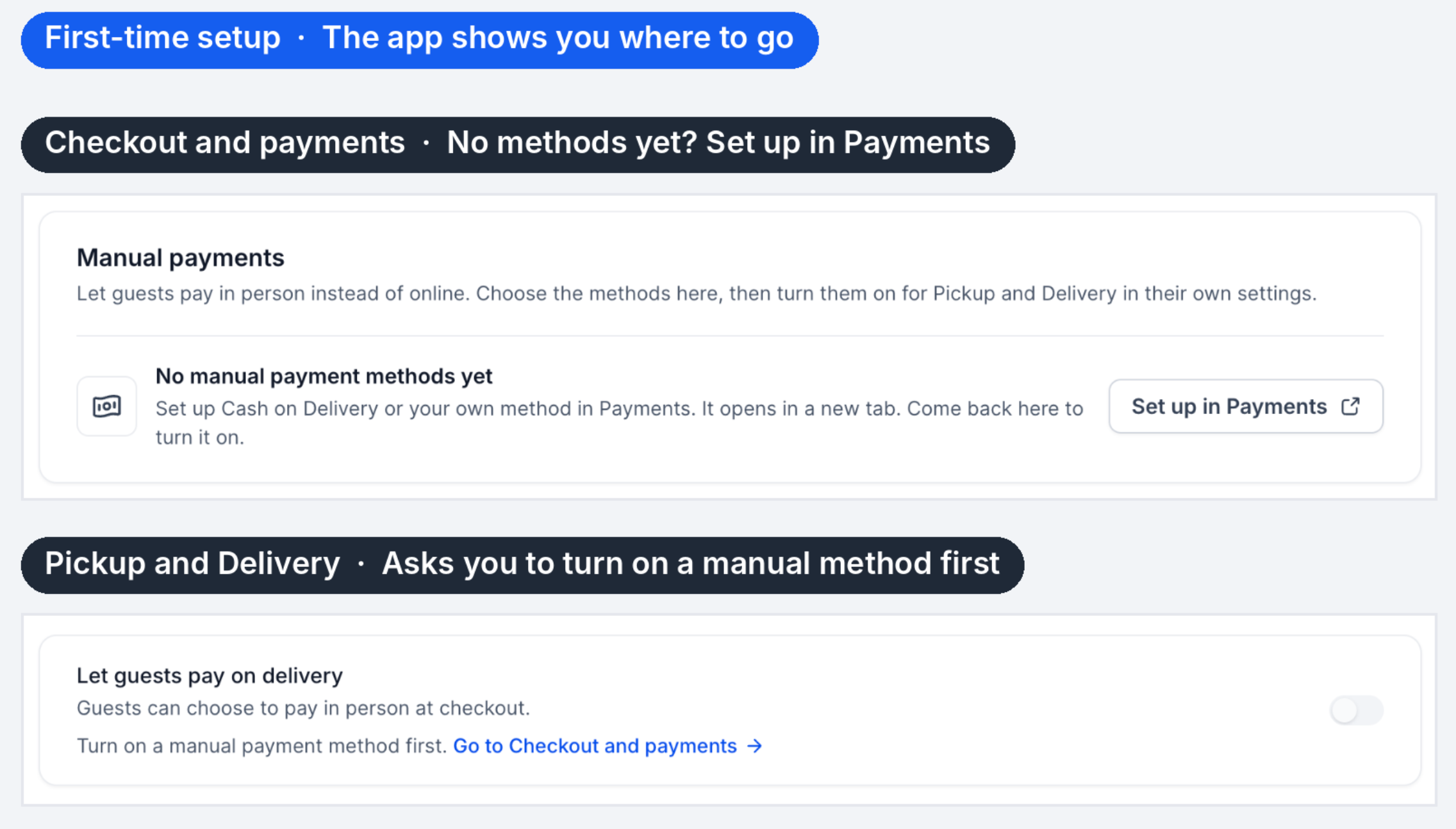
HighLevel provides setup guidance when manual payment methods haven't been configured.
Checkout and payments: Displays No manual payment methods yet. Click Set up in Payments, configure COD or a custom method, select Restaurants under Enable for, and save. Return to enable the method.
Pickup or Delivery: If no manual method is enabled, the in-person payment switch is unavailable. Click Go to Checkout and payments and enable a method first.
Frequently Asked Questions
Q: Why isn't Cash on Delivery appearing at checkout?
Verify that COD is enabled in Checkout and payments, Restaurants is selected under Enable for, the relevant Pickup or Delivery switch is on, changes are saved, and the ordering channel is available on your published restaurant website.
Q: Can I offer COD for pickup only?
Yes. Enable COD and Let guests pay at pickup while leaving Let guests pay on delivery turned off.
Q: Can I offer online payments and COD together?
Yes. Guests can choose from the available online and manual payment options.
Q: Can COD and Custom Payment Option be enabled together?
Yes. Both can appear at checkout when enabled for the selected ordering channel.
Q: Can I customize COD instructions?
Yes. Edit the Payment Instructions field under the COD configuration in Payments.
Q: What happens if I disable COD in Payments?
The enabled state synchronizes with Restaurants, and COD is no longer offered as an enabled manual payment option.
Q: Why is the Pickup or Delivery in-person payment switch unavailable?
You must first configure and enable a manual payment method under Checkout and payments.
Q: Do guests need card details for COD?
No. Guests can place COD orders without entering card details for the manual payment and pay in person.
Related Articles
Was this article helpful?
That’s Great!
Thank you for your feedback
Sorry! We couldn't be helpful
Thank you for your feedback
Feedback sent
We appreciate your effort and will try to fix the article