The WhatsApp Typing Indicator Action lets you show customers a familiar "typing..." indicator while your workflow prepares a response. This helps make automated WhatsApp conversations feel more natural and responsive.
This article explains how the action works, its key benefits, and how to add it to your HighLevel workflows.
Additional Resource: For more technical information about how typing indicators work on WhatsApp, refer to Meta's official WhatsApp Typing Indicators documentation.
TABLE OF CONTENTS
- What is the WhatsApp Typing Indicator Action?
- Key Benefits of the WhatsApp Typing Indicator Action
- How the WhatsApp Typing Indicator Works
- WhatsApp Read Receipts and Indicator Duration
- How to Set Up the WhatsApp Typing Indicator Action in Workflows
- Frequently Asked Questions
- Related Articles
What is the WhatsApp Typing Indicator Action?
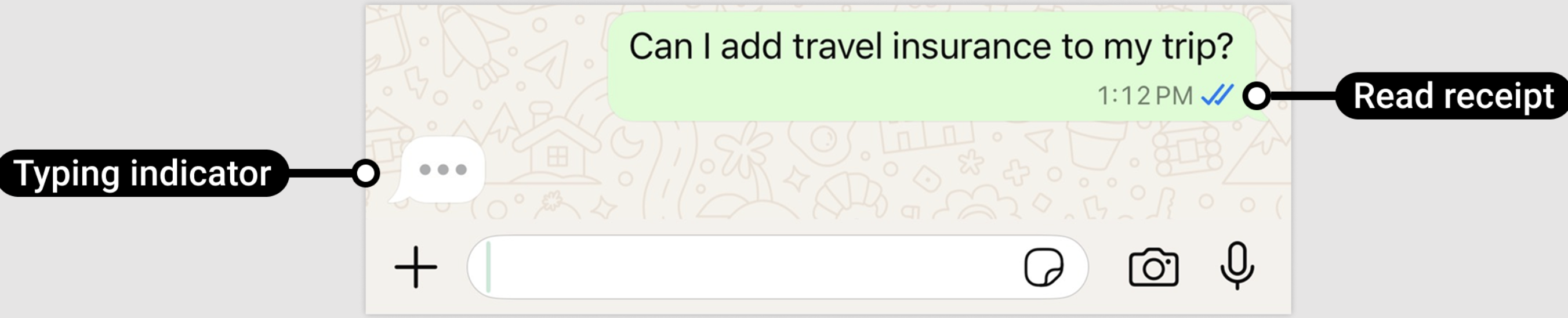
The WhatsApp Typing Indicator Action displays a familiar "typing..." indicator while your HighLevel workflow prepares a reply. It reassures customers that their message was received, makes automated conversations feel more natural, and marks their latest inbound WhatsApp message as read (blue ticks).
The Show WhatsApp typing indicator action requires no additional configuration and runs only where you add it to a workflow. It automatically uses the contact's most recent inbound WhatsApp message.
The indicator disappears when a WhatsApp reply is sent or after approximately 25 seconds, whichever comes first.
Key Benefits of the WhatsApp Typing Indicator Action
The typing indicator provides immediate visual feedback while an automated response is being prepared, helping reduce uncertainty and improve the customer experience.
Natural Conversations: Make automated WhatsApp interactions feel more like real-time conversations.
Customer Reassurance: Confirm visually that a message was received and a response is coming.
Fewer Repeat Messages: Reduce unnecessary follow-ups from customers waiting for a reply.
Workflow Control: Choose exactly when and where the indicator appears.
Automatic Removal: The indicator disappears when a reply is sent or after approximately 25 seconds.
Read Receipts: Automatically mark the customer's latest inbound WhatsApp message as read.
How the WhatsApp Typing Indicator Works
The action provides feedback between receiving a customer's message and sending a reply. It does not generate or send messages itself.
When the workflow executes the action:
HighLevel identifies the contact's most recent inbound WhatsApp message.
The message is marked as read (blue ticks).
The customer sees the WhatsApp typing indicator.
The indicator disappears when the reply is sent or after approximately 25 seconds.
Important: This action works only with WhatsApp. Add it where your workflow is expected to send a WhatsApp reply.
WhatsApp Read Receipts and Indicator Duration
The typing indicator and read receipt provide visible confirmation that a customer's message has been received.
Understanding their behavior helps you time automated replies appropriately.
| Behavior | Description |
|---|---|
| Typing indicator | Displays the familiar WhatsApp typing animation. |
| Read receipt | Marks the latest inbound WhatsApp message as read (blue ticks). |
| Duration | Ends when the WhatsApp reply is sent or after approximately 25 seconds. |
| Workflow control | Runs only where the action is added and executed. |
| Supported channel | WhatsApp only. |
| Configuration | No additional settings required. |
Recommended Action Placement
Place the typing indicator immediately before the WhatsApp reply action. For a more natural pause, optionally add a Wait action of up to 15 seconds.
Example workflow:
Customer Replied (WhatsApp)
Show WhatsApp typing indicator
Wait — 5 seconds (optional)
WhatsApp — Send Message
The Wait action does not extend the indicator's approximately 25-second duration.
Learn more: Workflow Action - Wait.
Important: Only use the indicator when a reply will follow. Displaying "typing..." without responding can confuse customers.
How to Set Up the WhatsApp Typing Indicator Action in Workflows
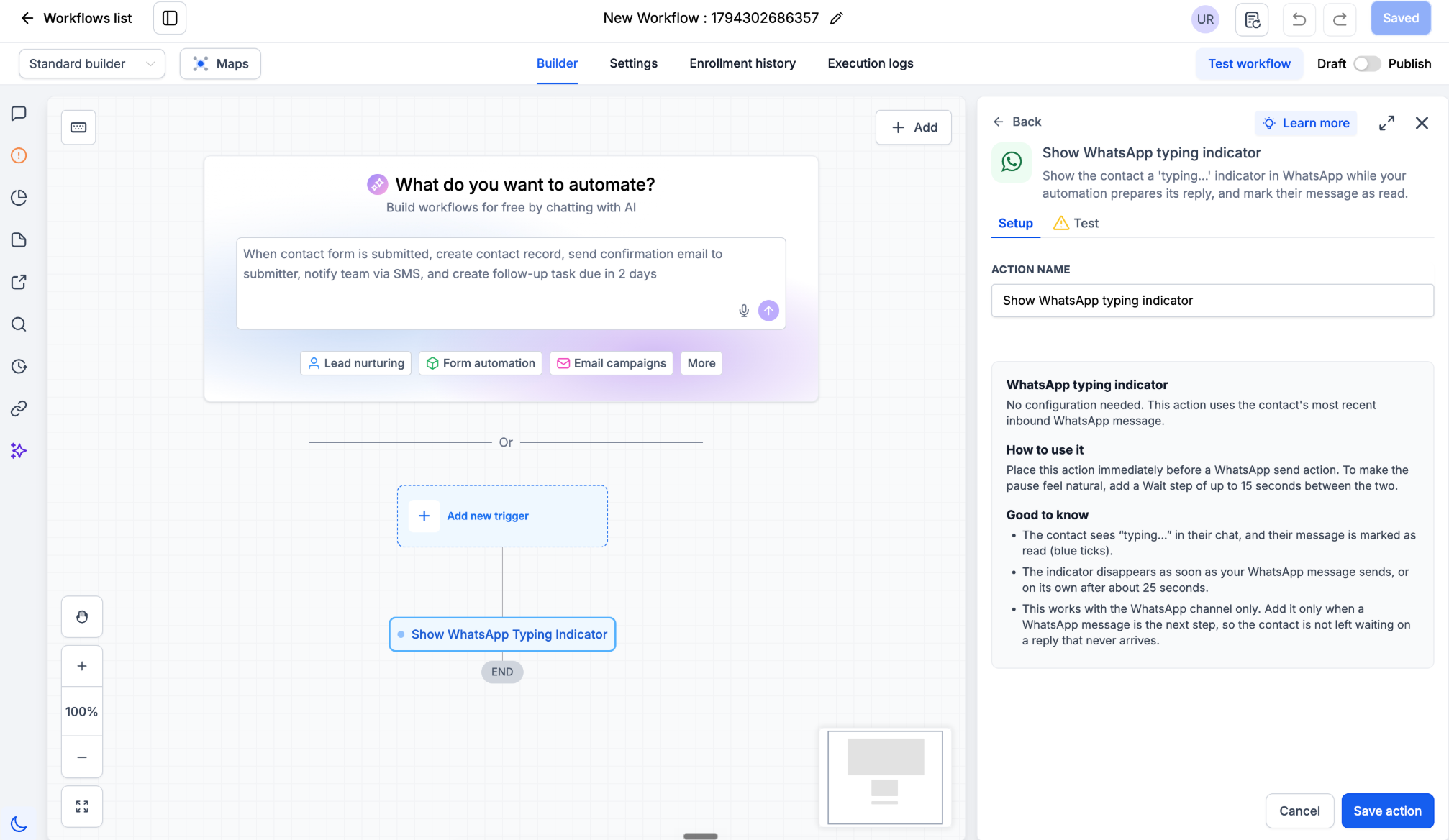
Adding the action before a WhatsApp reply lets customers know your automation is preparing a response. No separate typing indicator configuration is needed.
- Go to Automation → Workflows and open a workflow triggered by an incoming WhatsApp message.
- Click + to add an action and search for typing indicator.
- Place it right before the step that sends your reply.
- Save and publish your workflow.
Tip: Only add the indicator where your workflow will actually send a reply. Showing "typing..." and then sending nothing is a worse experience than showing nothing at all.
Frequently Asked Questions
Q: Does the typing indicator automatically send a WhatsApp message?
No. It only displays the typing indicator and marks the latest inbound message as read. A separate WhatsApp messaging action sends the reply.
Q: Does the typing indicator appear automatically in every workflow?
No. This action runs only where you add it. Other WhatsApp or Conversation AI features may have separate behavior.
Q: What happens if the workflow takes longer than 25 seconds?
The indicator disappears after approximately 25 seconds, even if the workflow is still processing.
Q: Can I use this action for SMS, Email, or Facebook Messenger?
No. It supports WhatsApp conversations only.
Q: Can I use the action with Conversation AI?
WhatsApp is supported by the Conversation AI Workflow Action, but the typing indicator is a separate workflow action. Do not assume it automatically appears before every response in a multi-turn AI conversation.
Learn more: Workflow Actions - Conversation AI.
Q: Does the indicator open or extend WhatsApp's customer service window?
Do not treat the typing indicator as a way to open or extend the messaging window. WhatsApp replies must follow applicable messaging rules.
Learn more: WhatsApp: Customer Service Window Check.
Q: What if the typing indicator does not appear?
Check that the action executed, the contact has a recent inbound WhatsApp message, and the workflow uses the WhatsApp channel. Review execution logs and test the message sequence.
Related Articles
Was this article helpful?
That’s Great!
Thank you for your feedback
Sorry! We couldn't be helpful
Thank you for your feedback
Feedback sent
We appreciate your effort and will try to fix the article