Open the Workflow view to understand how a workflow connects to other workflows across folders.
TABLE OF CONTENTS
- What linked workflows shows
- Steps for opening linked workflows
- Read the connections
- Frequently Asked Questions
What linked workflows shows
A workflow can connect to another workflow directly or through a shared asset.
For example, one workflow may add a tag that starts another workflow. It may also use an action to add a contact to, or remove a contact from, another workflow.
Linked workflows brings these relationships into a Workflow view modal, including connections across folders.
Steps for opening linked workflows
- Open Automation → Workflows → Workflow Maps.
- Find and click the workflow you want to inspect.
- In its details panel, click Linked workflows.
- Review the connections in the Workflow view modal.
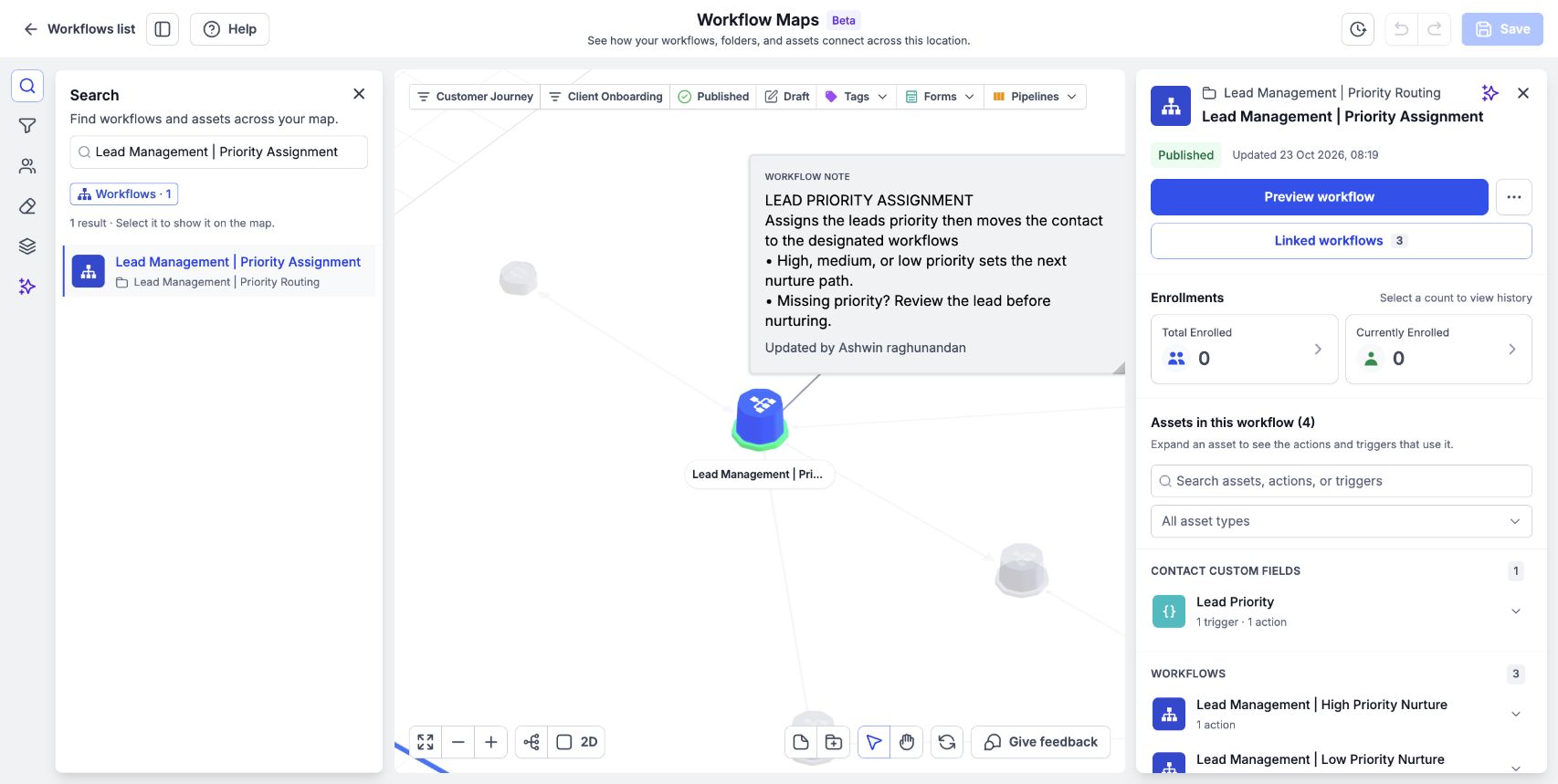
Select a workflow with direct workflow links, then click Linked workflows in its details panel.
Read the connections
Use the connection direction to understand how the workflows relate.
- An asset pointing into a workflow represents a trigger relationship.
- A workflow pointing to an asset represents an action that changes it.
- A direct workflow-to-workflow arrow represents an action that adds a contact to, or removes a contact from, another workflow.
For a shared asset, return to the map and click the asset to review its usage. Expand the relevant workflow row and use View step to inspect a listed trigger or action.
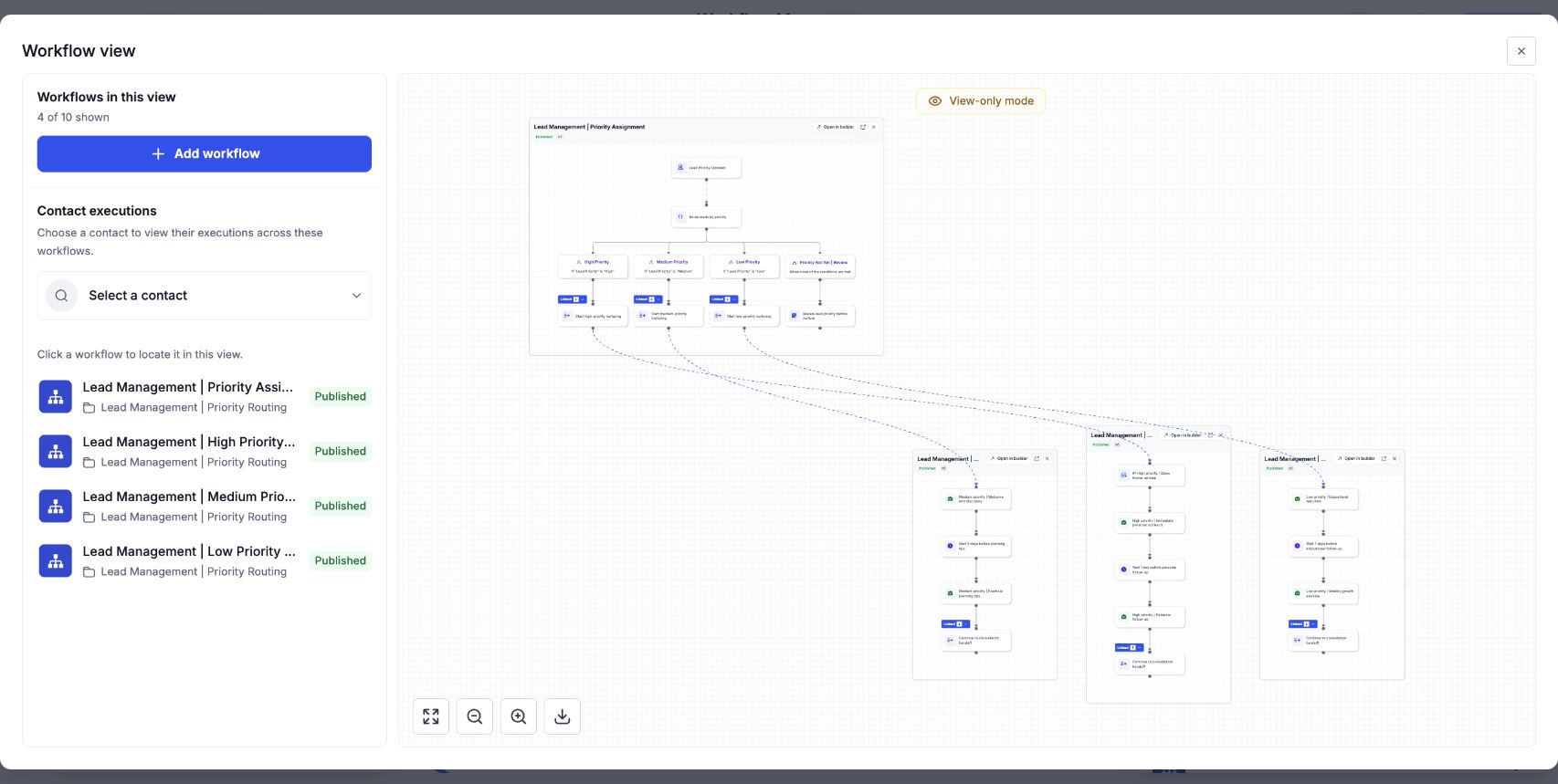
Workflow view displays the linked workflows together, including the actions that connect them.
Frequently Asked Questions
Q: Can linked workflows include workflows in other folders?
Yes. Linked workflows includes relationships across folders.
Q: Where does Linked workflows open?
It opens in a modal titled Workflow view.
Q: Does the graph show a particular contact’s journey?
Use Contacts in the map’s left rail to inspect a contact’s workflow history. Linked workflows explains the configured relationships.
Next article
Was this article helpful?
That’s Great!
Thank you for your feedback
Sorry! We couldn't be helpful
Thank you for your feedback
Feedback sent
We appreciate your effort and will try to fix the article