Learn what folders, workflow chips, assets, arrows, and badges mean, and which asset types appear on the map.
TABLE OF CONTENTS
- The map at a glance
- What the arrows mean
- What line styles mean
- Steps for inspecting a connection
- What badges mean
- Supported asset types
- Frequently Asked Questions
The map at a glance
| Item | What it shows |
|---|---|
| Folder island | A workflow folder. Workflows without a folder appear together. |
| Nested folder | A folder inside another folder, displayed on its parent island. Hover to see its full path. |
| Blue workflow chip with a green border | A published workflow. |
| Blue workflow chip with a grey border | A draft workflow. |
| Small colored asset chip | An asset a workflow uses, watches, or changes. Colors distinguish asset types. |
| Sticky note | An explanation placed on the map by your team. |
Click a workflow to inspect its details. Click an asset to find the workflows that use it.
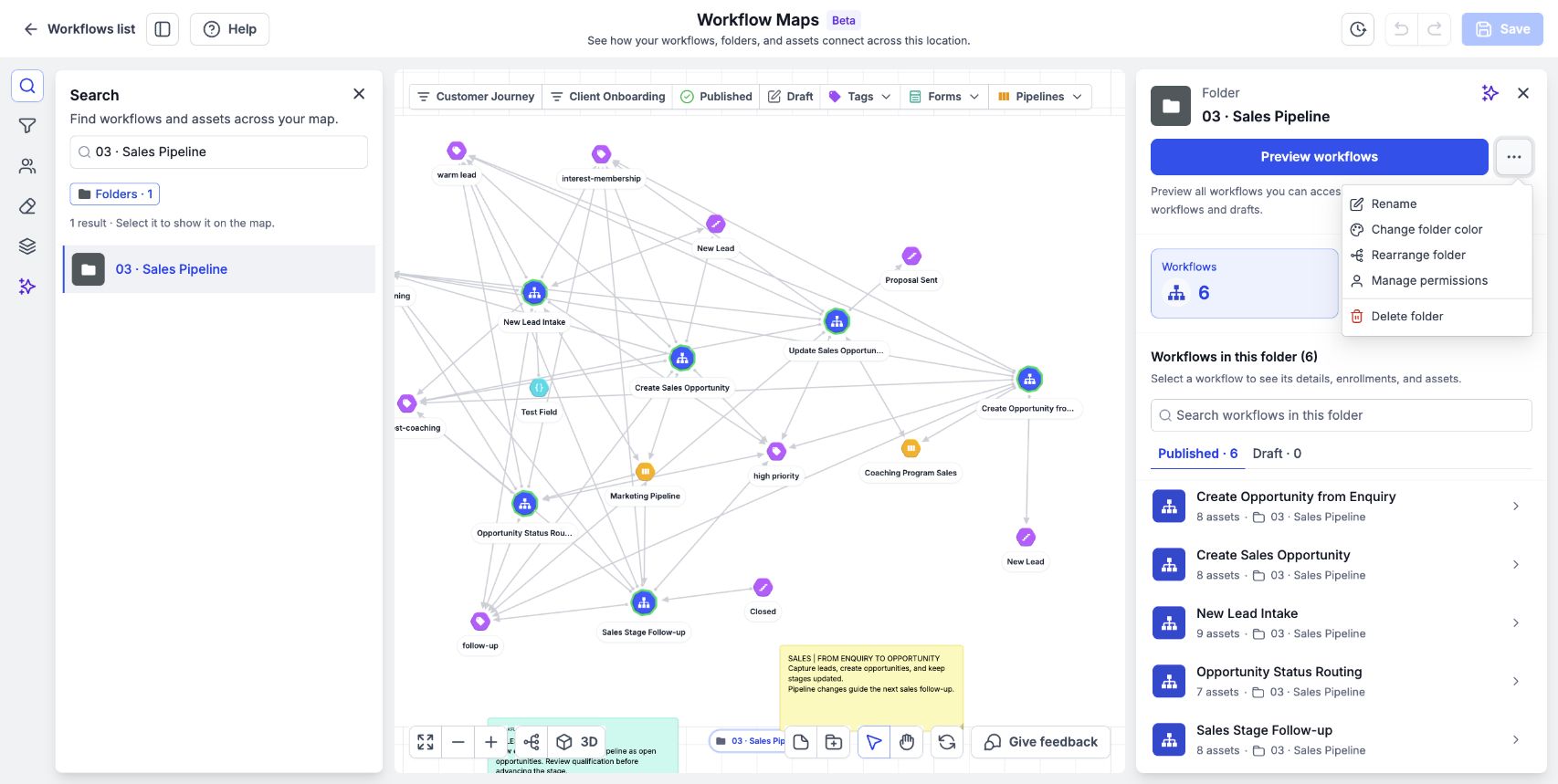
Select a folder to review its workflows and assets; the folder menu contains organizational actions.
What the arrows mean
Read a connection from the dot toward the arrowhead.
| Direction | Meaning | Example |
|---|---|---|
| Asset → workflow | A trigger relationship. The workflow watches the asset. | A form submission starts a workflow. |
| Workflow → asset | An action relationship. The workflow changes the asset. | A workflow adds a tag. |
| Asset ↔ workflow | The workflow both watches and changes the asset. | A tag is used by both a trigger and an action. |
| Workflow → workflow | A direct action adds a contact to, or removes a contact from, another workflow. | One workflow adds the contact to a follow-up workflow. |
These connections describe how the automation is configured. To inspect a particular contact’s history, use contact tracing.
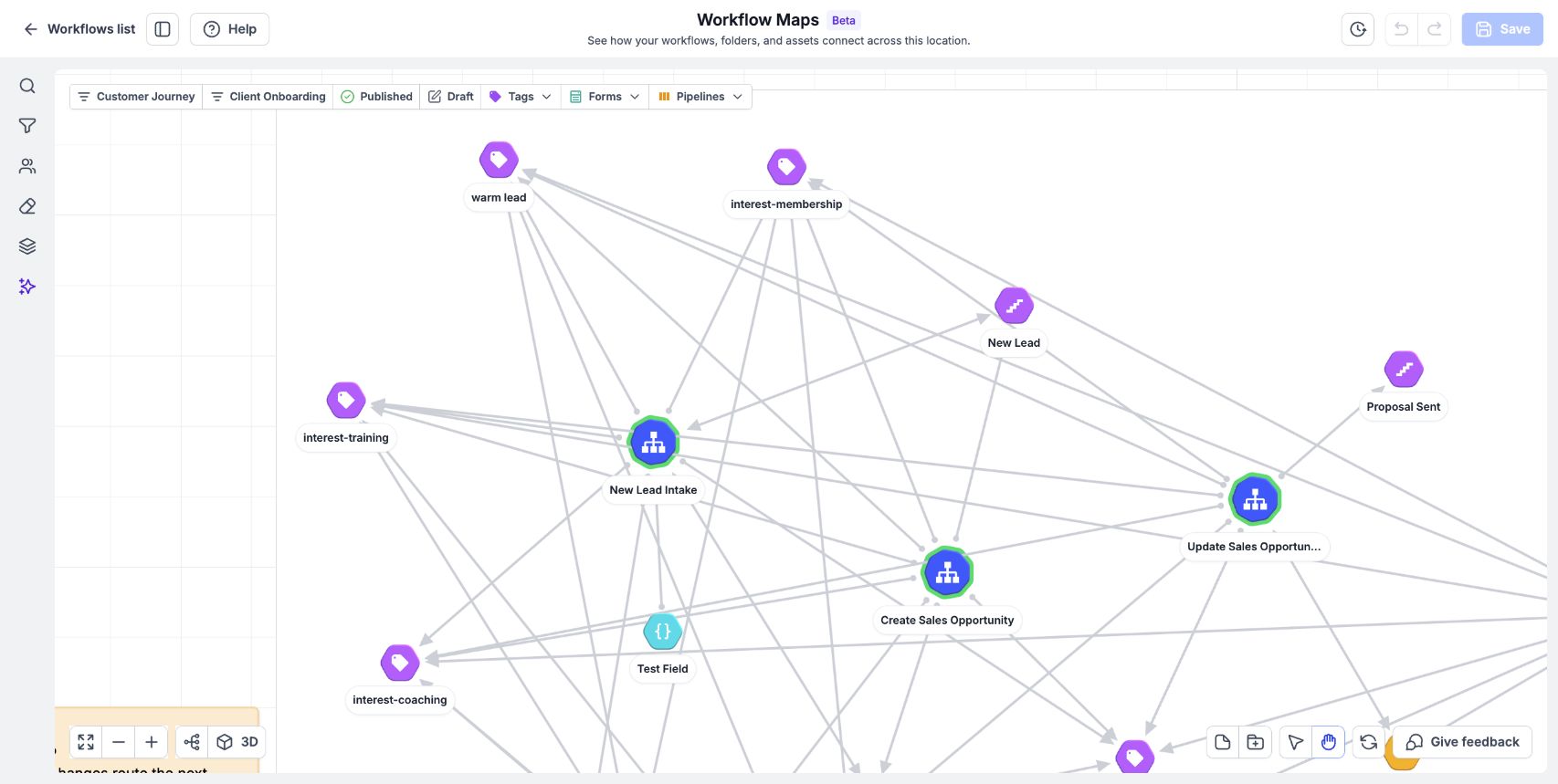
Arrowheads show the direction of configured relationships between workflows and assets.
What line styles mean
| Line style | Meaning |
|---|---|
| Solid line | A trigger or action connection that can start or change something. |
| Dashed line | A reference, such as an asset used in a filter. The reference does not start or change anything on its own. |
| Curved line between folders | The same asset is used in more than one folder. Each folder displays a copy of that asset. |
| Light blue line with a moving arrow | A connection for the item you are hovering over or have selected. The arrow follows the connection’s direction. |
| Thicker blue line | The connection you selected. Its details appear in the side panel. |
A moving arrow highlights the direction of a connection. Use contact history to investigate a specific execution.
Steps for inspecting a connection
- Zoom in if the map is fully zoomed out.
- Hover over a workflow or asset to highlight its connections.
- Click the line you want to inspect.
- Read the triggers and actions listed in the side panel.
Lines cannot be selected while the map is zoomed all the way out.
What badges mean
| Badge | Meaning |
|---|---|
| Errors | The workflow encountered errors during recent runs. |
| Usage | Click to inspect the asset’s usage across folders. |
| Missing asset | The asset no longer exists, but workflows still reference it. |
Use Review workflows with errors to investigate errors. For a missing asset, inspect the workflow references to understand where it is still used.
Supported asset types
The map supports these asset types:
- Tags and fields: Tags, Contact Custom Fields, Opportunity Custom Fields, Custom Values, Custom Objects.
- Forms and engagement: Forms, Surveys, Facebook Forms, TikTok Forms, Quizzes, Trigger Links, Chat Widgets.
- Scheduling and sales: Calendars, Users, Pipelines, Pipeline Stages, Services.
- Funnels and products: Funnels, Funnel Pages, Funnel Products, Global Products, Global Product Prices.
- Memberships and content: Membership Offers, Membership Products, Membership Categories, Membership Lessons, Videos.
- Templates and billing: Templates, Certificate Templates, Invoice Templates, Estimate Templates.
- Other assets: Ad Accounts, Workflow Links, AI Studio Projects, Listings, Listing Categories.
These groupings help you scan the list; the individual names are the supported asset types.
Frequently Asked Questions
Q: Why do I see the same asset in multiple folders?
An asset used across folders appears in each relevant folder. A curved line connects those copies.
Q: Why are wait, if/else, and goto steps missing?
They are internal workflow logic. Open the builder to see those steps. Search can still find tags referenced inside an if/else.
Q: Does a dashed line mean the workflow changes the asset?
No. It means the workflow refers to the asset, such as in a filter.
Q: What does a missing asset badge mean?
The asset has been removed, but a workflow still contains a reference to it.
Next article
Was this article helpful?
That’s Great!
Thank you for your feedback
Sorry! We couldn't be helpful
Thank you for your feedback
Feedback sent
We appreciate your effort and will try to fix the article