A rebuilt template builder with live phone preview, and media headers that resolve per contact at send time — so one approved template serves every contact's unique asset.
Send every customer their own invoice, ticket, or personalized image from a single template. No more cloning a template for every asset and waiting on Meta to approve each copy.
TABLE OF CONTENTS
- What's New
- Rebuilt Create and Edit Experience
- Live Phone Preview
- Dynamic Media URLs
- Personalized Images in Bulk
- Where to Find It
- How to Use Dynamic Media
- Why This Matters
- Related Articles
What's New
The updated builder changes how templates are created and previewed, while dynamic media makes it possible to personalize the file sent to each contact.
- Rebuilt builder — Create templates using a guided two-step process, with a live phone preview while editing template details.
- Live phone preview — see exactly how the message lands on WhatsApp as you type, before Meta ever sees it.
- Dynamic media URLs — media header fields now accept custom fields and dynamic values that resolve per contact at send time.
- Clear failure behavior — invalid or empty resolved values fail clearly. No silent wrong media sent.
Rebuilt Create and Edit Experience
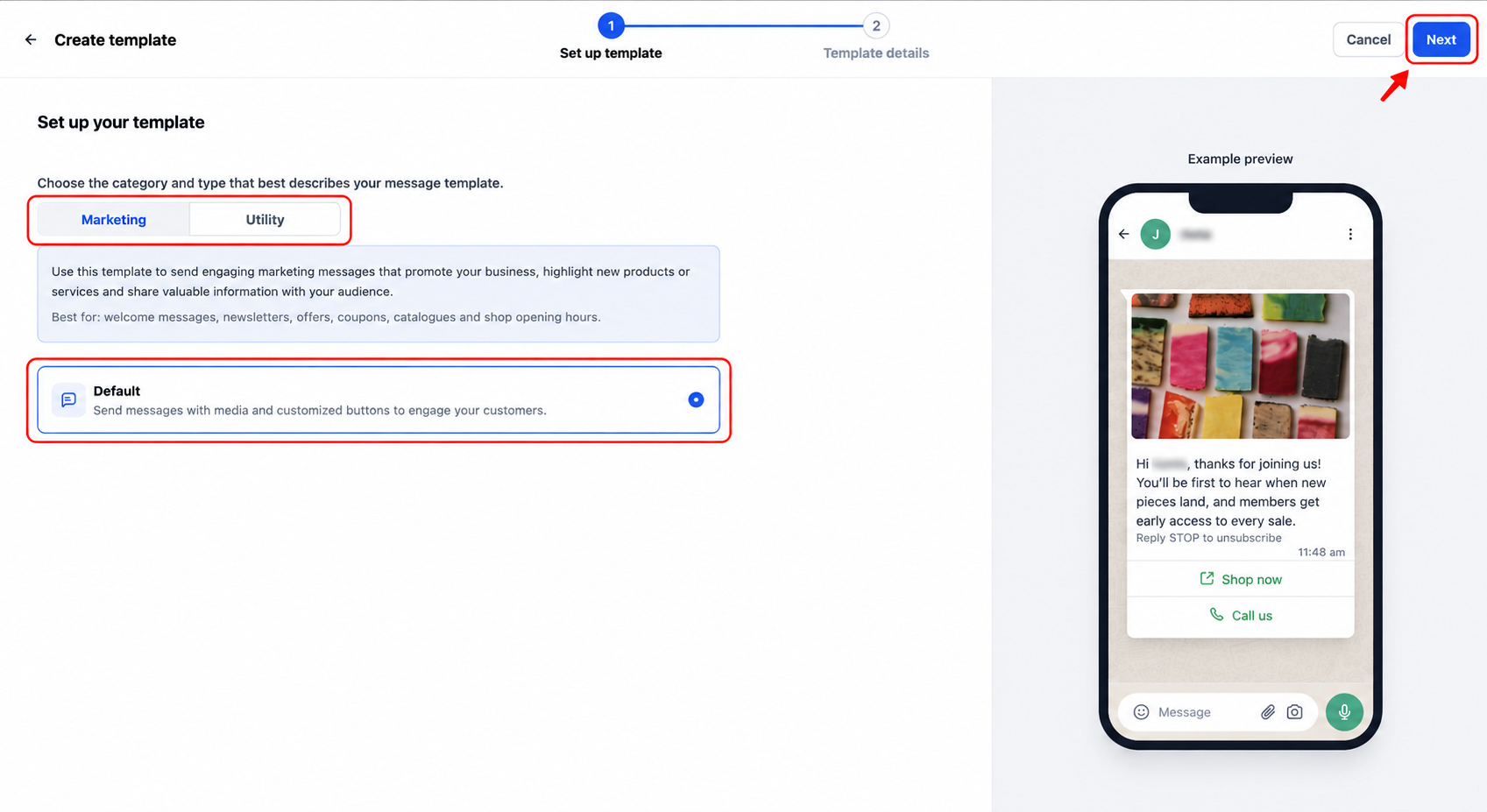
The updated WhatsApp builder guides you through two steps: Set up template, followed by Template details. Configure the message content and review the live phone preview before submitting the template for approval.
Two-Step Template Creation
First, choose the template category and type, then click Next. On the Template details screen, configure the name, language, header, body, variables, and optional buttons.
How to Create a WhatsApp Template
Create a template from your HighLevel sub-account and review its content and sample values before submitting it to Meta.
- Open the applicable HighLevel Sub-Account and select Settings.
- Open WhatsApp, then Templates.
- Click Create Template, then select Blank Template.
- Under Set up template, choose the category and template type.
- Click Next.
- Enter the Template name and select the Language.
- Configure the header, message body, variables, and optional buttons.
- Enter sample values for variables where required.
- Review the Live preview and correct any validation errors.
- Click Submit for approval.
How to Edit a WhatsApp Template
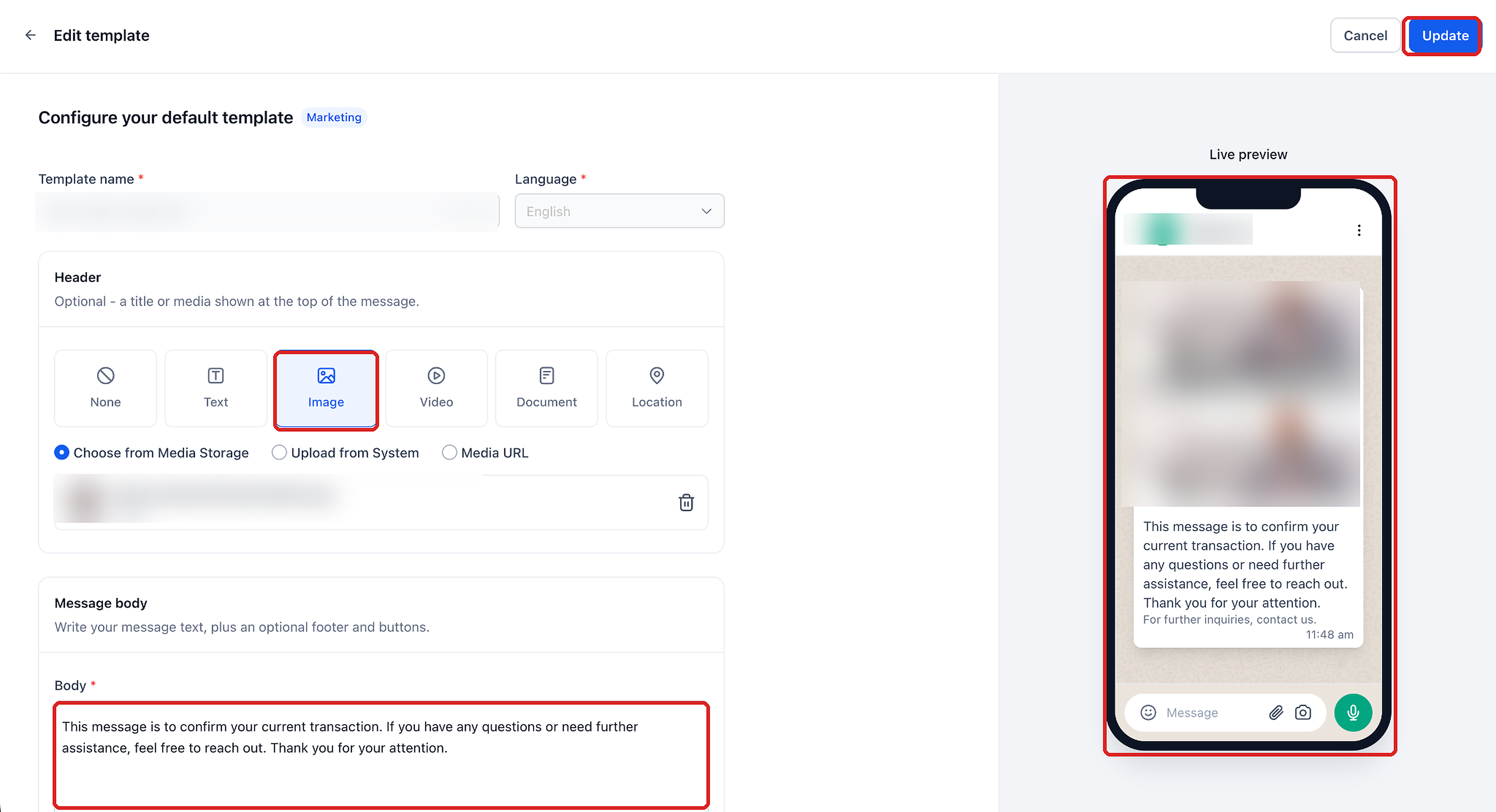
Existing templates can be edited when their current status permits changes. Review the fields available in the editor before updating.
- From the sub-account, select Settings → WhatsApp → Templates.
- Find the template and open its three-dot menu.
- Select Edit template, if available.
- Update the available fields and review the Live preview.
- Click Update.
Consistent Across Authoring Surfaces
AI template generation now runs through the same builder end to end. The WhatsApp template builder opened from Reputation uses it too. One interface to learn, not three.
Create a WhatsApp Template With AI
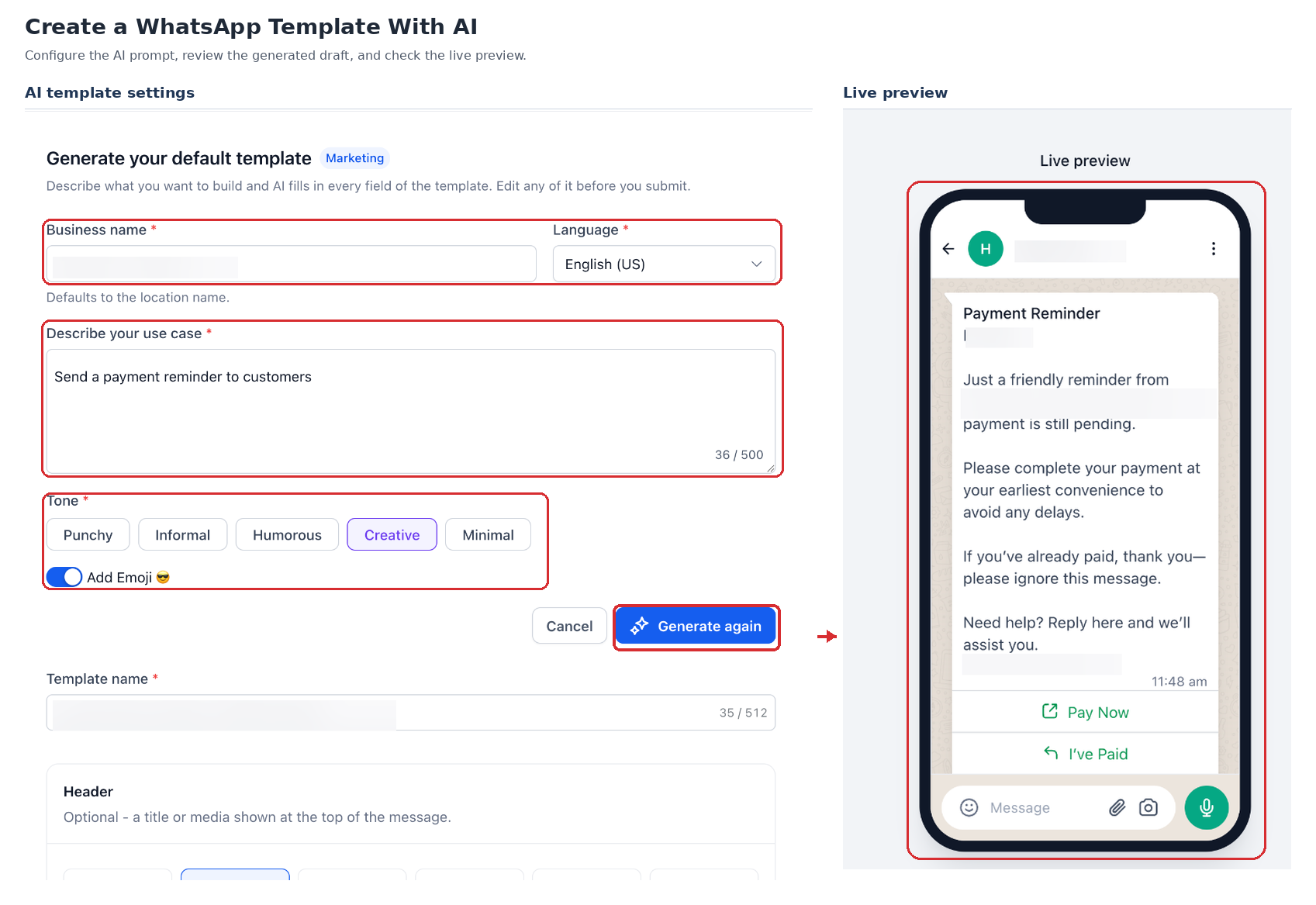
AI template creation uses the updated builder and live preview to help you prepare and refine a message before submission.
- From the sub-account, open Settings → WhatsApp and select Create AI Template.
- Complete the initial template setup and continue to Generate template.
- Enter the Business name, select a Language, and Describe your use case.
- Choose a Tone and optionally enable Add Emoji.
- Review the generated content and live preview. Select Generate again if needed.
- Make any necessary edits and click Submit for approval.
Note: This update covers the Create / Edit builder. Template list and folder management shipped separately under a previous update.
Live Phone Preview
The initial Set up template screen displays an Example preview. On the Template details screen, the Live preview updates as you edit the header, body, media, and buttons. Dynamic values may look different for each contact when the message is sent.
Catching a layout problem in the builder costs you seconds. Catching it after Meta approval costs you another approval cycle.
If the preview appears blank or is not updating, confirm you are in the updated builder via Settings → WhatsApp → Templates → Create / Edit.
Dynamic Media URLs
Media header fields now accept custom fields and dynamic values — not just one static public URL. At send time the value resolves for that specific contact and Meta receives a concrete URL for that message.
One Template Instead of Many
Previously, a different image or document meant a different template — and every new template goes to Meta for approval. Now a single approved template serves every contact's unique asset. The approved template stays the same; only the resolved URL varies.
Supported Sending Surfaces
Dynamic media URLs are supported in WhatsApp template sending flows that accept media header values or overrides, including the surfaces below. Available mapping controls may differ by workflow.
- Workflows
- Conversations
- Bulk Actions
- Calendar Appointments
- Reputation Review Requests
- Missed Call Text Back
Clear Failure Behavior
A dynamic value that resolves to a supported, publicly accessible media URL meets the media-access requirement, but other template and sending restrictions still apply. An invalid or empty resolved value can cause the message to fail instead of sending the intended media.
What Resolves Successfully vs. What Fails
A valid media URL must be accessible to Meta without authentication. Use these examples to identify what needs to be corrected before retrying a send.
- A publicly reachable HTTPS URL containing a supported media file can be used when sending the template.
- Private Drive links or URLs that require a login — Meta cannot access them and the message will fail.
- An empty field — fails clearly with no silent wrong media sent.
If sending fails with a message such as "please provide a valid public url", check the selected field mapping and the resolved value for that contact.
Confirm the value is not empty, points to supported media, and uses a publicly accessible URL that Meta can download without signing in.
Personalized Images in Bulk
Pair dynamic media with an image personalization service like NiftyImages and a single bulk action renders a unique image for every recipient. Build the design once with a name placeholder, map the URL to a custom field, and let it resolve per contact at send time.
What Your Contacts Actually See
Each recipient receives a version of the media generated from their own contact details, even though the approved WhatsApp template stays the same.
- Shaun opens WhatsApp to an image reading "Here's a special offer for you, Shaun."
- Sana gets the same design reading "Here's a special offer for you, Sana."
- Alex gets his. One template, one bulk send, thousands of individually rendered images.
The same approach works beyond names:
- Personalized discount codes
- Event tickets with the attendee's seat
- Course certificates with the recipient's name
- Renewal dates matched to each contact's subscription
- A product image matched to what that contact last bought
Where to Find It
Use the appropriate entry point for standard template creation, AI generation, Reputation review requests, or missed-call responses.
| Surface | Path |
|---|---|
| Template Builder | Settings → WhatsApp → Templates → Create or Edit |
| AI Template Builder | Sub-Account → Settings → WhatsApp → Create AI Template |
| Reputation | Reputation → Settings → WhatsApp Requests → Open WhatsApp Template Builder |
| Missed Call Text Back | Settings → Phone System → Voice → Voicemail & Missed Call TextBack → Missed Call Text Back → Customize |
How to Use Dynamic Media
Dynamic media works best when each contact's resolved URL is valid, publicly accessible, and matches the template's media type.
For per-contact documents (invoices, contracts, IDs)
Use a contact-specific URL to provide each customer with the document that belongs to their record.
- Store a publicly reachable HTTPS URL on a contact custom field.
- In your template's media or header field, map to that custom field instead of pasting a fixed URL.
- Send from a workflow, bulk action, or conversation. Each contact receives their own file.
Example: Use a Dynamic Media URL in the Builder
The updated builder supports dynamic values inside media URLs. For example, a numbered placeholder in a personalized image URL can be mapped to a contact field.
- Open the HighLevel Sub-Account and select Settings → WhatsApp → Templates.
- Create a template and continue to Template details.
- Under Header, select Image, Video, or Document, as applicable.
- Select Media URL.
- Enter a publicly reachable HTTPS media URL with a supported numbered placeholder where needed.
- Map the placeholder to the appropriate contact field using the variable mapping control.
- Enter a sample value and review the Live preview.
- Complete the template and click Submit for approval.
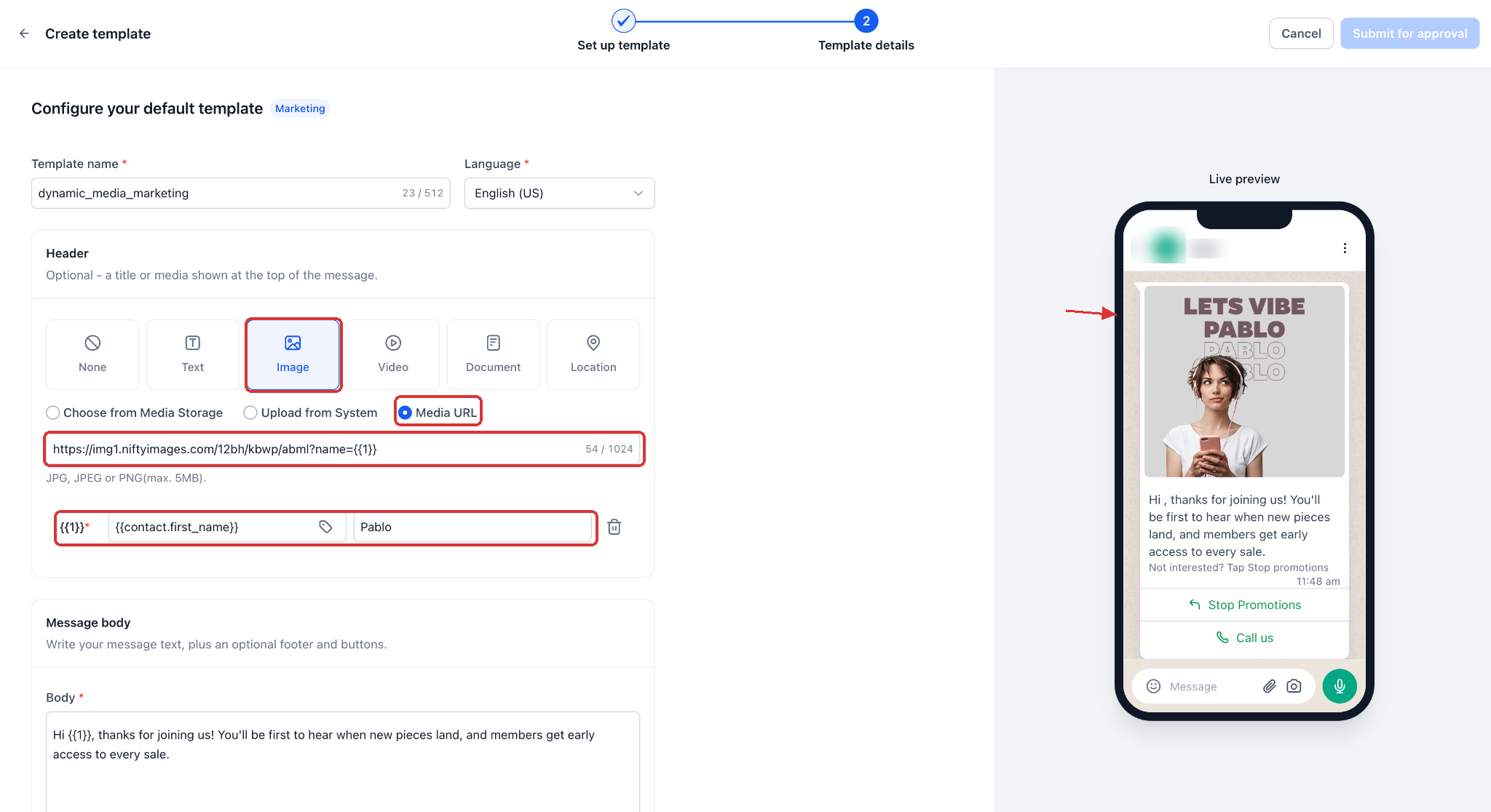
In the illustrated example, the URL contains {{1}}, which is mapped to {{contact.first_name}} with a sample value for the preview.
A contact custom field can also store an entire public media URL. That is a separate use case from a numbered placeholder inside the URL; available mapping or override controls depend on the sending flow.
For personalized images at scale
Create a single image design, then supply a dynamic URL so the image can be customized for each recipient.
- Create your image design in a service like NiftyImages, with a placeholder for the contact's name or any other detail.
- Use the personalized image URL as your media header value, with the contact's detail supplied dynamically via a custom field.
- Run a bulk action. Every contact receives an image rendered just for them.
Requirement: The resolved value must be a publicly reachable URL that Meta can download. Private Drive links, URLs behind a login, and empty fields will fail.
Why This Matters
Personalized media used to carry a hidden tax. Every variation meant another template, and every template meant another round of Meta approval before you could send anything. That made per-customer invoices, tickets, certificates, and personalized campaign images impractical for most businesses — so they either skipped them or built fragile workarounds.
- Run personalized image campaigns at bulk scale instead of sending the same flat creative to everyone.
- Send genuinely personalized documents without multiplying your template library.
- Skip the approval queue for asset changes — the approved template stays the same and only the resolved URL varies.
- Keep automations stable — workflows reference a dynamic value rather than a URL you hand-edit after every clone.
- Catch layout mistakes before Meta sees them, with a preview that matches the real message.
Ready to try it?
Open Settings → WhatsApp → Templates, build one, and try a personalized image on your next bulk send.
Related Articles
Was this article helpful?
That’s Great!
Thank you for your feedback
Sorry! We couldn't be helpful
Thank you for your feedback
Feedback sent
We appreciate your effort and will try to fix the article