Social Comments in Conversations lets you manage Facebook, Instagram, and TikTok comments from posts published through HighLevel Social Planner directly in your Conversations inbox. New commenters are automatically saved as contacts, so your team can respond, follow up, and manage potential leads in one place. This article explains how to enable comment sync, manage incoming comments, and identify people interested in your products or services.
TABLE OF CONTENTS
- What is Social Comments in Conversations?
- Understanding Social Comments in the Team Inbox
- Automatic Contact Creation
- Replying to Comments and Sending DMs
- Identifying Comments with Buying Intent
- Managing Comment Sync Settings
- Supported Platforms and Limitations
- How to Set Up Social Comments in Conversations
- Frequently Asked Questions
- Related Articles
What is Social Comments in Conversations?
Social Comments in Conversations brings comments from supported Social Planner posts into the HighLevel Conversations Team Inbox, alongside SMS, email, and direct messages (DMs).
Each comment appears in a conversation thread with details about the original post. You can reply publicly, continue through a supported DM, and manage the commenter as a contact.
Supported platforms: Facebook, Instagram, and TikTok.
Important: Only comments on posts published through Social Planner are synced.
Understanding Social Comments in the Team Inbox
Synced comments appear as conversation threads in the Team Inbox, making it easier to see what someone commented on and respond with the right information.
Each thread can display:
Commenter's name and comment preview
Social platform and timestamp
Original post thumbnail and caption
Connected social account
View Post link
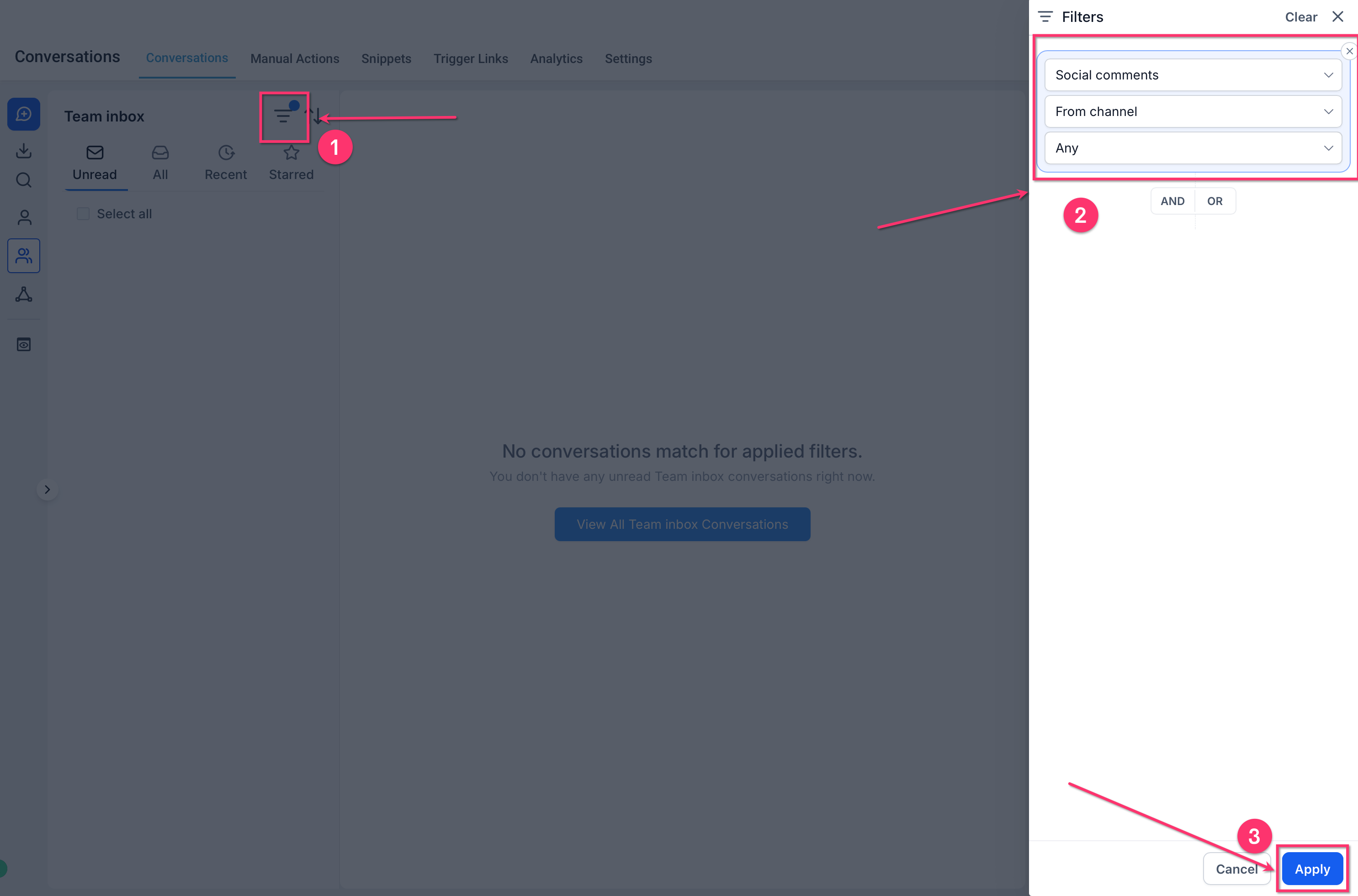
Use the Social Comments filter to view comment threads separately from other conversations.
Automatic Contact Creation
When someone comments on an eligible Social Planner post, HighLevel automatically saves them as a contact.
New commenter: A new contact is created.
Returning commenter: The comment is matched to the existing contact associated with that social identity.
This helps your team track interactions and follow up without manually creating contact records.
Note: Enabling comment sync automatically creates contacts for new commenters.
Replying to Comments and Sending DMs
You can respond to synced comments directly from Conversations using the available messaging options.
Public Reply: Respond beneath the original social media comment.
Direct Message (DM): Continue the conversation privately when supported by the platform.
DMs appear as regular direct-message conversations in the inbox.
Note: DM availability depends on the platform's messaging permissions and restrictions.
Identifying Comments with Buying Intent
Buying-intent keywords and filters help your team find comments from people interested in purchasing a product or booking a service.
You can:
Identify comments containing keywords such as "price," "available," or "book."
Filter comments that contain questions.
Sort comments to prioritize potential leads.
For example, if someone comments, "What's the price? Can I book for Saturday?", configured keywords such as "price" and "book" can help identify the comment for follow-up.
Managing Comment Sync Settings
Comment sync can be controlled at two levels, allowing agencies to decide which sub-accounts and social platforms send comments into Conversations.
| Setting | Purpose |
|---|---|
| Agency-level | Enable or disable comment sync for one or multiple sub-accounts |
| Channel-level | Choose which connected social platforms sync comments |
Important: Disabling sync stops new comments from appearing in Conversations. Existing contacts, conversations, and workflows are not deleted.
Comment management inside Social Planner continues to work separately.
Supported Platforms and Limitations
Social Comments in Conversations is available at launch for Facebook, Instagram, and TikTok.
LinkedIn, YouTube, Pinterest, Threads, Bluesky, and Community are planned for future support.
Keep these limitations in mind:
Only comments on posts published through Social Planner are synced.
Posts published directly on social platforms are not included.
Disabling sync does not remove previously synced data.
Expired social account connections must be restored to resume synchronization.
How to Set Up Social Comments in Conversations
To receive social comments in Conversations, enable comment sync at the agency level and select which connected platforms should sync comments.
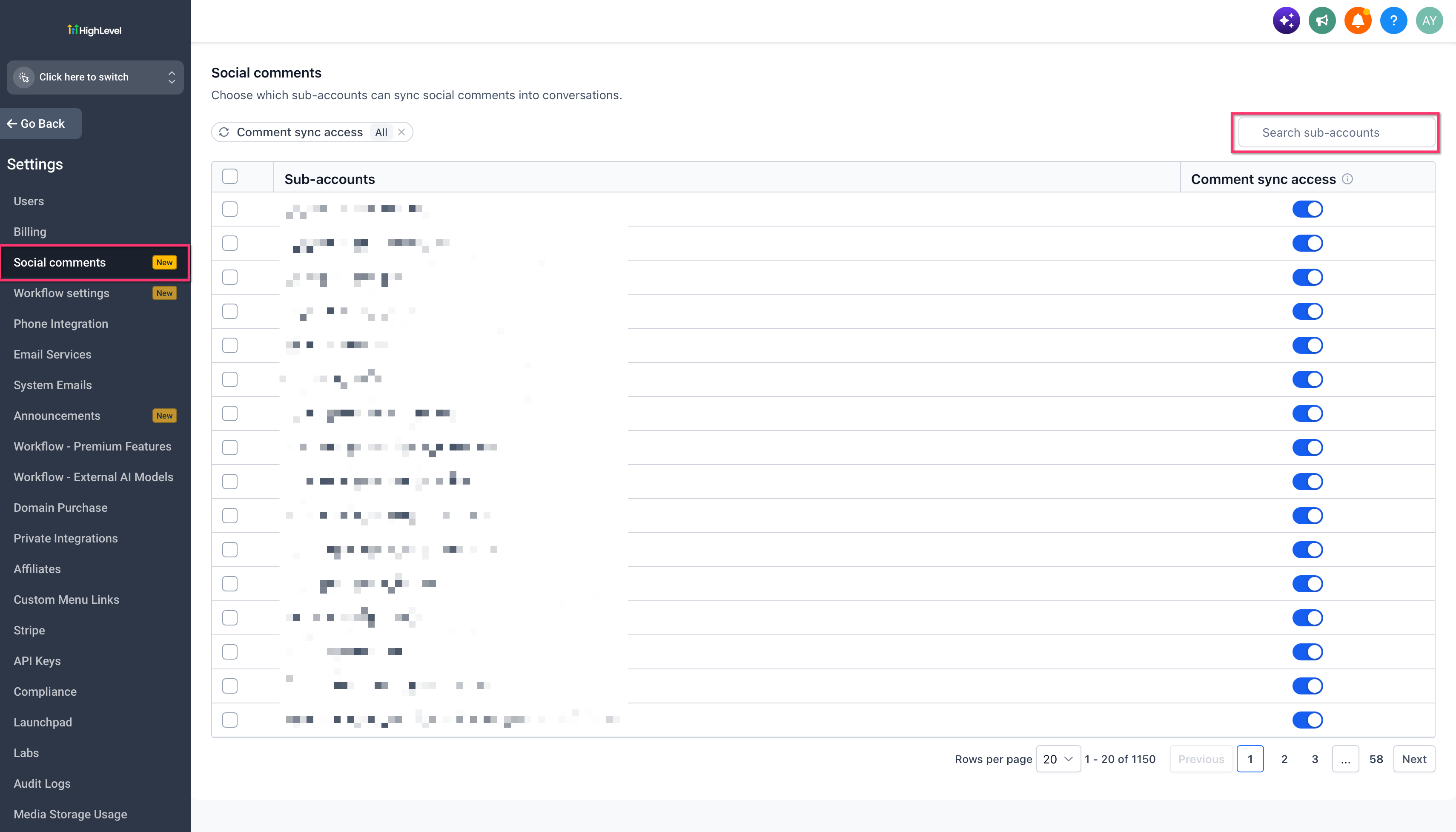
Step 1: Enable Comment Sync at the Agency Level
Agency admins can enable the feature for one or multiple sub-accounts.
Log in to your HighLevel Agency account.
Go to Agency Settings → Social Comments.
Select the sub-account or sub-accounts.
Enable comment sync for the selected accounts.
Save your changes.
Step 2: Select Social Platforms
Choose which connected social platforms should send comments to Conversations.
Open the required HighLevel sub-account.
Go to Marketing → Social Planner → Settings → Comments.
Enable comment sync for the supported platforms you want to use.
Save your changes.
Note: The social accounts must be connected, and the posts must be published through Social Planner.
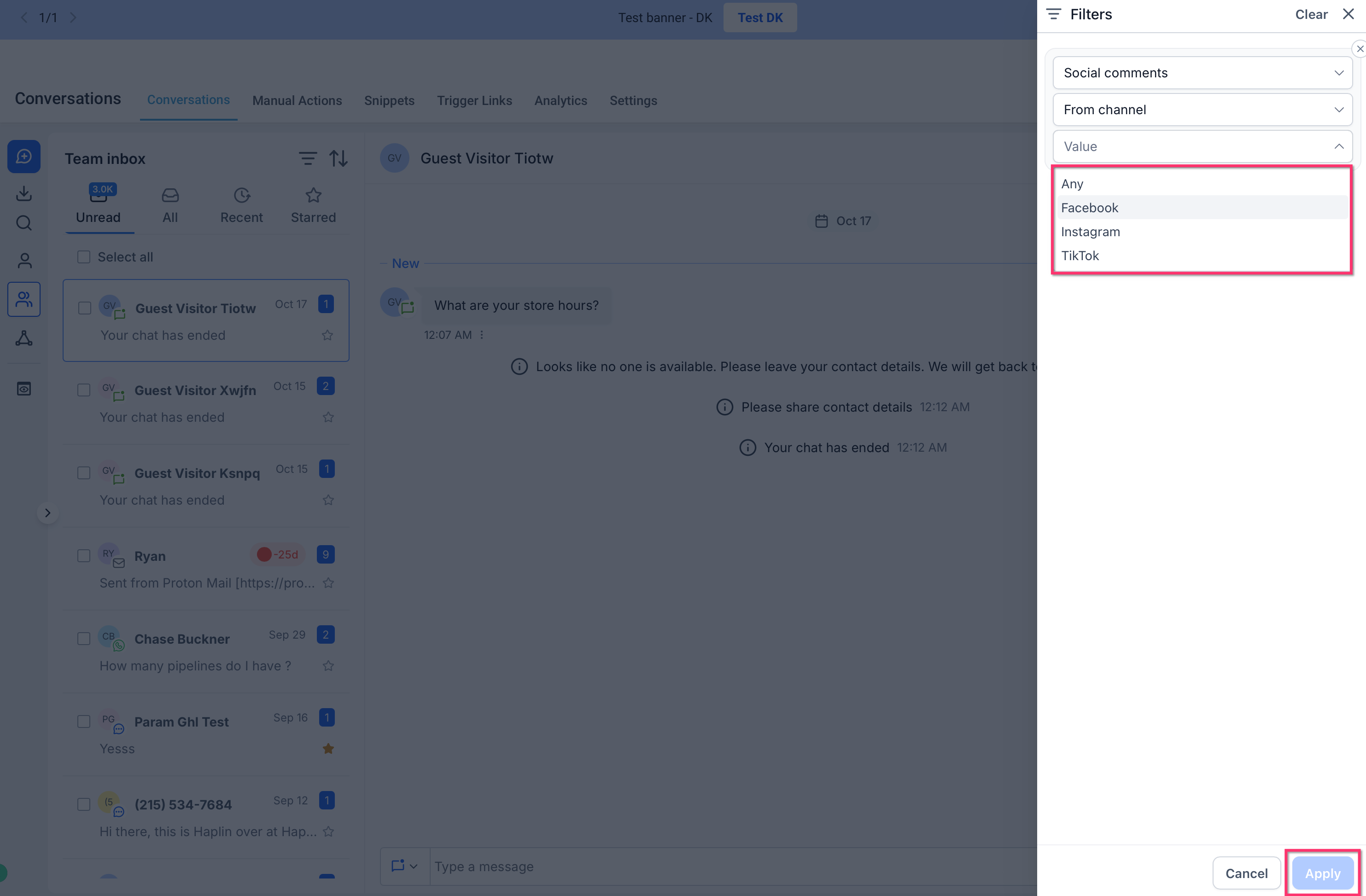
Step 3: Find Comments in Conversations
After enabling sync, eligible comments appear in your Conversations inbox.
Open Conversations → Team Inbox.
Select the Social Comments filter.
Open a comment thread.
Review the comment and original post details.
Step 4: Reply to a Comment
Once you open a comment, you can respond using the available messaging options.
Select the comment you want to respond to.
Review the original post for context.
Choose Public Reply or a supported DM option.
Enter your response and send it.
For example, if someone asks about appointment availability, you can answer publicly and continue the discussion privately when the platform allows it.
Step 5: Prioritize and Follow Up with Leads
Use buying-intent keywords, question filters, and sorting to identify comments that need attention.
Open the available Social Comments filtering or prioritization controls.
Configure relevant keywords, such as "price" or "book."
Apply the available filters or sorting options.
Review and respond to matching comments.
Configure supported workflows if you want to automate follow-up actions.
Note: The exact keyword configuration and sorting controls should be confirmed in the released interface before publication.
Frequently Asked Questions
Q: Which platforms support Social Comments in Conversations?
A: Facebook, Instagram, and TikTok are supported at launch. Additional platforms are planned.
Q: Will comments on posts published directly through Instagram or Facebook appear?
A: No. Only comments on posts published through Social Planner are supported.
Q: Does HighLevel automatically create contacts from comments?
A: Yes. New commenters are saved as contacts, while repeat commenters are matched to existing contacts associated with their social identity.
Q: Can I reply to comments without leaving HighLevel?
A: Yes. You can reply publicly from Conversations and use supported DM options.
Q: Can I disable sync for one platform?
A: Yes. Go to Marketing → Social Planner → Settings → Comments to manage platform-level synchronization.
Q: What happens if I turn off comment sync?
A: New comments stop syncing, but existing contacts, conversations, and workflows remain.
Q: Why aren't comments appearing in Conversations?
A: Check that the post was published through Social Planner, the platform is supported, comment sync is enabled, and the social account connection is active.
Q: What should I do if my social account disconnects?
A: Reconnect the account from Social Planner Settings to resume synchronization.
Related Articles
Was this article helpful?
That’s Great!
Thank you for your feedback
Sorry! We couldn't be helpful
Thank you for your feedback
Feedback sent
We appreciate your effort and will try to fix the article