In HighLevel Suggestive Mode, Conversation AI proposes replies and CRM actions, such as contact updates and appointment bookings, for your review. Approve the actions you want, then use Send & run to send the reply and execute them together.
TABLE OF CONTENTS
- What are AI-Suggested Actions in Suggestive Mode?
- Key Benefits of AI-Suggested Actions in Suggestive Mode
- Proposed Actions on the AI Suggested Reply Card
- Supported AI-Suggested Actions
- How To Setup AI-Suggested Actions in Suggestive Mode
- Examples of AI-Suggested Actions
- Frequently Asked Questions
- Related Articles
What are AI-Suggested Actions in Suggestive Mode?
AI-Suggested Actions extend HighLevel's Conversation AI Suggestive Mode beyond generating replies. Instead of manually completing CRM tasks after sending an AI-generated message, you can review and approve proposed actions directly from the Conversations inbox.
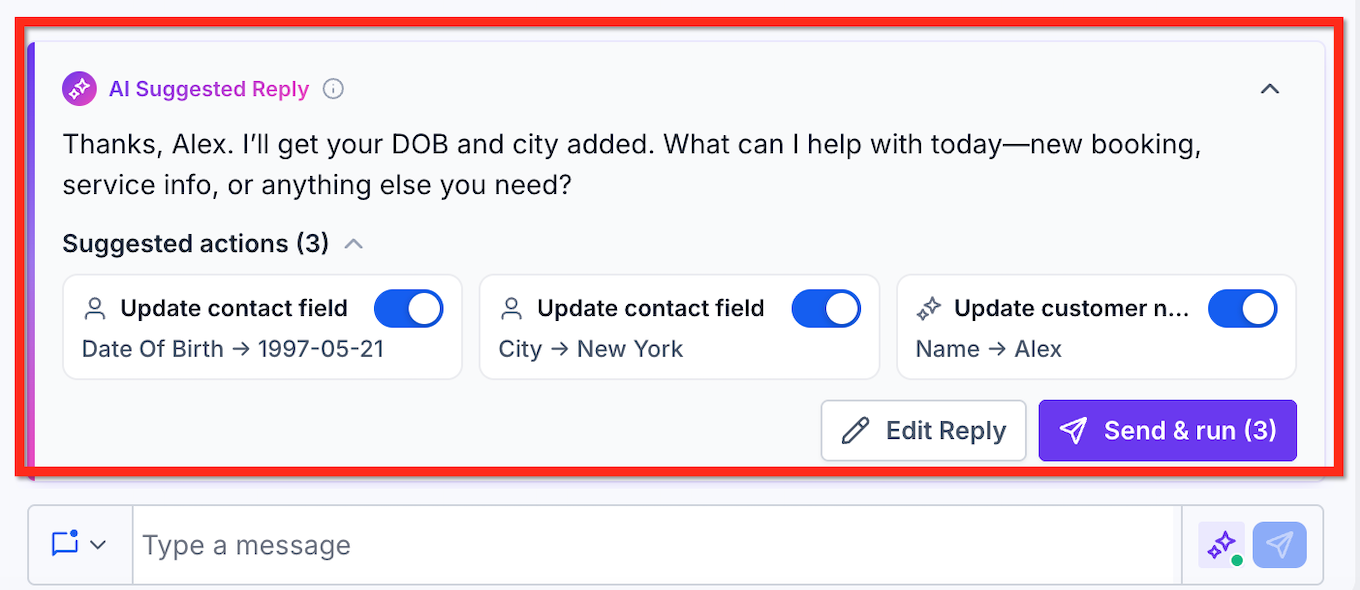
When Conversation AI identifies an action that could help complete a customer's request, it displays that action beneath the AI Suggested Reply. Each proposed action includes an individual toggle, allowing you to decide which actions should execute.
After reviewing the reply and selecting the appropriate actions, click Send & run to send the message and execute the approved actions.
Unlike Autopilot, which automatically performs configured actions, Suggestive Mode requires your approval before the proposed actions on the suggestion card are executed.
Key Benefits of AI-Suggested Actions in Suggestive Mode
- Human Oversight: Review AI-generated replies and CRM actions before they are executed.
- Reduced Manual Work: Complete tasks such as contact updates, appointment booking, and conversation assignments without manually navigating between CRM features.
- Individual Action Approval: Enable or disable specific proposed actions based on what the customer needs.
- Multiple Actions in One Step: Review up to five proposed actions from a single inbound message when multi-action support is available.
- Faster Customer Responses: Send the AI-generated reply and execute approved actions using a single Send & run button.
- Simplified Error Recovery: Correct and retry individual failed actions without resending the original reply.
Proposed Actions on the AI Suggested Reply Card
The AI Suggested Reply card provides a centralized place to review the response and related CRM actions. This helps you understand what Conversation AI intends to do before anything is executed.
When a customer sends an eligible inbound message, Conversation AI generates a suggested response. If the conversation also requires an action, the card displays a Suggested actions area beneath the reply.
Each proposed action appears as a separate chip containing relevant information, such as:
- Action Type: The operation being proposed, such as Update Contact Field, Book Appointment, or Assign to User.
- Action Details: The information associated with the operation, such as a field value, appointment time, or team member.
- Approval Toggle: A control that determines whether the proposed action will execute.
The card also includes:
- Edit Reply: Modify the suggested response before sending it.
- Send & run: Send the reply and execute the selected actions.
- Suggested Actions Count: Displays the number of proposed actions on the card.
All available proposed actions are selected by default, allowing you to deselect any action you do not want to perform.
Supported AI-Suggested Actions
AI-Suggested Actions support several Conversation AI capabilities, making it possible to manage common customer requests directly from the conversation. The actions that appear depend on the customer's message, the bot's configuration, and feature availability.
| Action | Description |
|---|---|
| Appointment Booking | Book an appointment based on the customer's selected date and time. |
| Appointment Rescheduling | Update an existing appointment when a customer requests a different time. |
| Appointment Cancellation | Cancel an appointment when requested. |
| Contact Field Updates | Capture eligible customer information, such as date of birth, city, or other contact fields. |
| Customer Name Updates | Update the customer's name based on information provided during the conversation. |
| Trigger Workflow | Start a configured workflow when the relevant conditions are met. |
| Transfer to Another Bot | Propose routing a conversation to another configured bot, subject to the applicable transfer requirements. |
| Advanced Follow-Up | Propose supported follow-up actions based on the conversation. |
| Human Handover | Present individual assignment, task creation, and tagging actions for review. |
| Stop Bot | Support configured stop-bot behavior and associated actions where applicable. |
Some actions require additional configuration before they can be used. Refer to Bot Goals Overview – Conversation AIfor more information about available bot actions and their settings.
How To Setup AI-Suggested Actions in Suggestive Mode
Proper bot configuration ensures Conversation AI can identify relevant customer requests and propose the appropriate actions. Before using suggested actions in the Conversations inbox, configure the bot's response mode, supported actions, and channel settings.
Make sure your Conversation AI bot is set to Suggestive Mode.
For instructions on configuring your bot and selecting Suggestive Mode, refer to How to Set Up a Conversation AI Bot.
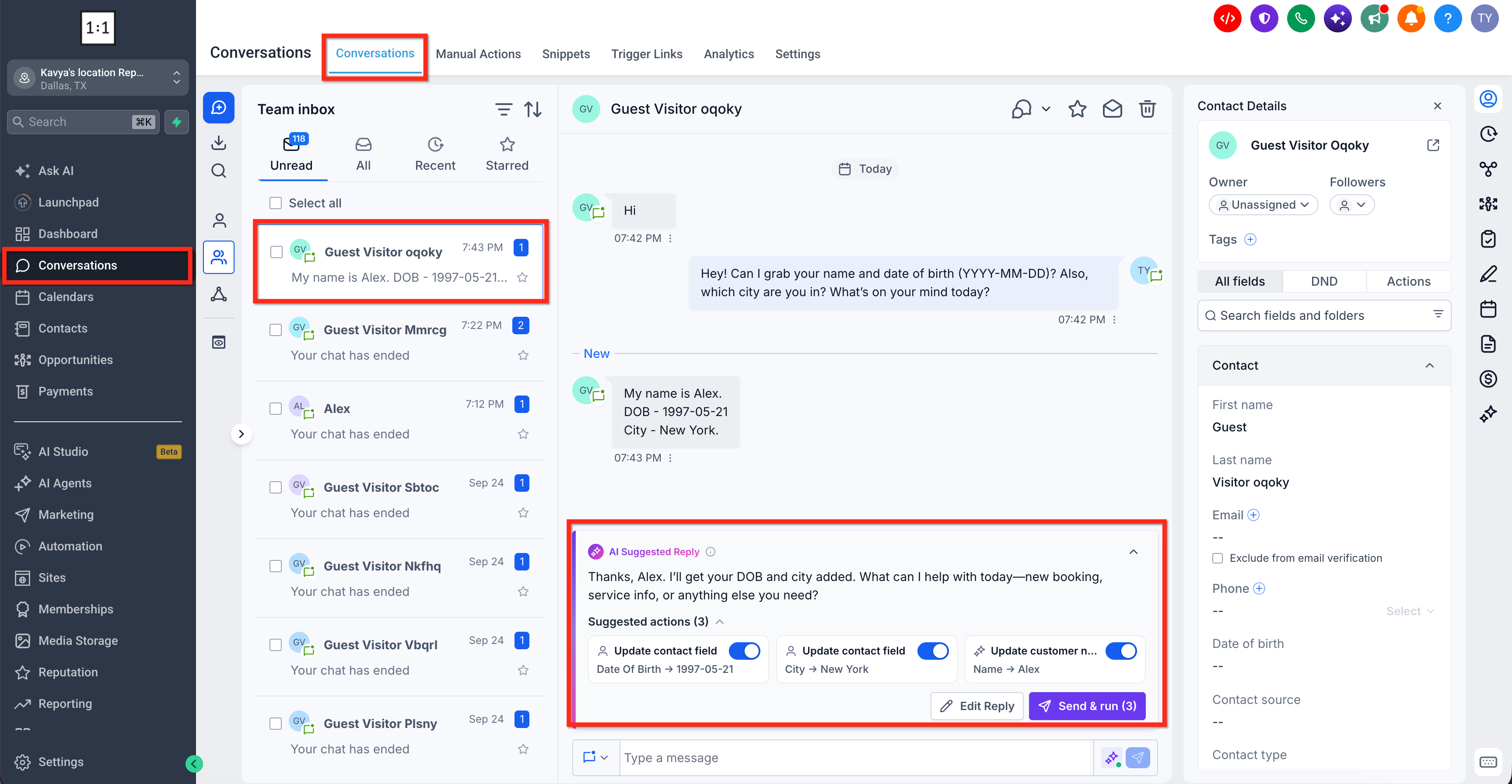
Open Conversations.
Navigate to Conversations → Conversations from the left navigation menu.
Select a conversation with an inbound message.
Open a conversation where the configured bot has generated an AI Suggested Reply.
Review the AI Suggested Reply card.
Read the suggested response and review any proposed actions displayed beneath it.
Approve or decline individual actions.
Keep the toggles enabled for the actions you want to execute and turn off any actions that are not required.
Edit the suggested reply if needed.
Click Edit Reply to customize the message before sending it.
Click Send & run.
Send the reply and execute the approved actions.
Important: Proposed actions are not executed merely because they appear on the suggestion card. Approval through Send & run is required for the selected actions.Examples of AI-Suggested Actions
AI-Suggested Actions can help manage different customer requests without switching between CRM tools. The following examples demonstrate how proposed actions appear alongside AI-generated replies.
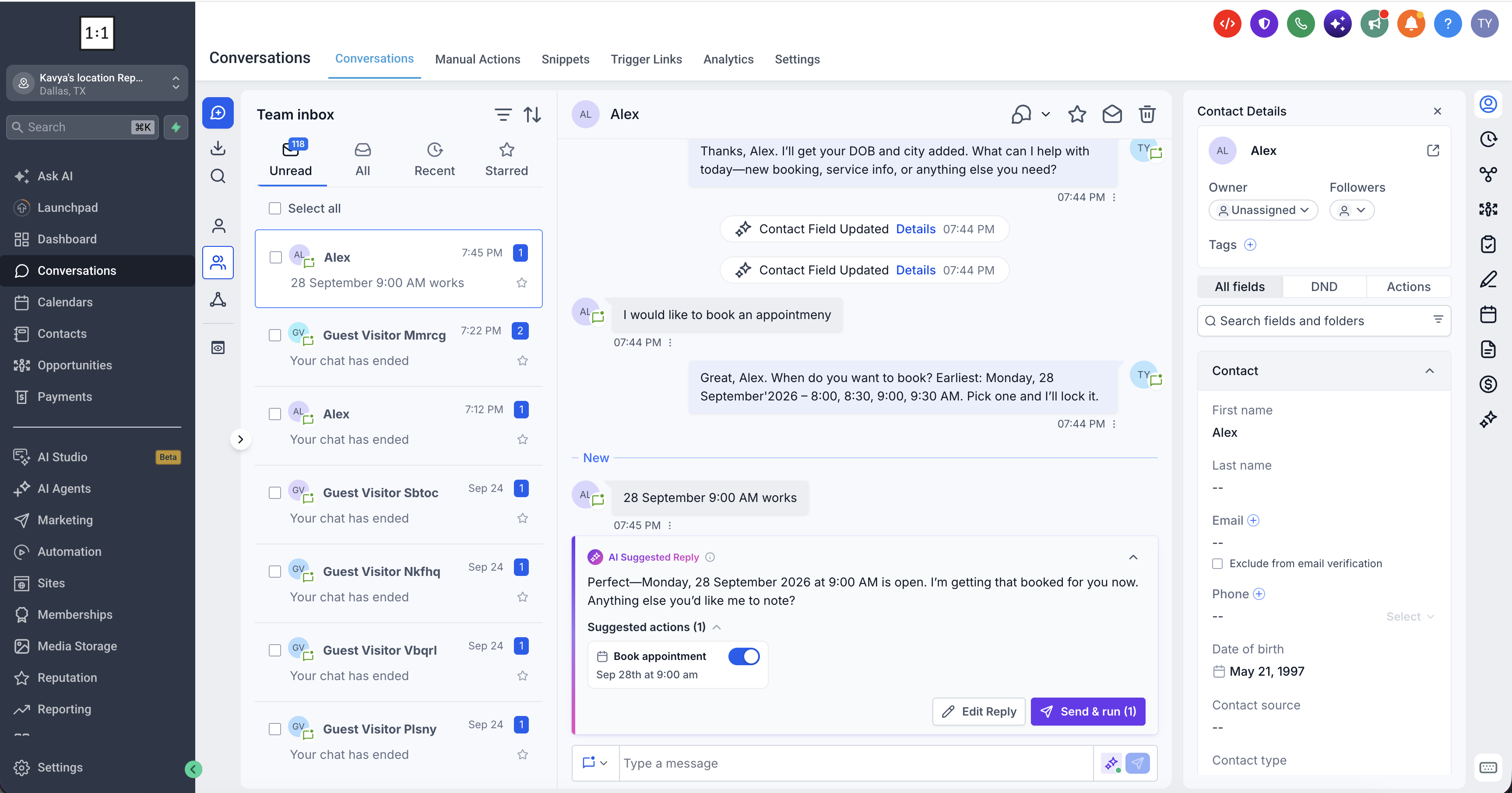
Example 1: Appointment Booking
When a customer confirms an appointment time, Conversation AI can suggest a reply and a Book Appointment action. Review the booking details and click Send & run to send the reply and book the appointment.
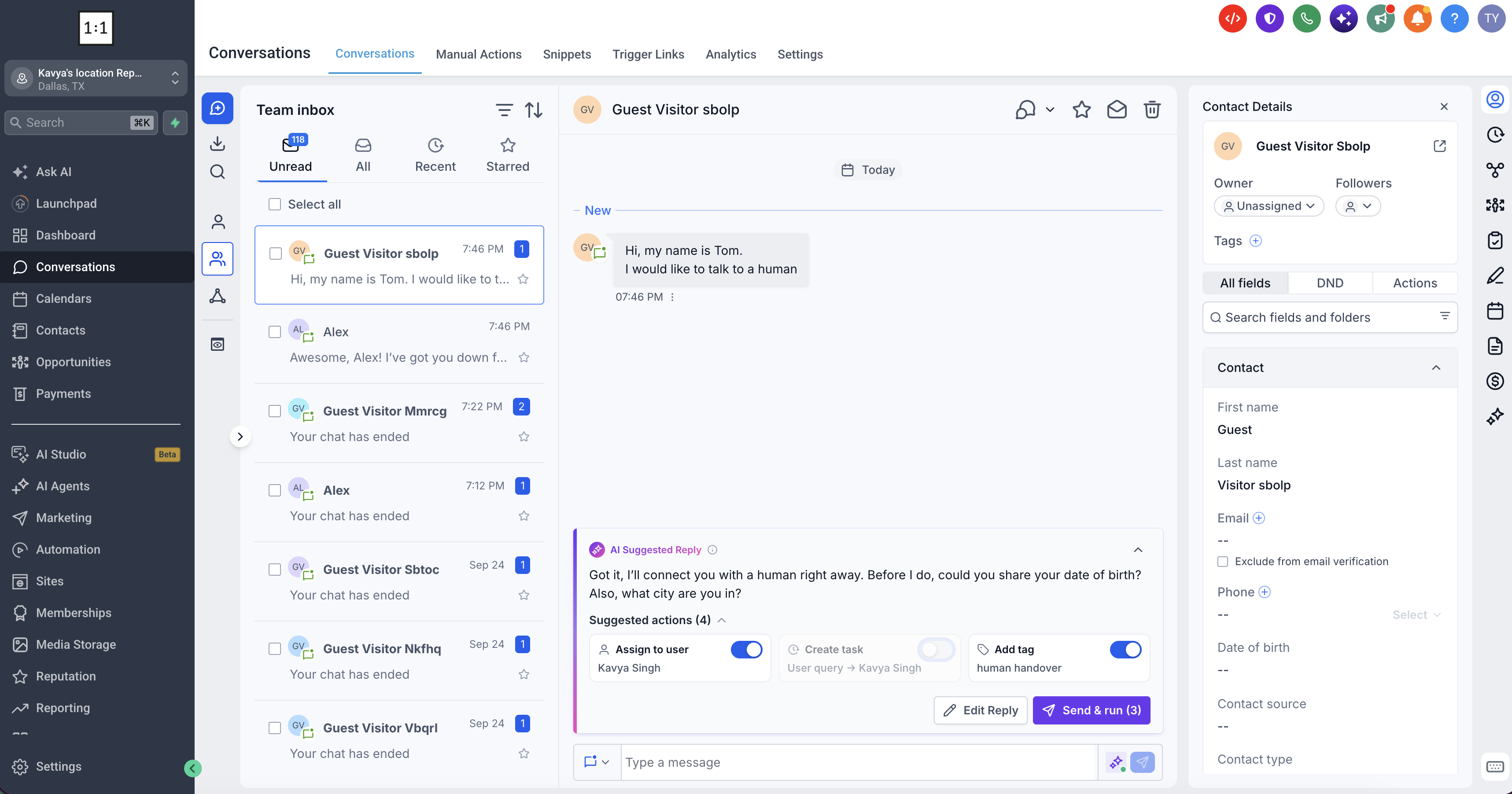
Example 2: Human Handover
When a customer requests human assistance, Conversation AI can suggest Assign to User, Create Task, and Add Tagactions. Review and select the required actions, then click Send & run to complete the approved handover operations.
Frequently Asked Questions
Q: Why do I see an AI Suggested Reply without any proposed actions?
A: Not every customer message requires a CRM action. Proposed actions depend on the conversation, the bot's configured capabilities, and feature availability. Confirm that the relevant Bot Goals actions have been configured.
Q: What should I do if a proposed action contains incorrect information?
A: Review the details before approval and disable the action if it should not execute. Editing the reply and approving the action are separate decisions, so review both carefully.
Q: Why is a proposed action disabled?
A: An action may be unavailable because its requirements have not been met or its configuration does not support execution in that situation. Review the underlying action settings before trying again.
Q: What happens if an appointment is booked and a post-booking workflow is configured?
A: Approved booking actions use the same underlying execution handlers as Autopilot. Configured post-booking workflows can therefore continue to execute after a successful booking.
Q: Why do I see fewer than five proposed actions?
A: Five is the maximum number of actions supported per suggestion when multi-action functionality is available, not the number that must appear. The actual number depends on the customer message, relevant actions, and account configuration.
Q: Can I use proposed action approval in the HighLevel mobile app?
A: The workflow described here applies to the HighLevel web Conversations inbox. The existing mobile documentation covers reviewing and sending AI-generated replies but does not establish availability of the proposed-action approval controls on mobile.
Q: Can the Add Contact Info action replace information that is already saved in a contact field?
A: The existing Add Contact Info action only populates empty contact fields. Approval does not remove that restriction. Other supported contact-update operations may have different requirements.
Q: What should I check if an approved action does not execute successfully?
A: Review the failed action's details and confirm that the associated calendar, contact field, workflow, or user assignment is configured correctly. Correct the relevant issue and retry the failed action individually when the retry option is available.
Related Articles
- How to Set Up a Conversation AI Bot
- Bot Goals Overview – Conversation AI
- How to Use the Add Contact Info Action in Conversation AI
- Appointment Booking in Conversation AI
- Conversation AI – Human Handover Action
- AI Action Logging & Filtering in Conversations
Was this article helpful?
That’s Great!
Thank you for your feedback
Sorry! We couldn't be helpful
Thank you for your feedback
Feedback sent
We appreciate your effort and will try to fix the article