Mobile Calling
How to Transfer Calls to Staff Without a Personal Phone Number
Transfer inbound or outbound calls from the HighLevel mobile app to staff members using their configured Web App, Mobile App, phone, or SIP deskphone destinations.
What You'll Learn
You can transfer a live call to another staff member even when that person does not have a personal phone number connected to their HighLevel user profile. HighLevel uses the receiving staff member's available calling destinations to determine where the transferred call can ring.
This article explains how to prepare staff members to receive transferred calls, start a transfer from the mobile app, choose between a warm or blind transfer, and understand what the receiving staff member sees when the call arrives.
1
How Call Transfers Without a Personal Number Work
A call transfer allows one staff member to hand an active customer call to another staff member. The receiving staff member does not need a dedicated personal phone number to receive the transfer. Instead, HighLevel checks the destinations enabled for that staff member under their Call & Voicemail Settings.
For example, a staff member may be configured to receive calls in the Web App and Mobile App but have no personal phone number assigned. That staff member can still appear as available in the transfer list because HighLevel has valid destinations where the transferred call can be delivered.
Supported call directions and transfer types
This works for both inbound and outbound calls and supports both warm and blind transfers.
2
Configure Where Staff Can Receive Calls
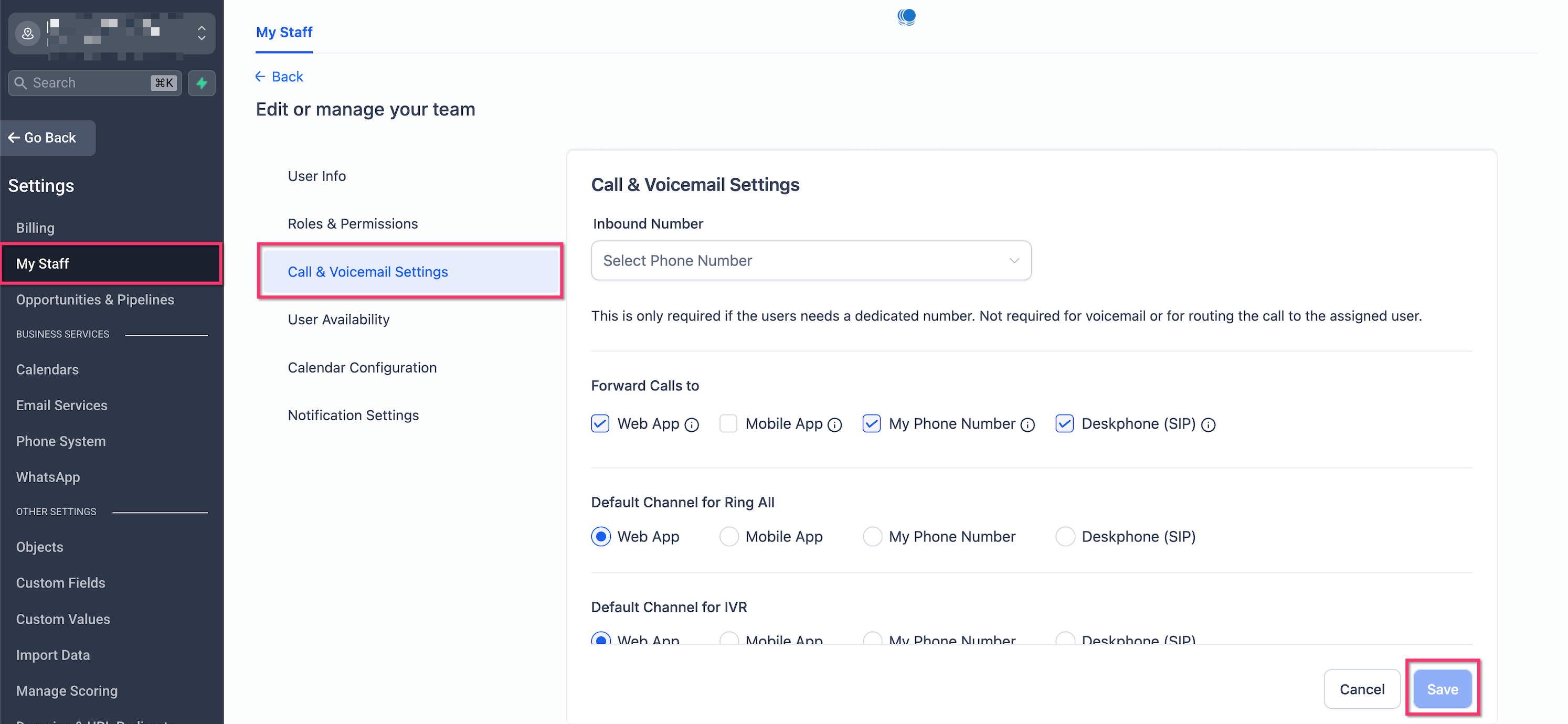
Before transferring a call, make sure the receiving staff member has at least one destination enabled under Forward Calls to. These settings determine which devices or apps can ring when HighLevel sends that user a call.
Step 1
Open the staff member's settings
In HighLevel, go to Settings → My Staff, select the staff member, and open Call & Voicemail Settings.
Step 2
Review Forward Calls to
Enable one or more destinations that the staff member can use. Available destinations can include Web App, Mobile App, My Phone Number, and Deskphone (SIP).
When more than one destination is enabled, the transferred call can ring those enabled destinations at the same time. The staff member can answer on whichever available device is most convenient.
Why a staff member may appear disabled
If a staff member has no eligible receiving destination configured, that person appears disabled in the transfer list and cannot be selected.
3
Start a Transfer From the Mobile App
You can begin a transfer while you are already connected to a customer in the HighLevel mobile app. The original call can be inbound, where the customer called you, or outbound, where you called the customer.
Step 1
Connect to the call
Make an outbound call or answer an inbound call from the mobile app as usual.
Step 2
Tap Transfer
While the call is active, tap the Transfer icon in the upper-right area of the call screen.
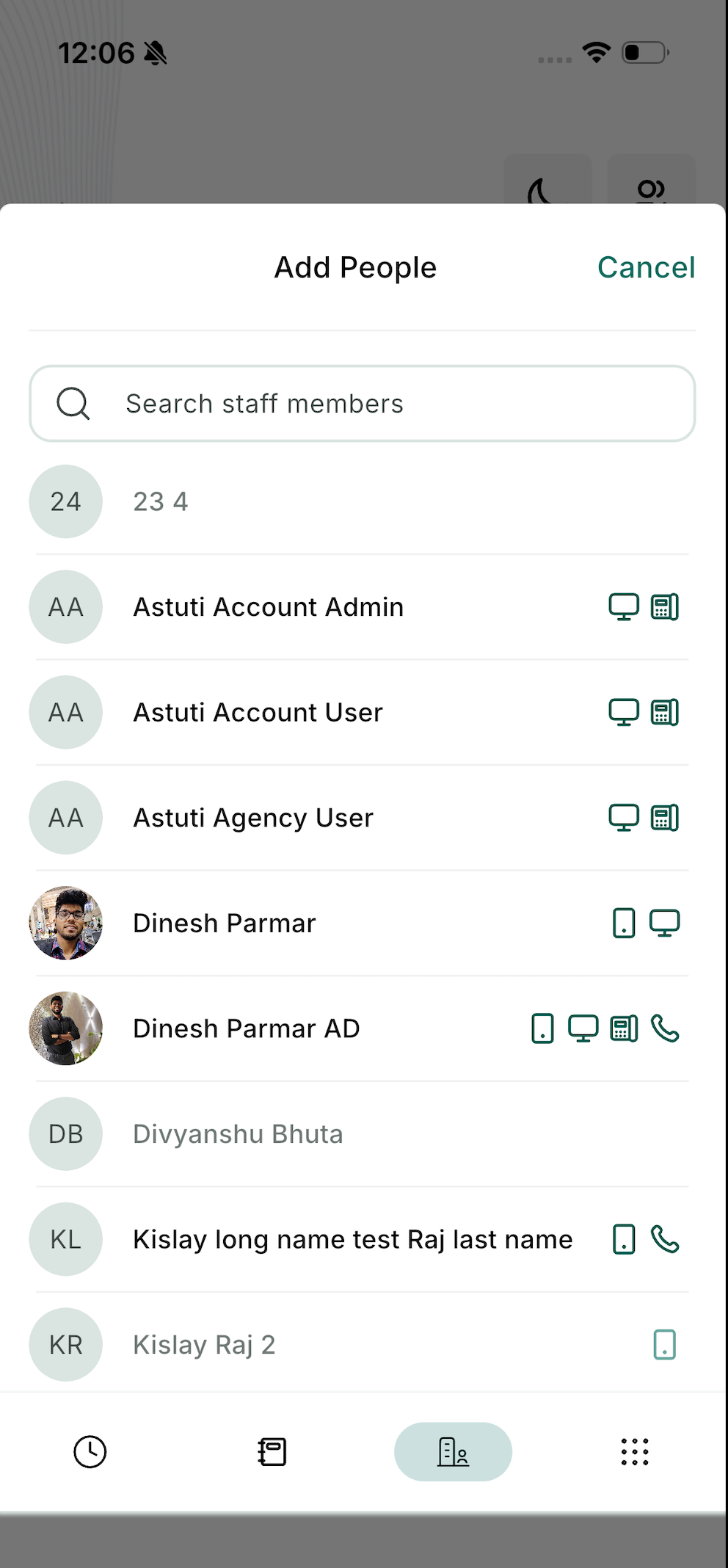
The transfer screen lets you select the person who should receive the call. HighLevel also shows device icons beside staff members so you can understand which destinations are available for each person before starting the transfer.
Step 1
Open the Staff Members tab
From the transfer screen, go to Staff Members. You can search for the person you want to receive the call.
Step 2
Check the available devices
Look at the icons displayed beside the staff member's name. These indicate where that person can receive the transferred call, such as the mobile app, Web App, phone, or SIP deskphone.
Step 3
Select the staff member
Tap the staff member you want to transfer the call to. Staff members without a configured receiving destination cannot be selected.
5
Choose a Warm or Blind Transfer
HighLevel supports two common transfer methods. The best option depends on whether you want to speak with the receiving staff member before handing over the customer.
Warm Transfer
Call and Hold
Choose Call and Hold when you want to place the customer on hold and speak with the receiving staff member first. This is useful when you need to provide context, explain why the customer is being transferred, or confirm that the other person is ready to take the call.
Blind Transfer
Transfer and End
Choose Transfer and End when you want to send the customer directly to the selected staff member and leave the call without first speaking to that person.
Which option should I choose?
Use a warm transfer when the next staff member needs context before talking to the customer. Use a blind transfer when no introduction is necessary and the call can be handed off immediately.
More Flexible Call Routing
Transfer to the Staff Member, Not Just a Personal Number
HighLevel can deliver the transfer through the staff member's configured calling destinations, helping teams receive transferred calls across the devices they already use.
6
What the Receiving Staff Member Sees
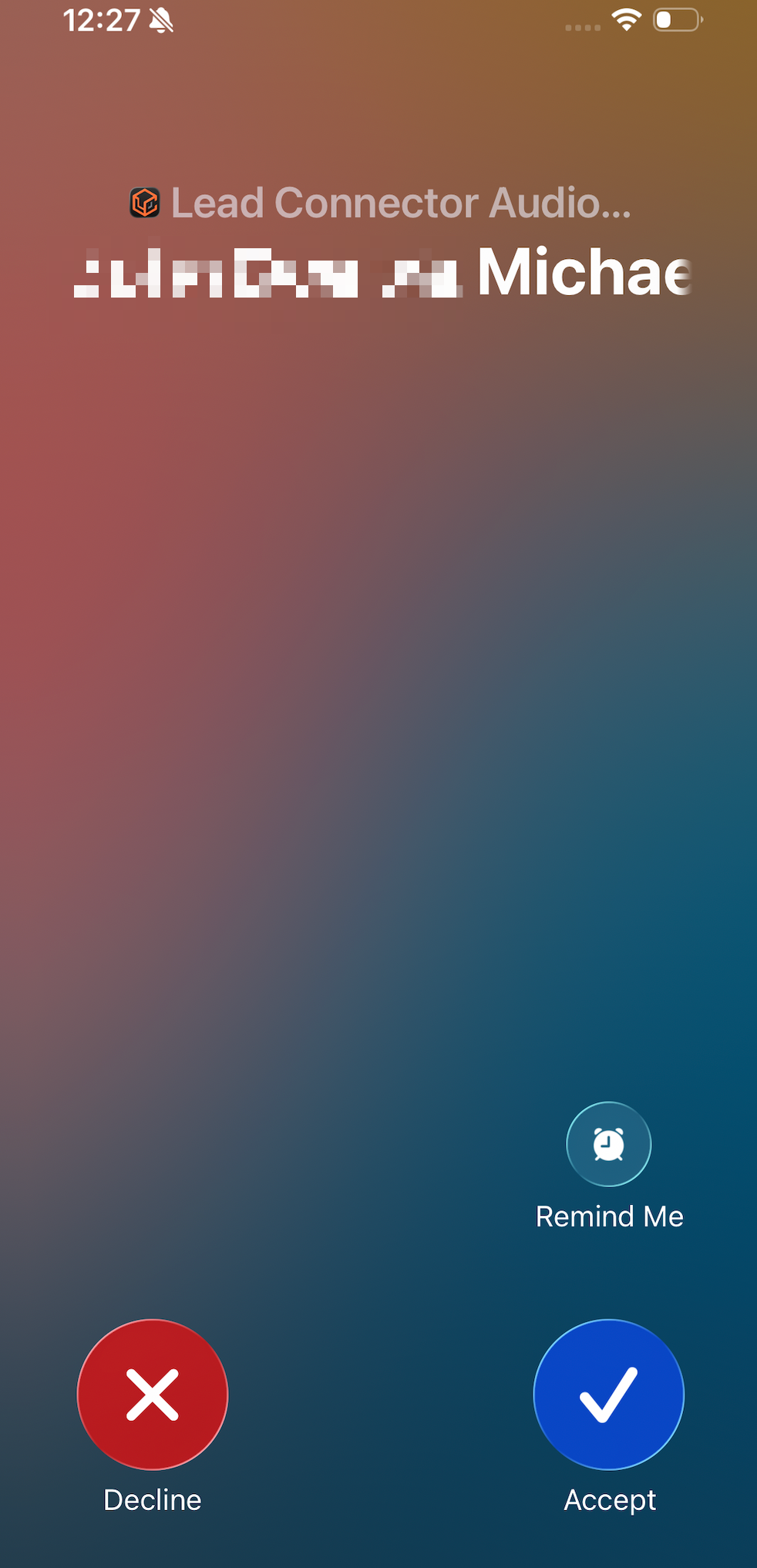
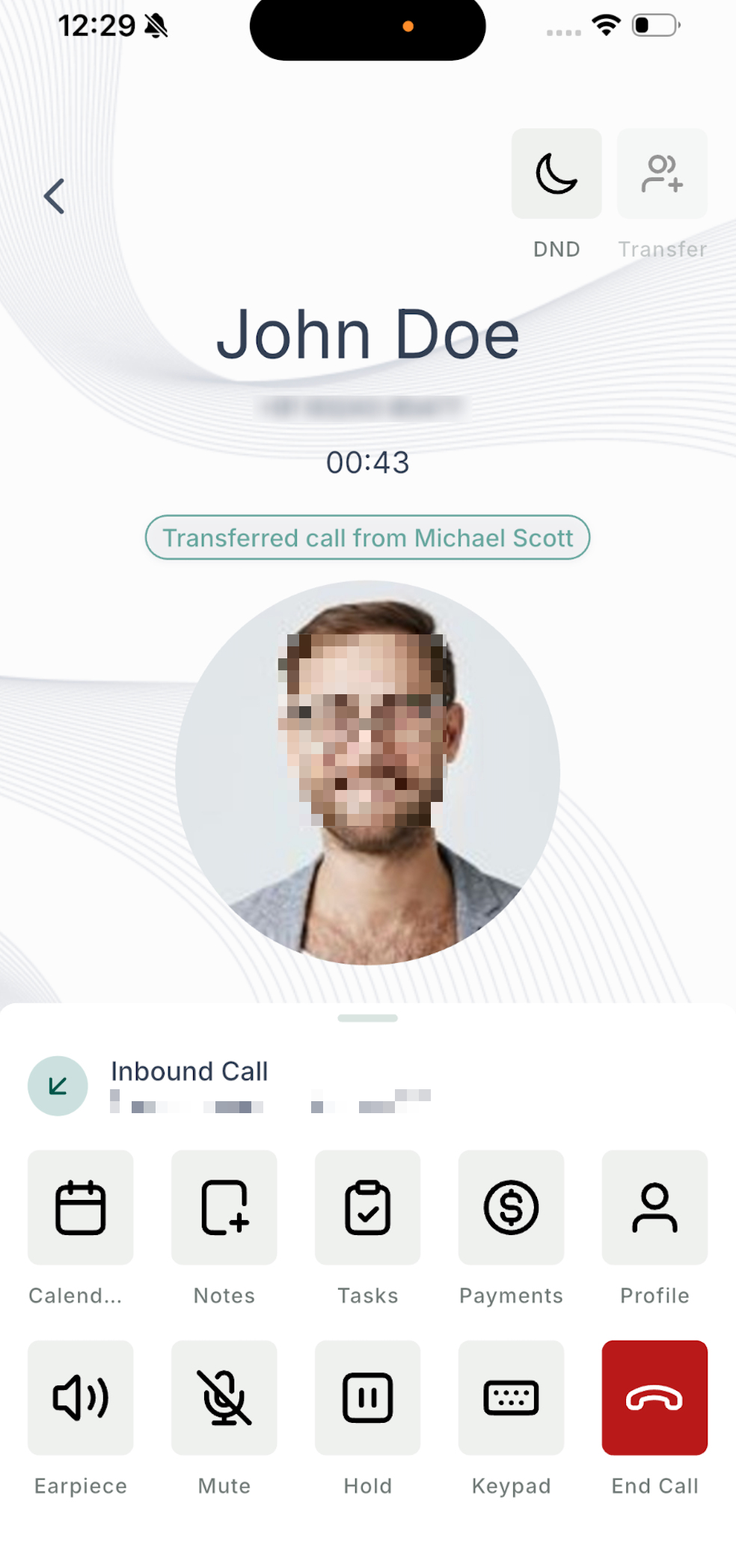
Transferred calls include information that helps the receiving staff member recognize that the call is being handed off by another team member. The exact incoming-call display differs slightly between iOS and Android.
iOS
Contact name followed by the transferring staff member
On iOS, the incoming call can show the contact name followed by via and the name of the person transferring the call. For example: John Doe via Michael Scott.
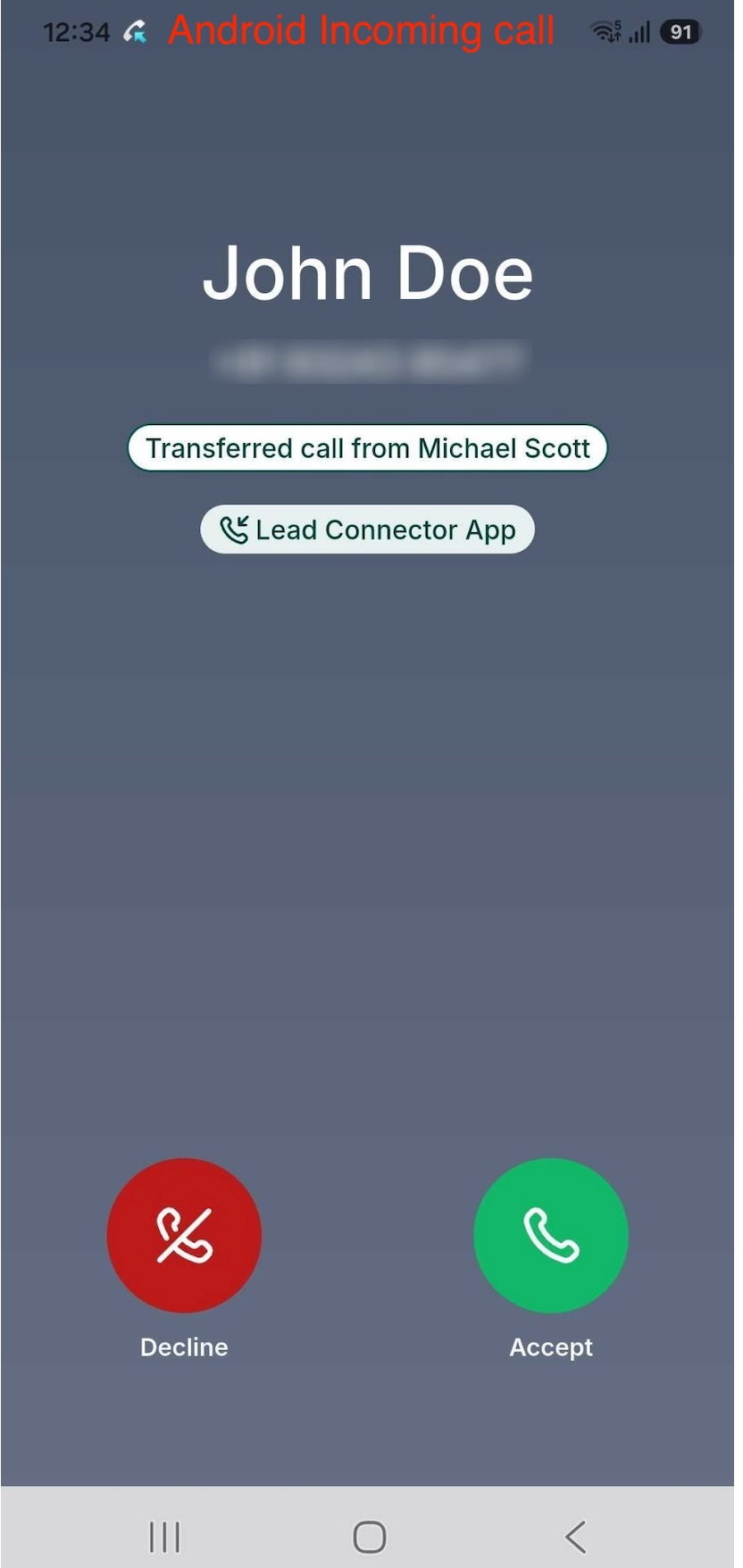
Android
Transferred call attribution
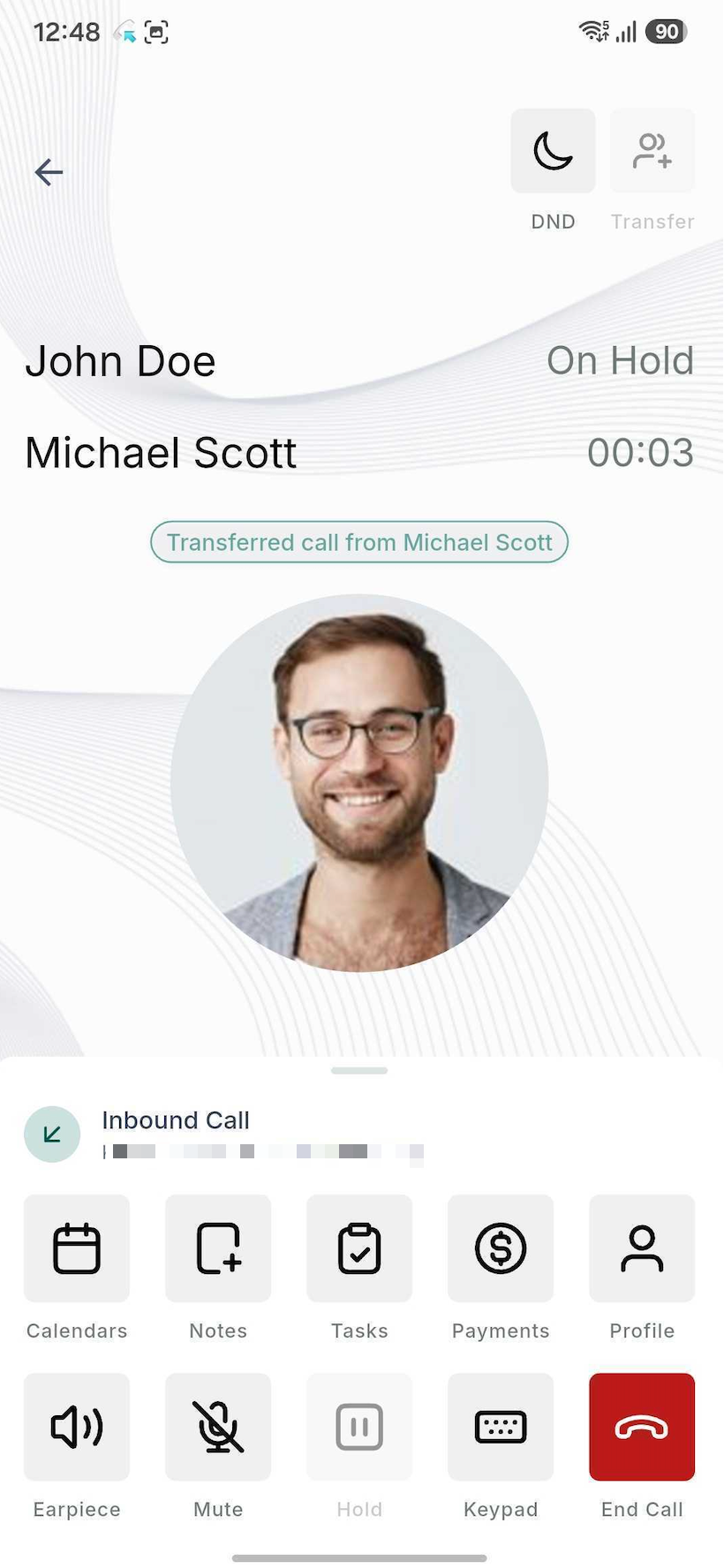
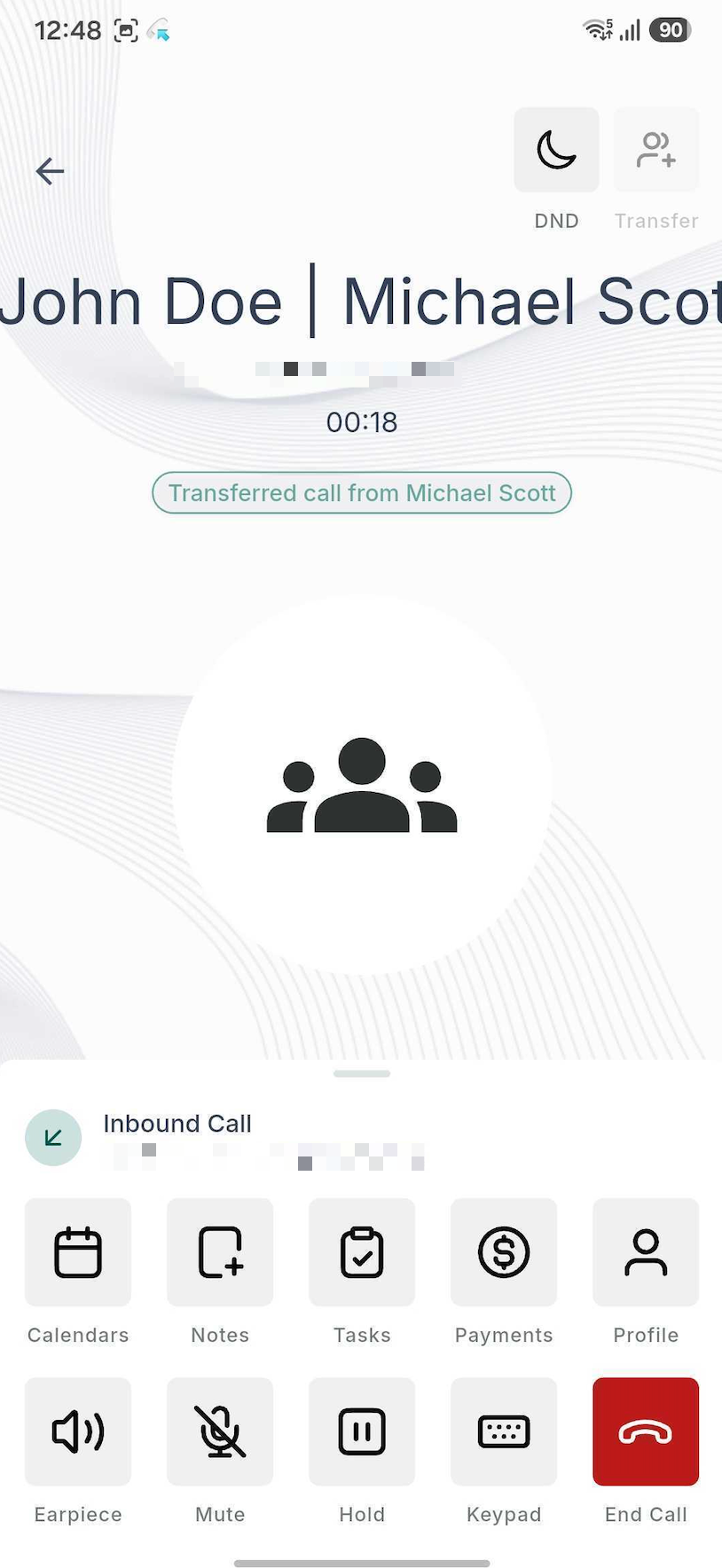
On Android, the incoming call screen identifies the call as transferred and shows who transferred it, for example: Transferred call from Michael Scott.
The receiving staff member taps Answer to accept the transferred call.
7
Complete a Warm Transfer
A warm transfer gives you a short private conversation with the receiving staff member before the customer is fully handed over. During this process, the original customer remains on hold while you connect with your teammate.
Step 1
Wait for the staff member to answer
After you choose the warm-transfer option, the original caller is placed on hold while HighLevel calls the selected staff member.
Step 2
Provide any needed context
Once the staff member answers, explain who is calling and why you are transferring the conversation. This gives the receiving person the information they need before speaking with the customer.
Step 3
Finish the handoff
Complete the warm transfer using the normal transfer controls. The receiving staff member can then continue the conversation with the customer.
8
Important Behaviors and Limitations
Understanding how HighLevel routes transferred calls can help you configure staff correctly and avoid confusion when a person appears unavailable in the transfer list.
Multiple enabled destinations can ring together — If a staff member has several destinations enabled under Forward Calls to, HighLevel can ring those destinations at the same time when the transfer is sent.
The mobile app can be both the source and destination — A staff member can start a transfer from the mobile app, and another staff member can receive that transferred call in their mobile app when Mobile App calling is enabled for them.
Inbound and outbound calls are supported — You can transfer a customer who called you or a customer you called from the mobile app.
Transferred calls can be received across configured sub-accounts — If you are configured to receive mobile calls from multiple sub-accounts, transferred calls can also be received from those configured sub-accounts.
Re-transferring is not currently supported
If a call has already been transferred to you, you cannot transfer that same call again to another staff member.
9
Frequently Asked Questions
Q: Does the receiving staff member need a personal phone number?
No. A personal phone number is not required as long as the staff member has at least one eligible destination configured under Forward Calls to, such as the Web App, Mobile App, My Phone Number, or Deskphone (SIP).
Q: Why is a staff member grayed out or unavailable in the transfer list?
The staff member does not currently have an eligible receiving destination configured. Review that user's Call & Voicemail Settings and enable at least one option under Forward Calls to.
Q: What is the difference between a warm transfer and a blind transfer?
A warm transfer lets you speak with the receiving staff member before handing over the customer. A blind transfer sends the customer directly to the selected staff member and ends your participation in the call.
Q: If several devices are enabled, which one receives the transfer?
The enabled destinations under Forward Calls to can ring at the same time. The receiving staff member can answer the transferred call from an available device.
Q: Can I transfer a call that was already transferred to me?
No. Re-transferring a call that has already been transferred is not currently supported.
Q: Can I use this for both inbound and outbound calls?
Yes. The transfer workflow can be used during both inbound and outbound calls in the mobile app.
Q: How does the receiving staff member know the call was transferred?
The incoming call provides transfer context. On iOS, the contact can appear with the name of the transferring staff member, such as John Doe via Michael Scott. On Android, the call screen can display a message such as Transferred call from Michael Scott.