Deploying a Managed Agent to the API lets your website, product, or backend application start and continue conversations with an agent built in HighLevel. You can configure API access directly from the Managed Agents builder, generate ready-to-use cURL, Python, or JavaScript requests, and use the same published agent across Chat and API-based experiences. This makes it easier to connect external software to Managed Agents without building a separate agent or workflow.
TABLE OF CONTENTS
- What is Deploy to API for Managed Agents?
- Key Benefits of Deploy to API
- Invoked via API Trigger
- Private Integration Token Setup
- Token Security and Masking
- Start and Continue Conversations
- cURL, Python, and JavaScript Code Samples
- Idempotency-Key
- Published and Unpublished Agent Behavior
- API Activity and Troubleshooting
- Invoked via API vs. Invoked from a Workflow
- How To Setup Deploy to API for a Managed Agent
- Frequently Asked Questions
- Related Articles
What is Deploy to API for Managed Agents?
Deploy to API allows external software to invoke a published Managed Agent through HighLevel's Managed Agents API. Adding the Invoked via API trigger makes the agent available for API-based conversations while allowing it to continue using other supported triggers at the same time. API requests always use the agent's published version, helping ensure your application receives the version that has already been tested and approved for production.
You can start API setup in either of these ways:
Open the Managed Agent and add Invoked via API from the Triggers row.
Open the agent's ⋮ menu and select Deploy to API.
Both options open the API deployment experience for the same Managed Agent.
Key Benefits of Deploy to API
Deploy to API connects the reasoning and capabilities of a Managed Agent to software outside HighLevel while keeping configuration, publishing, and activity tracking centralized in Agent Studio.
Use one agent across multiple experiences: Run the same Managed Agent through Chat, API calls, and other supported triggers without creating separate agents.
Configure API access inside Agent Studio: Select or create the required Private Integration token without leaving the Managed Agents builder.
Start building faster: Copy ready-made cURL, Python, or JavaScript requests instead of creating the request from scratch.
Maintain multi-turn conversations: Pass the
sessionIdreturned by a previous response when you want the next API request to continue the same conversation.Reduce duplicate executions: Generated requests include an
Idempotency-Keyso retrying the same request does not unintentionally run the agent twice.Control production behavior through publishing: API calls use the published version of the agent, allowing you to test changes before they reach your application.
Review API runs alongside other activity: API-triggered executions appear in the Managed Agent's Activity, helping teams monitor and troubleshoot agent behavior.
Invoked via API Trigger
The Invoked via API trigger gives external software permission to start the Managed Agent through the Managed Agents API. It works alongside other supported triggers, which means adding API access does not require you to create a separate copy of the agent for external applications.
A Managed Agent can therefore serve different use cases from a single configuration. For example, your team can interact with the agent through Chat while your website or backend application invokes the same agent through the API.
The API always runs the published version of the Managed Agent. Changes made in the builder do not affect API requests until the updated agent is published.
For more information about creating and publishing Managed Agents, see Setup and Use Managed Agents in Agent Studio.
Private Integration Token Setup
Private Integration tokens provide authenticated access between your HighLevel account and your external application. Deploy to API simplifies this process by allowing you to choose an existing token or create one directly from the Managed Agents builder.
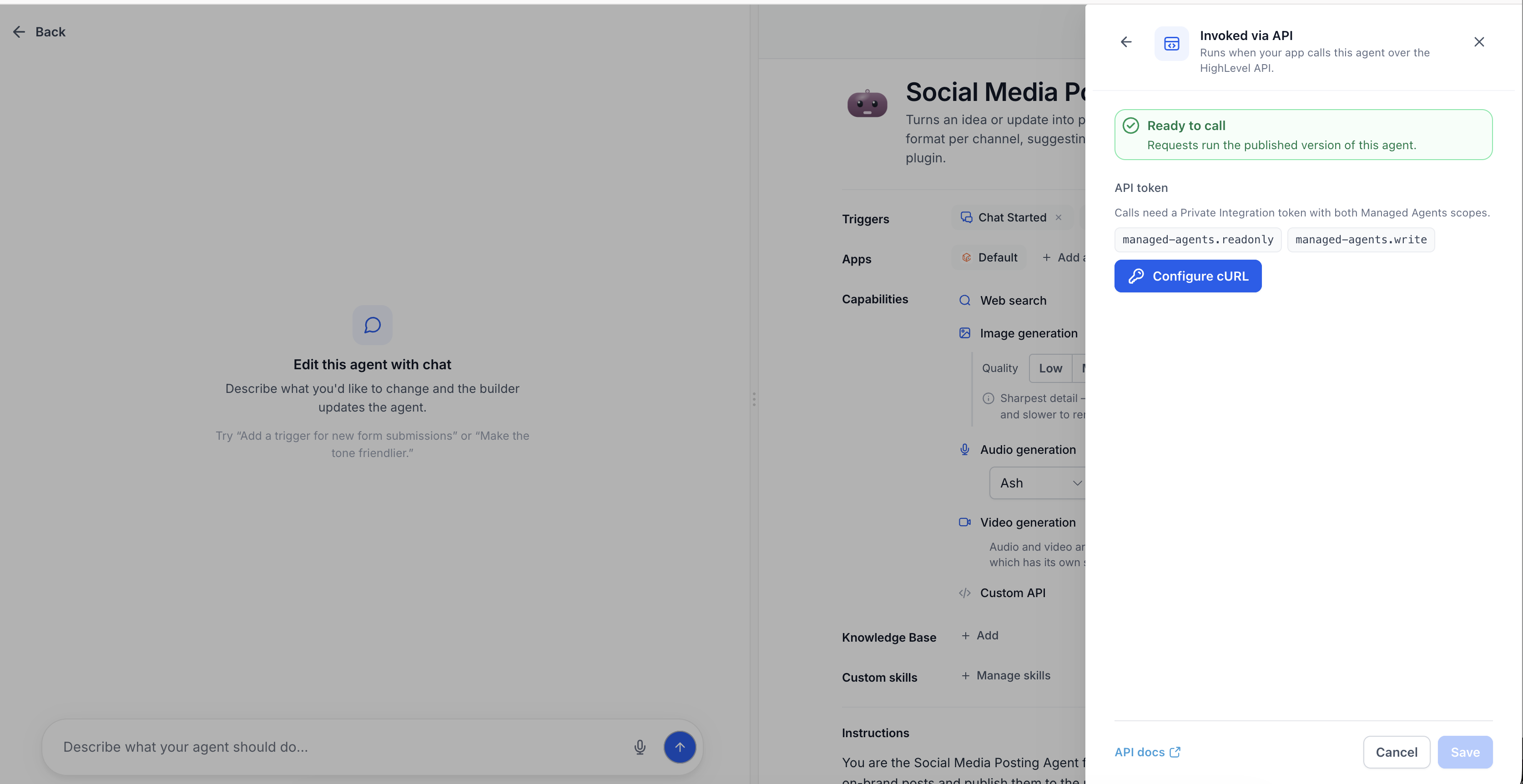
Click Configure cURL in the API deployment drawer to begin token setup.
You can:
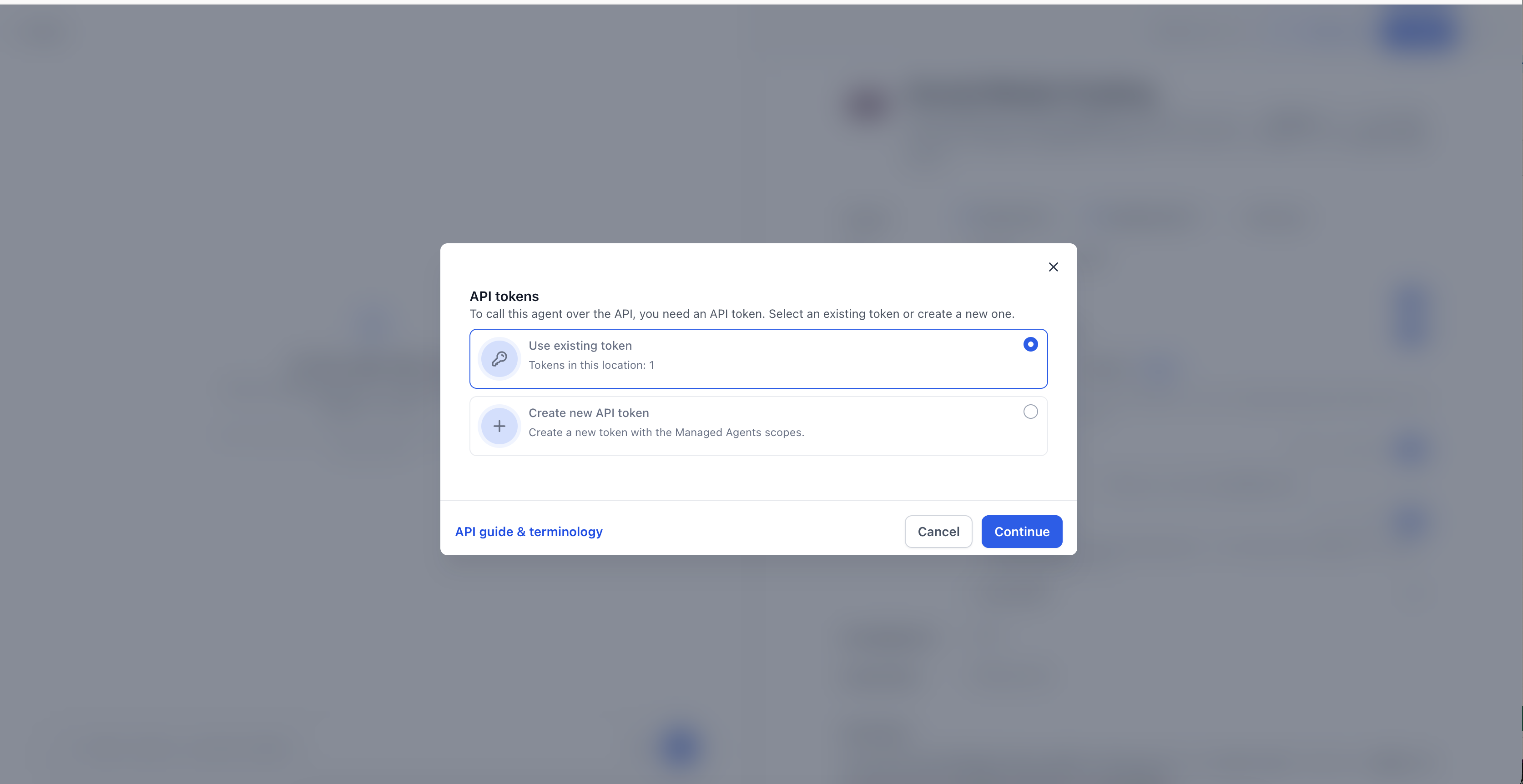
Select an existing Private Integration token.
Create a new Private Integration token without leaving the builder.
Add the required Managed Agents scopes to an existing token if those permissions are missing.
Use the preselected Managed Agents scopes when creating a new token.
Only sub-account admins can create API tokens. If you do not have permission to create a token, HighLevel provides a request that you can send to your administrator. You can still view the generated code with a placeholder token so you know how the integration will be structured.
For more information about Private Integration tokens, see Private Integrations: Everything You Need to Know.
Token Security and Masking
Protecting API credentials is important because a Private Integration token grants access based on the scopes assigned to it. HighLevel masks the configured token after setup and does not save the full token when you temporarily paste it into the API deployment drawer to generate runnable sample code.
After token setup:
The configured token appears masked.
HighLevel does not reveal the previously generated full token.
You can paste your stored full token into the drawer when you want the generated sample to contain a runnable credential.
The full token pasted into that field is not saved.
Store Private Integration tokens securely and avoid exposing them in public source code, client-side applications, screenshots, or repositories.
Start and Continue Conversations
Managed Agents support both new and continuing conversations through the API. Choosing the correct request type determines whether the agent starts with a new conversation context or continues from a previous API response.
The API deployment drawer provides two options:
Start a conversation: Creates a new conversation with the Managed Agent.
Continue a conversation: Continues an existing conversation by sending the
sessionIdreturned by the previous response.
Use Start a conversation when the request should be treated as a new interaction. Use Continue a conversation when your application needs the Managed Agent to retain the context established during the previous API exchange.
Save the returned sessionId in your application and include it in the next continuation request.
cURL, Python, and JavaScript Code Samples
The API deployment drawer generates code samples so developers can connect their application to the Managed Agent without manually assembling every request. Each example represents the same API interaction in a different language or format.
Available examples include:
cURL
Python
JavaScript
Use the copy button next to the preferred example, then add the code to your application and adapt it to your implementation as needed.
The drawer can generate examples for both starting and continuing a conversation.
Idempotency-Key
An Idempotency-Key helps protect your application from accidentally running the same agent request more than once. This is especially useful when a network issue or application retry causes the same request to be sent again.
The generated requests include an Idempotency-Key. When a request is retried using the same key, the retry does not cause the Managed Agent to execute the same operation twice.
Keep the generated idempotency behavior intact when adapting the request for your application unless your implementation has been designed to manage unique request keys separately.
Published and Unpublished Agent Behavior
Publishing determines whether a Managed Agent can respond to production API requests. This separation lets you continue editing and testing a draft while your application keeps using the currently published configuration.
API requests always run the published version of the Managed Agent.
If the Managed Agent is unpublished:
API invocation stops.
Requests to the agent return a
404.API access resumes after the agent is published again.
Unpublishing does not delete the agent's instructions, triggers, knowledge, or other configuration.
For more information, see How to Unpublish a Managed Agent.
API Activity and Troubleshooting
API-triggered runs are recorded with the Managed Agent's other execution activity. Reviewing Activity helps you confirm that requests reached the agent and understand how the agent handled each run.
Open the Managed Agent and review its Activity when troubleshooting an API invocation. The Activity experience provides execution information that can help you investigate what happened during a run.
For deeper troubleshooting across supported AI interactions, you can also use Agent Logs.
Learn more about monitoring Managed Agents in Managed Agent Activity Feed: Monitor & Debug AI Agents and Agent Logs in HighLevel: Overview, Benefits, and Setup.
Invoked via API vs. Invoked from a Workflow
HighLevel provides different invocation methods depending on where the Managed Agent needs to be called from. Choosing the correct trigger keeps your automation easier to understand and maintain.
Use Invoked via API when software outside HighLevel needs to call the Managed Agent through the API.
Use Invoked from a workflow when a HighLevel Workflow should intentionally hand a task to the Managed Agent as part of an automation.
Both approaches use a published Managed Agent, but they serve different integration paths.
For workflow-based execution, see How to Invoke Managed Agents from HighLevel Workflows.
How To Setup Deploy to API for a Managed Agent
Proper setup ensures your application calls the intended published agent with the correct authentication and conversation behavior. Configure and publish the Managed Agent first, then connect the appropriate Private Integration token and copy the generated request into your application.
Go to AI Agents → Agent Studio.
Open the Managed Agent you want to make available through the API.
Confirm that the agent's instructions, tools, knowledge, and other configuration are ready for production use.
Test the Managed Agent in the builder.
Publish the Managed Agent.
In the Triggers row, click + Add trigger.
Select Invoked via API.
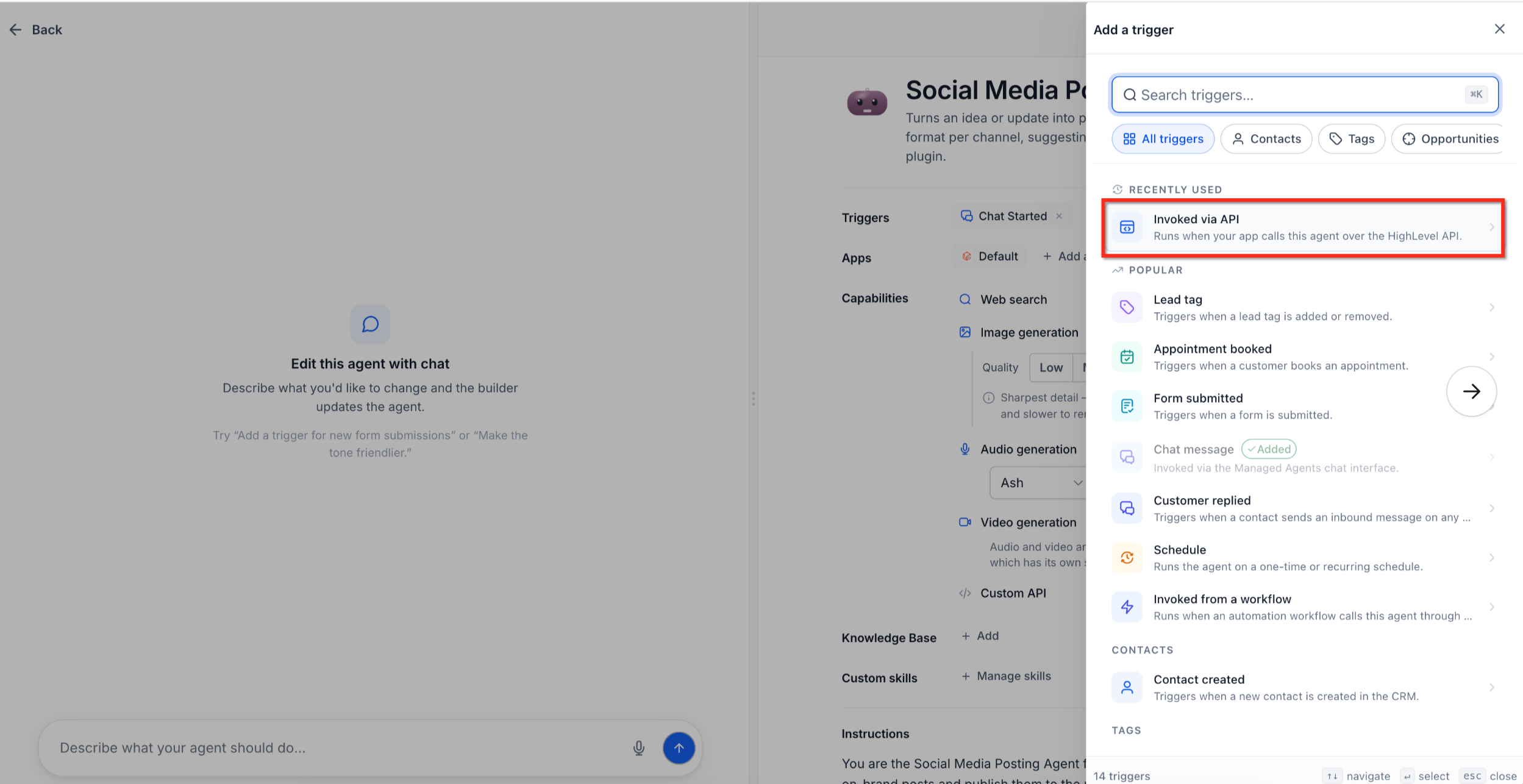
Open the API deployment drawer.
Click Configure cURL.
Choose an existing Private Integration token or create a new token.
New tokens have the required Managed Agents scopes preselected.
If an existing token is missing the required Managed Agents scopes, use the available option to add them.
Only sub-account admins can create API tokens.
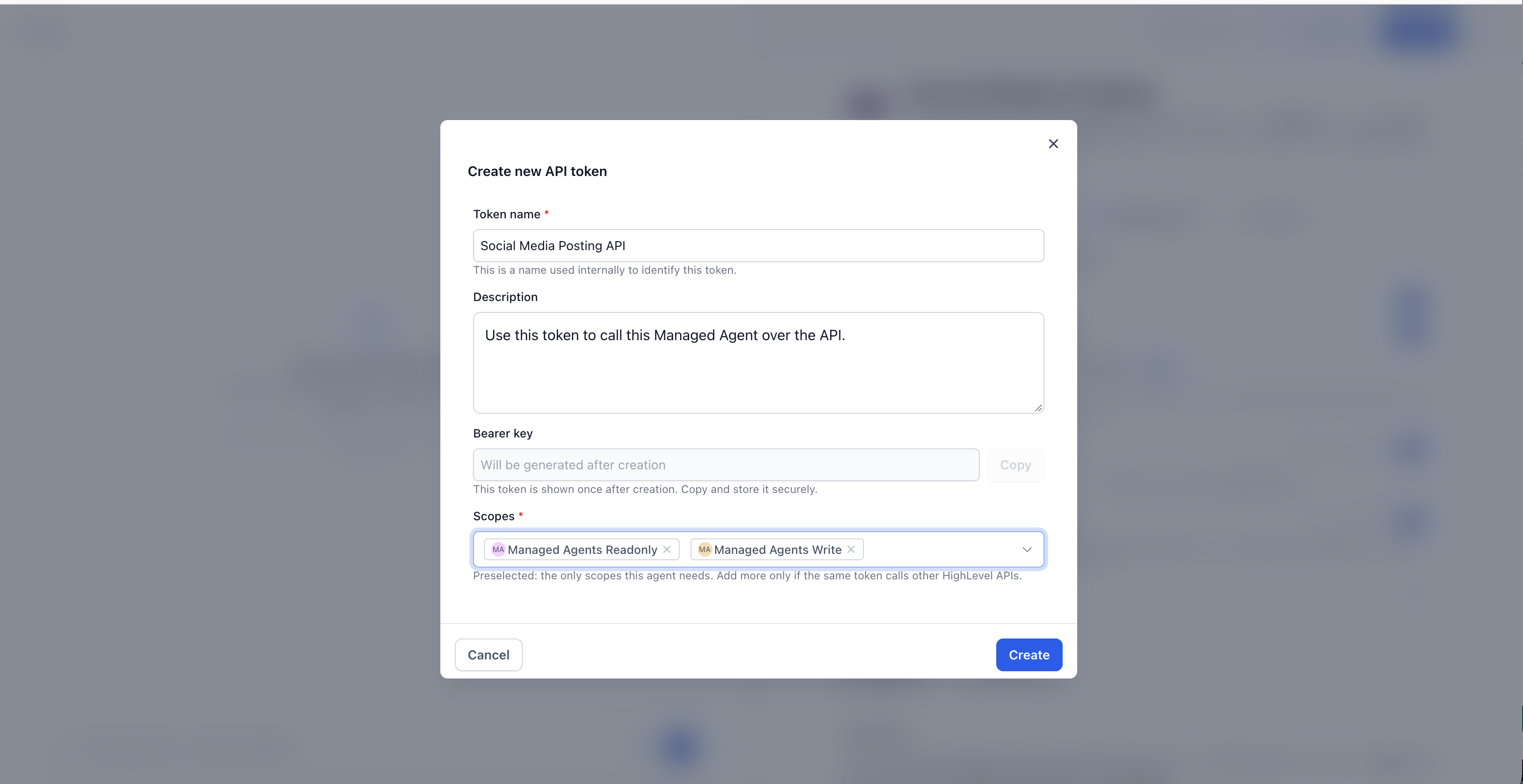
Save the API configuration.
If you want runnable generated code, paste your securely stored full token into the provided field. The pasted value is not saved.
Choose the code format you want to use:
cURL
Python
JavaScript
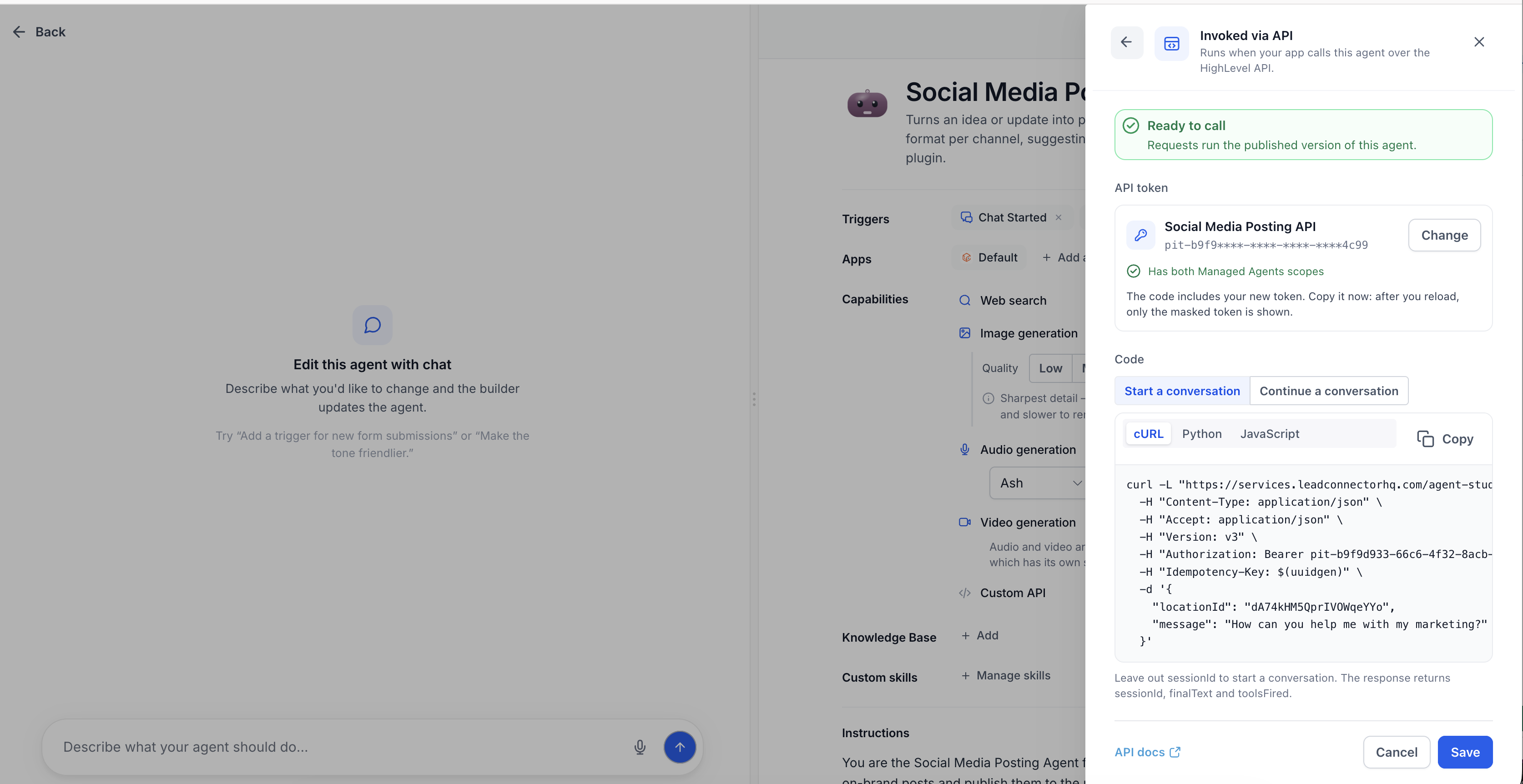
Select Start a conversation for the initial request.
Copy the generated request into your application.
Send the request and store the
sessionIdreturned by the response when you need to continue the conversation.Return to the deployment drawer and select Continue a conversation to view the continuation request format.
Pass the previously returned
sessionIdwhen sending the next request.Keep the
Idempotency-Keybehavior in place so retries do not unintentionally execute the same request twice.Review the Managed Agent's Activity after testing to confirm the API-triggered run executed as expected.
Frequently Asked Questions
Q: Can the same Managed Agent be used in Chat and through the API?
Yes. Invoked via API works alongside Chat and other supported triggers, so the same Managed Agent can serve multiple interaction methods.
Q: Which version of the Managed Agent does the API use?
The API uses the agent's published version. Draft changes made in the builder do not affect production API calls until the agent is published again.
Q: What happens if I unpublish a Managed Agent that my application is calling?
API calls to the unpublished agent return a 404 until the Managed Agent is published again.
Q: Do I need to create a new API token for every Managed Agent?
The deployment drawer lets you choose an existing Private Integration token or create a new one. The selected token must include the required Managed Agents scopes.
Q: What if I am not a sub-account admin?
Only sub-account admins can create API tokens. Non-admin users can use the request provided by HighLevel to ask an administrator for the required token setup and can view generated code with a placeholder token.
Q: How does my application keep conversation context between API calls?
Save the sessionId returned by the previous API response and send that value when using the Continue a conversation request.
Q: Does HighLevel save the full API token I paste into the deployment drawer?
No. The full token can be pasted into the drawer to populate runnable generated code, but that pasted value is not saved. The configured token remains masked after setup.
Q: Why is an Idempotency-Key included in the request?
The Idempotency-Key helps prevent an accidentally retried request from running the Managed Agent twice.
Q: Should I use Invoked via API or Invoked from a workflow?
Use Invoked via API when an external product, website, or backend needs to call the agent. Use Invoked from a workflow when a HighLevel Workflow should invoke the agent as part of an automation.
Related Articles
Was this article helpful?
That’s Great!
Thank you for your feedback
Sorry! We couldn't be helpful
Thank you for your feedback
Feedback sent
We appreciate your effort and will try to fix the article