Workflow Trigger – Video Testimonial Received
Modified on: Wed, 2 Sep, 2026 at 1:23 AM
Automate follow-up actions the moment a new video testimonial is submitted. The Video Testimonial Received workflow trigger lets businesses notify their team, follow up with the reviewer, organise testimonials, and build downstream automations without manually monitoring for new submissions.
TABLE OF CONTENTS
- What is the Video Testimonial Received Trigger?
- Key Benefits of the Video Testimonial Received Trigger
- How To Set Up the Video Testimonial Received Trigger
- Using Video Testimonial Custom Values
- Example Use Cases
- Frequently Asked Questions
What is the Video Testimonial Received Trigger?
The Video Testimonial Received trigger starts a workflow whenever a new video testimonial is submitted through a Video Testimonial Collector.
Once triggered, businesses can automate actions such as notifying team members, creating tasks, sending follow-up messages, or passing testimonial information into other workflow steps.
The trigger also makes testimonial information available as workflow custom values, including reviewer details, collector information, submission time, marketing consent, and the video link.
This follows the same workflow pattern used by other event-based triggers in HighLevel: select the event, optionally add filters, and then configure the actions that should occur after the event.
Key Benefits of the Video Testimonial Received Trigger
- Instant notifications: Notify internal teams as soon as a new video testimonial is received.
- Automated follow-up: Send an email or SMS thanking the customer after they submit their testimonial.
- Consent-aware workflows: Create different automation paths depending on whether the reviewer has granted marketing consent.
- Collector-specific automation: Run different workflows based on the Video Collector through which the testimonial was submitted.
- Easy testimonial access: Use the submitted video link and reviewer information in downstream workflow actions.
- Flexible automation: Combine the trigger with existing Workflow actions such as internal notifications, notes, tasks, webhooks, emails, or other workflow logic.
How To Set Up the Video Testimonial Received Trigger
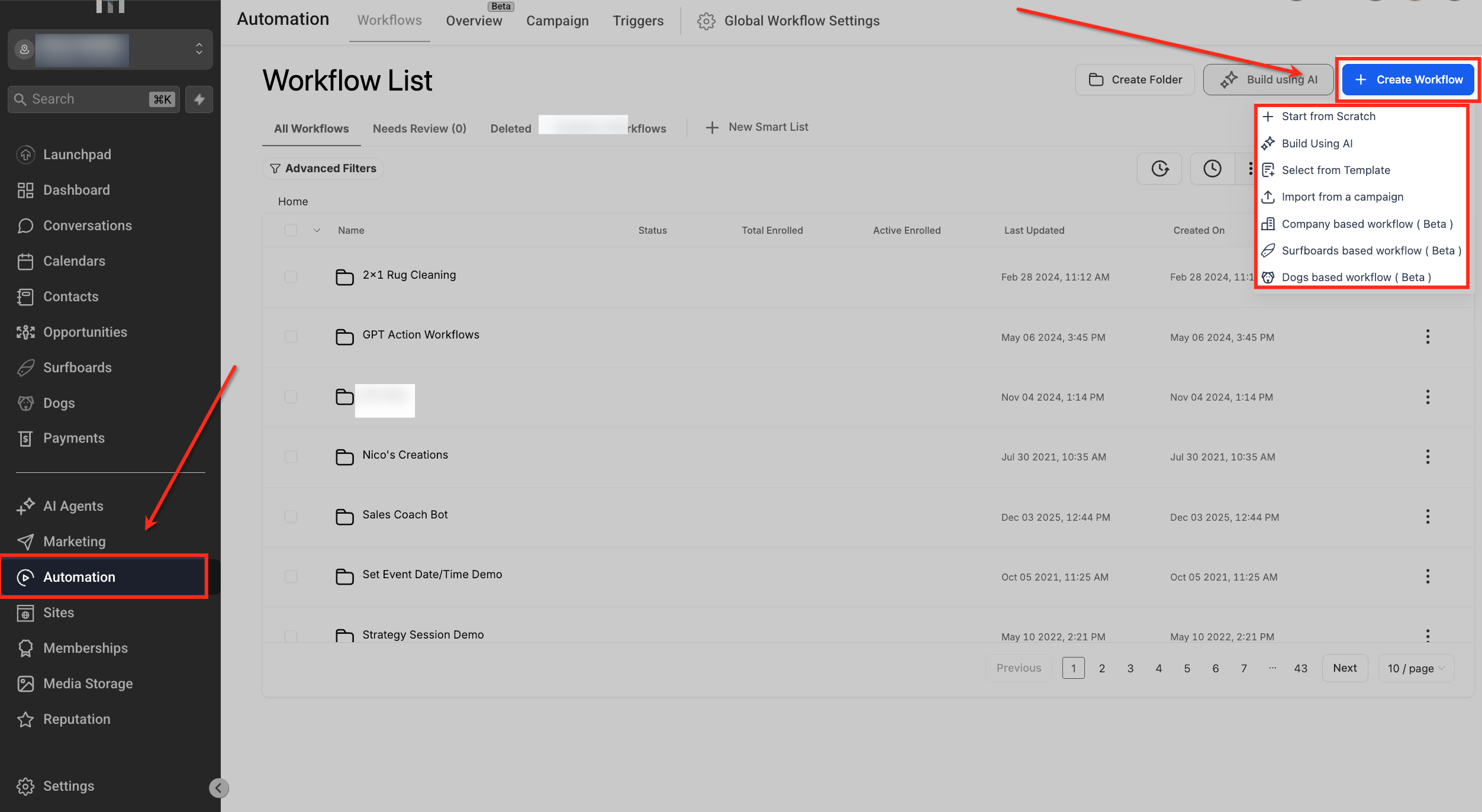
Create Workflow
Navigate to:
Automation → Workflows
Open an existing workflow or click + Create Workflow to create a new one.
You can start from scratch or use any other workflow creation option available in your account.
Add Trigger
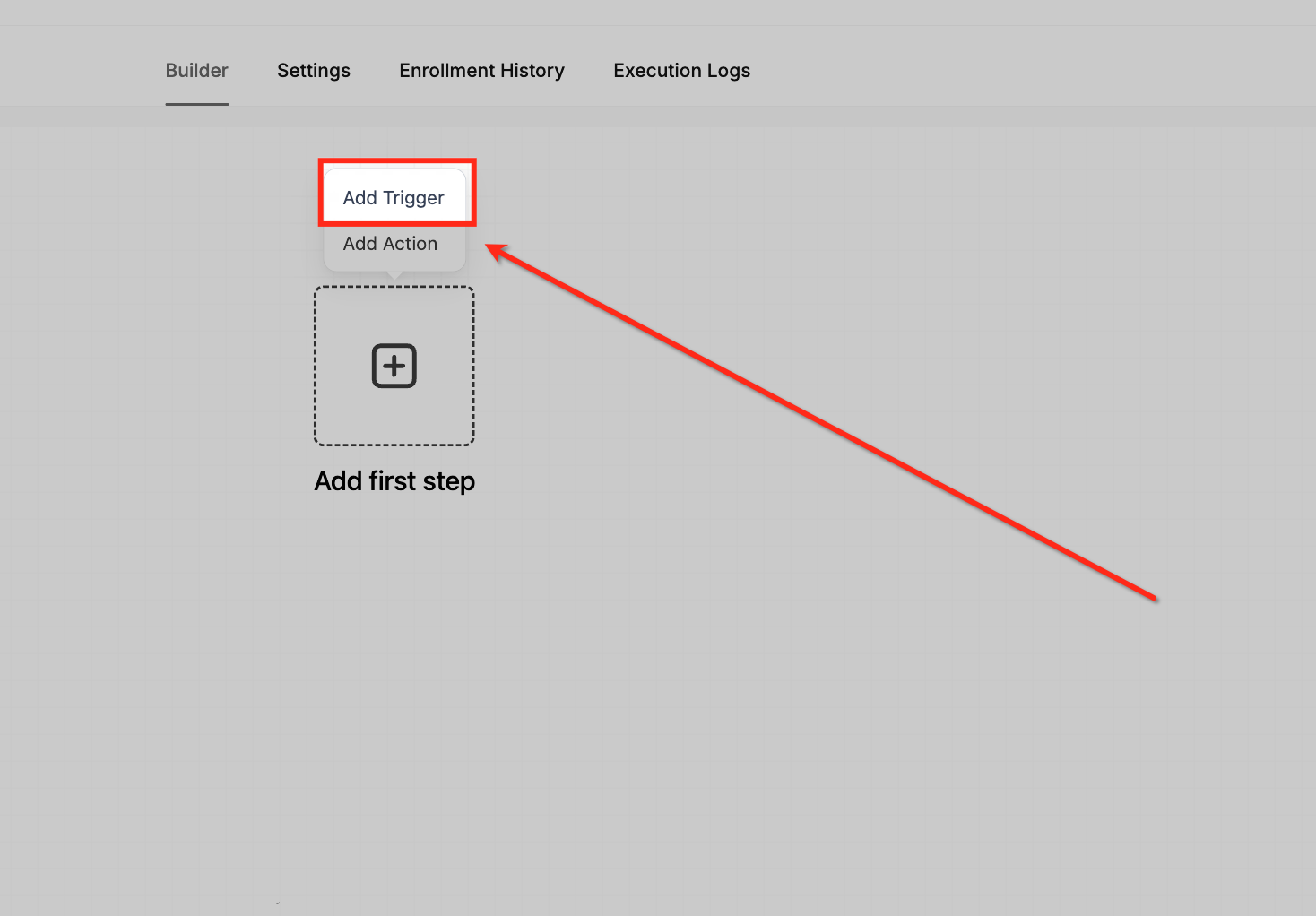
Inside the Workflow Builder, click Add Trigger.
The trigger selection panel will open, allowing you to choose the event that should enroll the workflow.
Locate Trigger
Search for or select:
Video Testimonial Received
Choose the trigger to configure when the workflow should run.
Name Trigger
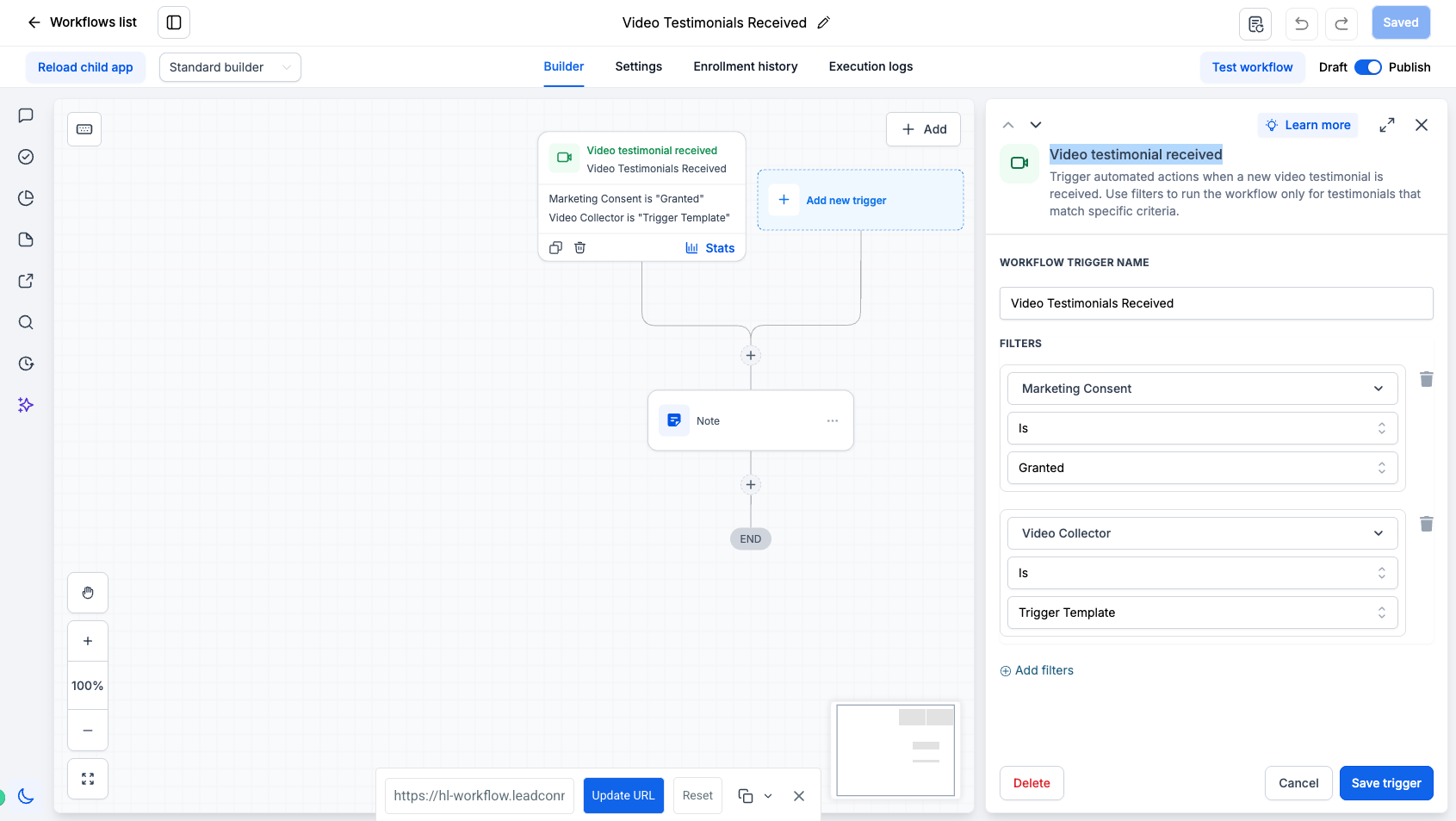
Enter a descriptive Workflow Trigger Name.
For example:
- Video Testimonial Received
- Marketing-Approved Video Testimonials
- Customer Testimonial Notification
- Trigger Template Testimonials
Using a clear name makes the workflow easier to understand when managing multiple triggers or reviewing execution history. This is also the approach recommended for other HighLevel workflow triggers.
Add Filters
Filters are optional and allow you to control which video testimonial submissions enter the workflow.
Without filters, the workflow can run whenever a new video testimonial is received.
You can add one or more filters to create more targeted automations.
1. Marketing Consent Filter
Use the Marketing Consent filter to determine whether the person submitting the testimonial has granted permission for marketing use.
For example:
Marketing Consent → Is → Granted
This can be useful when creating workflows that distribute or repurpose testimonials for marketing purposes.
You could also create separate workflow paths for testimonials where marketing consent has or has not been granted.
2. Video Collector Filter
Use the Video Collector filter to run the workflow only for testimonials submitted through a specific collector.
For example:
Video Collector → Is → Trigger Template
This is helpful when you have multiple testimonial campaigns or collectors and want different automations for each one.
For example, a business might have separate collectors for:
- Customer testimonials
- Product feedback
- Event testimonials
- Partner testimonials
- Specific marketing campaigns
Filtering allows each collector to have its own downstream workflow.
Save Trigger
Once the trigger and filters are configured, click Save Trigger.
You can then add workflow actions underneath the trigger.
For example:
Video Testimonial Received → Internal Notification → Add Note → Create Task → Send Thank You Email
As with other HighLevel workflow triggers, testing the workflow with a sample submission before publishing is recommended.
Using Video Testimonial Custom Values
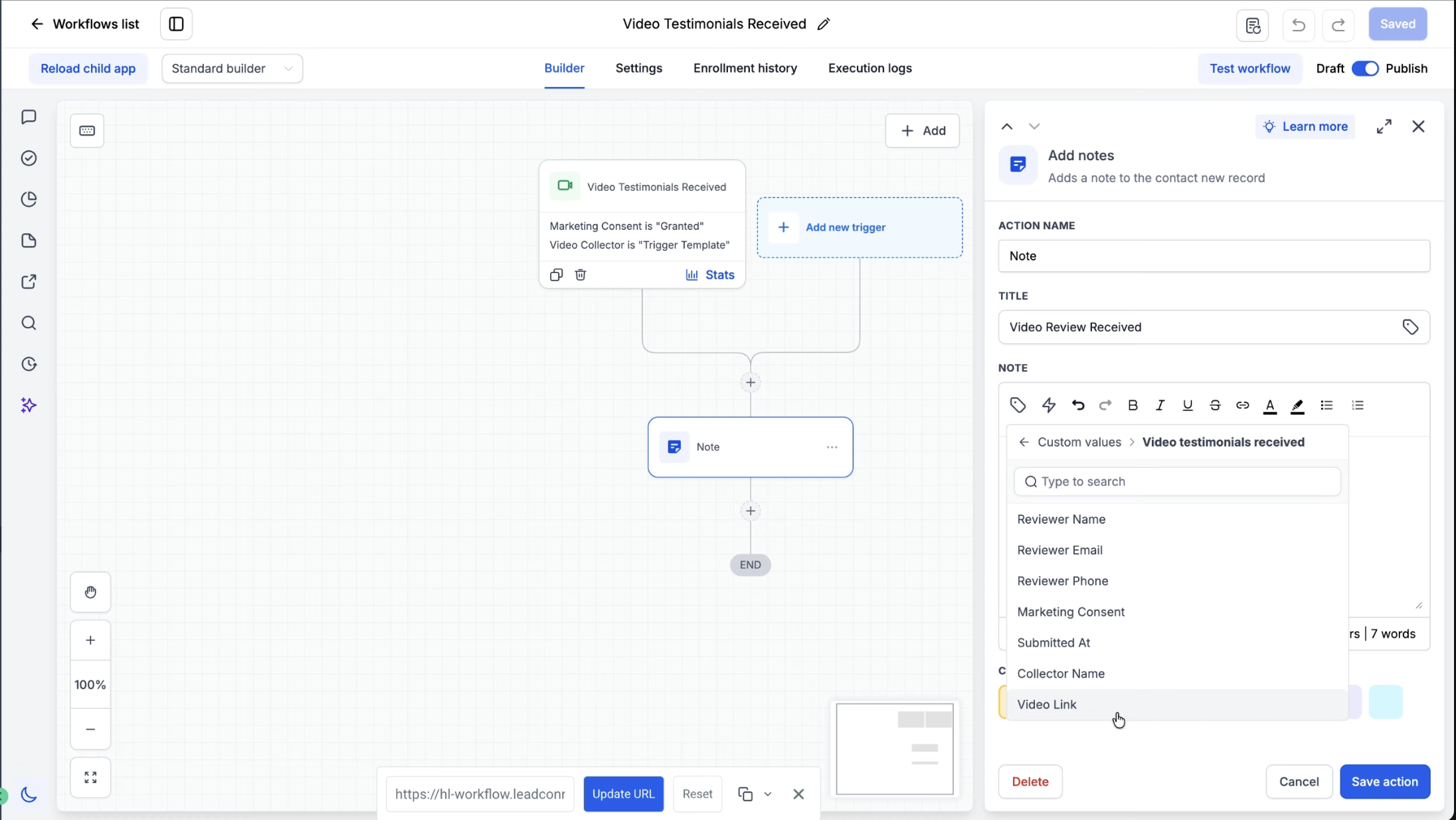
When a Video Testimonial Received workflow runs, testimonial-specific information is available as Custom Values for use inside supported workflow actions.
Available values include:
| Custom Value | Description |
|---|---|
| Reviewer Name | Name provided by the person submitting the testimonial |
| Reviewer Email | Email provided during submission |
| Reviewer Phone | Phone number provided during submission |
| Marketing Consent | Indicates the marketing-consent status associated with the testimonial |
| Submitted At | Date/time when the testimonial was submitted |
| Collector Name | Name of the Video Collector used for the submission |
| Video Link | Link to the submitted video testimonial |
These values can be inserted into workflow actions such as notes, internal notifications, messages, or other supported actions.
For example, an internal notification could contain:
New Video Testimonial Received
Reviewer: {{Reviewer Name}}
Collector: {{Collector Name}}
Marketing Consent: {{Marketing Consent}}
Video: {{Video Link}}
Example Use Cases
Notify the team when a testimonial arrives
Video Testimonial Received → Internal Notification
Immediately alert the marketing or customer-success team so they can review the submission.
Create a workflow only for marketing-approved testimonials
Video Testimonial Received
Filter: Marketing Consent = Granted
Then send the testimonial to the marketing team for review or further action.
Run different automations for different collectors
Video Testimonial Received
Filter: Video Collector = Customer Success Testimonials
This allows each campaign or collector to have its own automation.
Add the testimonial information to a note
Use the Video Testimonial custom values to automatically create a note containing the reviewer information, collector name, submission date, and video link.
Frequently Asked Questions
Q: When does the Video Testimonial Received trigger fire?
The trigger fires when a new video testimonial is successfully submitted through a Video Testimonial Collector.
Q: Can I trigger workflows only for a specific Video Collector?
Yes. Add the Video Collector filter and select the collector you want the workflow to monitor.
Q: Can I filter testimonials based on marketing consent?
Yes. Use the Marketing Consent filter to create workflows based on the consent status associated with the submission.
Q: Can I use the video URL inside workflow actions?
Yes. The Video Link is available as a Video Testimonial custom value and can be inserted into supported workflow actions.
Q: What reviewer information is available in the workflow?
The trigger exposes reviewer name, email, phone, marketing consent, submission time, collector name, and video link as Video Testimonial custom values.
Q: Can I notify my team whenever a new testimonial is received?
Yes. Add an internal notification or another appropriate workflow action immediately after the trigger.
Q: Can the same workflow handle testimonials from multiple collectors?
Yes. You can leave the Video Collector filter unset to capture all eligible submissions, or use separate triggers/workflows when different collectors require different automation.
Was this article helpful?
That’s Great!
Thank you for your feedback
Sorry! We couldn't be helpful
Thank you for your feedback
Feedback sent
We appreciate your effort and will try to fix the article