Automate Badge Issuance with Workflows
This article explains how to use the new Workflow actions to automatically issue badges and create follow-up automations based on badge awards.
You'll learn how the Issue Badge action and Badge Issued trigger work together to streamline recognition and build automated journeys around achievements.
What is Badge Automation in Workflows?
Badge automation allows you to issue badges automatically through Workflows and trigger additional actions whenever a badge is awarded. This integration connects recognition with your broader automation strategy, making it easier to celebrate achievements and continue customer journeys based on milestones.
The feature includes two new Workflow components: the Issue Badge action, which awards a badge when workflow conditions are met, and the Badge Issued trigger, which starts follow-up automations immediately after a badge is granted.
Together, these tools let you build complete recognition flows—from automatically awarding badges based on behavior or milestones to sending congratulatory messages, updating contact records, or launching next steps in a customer journey.
Key Benefits
Badge automation streamlines recognition and opens new opportunities to engage contacts based on achievements. These capabilities make it simple to acknowledge milestones and maintain momentum in customer relationships.
How the Issue Badge Action Works
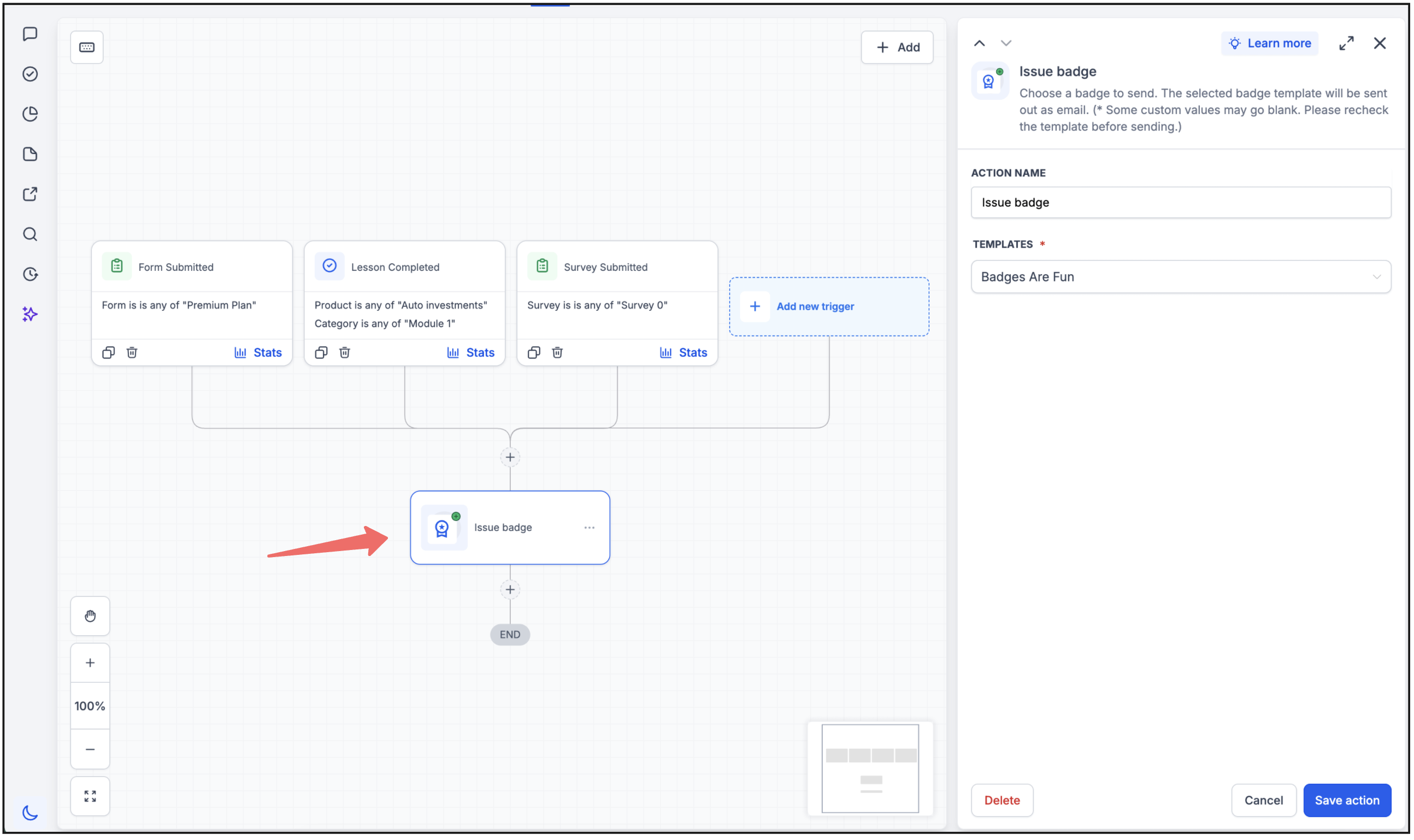
The Issue Badge action adds badge issuance as a step in any workflow. When the workflow reaches this action, it automatically awards the selected badge to the contact or participant who triggered the workflow.
You can use this action in workflows triggered by events such as course completions, purchases, form submissions, or custom field updates. Once the workflow conditions are met, the badge is issued without manual intervention.
Combine the Issue Badge action with filters and conditions to ensure badges are only awarded when specific criteria are met, such as achieving a score threshold or completing multiple activities.
How the Badge Issued Trigger Works
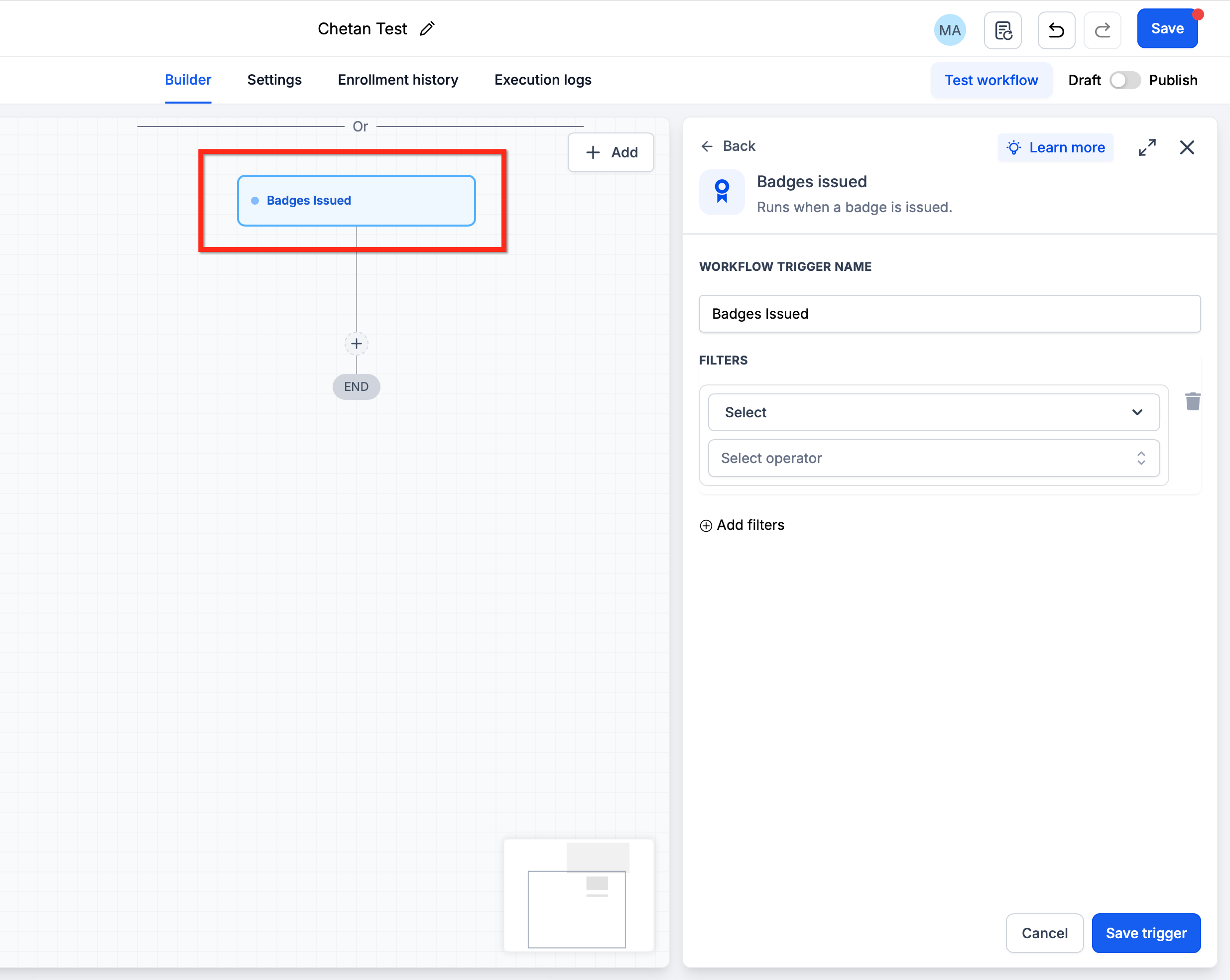
The Badge Issued trigger starts a workflow whenever a specified badge is awarded to a contact. This trigger activates regardless of how the badge was issued—whether manually, through the Issue Badge action, or by any other method.
Once triggered, the workflow can execute follow-up actions such as sending a congratulatory email or SMS, updating contact tags or custom fields, assigning the contact to a pipeline stage, or starting another automation sequence.
Use the Badge Issued trigger to send a personalized message acknowledging the achievement, offer a discount or reward, or enroll the contact into an advanced course or program based on their accomplishment.
How to Set Up Badge Automation
Setting up badge automation involves configuring the Issue Badge action to award badges automatically. Follow these steps to add badge issuance to your workflows.
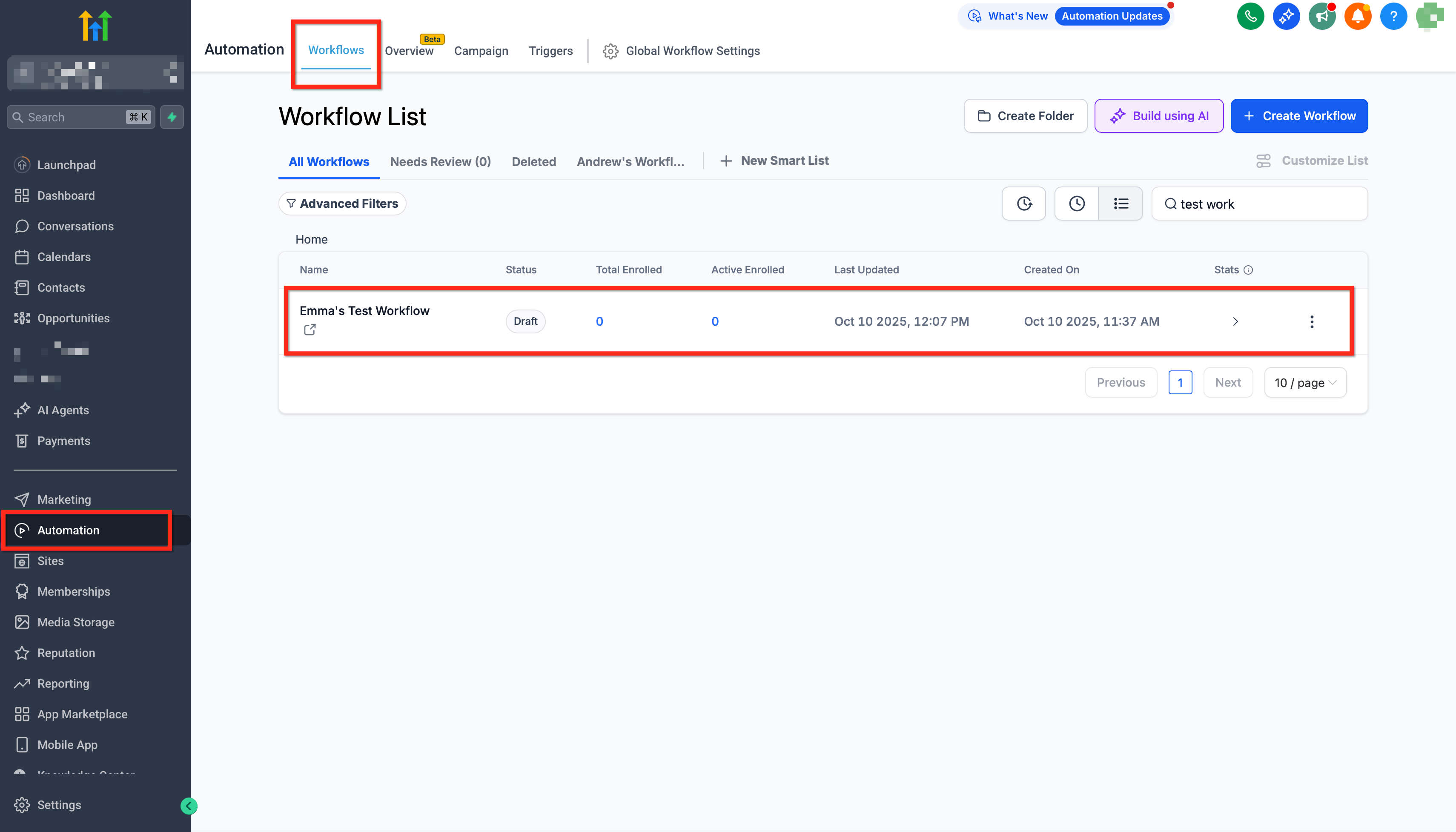
Navigate to the Workflows section in HighLevel and either create a new workflow or open an existing workflow where you want to add badge issuance.
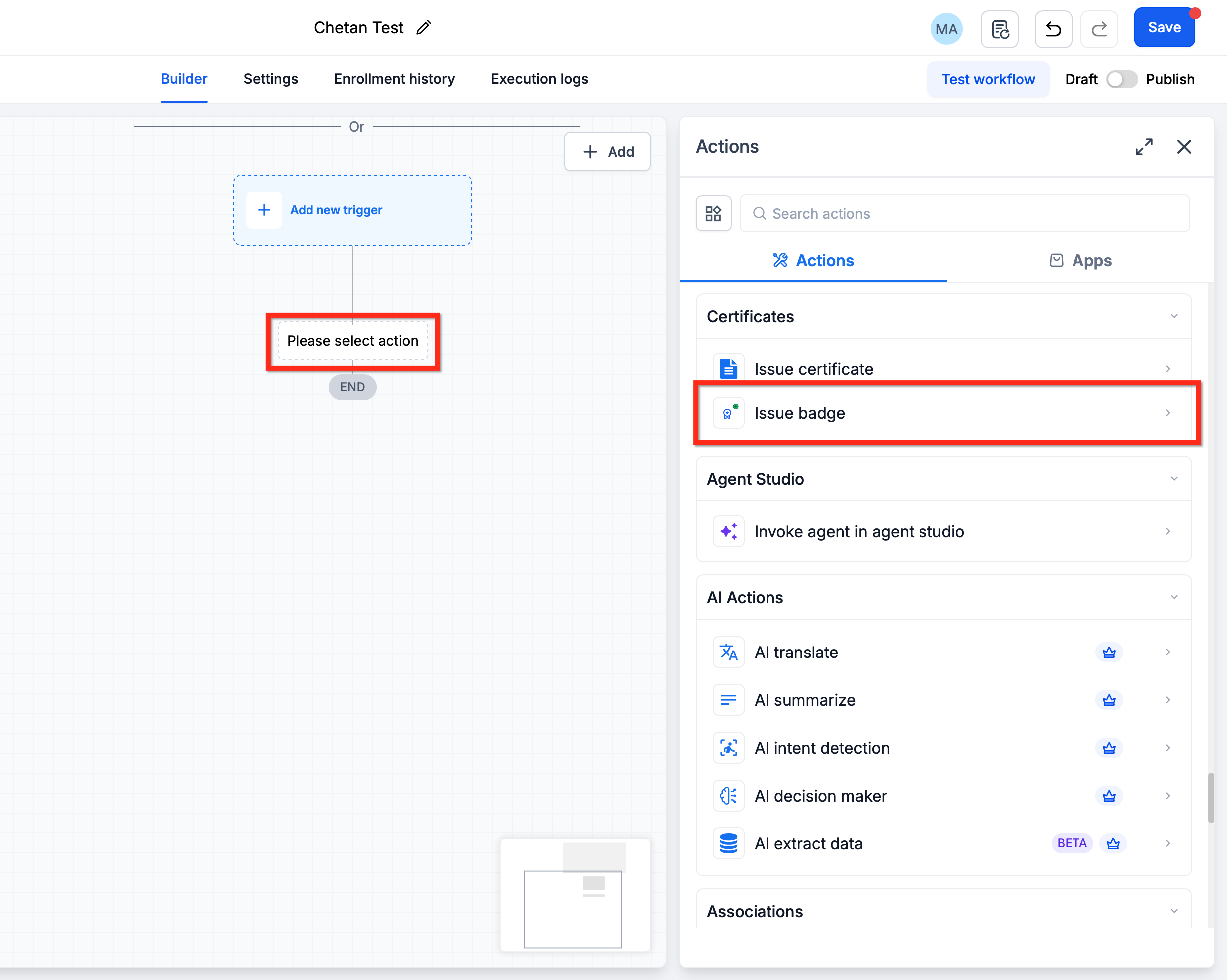
In the workflow builder, click to add a new action. Search for and select "Issue Badge" from the available actions list.
Use the dropdown menu to choose which badge will be issued when the workflow reaches this action. Only active badges configured in your account will appear in the list.
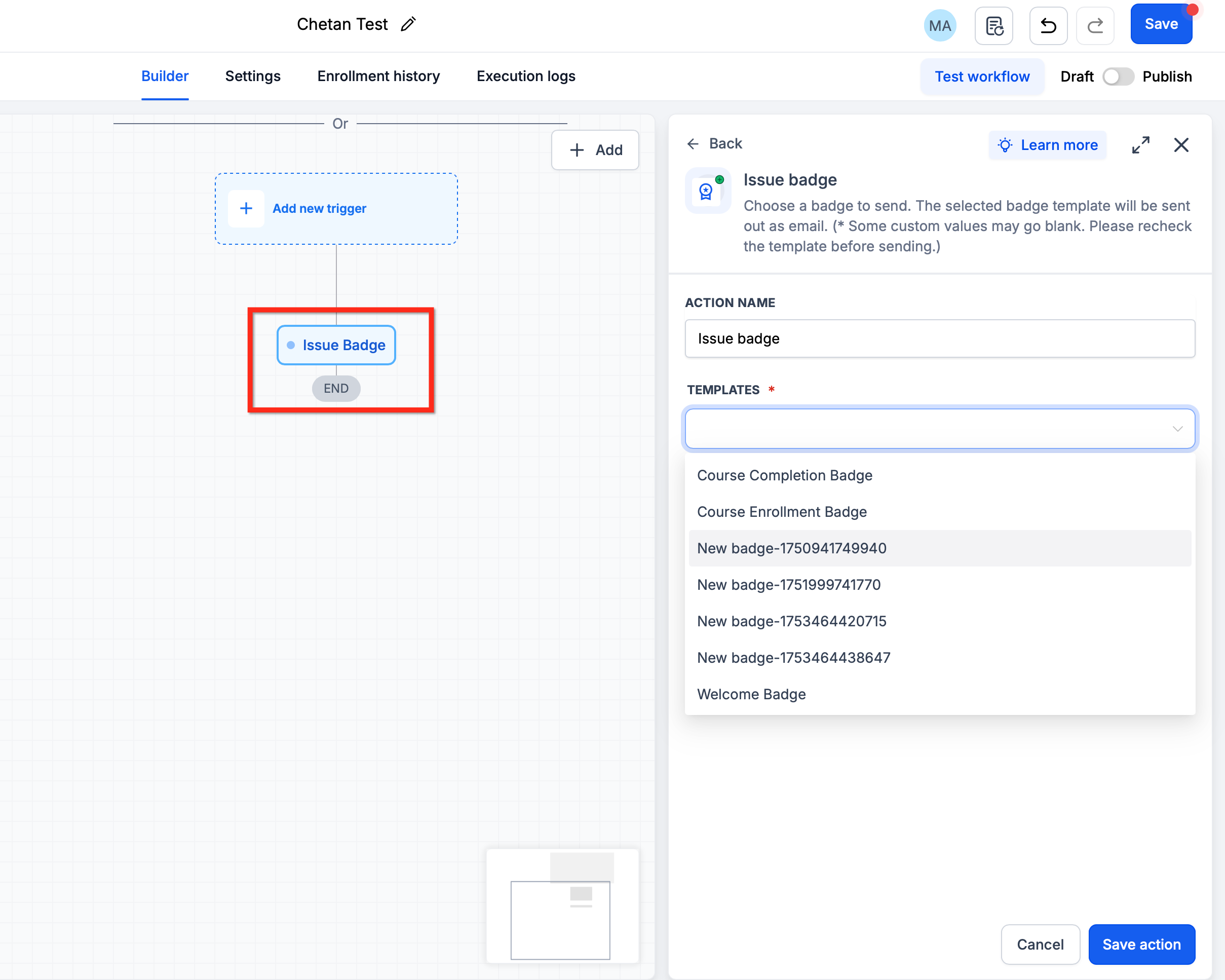
Save your changes and activate the workflow. The badge will now be issued automatically whenever the workflow conditions are met and the action is reached.
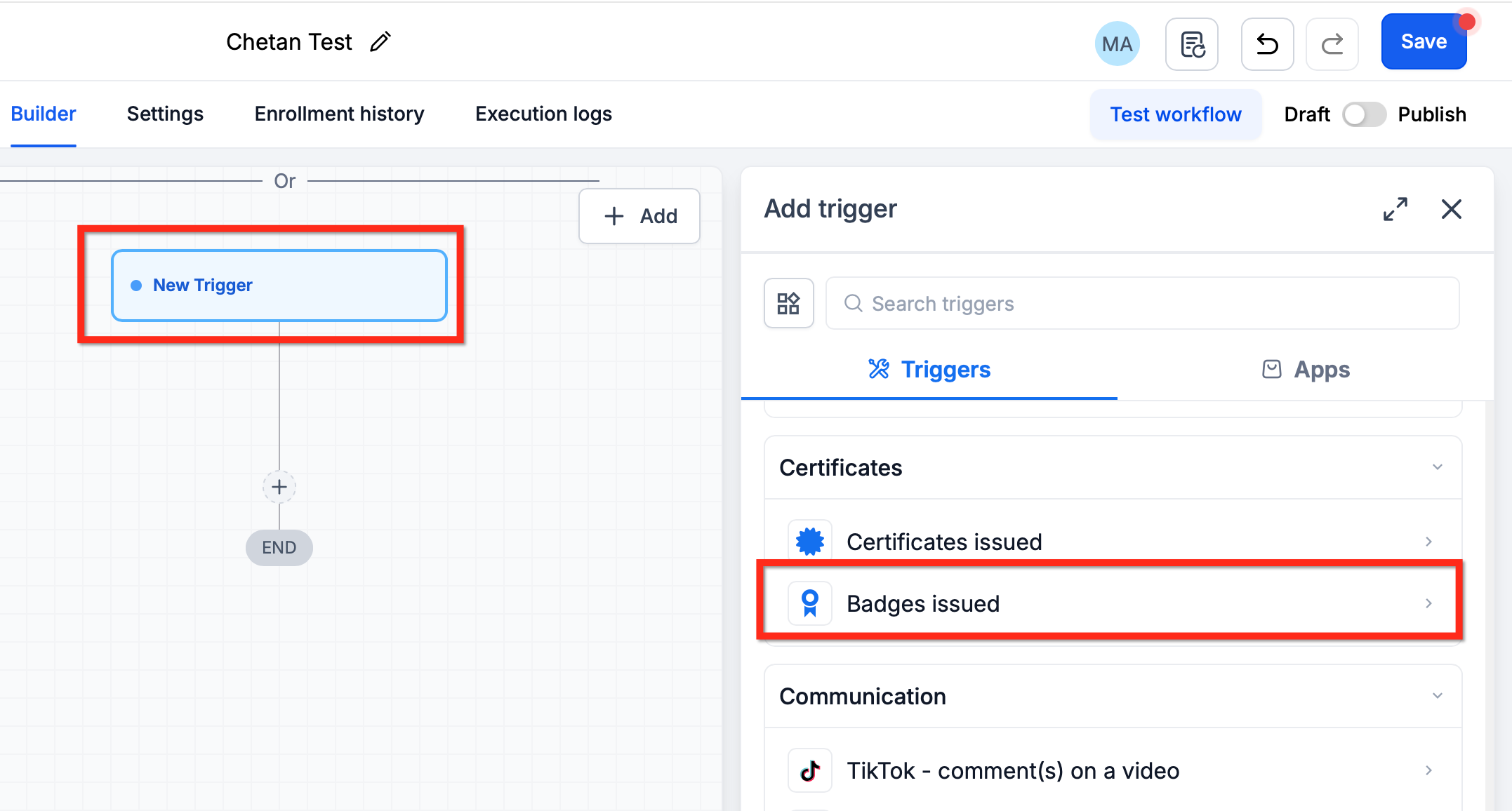
To set up follow-up actions after a badge is issued, create a separate workflow using the Badge Issued trigger. Select the badge that will start the workflow, then add actions like sending emails, updating contact fields, or starting additional automations. You can have multiple workflows using the same badge in the Badge Issued trigger for different follow-up scenarios.
Related Articles
Frequently Asked Questions
Was this article helpful?
That’s Great!
Thank you for your feedback
Sorry! We couldn't be helpful
Thank you for your feedback
Feedback sent
We appreciate your effort and will try to fix the article