Global Sections allow you to reuse shared sections across multiple pages in the Page Builder. With the latest enhancement, Global Sections now include a search field that lets you quickly locate saved Global Sections by name. This improves speed and usability, especially in workspaces with many reusable sections.
TABLE OF CONTENTS
- Overview
- What Are Global Sections?
- Accessing Global Sections in the Page Builder
- Searching Global Sections (New)
- How the Search Works
- Example: Filtering Global Sections by Name
- Why This Matters
- What Did Not Change
- Frequently Asked Questions
- Related Articles
Overview
Global Sections are reusable sections that can be added to multiple pages and kept in sync across your site or funnel. They are managed from the Saved Sections → Global Sections area inside the Page Builder.
To improve navigation and reduce scrolling through long lists, a new search capability has been added to Global Sections, allowing you to filter sections in real time by name.
What Are Global Sections?
Global Sections are saved sections that can be reused across pages. When a Global Section is updated, those changes can be reflected everywhere the section is used, making them ideal for shared elements such as headers, footers, galleries, or review components.
They are accessed from the Page Builder when adding a section to a page.
Accessing Global Sections in the Page Builder
To access Global Sections:
Open the Page Builder for a page or funnel step.
Click Add Elements in the left sidebar.
Select Saved Sections.
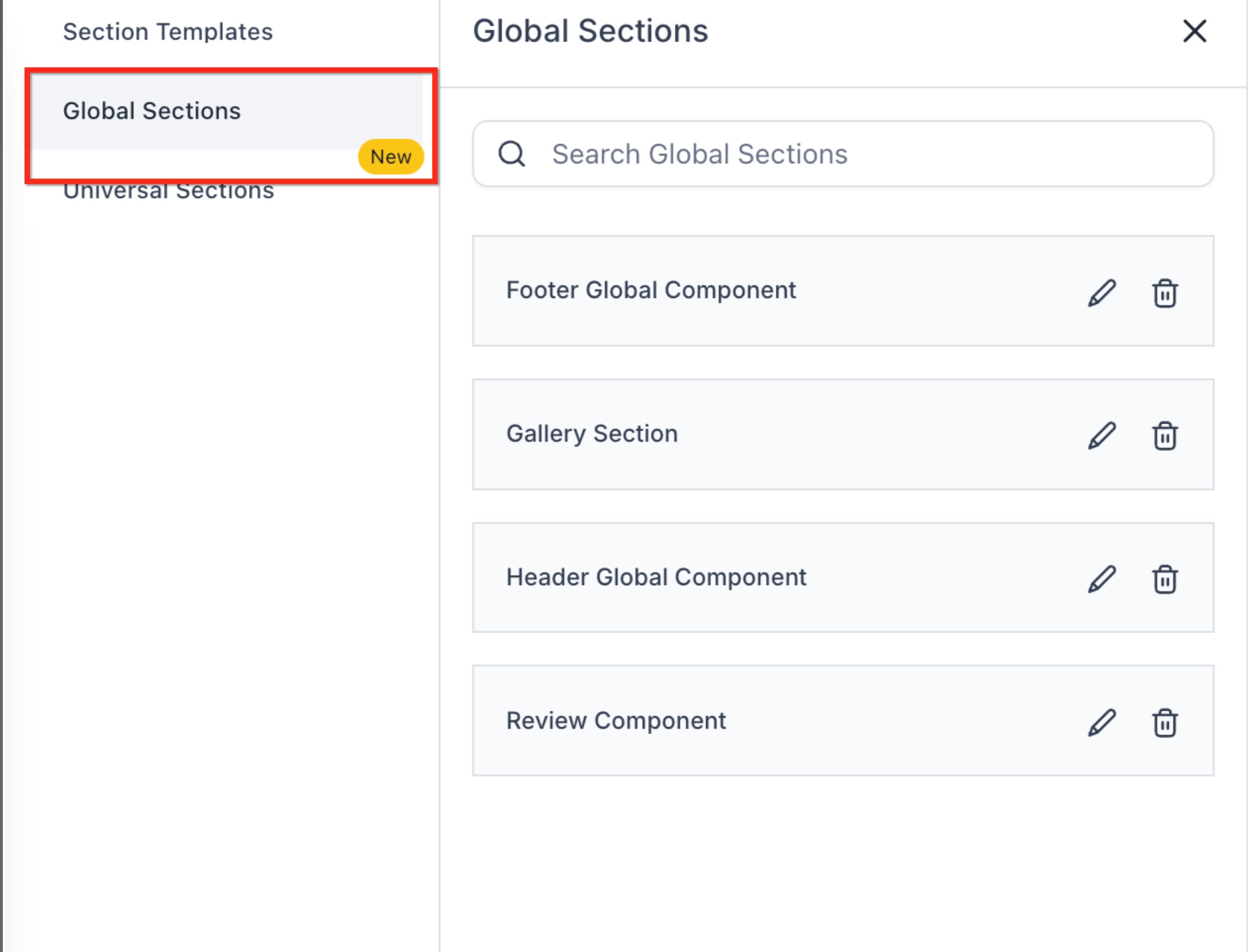
Open Global Sections.
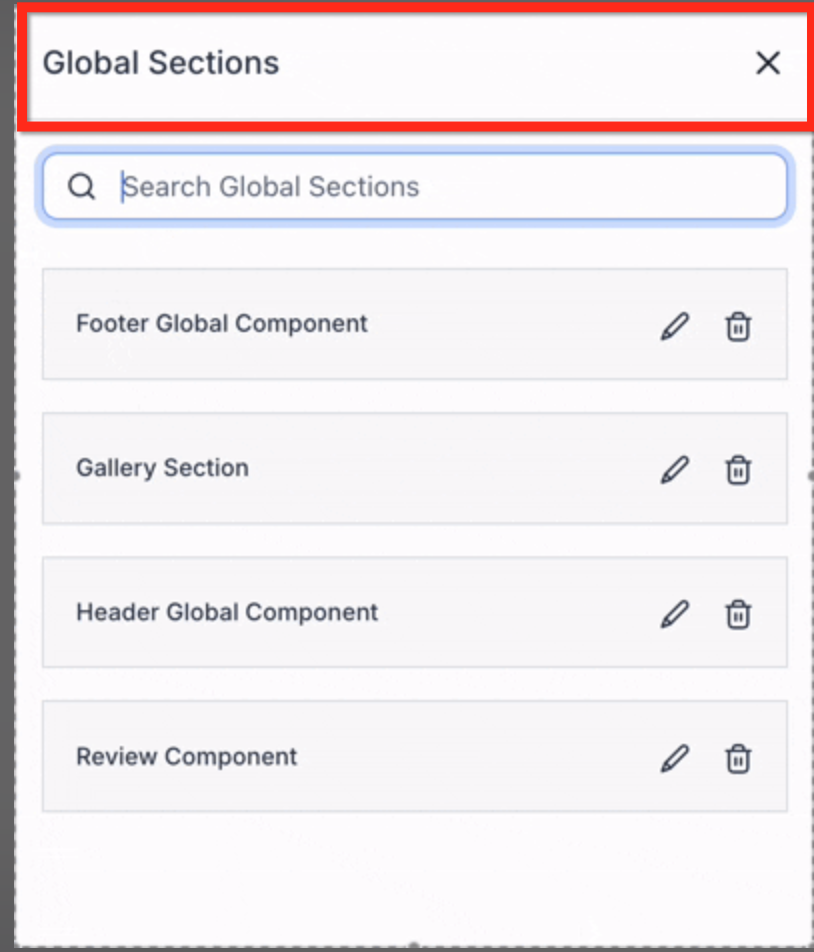
Searching Global Sections (New)
A search field is now available at the top of the Global Sections panel to help you quickly find sections you’ve already created.
How the Search Works
Search by full or partial section name
Results update in real time as you type
Only Global Sections are searched (Local Sections are not included)
This makes it easier to reuse content without scrolling through long lists.
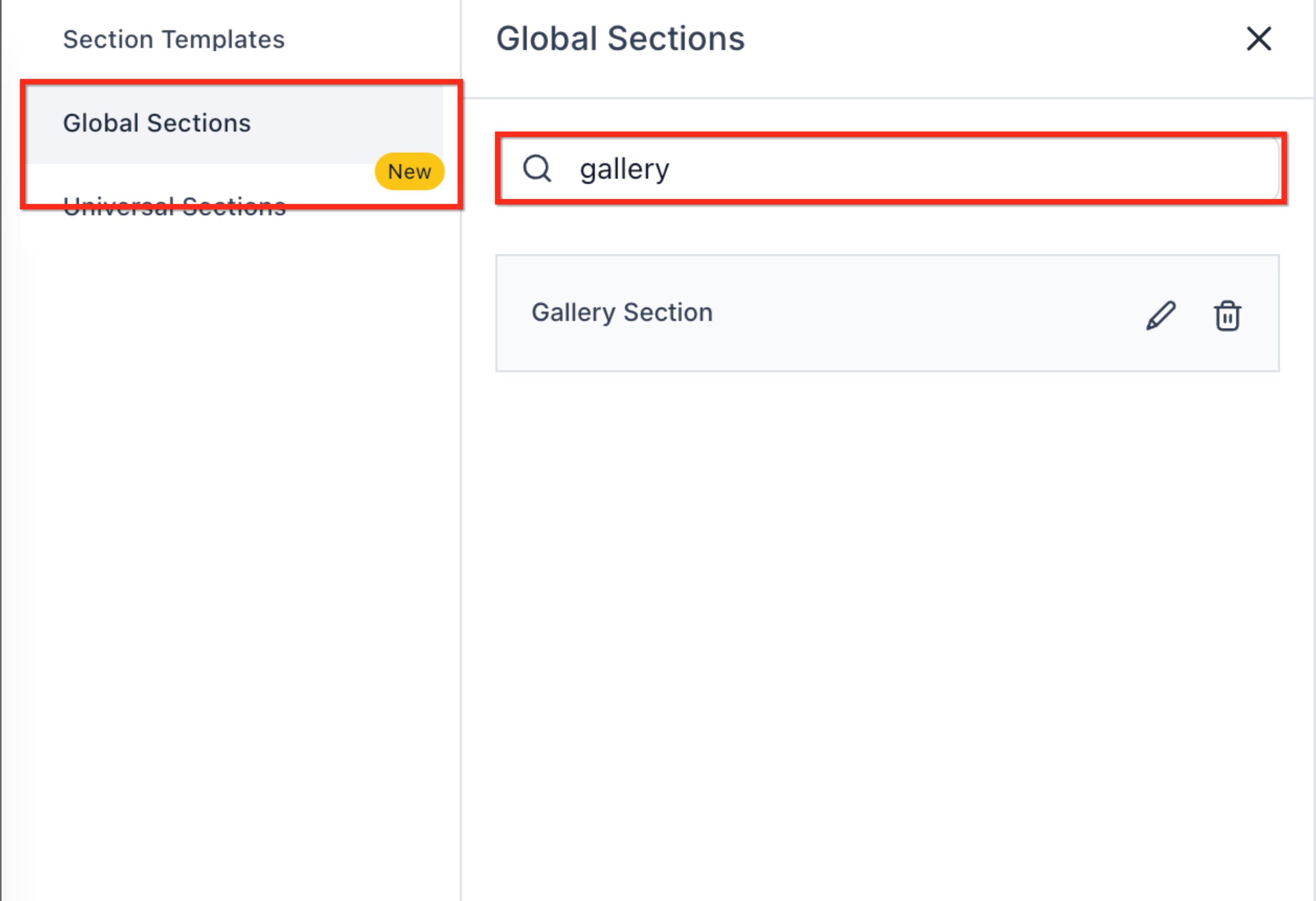
Example: Filtering Global Sections by Name
When you enter text into the search field, only Global Sections that match the entered text are displayed. This is especially useful for identifying shared components like headers, footers, or galleries in large workspaces.
Why This Matters
The new Global Sections search helps you:
Quickly locate saved sections in large libraries
Reduce time spent scrolling through sections
Reuse shared components more efficiently
Maintain consistent design by finding the correct Global Section faster
What Did Not Change
This update does not change:
How Global Sections are created or edited
How Global Sections sync across pages
Permissions or access to sections
Local Sections or Element Templates
It is a usability enhancement only.
Frequently Asked Questions
Q: Can I search by partial names?
Yes. The search supports both full and partial section names.
Q: Does the search update automatically?
Yes. Results update in real time as you type.
Q: Does this search include Local Sections?
No. The search applies only to Global Sections.
Q: Does this affect existing Global Sections?
No. All existing Global Sections remain unchanged.
Related Articles
Was this article helpful?
That’s Great!
Thank you for your feedback
Sorry! We couldn't be helpful
Thank you for your feedback
Feedback sent
We appreciate your effort and will try to fix the article