This article walks through a specific, ready-to-build workflow: whenever a contact's email bounces, the workflow automatically enables outbound Email DND (Do Not Disturb) for that contact, preventing further sends to a broken or invalid address.
You'll see how to configure the Email Events trigger with a "Bounced" filter, pair it with the DND Contact action scoped to Outbound + Email, and understand what this does (and doesn't) protect against.
Why Enable DND on Bounce
Every time an email bounces, it signals that the address is unreachable, either permanently (invalid mailbox, closed domain) or temporarily (full inbox, server issue). Continuing to send to bounced addresses hurts your account in a few concrete ways:
- Sender reputation: Repeated sends to invalid addresses raise your bounce rate, which email providers use as a spam signal.
- Deliverability: A high bounce rate can get your sending domain throttled or blocklisted, affecting delivery to valid contacts too.
- Wasted sends: Every automated email or campaign step sent to a dead address is a wasted send that never reaches anyone.
- Cleaner data: Automatically flagging bounced contacts with DND keeps your list quality high without manual review.
Building the Workflow
This workflow only needs two elements: an Email Events trigger filtered to "Bounced," and a DND Contact action scoped to Outbound Email. Here's how to set each one up.
From Automation → Workflows, create a new workflow (or open an existing one) and click Add New Trigger. Search for and select Email Events — this trigger fires on open, click, bounce, or reply events.
Give the trigger a clear name (for example, "Email Events"), then under Filters, add a filter for Event and set it to Bounced. This restricts the workflow so it only runs when the email event type is a bounce — not an open, click, or reply.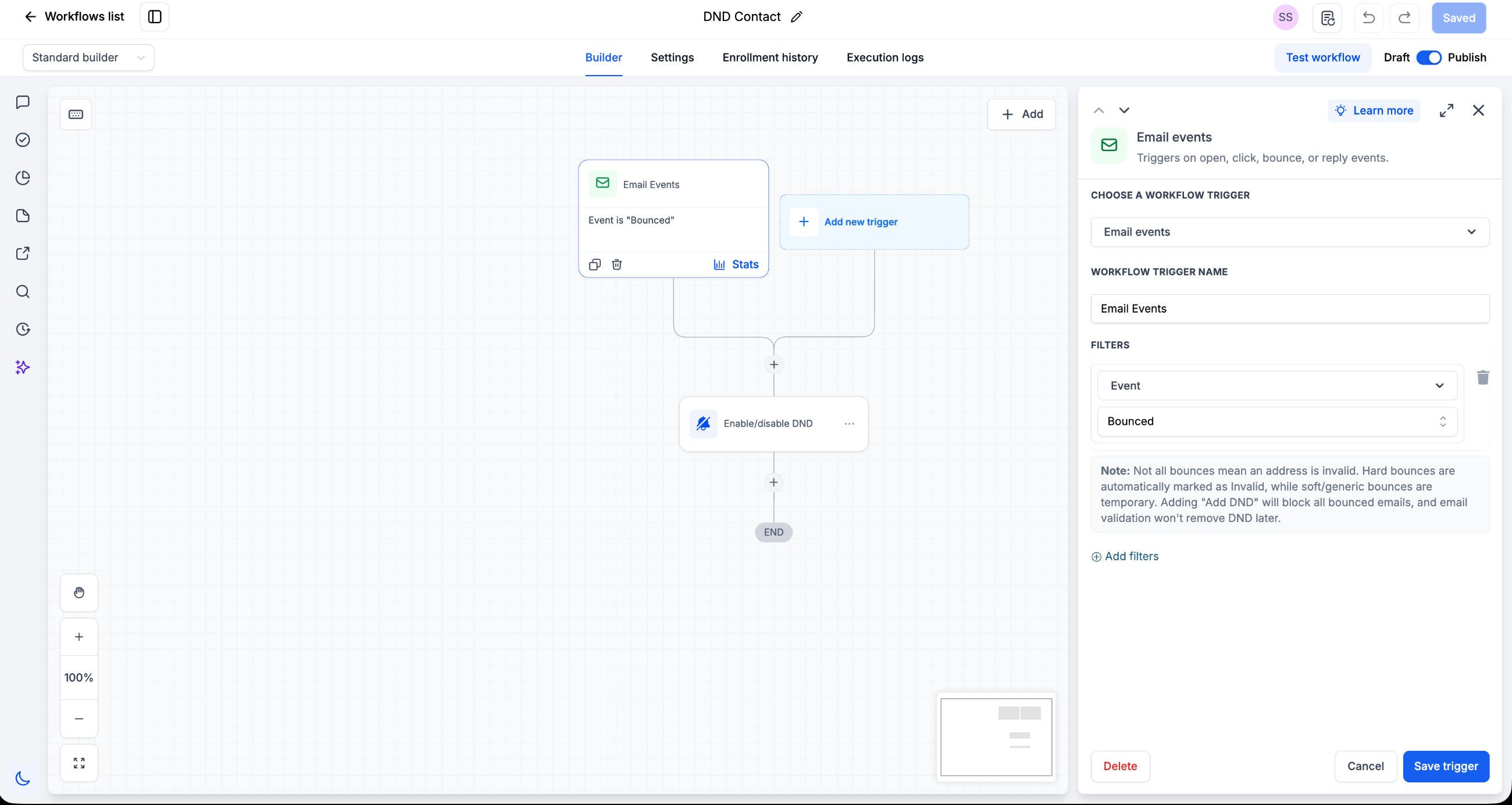
Click the + below the trigger and add the DND Contact action (labeled Enable/disable DND in the canvas). Name the action something descriptive, such as "Enable/disable DND."
Inside the action, configure the following fields:
- DND Direction: Set to Outbound, since you're stopping messages sent to the contact, not messages coming from them.
- DND: Set to Enable DND for specific channels, so only email is affected and other channels like SMS or calls remain unaffected.
- Channels: Select Email from the channel picker.
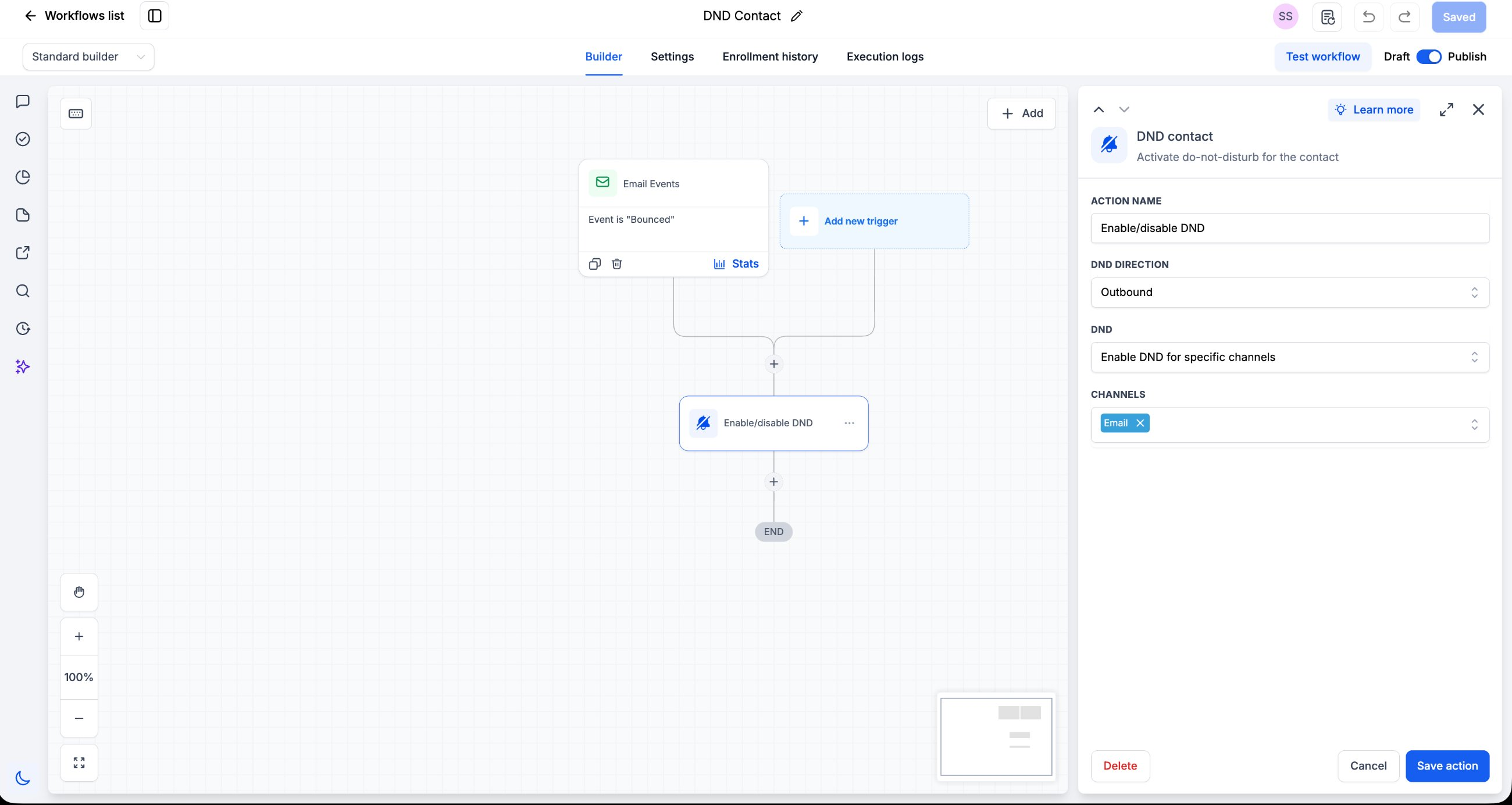
Click Save trigger and Save action on each panel. Once the workflow reads Email Events (Bounced) → Enable/disable DND → End, toggle the workflow from Draft to Publish to activate it.
Hard Bounces vs. Soft Bounces
Not every bounce means the address is permanently invalid, so it's worth understanding what happens to a contact once this workflow fires.
- Hard bounces (invalid mailbox, non-existent domain) are automatically marked as Invalid and are the clearest case for enabling DND.
- Soft/generic bounces (full inbox, temporary server error) are typically temporary conditions that may resolve on their own.
Not all bounces mean an address is invalid. Hard bounces are automatically marked as Invalid, while soft/generic bounces are temporary. Adding this "Enable DND" action will block all bounced emails equally, and email validation won't automatically remove the DND flag later. If you want to distinguish hard from soft bounces, add an additional filter or a Condition step before the DND action, and plan for a manual or scheduled review process to lift DND from contacts whose addresses turn out to be reachable.
Example Use Case
Scenario: A business sends a monthly email newsletter to its full contact list. A portion of addresses have gone stale over time — some mailboxes no longer exist. The business wants bounced addresses automatically suppressed from future sends without manually scrubbing the list every month.
Trigger: Email Events | Filter: Event Is Bounced
DND Contact → Direction: Outbound → DND: Enable for specific channels → Channel: Email
The moment an email bounces, that contact is automatically excluded from all future email sends while remaining reachable through SMS, calls, or other channels — keeping the newsletter list clean without manual maintenance.
Frequently Asked Questions
Was this article helpful?
That’s Great!
Thank you for your feedback
Sorry! We couldn't be helpful
Thank you for your feedback
Feedback sent
We appreciate your effort and will try to fix the article