Embedded Appointment Booking helps Facebook Lead Ads convert more form submissions into booked appointments by letting leads schedule directly after submitting an Instant Form. When supported by Meta, a HighLevel Calendar booking experience can appear on the form’s Thank You page, reducing the need for leads to open a separate page or re-enter their details. This is useful for businesses running appointment-based campaigns, such as consultations, demos, estimates, and service bookings.
TABLE OF CONTENTS
- What is Embedded Appointment Booking with HighLevel Calendar?
- Key Benefits of Embedded Appointment Booking with HighLevel Calendar
- Facebook Lead Ads Instant Forms and HighLevel Calendar Links
- How To Setup Embedded Appointment Booking with HighLevel Calendar
- Frequently Asked Questions
- Related Articles
What is Embedded Appointment Booking with HighLevel Calendar?
Embedded Appointment Booking allows leads to schedule an appointment from the Facebook Lead Ads Instant Form Thank You page after submitting their information. Instead of sending the lead to a separate booking page, Meta can display the supported calendar booking experience directly inside the Facebook mobile app flow.
With HighLevel Calendar support, advertisers can use a HighLevel calendar scheduling link as the booking destination for the Book time CTA in Meta’s Instant Form editor. When the embedded experience is available, the lead can choose a time from the Thank You page, and available lead details such as name, email, and phone may be carried over from the submitted form into the booking flow.
Key Benefits of Embedded Appointment Booking with HighLevel Calendar
- Fewer steps for leads: Leads can book from the Thank You page instead of being redirected to a separate scheduling page.
- Improved appointment conversion: Reducing redirects and repeated data entry can help increase the likelihood that a lead completes the booking process.
- HighLevel calendar availability: Appointment times shown in the booking experience are based on the HighLevel calendar link and its configured availability.
- Simpler campaign setup: Advertisers can paste a supported scheduling link into the Instant Form editor and use the Book time CTA.
- Better lead follow-up: Facebook Lead Ads can sync lead information into HighLevel, where teams can use CRM records, workflows, and nurture campaigns for follow-up.
- Appointment-based automation: Booked appointments can trigger HighLevel workflows for confirmations, reminders, internal notifications, and post-appointment follow-up.
Facebook Lead Ads Instant Forms and HighLevel Calendar Links
Facebook Lead Ads Instant Forms collect lead information inside Meta’s ad experience. HighLevel can support the lead capture and follow-up side by syncing Facebook Lead Ads into the CRM, while the HighLevel calendar link supports appointment scheduling.
To use Embedded Appointment Booking, create or identify the HighLevel calendar you want leads to book into, then copy the public scheduling link for that calendar. The calendar link should point to the specific calendar, service, or booking experience you want the ad campaign to use.
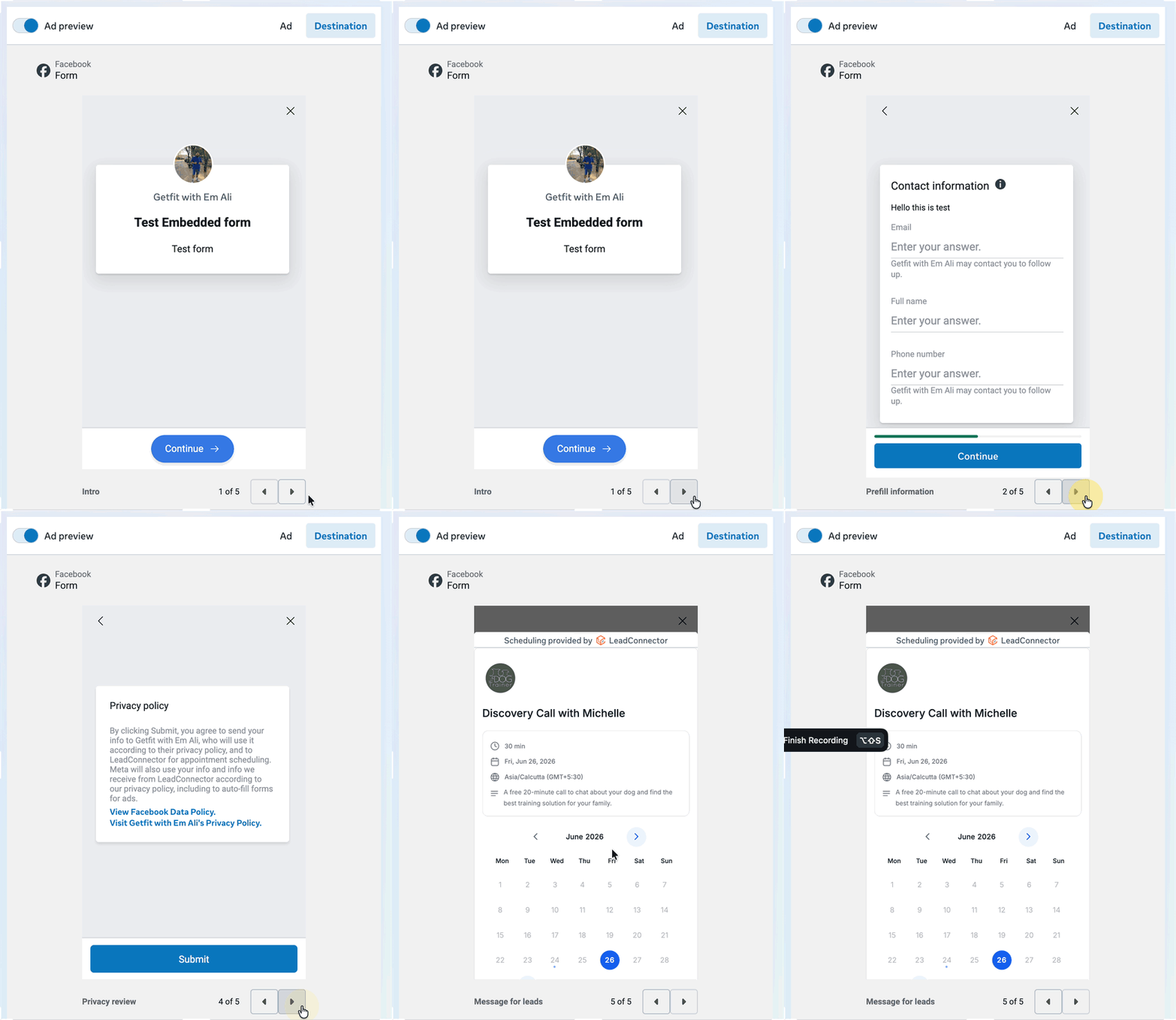
Important: Meta controls the Instant Form, CTA, Thank You page, provider detection, preview, and placement behavior. HighLevel controls the calendar link, appointment availability, booking rules, calendar notifications, and appointment records.
How To Setup Embedded Appointment Booking with HighLevel Calendar
Proper setup ensures your Facebook Instant Form collects the lead, displays the Book time action, and sends the lead to the correct HighLevel calendar. Create or confirm the HighLevel calendar first, then use that scheduling link inside Meta’s Instant Form editor.
In your HighLevel sub-account, open the calendars page using either of these paths:
From the left navigation menu, go to Calendars > Calendar Settings.
From the left navigation menu, go to Settings > Calendars.
Use an existing booking calendar or create a new calendar booking for the campaign. Review How to Set Up a Personal Booking Calendar with HighLevel if you need help creating a calendar first.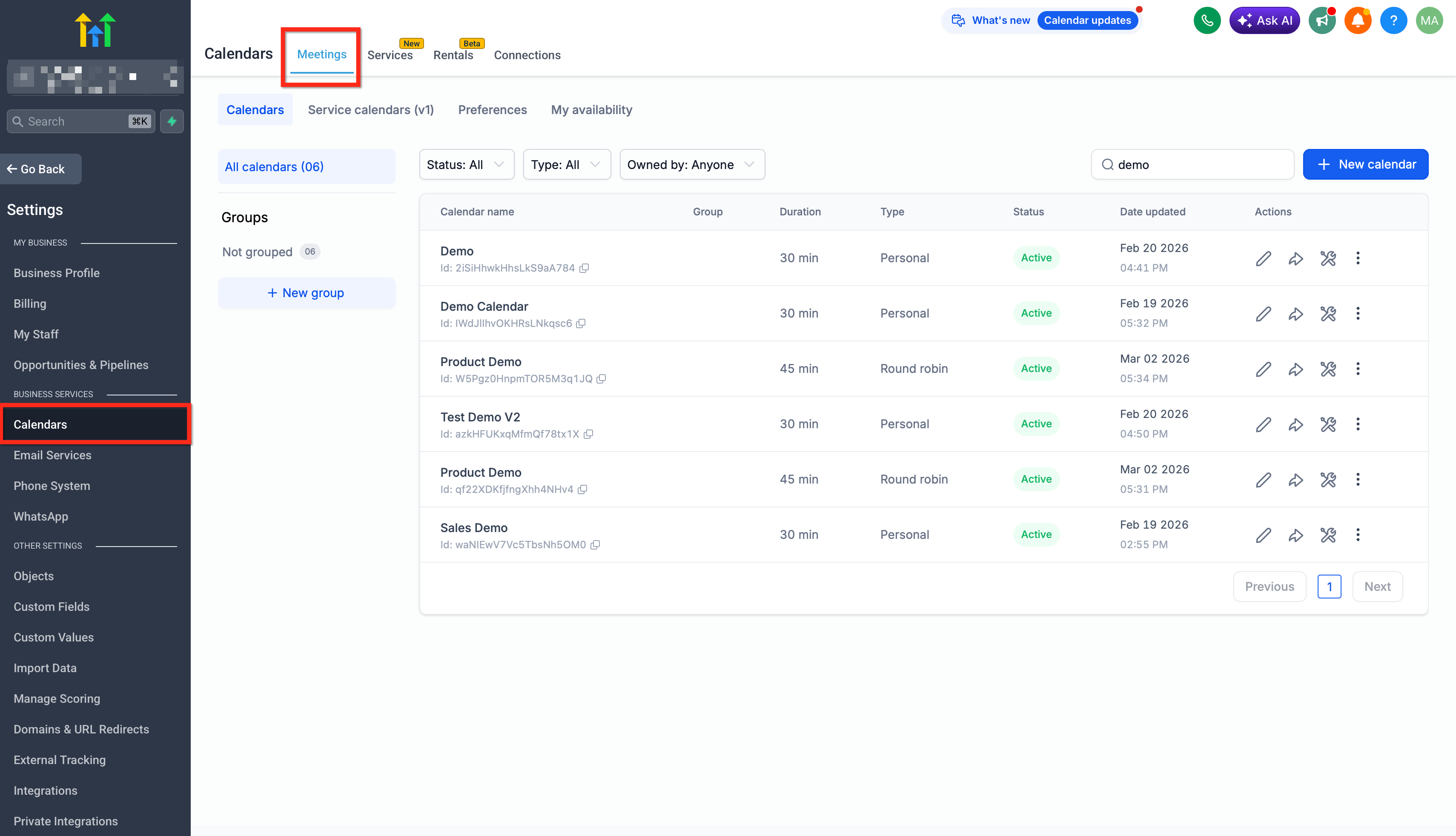
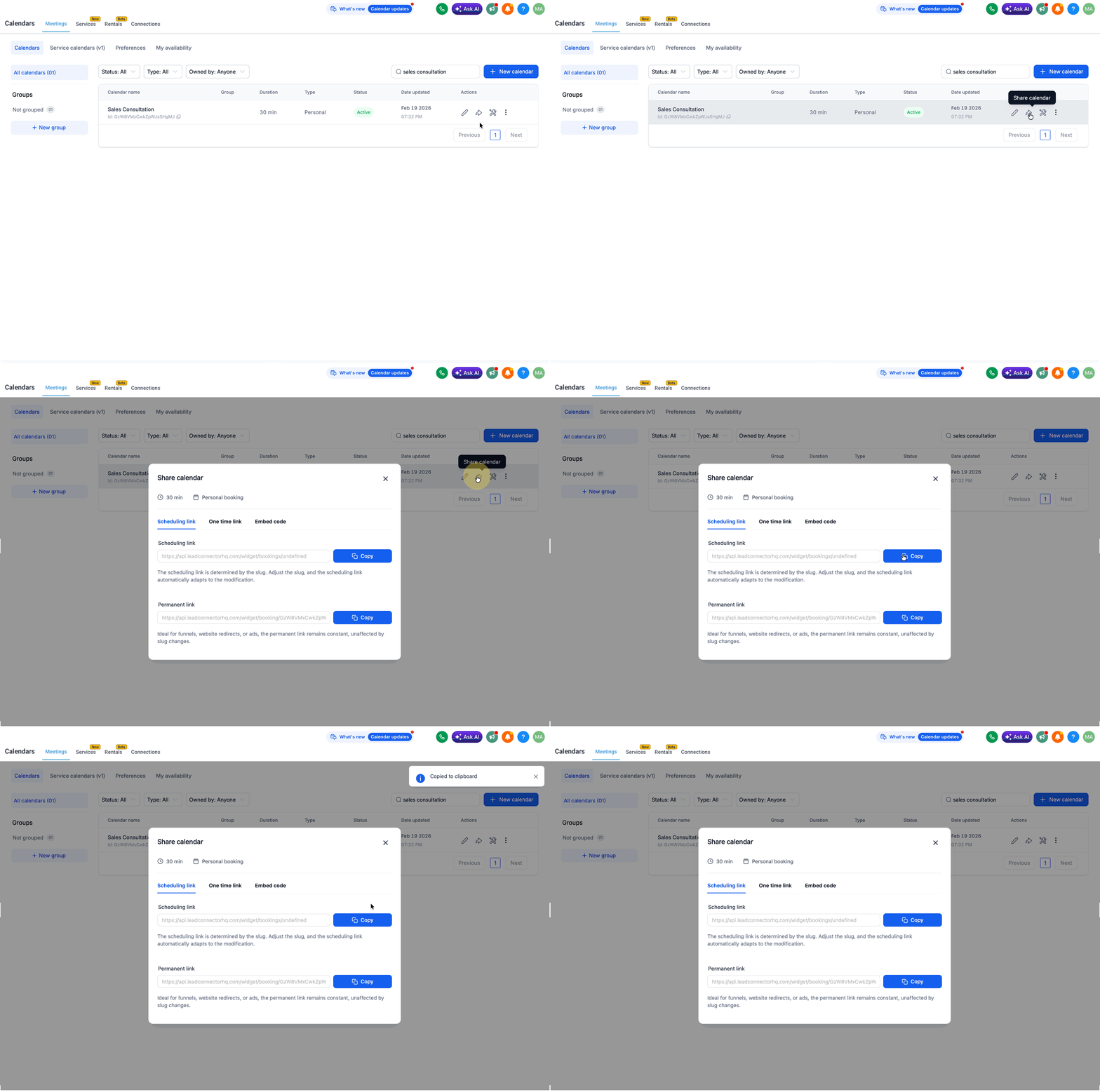
Copy the HighLevel calendar scheduling link for the calendar you want Facebook leads to book into.
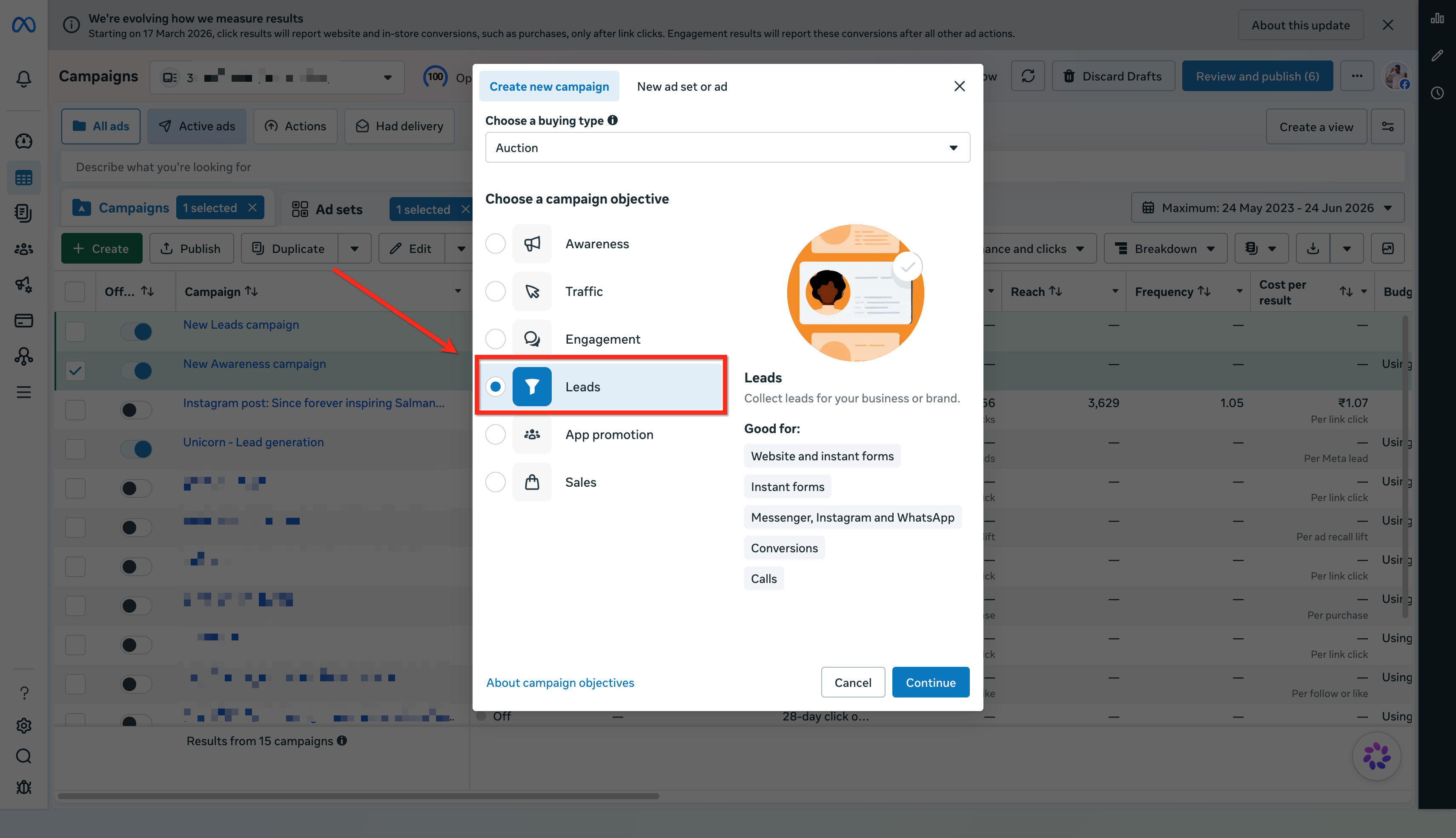
- Log in to Facebook and go to Ads Manager, then click + Create. Select Leads as your campaign objective and click Continue.
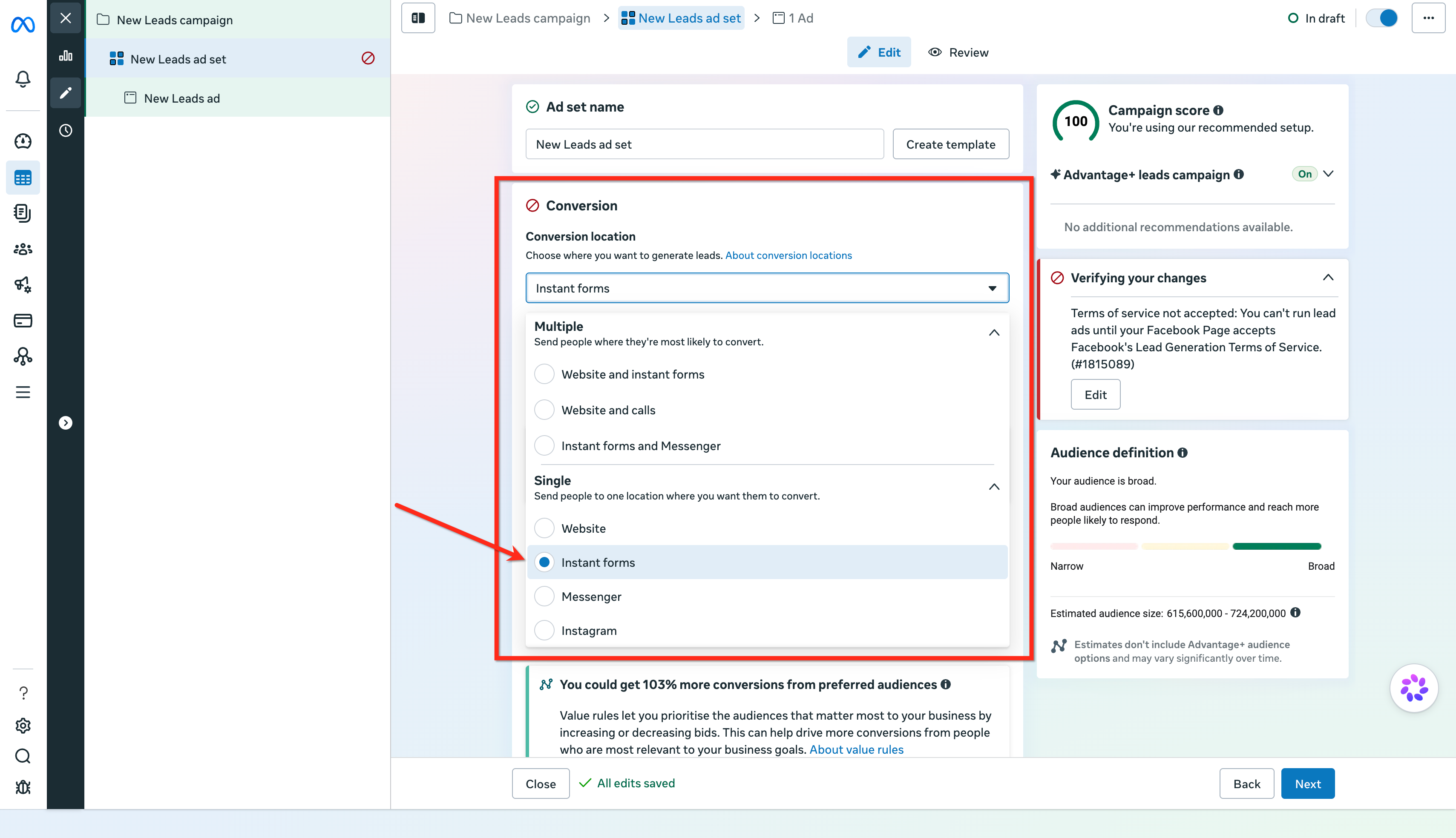
- Complete the ad creation steps, and at the ad set level, select Instant forms as your conversion location.
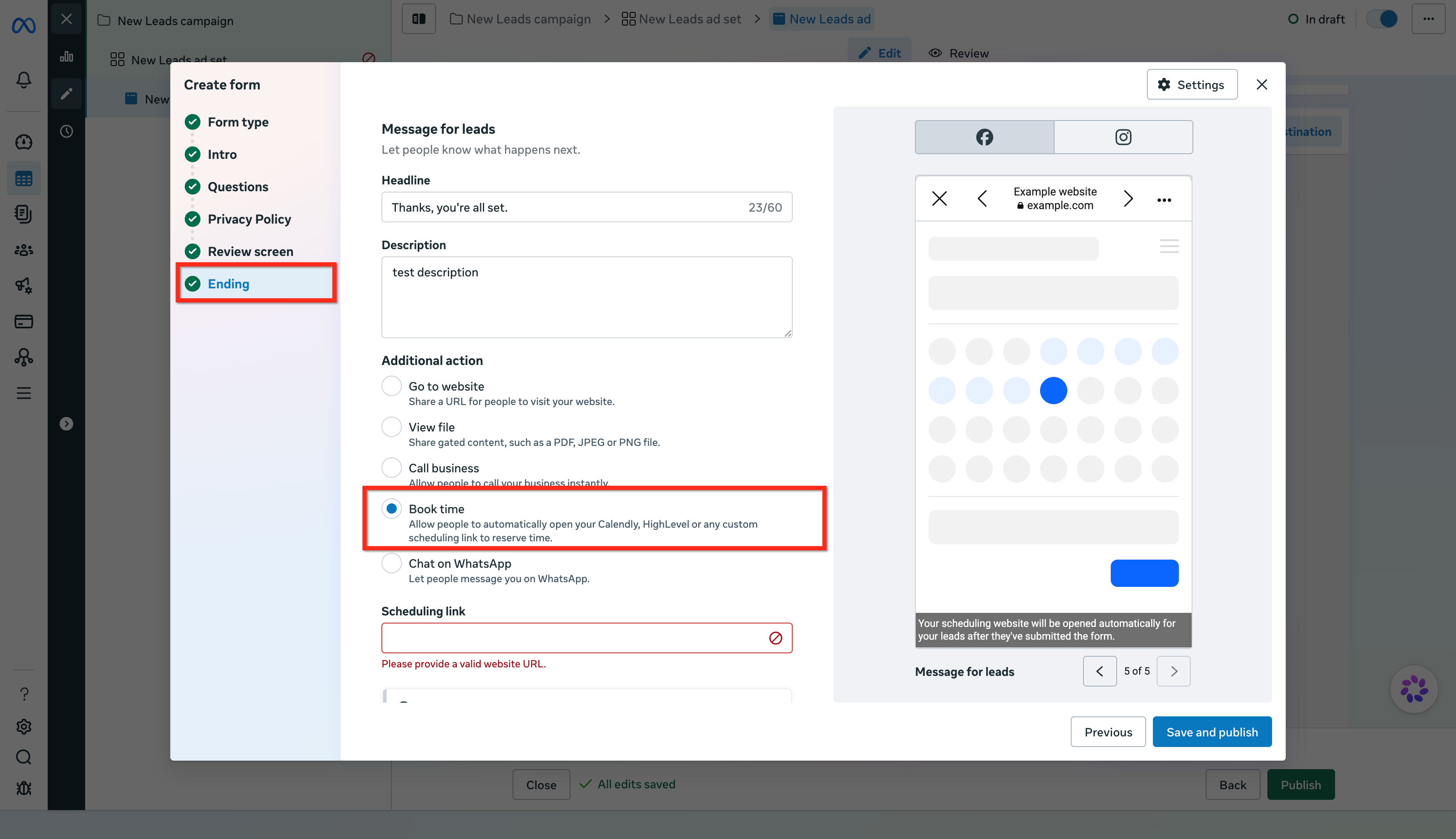
Create an instant form and complete the required form setup steps. In the Ending section, select Book time under Additional actions.
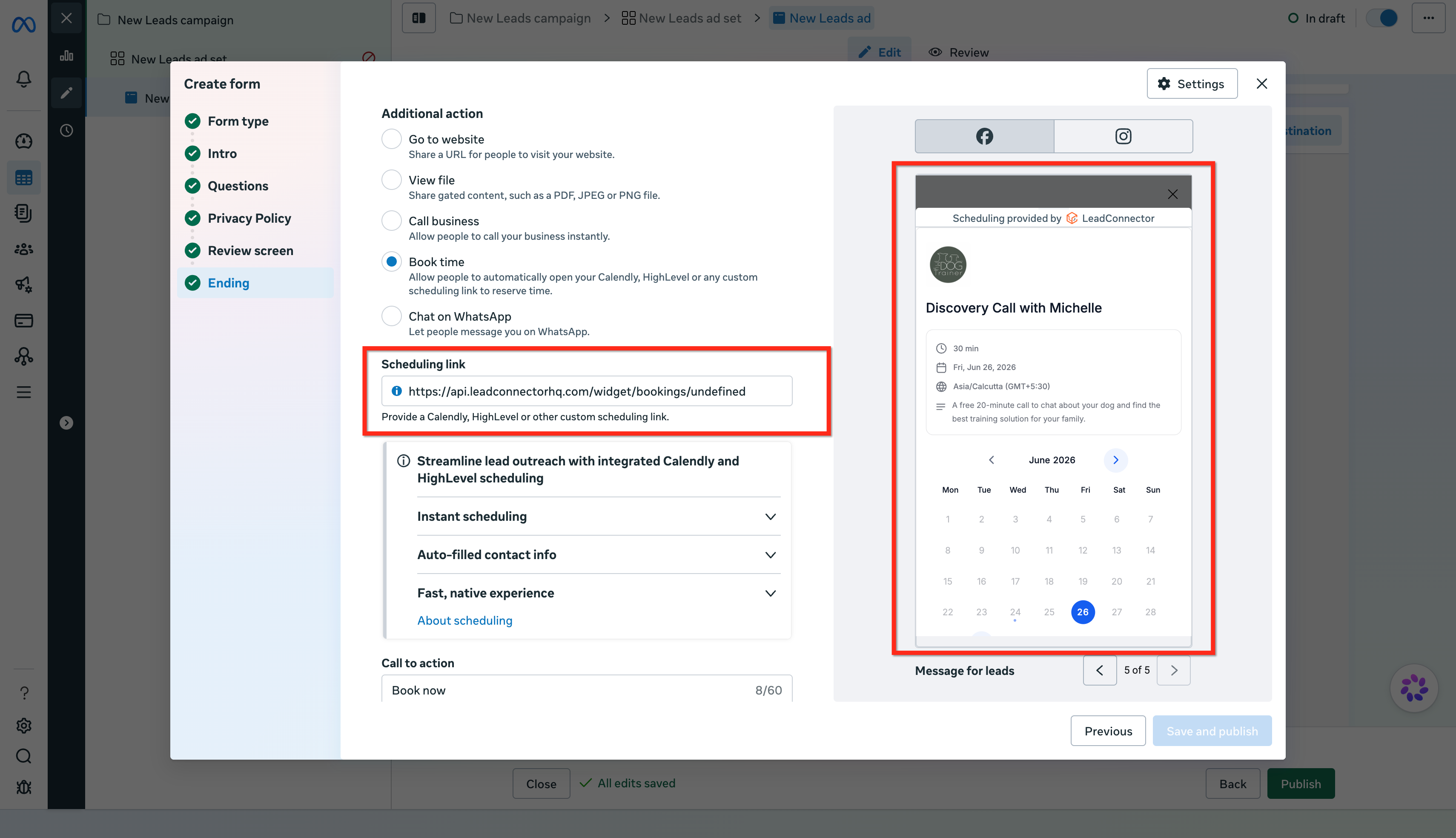
Paste your HighLevel calendar URL under Scheduling link. Meta will automatically detect the calendar provider and display a live preview of the embedded calendar widget in Ads Manager when supported.
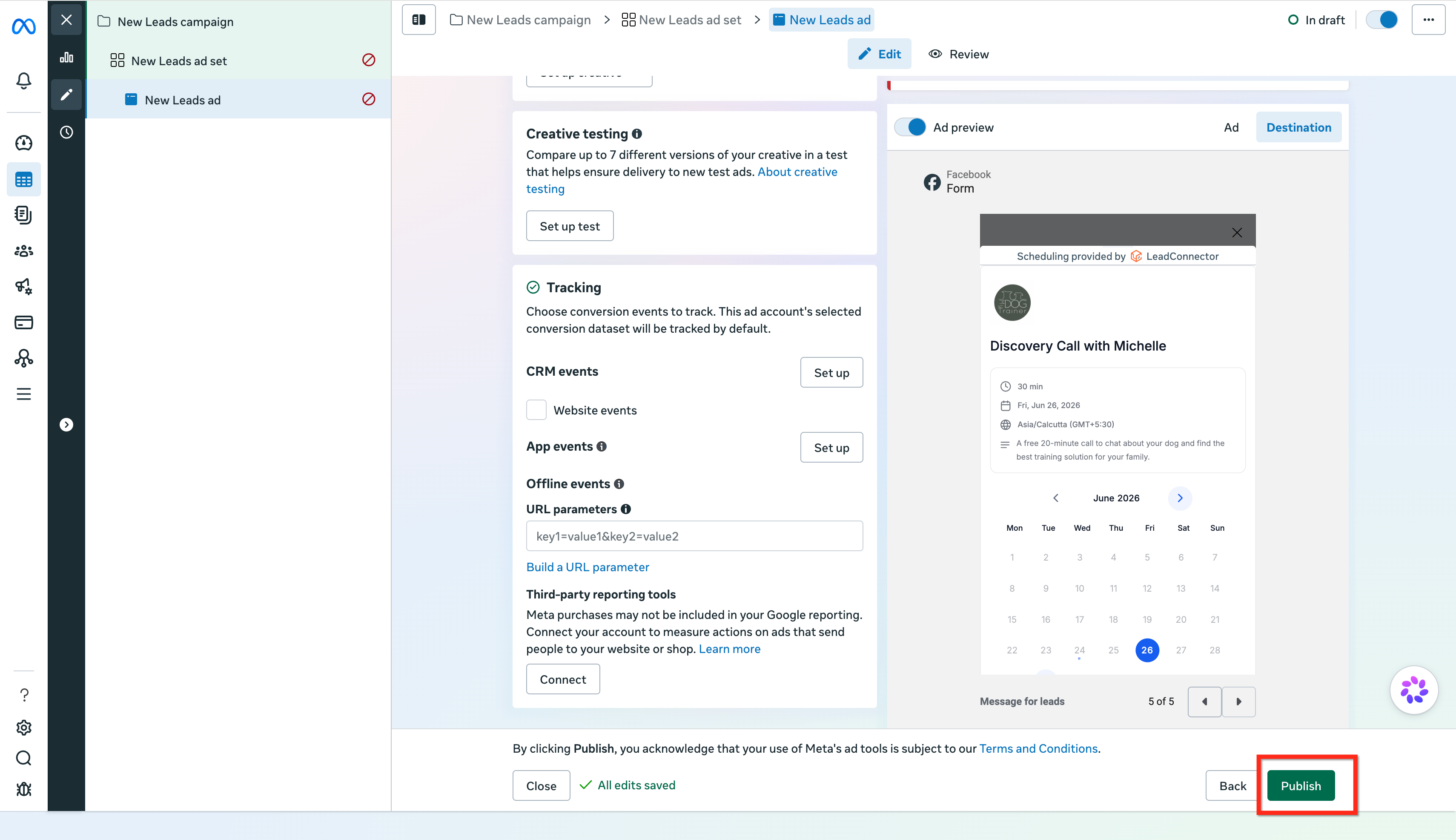
- Complete the rest of your instant form and click Publish when your ad is ready.
- Consider creating follow-up workflows in HighLevel based on what happens after the form is submitted. For example, use Facebook Lead Form Submitted to follow up with leads who submit the Instant Form, use Customer Booked Appointment for contacts who complete the booking, and add appointment reminders or internal notifications to help reduce no-shows and keep your team informed.
Important: Embedded appointment booking is currently available for ads delivered on the Facebook mobile app. Ads shown in other placements, such as Instagram, may show the Book time CTA and open the booking page in a separate in-app browser instead of embedding the calendar on the Thank You page.

Note: Use the LeadConnector domain HighLevel calendar link for embedded booking. Branded-domain calendar links may not show the embedded preview in Ads Manager and may open the booking page in a browser in live ads instead of using the embedded experience.
Frequently Asked Questions
Q: Does this work on Instagram placements?
The embedded booking experience is optimized for the Facebook mobile app. On unsupported placements, including Instagram, the booking link may open through the existing in-app browser behavior instead of embedding directly in the Thank You page.
Q: Where can I review booked appointments?
Open the same sub-account used for the campaign and go to Calendars. Review the calendar or appointment view for the specific calendar tied to the scheduling link you added to the Instant Form. Use the date range, calendar, or team member filters to find appointments booked from that campaign.
Q: Will the lead’s information be prefilled in the booking flow?
When supported, lead details such as name, email, and phone can be carried from the Instant Form into the booking experience to reduce duplicate entry.
Q: Can I use different HighLevel calendars for different ads?
Yes. Use the scheduling link for the specific HighLevel calendar, service, or booking flow that matches each campaign.
Q: What should I check if the embedded calendar loads but no time slots appear?
Check the HighLevel calendar’s availability, assigned team member, conflict calendars, buffers, date-specific hours, and booking rules. Also test the HighLevel calendar link outside Meta to confirm it works normally.
Q: Are appointment confirmations sent by Meta or HighLevel?
Appointment confirmations and reminders should be managed by the HighLevel calendar and notification settings connected to the booking link.
Q: Is coding required to use this feature?
No coding is required for the standard setup. Add the HighLevel calendar scheduling link to the Book time CTA in the Instant Form editor when the option is available.
Q: What happens if a lead closes the booking widget before scheduling?
If a lead closes the booking widget, they can reopen it by tapping the Book time button on the Thank You page. If messaging is enabled, the lead may also receive a Messenger reminder to complete the booking.
Q: Can I see booked appointment counts in Ads Manager?
Appointment booking counts are not shown in Ads Manager for this embedded booking experience. Review confirmed appointments in the HighLevel calendar connected to the scheduling link used in your Instant Form.
Q: Can I customize the embedded calendar shown in Facebook?
The calendar appearance is controlled by your HighLevel calendar settings. Meta does not provide additional customization options for the embedded calendar inside the Instant Form experience.
Related Articles
Was this article helpful?
That’s Great!
Thank you for your feedback
Sorry! We couldn't be helpful
Thank you for your feedback
Feedback sent
We appreciate your effort and will try to fix the article