The Email Services dashboard gives agencies full visibility into their domain sending health and sub-account performance. The interface adapts dynamically based on your domain health state.
This article covers what each health state looks like, how to read your delivery metrics, how to navigate sub-account performance, and how search and infinite scroll work across the dashboard.
Domain Overview & Metrics
For dedicated domains, the dashboard displays four key sending metrics. Use these benchmarks to catch deliverability issues early and track domain health over time.
| Metric | What It Measures | Target Threshold |
|---|---|---|
| Delivery Rate | Percentage of emails successfully delivered | Keep above 95% |
| Bounce Rate | Percentage of emails that could not be delivered | Keep under 2% |
| Spam Complaint Rate | Percentage of delivered emails marked as spam | Keep under 0.1% |
| Open Rate | Percentage of delivered emails that were opened | Keep above 20% |
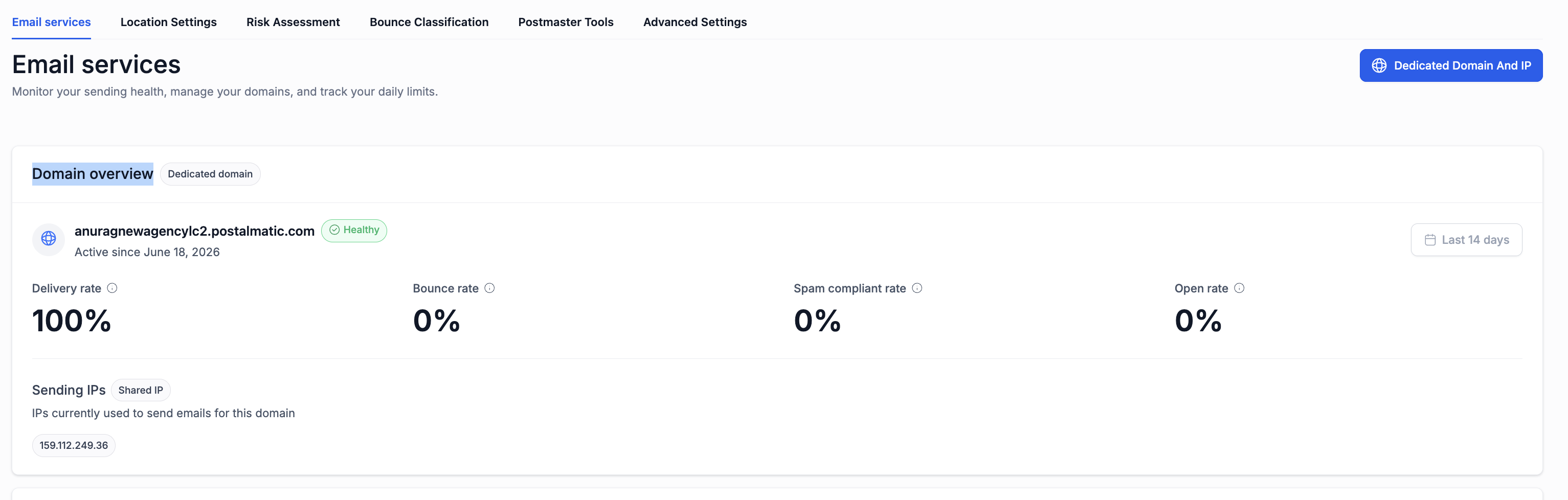
Domain Health States
Six domain health states are possible — each with its own visual indicators and recommended actions. The state shown is determined automatically based on your domain's sending metrics over time.
The platform continuously evaluates three key signals from your domain's recent sending activity to assign a health state:
| Signal | Upgrade threshold | Downgrade trigger |
|---|---|---|
| Bounce Rate | Under 2% | Exceeds 2% |
| Spam Complaint Rate | Under 0.1% | Exceeds 0.1% |
| Open Rate | Above 15% | Below 15% (signals low engagement) |
Upgrade happens when all three signals stay within thresholds over time. Downgrade happens when thresholds are breached. A domain that improves after a Critical state enters Recovering before it can reach Healthy. Newly provisioned domains start in the New state until enough sending history is built.
Your domain is performing well. Continue monitoring regularly to maintain good domain health.
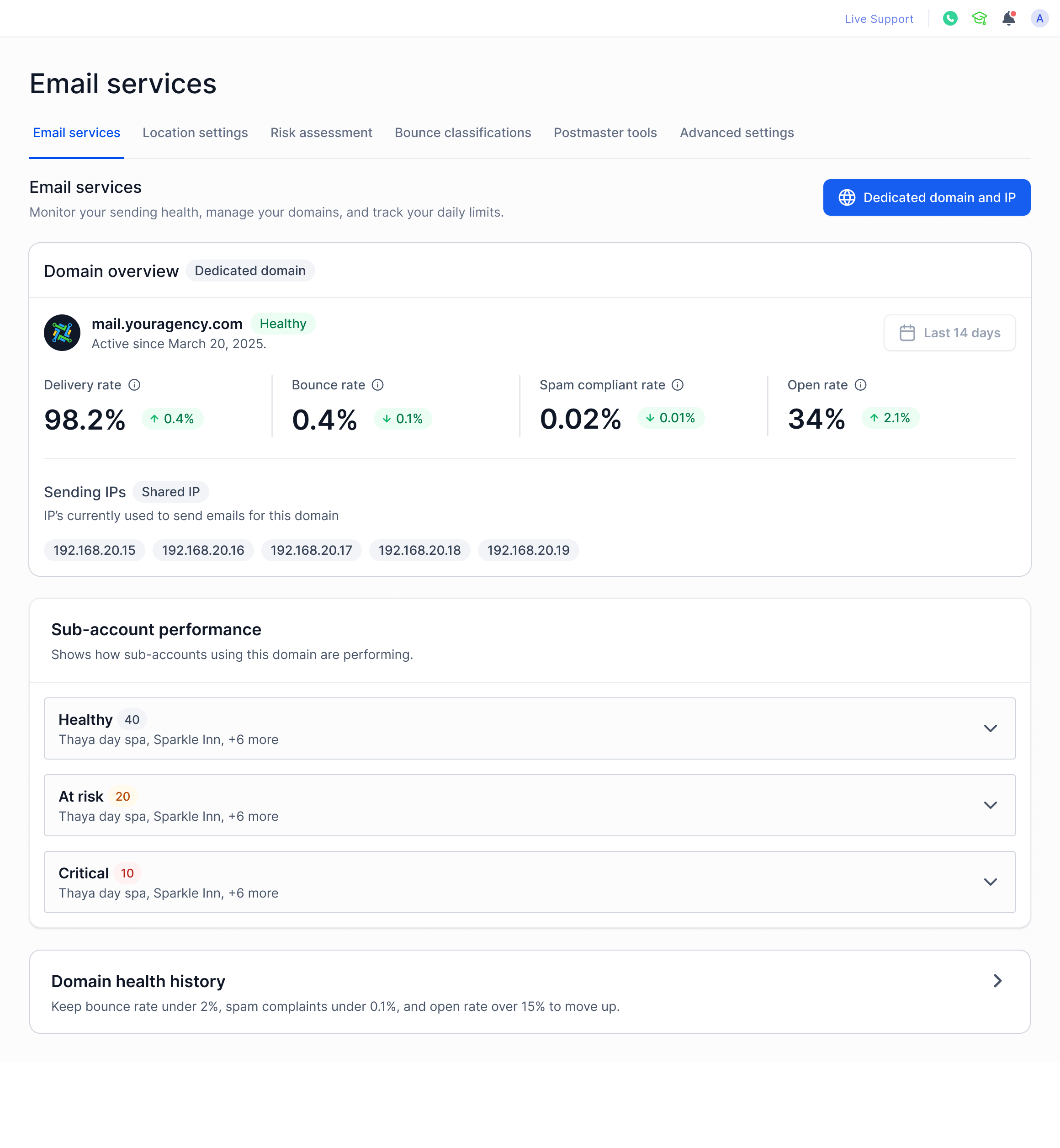
Your domain shows early warning signs. Bounce rates or spam complaints may be creeping up. Review your sending practices and list hygiene before the state downgrades further.
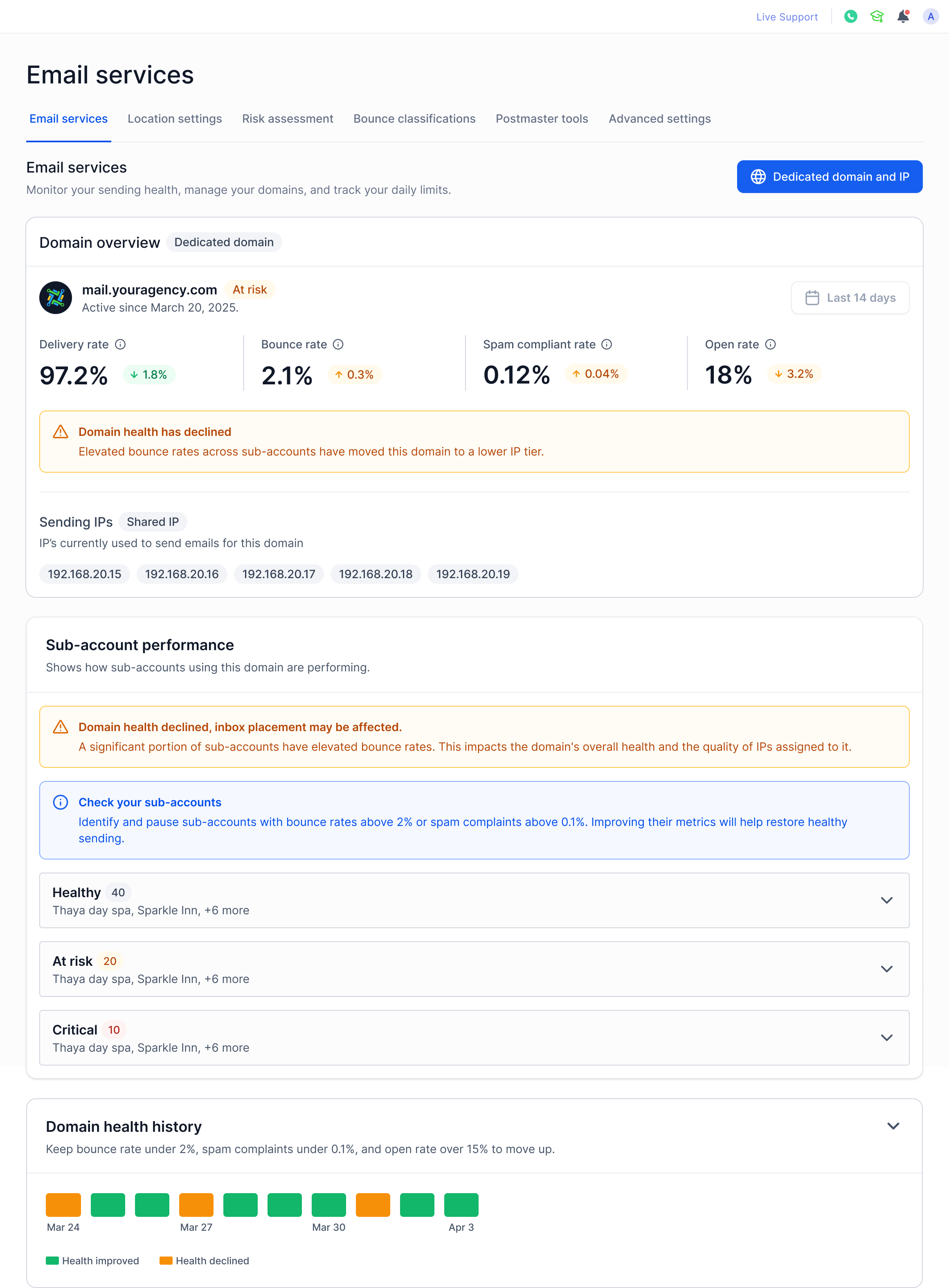
Your domain health is severely degraded and sending capability may be restricted. Immediate action is required — address bounce rates and spam complaints before attempting recovery.
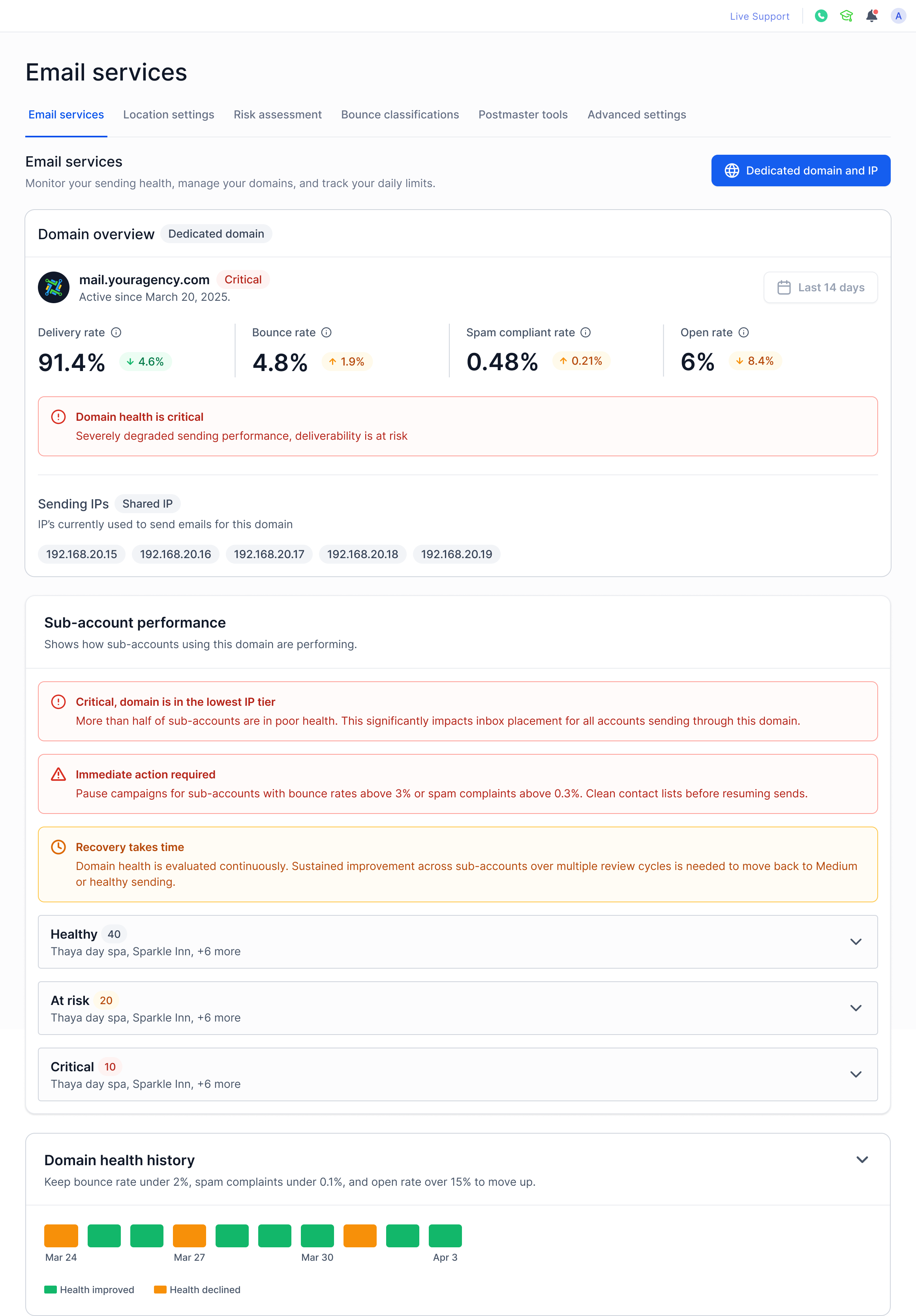
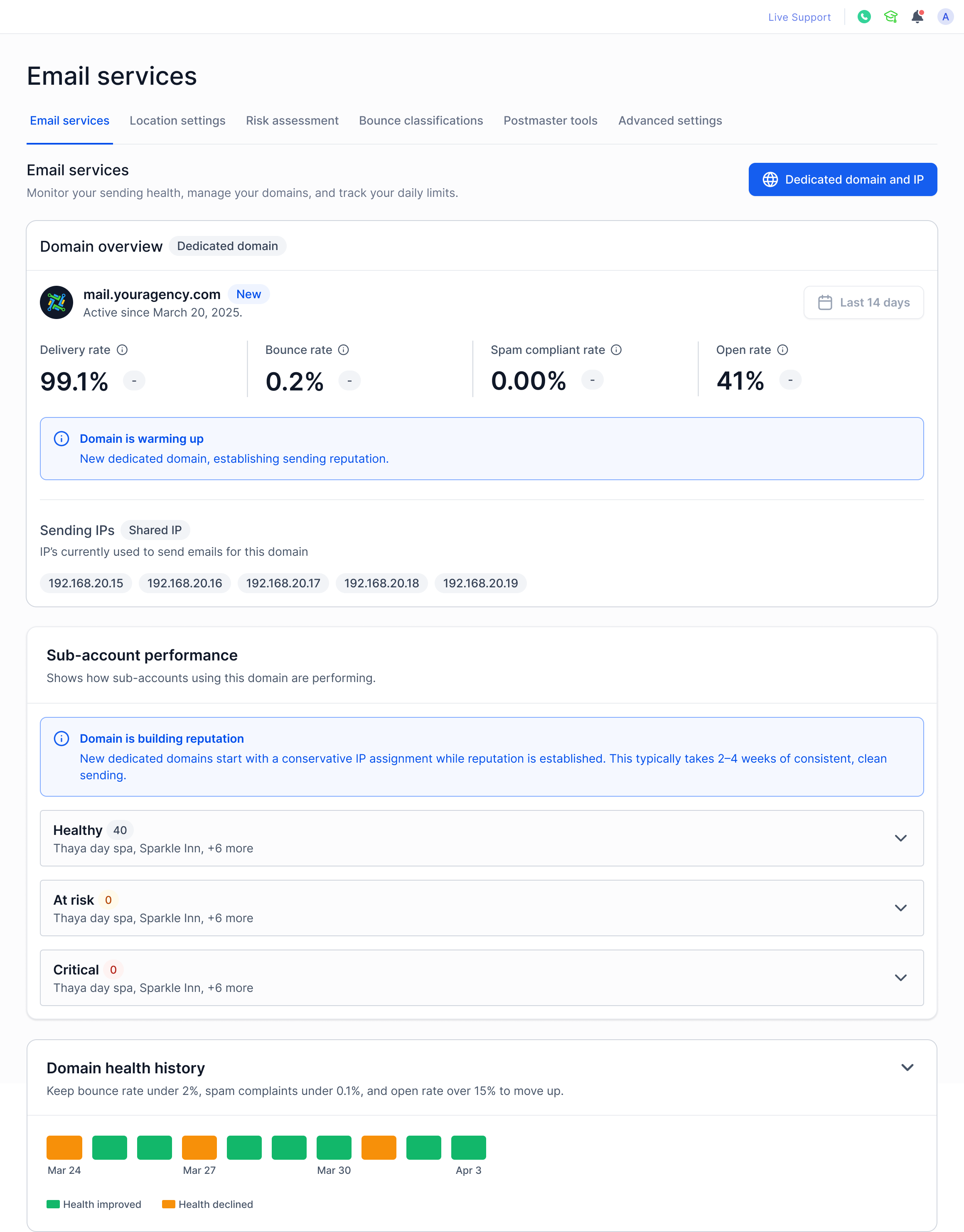
Your domain was recently set up and is still in the warm-up phase. Sending limits may apply while domain health is established. Metrics will populate as mail volume increases.
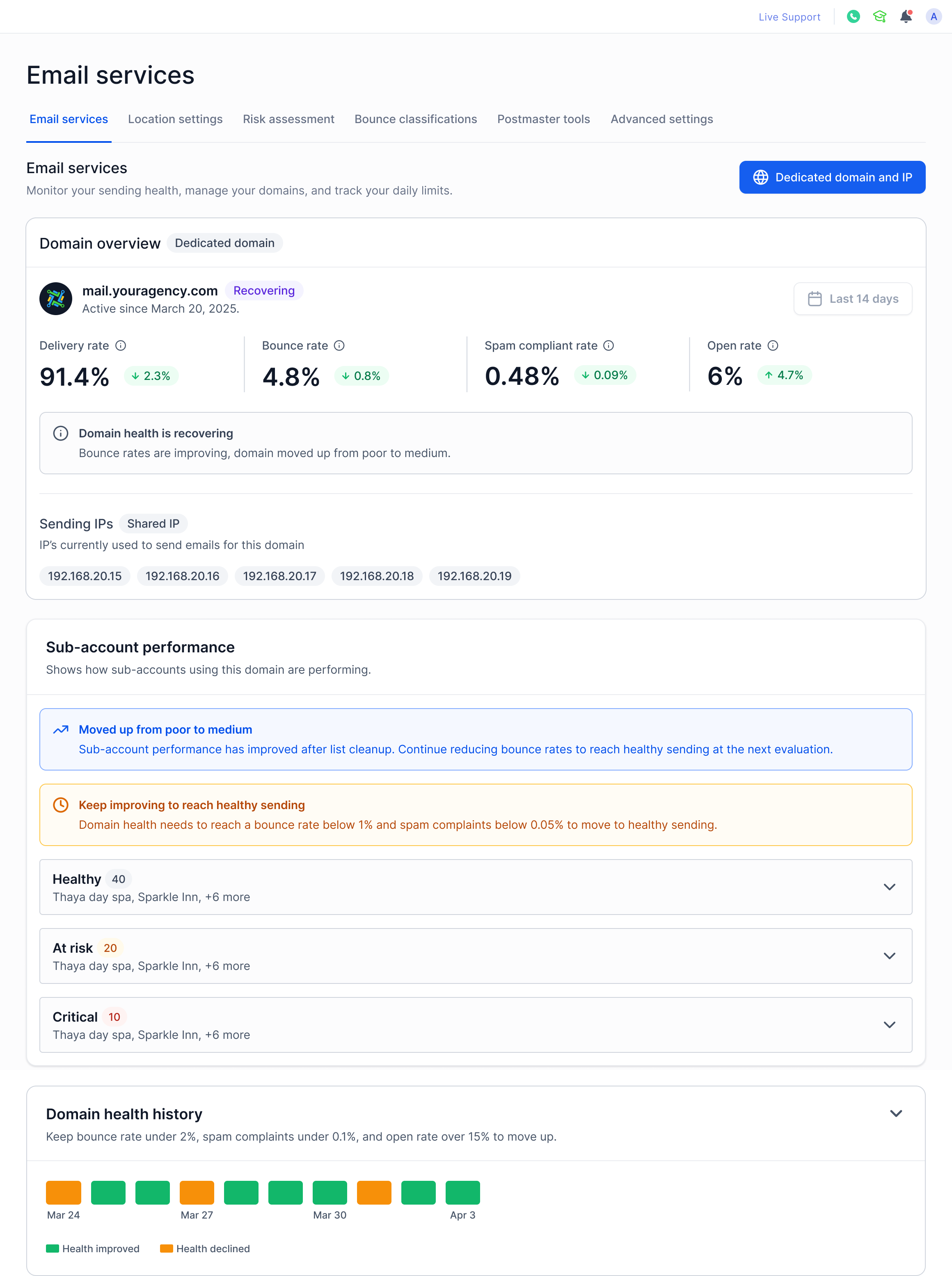
Your domain is improving after a Critical state. Keep metrics within healthy thresholds to continue the upward trend. Avoid actions that could trigger another downgrade.
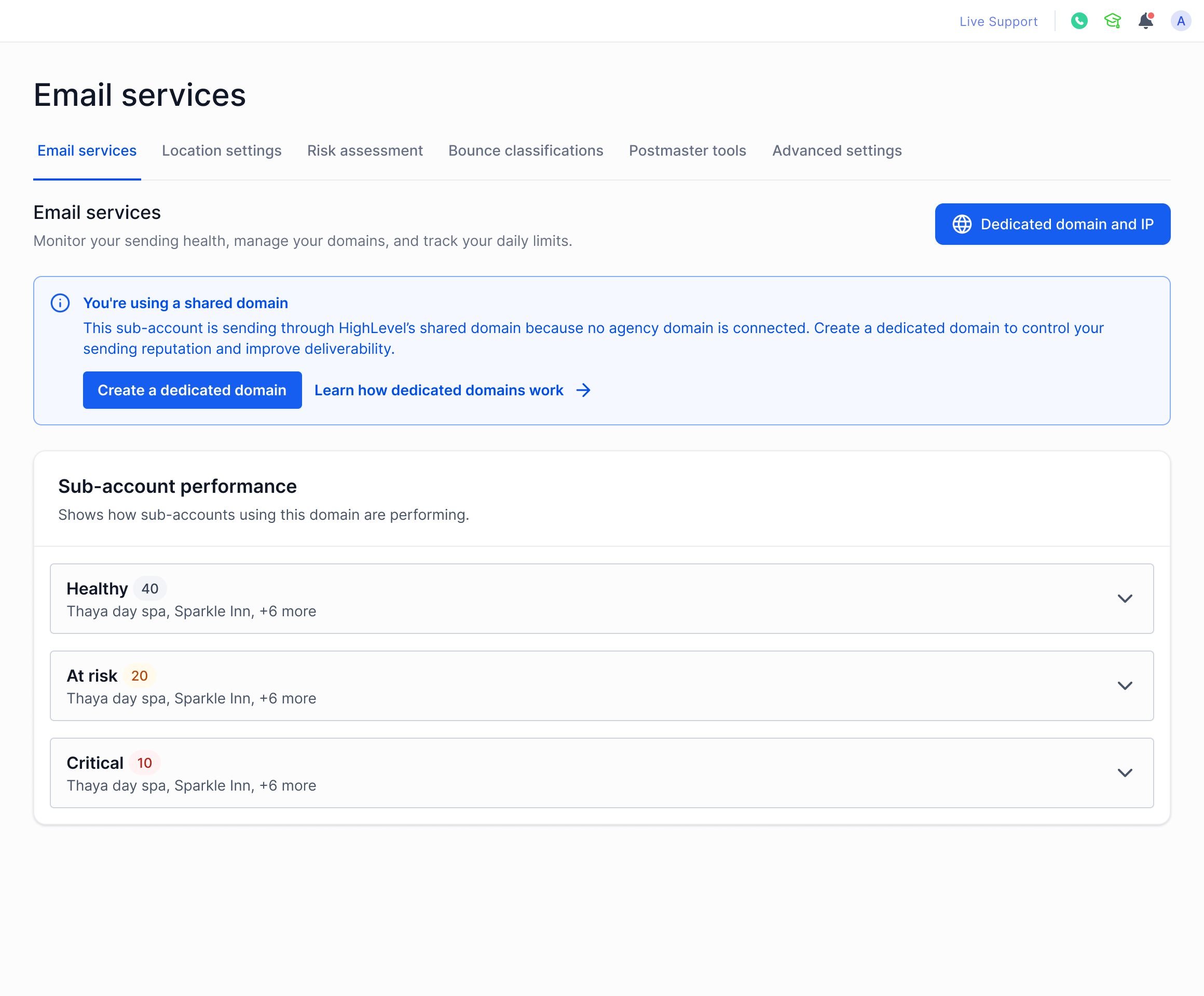
This sub-account sends on a shared domain. The dashboard shows aggregate domain health rather than isolated metrics. Upgrading to a dedicated domain gives independent domain health management and full per-account metric visibility.
Domain Health History
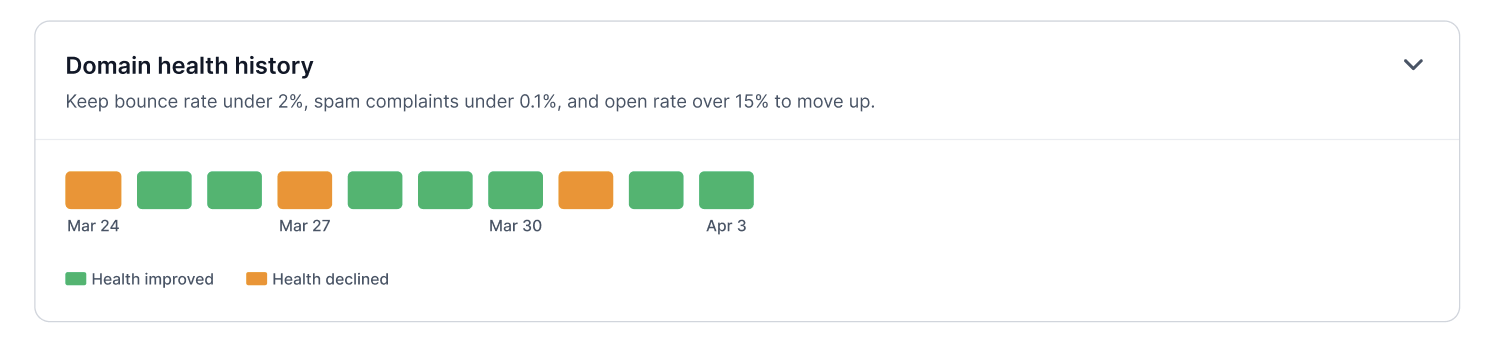
The health history panel shows how your domain's health state has changed over time, giving you a clear picture of upgrades and downgrades at a glance.
- Green indicators — domain health improved (upgrade event)
- Orange indicators — domain health declined (downgrade event)
Hover over any indicator on the timeline to see detailed information about what triggered the upgrade or downgrade at that point in time.
Sub-account Performance
The Sub-account performance section shows how individual accounts using a shared domain are performing. Sub-accounts are grouped into three health buckets:
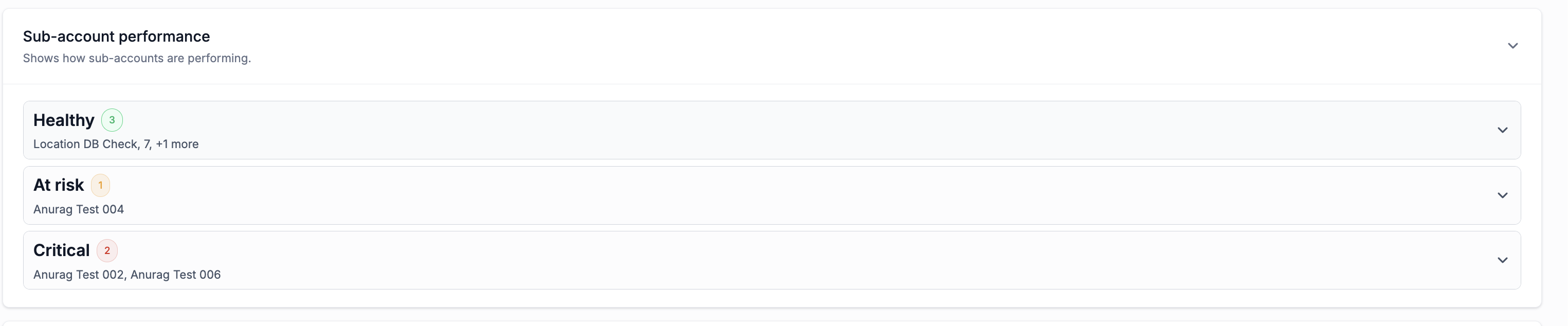
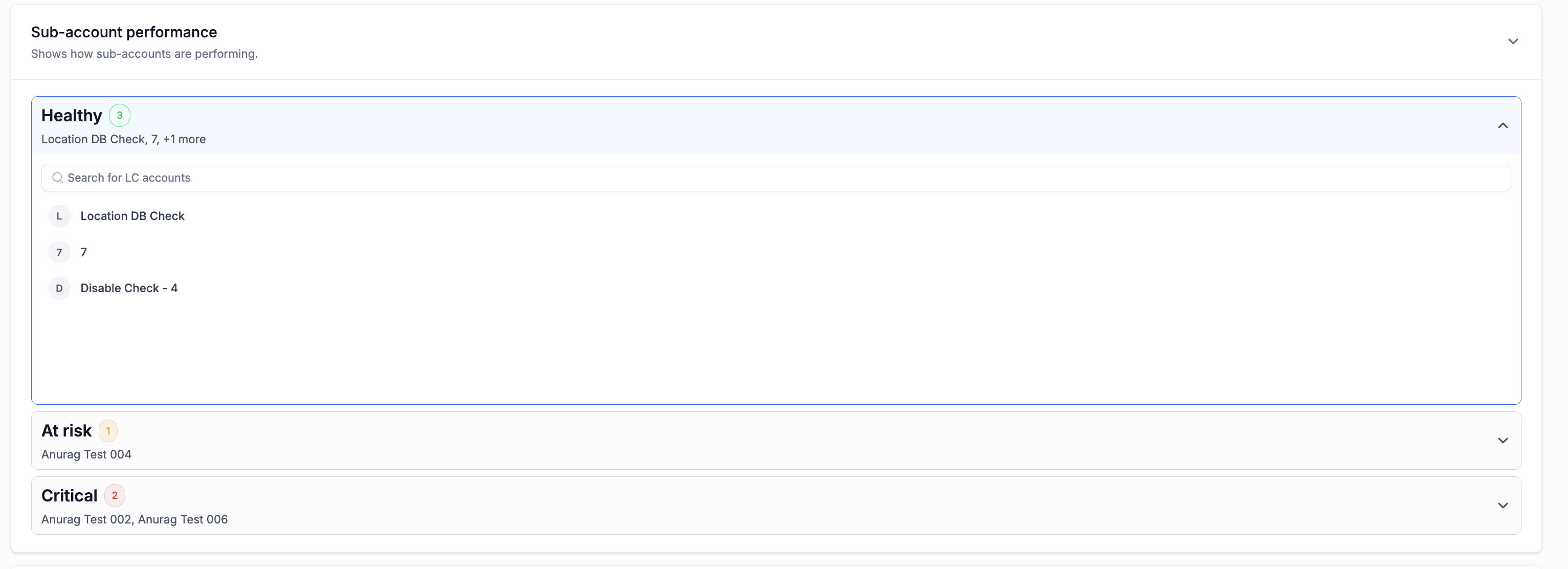
Click any health bucket accordion to expand it. The search field placeholder reads Search for LC accounts. Type to filter — matching accounts appear in real time.
If no match is found, the panel shows: "No account found" with the message "Try a different name or clear your search to see all accounts using this domain."
Clicking any location in the list redirects you directly to that account's Email Services page, where you can view its individual sending metrics and health state.
The first 20 accounts load immediately. As you scroll down, additional accounts load automatically — no pagination or "Load more" button required.
Frequently Asked Questions
Was this article helpful?
That’s Great!
Thank you for your feedback
Sorry! We couldn't be helpful
Thank you for your feedback
Feedback sent
We appreciate your effort and will try to fix the article