Ask AI feedback helps HighLevel understand which responses are helpful and which ones need improvement. By rating individual Ask AI answers with thumbs up or thumbs down, users can share clear feedback while they work. When feedback is specific and constructive, it gives HighLevel better signals to improve Ask AI’s accuracy, instruction following, response quality, and overall usefulness.
This article explains how Ask AI feedback works, when to use thumbs up or thumbs down, how to provide additional feedback about a response, and how to review feedback you previously submitted.
TABLE OF CONTENTS
- What is Ask AI Feedback?
- Key Benefits of Ask AI Feedback
- When to Use Thumbs Up or Thumbs Down
- How Feedback Applies to Full Ask AI Responses
- Adding Reasons and Comments
- How To Provide Feedback on Ask AI Responses
- Best Practices for Constructive Feedback
- Frequently Asked QuestionsQ: Can I update or clear my feedback after submitting it?
- Related Articles
What is Ask AI Feedback?
Ask AI feedback is a rating system that lets users evaluate individual Ask AI responses inside a conversation. Users can select thumbs up when a response is helpful or thumbs down when a response does not meet expectations.
Feedback is tied to a single Ask AI answer. If that answer includes text plus structured content, such as a card, table, diagram, or artifact, the rating applies to the full response. This helps HighLevel understand the quality of the complete answer rather than only one part of it.
After rating a response, users can provide additional details about their rating. Thumbs up feedback can include an optional reason explaining what worked. Thumbs down feedback can include a reason explaining what was wrong and an optional note with more details.
Key Benefits of Ask AI Feedback
- Better Response Quality: Feedback helps identify answers that are useful, accurate, and aligned with user expectations.
- Clearer Improvement Signals: Reason selections and comments help explain why a response missed the mark.
- Support for Rich Responses: Ratings apply to the full Ask AI response, including related text, cards, diagrams, tables, or artifacts.
- More Accurate Product Improvements: Feedback gives HighLevel clearer insight into response issues such as accuracy, tone, instruction following, or unnecessary refusals.
- Easy Correction: Users can update or clear their feedback if they change their mind.
- Faster In-Workflow Feedback: Thumbs controls let users share feedback directly inside the Ask AI conversation without leaving the chat.
- Persistent Feedback: Submitted ratings stay connected to the response when users return to the conversation, making it easy to review feedback they already provided.
When to Use Thumbs Up or Thumbs Down
Choosing the right feedback option helps HighLevel understand whether an Ask AI response was successful or needs improvement. Use thumbs up when the response was helpful, and use thumbs down when the response missed the mark or needs correction.
Feedback Option | Use When the Response… | Example |
Thumbs Up | Answered your question clearly Followed your instructions Used the right tone or format Provided accurate and useful information Helped you complete the taskIncluded helpful structure, such as steps, lists, or tables Produced a useful artifact, card, or diagram | You ask Ask AI to create a follow-up email, and the response is accurate, well-written, and ready to use with minimal edits. |
Thumbs Down | Was inaccurate Did not follow your instructions Missed important context Was off-topic Used the wrong tone Was too vague or incomplete Refused when it should have helped Produced an artifact or structured output that did not match the request | You ask Ask AI for a professional email, but it creates a casual social media caption. Select thumbs down and choose a reason related to instruction following or relevance. |
After selecting a rating, provide additional feedback when available. For thumbs up, you can optionally indicate what worked well. For thumbs down, select the reason that best describes the issue and add a note when more context would help explain the problem.
How Feedback Applies to Full Ask AI Responses
Ask AI responses may include more than plain text. A single answer can include written content, structured cards, tables, diagrams, artifacts, or follow-up text that belongs to the same response.
When you rate an Ask AI response, your feedback applies to the full answer. This means you are rating the complete response experience, not just one sentence, card, or visual element.
For example:
- If Ask AI provides an explanation and a table, the rating applies to both.
- If Ask AI generates a diagram with supporting text, the rating applies to the full answer.
- If Ask AI returns a card or artifact as part of the response, the rating applies to that complete response.
This helps keep feedback connected to the full context of what Ask AI provided.
Adding Reasons and Comments to Feedback
Reasons and comments make negative feedback more useful. A thumbs down rating tells HighLevel that something was wrong, but reasons and comments help explain what should be improved.
When selecting thumbs down, users can choose one or more reasons. These options may vary based on the product experience and language settings.
Helpful comments should be short, specific, and focused on the issue.
Helpful negative feedback examples:
- “The answer ignored my request to keep the email under 100 words.”
- “The response used the wrong contact name.”
- “The steps were missing the setup step for permissions.”
- “The tone was too casual for a legal client.”
- “The table was helpful, but the dates were incorrect.”
Less helpful feedback examples:
- “Bad.”
- “Wrong.”
- “Did not like it.”
- “Fix this.”
Constructive comments help HighLevel better understand what happened and what a better response should have included.
How To Provide Feedback on Ask AI Responses
You can rate an Ask AI response directly from the conversation without leaving the chat.
1. Open Ask AI and review the response you want to rate.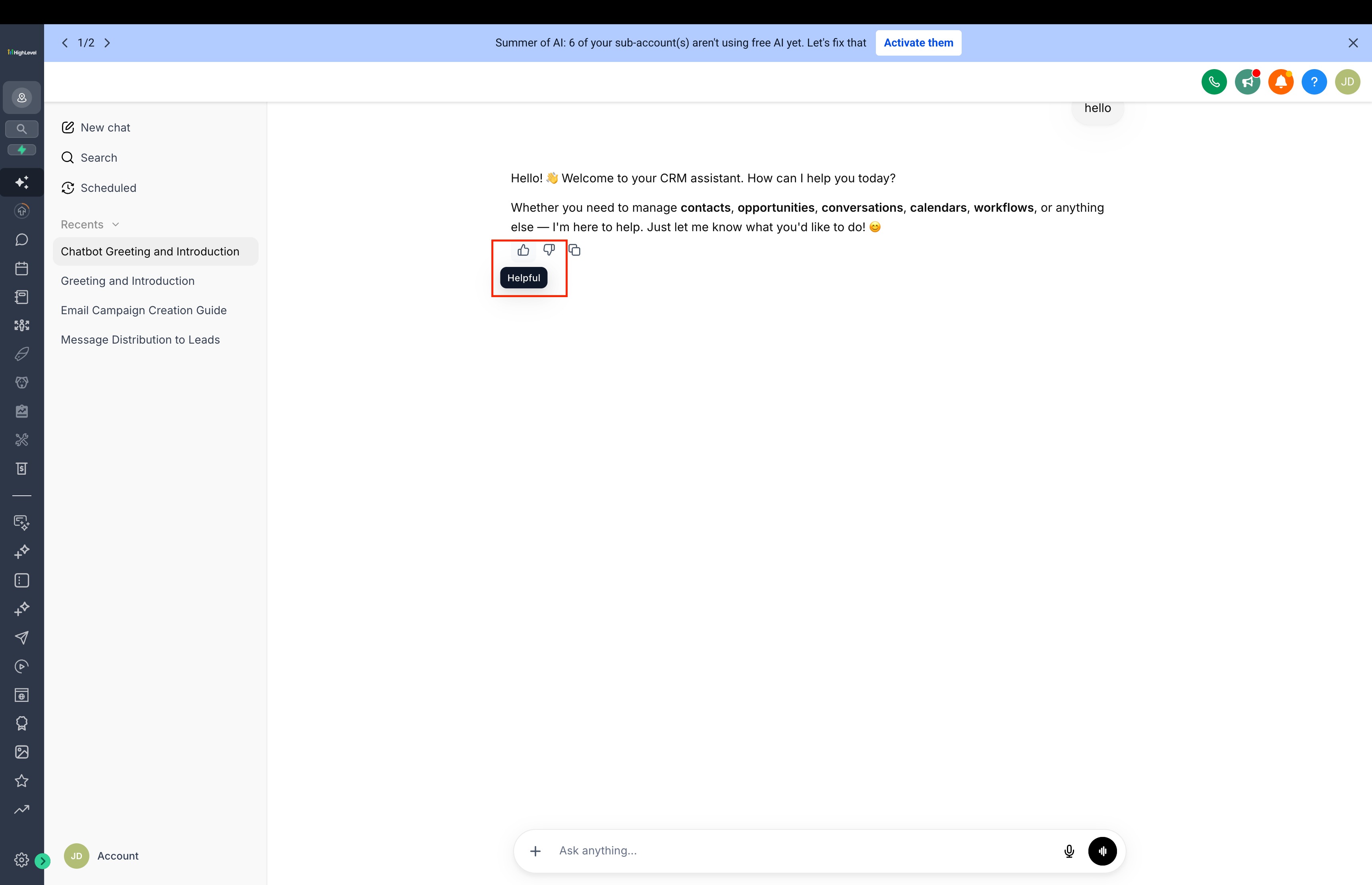
2. Select the thumbs up icon if the response was useful or the thumbs down icon if the response did not meet your expectations.
3. If you select thumbs up, you can optionally provide additional feedback about what worked well.
4. If you select thumbs down, select the reason that best describes the issue and add an optional note if you want to provide more context.
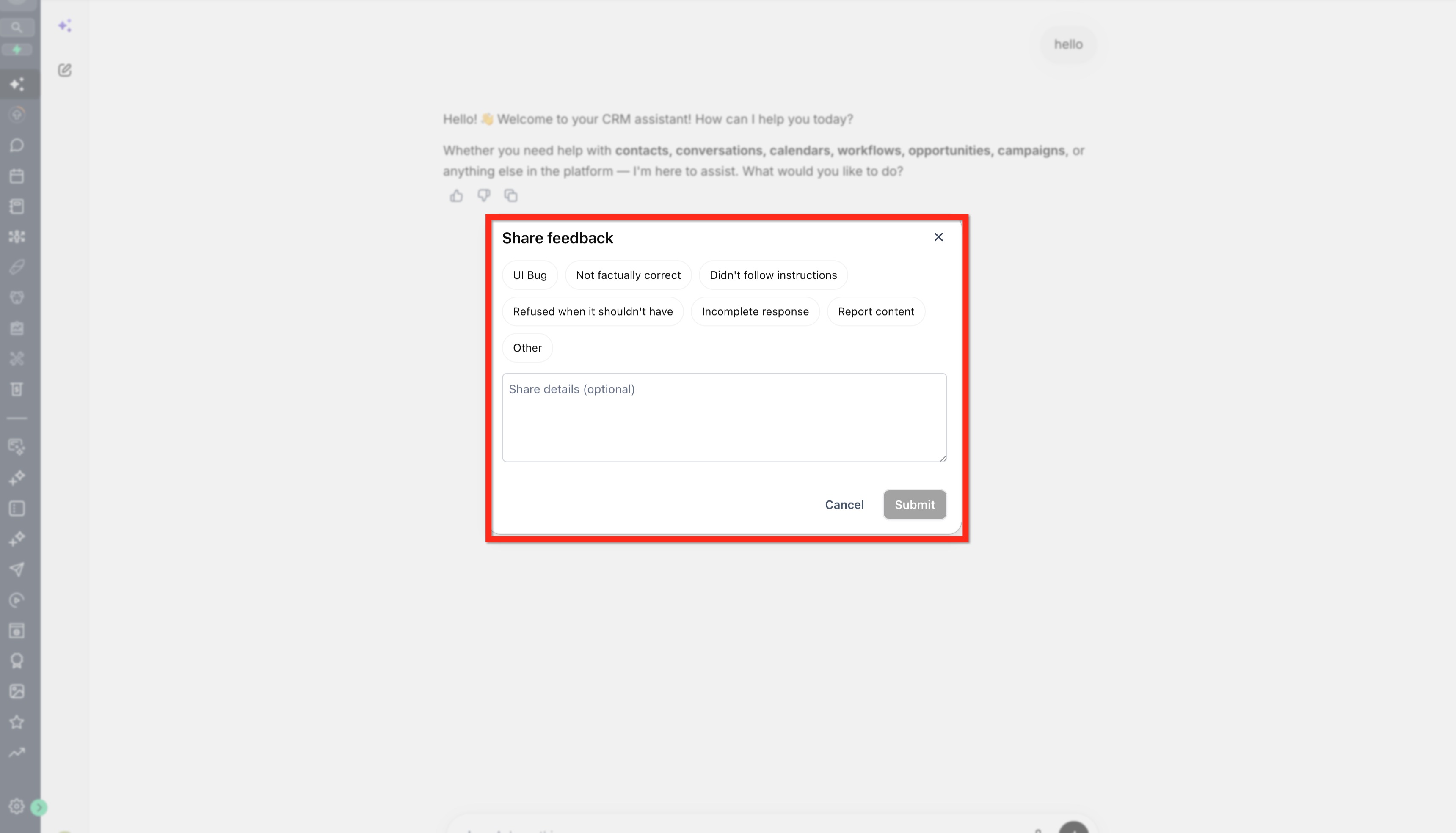
5. Submit your feedback.
You can provide feedback on Ask AI responses when using Ask AI from either the Agency or Sub-Account view. Feedback applies to the response you rated, regardless of which view you used to access Ask AI.
Review Previously Submitted Feedback
Your rating stays connected to the Ask AI response after you submit it. When you return to the conversation, the response continues to show that it has already been rated.
You can open a previous rating to review the feedback you submitted. Ask AI does not ask you to rate the same response again after feedback has already been submitted.
Best Practices for Constructive Feedback
Use these best practices when leaving feedback:
- Be specific about what was wrong.
- Mention whether the issue was accuracy, tone, format, relevance, or instruction following.
- Include the expected outcome when possible.
- Keep comments short and focused.
- Rate the full response, including any artifacts or structured content.
- Use thumbs up when Ask AI gets it right, not only thumbs down when something is wrong.
- Update or clear feedback if your opinion changes.
- When giving positive feedback, select the option that best describes what worked when additional feedback is available.
Example of constructive feedback:
“The response was helpful overall, but it did not follow my request to format the answer as a checklist.”
Frequently Asked Questions
Q: Why do some Ask AI conversations not show feedback controls?
Feedback is available in new Ask AI conversations created after the feature release. Older conversations may not show thumbs up or thumbs down controls.
Q: Can I change my rating after submitting it?
Yes. You can update your feedback by choosing a different rating.
Q: Does feedback immediately change the next Ask AI response?
No. Feedback helps HighLevel identify where Ask AI responses are helpful or need improvement, but ratings do not necessarily change the next response in the same conversation.
Q: Should I leave thumbs up feedback too?
Yes. Positive feedback helps identify responses that are accurate, helpful, and aligned with user expectations.
Q: Can I update or clear my feedback after submitting it?
Yes. You can change your rating or clear your feedback if you selected the wrong option, changed your mind, or no longer want to rate that response.
Q: Will my rating still appear if I return to the conversation?
Yes. After you rate an Ask AI response, the rating stays connected to that response when you return to the conversation. You can open the previous rating to review the feedback you submitted.
Related Articles
Was this article helpful?
That’s Great!
Thank you for your feedback
Sorry! We couldn't be helpful
Thank you for your feedback
Feedback sent
We appreciate your effort and will try to fix the article