Ask AI Triggers: Automate AI Actions Based on CRM Events
Ask AI Triggers enable you to automate AI-powered workflows by connecting custom skills to CRM events. Instead of manually initiating conversations, your skills execute automatically when contacts are created, forms are submitted, tags are applied, appointments are booked, or opportunities change status.
This article explains how to configure triggers, create skills directly from Ask AI Chat, and monitor automated runs using Trigger History.
What Are Ask AI Triggers?
Ask AI Triggers allow custom skills to execute automatically when specific CRM events occur. Instead of requiring users to manually start a conversation with Ask AI, triggers initiate skill execution in response to real-time data changes—such as a new contact being created, a form submission, or an opportunity status update.
When a trigger fires, Ask AI runs the associated skill using the relevant CRM context (contact details, form responses, opportunity data, etc.). This enables you to build intelligent automation workflows that respond instantly to customer actions and pipeline events.
Triggers complement scheduled skills, which run at specific times or intervals. Together, they provide comprehensive automation coverage for both time-based and event-based scenarios.
Key Benefits
Ask AI Triggers deliver automation, responsiveness, and visibility for your CRM workflows.
Supported Trigger Events
Ask AI Triggers support a range of CRM events, enabling you to automate workflows across contacts, forms, surveys, tags, appointments, opportunities, and lead sources.
Trigger a skill when a new contact is added to your CRM. Use this to send welcome messages, initiate onboarding sequences, or enrich contact data automatically.
Execute a skill when a specific form is submitted. Ideal for processing lead capture forms, scheduling follow-ups, or routing submissions to the appropriate team.
Trigger a skill when a survey is completed. Use this to analyze survey responses, calculate satisfaction scores, or trigger follow-up actions based on feedback.
Run a skill when a specific tag is added to or removed from a contact. Perfect for segmenting workflows based on contact attributes or lifecycle stages.
Trigger a skill when an appointment is booked or its status changes (confirmed, canceled, rescheduled). Use this to send reminders, update opportunity records, or notify team members.
Execute a skill when a new opportunity is created or when an opportunity's status changes (e.g., moved to a new pipeline stage). Ideal for automating sales workflows and notifications.
Run a skill when a lead is received from Facebook Lead Ads. Use this to enrich lead data, send immediate follow-up messages, or route leads to the appropriate team member.
Skills can also run on a schedule (specific date/time, interval, or cron expression), enabling time-based automation alongside event-based triggers.
How to Set Up Ask AI Triggers
Follow these steps to configure a trigger for a custom Ask AI skill. This allows the skill to run automatically when the specified CRM event occurs.
In your HighLevel account, go to Ask AI → Customize → Skills. This displays all custom skills configured for your account.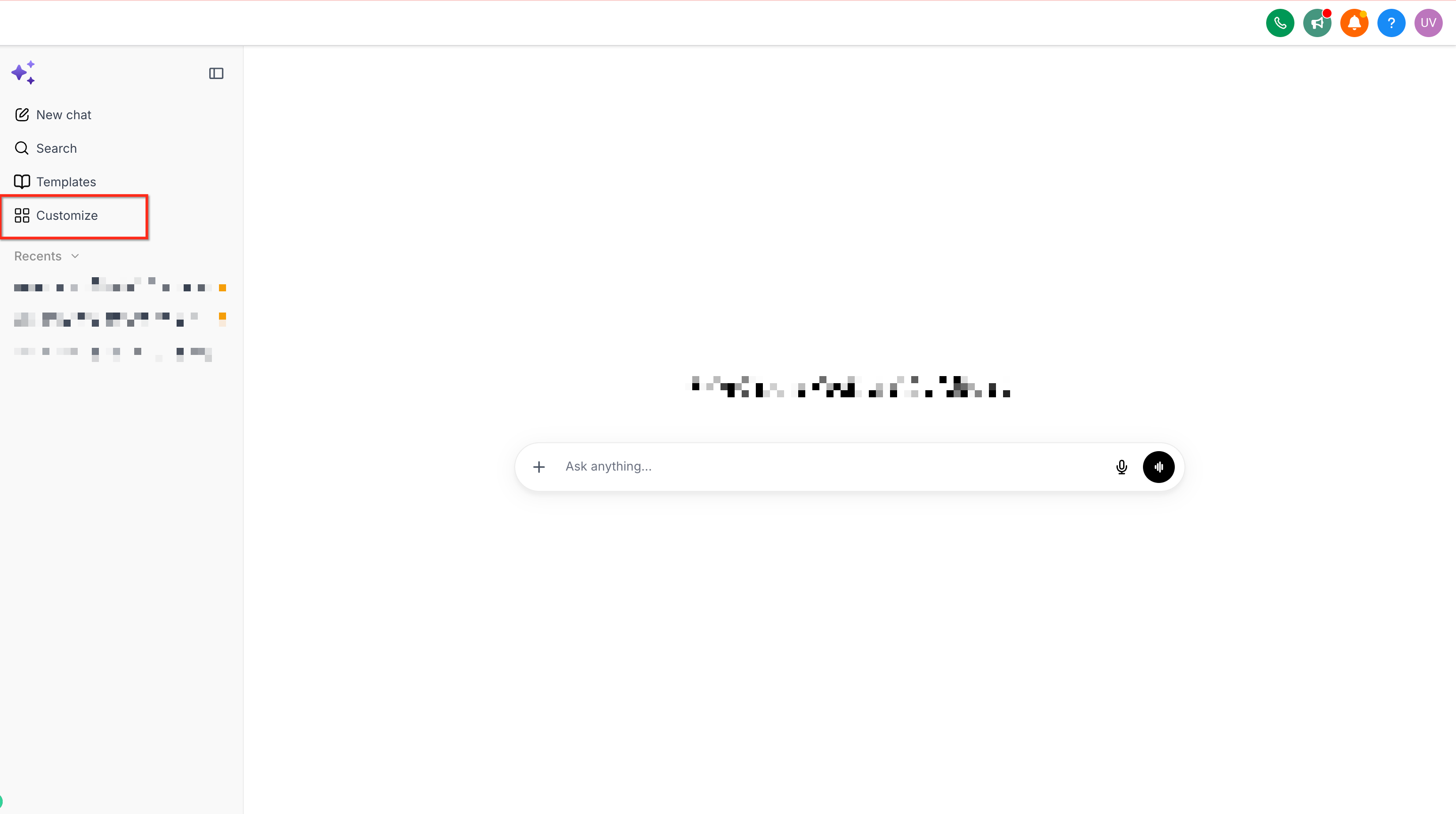
Click on the custom skill you want to trigger automatically. If you don't have a skill yet, create one by clicking + Add Skill and defining its purpose, instructions, and behavior.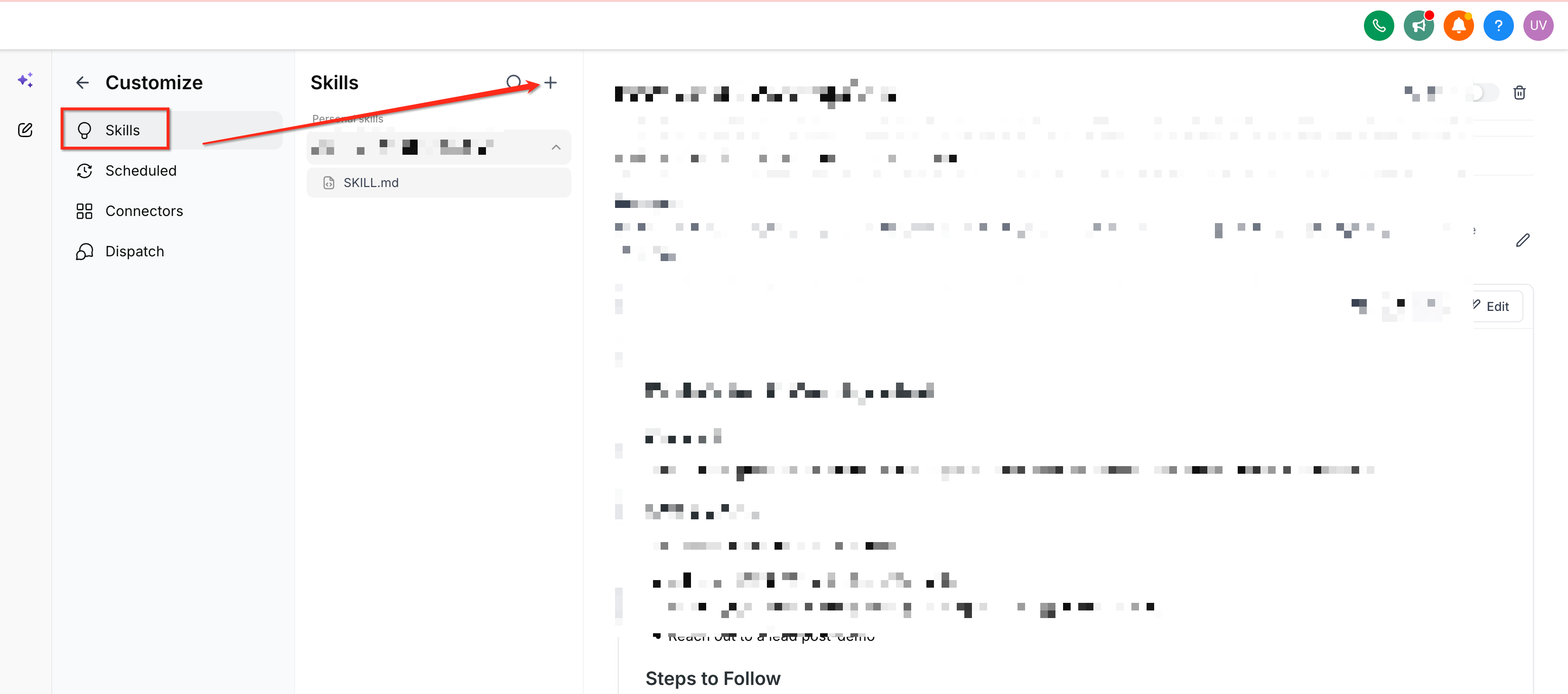
Within the skill settings, locate the Triggers section and click + Add Trigger. Select the event type that should initiate the skill (e.g., Contact Created, Form Submitted, Tag Added).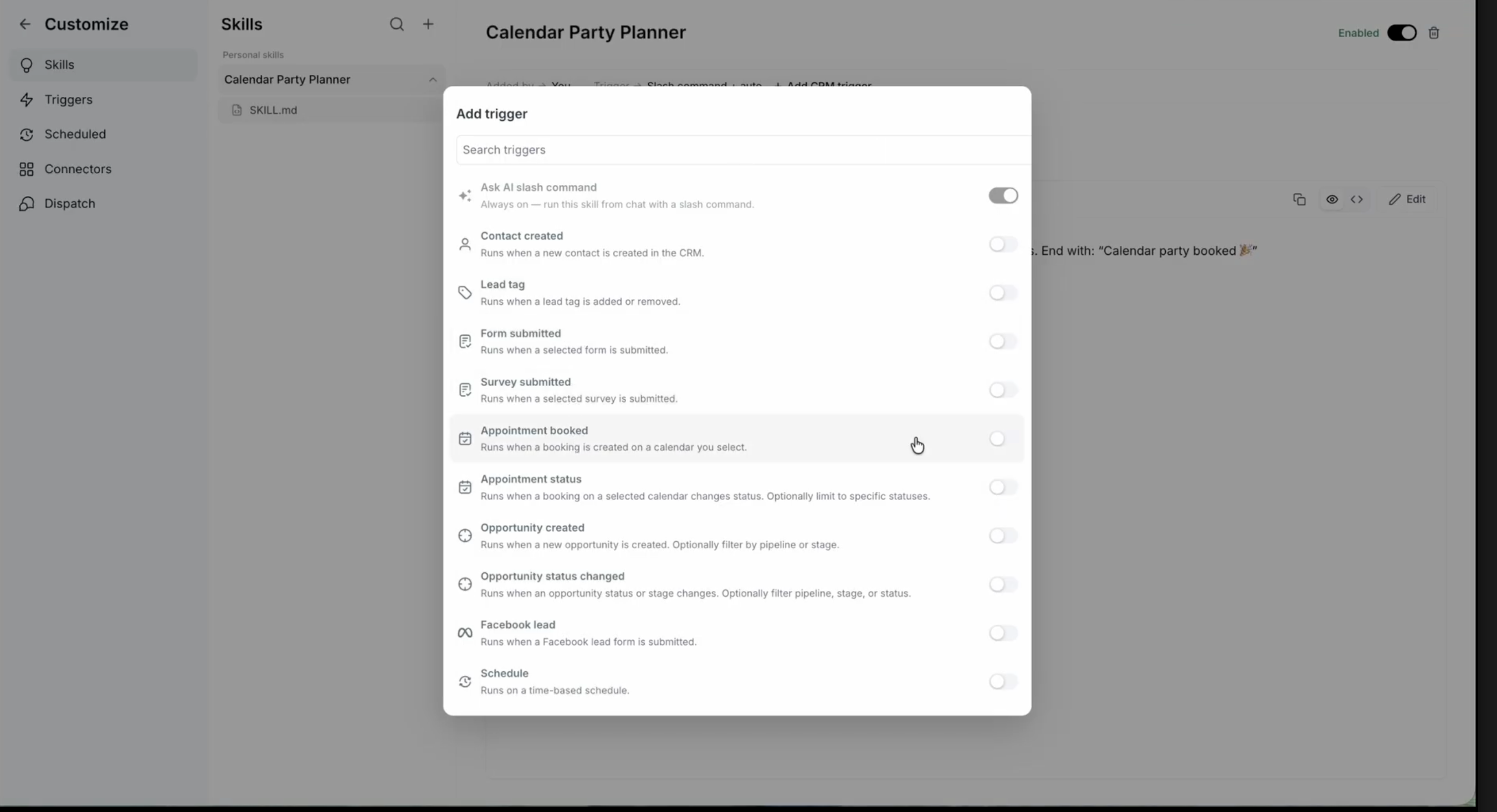
Depending on the event type, configure additional conditions. For example, if you selected "Form Submitted," specify which form should trigger the skill. If you selected "Tag Added," specify the tag name.
Toggle the trigger to Enabled. Once enabled, the skill will execute automatically whenever the configured event occurs.
Your trigger is now active. Ask AI will run the skill using the relevant CRM context each time the event fires.
Creating Skills and Triggers from Ask AI Chat
You can now create both a skill and its trigger configuration directly from Ask AI Chat—without navigating to the Customize section. This streamlines the automation setup process.
Open Ask AI Chat and describe the automation you want to create in natural language. For example: "Create a skill that sends a welcome email when a new contact is added."
Ask AI interprets your request and generates the skill along with its trigger configuration. It will suggest the appropriate event type, trigger conditions, and skill instructions.
Review the proposed skill and trigger setup. You can refine the instructions, adjust trigger conditions, or modify the skill's behavior before finalizing.
Once you're satisfied with the configuration, confirm the setup. Ask AI will save the skill and activate the trigger, making it immediately operational.
This conversational approach is ideal for users who prefer a guided setup experience. You can always refine skills and triggers in the Customize section later.
Monitoring Trigger Runs
Trigger History provides visibility into all automated skill executions. You can review which events fired triggers, whether they succeeded, and view the resulting Ask AI sessions.
To access Trigger History, navigate to Ask AI → Trigger History. Each entry displays the following information:
Use Trigger History to troubleshoot failed runs, verify that triggers are firing as expected, and gain insights into automated workflow performance.
Frequently Asked Questions
Was this article helpful?
That’s Great!
Thank you for your feedback
Sorry! We couldn't be helpful
Thank you for your feedback
Feedback sent
We appreciate your effort and will try to fix the article