How to Create Facebook Text Posts with Backgrounds in Social Planner
Social Planner supports native-style Facebook text posts with colorful backgrounds, so you can create eye-catching updates without ever leaving HighLevel. This capability helps your text-only posts stand out in crowded Facebook feeds while keeping your entire content workflow in one place.
This article walks you through what the feature does, why it's useful for engagement and efficiency, and exactly how to configure and publish Facebook background posts inside Social Planner.
What is Facebook Text Posts with Backgrounds?
Facebook Text Posts with Backgrounds is a Social Planner feature that lets you create Facebook-style text-only posts using Facebook's native colorful background styles directly from the HighLevel post composer. Instead of jumping into Facebook to design these posts, you can choose a background, write your message, and schedule or publish from the same Social Planner calendar you use for your other social content.
Key capabilities include:
Key Benefits
Adding backgrounds to your Facebook text posts helps your content stand out and saves time during content creation. This feature keeps your workflow inside Social Planner while aligning closely with the native Facebook posting experience.
Native Facebook Background Posts
Native Facebook Background Posts refer to text-only Facebook posts that display short messages over colorful, pattern-based backgrounds. Social Planner supports this native format directly, so your scheduled posts match what you could create in the Facebook app.
Compose a post that contains text (and optionally emojis, hashtags, and @mentions) but no images or videos, and apply a background style.
Use the same style family that Facebook itself exposes—these are not custom graphics you upload, but platform-native backgrounds for optimal compatibility.
Whether you're pushing out a quick update or planning a campaign, the background styles work across both instant and scheduled publishing flows in Social Planner.
Use background posts for short announcements, reminders, or offers that benefit from extra visual emphasis.
Create brand personality posts such as quotes, questions, or fun prompts that engage your audience.
Design calls-to-action that stand out in crowded social feeds.
Background Picker Inside Composer
The Background Picker is built directly into the Social Planner composer, making background selection feel like a natural step in writing your Facebook post. Once you select Facebook as a channel, the Text Background option appears and unlocks preset designs you can cycle through in real time.
The Text Background control only appears when Facebook is selected in your channel list to avoid confusion with platforms that don't support this feature.
Choose from multiple background presets such as solid colors and gradient or pattern-style designs that match Facebook's native options.
As you move between background presets, the live preview updates immediately, helping you pick the combination that best fits your message.
Write your text first, then experiment with different backgrounds to see which one highlights your core message best.
Keep backgrounds consistent within a campaign (e.g., one color for flash sales, another for educational tips) to create a recognizable visual pattern in your audience's feed.
Real-Time Post Preview
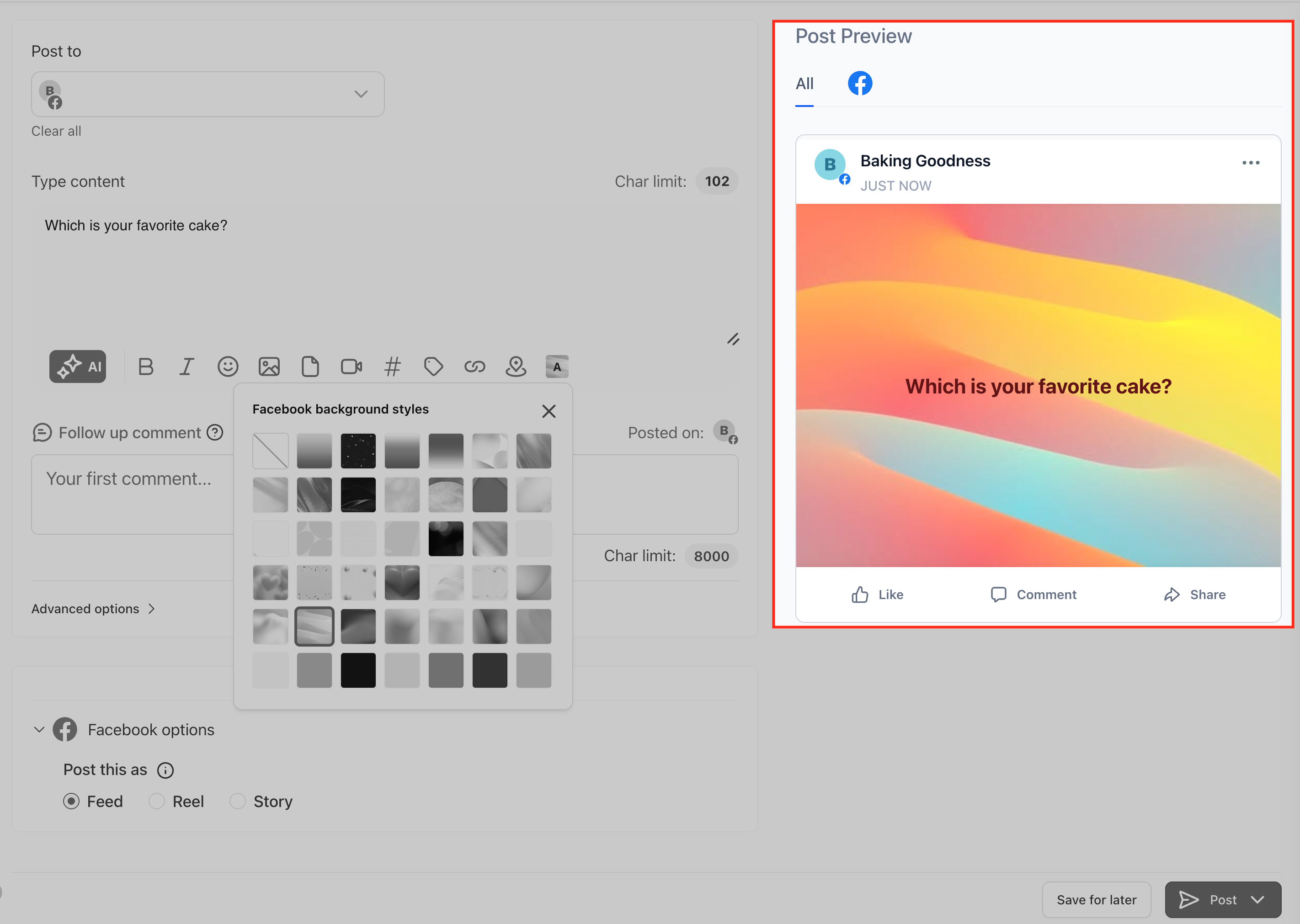
The real-time preview gives you an accurate, Facebook-style mockup of your background post before it's published. This helps you avoid surprises once the content goes live and makes it easier to fine-tune your text for readability.
The preview aligns with how Facebook renders background posts, including text placement and overall card layout, so you can see the final look inside Social Planner.
Font size adjusts based on the amount of text you enter—shorter posts appear larger and more prominent, while longer posts shrink slightly to fit the available space.
Adjusting the Text Background selection instantly refreshes the preview, making it easy to quickly test multiple looks.
Aim for concise, high-impact text—shorter phrases tend to look best on background posts.
Use line breaks thoughtfully to balance the layout of your text block.
Double-check how hashtags and @mentions appear so they remain legible and on-brand.
Smart Validation and Auto Handling
Smart Validation and Auto Handling ensure backgrounds are only used when Facebook supports them. The system automatically disables or removes backgrounds in situations where media or other content would prevent background posts from working correctly.
Backgrounds are available only when your Facebook post contains text and no attached images or videos. This mirrors Facebook's own rules for background posts.
If you attach any media (image, video, carousel, etc.) to a Facebook post, the Text Background option is automatically disabled so you don't configure an unsupported combination.
If you edit a scheduled Facebook post that previously used a background and you then add media, the system automatically removes the existing background style to keep the post valid at publish time.
Failed or inconsistent posts caused by incompatible combinations (e.g., background plus image).
Confusion when a background appears in the editor but is stripped by Facebook on publish.
How to Set Up Facebook Text Posts with Backgrounds
Configuring Facebook Text Posts with Backgrounds is built into your normal Social Planner workflow. Once your Facebook account is connected to Social Planner, you can start using backgrounds on new posts immediately—no separate enablement is required.
Go to Marketing → Social Planner in your HighLevel account.
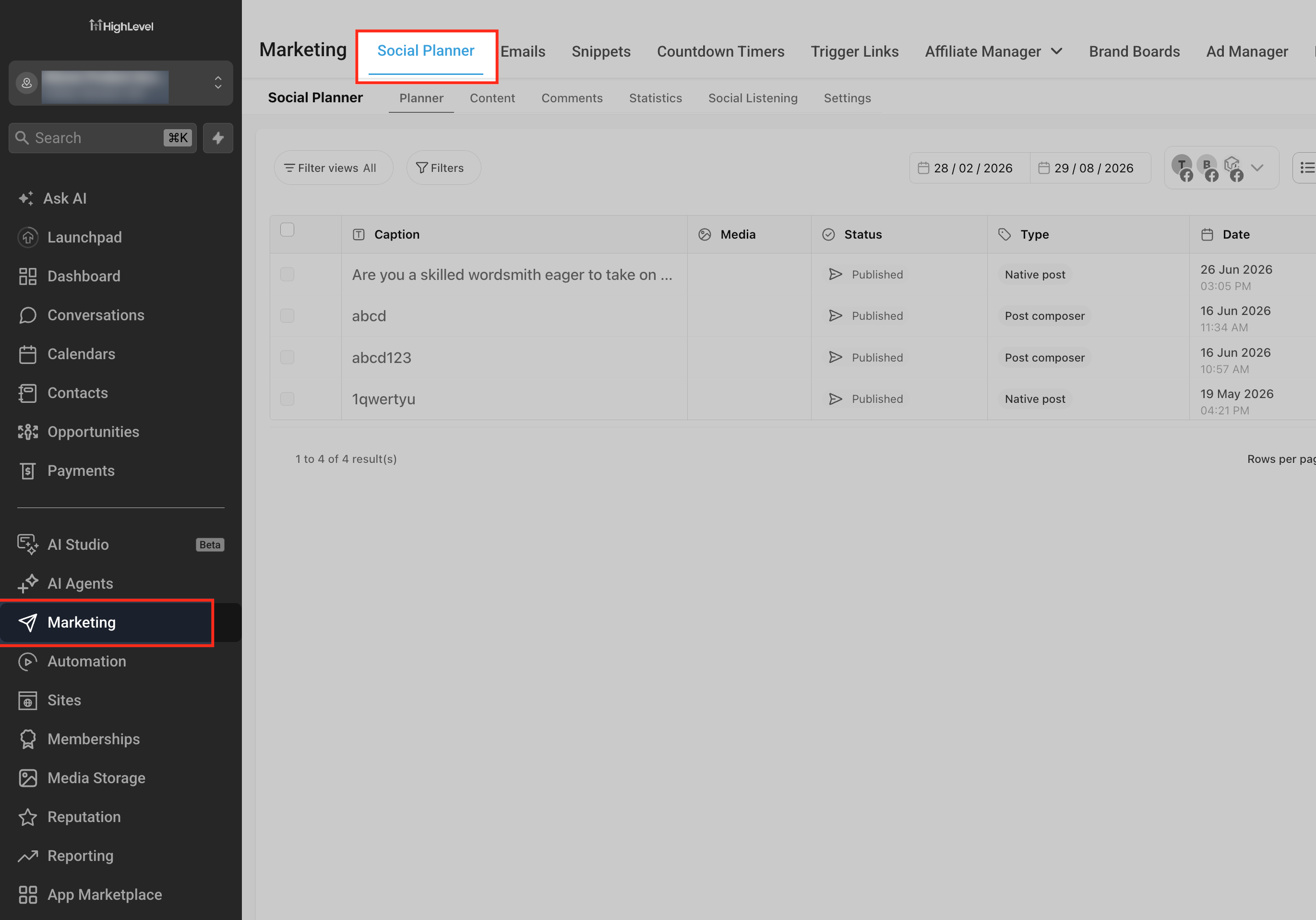
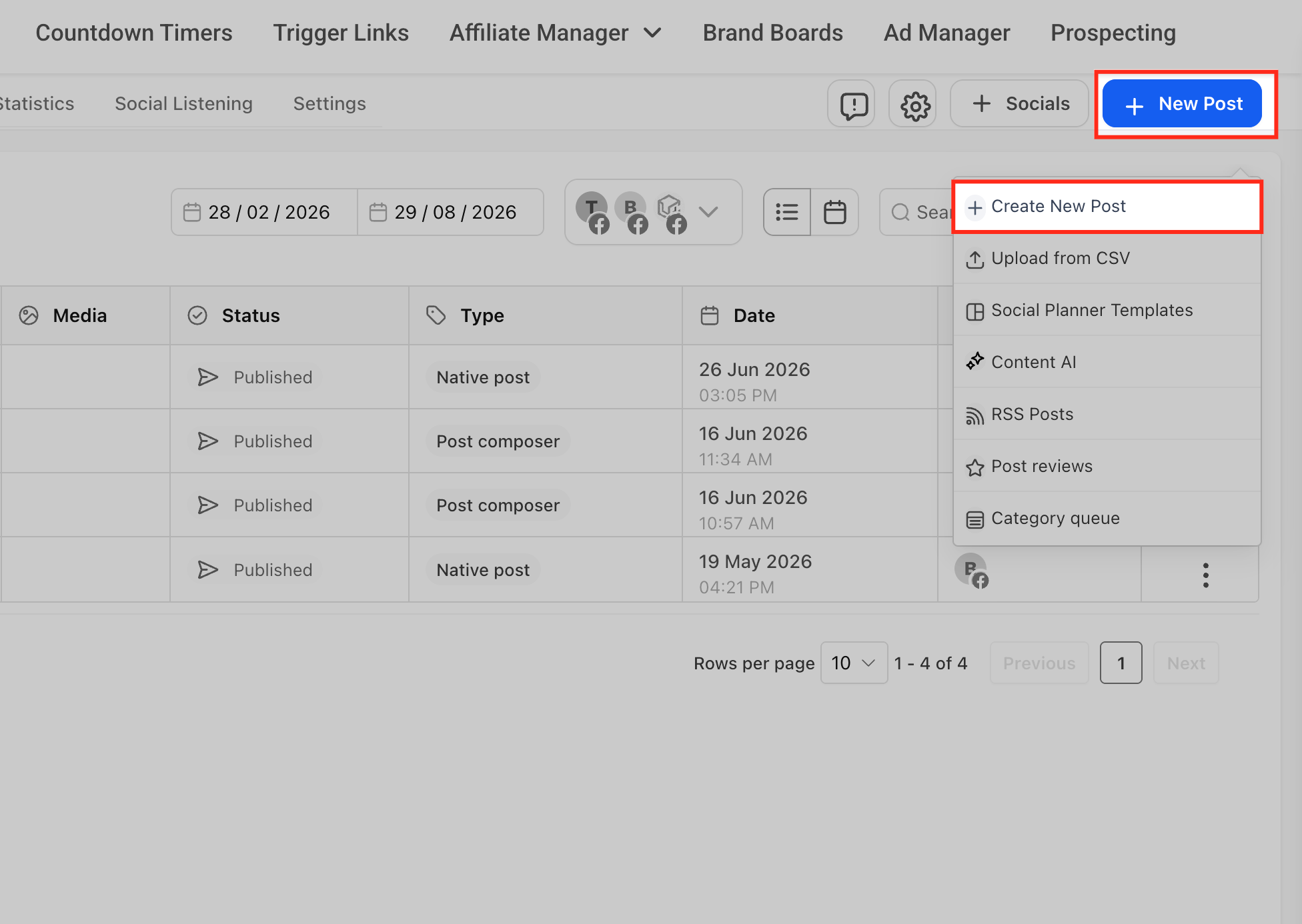
Open the composer to create a new social post. Make sure your Facebook profile or page is already connected through Settings → Integrations if you haven't done this before.
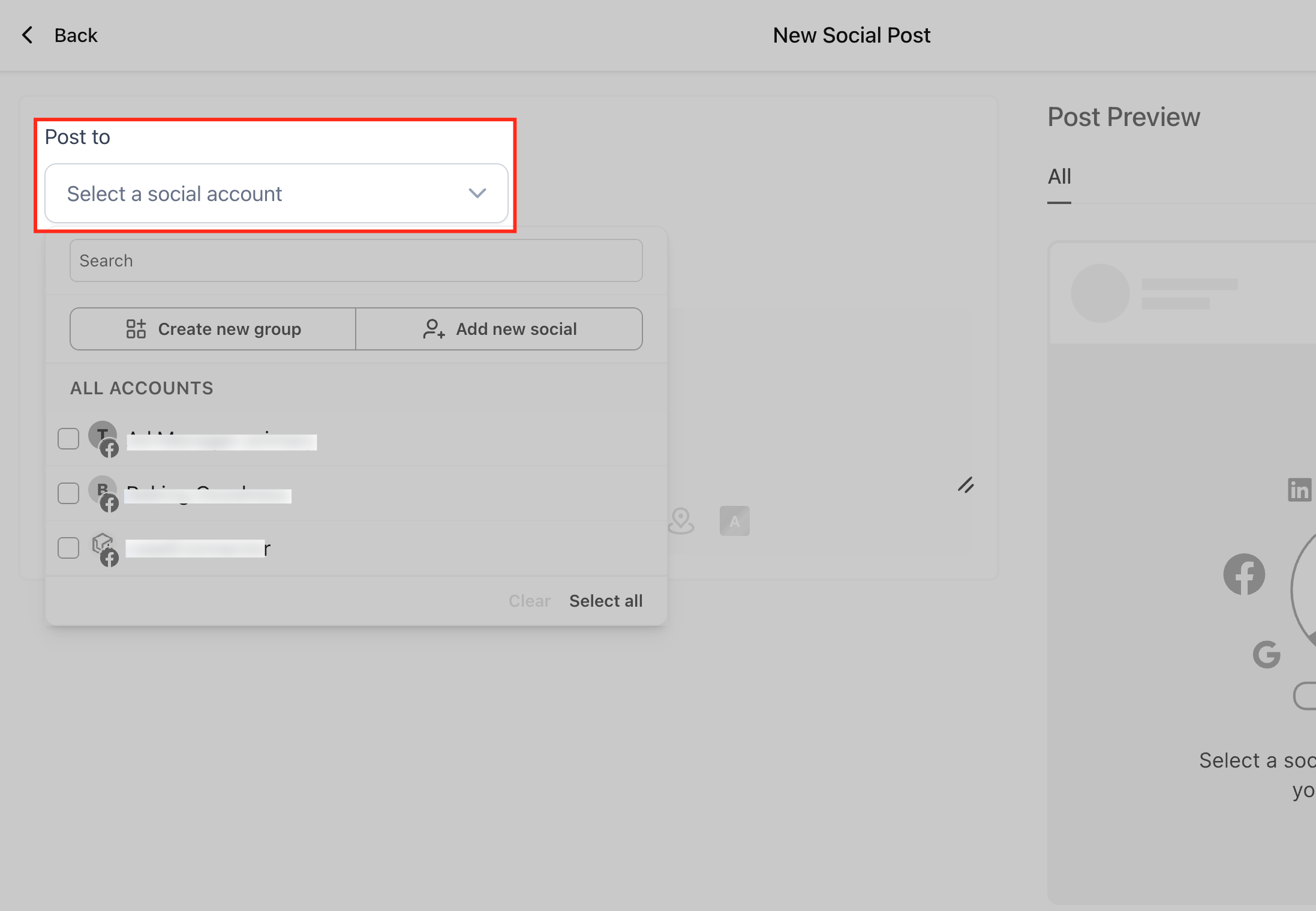
In the social channel selector, choose one or more Facebook destinations supported by Social Planner. Once Facebook is selected, the Text Background option becomes available for eligible posts.
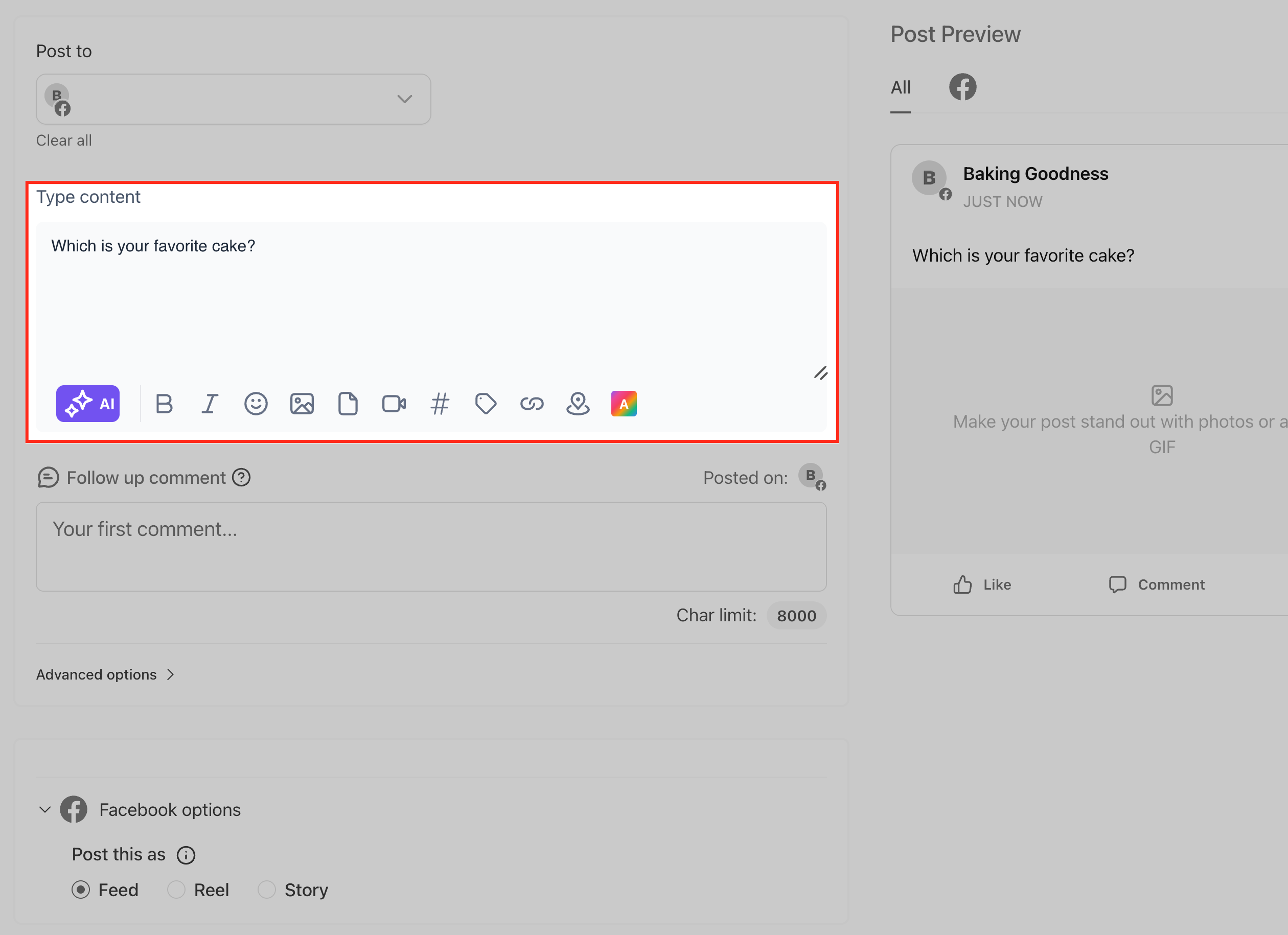
Type your post content in the editor. Keep it text-only if you plan to use a background—avoid adding images or videos for this particular post. You can still include emojis, hashtags, and @mentions to increase engagement.
Locate and click the Text Background option in the composer interface. A panel of preset backgrounds will open.
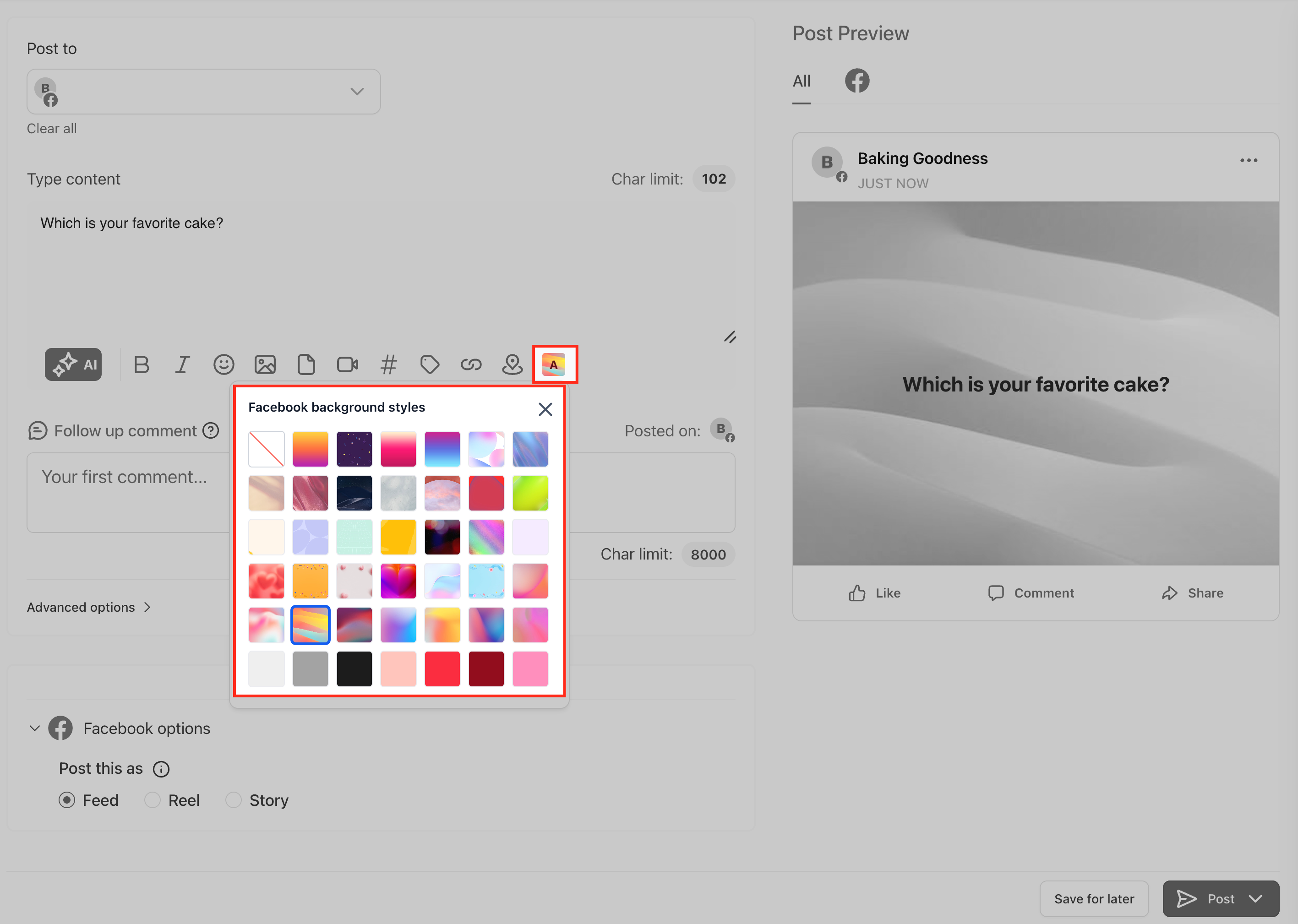
Browse through the available styles and click one to apply it. Watch the Real-Time Preview panel update so you can confirm how your text looks on each design.
Confirm that your message is clear, legible, and visually appealing. Make any necessary edits to text length or line breaks to improve readability.
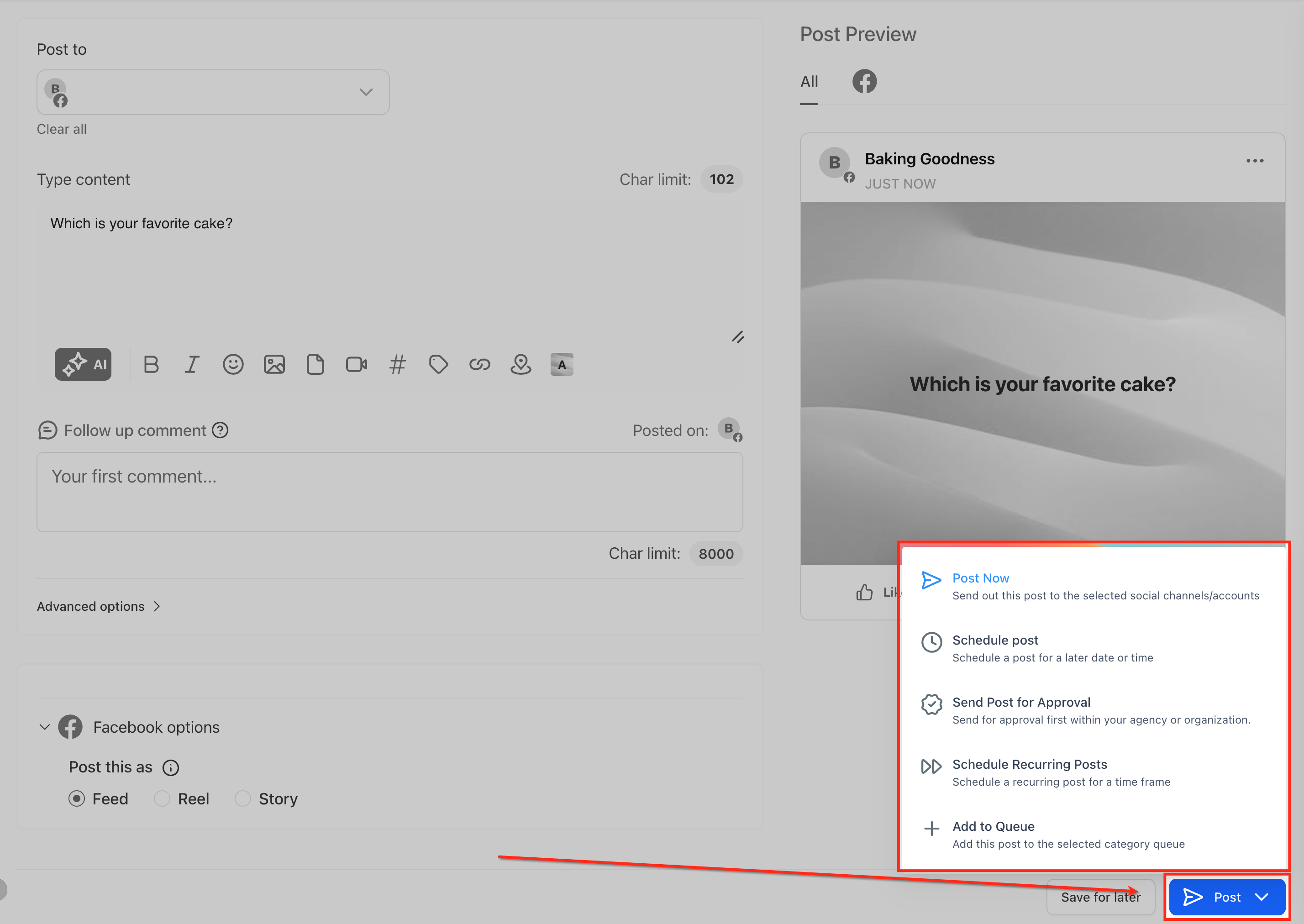
Choose Post Now for immediate publishing, or set a date and time for scheduling through the Social Planner calendar. Once saved, the post will appear on your Social Planner calendar with the configured background.
Related Articles
Explore these related resources to get the most out of Social Planner's Facebook capabilities:
Frequently Asked Questions
Was this article helpful?
That’s Great!
Thank you for your feedback
Sorry! We couldn't be helpful
Thank you for your feedback
Feedback sent
We appreciate your effort and will try to fix the article