Image Zoom on the Product Details Page lets customers inspect product images more closely while shopping in your HighLevel store. This feature gives store owners control over how product images respond when customers click, hover, or open images for a larger view. Image Zoom helps customers evaluate product details directly from the product page, which can improve confidence before purchase.
TABLE OF CONTENTS
- What is Image Zoom on the Product Details Page?
- Key Benefits of Image Zoom on the Product Details Page
- Image Zoom Options
- No Zoom
- Click & Hover Zoom
- Open Lightbox Zoom
- Supported Product Media Layouts
- How To Set Up Image Zoom on the Product Details Page
- Frequently Asked Questions
- Related Articles
What is Image Zoom on the Product Details Page?
Image Zoom Options are available inside the Product Details element settings. You can choose whether product images should have no zoom interaction, zoom on click or hover, or open in a fullscreen lightbox experience.
Key Benefits of Image Zoom on the Product Details Page
Product images play an important role in helping customers understand what they are buying. Image Zoom Options make product pages more interactive by allowing shoppers to view finer details without leaving the page.
- Improved Product Visibility: Customers can inspect product details such as texture, labels, packaging, colors, and design elements more closely.
- Better Shopping Experience: Zoom interactions make the Product Details Page feel more interactive and easier to explore.
- More Control Over Product Presentation: Store owners can choose the zoom behavior that best fits their product type and storefront style.
- Fullscreen Image Viewing: The lightbox option lets customers view product images in a larger popup with zoom and navigation controls.
- Works With Supported Media Layouts: Image Zoom works across Stack Gallery, Stack Carousel, and Two-Column Layout media displays.
Image Zoom Options
Image Zoom Options control how customers interact with product images on the Product Details Page. Choosing the right option helps match the image viewing experience to your products and customer browsing behavior.
No Zoom
No Zoom keeps the product image interaction simple. Customers can view product images normally without any additional zoom behavior.
Use No Zoom When:

Your product images do not need close inspection.

You want a simple Product Details Page experience.

You do not want image clicks or hover actions to trigger zoom.
Click & Hover Zoom
Click & Hover Zoom lets customers zoom into a specific area of the product image by clicking or hovering over it. This option is useful when shoppers need to inspect smaller product details directly on the page.
Note: Click & Hover Zoom works best for desktop interactions using a mouse or trackpad.Use Click & Hover Zoom When:
Your products have fine details customers may want to inspect.
Your customers commonly browse on desktop.
You want customers to zoom without opening a separate fullscreen view.
Open Lightbox Zoom
Open Lightbox Zoom opens the product image in a fullscreen popup when a customer clicks the image. Customers can zoom in or out, move between images, and browse thumbnails inside the lightbox.
Use Open Lightbox Zoom When:

Your store uses multiple product images.

You want customers to inspect images in a larger view.

You want a guided image viewing experience with navigation controls.
Supported Product Media Layouts
Image Zoom Options work across supported Product Details Page media layouts. This means you can choose how images are arranged on the page and separately choose how customers interact with those images.
Image Zoom works with the following media layouts:
- Stack Gallery
- Stack Carousel
- Two-Column Layout
For more information about configuring product image layouts, refer to <span style="color: blue;">Product Media Layouts for the Product Details Page in HighLevel</span>.
Important: Image Zoom applies only to product images. Product videos may still appear in the media area, but videos are excluded from zoom behavior.How To Set Up Image Zoom on the Product Details Page
Proper setup ensures customers see the intended image interaction when they visit your product pages. After selecting the preferred zoom behavior, save and publish your changes so the updated product image experience appears on the live storefront.
- Open your HighLevel store.
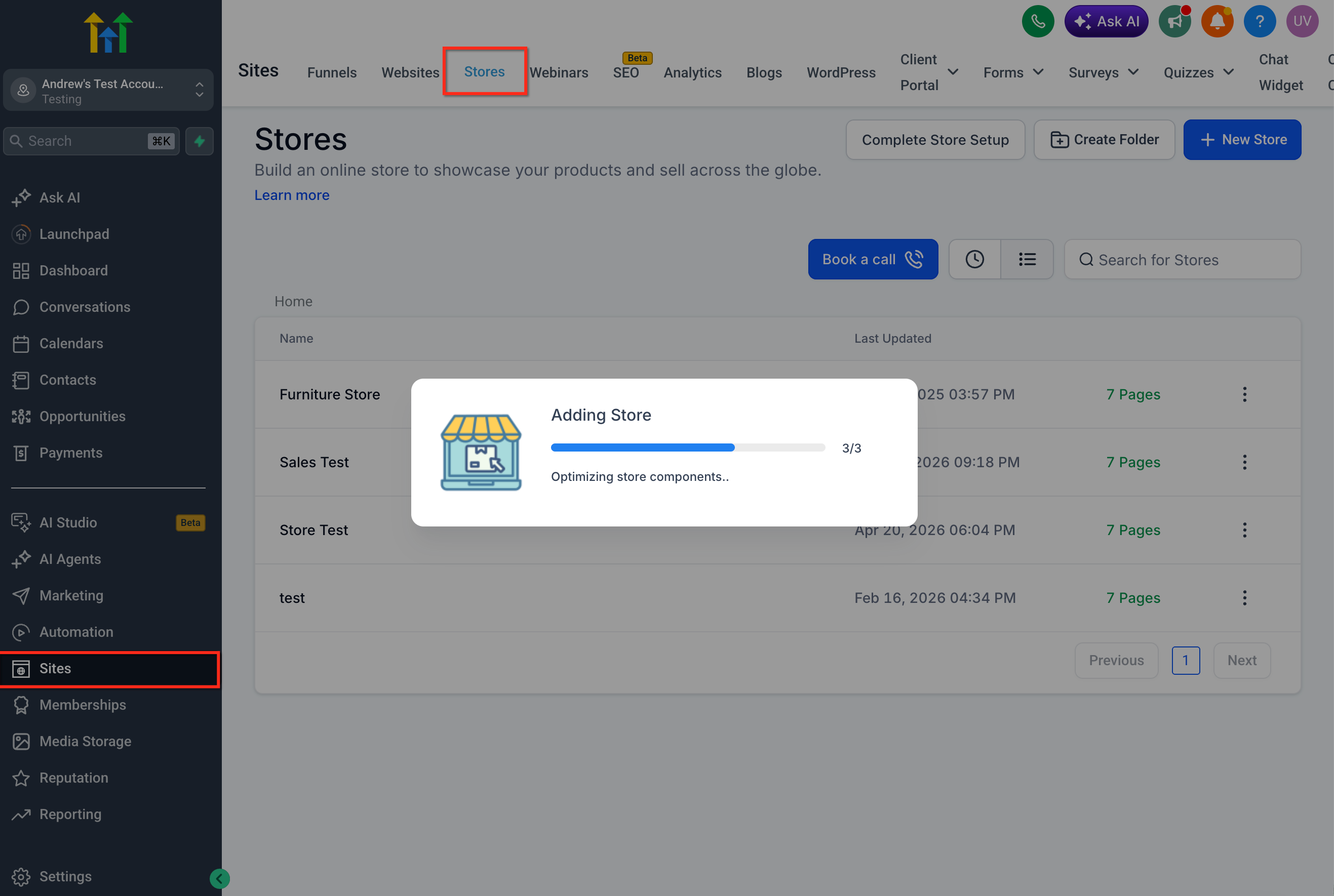
- Edit the Product Details Page.
- Select the Product Details element.
- In the Layout Settings, locate the Image Zoom option.
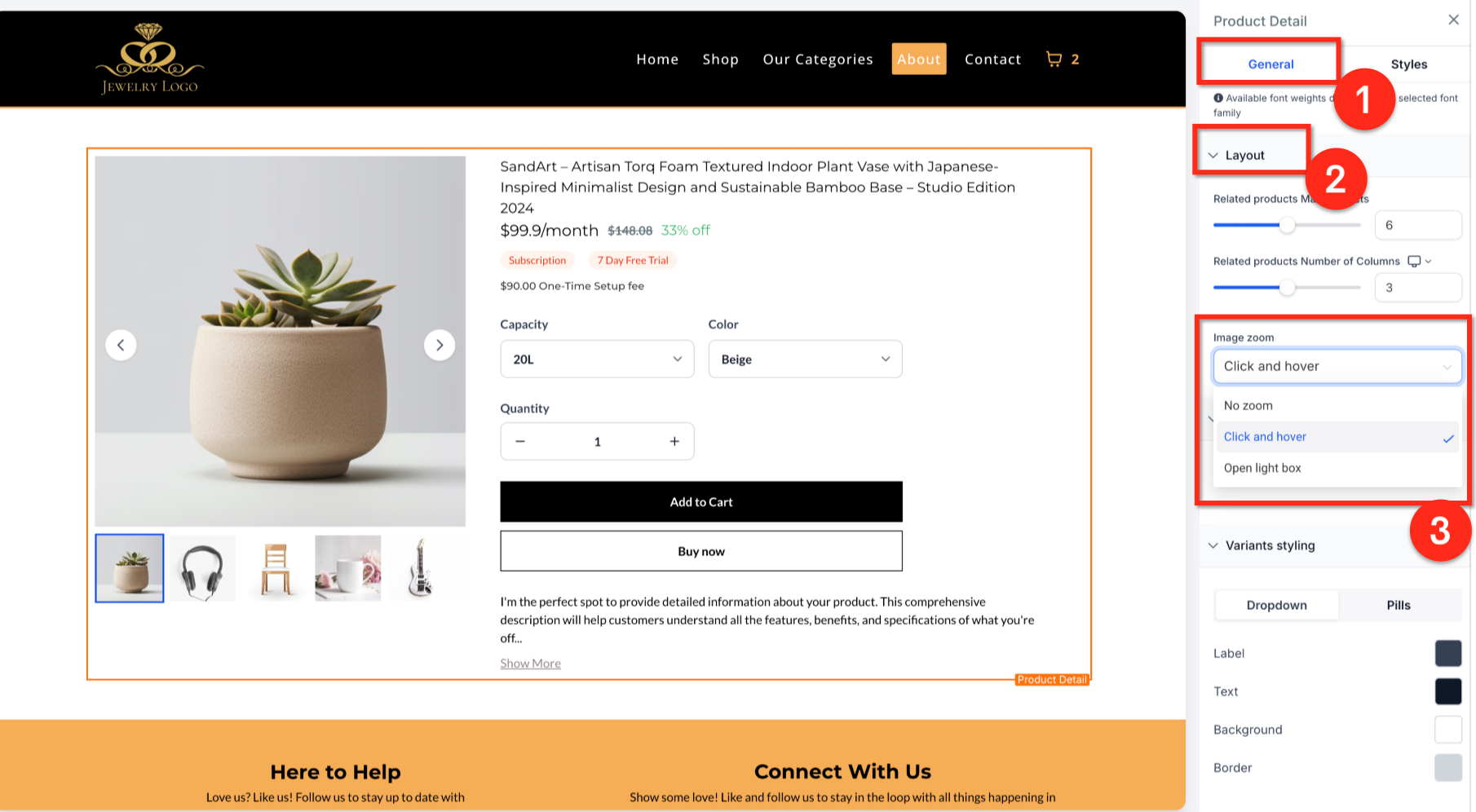
- Choose your preferred zoom behavior (No Zoom, Click & Hover Zoom and Open Lightbox Zoom).
- Save your changes.
- Publish the page to make the updated Image Zoom setting live.
Frequently Asked Questions
Q: Can I use Image Zoom with all Product Details Page media layouts?
A: Image Zoom works across Stack Gallery, Stack Carousel, and Two-Column Layout media layouts.
Q: Does Image Zoom work on product videos?
A: No. Image Zoom applies only to product images. Videos are excluded from zoom behavior.
Q: Which zoom option should I use for desktop shoppers?
A: Click & Hover Zoom works best for desktop customers using a mouse or trackpad.
Q: What happens when I choose Open Lightbox Zoom?
A: Clicking a product image opens a fullscreen popup where customers can zoom in or out, navigate between images, and browse thumbnails.
Q: Can customers move between product images in the lightbox?
A: Yes. The lightbox includes previous and next controls, along with a thumbnail strip for browsing product images.
Q: Is No Zoom still available?
A: Yes. No Zoom is available for store owners who want product images to display without zoom interactions.
Q: Do I need to publish the page after changing Image Zoom settings?
A: Yes. Save and publish your changes so customers can see the updated image zoom behavior on the live Product Details Page.
Q: Can I use Image Zoom on a custom Product Details Page?
A: Yes, Image Zoom can be configured from the Product Details element settings on the Product Details Page.
Related Articles
- Product Media Layouts for the Product Details Page in HighLevel
- Custom Product Details Page for E-commerce Stores
- How to Customize Product Selector Styles on the Product Details Page
- How to Set Up an E-Commerce Online Store (Websites)
- Related Product element for Ecommerce stores
- Mobile UI Improvements for E-commerce Stores
Was this article helpful?
That’s Great!
Thank you for your feedback
Sorry! We couldn't be helpful
Thank you for your feedback
Feedback sent
We appreciate your effort and will try to fix the article