Make your estimates stand out by adding product or service photos directly into each line item. With HighLevel’s Add Photos in Estimates feature, you can attach up to four images per item, giving clients a visual understanding of what they’re buying—helping them approve faster, and reducing back-and-forth questions.
TABLE OF CONTENTS
- What is Add Photos in Estimates?
- Key Benefits of Add Photos in Estimates
- Image Source Options
- How to Add Photos to an Estimate
- Customer Gallery Experience
- Limits and Best PracticesKeeping your estimates visually appealing and fast-loading is easy if you follow these best practices.
- Frequently Asked Questions
- Related Articles
What is Add Photos in Estimates?
The Add Photos in Estimates feature allows you to attach up to four images to any product or service line within an estimate. These photos appear as thumbnails under each line item and can be clicked to open a full-screen gallery view. You can either upload new images or select from your existing Media Storage files for easy reuse.
Key Benefits of Add Photos in Estimates
Adding visuals to your estimates gives clients clarity and boosts your brand professionalism.
Faster Approvals: Clients can see exactly what they’re getting.
Fewer Disputes: Avoid confusion around specs, finishes, or product variations.
Professional Look: Present sleek, modern, visual proposals.
Efficiency: Reuse photos directly from Media Storage without re-uploading.
Mobile-Friendly: Clients can view and zoom in on images easily from any device.
Image Source Options
You can choose where each photo comes from depending on your workflow and existing assets.
From Media Storage: Select existing photos from your HighLevel media library.
Upload New: Add images directly from your computer—these automatically save to Media Storage for future use.
Mix & Match: Combine stored and newly uploaded photos, up to four per line item.
How to Add Photos to an Estimate
Follow these steps to add product or service images directly within your estimate.
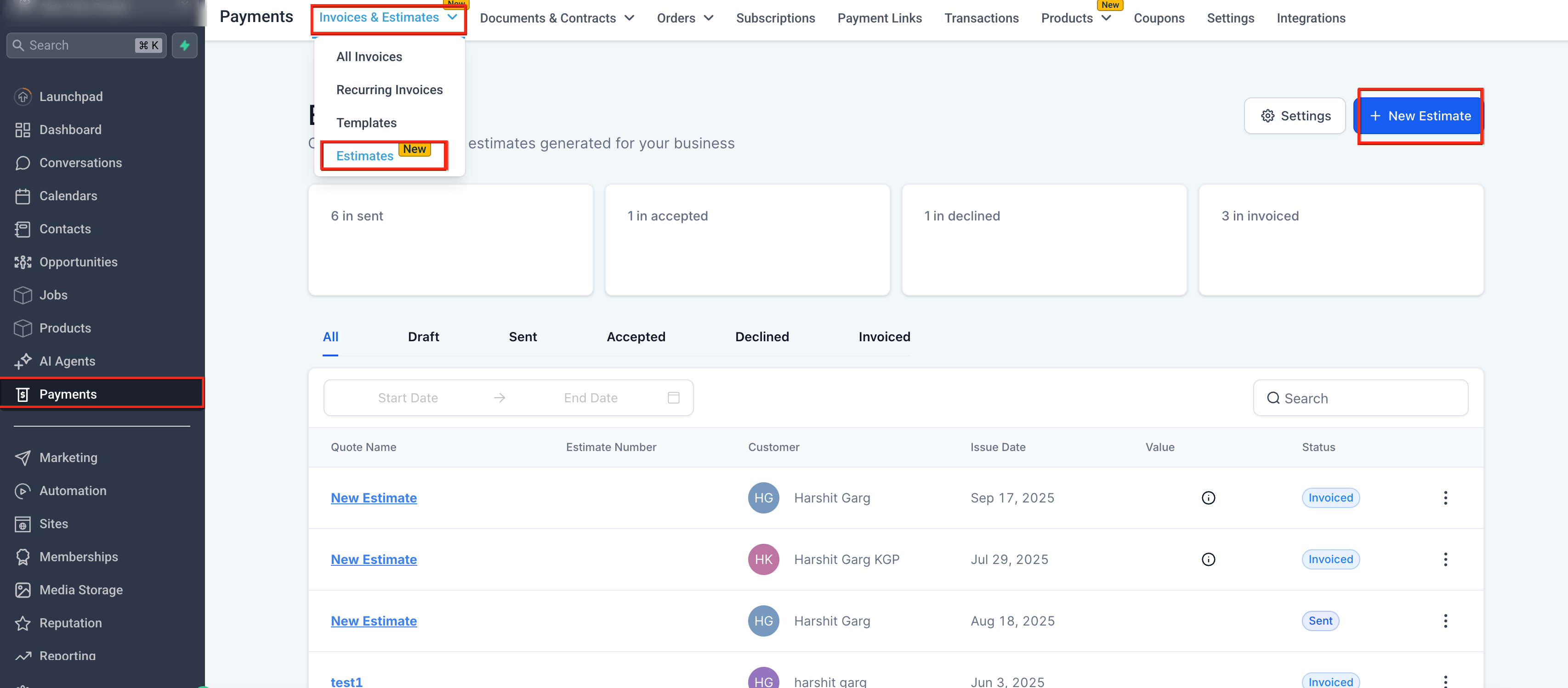
Go to Payments → Invoices & Estimates → Estimates.
Click New Estimate.
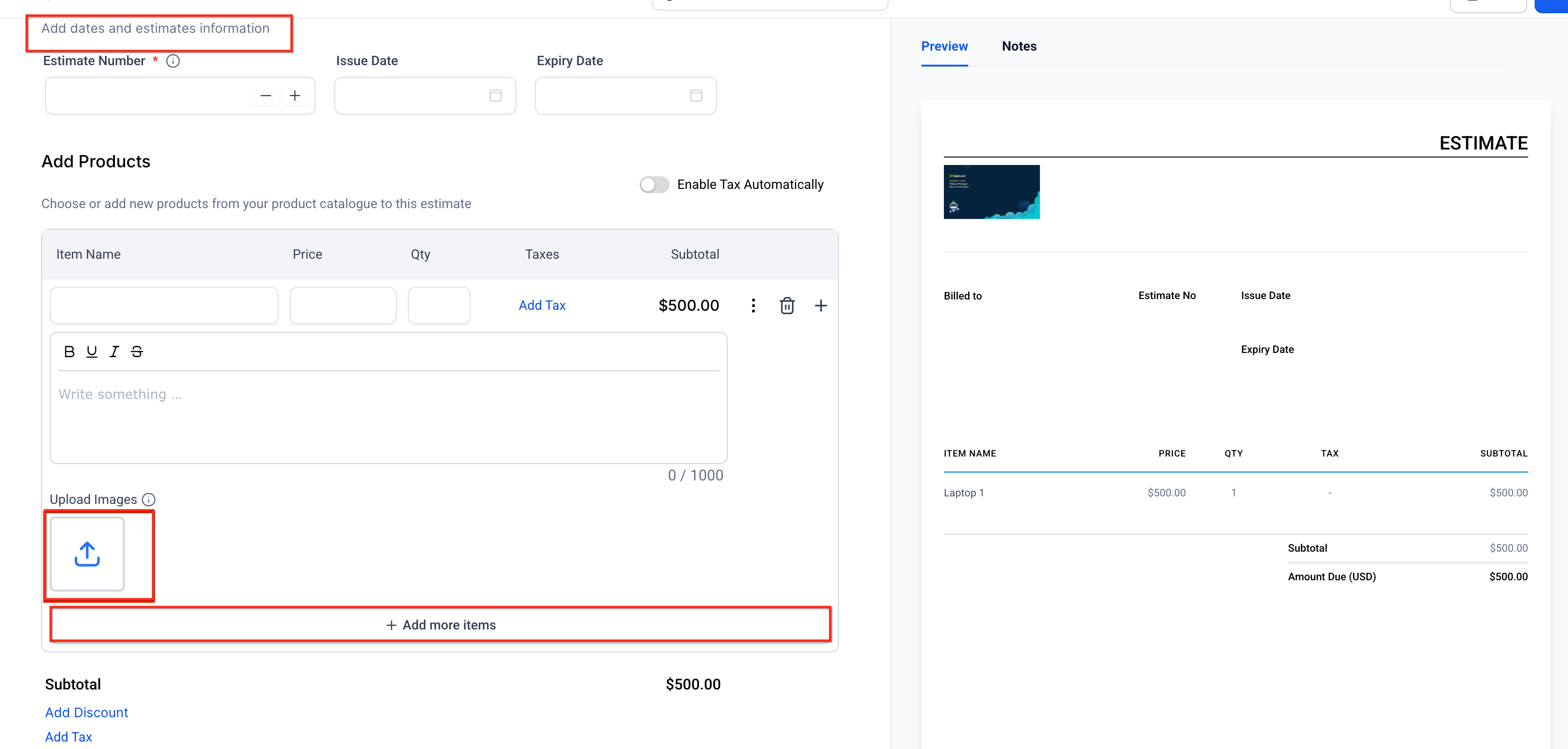
Enter your estimate details, such as customer information, item names, and pricing.
Under the line item, click Upload Images.
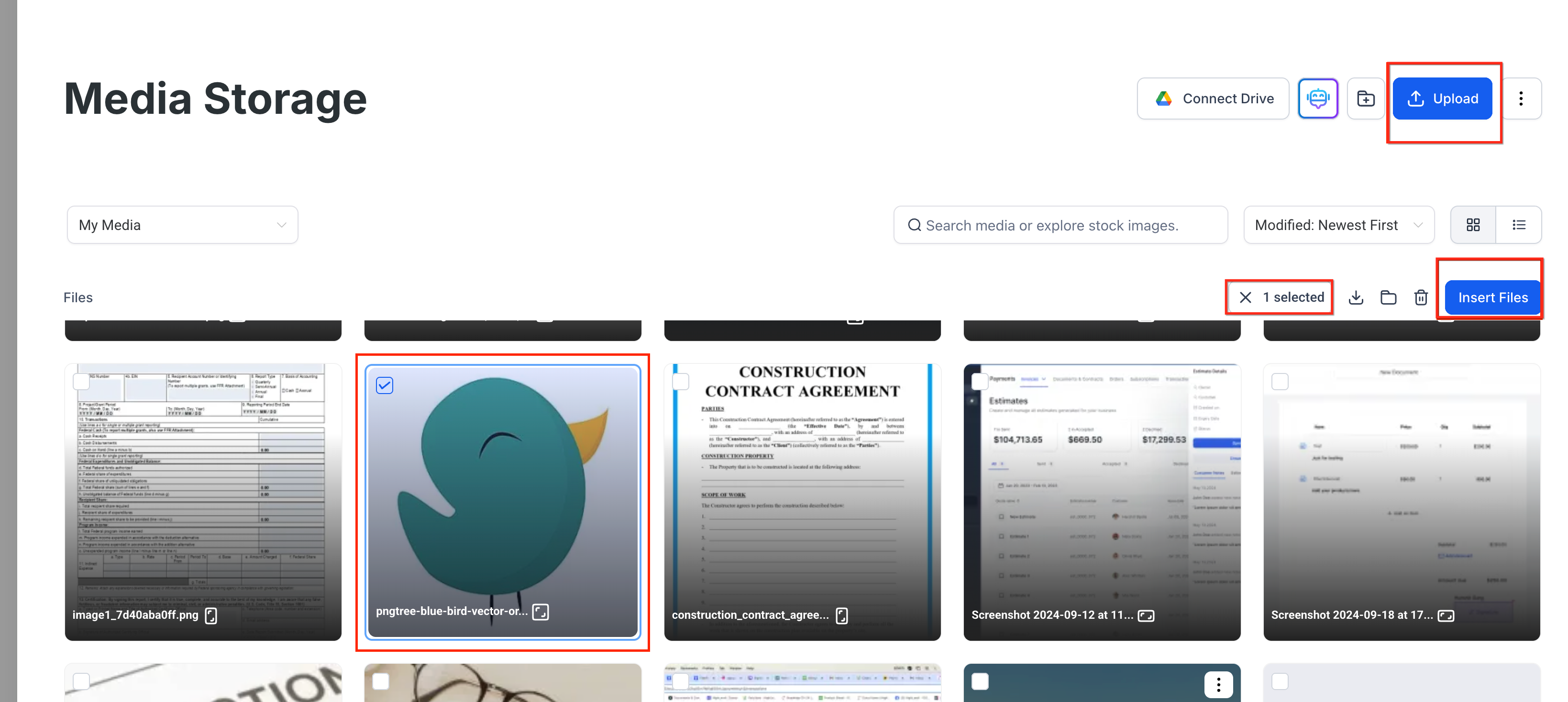
Choose Upload to add new files, or select from Media Storage.
Select up to four images and click Insert Files.
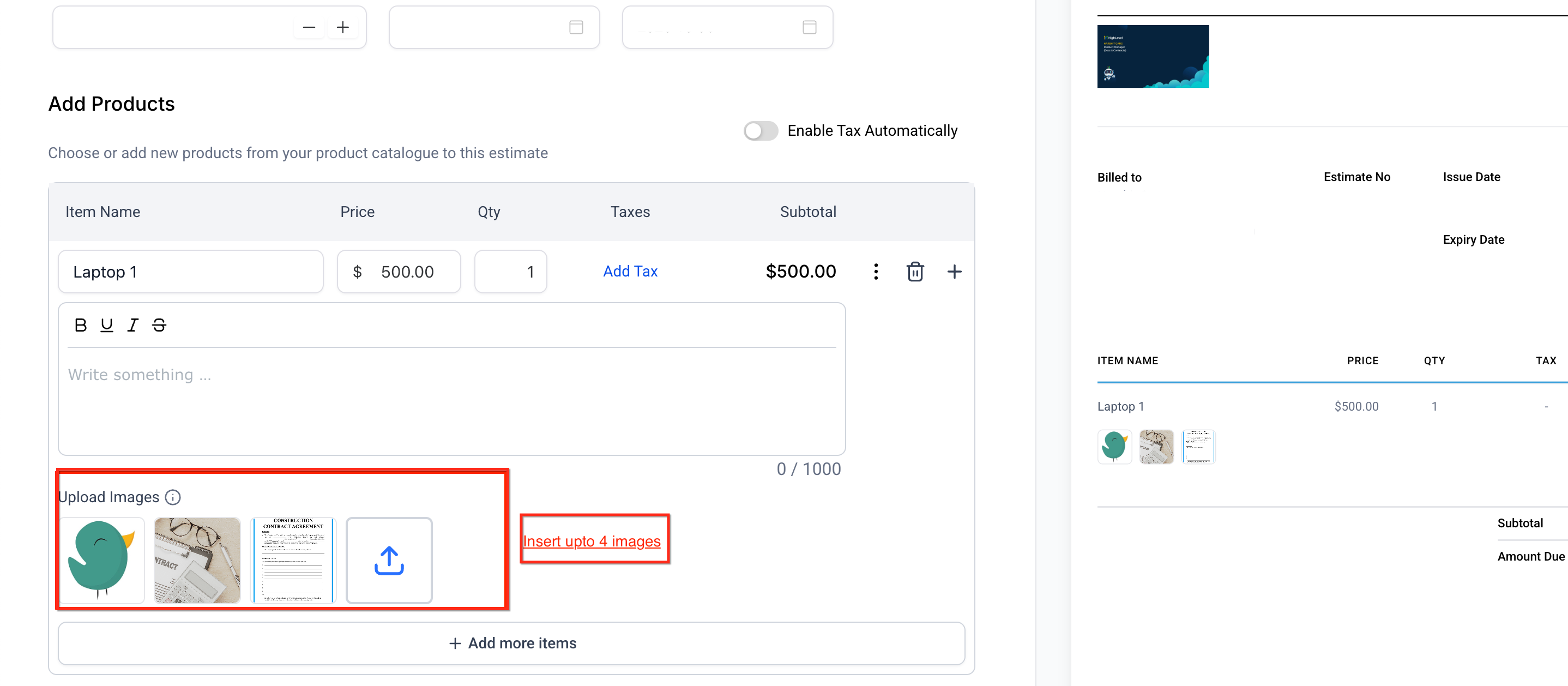
7. Review your estimate to confirm that thumbnails appear beneath the correct line item.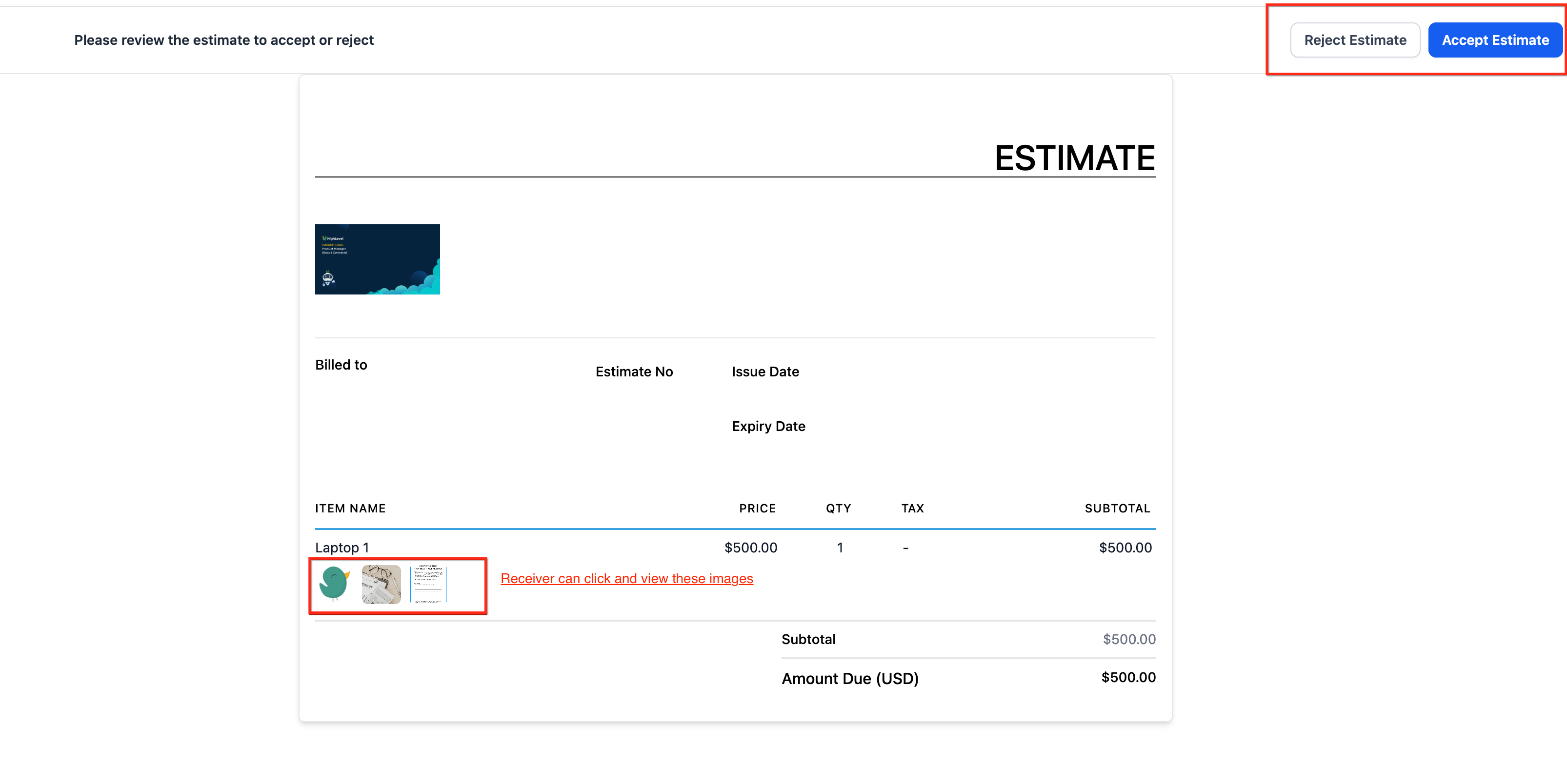
Click Send.
Clients will receive the estimate with clickable thumbnails that open in a full-screen gallery view.

Customer Gallery Experience
When clients receive your estimate, they’ll see thumbnail images beneath each line item. Clicking on any thumbnail opens a full-screen gallery, allowing them to zoom, scroll, and swipe through the attached photos. This creates a clear and interactive review experience—especially on mobile devices.
Limits and Best Practices
Keeping your estimates visually appealing and fast-loading is easy if you follow these best practices.
You can add a maximum of 4 images per line item.
Supported file formats: JPG and PNG.
Keep each image under 2MB for optimal performance.
Maintain consistent aspect ratios for neat thumbnail alignment.
Use clear line-item descriptions—images should support, not replace, written details.
For extra files (manuals, spec sheets, or PDFs), use the Attachments feature, which supports up to 10 files per estimate.
Frequently Asked Questions
Q: Can I add more than four images per item?
A: No. The limit is four images per line item. For additional visuals, combine multiple photos into a single collage or use the Attachments feature.
Q: Can customers download the images?
A: Not directly from the gallery. However, you can attach downloadable versions of the files using the Attachments feature.
Q: Will adding images make my PDF larger?
A: Slightly. HighLevel automatically compresses images to balance clarity and file size.
Q: Will the images transfer if I convert the estimate into an invoice?
A: Yes. Images remain visible when you convert an estimate to an invoice.
Q: Do images sync to QuickBooks or other exports?
A: No. Images are stored within HighLevel and are not transferred to external accounting systems.
Q: What image formats are supported?
A: JPG and PNG files are fully supported. Avoid using TIFF or RAW files.
Related Articles
Was this article helpful?
That’s Great!
Thank you for your feedback
Sorry! We couldn't be helpful
Thank you for your feedback
Feedback sent
We appreciate your effort and will try to fix the article