Product selector styles help control how customers choose product variants, pricing options, quantities, and upsell selections on your Product Details Page. With Dropdown and Pills display options, you can create a shopping experience that matches your store design while making product choices easier to understand. This article explains how selector styles work, when to use each layout, and how to configure them in HighLevel.
TABLE OF CONTENTS
- What is Product Selector Styling?
- Key Benefits of Product Selector Styling
- Dropdown vs. Pills Selector Styles
- How To Setup Product Selector Styles
- Frequently Asked Questions
- Related Articles
What is Product Selector Styling?
Product selector styling controls how selectable product options appear on the Product Details Page. These options may include variants, pricing choices, quantities, and upsell selections. Choosing the right selector style helps customers understand their options quickly and complete purchases with less friction.
Product selector styling currently supports two display formats:
- Dropdown: Displays product options inside a compact dropdown menu.
- Pills: Displays product options as selectable button-style choices directly on the page.
Key Benefits of Product Selector Styling
Customizing selector styles gives merchants more control over the buying experience. A clear selector layout can help customers compare options, select the right product configuration, and move through checkout more confidently.
- Improved Product Option Visibility: Pills display all available choices upfront, making variants easier for customers to discover.
- Consistent Storefront Experience: Variant selectors, quantity pickers, upsell options, and multi-price selectors now follow a unified visual pattern.
- Better Mobile Usability: Selector behavior is optimized across desktop and mobile storefront experiences.
- Flexible Design Control: Merchants can choose between a compact Dropdown layout or a more visual Pills layout.
- Preview Accuracy: Selector behavior is reflected in both Page Builder and Builder Preview, helping you review changes before publishing.
Dropdown vs. Pills Selector Styles
Dropdown and Pills styles are designed for different storefront needs. Choosing the best option depends on how many product choices you offer and how visible you want those choices to be on the page.
Best Used For:

Products with many variant options

Compact page layouts

Stores that prefer a traditional selection experience

Existing stores that want to keep the default selector behavior
Pills style displays product options as selectable buttons directly on the page. This makes choices more visible and can help customers compare available options faster.
Best Used For:

Products with fewer variant options

Stores that want a more visual selection experience

Product pages where option discoverability is important

Merchants who want to customize selected and unselected color states
How To Setup Product Selector Styles
Proper setup ensures customers see the intended selector layout on the Product Details Page. Reviewing the selector style in Builder Preview before publishing helps confirm that variants, pricing options, and quantity controls display correctly across devices.
- Open your Store Builder in HighLevel.
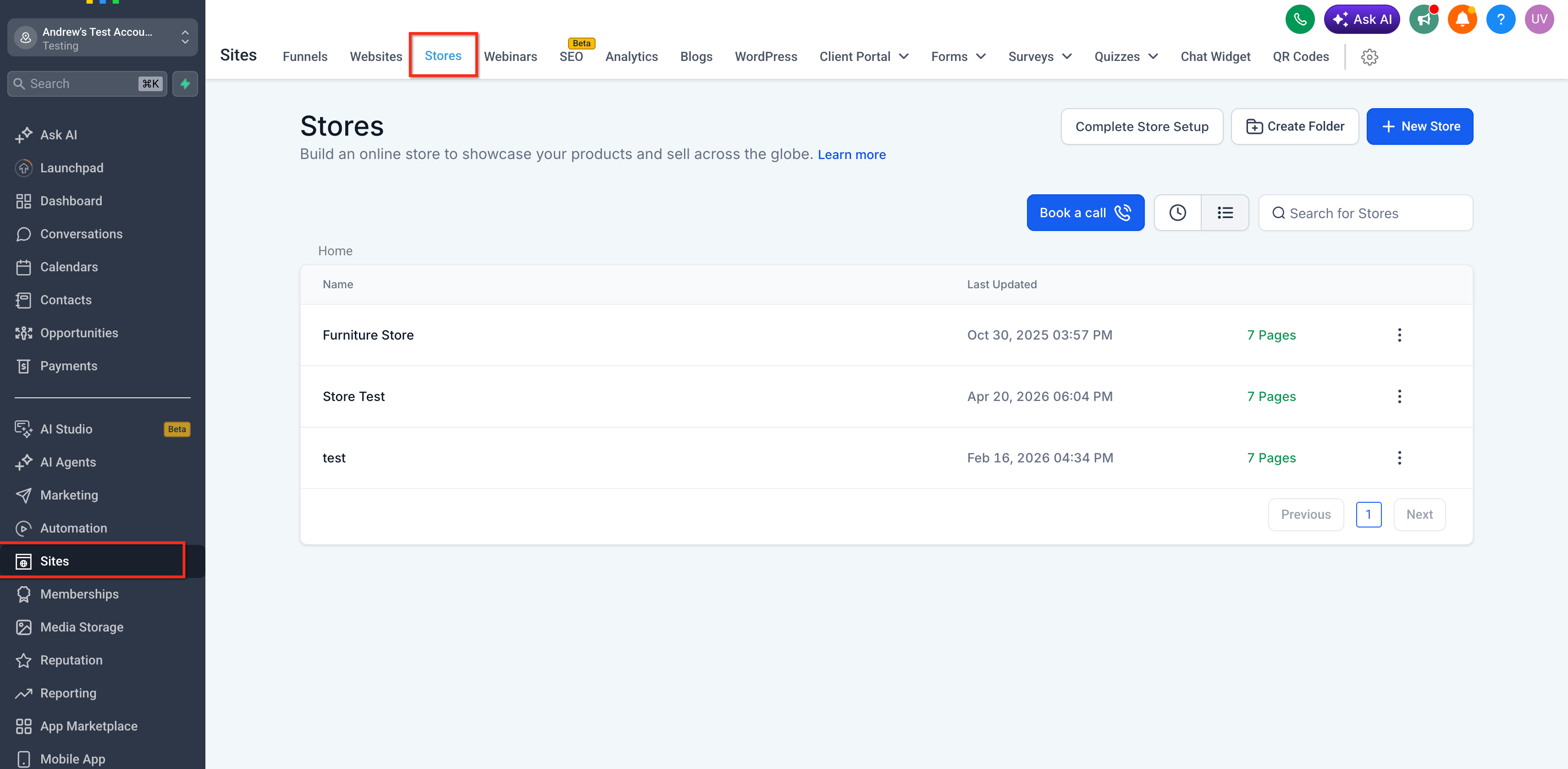
- Edit the Product Details Page.
- Select the Product Element on the page.
- In the general settings panel, locate Variants styling.
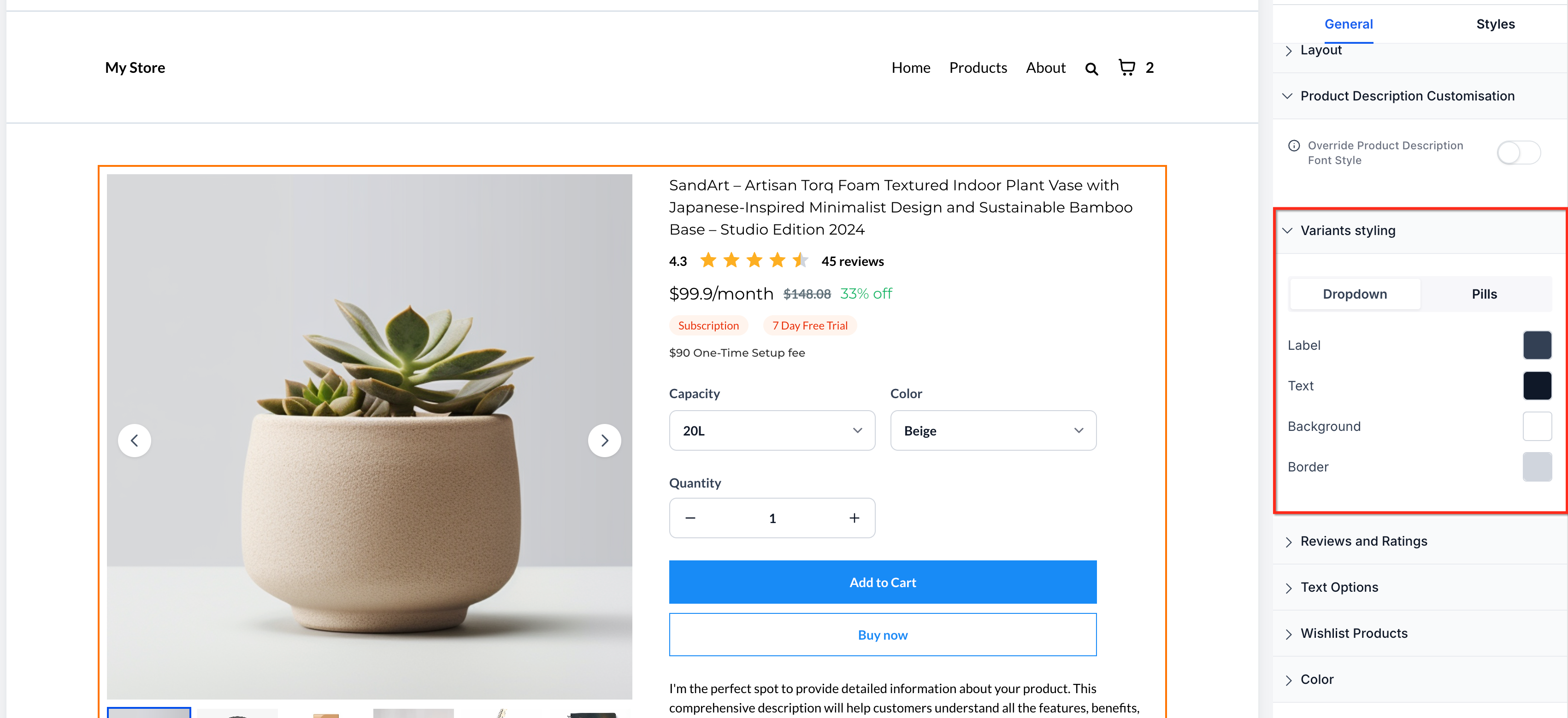
- Choose one of the available display styles:
- Dropdown
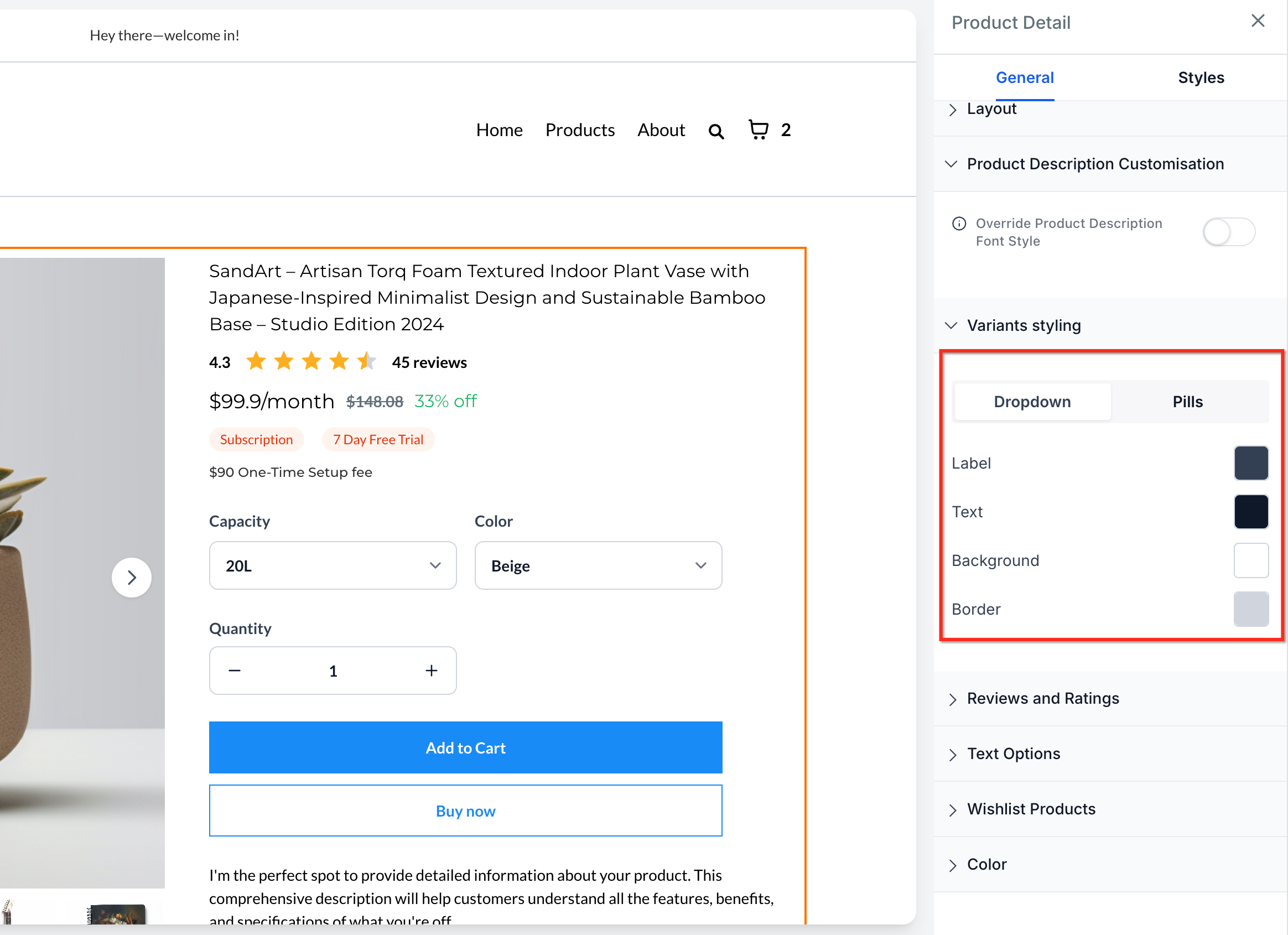
- Pills
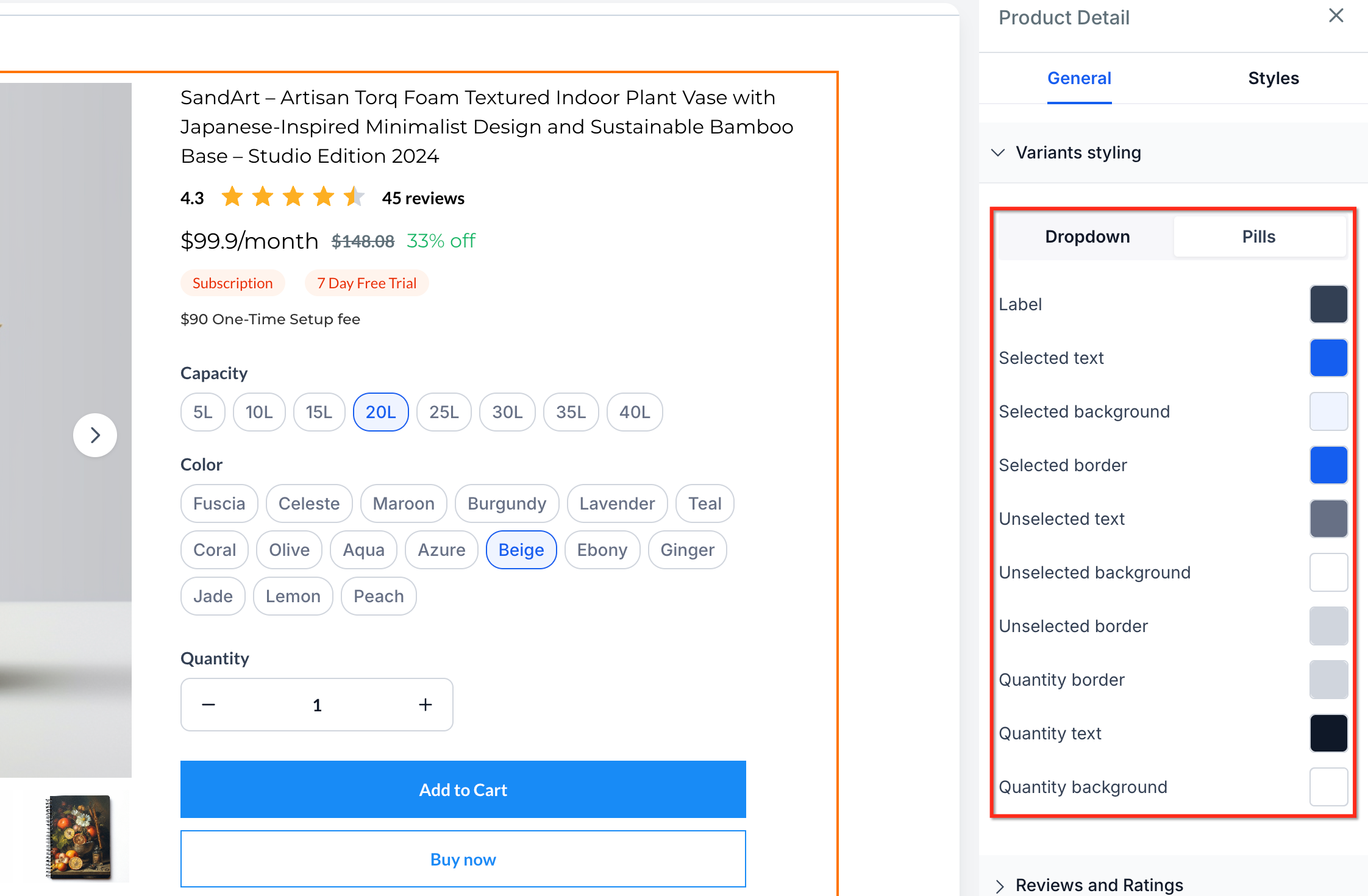
- Dropdown
- Review the Product Details Page in Builder Preview.
- Save and publish your changes.
Important Notes:

Dropdown remains the default variant display format for existing stores.

Existing stores will not automatically switch to Pills.

Pills display all variant options visually on the Product Details Page.

Pills support single selection per variant group.

Quantity color customization is available only when Pills style is selected.
Frequently Asked Questions
Q: Will this change the layout of my existing store automatically?
No. Existing stores continue using Dropdown as the default display style unless you manually change the Product Element settings to Pills.
Q: What is the difference between Dropdown and Pills?
Dropdown places options inside a menu, while Pills show options as selectable button-style choices directly on the Product Details Page.
Q: When should I use Pills instead of Dropdown?
Use Pills when you want customers to see all available options upfront. Pills work well for products with fewer variant choices or stores that want a more visual shopping experience.
Q: When should I use Dropdown instead of Pills?
Use Dropdown when your product has many variant options or when you want to keep the Product Details Page more compact.
Q: Can customers select more than one option from the same variant group?
No. Pills support single selection per variant group. For example, a customer can select one size from the size group and one color from the color group.
Q: Do multi-price selectors follow the same style as variants?
Yes. Multi-price selectors now follow the same Dropdown or Pills configuration and styling behavior used for variant selectors.
Q: Why can’t I customize quantity selector colors with Dropdown style?
Quantity color customization is available only when using Pills style to keep the selector design behavior consistent.
Q: Can I preview selector styles before publishing?
Yes. Selector behavior is reflected in both Page Builder and Builder Preview, allowing you to review the experience before publishing.
Q: Does this update apply to mobile storefronts?
Yes. Selector behavior has been improved across desktop and mobile storefront experiences.
Yes. When a customer selects a variant, HighLevel automatically selects the image assigned to that variant, when available. If the selected variant does not have an assigned image, the displayed image remains the same. Selecting a product image does not change the selected variant.
Related Articles
- Custom Product Details Page for E-commerce Stores
- Product Media Layouts for the Product Details Page in HighLevel
- How to Set Up an E-Commerce Online Store (Websites)
- Getting Started - Create & Sell Products
- How to Add Product Weights, Dimension, and SKU Information in Your Ecom Store
- Upsell Products in Online Store Checkouts
Was this article helpful?
That’s Great!
Thank you for your feedback
Sorry! We couldn't be helpful
Thank you for your feedback
Feedback sent
We appreciate your effort and will try to fix the article