Custom Contact Detail Page views help teams organize contact records around specific workflows, roles, and priorities. With snapshot support, agency admins can now include custom contact views in snapshots and reuse them across multiple sub-accounts. This saves setup time, reduces repetitive configuration, and helps maintain consistent contact layouts across client accounts.
TABLE OF CONTENTS
- What is Copying Custom Contact Views Using Snapshots?
- Key Benefits of Copying Custom Contact Views Using Snapshots
- Important Requirements and Limits
- Imported Views and Default View Behavior
- Custom Fields and Imported Contact Views
- How To Setup Custom Contact Views in Snapshots
- Step 1: Go to Account Snapshots
- Step 2: Name the Snapshot and Select the Source Sub-Account
- Step 3: Select Contact Detail Views
- Step 4: Push the Snapshot Update to Linked Sub-Accounts
- Step 5: Verify the Custom Views in the Destination Sub-Account
- Frequently Asked Questions
- Related Articles
What is Copying Custom Contact Views Using Snapshots?
Custom Contact Detail Page views let admins control how contact records appear inside a sub-account, including layout structure, panels, fields, modules, and visibility settings. Snapshot support allows those custom views to be captured from one sub-account and reused in other sub-accounts through Account Snapshots.
Instead of rebuilding the same Contact Detail Page views manually in every sub-account, admins can create or update a snapshot, select the custom views they want to include, and push those views to linked sub-accounts.
Key Benefits of Copying Custom Contact Views Using Snapshots
Reusable custom views help agencies standardize contact management across multiple sub-accounts while reducing manual setup work. This is especially useful when several client accounts need the same Sales, Support, Admin, or
Operations contact layouts.
- Reduced Manual Setup: Create a custom contact view once and reuse it across multiple sub-accounts instead of rebuilding it manually.
- Consistent Contact Layouts: Standardize how teams view and manage contact records across accounts.
- Faster Sub Account Configuration: Include custom views as part of a snapshot-based setup process.
- Scalable Customization: Maintain role-based or workflow-based contact layouts across multiple client accounts.
- Improved Admin Efficiency: Help agency admins manage contact page customization from one reusable source account.
Important Requirements and Limits
A successful snapshot setup depends on using a source sub-account that already contains the custom Contact Detail Page views you want to reuse. Reviewing view limits and permissions before creating the snapshot helps prevent incomplete or unexpected results.
Each sub-account includes 1 default Contact Detail View.

Admins can create or import up to 4 additional custom Contact Detail Views, for a total of 5 views per sub-account.

Custom Contact Detail Page views must exist in the source sub-account before they can be added to a snapshot.
Imported Views and Default View Behavior
Imported Contact Detail Views are added as custom layouts in the destination sub-account, but they do not replace the built-in default view. Each sub-account keeps its own default Contact Detail View so the location always has a baseline contact record layout available.
Contact Detail Views behave differently from assets like funnels or workflows. A snapshot can import the layout and field configuration, but it does not carry over the default-view status from the source sub-account. Even if the imported view was the default in the source sub-account, it is imported as a custom view in the destination sub-account.
Choosing Override does not make the imported view the default. Override only affects how conflicting imported configurations are handled. It does not change which Contact Detail View the destination sub-account treats as its default.
After deployment, open Contact Detail Views in the destination sub-account and assign the imported layout to the users or groups who should use it. This controls which layout those people see when viewing contact records.
Custom Fields and Imported Contact Views
Imported Contact Detail Views rely on the destination sub-account’s available fields. When a field used in the source view does not exist in the destination sub-account, HighLevel skips that field during mapping instead of blocking the import.
This allows the view import to continue even when the destination sub-account does not perfectly match the source sub-account. After import, review the copied layout to confirm that all expected fields appear. If any fields are missing, create or map the required custom fields in the destination sub-account, then update the view as needed.
How To Setup Custom Contact Views in Snapshots
Proper setup ensures the custom views from the source sub-account are included in the snapshot and made available in the destination sub-account. Follow these steps from Agency View to create the snapshot, select the views, and push the update.
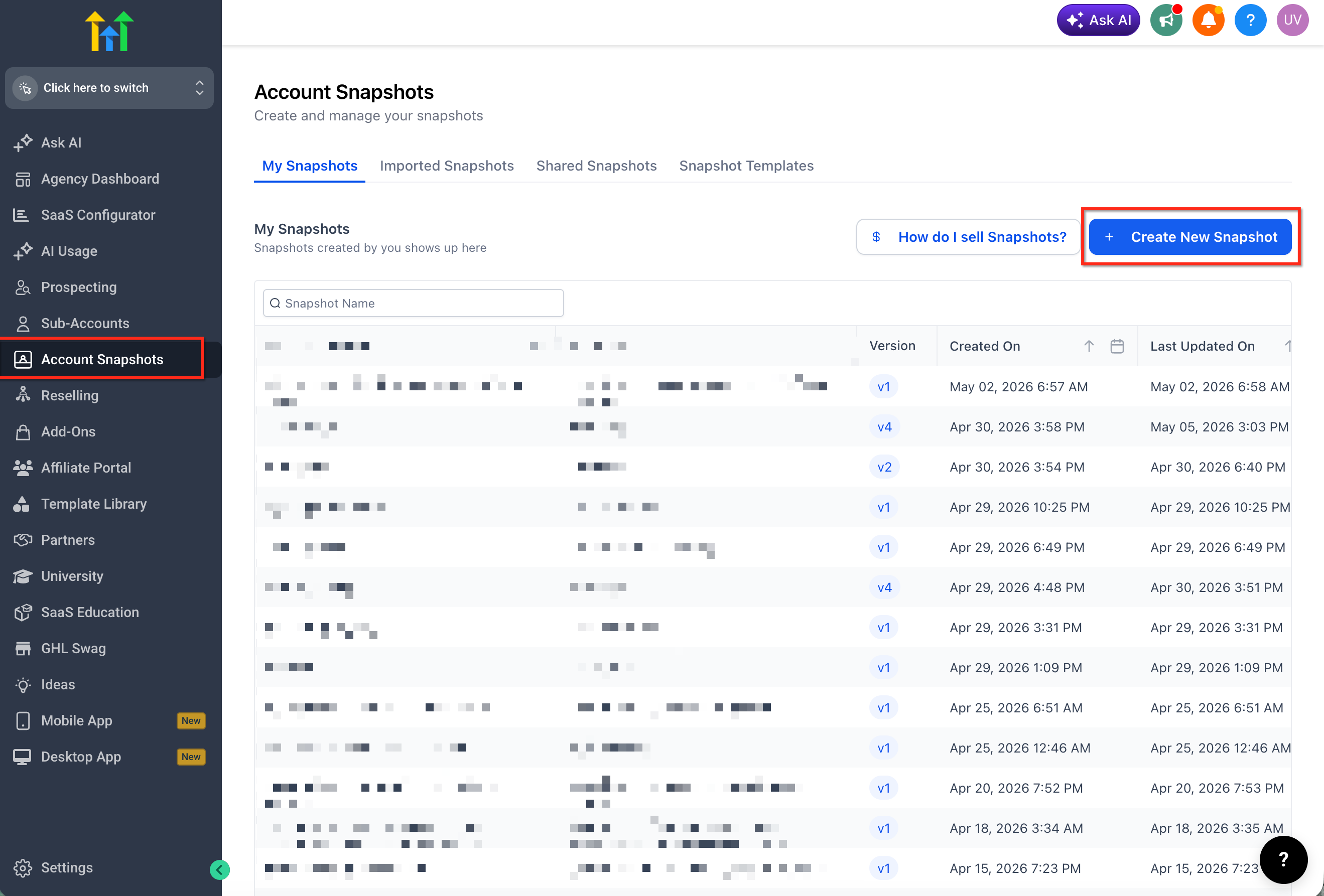
Step 1: Go to Account Snapshots
- Switch to Agency View.
- Click Account Snapshots.
- Click Create New Snapshot.
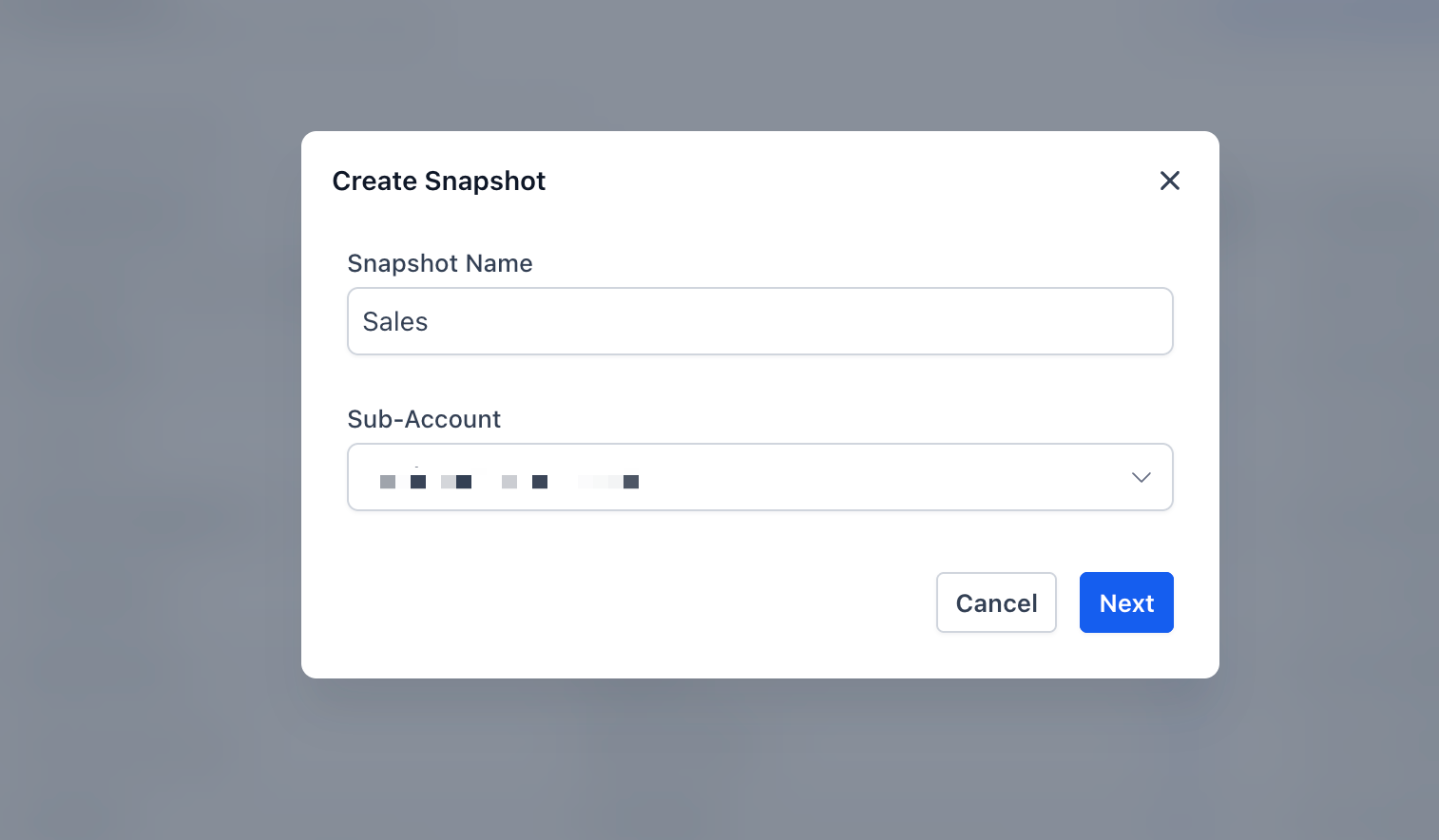
Step 2: Name the Snapshot and Select the Source Sub-Account
- Enter a clear snapshot name.
- Example: “Sales Contact Views Template”
- Example: “Client Contact Detail Layouts”
- Example: “Sales Contact Views Template”
- Select the sub-account that contains the custom Contact Detail Page views you want to copy.
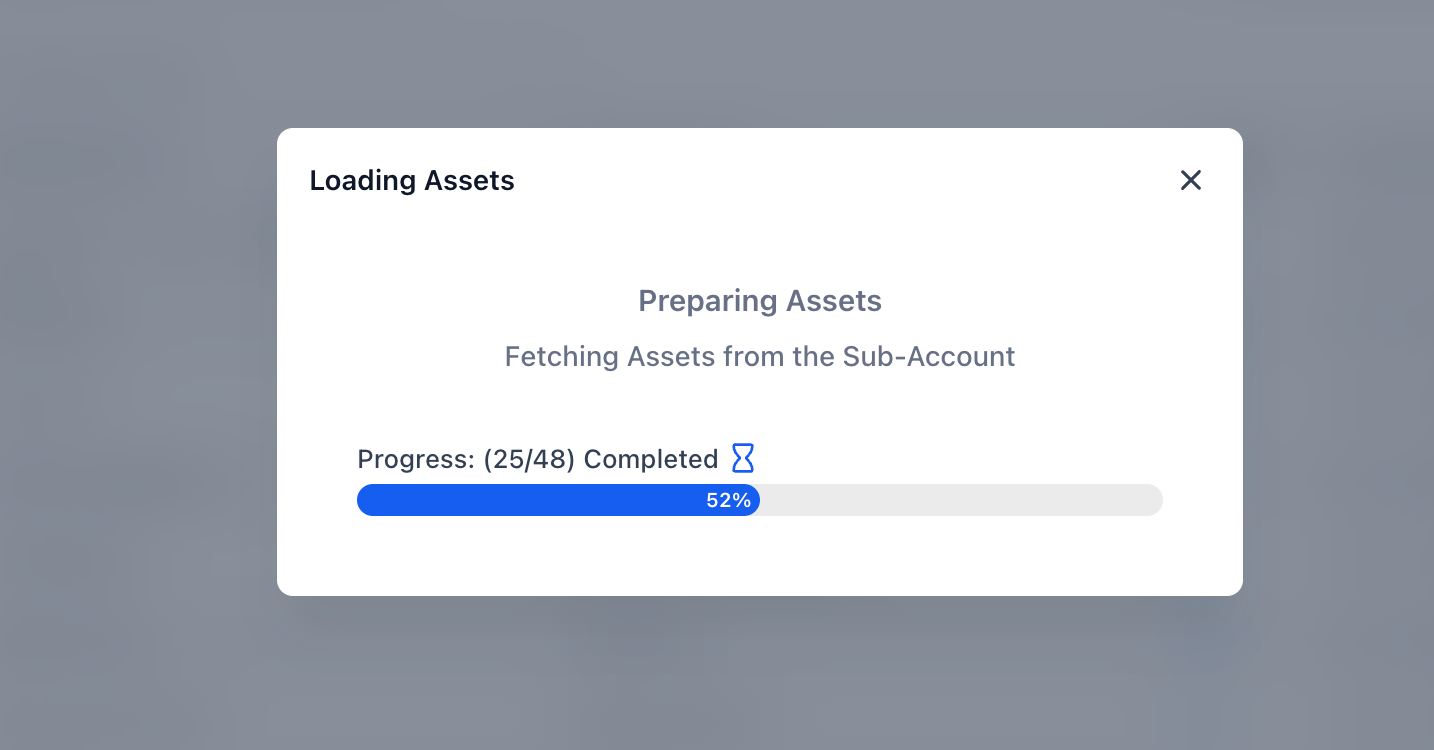
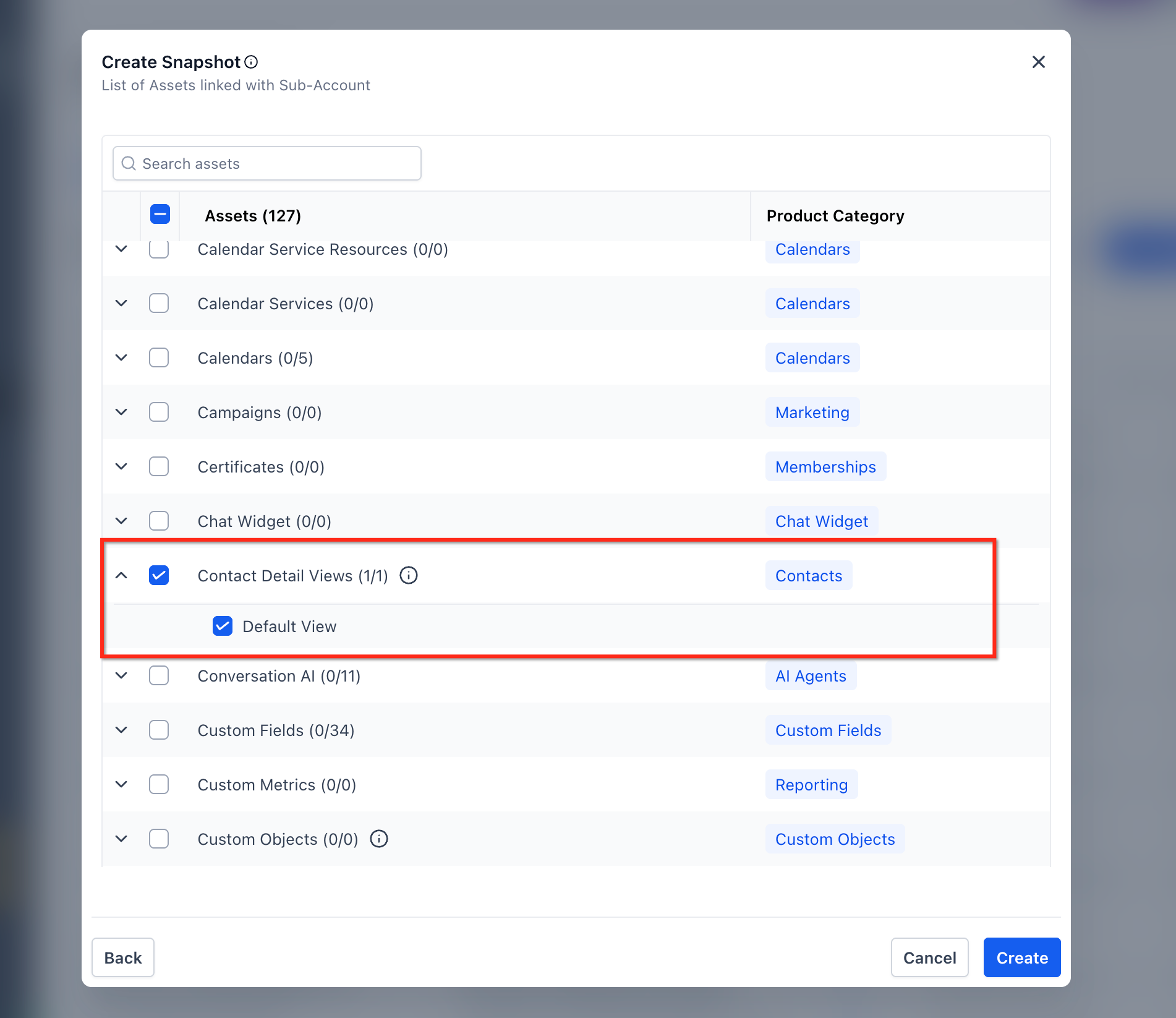
Step 3: Select Contact Detail Views
- In the asset selection screen, locate Contact Detail Views.
- Expand the category to view the available custom views.
- Select the custom views you want to include in the snapshot.
- Click Create.
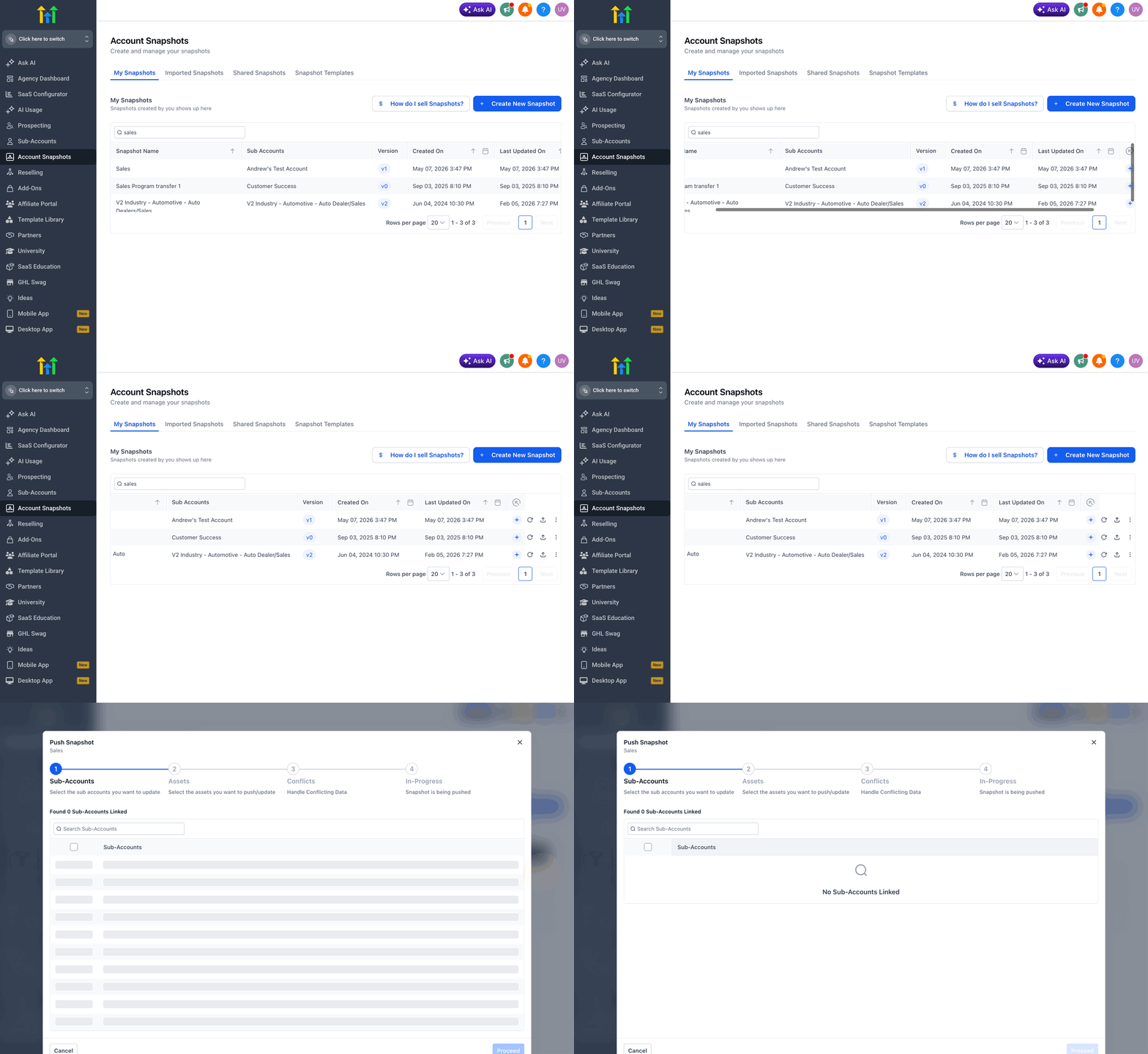
Step 4: Push the Snapshot Update to Linked Sub-Accounts
- Open the snapshot that contains the selected Contact Detail Views.
- Choose the option to push the update.
- Select the linked sub-account or sub-accounts that should receive the custom views.
- Confirm the update.
Step 5: Verify the Custom Views in the Destination Sub-Account
- Open the destination sub-account.
- Go to Contacts.
- Open the Contact Detail Page customization area.
- Confirm that the copied custom views are available.
- Review the layout to make sure the correct fields, panels, modules, and view structure appear as expected.
Frequently Asked Questions
Q: Can I copy custom Contact Detail Page views from one sub-account to another?
Yes. Custom Contact Detail Page views can be included in snapshots and reused across sub-accounts.
Related Articles
- Creating Custom Objects using Snapshots
- Creating New Snapshots in HighLevel
- Refresh or Update Snapshots
- Load Snapshots Into Existing Sub-Account
- How to View Snapshot Assets
- Snapshots - Overview
Was this article helpful?
That’s Great!
Thank you for your feedback
Sorry! We couldn't be helpful
Thank you for your feedback
Feedback sent
We appreciate your effort and will try to fix the article