Post Sync automatically imports existing social media posts into HighLevel's Social Planner, allowing you to view historical content alongside scheduled posts and monitor performance from one place. This article explains how to enable Post Sync, supported platforms, synchronization behavior, and limitations.
Supported Platforms: Post Sync is available for Facebook, Instagram, LinkedIn, TikTok, Google Business Profile, and Threads. Supported account types, content, and synchronization capabilities vary by platform. Refer to the sections below for setup instructions and platform-specific limitations.TABLE OF CONTENTS
- What is Post Sync in Social Planner?
- Key Benefits:
- How to Enable Post Sync
- Platform-Specific Account Requirements
- Supported Platforms and Content
- Platform-Specific Limitations
- Frequently Asked Questions
- Related Articles
What is Post Sync in Social Planner?
Post Sync is a feature that automatically imports your existing posts into HighLevel’s Social Planner. It enables you to view, manage, and analyze both past and future content from a single platform. By syncing recent posts and updating engagement data regularly, it ensures your reporting remains accurate while reducing the need for manual content recreation.
Key Benefits:
- Centralized Content: View existing and newly scheduled posts in one place.
- Automatic Synchronization: Import supported historical posts from connected social accounts.
- Performance Tracking: Review available engagement metrics from synced posts.
- Simplified Management: Access content across supported platforms from Social Planner.
Post Sync is a one-way process. Changes made to synced posts in Social Planner do not update the original posts on their respective social media platforms.
How to Enable Post Sync
You can enable Post Sync while connecting a new social account or from Social Planner settings for an account that is already connected.
Method 1: Enable Post Sync While Connecting a Social Account
This method is available when connecting Facebook or Instagram. The screenshots below use Instagram for illustration.
- Navigate to Marketing > Social Planner.
- Click + Socials to connect a new account.

- In the Connect Socials popup, enable Sync Posts Automatically.
- Select the desired platform and complete authorization.

Once connected, Social Planner begins importing supported posts automatically.
Method 2: Enable Post Sync for an Existing Social Account
Post Sync can be enabled for existing Facebook, Instagram, LinkedIn, TikTok, and Threads accounts from Social Planner settings. The steps and screenshots below use Instagram for illustration; the same core process applies to these platforms.
Note: For Threads, first enable Threads Post Sync under Settings → Labs in your sub-account.- Navigate to Marketing > Social Planner > Settings.

- Under Social Accounts, select Facebook, Instagram, LinkedIn, TikTok or Threads .
- Locate the connected account or Page.
- Enable the Sync Posts toggle for that account.

- Allow the initial synchronization to complete.
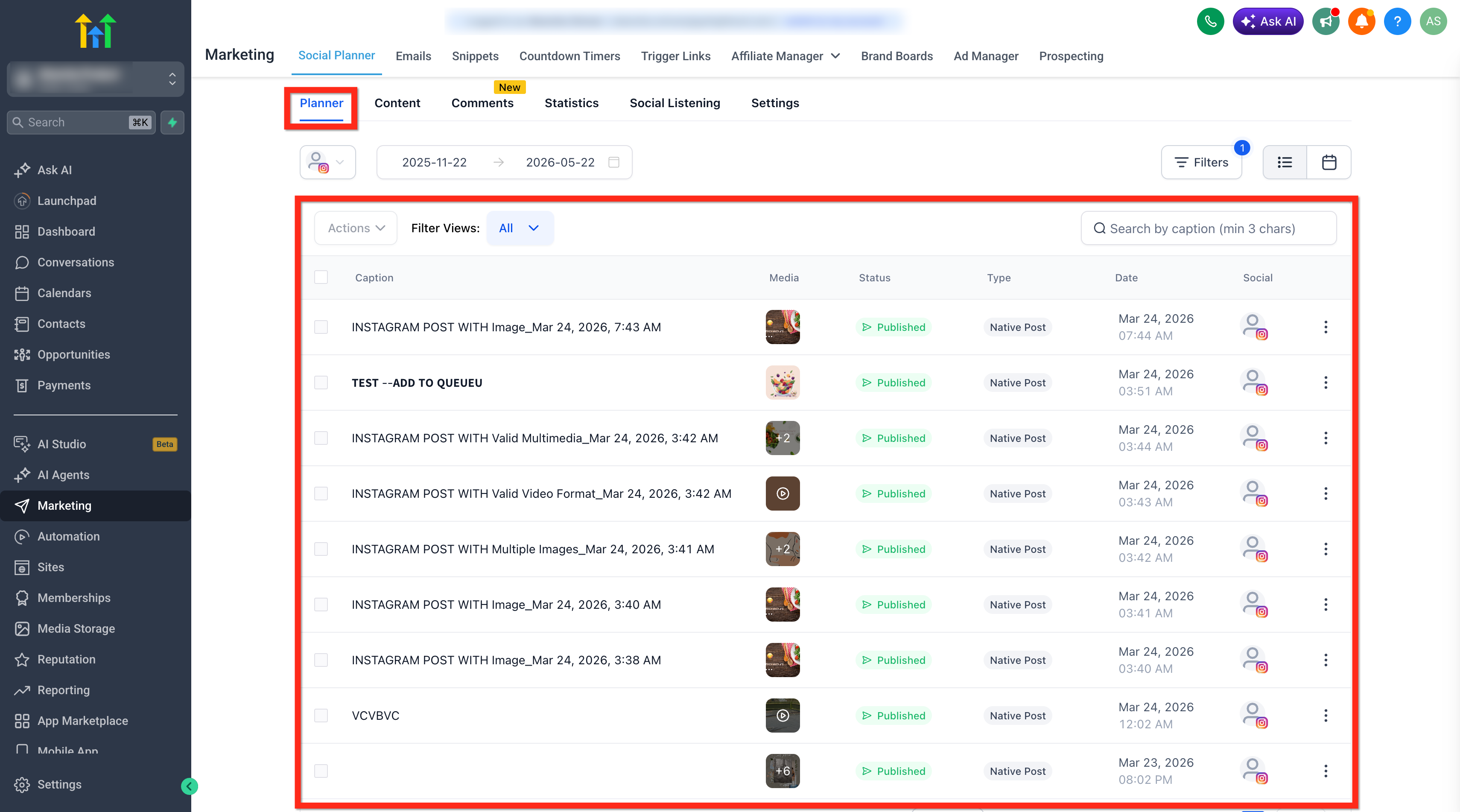
- Open Planner to view synced posts.
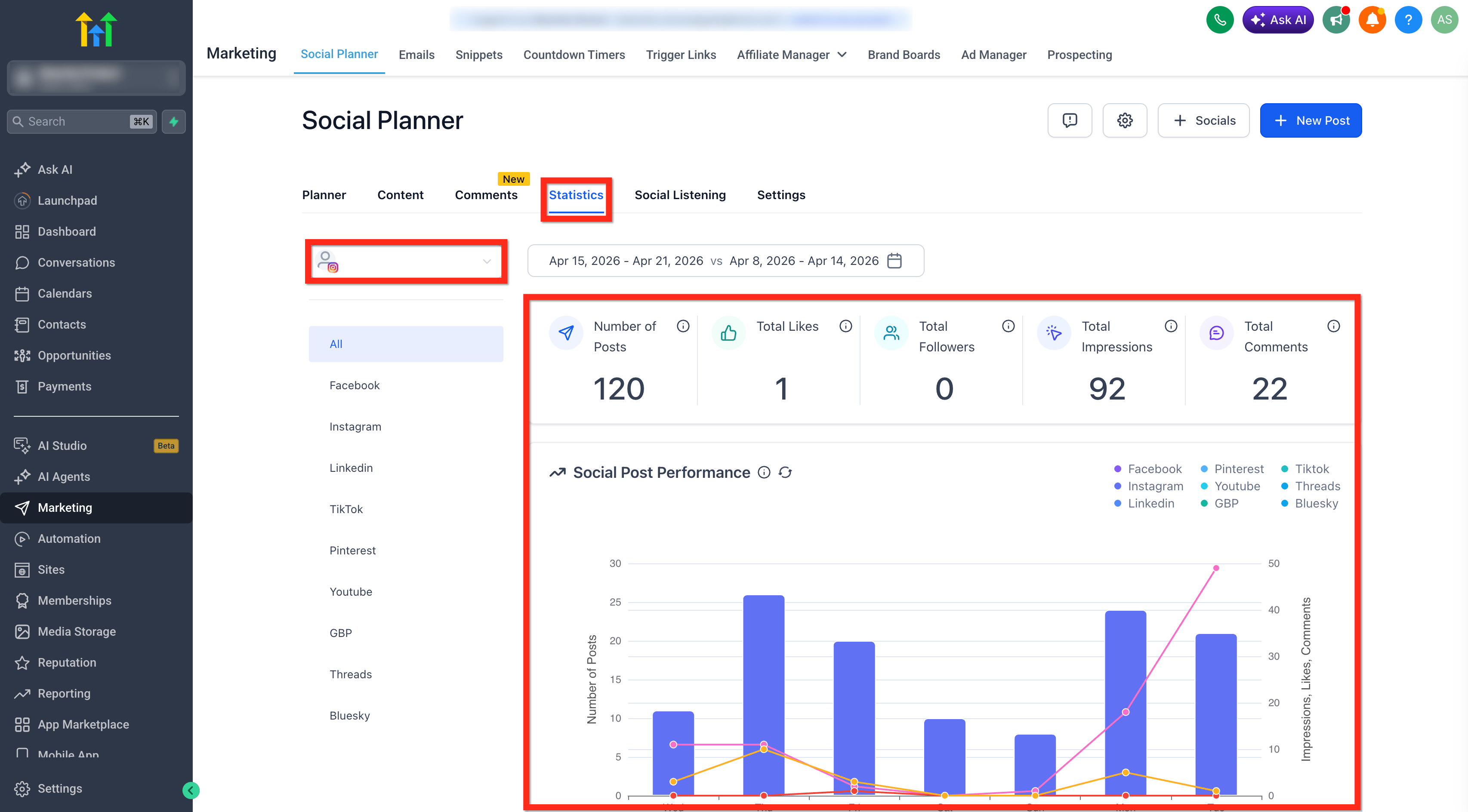
- Open Statistics to review available performance insights.
Note: If an account becomes disconnected or its permissions expire, follow the Reconnect prompt to resume synchronization.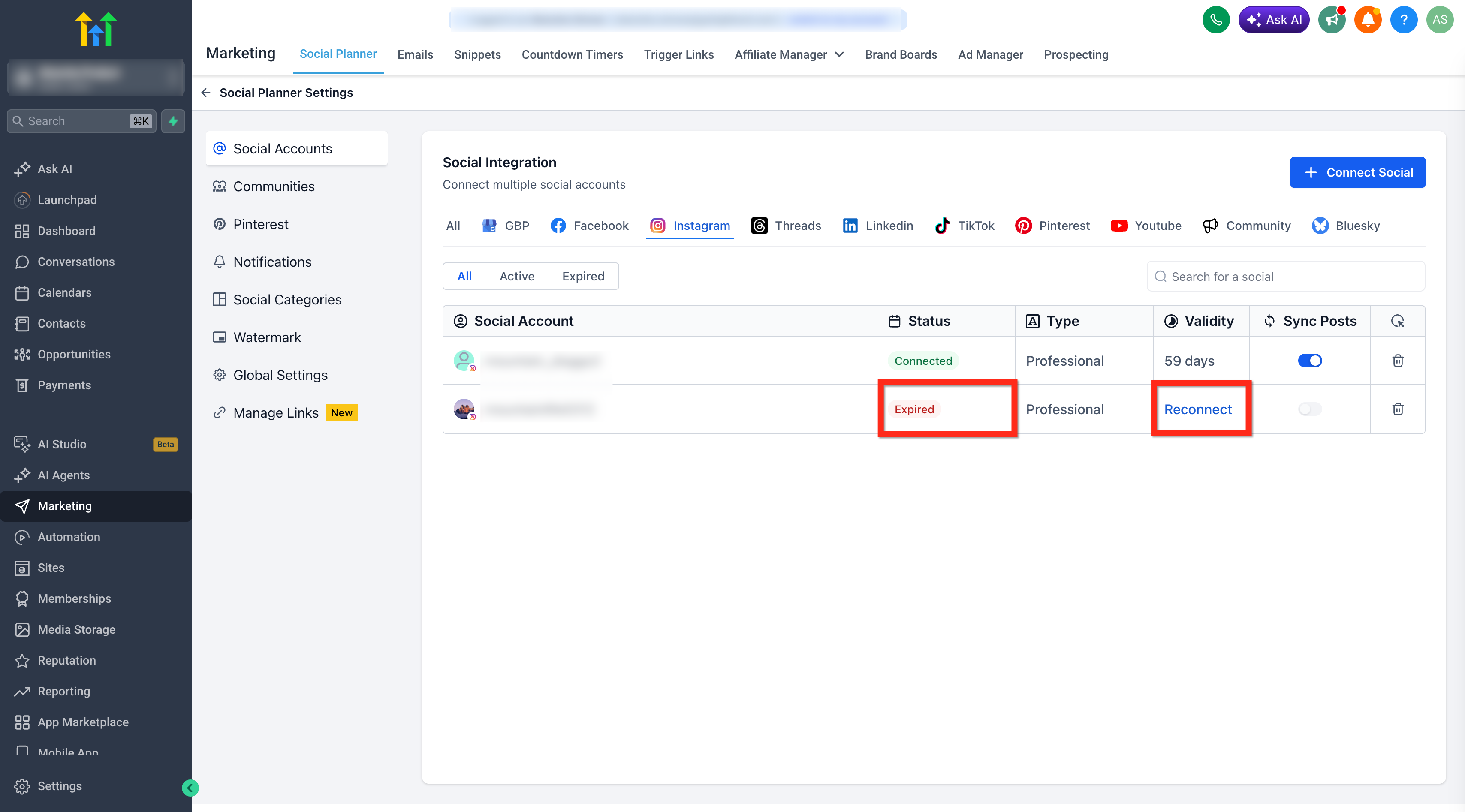
Platform-Specific Account Requirements
| Platform | Account Requirements |
|---|---|
| Connected Facebook Pages | |
| Instagram Professional accounts (Business or Creator), connected through Facebook Login or Instagram Login | |
| LinkedIn Organization Pages only | |
| TikTok | TikTok Personal and Business accounts |
Note: Post Sync is also supported for Google Business Profile and Threads. To use these features, enable the respective Post Sync options under Settings → Labs in your sub-account.
Supported Platforms and Content
Post Sync supports different content types and engagement metrics depending on the connected platform.
| Platform | Supported Content | Available Engagement Metrics |
|---|---|---|
| Text, images, and videos | Available post insights | |
| Images, videos, carousels, and reels | Available post insights | |
| Published posts, including PDFs, events, polls, and articles | Reactions, comments, and shares | |
| TikTok | Published videos | Likes, comments, shares, and views |
| Google Business Profile | Standard, event, offer, and call-to-action posts, including summary text, images/media, CTA buttons, event details, and offer details. | Metrics available through the GBP API |
| Threads | Text, images, videos, carousels, GIFs, and polls. Includes caption text, location tags, and media thumbnail previews. | Views, likes, replies, reposts, quotes, and shares |
Platform-Specific Limitations
Each social platform has API restrictions that affect historical content, previews, and available information.
| Platform | Limitations and Important Information |
|---|---|
| Syncs posts from the last 30 days by default. The initial sync may retrieve additional historical content where available. Video imports are subject to platform limits. | |
| Syncs posts from the last 30 days. Location tags, collaborator details, and mentions may be unavailable. Deleted Instagram posts remain visible in Social Planner. | |
| Only Organization Pages are supported. PDF, event, poll, and article posts sync but do not display in-app previews. Mentions, hashtag highlighting, and tagged-user details may be unavailable. | |
| TikTok | Videos use TikTok's hosted player. Raw video downloads and cloning synced videos are not supported. Location tags, tagged users, and music details may be unavailable. |
| Google Business Profile | Imports the last 30 days of posts by default, extending up to 365 days if there are insufficient recent posts. Cloning is limited to text-only and single-image posts. Multi-image and video posts cannot be cloned. |
| Threads | Imports posts from the last 30 days by default, potentially extending up to 365 days. Text, image, video, carousel, and GIF posts can be cloned. Polls can be viewed but not cloned and may display a “Poll content is not supported in preview”message. Text file attachments are not supported for syncing or previewing. Carousels with up to 20 media items are supported for viewing. Some engagement metadata may be limited by the Threads Graph API. AI label tags from Threads do not appear in Social Planner. |
Important: Post Sync is one-way. Deleting a post from its original social media platform does not automatically remove the corresponding imported post from Social Planner.
Note: Analytics Refresh
Engagement metrics for synced posts across Facebook, Instagram, LinkedIn, TikTok, Google Business Profile, and Threads refresh approximately every 24 hours, not in real time. Available metrics vary depending on each platform's API.
Frequently Asked Questions
Q: How far back does Post Sync import posts?
Most platforms import posts from the last 30 days by default. Facebook may retrieve additional historical posts, while Google Business Profile and Threads may import older content up to 365 days when there are insufficient recent posts.
Q: Are engagement metrics updated in real time?
No. Available engagement metrics refresh approximately every 24 hours, depending on platform API limitations.
Q: Why are some post details or previews missing?
Social platforms restrict certain information through their APIs. Details such as tags, collaborators, music, or specific content previews may not be available in Social Planner.
Q: What happens if I delete a post from the original social platform?
Deleted posts may continue to appear in Social Planner because Post Sync is a one-way synchronization process.
Q: What should I do if my posts are not syncing?
Check whether Post Sync is enabled for the connected account under Marketing > Social Planner > Settings > Social Accounts. If the account is disconnected or its permissions have expired, reconnect it and allow synchronization to resume. For Google Business Profile and Threads, also verify that the corresponding Post Sync feature is enabled under Settings → Labs in your sub-account.
Related Articles
Was this article helpful?
That’s Great!
Thank you for your feedback
Sorry! We couldn't be helpful
Thank you for your feedback
Feedback sent
We appreciate your effort and will try to fix the article