Buy Now, Pay Later in Calendars lets businesses offer installment-based payment options during booking checkout. When supported through Stripe, eligible customers may see Klarna or Affirm on the booking widget and complete their appointment booking with flexible payment options.
TABLE OF CONTENTS
- What is Buy Now, Pay Later in Calendars?
- Key Benefits of Buy Now, Pay Later in Calendars
- Supported Payment Methods
- How To Set Up Buy Now, Pay Later in Calendars
- How Klarna and Affirm Appear During Booking
- When Customers Will See These Options
- Frequently Asked Questions
- Related Articles
What is Buy Now, Pay Later in Calendars?
Buy Now, Pay Later in Calendars allows customers to choose installment-based payment methods during calendar booking checkout instead of paying only by card. This helps businesses offer more flexibility at the point of booking and can improve conversion for higher-ticket appointments.
With this feature, eligible customers may see:
Klarna
Affirm
These payment methods appear during checkout only when they are supported for the booking flow, customer location, and eligibility requirements.
Key Benefits of Buy Now, Pay Later in Calendars
Offering installment-based payment methods at checkout can help reduce payment friction and make bookings easier to complete.
Flexible checkout options: Give customers more ways to pay when booking an appointment.
Higher booking conversion potential: Reduce upfront payment pressure for eligible customers.
Modern payment experience: Support customer-preferred checkout methods directly in the booking widget.
Stripe-managed availability: Show supported payment methods based on configuration, location, and eligibility.
Supported Payment Methods
Klarna and Affirm are available in Calendars through Stripe-supported payment method settings. Availability depends on the customer's region, eligibility, and the payment methods enabled for the relevant product area.
Needs Confirmation: The release note says this feature applies across Calendars, Services, and Rentals. This article is written for Calendars only because that is the clearest verified scope from the current KB evidence.
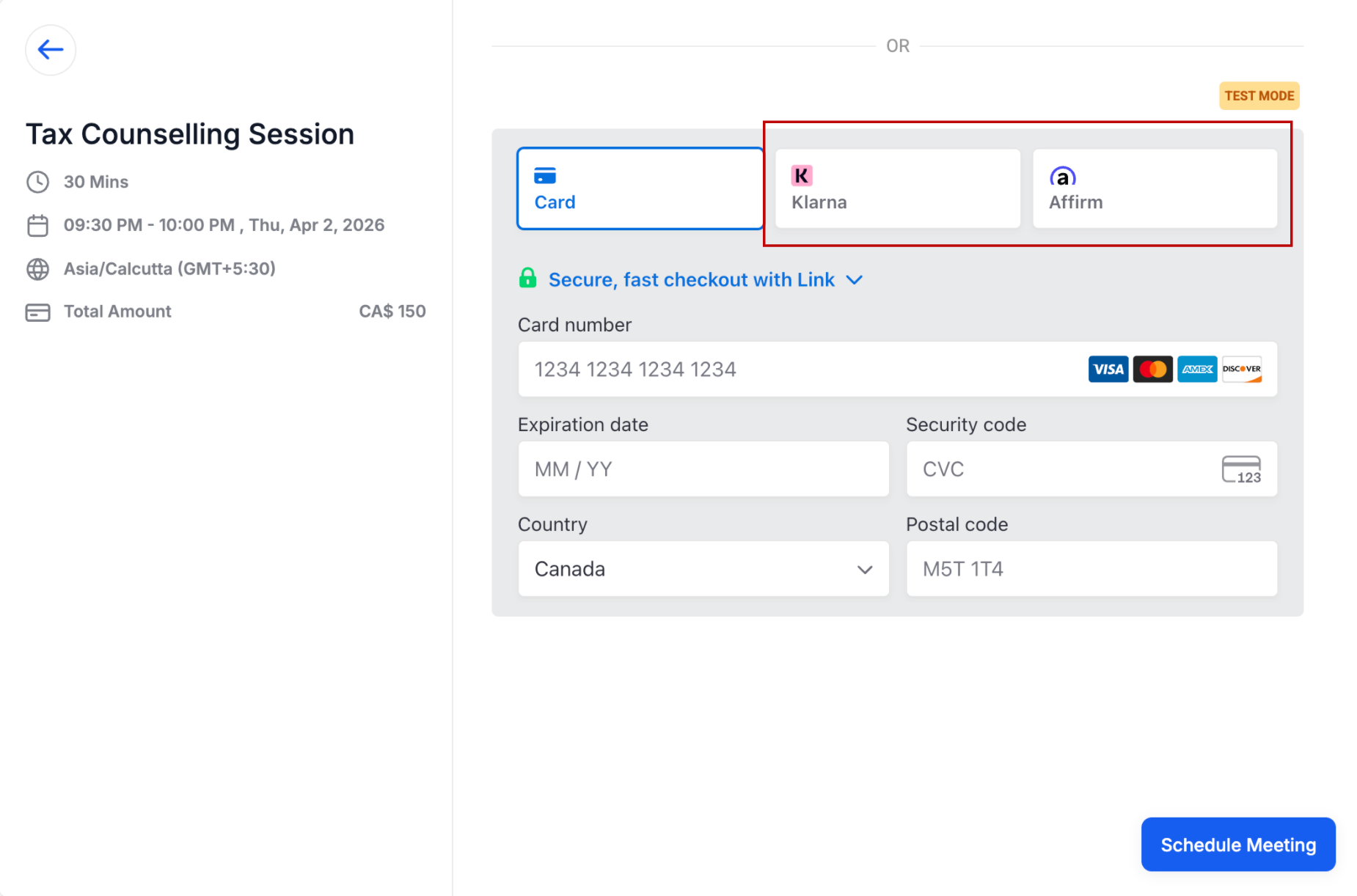
How To Set Up Buy Now, Pay Later in Calendars
Proper setup ensures customers can see eligible installment options during booking instead of only standard card entry. Before testing the booking widget, confirm Stripe is connected and payment methods are enabled for the correct product area.
Go to Payments.
Open Settings.
Open Integrations.
Select Manage Stripe.
Review the payment methods available for the relevant product area.
Enable Klarna and Affirm where supported.
Save your changes.
Open your calendar booking widget and test the checkout experience.
Needs Confirmation: Confirm the exact product-area label used in the current UI for calendar booking flows before publishing.
How Klarna and Affirm Appear During Booking
Eligible Buy Now, Pay Later options are shown directly on the booking widget during checkout. Customers can select an available option, complete the required payment steps, and continue booking the appointment.
Keep in mind:
Available options are shown dynamically.
Not every customer will see the same payment methods.
Eligibility may vary by region and provider requirements.
When Customers Will See These Options
Customers may see Klarna or Affirm only when all required conditions are met. This helps ensure the booking widget displays payment methods that are valid for that checkout session.
Common factors include:
The business has Stripe connected
Klarna or Affirm is enabled for the applicable payment area
The customer's location is supported
The customer meets provider eligibility requirements
Frequently Asked Questions
Q: Will every customer see both Klarna and Affirm at checkout?
A: No. Available options are shown dynamically based on supported location, provider rules, and customer eligibility.
Q: Do I need Stripe to use Klarna and Affirm in Calendars?
A: Yes. Current setup guidance ties these payment methods to Stripe payment method management.
Q: Can I still accept card payments in the booking widget?
A: Yes. Card payments remain available alongside other enabled payment methods.
Q: Does this feature apply to all calendars?
A: It applies to supported calendar booking flows where payments are enabled and the payment methods are configured correctly.
Q: Does this also work for Services and Rentals?
A: Needs Confirmation. Current verified evidence strongly supports Calendars, and the broader support table should be checked before expanding the article scope.
Related Articles
Was this article helpful?
That’s Great!
Thank you for your feedback
Sorry! We couldn't be helpful
Thank you for your feedback
Feedback sent
We appreciate your effort and will try to fix the article