How to view advanced preview and get shareable preview links for Meta Ads
Modified on: Wed, 23 Sep, 2026 at 1:33 AM
TABLE OF CONTENTS
- Using Advanced Preview
- Placement rendering in Preview
- Generating a shareable preview link
- Steps to copy the shareable preview link
- Viewing the shared preview
- Access permissions
What are Advanced Preview and Shareable Preview Links for Meta Ads?
Advanced Preview and Shareable Preview Links provide two ways to review a Meta ad from HighLevel Ad Manager. Advanced Preview lets you inspect the selected ad across available Meta placements. A Shareable Preview Link provides a URL that opens the ad in Meta's preview experience when that option is available.
Key Benefits of Advanced Preview and Shareable Preview Links
These preview options help you review an ad's presentation from the Ad level before leaving the HighLevel campaign builder.
- Review placement rendering: Check how the selected creative appears across available Meta placements.
- Share a preview URL: Copy a preview link for an eligible Meta ad when the shareable-link control is available.
- Review Meta ads from HighLevel: Access the preview workflow from the same Campaign → Ad Set → Ad structure used to manage Meta campaigns in Ad Manager. HighLevel's current Meta campaign documentation continues to use this hierarchy.
How To Use Advanced Preview and Shareable Preview Links
Advanced Preview and Shareable Preview Links are accessed from the Ad level of a Meta campaign. Start from the HighLevel Sub-Account view so you can reach the correct campaign and ad without skipping navigation steps.
Access Advanced Preview
- From the HighLevel Sub-Account view, select Marketing in the left navigation.
- Select Ad Manager.
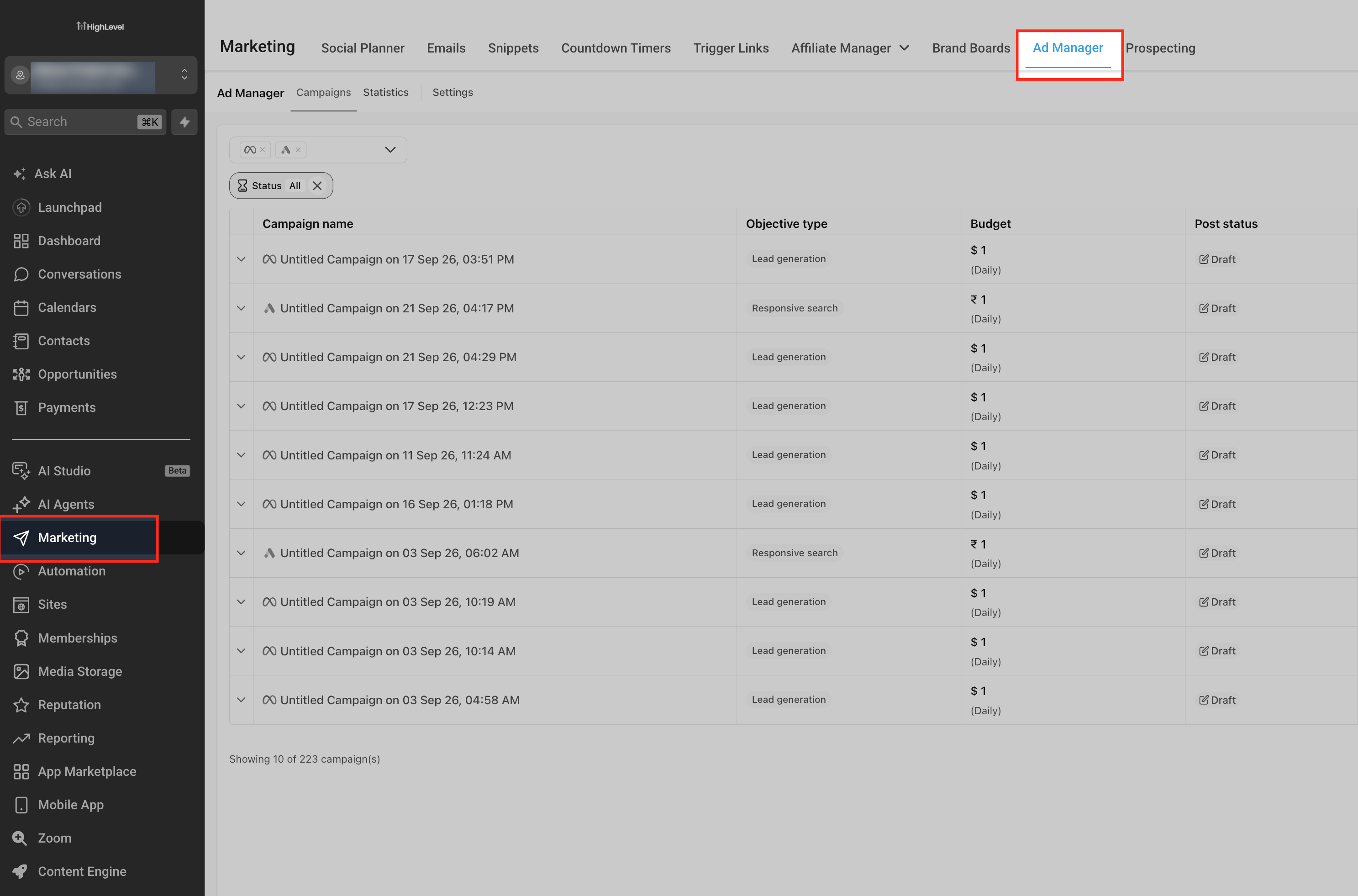
- Open the Meta campaign you want to review.
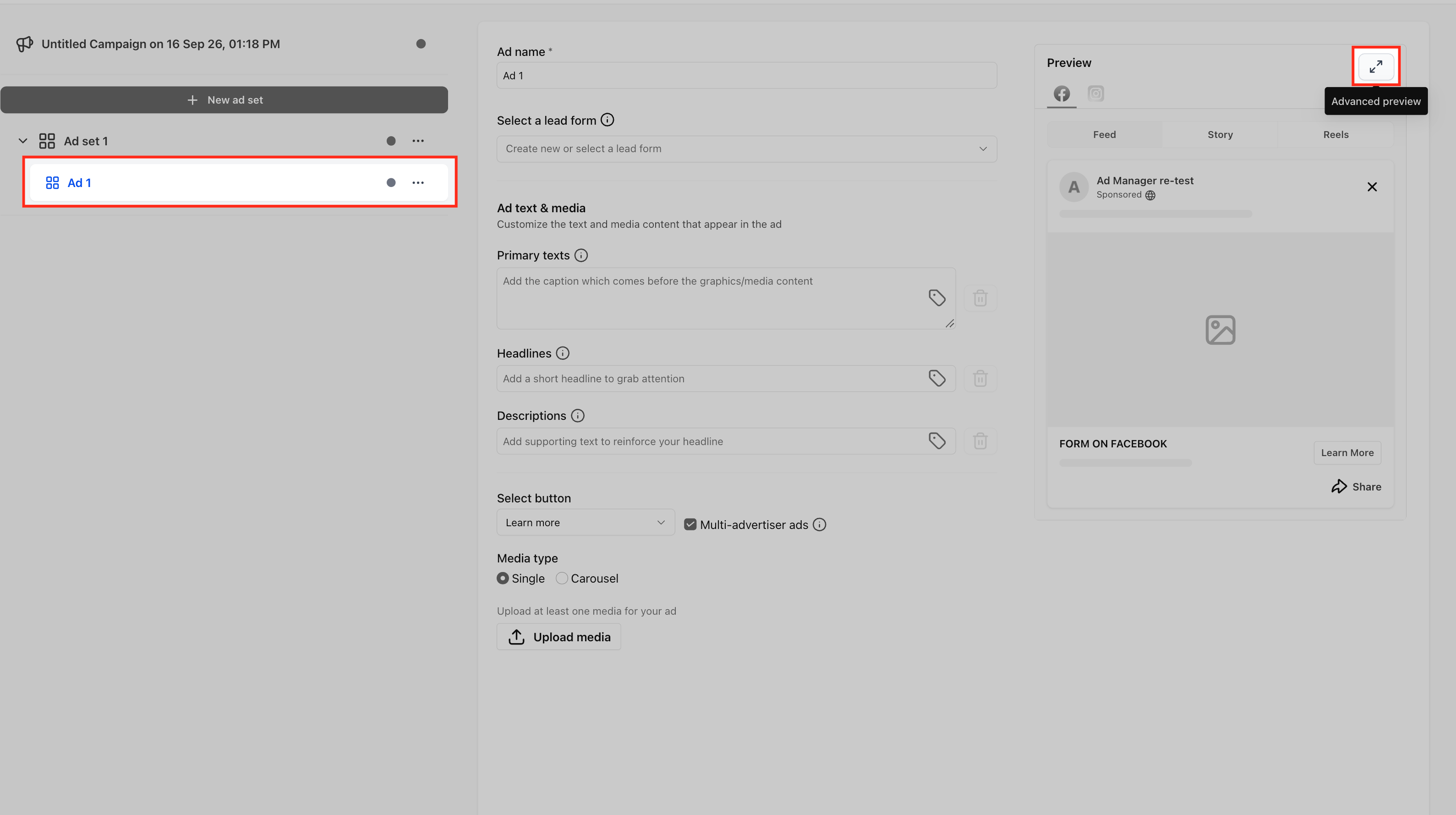
- Open the relevant Ad Set.
- Select the Ad you want to preview.
- Locate the preview area on the right side of the campaign builder.
- Select the Advanced Preview control.
Copy a Shareable Preview Link
A shareable preview link lets you open a published ad in Meta's preview experience outside the HighLevel campaign builder.
- From the HighLevel Sub-Account view, select Marketing in the left navigation.
- Select Ad Manager.
- Open the Meta campaign containing the ad you want to preview. Make sure you ad campaign is already published.
- Open the relevant Ad Set.
- Select the Ad.
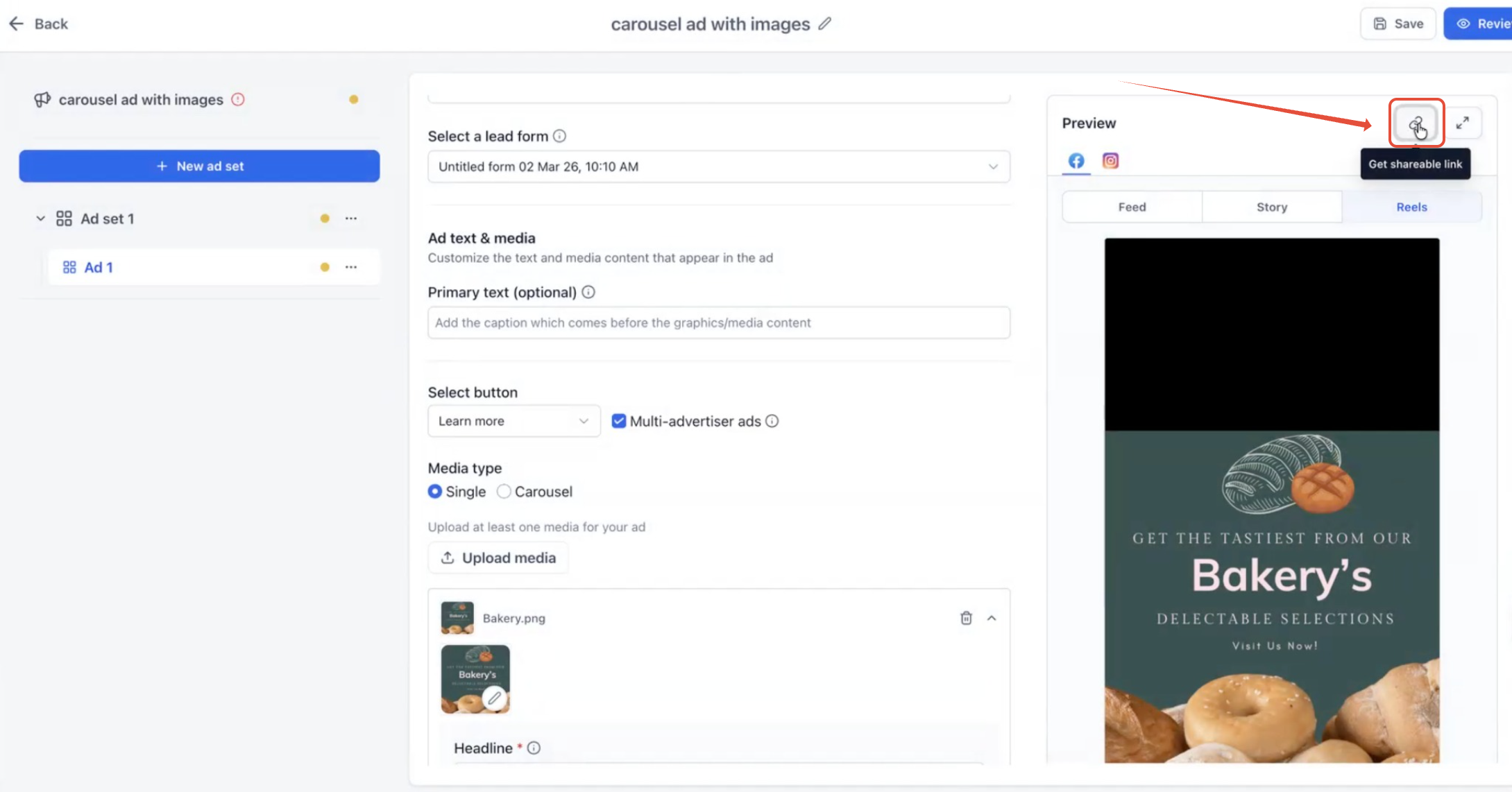
- Locate the preview area on the right side of the campaign builder.
- Select the link control beside Advanced Preview.
- Paste the copied preview URL where you want to use it.
Placement Rendering in Advanced Preview
Advanced Preview helps you inspect the selected creative across the Meta placements available for the campaign. Placement availability can vary based on the creative format and Meta's current placement support.
When a creative format is not supported for a placement, Advanced Preview displays the message returned by Meta explaining why that placement cannot render the ad.Viewing a Shared Preview
Opening a copied preview link loads the ad in Meta's preview experience. The preview allows the viewer to review the ad creative using the placement views that Meta makes available for the ad.
Frequently Asked Questions
Q: Where do I find Advanced Preview for a Meta ad?
A: From the HighLevel Sub-Account view, go to Marketing → Ad Manager, open the Meta campaign, open the relevant Ad Set, and select the Ad. Advanced Preview is accessed from the ad's preview area.
Q: Can I review different Meta placements with Advanced Preview?
A: Yes. Advanced Preview is designed to display available placement previews for the selected Meta ad.
Related Articles
Was this article helpful?
That’s Great!
Thank you for your feedback
Sorry! We couldn't be helpful
Thank you for your feedback
Feedback sent
We appreciate your effort and will try to fix the article