This article explains everything that happens from the moment someone calls your business number to when the call is answered or goes to voicemail.
TABLE OF CONTENTS
- Inbound Call Flow Overview
- Where to Configure Inbound Call Settings
- Stage 1 — Smart Call Routing (IVR & Voice AI)
- Stage 2 — Simultaneous Ring (How Calls Reach Your Team)
- Stage 3 — After the Timeout
- Advanced Settings — Per-Number Features
- Voice Settings — Location-Wide Routing
- Complete Call Flow Reference Chart
- Common Setup Scenarios
- Troubleshooting
- Quick Reference Table
Inbound Call Flow Overview
When someone calls your business phone number, the system works through three stages. It stops the moment the call is handled. Unconfigured options are skipped automatically.
Stage 1 — Checked First
IVR or Voice AI (primary mode) — if either is configured, it handles the call immediately. Stage 2 never runs.
Stage 2 — If Stage 1 is not configured
One Twilio dial goes out to all configured destinations at once: Team Member devices + one forwarding phone number + any Ring More Team Members. First to answer wins. This ring runs for the duration of the Timeout you set.
Stage 3 — After the Timeout, nobody answered
Voice AI (backup mode) is tried first if configured. Then the final fallback: Voicemail or Voice AI from the Backup section.
Key rule: The system only evaluates what you've actually configured. If something isn't set up or is disabled, it's skipped automatically — no priority slot is wasted.
Where to Configure Inbound Call Settings
All inbound call settings live in the phone number Configure modal:
Sub-account Settings ›Phone System ›Numbers ›⚙️ Configure (on any number)
The modal has three tabs:
| Tab | What's configured here |
|---|---|
| Basic Details | Number name and label (Screenshot 1.0) |
| Call Forwarding | All Stage 1, 2, and 3 routing — IVR, Team Member, External Phone, Voice AI, Business Phone, Timeout, Backup (Screenshot 1.1 & 1.2) |
| Advanced Settings | Whisper Message, Call Connect, Call Recording, Caller ID (Screenshot 1.3) |
Location-wide routing toggles (e.g. "Ring user assigned to called number") live separately:
Sub-account Settings ›Phone System ›Voice ›Other Settings tab ›Inbound Calls sub-tab
The Voice section has six sub-tabs: Call Recording & Transcription, Voicemail & Missed Call TextBack, Call Scripts, Custom Dispositions, VoIP Deskphone (SIP), and Other Settings. The inbound routing toggles are under Other Settings → Inbound Calls.
Stage 1 — Smart Call Routing (IVR & Voice AI)
These two options, if configured, always take priority. If either handles the call, Stage 2 never runs.
1. IVR (Interactive Voice Response) Setup & Flow
IVR lets callers navigate a phone menu by pressing keys on their keypad.
Example caller experience: "Thank you for calling. Press 1 for Sales. Press 2 for Support. Press 0 to speak with an operator."
IVR is built inside a Workflow, not directly in the phone number settings. The phone number only points to which workflow to use.
How to set up IVR:
- Go to Automation → Workflows and create a new workflow using the Phone IVR trigger
- Build your menu — play messages, collect keypad input, branch by digit pressed, route to team members or departments.
- Once built, open the phone number Configure modal → Call Forwarding tab → assign the workflow to the IVR field.
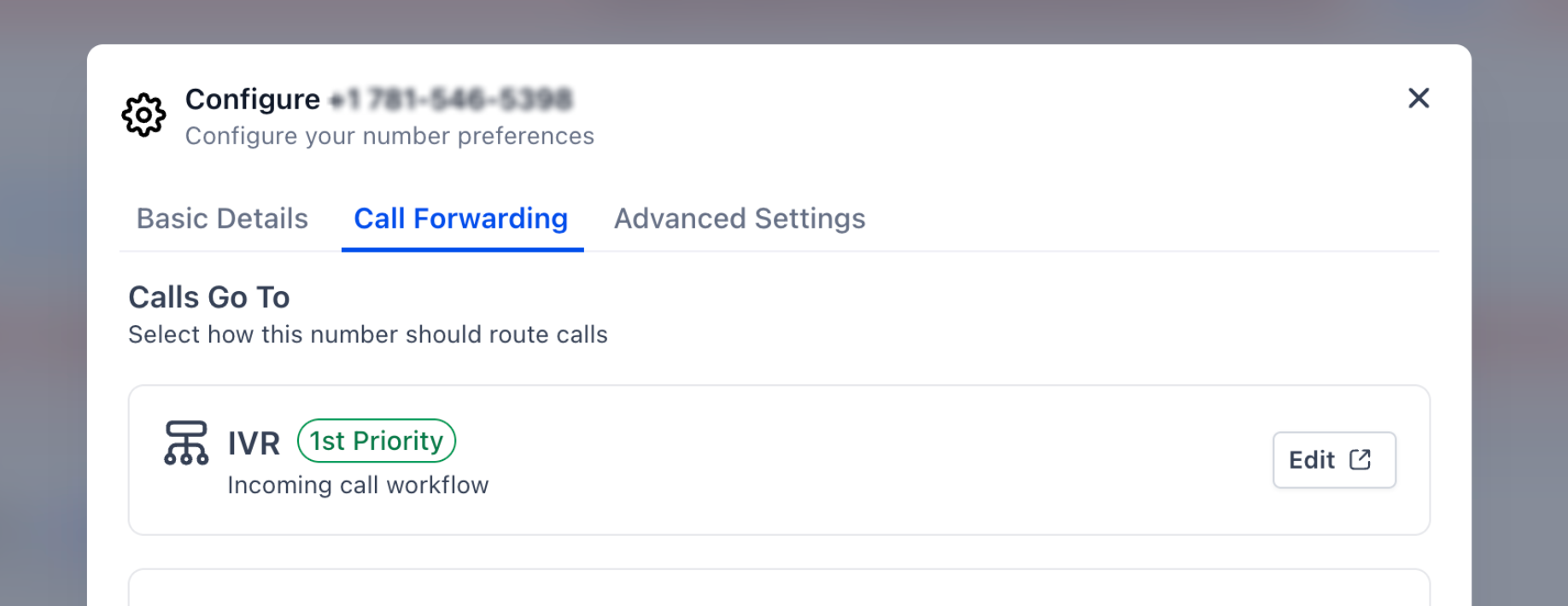
When IVR is active, the call is handled entirely by the workflow. Stage 2 (Team Member, External Phone, etc.) never runs.
2. Voice AI: Primary vs Backup Mode Explained
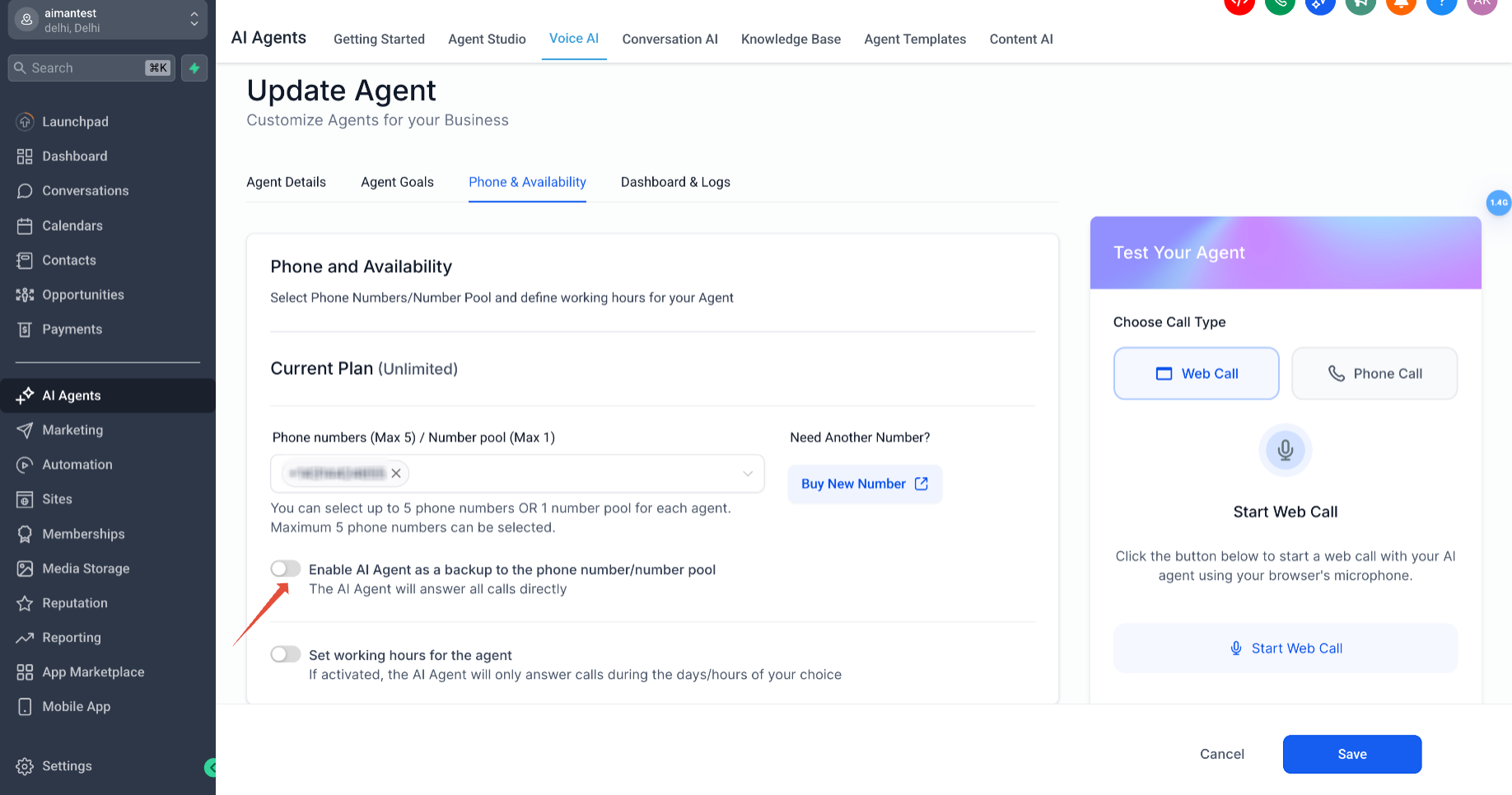
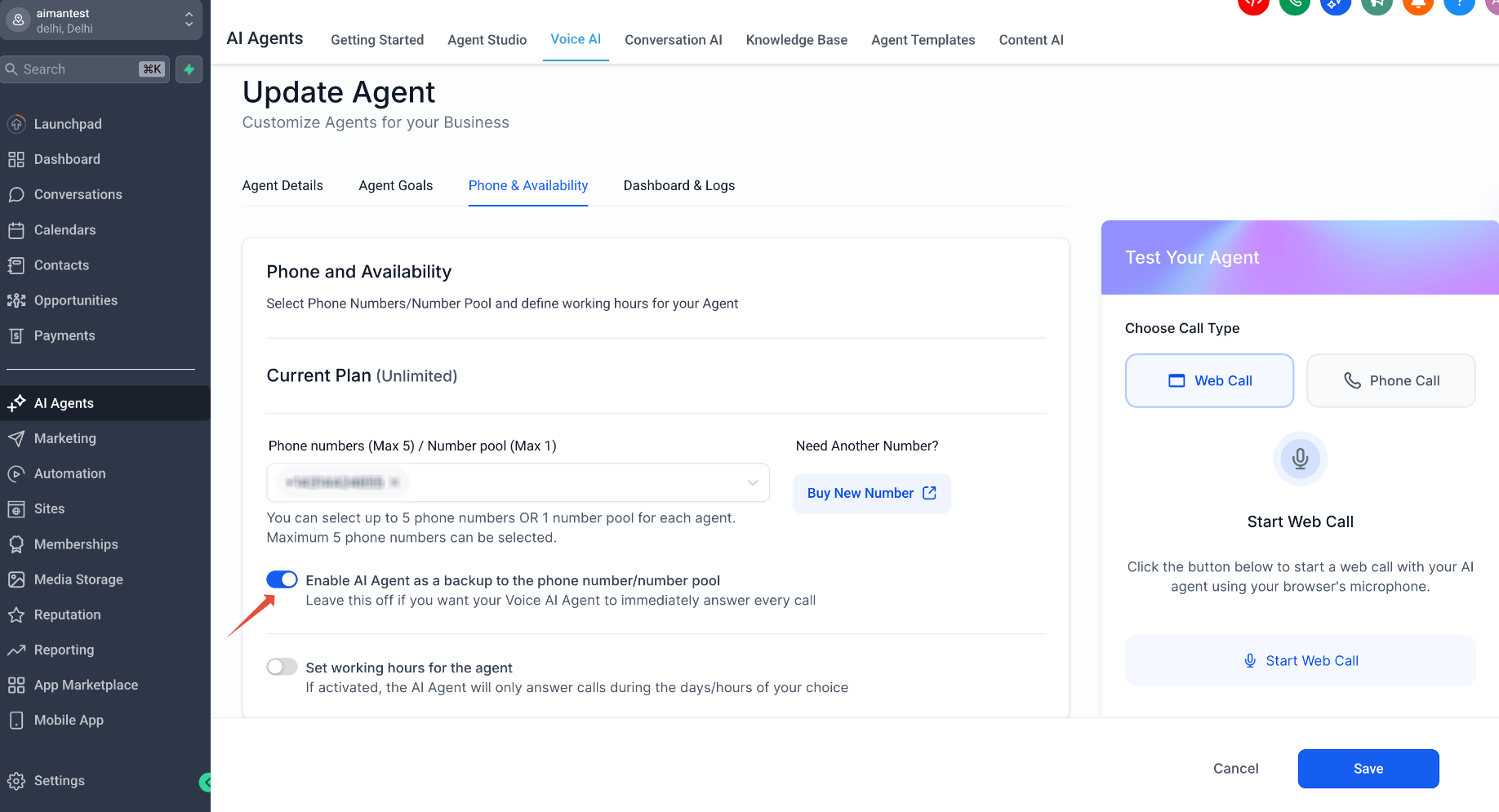
Voice AI lets an AI agent answer and handle calls. Whether it acts as the first responder on every call or as a fallback after humans don't answer depends on a single toggle — and that toggle lives in the AI Agent settings, not in the phone number settings.
How to Switch Between Voice AI Modes
Sub-account Settings ›AI Agents ›Voice AI ›Select your agent ›Phone & Availability tab
Look for this toggle: "Enable AI Agent as a backup to the phone number/number pool."
Leave this off if you want your Voice AI Agent to answer every call immediately.
| Toggle state | Behavior | What you see in the Call Forwarding modal |
|---|---|---|
| OFF (Primary mode) | AI answers every call immediately. Stage 2 never runs. | Voice AI appears at the top as 1st Priority. Team Member and External Phone have no priority badges — they're only reached if the AI transfers the call. |
| ON (Backup mode) | Humans are tried first via Stage 2. AI only answers if nobody picks up within the timeout. | Voice AI appears as 3rd Priority, after Team Member (1st) and External Phone (2nd). It's triggered after the Stage 2 ring times out — not during it. |
What Voice AI can do:
- Answer calls 24/7 without a human agent
- Respond to questions in natural language
- Collect information from callers
- Transfer to a human agent when needed
You can also set working hours for the agent (in the same Phone & Availability tab) so the AI only answers during specific days and times.
Stage 2 — Simultaneous Ring (How Calls Reach Your Team)
How Simultaneous Ringing Works
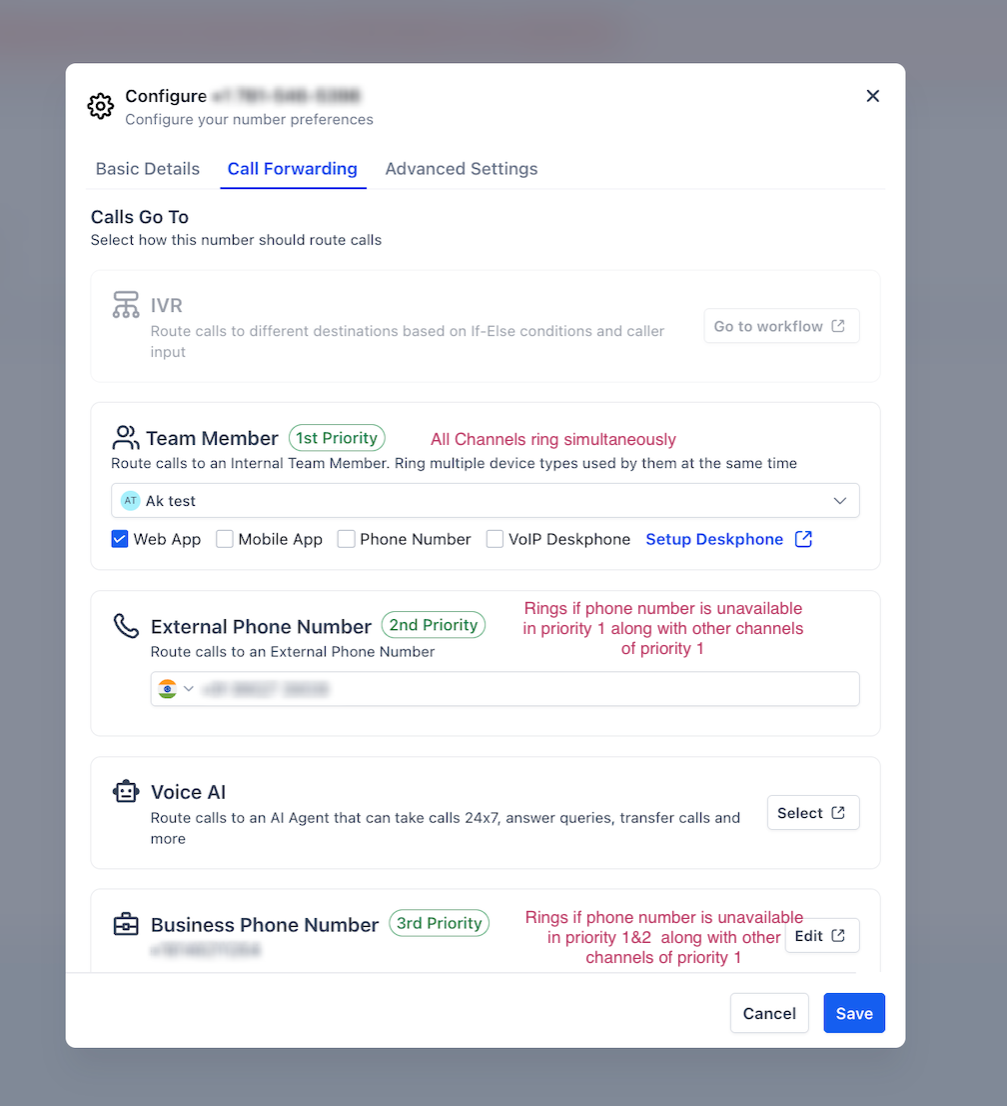
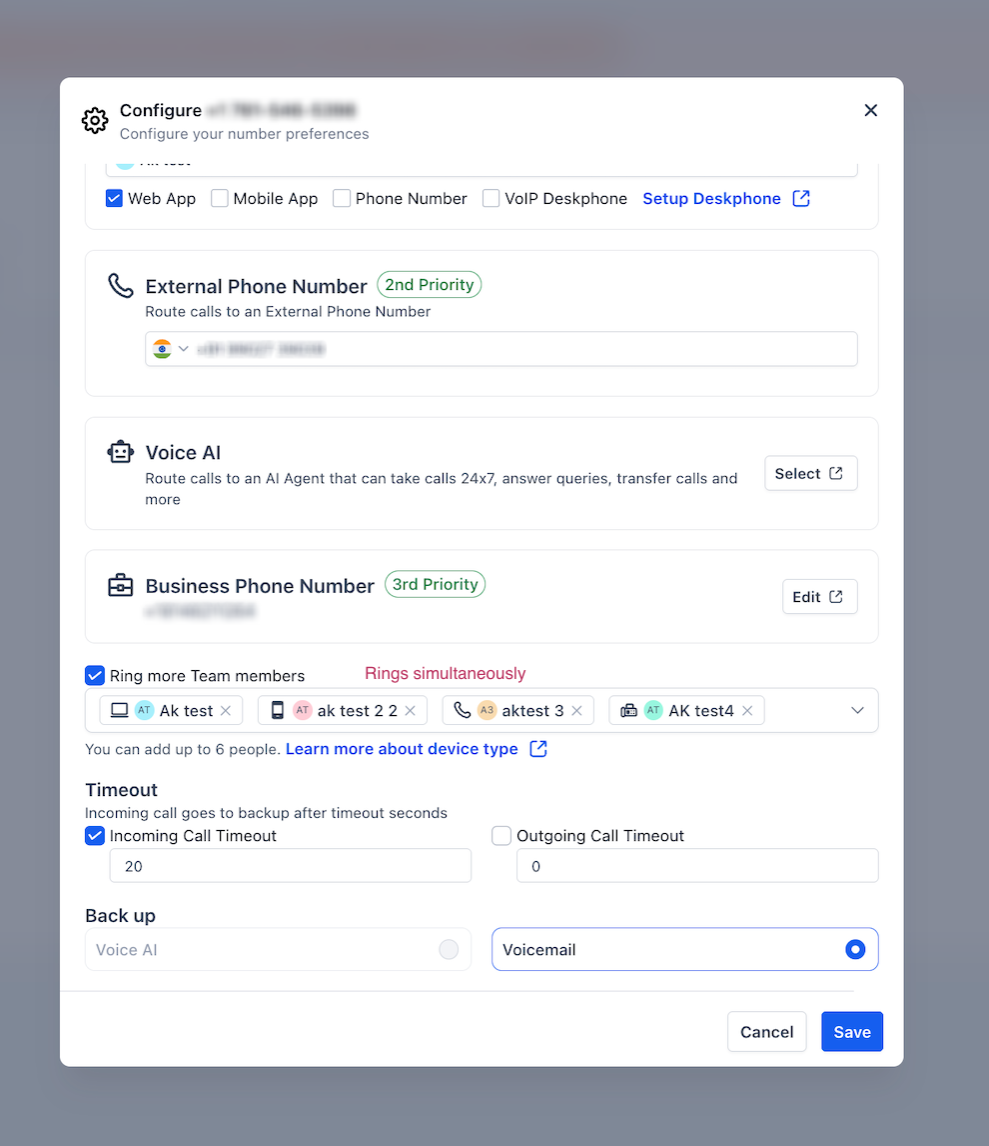
When Stage 2 runs, the system fires a single outbound dial to all configured destinations at the same time. There is no sequential "try Team Member, then try External Phone" logic. Everything rings at once:
- Team Members' selected devices (Web App, Mobile App, VoIP Deskphone)
- One forwarding phone number (see priority below)
- All Ring More Team Members (their preferred devices)
First destination to answer wins. Everyone else stops ringing immediately.
What the priority badges (1st, 2nd, 3rd) actually mean: These labels do not create sequential ringing. They indicate the priority order for which phone number gets included in the simultaneous ring — and the relative position of Voice AI backup (which runs separately, after the ring times out). See the next section for details.
Which Phone Number Gets Dialed (Forwarding Priority)
Only one phone number can be included in the simultaneous ring. The system fills this slot using the following priority — whichever resolves first wins:
| Priority | Phone number source | Condition |
|---|---|---|
| 1st | Team Member's personal phone | Only if the Phone Number device is checked on the Team Member row. When this is checked, External Phone and Business Phone are not used — the slot is already filled. |
| 2nd | External Phone Number | Used when Team Member's Phone Number device is not checked and an External Phone is configured. |
| 3rd | Business Phone Number | Used as the last resort if neither of the above fills the slot. Enabled by default for all accounts. Disable under Other Settings → Inbound Calls if not needed. |
If none of these are configured, no phone number rings — only digital devices (Web App, Mobile App) are included in the dial.
Team Member Devices & Call Handling
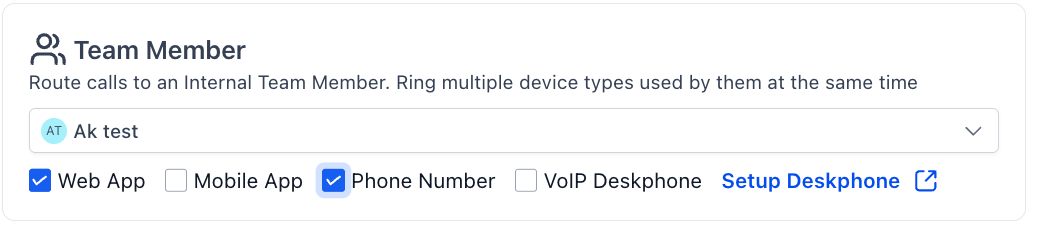
The Team Member is the primary recipient of the call. Their selected devices all ring simultaneously as part of the single Stage 2 dial.
Web App
A ringing notification appears in the LeadConnector browser tab. The user clicks to answer in their browser. Must be actively logged in.
Mobile App
A push notification is sent to the user's phone. They answer through the LeadConnector mobile app. Requires push notifications enabled on the device.
Phone Number
The system calls the user's personal phone number. They answer like a regular call. Note: checking this fills the phone forwarding slot — External Phone and Business Phone are not used.
VoIP Deskphone
The system calls the user's SIP-enabled desk phone. Requires deskphone setup — click "Setup Deskphone" in the Team Member row to configure.
Ring Multiple Team Members at Once
Enable this checkbox to simultaneously ring additional users alongside the primary Team Member — all in the same single dial.
- All selected members ring at the same time — first to answer wins
- Each member rings on their own preferred device (set per-user in their profile)
- Maximum of 6 additional people
- Does not apply when IVR or Voice AI (primary mode) is active

Setting the Ring Timeout
The Timeout controls how many seconds the Stage 2 simultaneous ring runs before giving up and moving to Stage 3.
- Default: 20 seconds if not configured
- Check Incoming Call Timeout and enter your desired value (in seconds)
- Once the timeout is reached with no answer, the system moves to Stage 3

Stage 3 — After the Timeout
If nobody answers during the Stage 2 ring, the call moves here. This happens in order:
1. Voice AI — Backup mode 3rd Priority
If Voice AI is configured with the backup toggle ON, it's tried first after the Stage 2 timeout. The AI answers the call via a separate redirect — this is a distinct step from the simultaneous ring, not part of it.
This is why Voice AI in backup mode shows as "3rd Priority" in the Call Forwarding tab — it runs after the simultaneous ring (1st + 2nd), not alongside it.
2. Backup — Voicemail or Voice AI
If Voice AI backup doesn't apply (or as the absolute last resort), the Backup section determines what happens:
| Option | What happens |
|---|---|
| Voicemail | The caller hears your voicemail greeting and leaves a recorded message. Accessible in Conversations for each contact. |
| Voice AI | An AI agent picks up and handles the unanswered call. |
Backup is always the final step. It is never skipped.
Voicemail greeting — where it comes from
The system uses the first greeting it finds, in this order:
- Team member's personal voicemail — set in the user's profile under Phone settings
- Location voicemail — set under Sub-account Settings → Phone System → Voice → Voicemail & Missed Call TextBack
- System default — "We are unable to take your call right now. Please leave a message after the beep."
Supported upload formats: MP3, WAV, AIFF, GSM, ULAW

Advanced Settings — Per-Number Features
Sub-account Settings ›Phone System ›Numbers ›⚙️ Configure ›Advanced Settings tab
These settings control how individual calls behave once they reach a human agent during Stage 2.
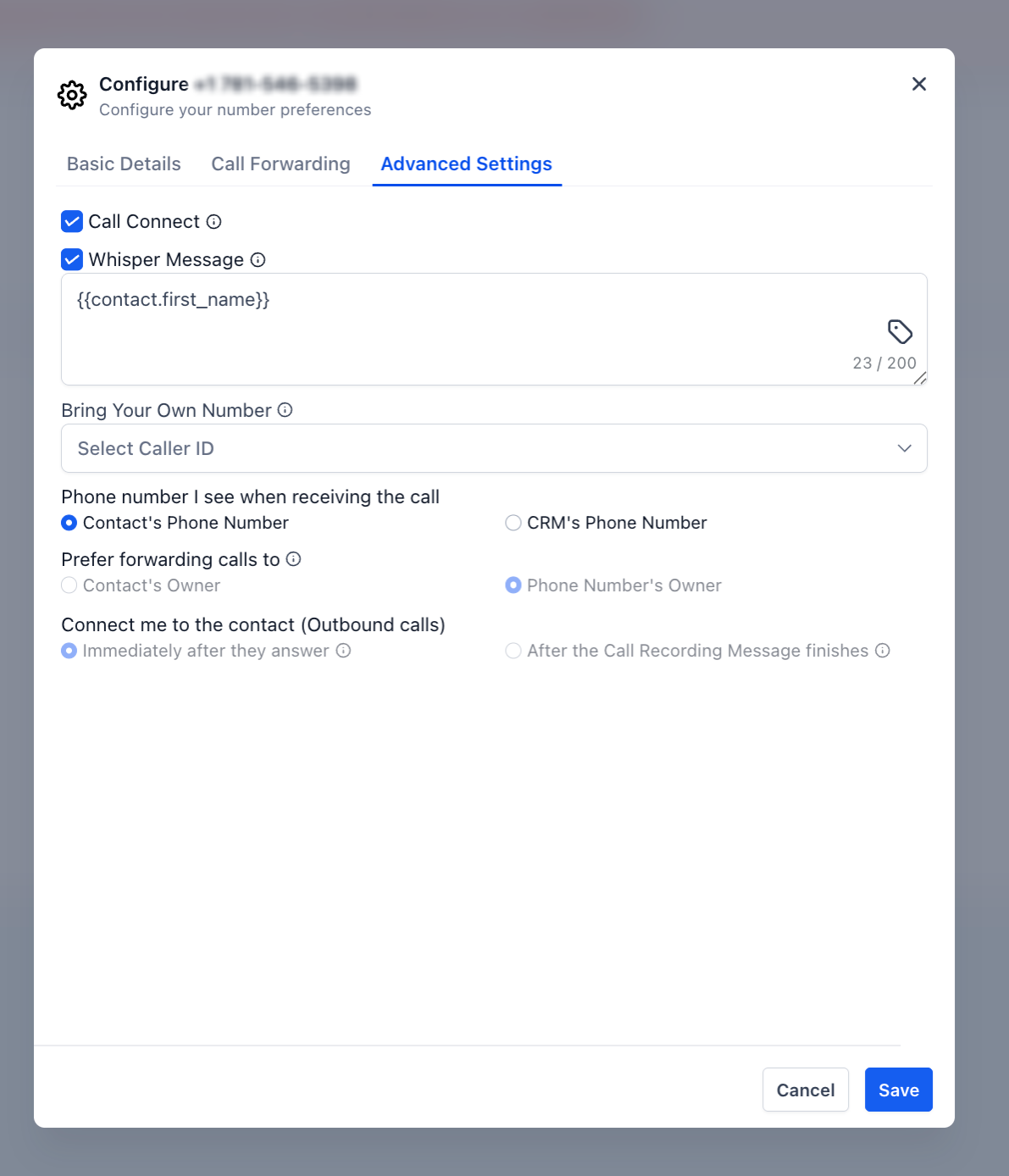
Whisper Message
A short audio message played only to the agent (not the caller) the moment they pick up — before the two parties are connected.
Example: Agent answers → hears "Incoming call from your Facebook Lead Ad — John Smith" → is immediately connected to the caller.
- Supports template variables: {{contact.name}}, lead source, campaign name, etc.
- The caller hears hold music while the whisper plays to the agent
- Call connects automatically once the whisper finishes — no action required from the agent
Whisper Message vs. Call Connect: Whisper plays information and connects automatically. Call Connect (below) requires the agent to actively press a key — use Call Connect when you want to block answering machines.

Call Connect
When enabled, the agent must press any key on their keypad to confirm they are a real person before being connected to the caller.
Why this matters: When calls are forwarded to an external phone number, they may reach an answering machine instead of a human. Without Call Connect, the caller gets connected to the answering machine. With Call Connect enabled, answering machines don't press any key — so the system treats it as no answer and moves to Stage 3 instead of wasting the call.
What the agent experiences:
- Their phone rings — they answer
- They hear the whisper message (if configured), then: "Press any key to connect."
- Agent presses any key → caller and agent are connected
- If no key is pressed → system moves to Stage 3 (Voice AI backup or Voicemail)
Best used with: External Phone Numbers and Business Phone Numbers, where answering machines are common. Less necessary for a Web App or Mobile App, where the app confirms a human has answered.
Call Recording
When enabled, the system records both sides of every inbound call on this number.
- Recordings appear in the Conversations view for each contact
- A recording warning can be played to callers at the start of the call — toggle this on/off in Advanced Settings (required by law in some regions)
Voice Settings — Location-Wide Routing
Sub-account Settings ›Phone System ›Voice ›Other Settings tab ›Inbound Calls sub-tab
These two toggles apply across your entire location and sit on top of all per-number call forwarding settings.
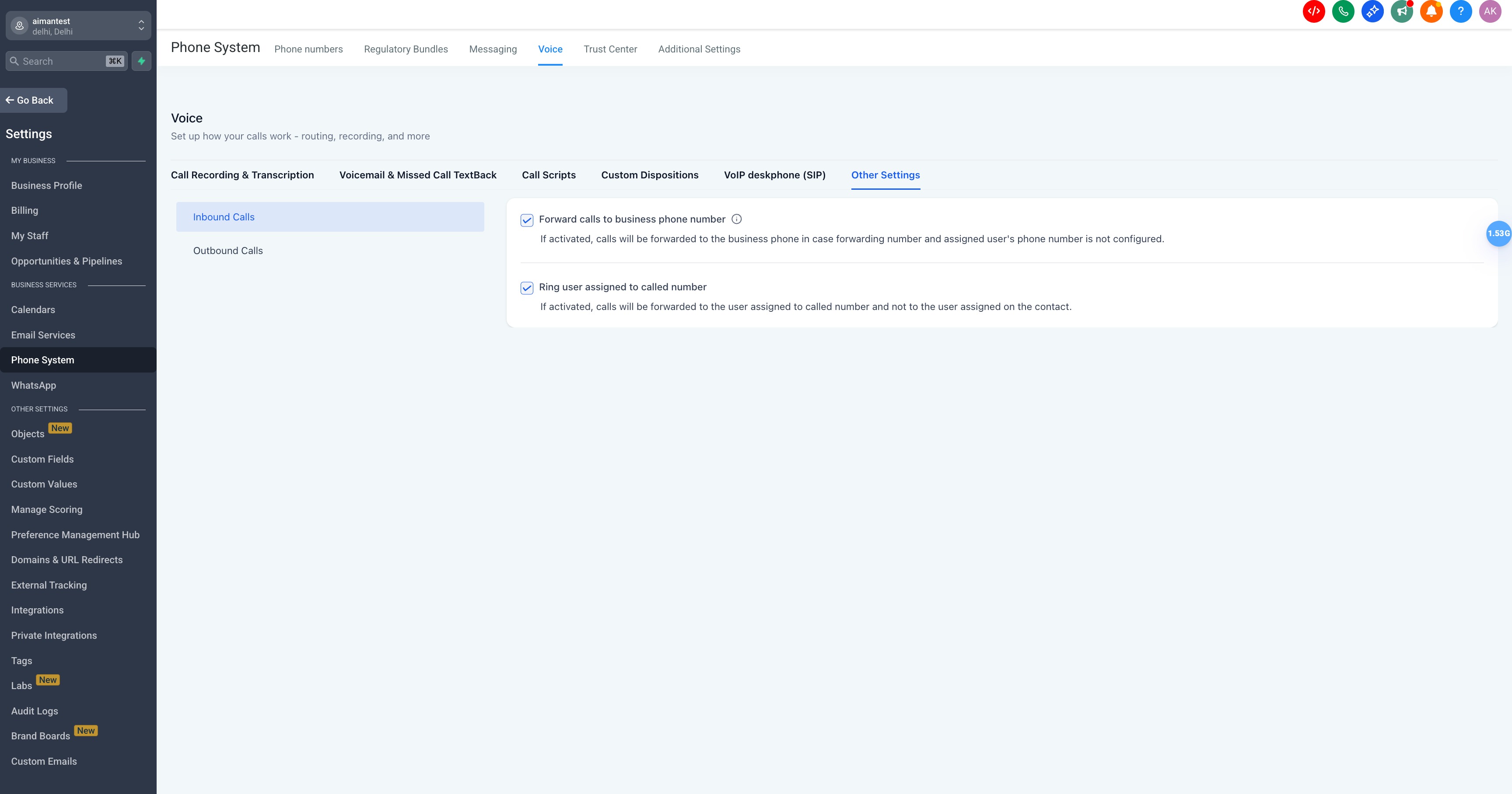
Ring user assigned to the called number
When ON: the system first attempts to ring the specific user assigned to the phone number that was called, before following the standard Call Forwarding chain.
When OFF: the system routes based on the contact's assigned user or the general Call Forwarding settings.
This setting does not apply when IVR or Voice AI (primary mode) is configured — those always take priority first regardless of this toggle.
Forward calls to the business phone number
Controls whether your location's Business Phone Number is available as the last-resort option in the forwarding phone slot. This is enabled by default for all accounts.
Disable this if you don't want calls falling through to your business line when no other phone number is configured.
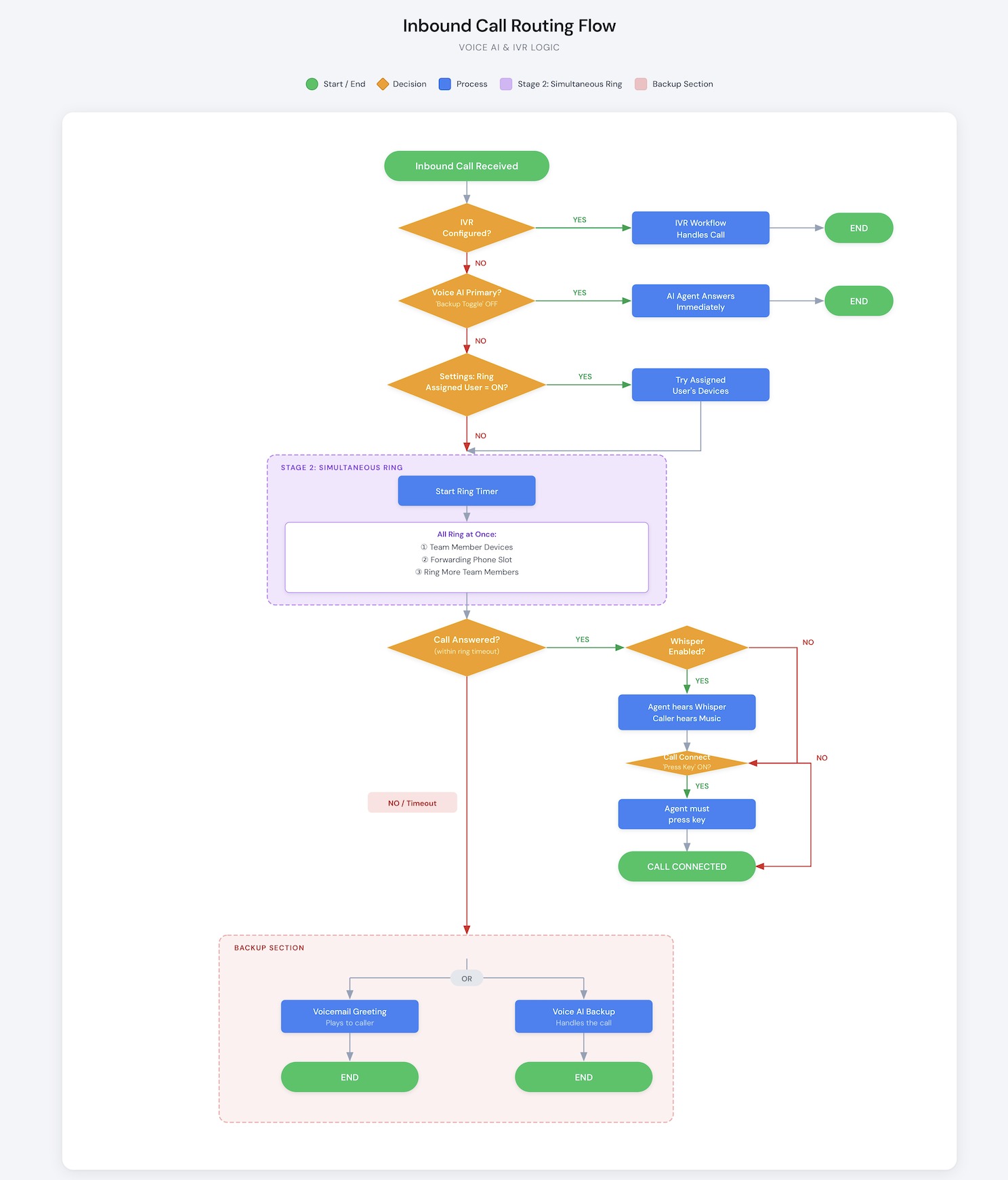
Complete Call Flow Reference Chart
Common Setup Scenarios
1. All calls ring directly to me
- In Call Forwarding, set Team Member to yourself
- Check the devices you want to ring (Web App, Mobile App, etc.)
- Set Backup to Voicemail
2. Ring my whole team simultaneously
- Set a primary Team Member
- Enable Ring more Team members and add your team (up to 6 additional people)
- Each team member sets their preferred device in their own user profile
3. Phone menu (Press 1 for Sales, Press 2 for Support)
- Go to Automation → Workflows, create a workflow with the Phone IVR trigger
- Build your menu branches for each keypress option
- In Call Forwarding, assign that workflow to the IVR field
4. AI answers every call immediately
- Go to AI Agents → Voice AI → your agent → Phone & Availability
- Turn the "Enable AI Agent as a backup" toggle OFF
- Assign the phone number to this agent — AI answers every inbound call immediately
5. Try humans first, AI handles missed calls
- Go to AI Agents → Voice AI → your agent → Phone & Availability
- Turn the "Enable AI Agent as a backup" toggle ON
- Configure your Team Member and External Phone normally in Call Forwarding
- Voice AI will appear as 3rd Priority and only answer after the Stage 2 ring times out
6. Prevent calls from connecting to answering machines
- In the Advanced Settings tab, enable Call Connect
- Agents must now press any key when they answer to confirm they're human
- Answering machines won't press a key — call automatically moves to Stage 3 instead.
Troubleshooting
1. My phone isn't ringing when a call comes in
- Check which device types are ticked in the Team Member row — at least one must be enabled
- For Web App: you must be actively logged into LeadConnector in your browser
- For Mobile App: push notifications must be enabled on your device
- Check if IVR or Voice AI (primary mode) is capturing the call before Stage 2 runs
- Check the Timeout — if it's very short, the ring may be ending before you can answer
2. Calls go straight to voicemail
- The Timeout may be too short — increase it in the Timeout section
- If Call Connect is enabled and forwarding to an External Phone: an answering machine may be picking up without pressing a key, sending the call to Stage 3
- Check Other Settings → Inbound Calls — if "Ring user assigned to called number" is ON but no user is assigned to the number, the call may fall through to Backup faster than expected
3. Agent hears a message before the caller
This is Whisper Message working as intended — it plays context information only to the agent. To disable it, go to the Advanced Settings tab and turn off Whisper Message.
4. Agent has to press a key before being connected
Call Connect is enabled. The agent must press any key to confirm they're a human (not an answering machine). To disable this, turn off Call Connect in the Advanced Settings tab.
5. Ring More Team Members isn't ringing everyone
- Each team member must have at least one device type enabled in their own user profile
- Ring More Team Members only works in Stage 2 — it has no effect when IVR or Voice AI (primary) is active
6. The wrong person is being rung
- Check Sub-account Settings → Phone System → Voice → Other Settings → Inbound Calls — "Ring user assigned to called number" may be overriding your Call Forwarding setup
- Check whether the contact has an assigned user — that assignment can affect who receives the call
7. Voice AI isn't answering even though it's configured
- Check the backup toggle in AI Agents → Voice AI → Phone & Availability
- If backup is ON, Voice AI only answers after the Stage 2 ring times out — it won't interrupt an active ring
- If you want AI to always answer, turn the backup toggle OFF
Quick Reference Table
| Feature | Where to configure | What it does |
|---|---|---|
| IVR | Automation → Workflows (build); Call Forwarding tab (assign) | Phone menu — routes by keypad input. Handles call before Stage 2. |
| Voice AI — Primary | AI Agents → Voice AI → Phone & Availability (backup toggle OFF) | AI answers every call immediately. Stage 2 never runs. |
| Voice AI — Backup | AI Agents → Voice AI → Phone & Availability (backup toggle ON) | AI answers only after Stage 2 ring times out with no answer. |
| Team Member | Call Forwarding tab → Team Member row | Routes to internal user's selected devices — all ring simultaneously in Stage 2. |
| Ring More Team Members | Call Forwarding tab → Ring more Team members checkbox | Rings up to 6 additional users simultaneously in the same Stage 2 dial. |
| External Phone Number | Call Forwarding tab → External Phone Number row | Fills the phone forwarding slot (2nd priority) if Team Member's phone isn't checked. |
| Business Phone Number | Enabled by default. Disable under Other Settings → Inbound Calls. | Fills the phone forwarding slot as last resort (3rd priority). |
| Timeout | Call Forwarding tab → Timeout section | How long the Stage 2 ring runs before moving to Stage 3 (default: 20s). |
| Voicemail | Call Forwarding tab → Back up section | Final fallback — caller leaves a recorded message. |
| Voicemail Greeting | User profile (per-user) or Phone System → Voice → Voicemail & Missed Call TextBack | Custom audio played before recording starts. |
| Whisper Message | Advanced Settings tab | Plays context info to agent only, before connecting. Caller can't hear it. |
| Call Connect | Advanced Settings tab | Agent must press any key to confirm human answer — blocks answering machines. |
| Call Recording | Advanced Settings tab | Records both sides of every inbound call on this number. |
| Ring user assigned to number | Phone System → Voice → Other Settings → Inbound Calls | Routes calls to the user assigned to the called number, before standard forwarding. |
| Forward to business phone | Phone System → Voice → Other Settings → Inbound Calls | Enables/disables Business Phone as the last-resort forwarding option. ON by default. |
Was this article helpful?
That’s Great!
Thank you for your feedback
Sorry! We couldn't be helpful
Thank you for your feedback
Feedback sent
We appreciate your effort and will try to fix the article