SaaS Multi-Brands Overview
The SaaS Multi-Brands feature allows agencies to manage up to two distinct brands within a single SaaS account. Each brand can have its own independent branding and white-label configurations, which can then be mapped to subaccounts for a consistent and tailored experience.Each brand can have its own logo, domain and WL settings.
TABLE OF CONTENTS
Why Use Multi-Brands?
Using multiple brands gives you:
Flexibility to explore new niches
Run different business models or industries under separate brand identities.A tailored client experience
Customize branding and presentation for different sets of clients.
What Configurations Make Up a Brand?
The following White Label configurations together define a brand:
Logo
Brand Name
Brand Email
Brand Phone Number
White Label (WL) Domain
API Domain
Privacy Policy & Terms and Conditions URLs
Custom JavaScript
Custom CSS
Theme
Availability
This feature is available only on the $497 Pro plan.
Creating a New Brand
Prerequisites
A White Label domain must already be configured for your current (default) brand . The WL domain acts as a unique identifier for each brand.
The “Create Brand” CTA will only be enabled once a WL domain is set up for the current brand.
Follow the steps outlined in the below article to configure your White Label domain:
How to Set Up a Whitelabel Domain for the Desktop Web App
Steps to Create a Brand
Navigate to Settings → Company → White Label tab.
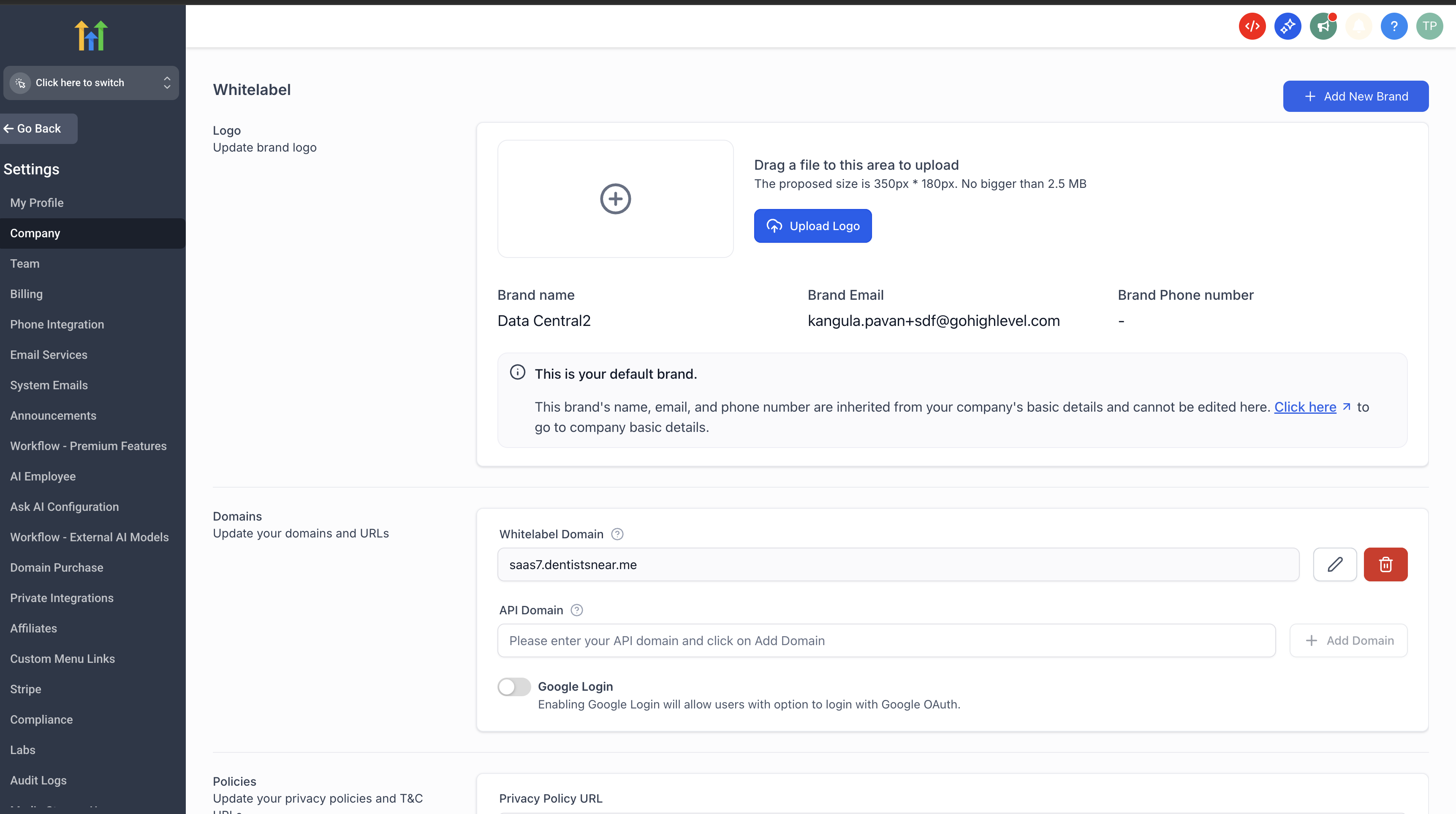
Click Add New Brand.
Enter:
1.Brand Name2.Whitelabel Domain
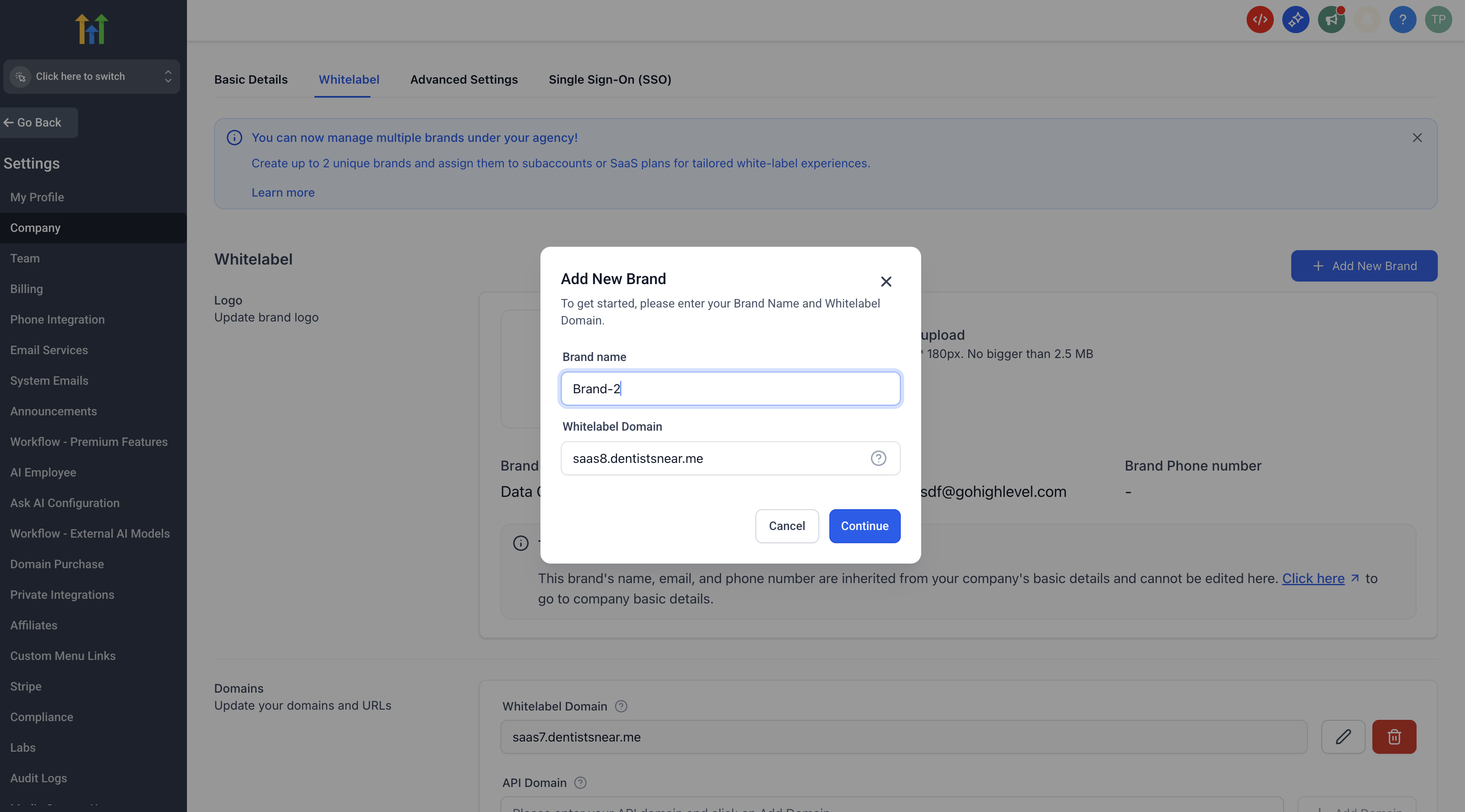
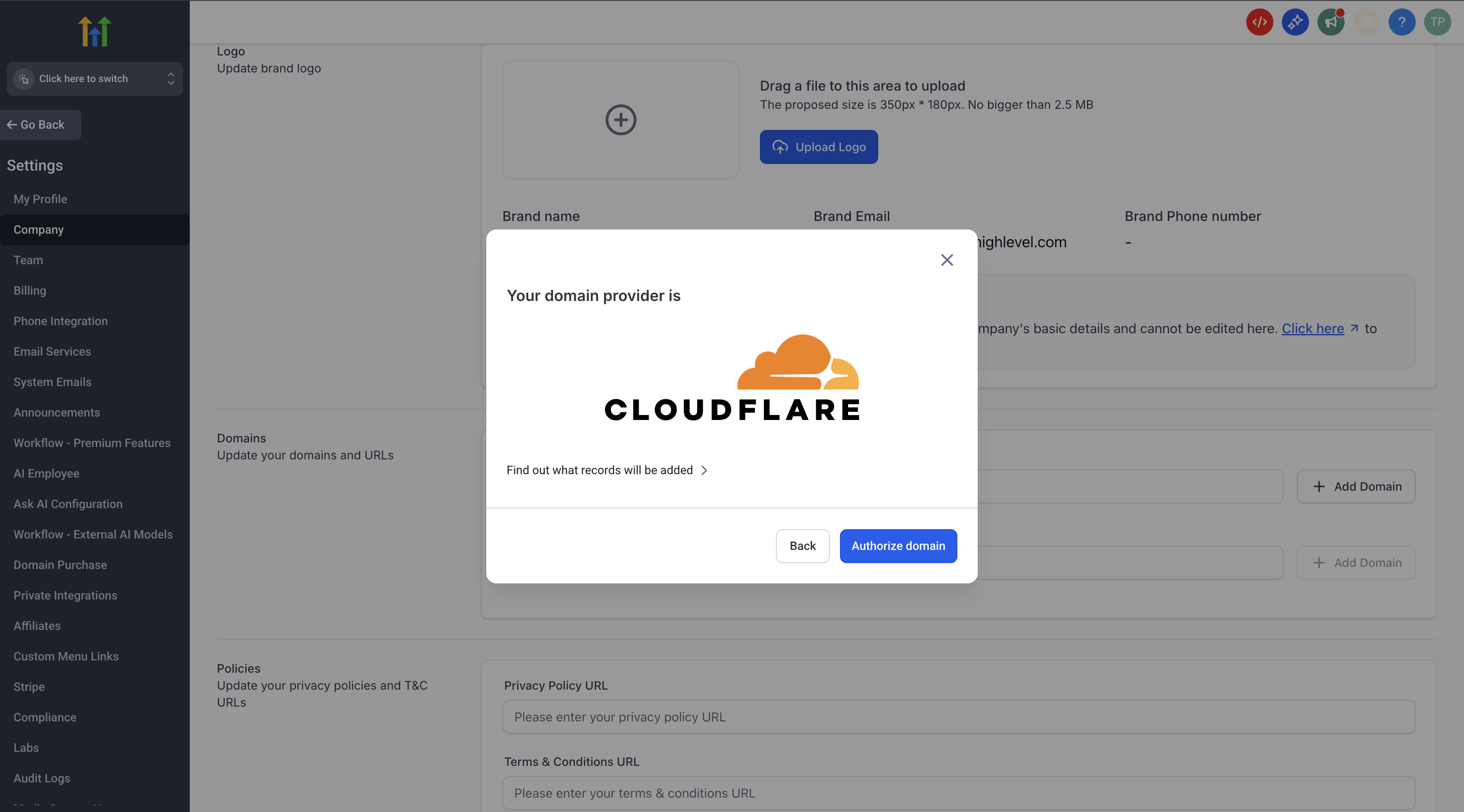
Complete the domain setup.
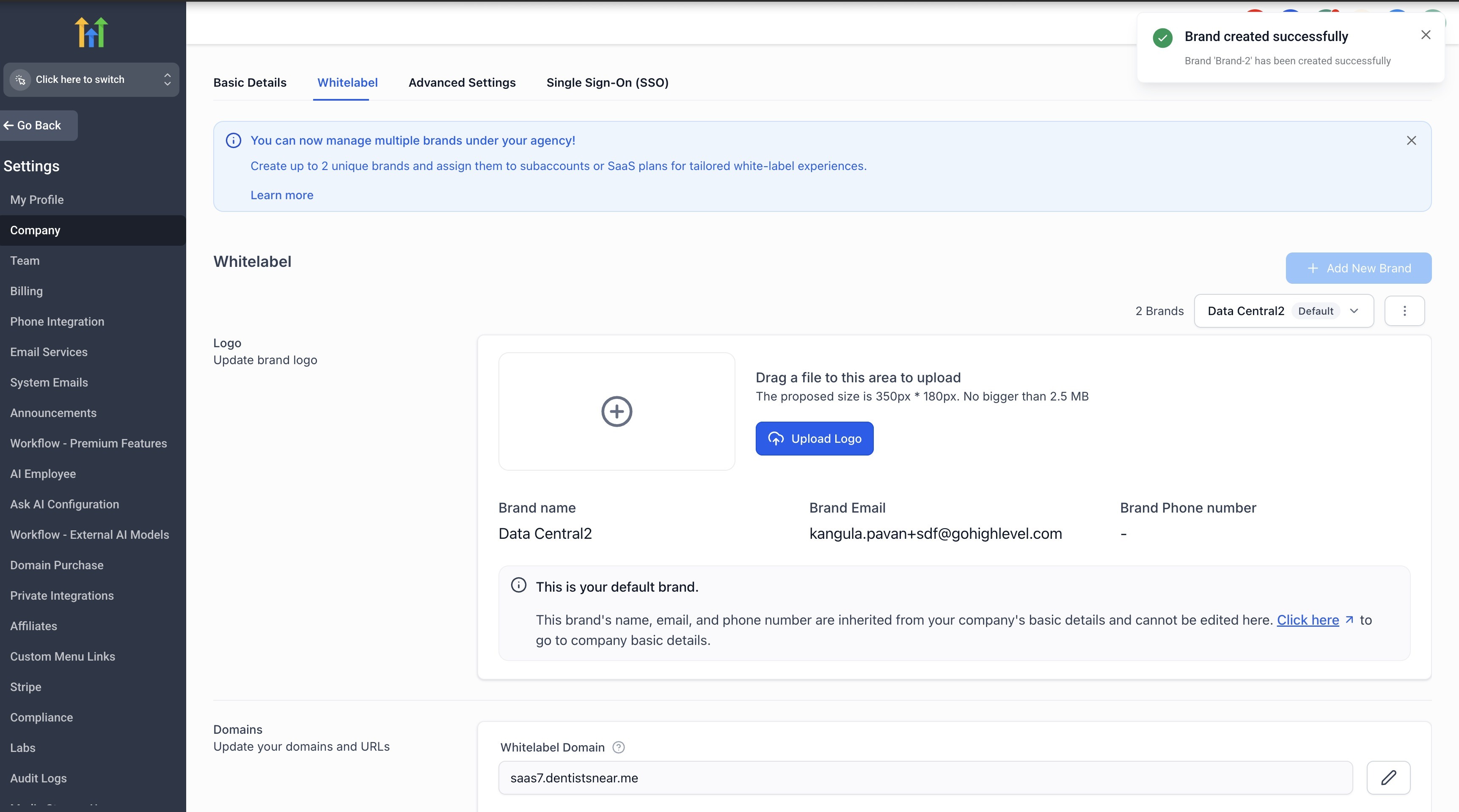
Once completed, the brand will be created successfully.
Managing Multiple Brands
Once a new brand is added:
You can toggle between the two brands using the brand switcher.
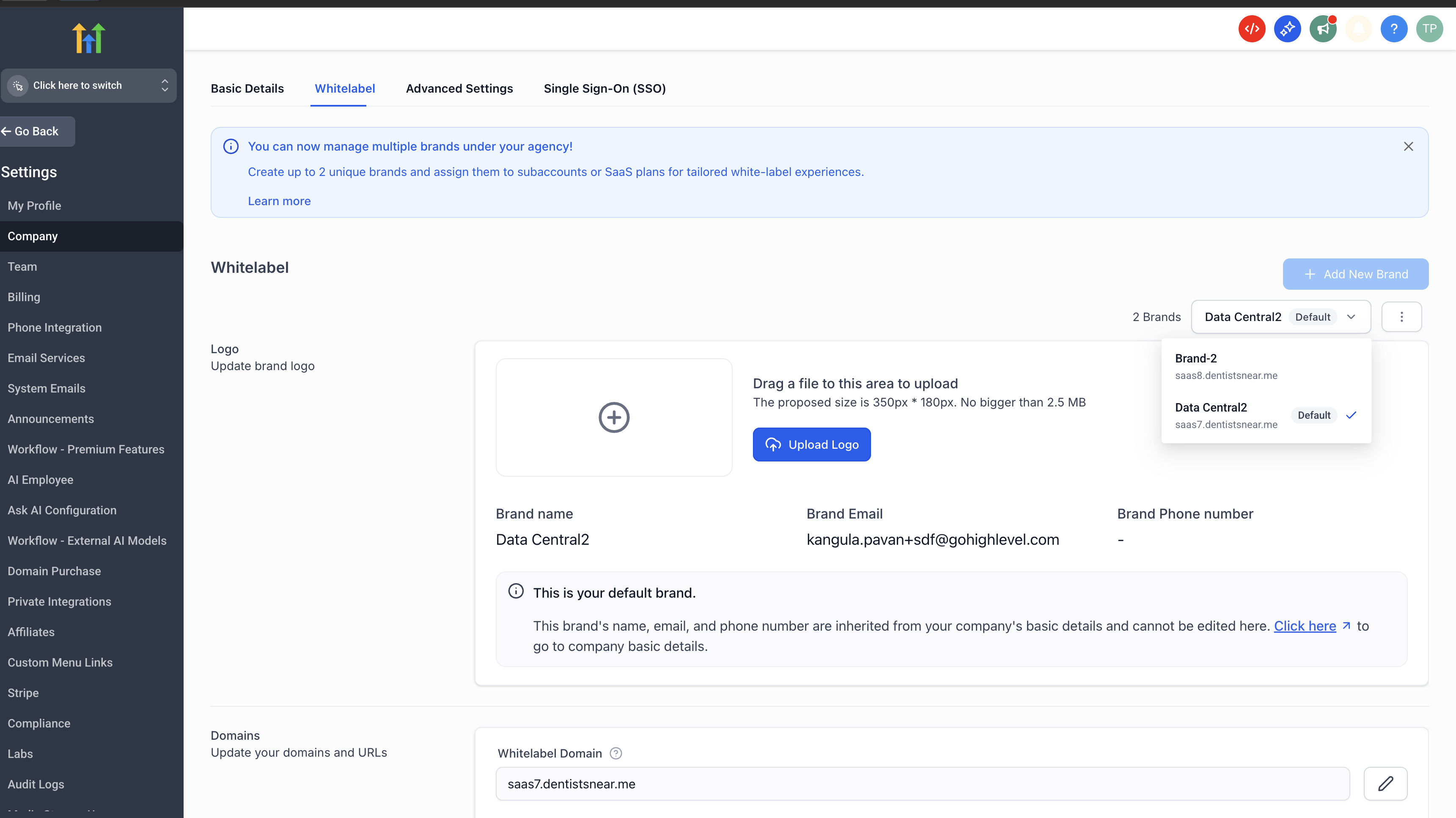
Select a brand to edit its , Logo , Custom CSS / JS, Theme and other branding details.
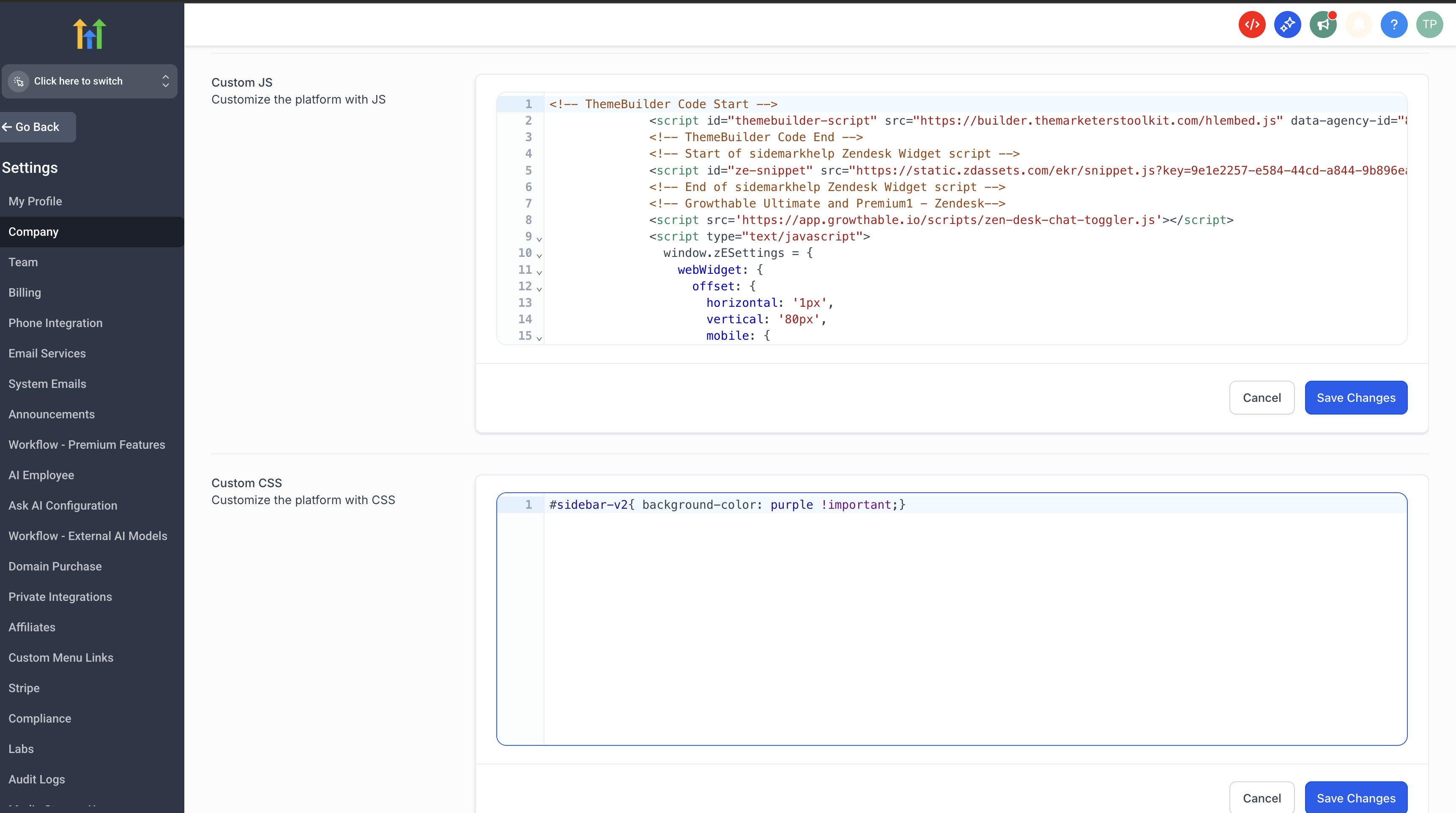
Save changes to apply them to that specific brand.
When a brand is attached to a subaccount, all configured WL settings are applied automatically, ensuring consistent brand representation.
Brand Settings
Mark a Brand as Default
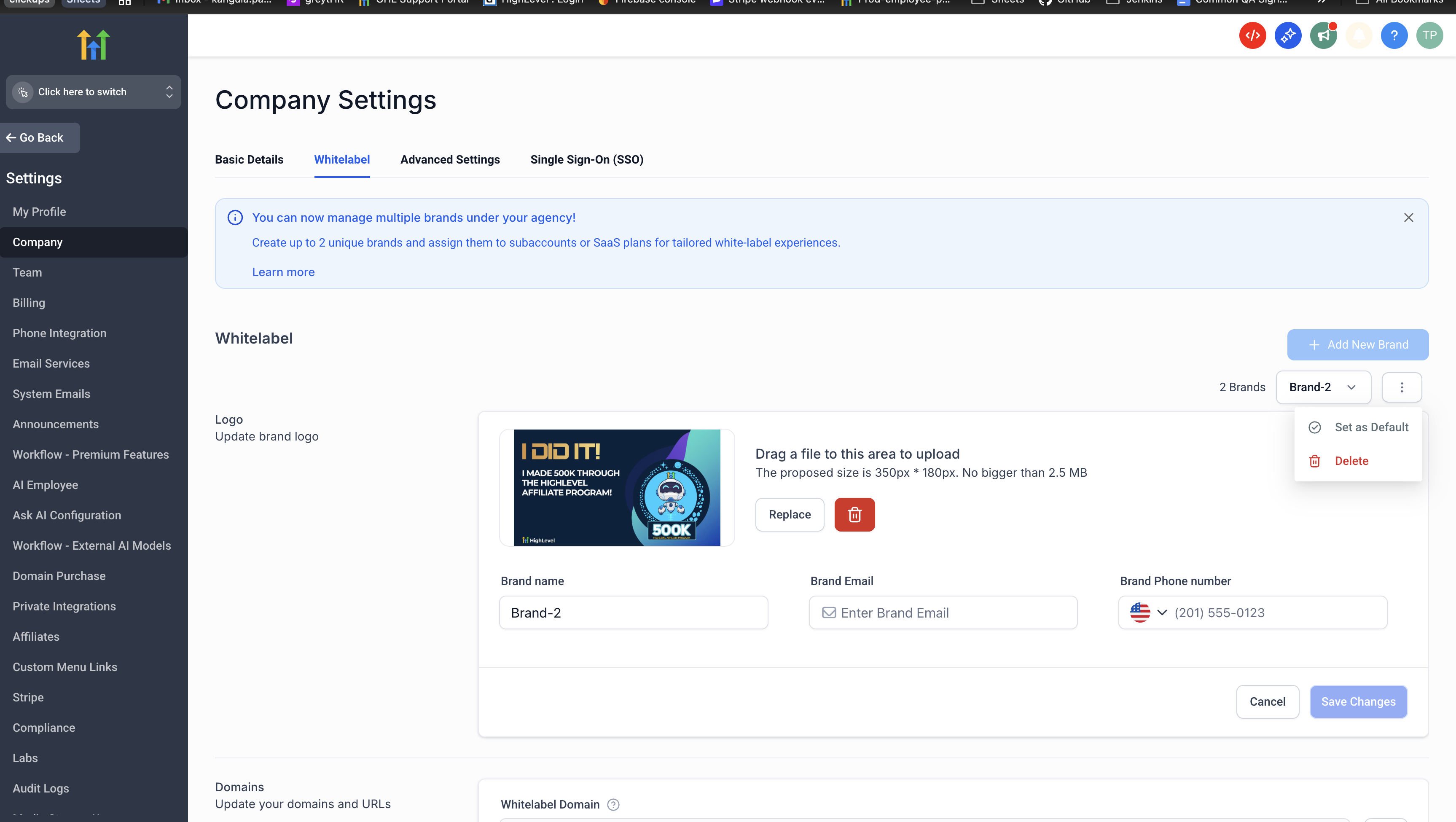
You can mark one brand as the default by:
Toggling to the required brand.
Clicking the three-dot (⋮) menu.
Selecting Set as Default.
By default, the first brand created is automatically marked as the default brand.
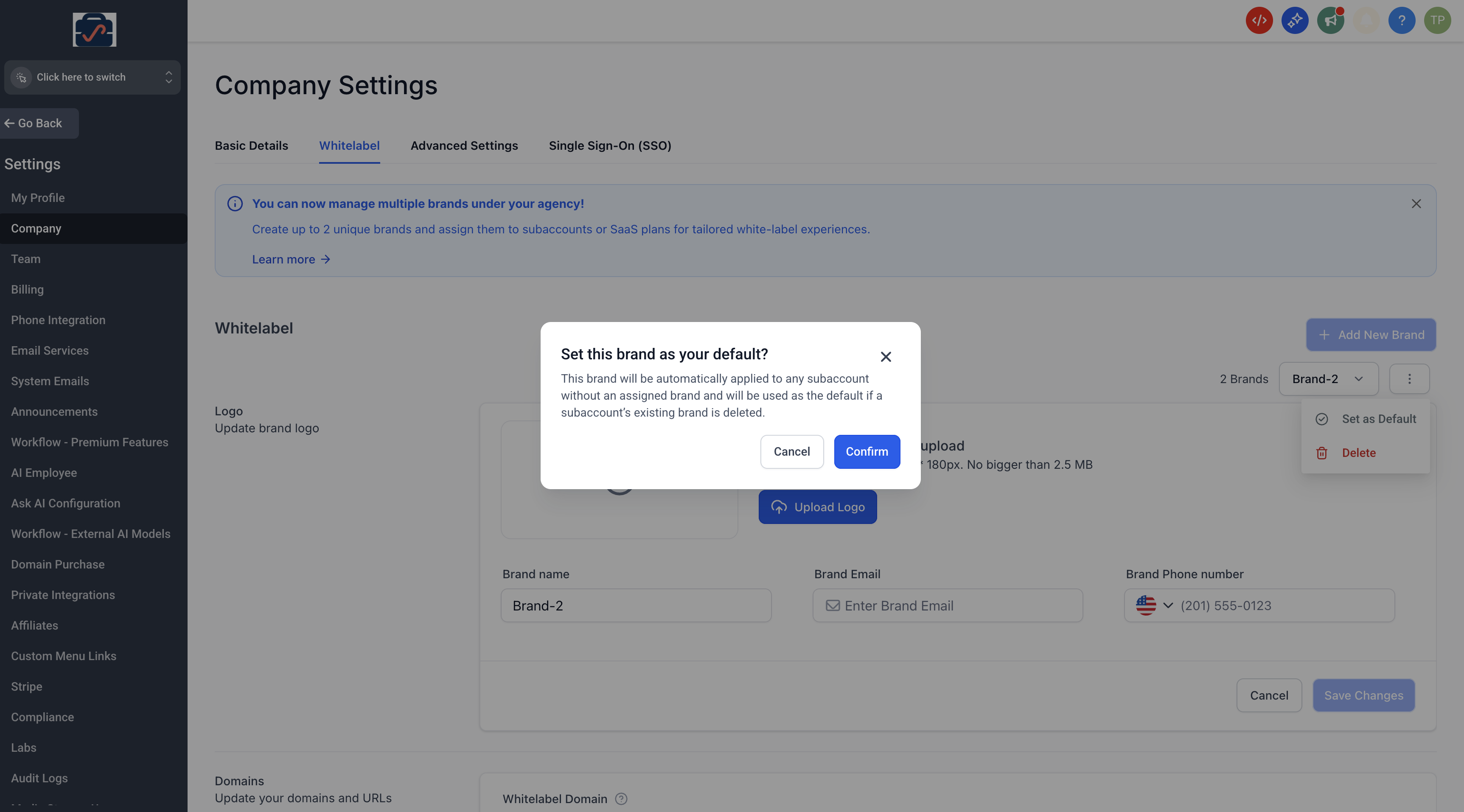
The default brand is used:As a fallback for subaccounts without a brand attached
Across agency-level configurations
Deleting a Brand
Toggle to the brand you want to delete.
Click the three-dot menu.
Select Delete.
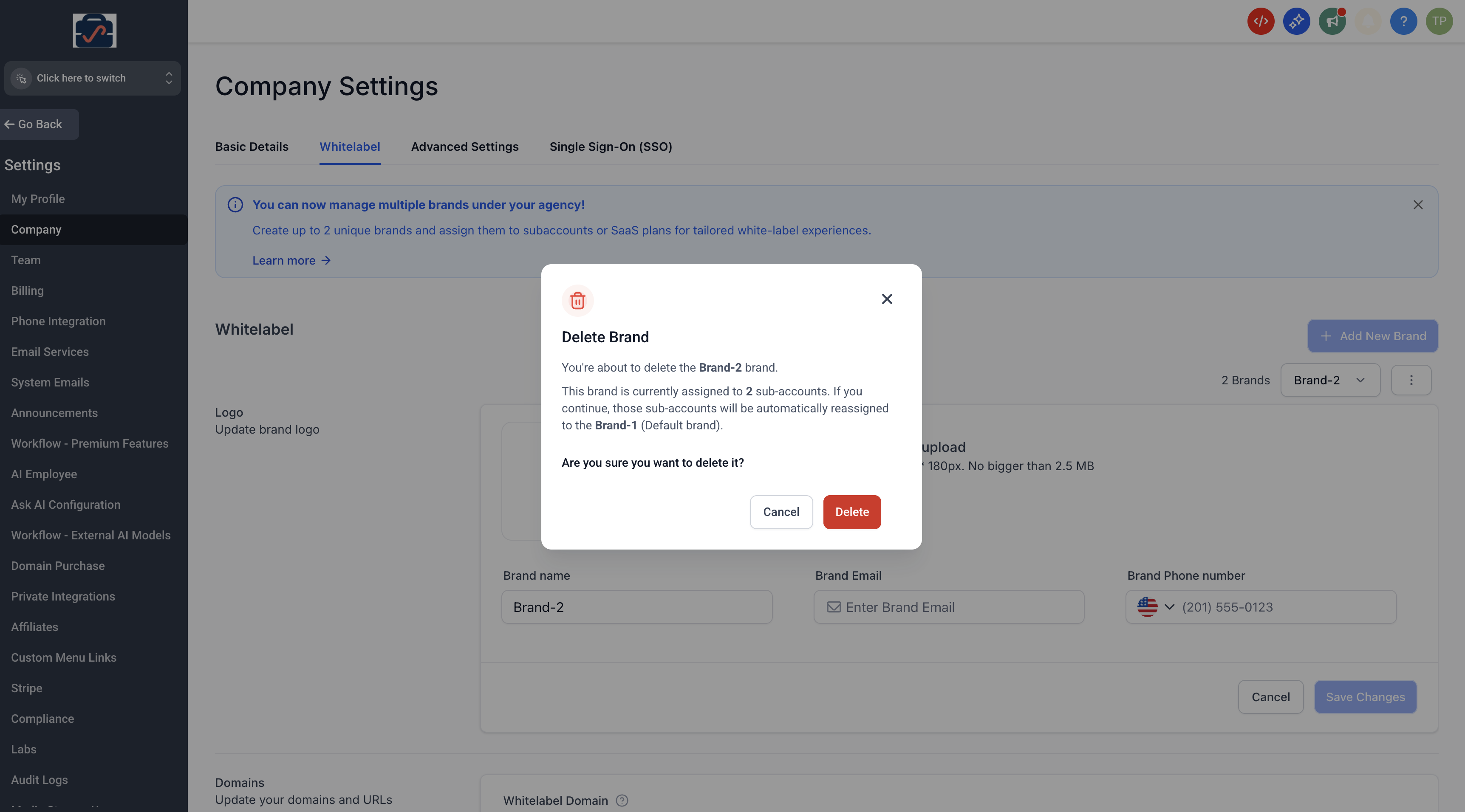
Important:
When a brand is deleted, any subaccounts associated with it will automatically fall back to the default brand.
Attaching Brands to Sub-Accounts
You can associate a brand with a sub-account in two ways:
1. Link Individual Sub-Accounts to a Brand
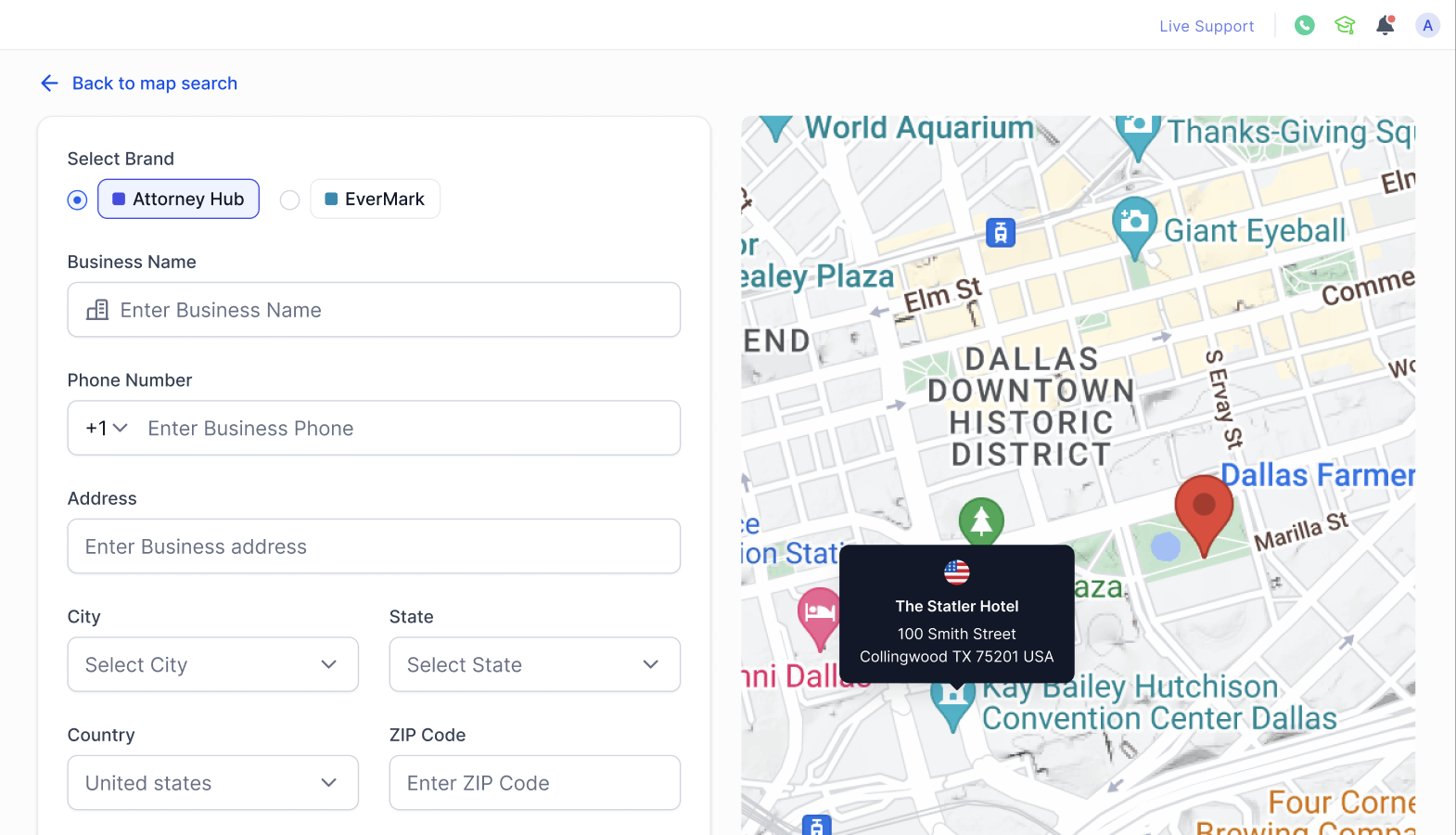
During sub-account creation
If your agency has multiple brands configured, you’ll see an option to select a brand at the top of the Create Sub-Account form.
For existing sub-accounts
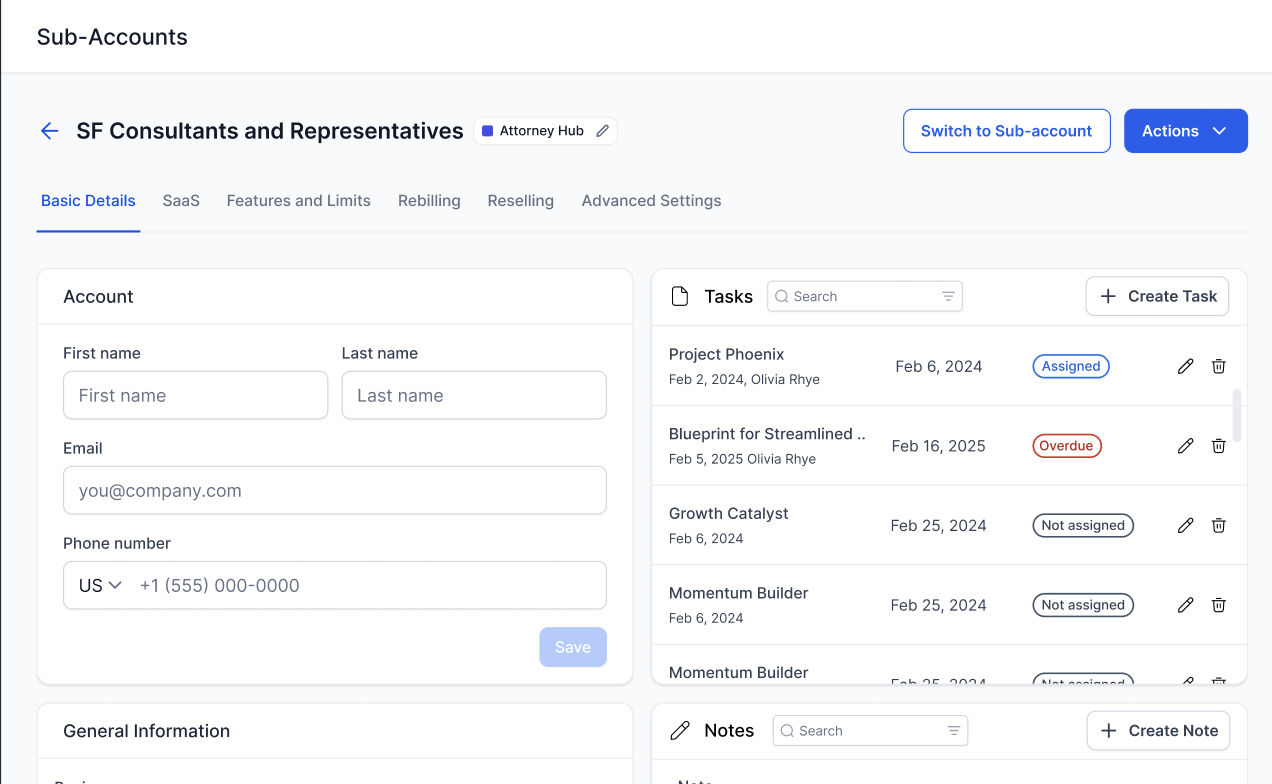
You can change the linked brand at any time by following these steps:
Go to Agency Level > Sub-Accounts
Select the required sub-account
Click Manage Client
Click the brand label (near the account title)
Select an alternate brand and click Save
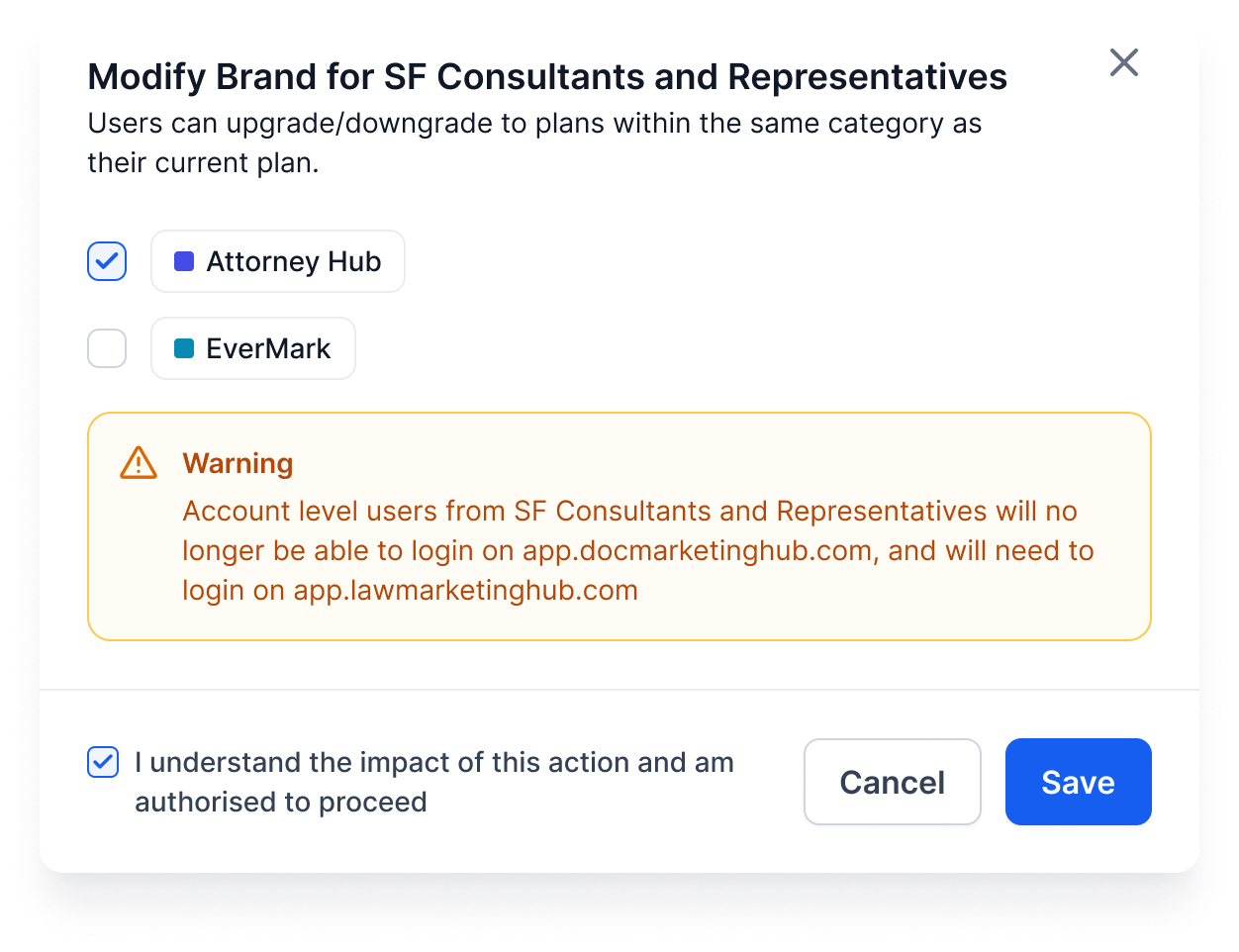
Once saved, the sub-account will immediately adopt the selected brand’s white-label configurations across all applicable areas.
Important
When a sub-account’s brand is changed:
- Users must log in using the domain configured for the new brand.
- The previous brand’s domain will no longer be accessible for that sub-account.
2. Map a Brand to a SaaS Plan Category
Brands can also be associated with SaaS plan categories. When a sub-account purchases a SaaS plan under a specific category, the brand linked to that category is automatically applied to the sub-account.
To link a brand to a SaaS plan category:
Go to SaaS Configurator > Advanced Settings
Under Category Management, click Edit for the desired category
Select the brand from the Select Brand dropdown
Click Save
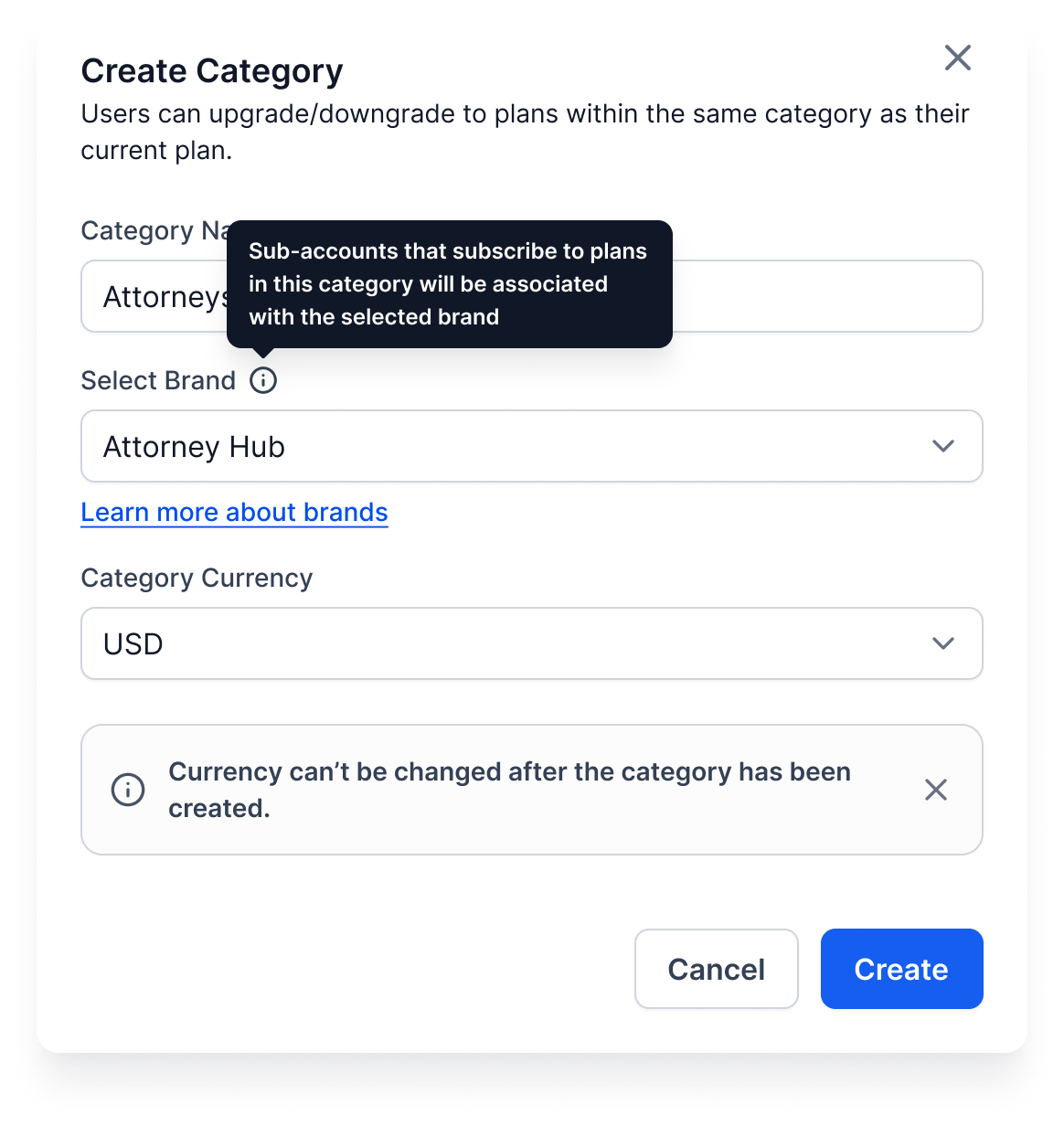
You can also select a brand while creating a new SaaS plan category.
Note
By default, all SaaS plans and categories are linked to the default brand configured in Agency Settings.
FAQs
1. Why is the "Create New Brand" CTA greyed out even though I’m on the $497 plan?
The Create New Brand CTA is disabled if a White Label (WL) domain is not configured for your current brand.
The WL domain acts as a unique identifier for each brand. Once you configure a WL domain from Settings → Company → White Label, the Create New Brand option will be enabled, allowing you to proceed with brand creation.
2. What happens if I delete a brand that already has subaccounts mapped to it?
If a brand with mapped subaccounts is deleted, all associated subaccounts will automatically fall back to the default brand.
This ensures uninterrupted branding and prevents subaccounts from being left without a valid brand configuration.
3. Where is the default brand used?
The default brand is used in the following scenarios:
Subaccounts with no brand attached
Newly created subaccounts where no brand is selected during creation
Agency-level views and configurations, including agency White Label settings
The default brand acts as a fallback to maintain consistent branding across the platform.
Was this article helpful?
That’s Great!
Thank you for your feedback
Sorry! We couldn't be helpful
Thank you for your feedback
Feedback sent
We appreciate your effort and will try to fix the article