AI Schedule uses send-time optimization to analyze each contact's historical engagement and automatically schedule delivery inside a window you define. This article explains how to use AI Schedule to boost your opens, clicks, and replies with zero extra work.
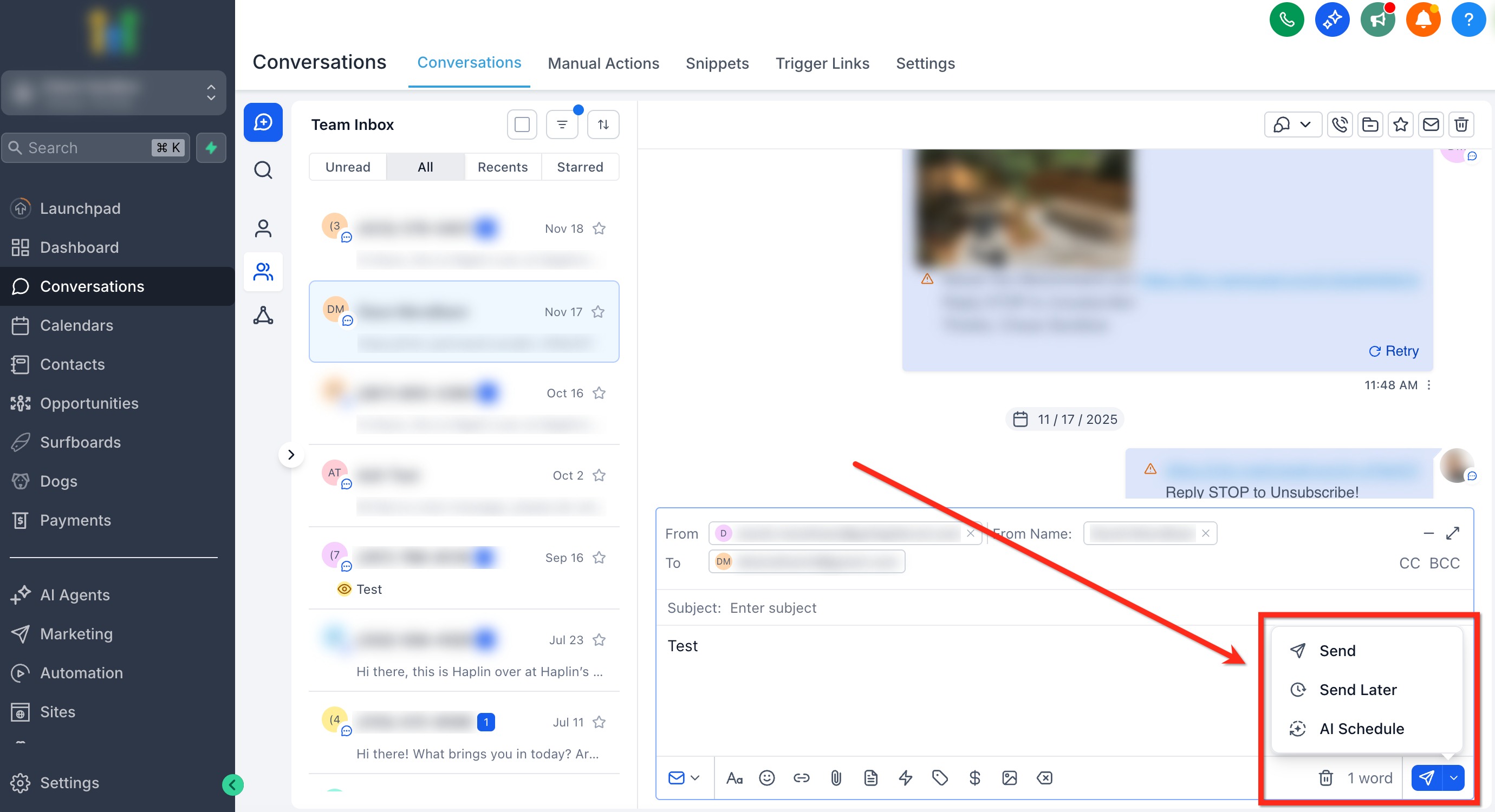
AI Schedule lives alongside your existing send options in Conversations, making it easy to switch between Send Now, Send Later, and AI-optimized delivery while composing emails.
What is AI Schedule for Emails?
AI Schedule uses engagement intelligence to deliver each email when a contact is most likely to notice, open, and respond. Instead of picking an exact time yourself, you choose a time window and the platform's AI selects the optimal send time within that window based on the contact's historical behavior.
If there isn't enough data for a recipient, the message is sent immediately to avoid delays.
Key Benefits of AI Schedule
Understanding the practical advantages helps you decide when to rely on AI Schedule versus standard scheduling.
Timing is selected from predicted high-engagement moments within the window you choose, increasing the likelihood your email gets noticed.
Delivery timing is tailored for each recipient individually when sufficient behavioral data exists — no one-size-fits-all scheduling.
The AI chooses the send time so you don't need to calculate time zones or research optimal send hours for each segment.
Individualized timing spreads send volume naturally, reducing the "email blast" effect and lowering the risk of spam complaints.
How AI Schedule Works
Here's a quick mental model of the decision process so you understand what happens behind the scenes after you click send.
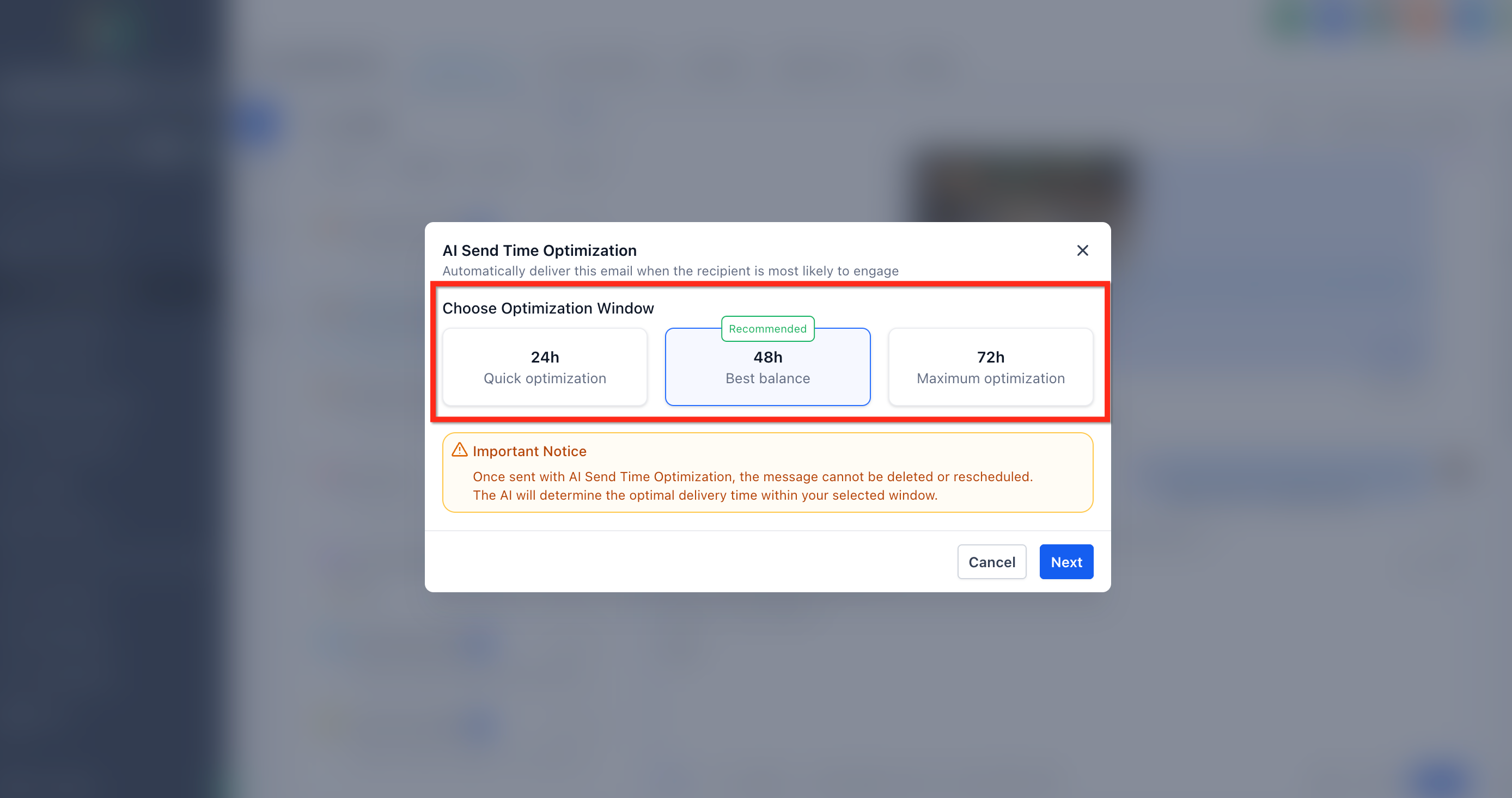
For example, next 12 hours, 48 hours, or 72 hours.
The system reviews the recipient's historical open and reply patterns to identify when they tend to be most active.
From the predicted high-engagement moments, the AI selects the optimal delivery time that falls inside your chosen window.
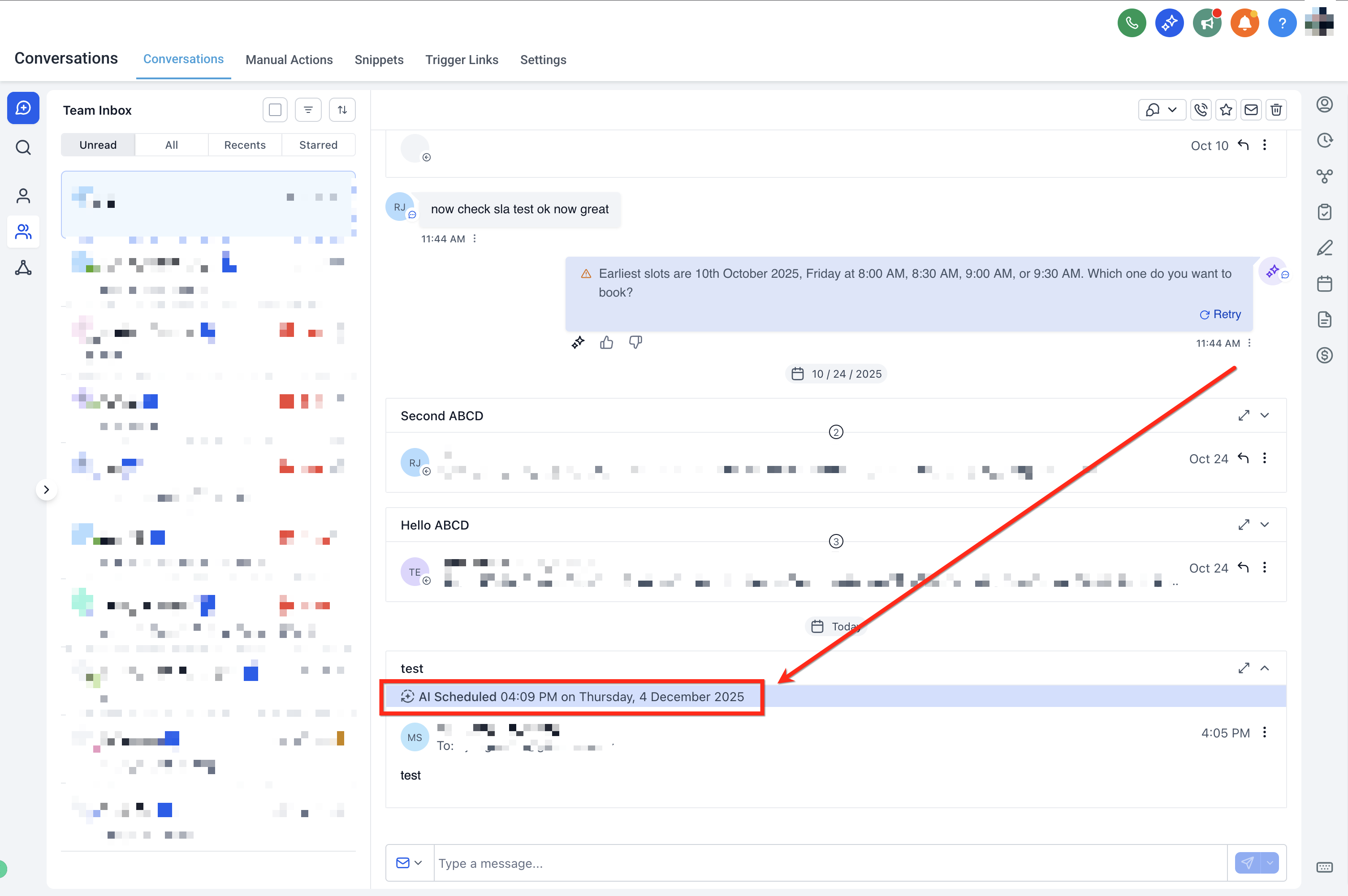
No further action needed — the email is queued for delivery at the optimized time.
If there isn't enough engagement history for a recipient, the message is sent right away so your window is never missed.
Important Limitations of AI Schedule
After you confirm Send with AI Optimization, the message cannot be deleted or rescheduled. Make sure your email is final before confirming.
AI Schedule is only available for sub-accounts using LC Email or Mailgun as their email provider.
AI Schedule is not supported for accounts with 2-way sync enabled, even if they use LC Email or Mailgun.
Choosing an Optimization Window
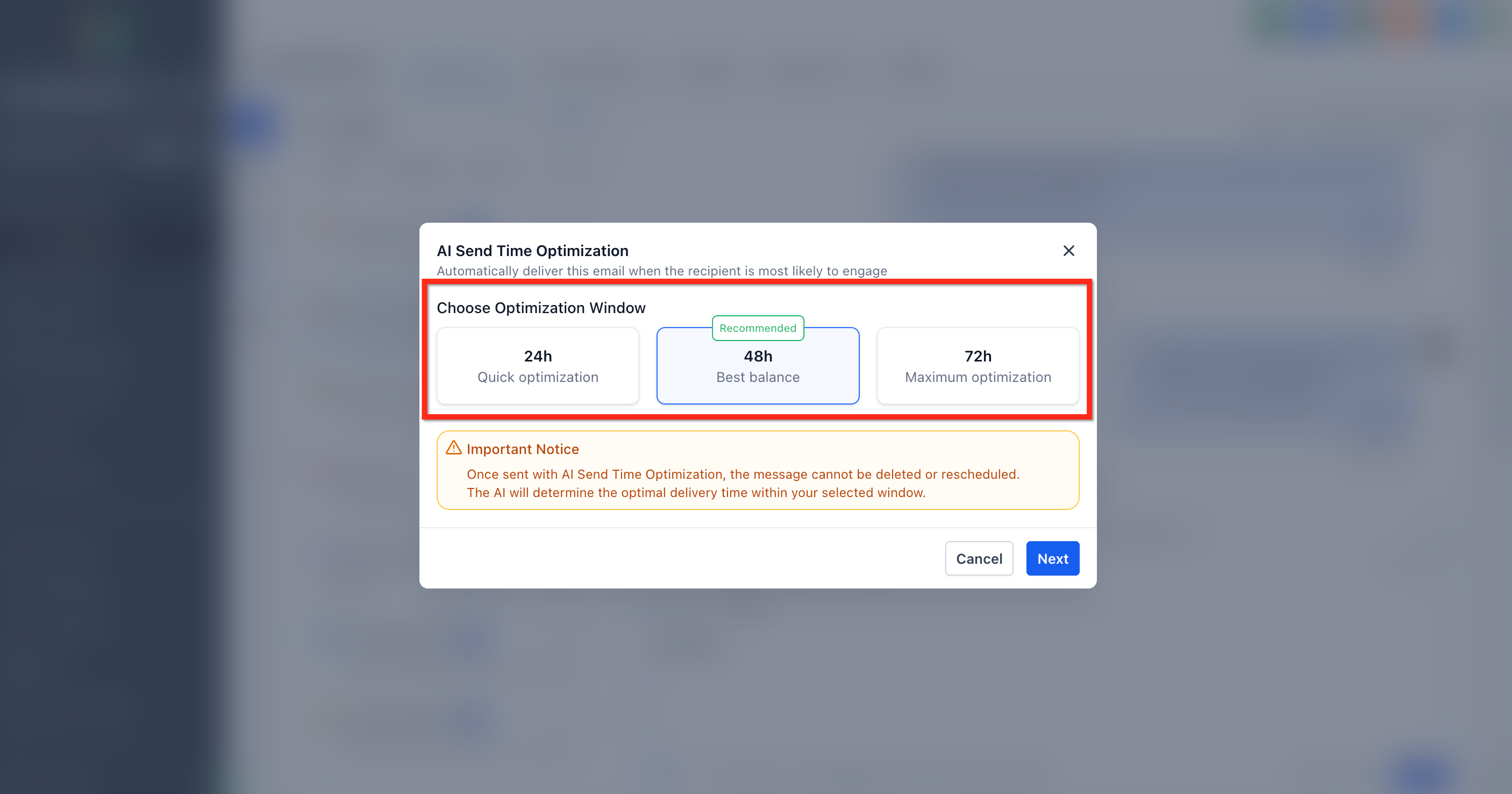
The window balances personalization and speed. Larger windows give the AI more flexibility to find a high-engagement moment, while smaller windows prioritize faster delivery.
Best for time-sensitive updates or announcements where you need delivery soon with moderate optimization.
The recommended balance of timing precision and delivery speed for most use cases.
Best when timeliness is less critical, such as newsletters or long-running nurture sequences.
Consider your campaign goals. Time-sensitive updates may benefit from a shorter window, whereas newsletters or nurture emails often perform better with a longer window.
How To Set Up and Send Emails with AI Schedule
Follow these steps when composing an email in Conversations to leverage AI Schedule and improve your engagement rate.
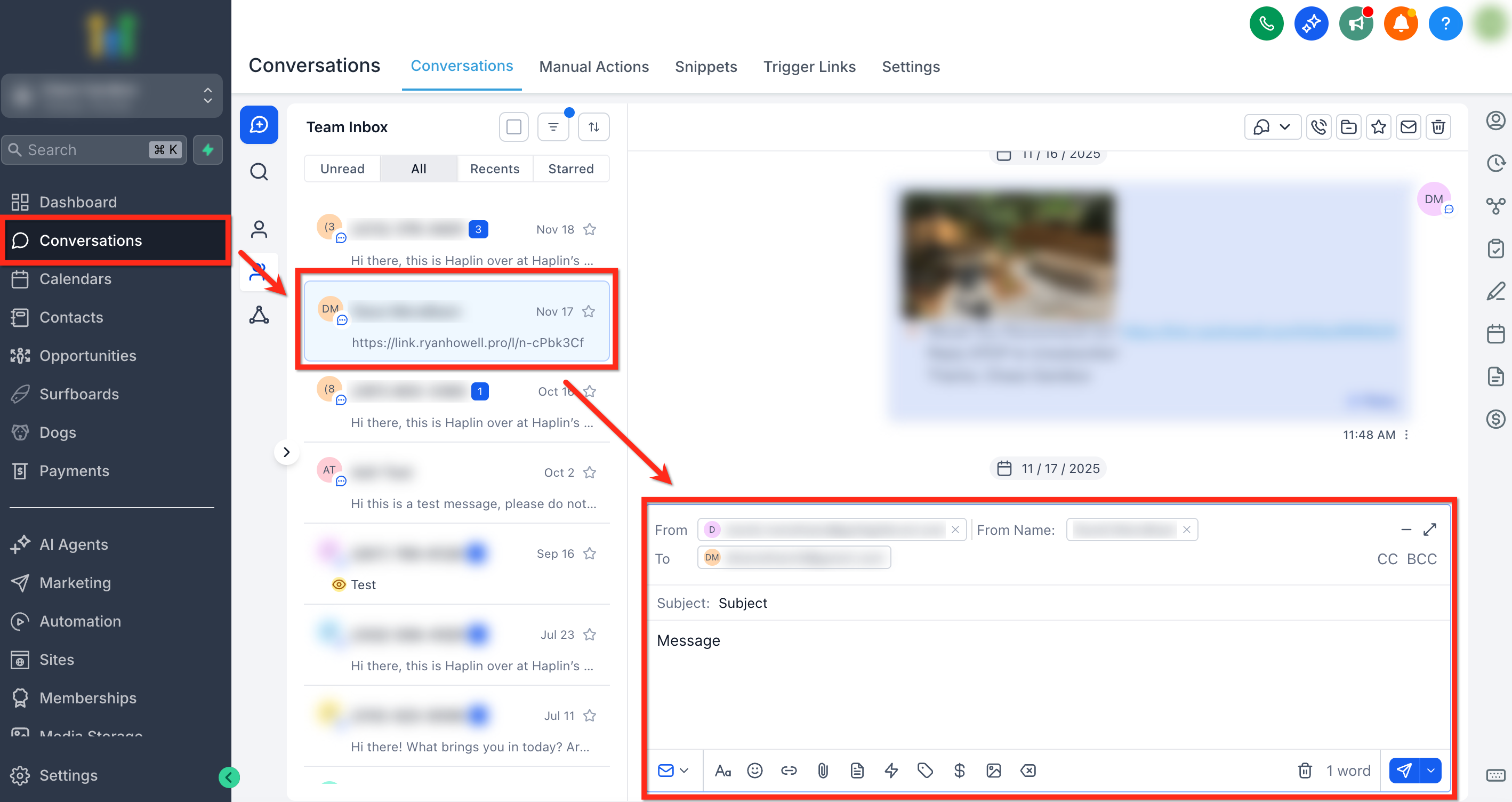
Go to Conversations and open or start an email thread. Compose your email's subject and message content.
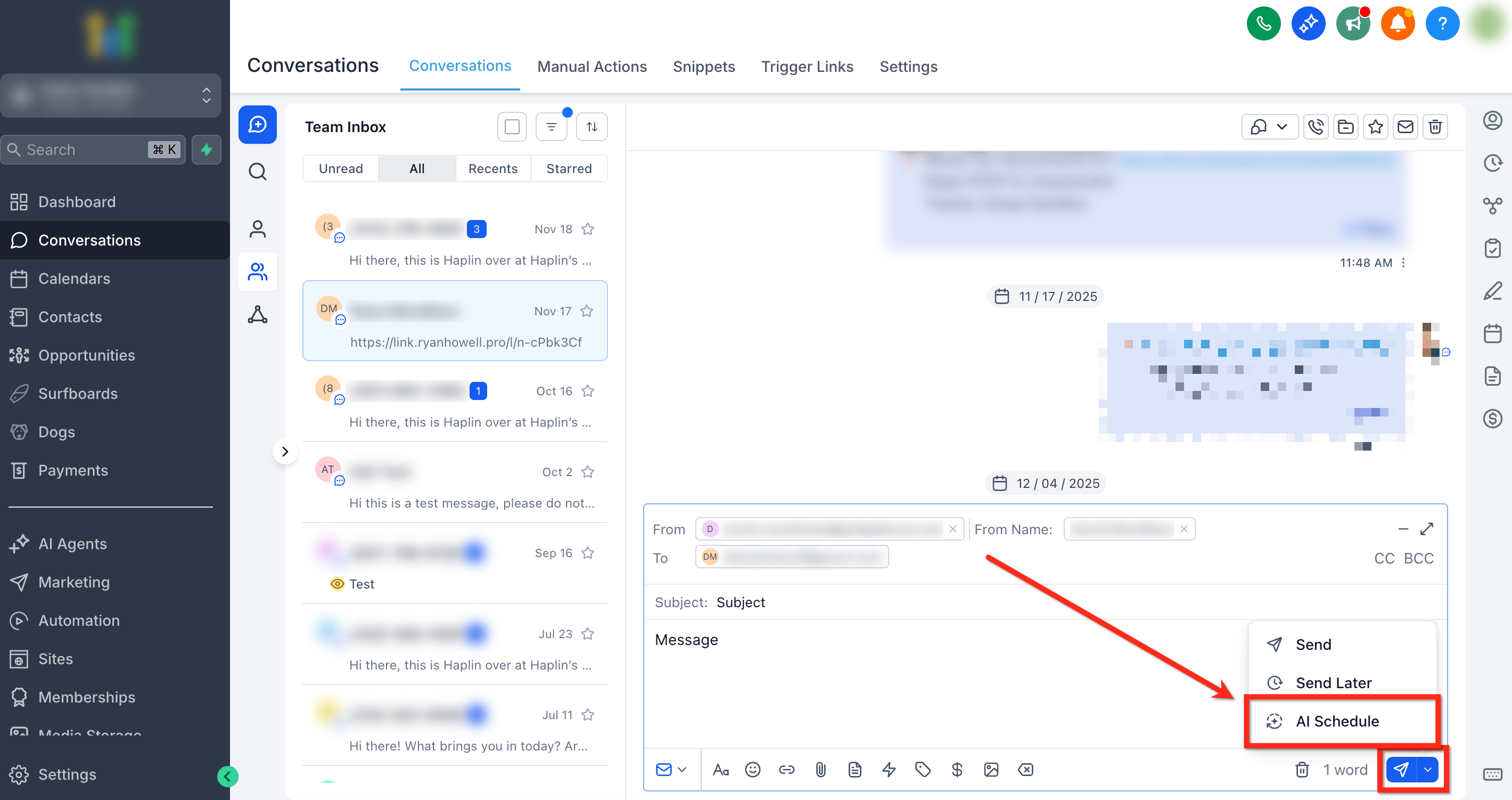
Click the Send menu and choose AI Schedule.
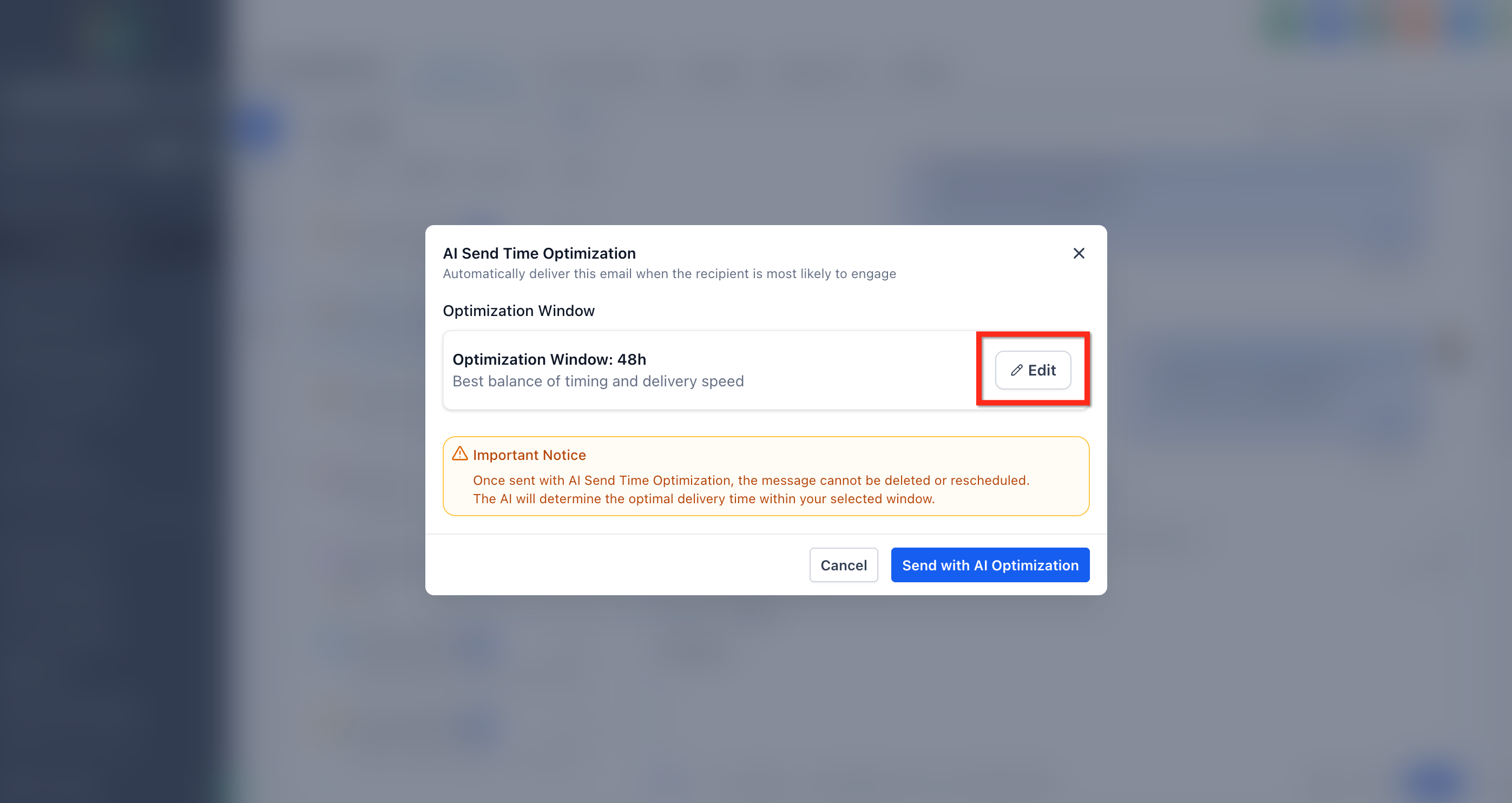
To change the Optimization Window, click Edit.
Choose your desired optimization window (e.g. 12h, 48h, 72h) then click Next.
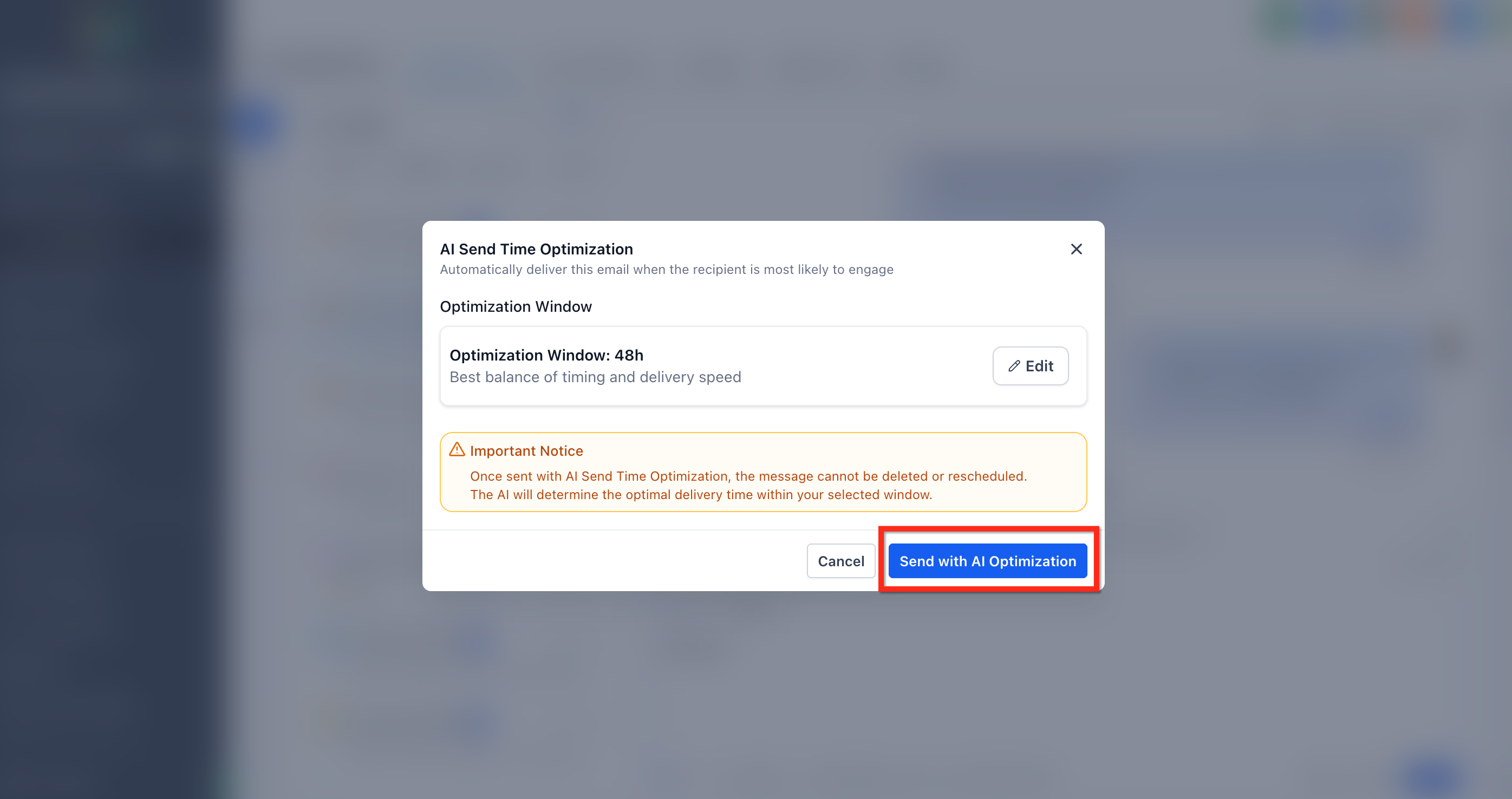
Click Send with AI Optimization to confirm. AI Schedule will schedule your email at the optimal time. If the contact doesn't have sufficient engagement data, the email is sent right away.
After you confirm Send with AI Optimization, the message cannot be deleted or rescheduled. Double-check your email before confirming.
Frequently Asked Questions
Was this article helpful?
That’s Great!
Thank you for your feedback
Sorry! We couldn't be helpful
Thank you for your feedback
Feedback sent
We appreciate your effort and will try to fix the article