This helps you plan Stories ahead, get a mobile reminder, and finish posting inside Instagram with stickers, links, music, or trending audio. Instagram doesn’t allow any third-party platform to directly publish Stories with elements like stickers, links, music, and trending audio. To help you still schedule your content and publish it on time, Social Planner now supports publishing Instagram Stories via mobile push notifications.
TABLE OF CONTENTS
What This Feature Does
With this update, you can:
Schedule Instagram Stories in Social Planner
Add notes for the teammate who will publish it
Receive a push notification on your phone when it's time to post
Tap the notification to open Instagram with the Story media ready
Caption is copied to the clipboard and media is auto downloaded
Add stickers, links, music, etc., inside Instagram before posting
View all scheduled Stories in the Social Planner
Why Push Notifications?
Instagram blocks third party apps from directly publishing Stories with interactive features.
Push notifications allow you to:
Prepare stories ahead of time
Finish them using Instagram native functionalities
Make sure you never miss your posting time
Let any team member publish from their phone
How to Schedule Instagram Stories (Web)
Make sure you:
- Have the mobile app installed
- Have push notifications turned ON
- Are logged into the correct Instagram account
Go to Marketing → Social Planner → Create Post
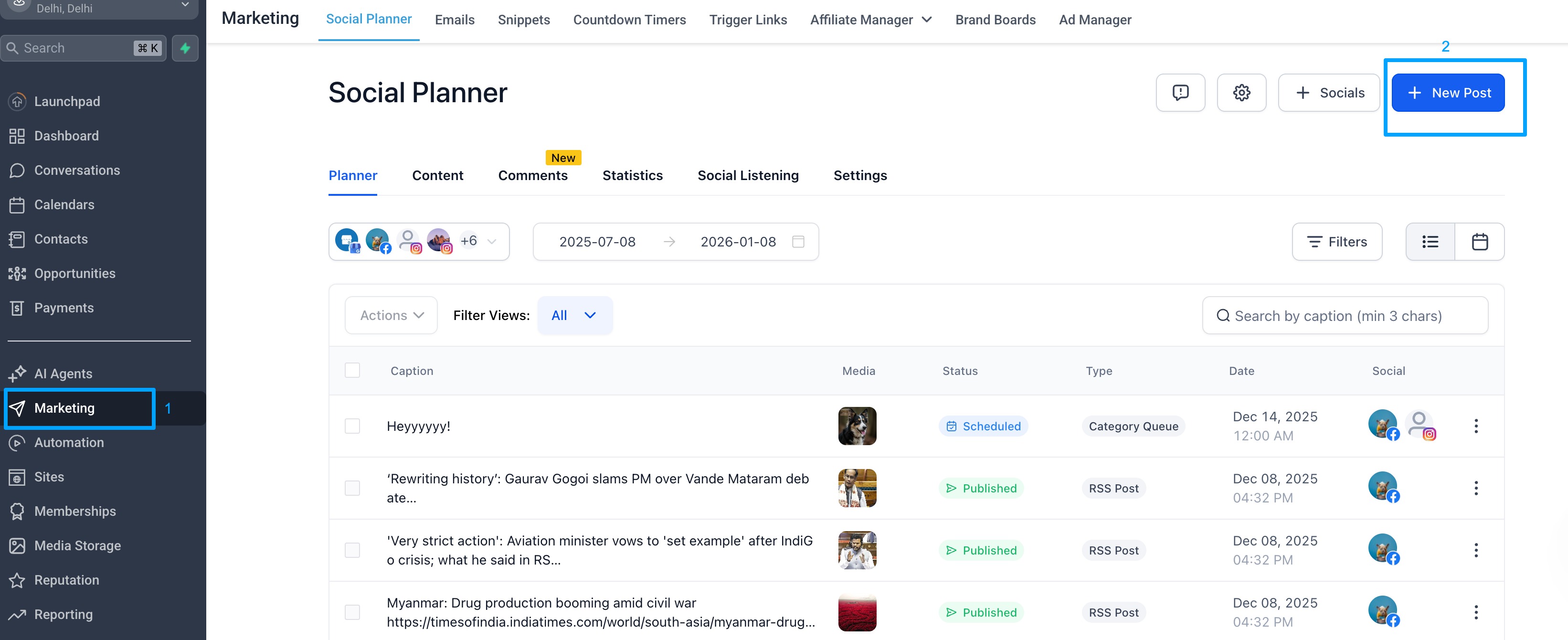
Select Instagram Story
Upload your Story media + add caption
Toggle Publish via Push Notification
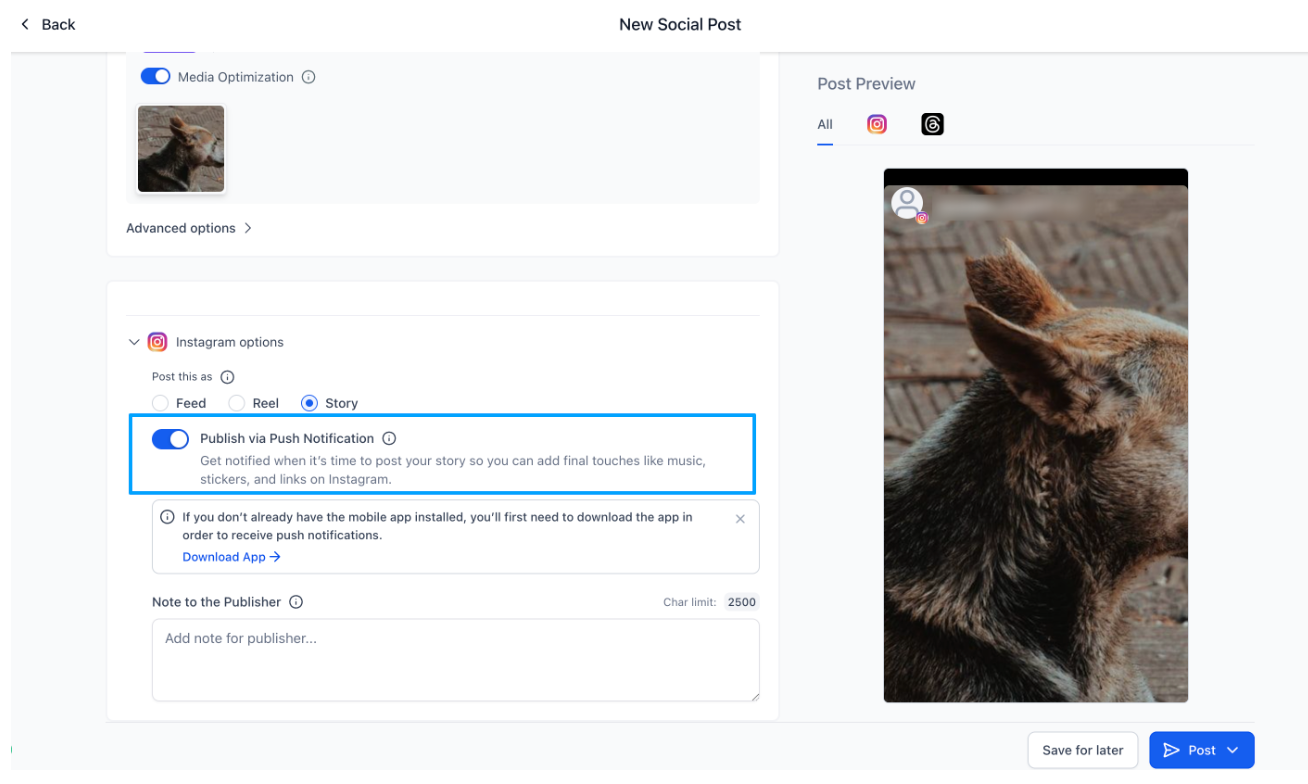
5. (Optional) Add Notes for the teammate who will publish, Example: “Add trending New Year sticker before posting!”
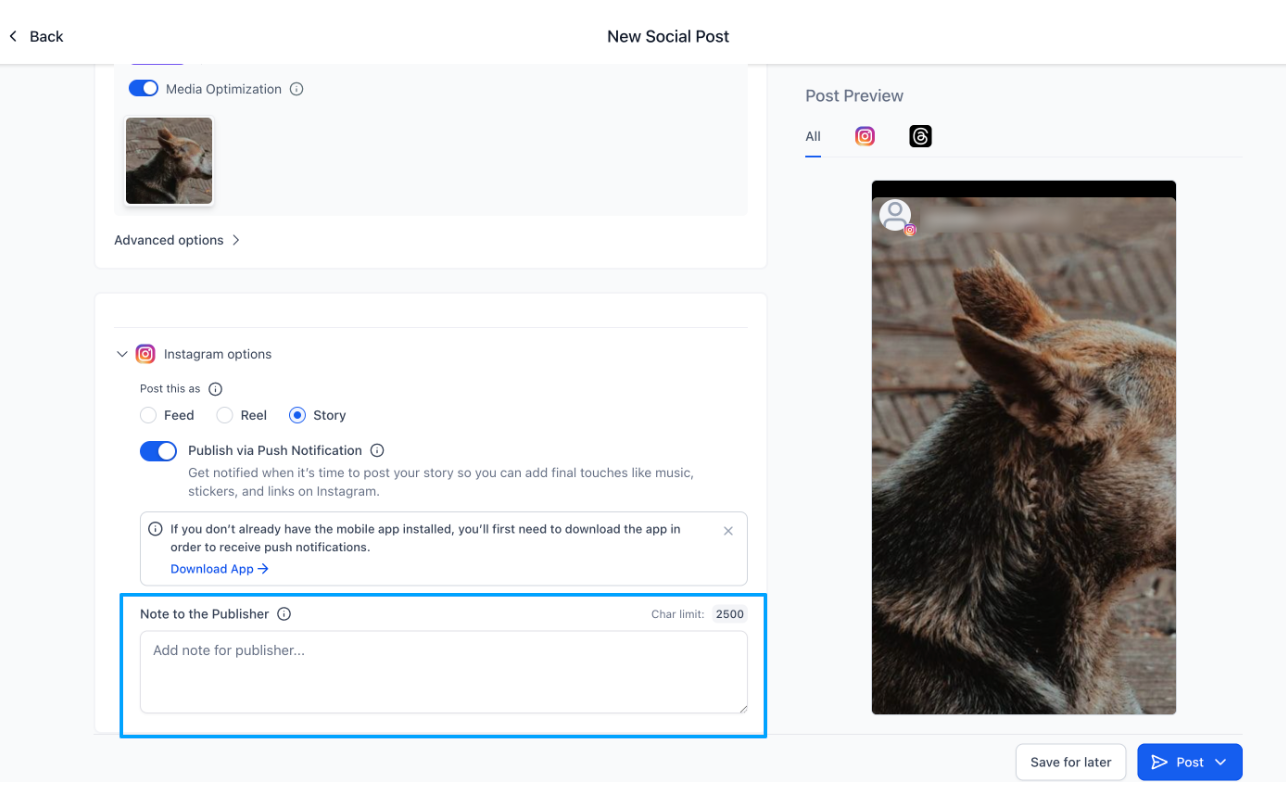
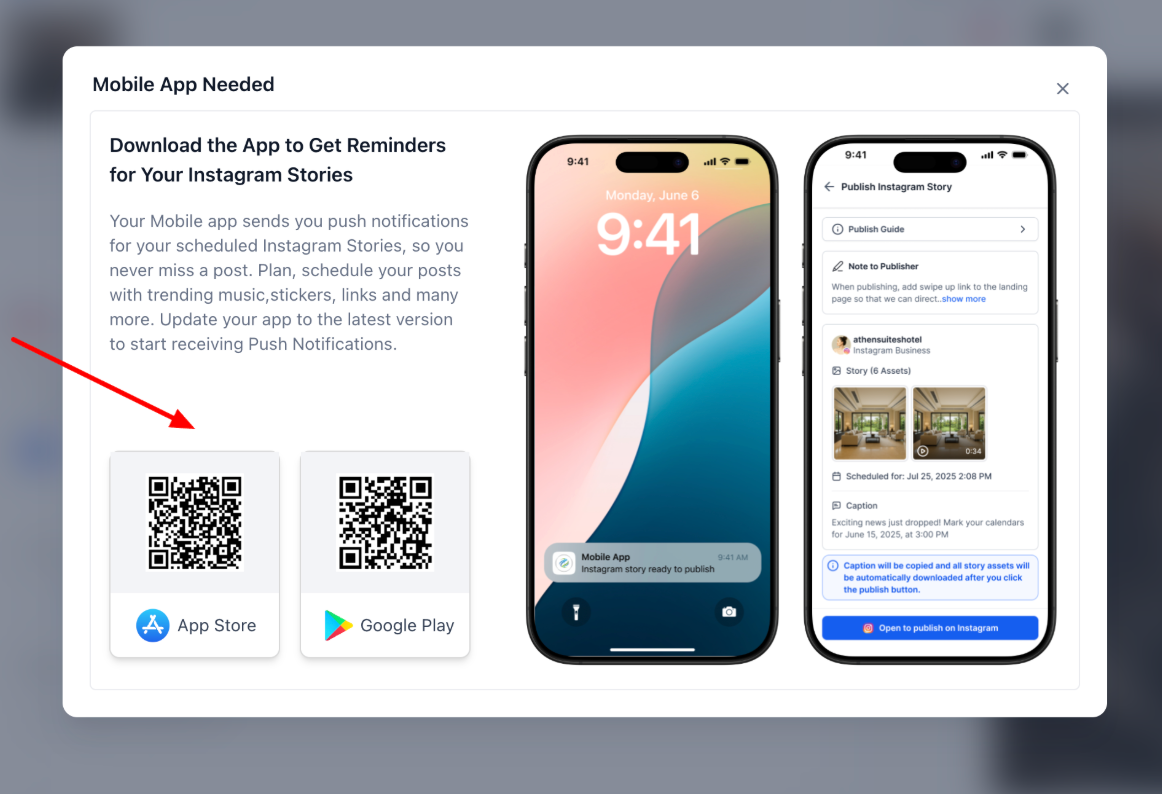
6. If you don't have mobile app downloaded, you can click on " Download App" and scan the QR to download the latest app.
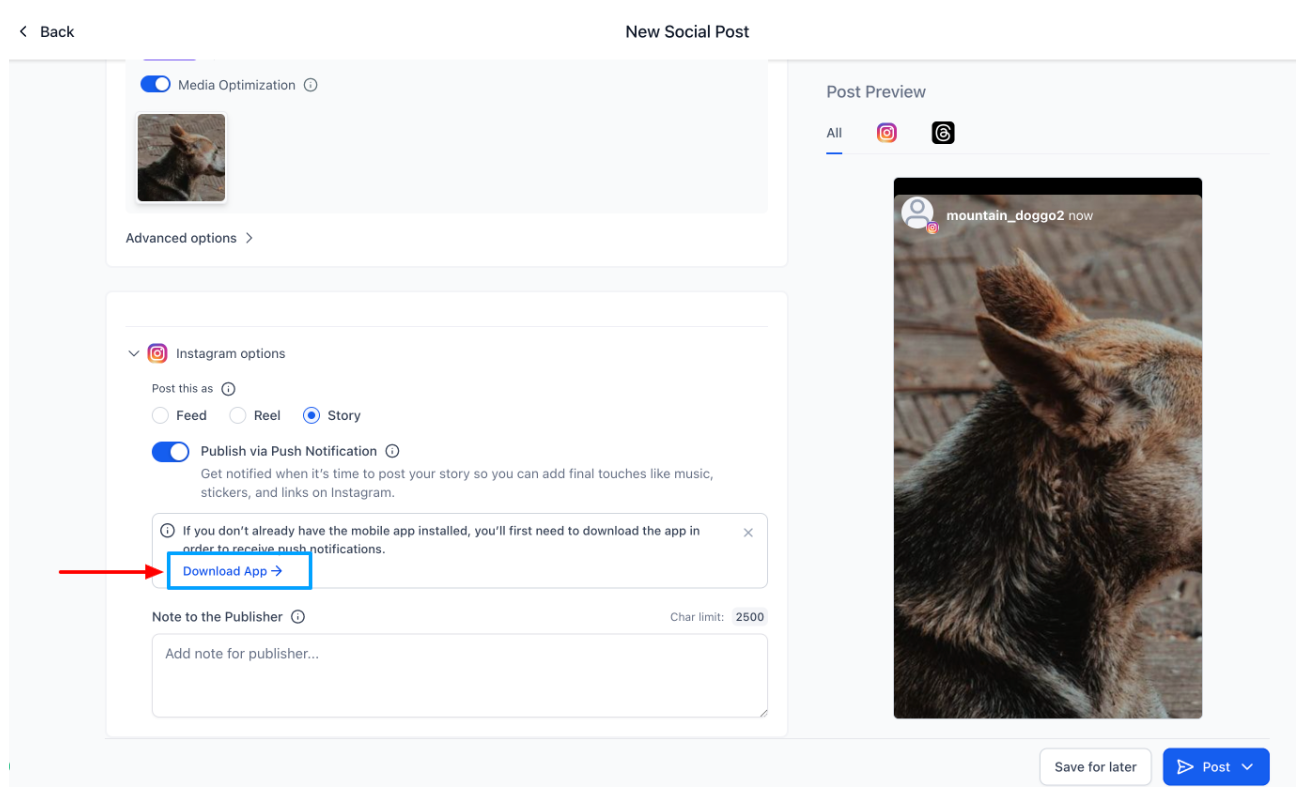
7. Choose a date & time
8. Click Schedule, your Story will now appear in the Scheduled list.
How Publishing Works on Mobile
To publish the Story from your phone:
Make sure you have:
Mobile App installed
Push notifications enabled for this IG profile
At the scheduled time, you’ll receive a mobile push notification
Tap the notification → The app will:
Download the Story media
Copy caption + notes to your clipboard
Open the Instagram app automatically
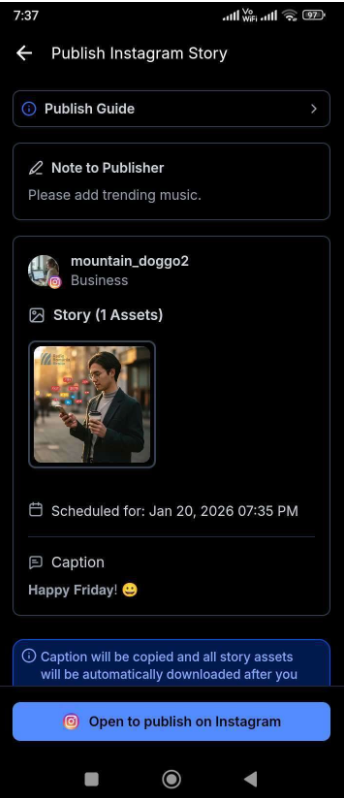
4. Inside Instagram:
Add stickers, links, music, mentions, etc.
Paste the caption
Publish your Story
Frequently Asked Questions
Q. Why can’t Instagram Stories be auto-published?
No. Instagram restricts auto-publishing Story features like stickers, music, links, and audio.
Q. Do I need the mobile app?
The Story stays in the Notified list. You can clone and reschedule it anytime.
Q. Can multiple team members publish the Story?
Yes. Any team member who receives the notification can publish.
Q. What happens when I tap the notification?
Media downloads, caption copies, and Instagram opens automatically.
Q. Can I add stickers, music, or links?
Yes, directly inside Instagram before posting.
Was this article helpful?
That’s Great!
Thank you for your feedback
Sorry! We couldn't be helpful
Thank you for your feedback
Feedback sent
We appreciate your effort and will try to fix the article
