Agent Studio helps HighLevel users manage, update, and optimize existing flow-based AI agents using a visual builder. While Managed Agents is now the recommended experience for creating all new agents, Agent Studio remains available for editing and maintaining existing flow-based agents. This article explains what Agent Studio is, what it can still do, and how to manage your current agents without disrupting live automations.
Important: Agent Studio’s flow-based builder is being replaced by Managed Agents for new agent creation. Existing flow-based agents will continue to work as expected, and any triggers already connected to those agents will keep running. You can still edit, update, and manage existing flow-based agents from your sub-account. To create new agents, use Managed Agents in Agent Studio.
TABLE OF CONTENTS
- What is Agent Studio?
- Key Benefits of Agent Studio
- Drag-and-Drop Agent Builder
- Tool Nodes
- Logic & Flow Control
- Version Control
- How To Use Agent Studio
- Frequently Asked Questions
- Related Articles
What is Agent Studio?
Agent Studio is HighLevel’s flow-based AI agent builder for users who already have existing agents built in the visual canvas experience. It allows you to manage agent logic, update nodes, test behavior, control versions, and maintain connected triggers without rebuilding your automations from scratch.
While new agents should now be created in Managed Agents, Agent Studio remains an important tool for maintaining and improving your current flow-based agents.
Note: Agent Studio is available to Agency Admins/Users and Sub-account Admins/Users. Key Benefits of Agent Studio
Visual flow management: Update and maintain existing flow-based agents using a drag-and-drop canvas.
Flexible node editing: Adjust LLM, API, MCP, Knowledge Base, Web Search, and other supported nodes inside current agents.
- Controlled updates: Test changes in staging before promoting them to production.
- Trigger continuity: Keep existing trigger-based automations running while improving agent logic.
- Safer optimization: Review and refine decision paths, variables, and outputs without rebuilding the entire agent.
- Programmatic access: Continue using supported API-based actions for eligible production-ready agents.
Drag-and-Drop Agent Builder
The visual builder makes it easier to understand how an existing flow-based agent works and where updates need to be made. This is especially useful when troubleshooting issues, refining responses, or expanding the logic inside an agent that is already in use.
The Agent Studio canvas allows you to:
Open and review an existing agent visually.
Move through node connections and decision paths.
Update prompt logic and downstream actions.
Add or revise supported nodes within an existing agent.
Maintain a clearer view of how the full agent operates.
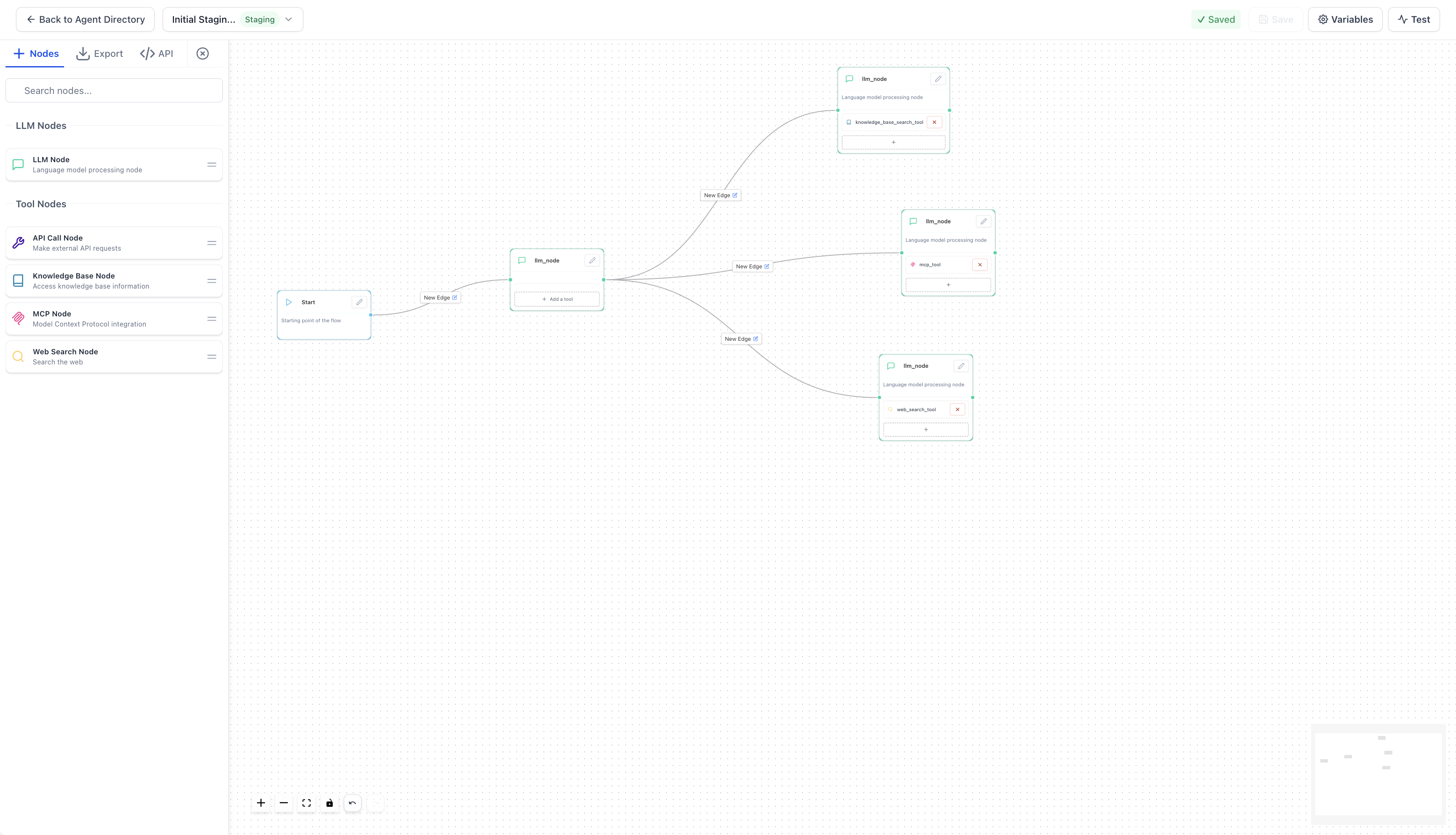
Tool Nodes
Tool nodes extend what an existing agent can do by connecting it to data, logic, and external actions. Updating these nodes helps improve how the agent responds, retrieves information, and completes tasks during live interactions.
LLM Node
The LLM node leverages advanced large language models to generate intelligent, context-aware responses. You can configure prompts, parameters, and output handling to suit your workflows.
MCP Tool Node
The MCP tool node integrates external tools through the Model Context Protocol, extending your agent’s abilities. This is useful for accessing external data sources or triggering actions.
API Tool Node
The API tool node connects directly to third-party services by sending and receiving data via APIs. This allows your agent to interact with outside systems dynamically.
Knowledge Base Tool Node
Attach a knowledge base to your agent so it can respond based on uploaded documents or stored information. This ensures accurate and consistent answers.
Web Search Tool Node
Allow your agent to retrieve the latest information from the internet. This keeps your agent’s responses fresh, relevant, and accurate.
Logic & Flow Control
Logic and flow control features allow your agent to handle complex scenarios and make decisions based on conditions.
Branching via edge conditions: Define different paths depending on variable values or input.
Variable management: Create global, runtime, or input variables to ensure context-aware and flexible responses.
Version Control
Agent Studio supports structured lifecycle management with Draft, Staging, and Production modes. This ensures that changes are tested before they go live, preventing disruptions in production.
Agent Studio uses version management to help you test changes safely before they affect live conversations.

Staging:Your work-in-progress version. Saving updates Staging without impacting live traffic.

Production: The live version that runs for real contacts. A Production version is created only when you promote a Staging version.
How To Use Agent Studio
Proper setup ensures you get the most from Agent Studio and its features. Follow these steps to get started:
Navigate to AI Agents > Agent Studio from your HighLevel dashboard.
Click on Flow Agents to switch to flow agents list.
Click on the name of an existing flow agent to open it.

Add tool nodes (LLM, MCP, API, Knowledge Base, or Web Search) to your workflow.
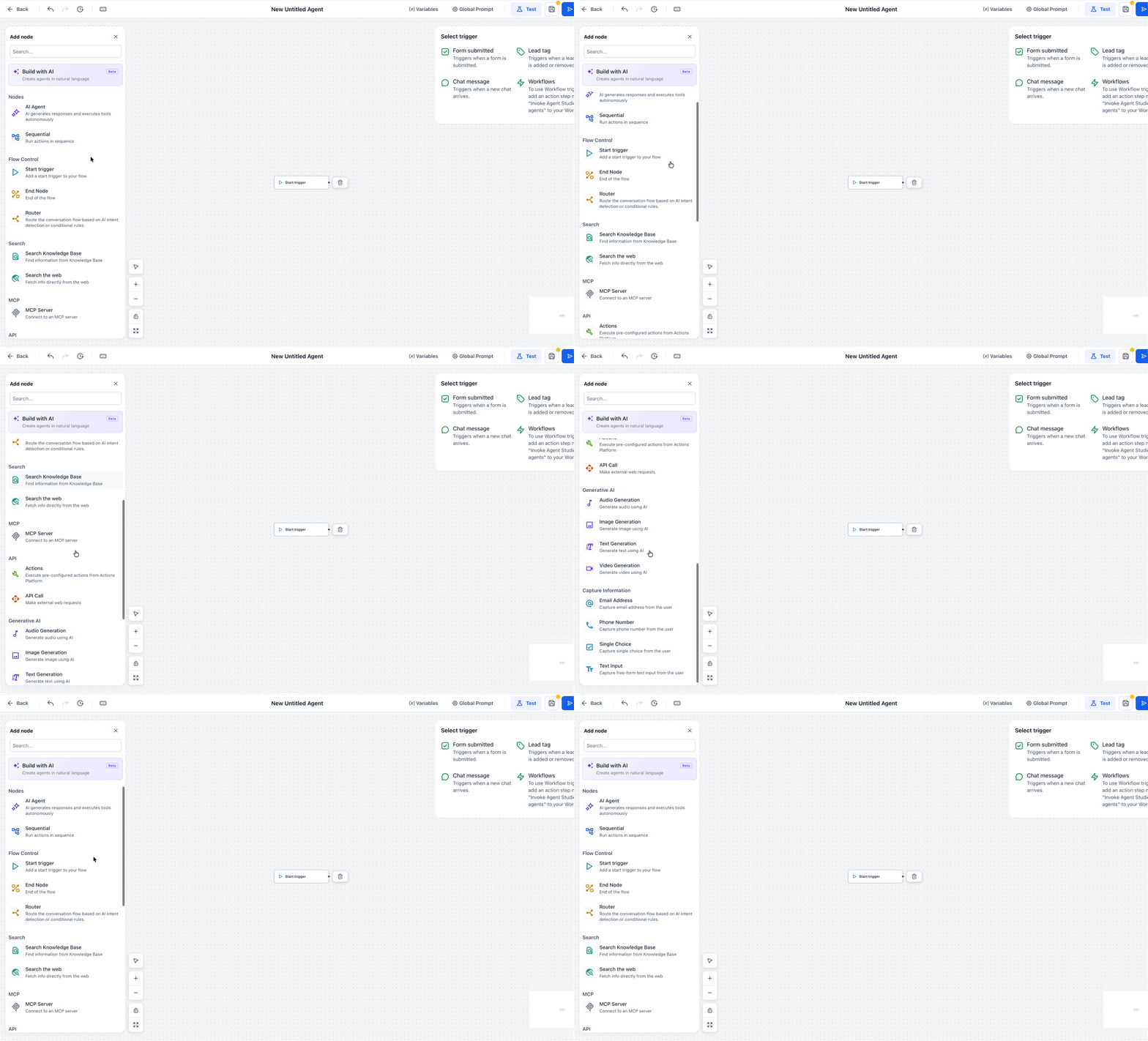
Connect nodes with edges to define logic paths.
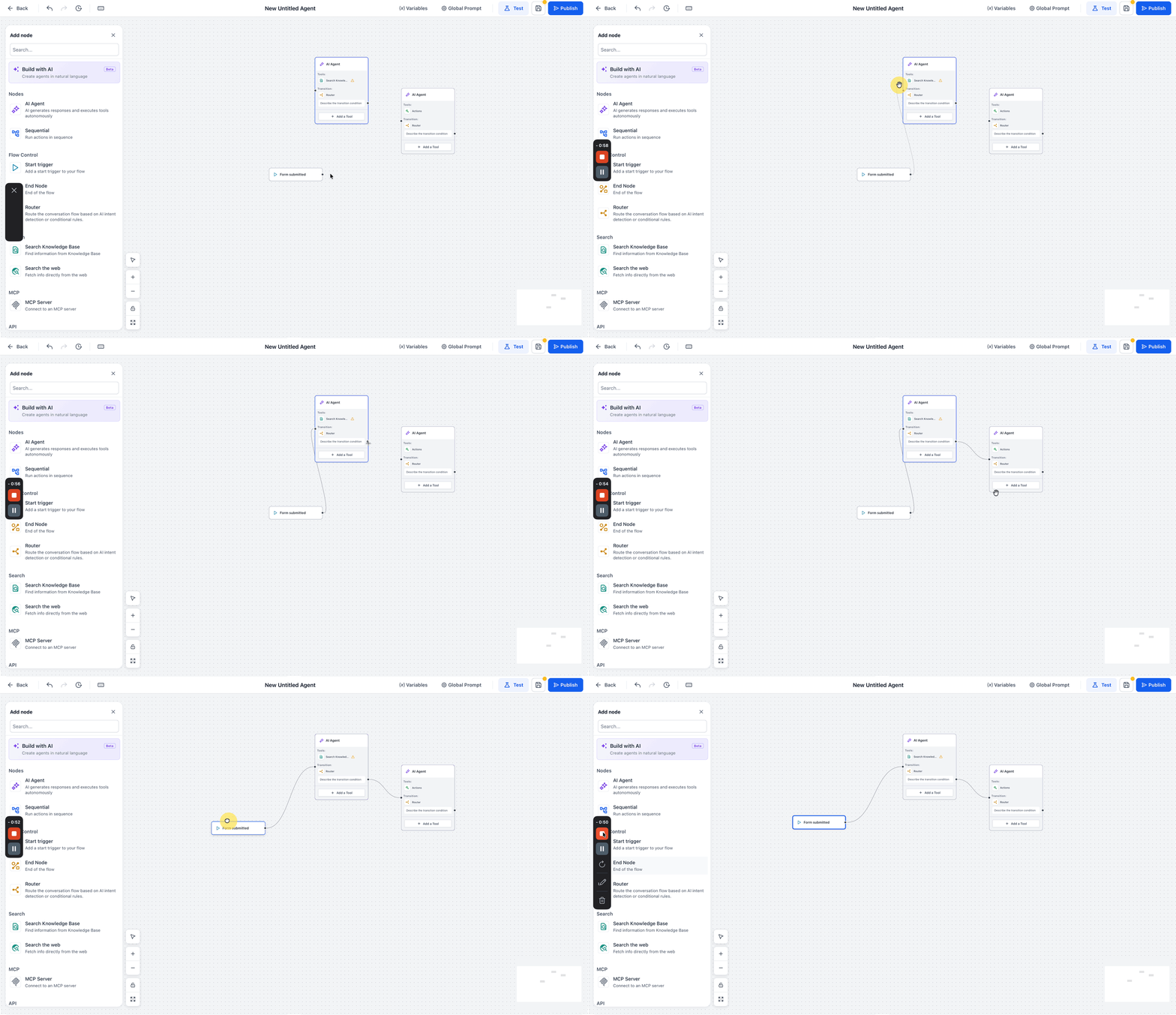
Configure variables to pass data between nodes.
Use the Test Tab to validate your agent’s flow.

Save and Publish your agent to create/update the Staging version. When you are ready to go live, promote the Staging version to Production.
Deploy Agent.

Frequently Asked Questions
Q: Can I still create new agents in Agent Studio’s flow-based builder?
No. New agent creation now happens in Managed Agents.
Q: What happens to my existing flow-based agents?
Your existing flow-based agents will continue to work as expected. You can still edit, update, and manage them from your sub-account.
Q: Will my existing Agent Studio triggers keep working?
Yes. Existing triggers connected to your current flow-based agents will continue running as expected.
Q: Can I still edit nodes and logic inside my existing agents?
Yes. You can continue using Agent Studio to edit and manage nodes, logic paths, variables, and related configurations for existing flow-based agents.
Q: Where should I create new agents going forward?
Create all new agents in Managed Agents.
Q: Does Agent Studio still support testing and version management for existing agents?
Yes. Existing flow-based agents can still be tested, updated, and promoted through the available versioning workflow.
Q: Should I move all existing flow-based agents to Managed Agents right away?
Existing agents can continue working as they do today. Use Managed Agents for new agent creation, and manage current flow-based agents in Agent Studio unless your team has a separate migration plan.
Related Articles
Was this article helpful?
That’s Great!
Thank you for your feedback
Sorry! We couldn't be helpful
Thank you for your feedback
Feedback sent
We appreciate your effort and will try to fix the article