Authenticator app support adds an app-based verification option to Two-Factor Authentication (2FA). You can connect a supported TOTP authenticator app, use time-based verification codes during login and other supported security checks, and save backup codes for account recovery.
TABLE OF CONTENTS
- What Is Authenticator App Support for 2FA?
- Key Benefits
- Set Up an Authenticator App for 2FA
- Important Notes
- Frequently Asked Questions
- Related Articles
What Is Authenticator App Support for 2FA?
Authenticator app support lets you use a time-based one-time password (TOTP) as an additional verification method for your account.
You can use any TOTP-compatible authenticator app, including Google Authenticator, Microsoft Authenticator, Authy, and other supported apps.
After setup, the authenticator app generates temporary verification codes that can be used during login and other supported security checks.
Key Benefits
- App-based verification: Generate time-sensitive verification codes without relying only on SMS or email delivery.
- Flexible setup: Connect your authenticator app using a QR code or manual setup key.
- Backup access: Save one-time backup codes in case you lose access to your authenticator app.
- Additional account security: TOTP verification reduces reliance on SMS-based authentication and helps protect against risks such as SIM-swap attacks.
Authenticator app codes can also be used for supported sensitive account actions, such as verifying a login email change when required.
Set Up an Authenticator App for 2FA
Follow the steps below to connect an authenticator app to your account.
Step 1: Open Security Settings in My Profile
From Agency View, go to Settings → My Profile → Security.
Security is available from My Profile in both Agency and Sub-Account views.
In the Two-Factor Authentication section, open the authenticator app setup. Use your preferred authenticator app to scan the displayed QR code or manually enter the provided setup key.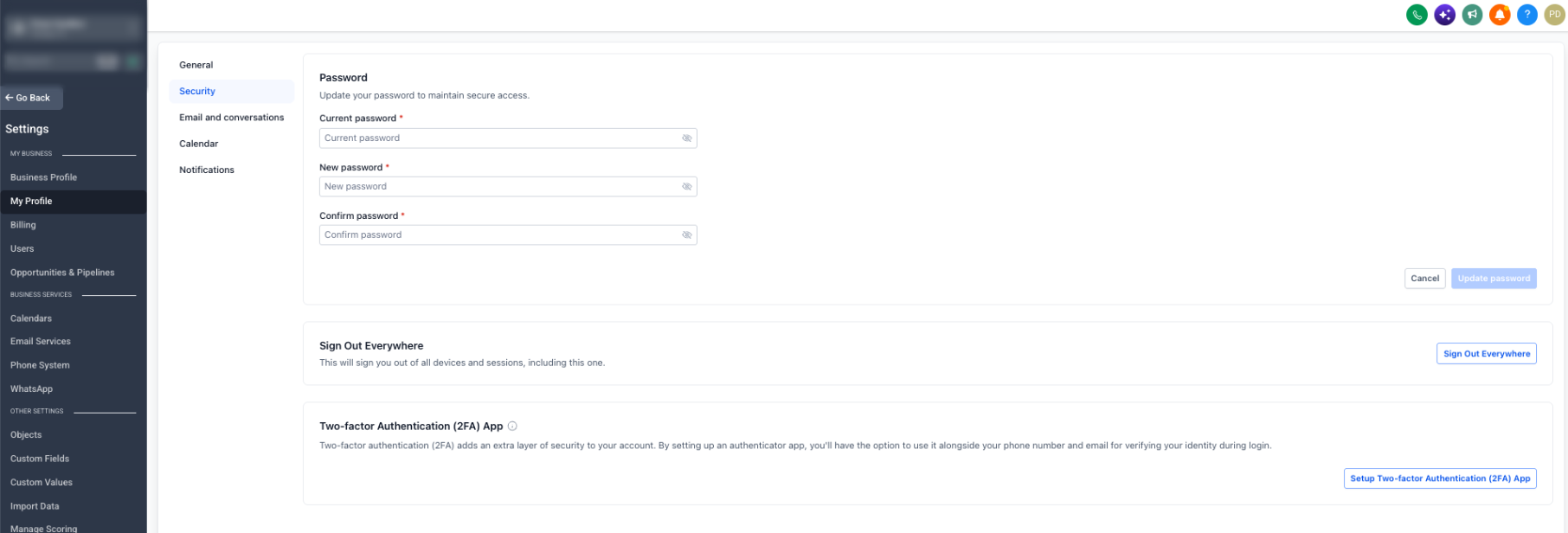
Step 2: Verify the Authenticator App
After scanning the QR code or entering the setup key, your authenticator app generates a one-time verification code.
Enter the current code when prompted, then complete the verification process.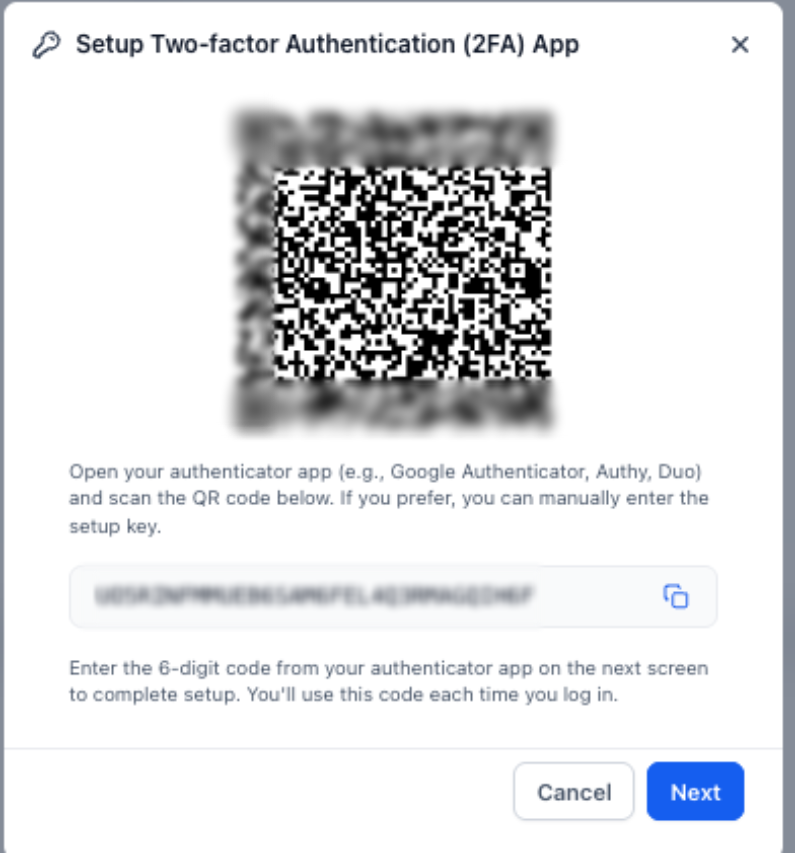
Step 3: Save Your Backup Codes
After setup, securely store the generated backup codes. These codes can be used if you lose access to your authenticator app.
If your backup codes are lost, exposed, or already used, you can generate a new set from My Profile → Security.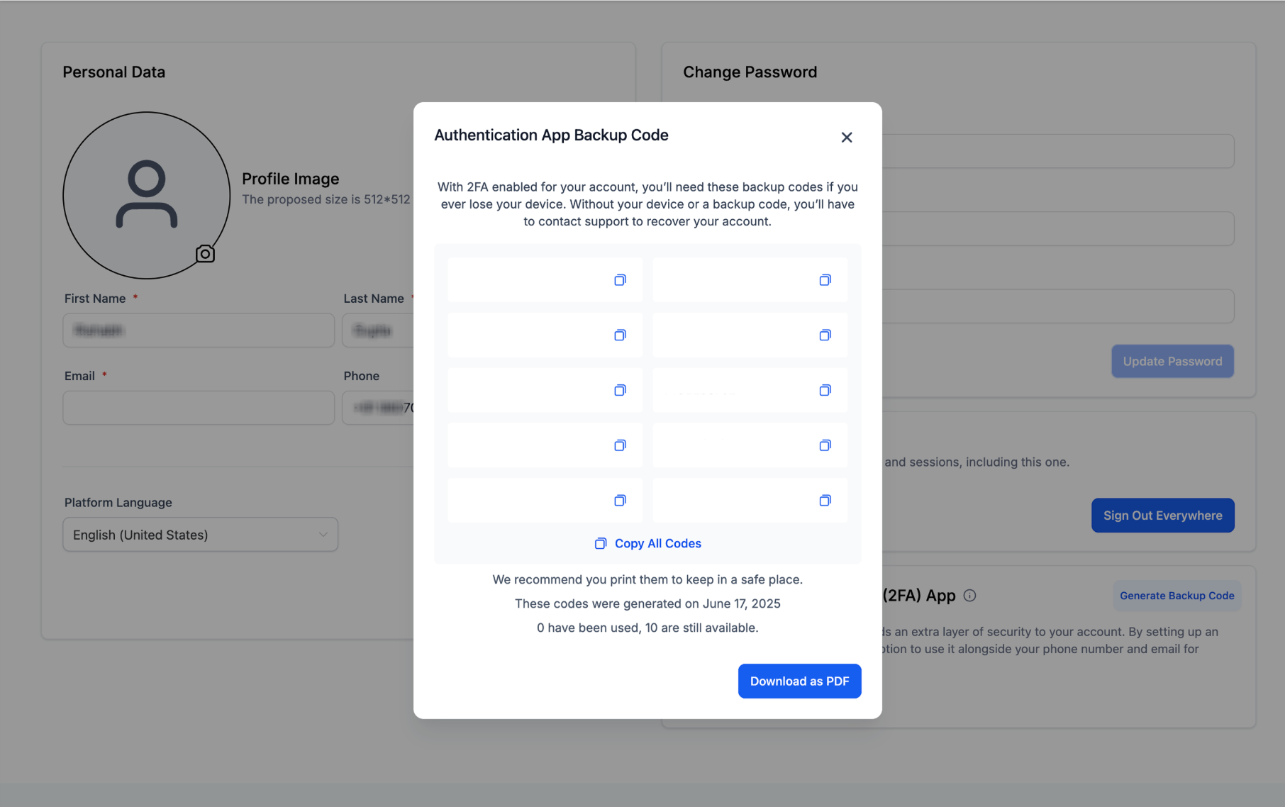
Use the Authenticator App During Login
When prompted for Two-Factor Authentication during login, choose the authenticator app option and enter the current verification code generated by your app.
Important Notes
- Only the currently logged-in user can set up an authenticator app for their own account. Admins cannot configure an authenticator app for another user through Login As.
- Ten backup codes are generated at a time, and each code can be used only once.
- The agency name can appear in the authenticator app. Authenticator app setup is associated with the applicable user-agency combination.
- Store backup codes securely and do not share them with other users.
Frequently Asked Questions
Q: Can I use any authenticator app?
Yes. You can use any TOTP-compatible authenticator app, including Google Authenticator, Microsoft Authenticator, Authy, and other supported apps.
Q: What should I do if I lose access to my authenticator app?
Use an available backup code if you have one. You can manage or regenerate backup codes from My Profile → Security when you have access to your account.
Q: Who can set up the authenticator app?
Only the currently logged-in user can configure an authenticator app for their own account. An admin cannot configure it for another user through Login As.
Q: How many backup codes are generated?
Ten backup codes are generated at a time. Each backup code can be used only once.
Q: What security benefit does an authenticator app provide compared with SMS verification?
Authenticator apps generate time-based verification codes without relying on SMS delivery, reducing exposure to risks such as SIM-swap attacks.
Related Articles
- Password Requirements and Account Security Best Practices
- Mandatory 2FA for Phone Number Updates
- Enhanced Account Security
- HighLevel Security and Compliance Overview
Was this article helpful?
That’s Great!
Thank you for your feedback
Sorry! We couldn't be helpful
Thank you for your feedback
Feedback sent
We appreciate your effort and will try to fix the article