This article explains how to use Bulk Actions in Affiliate Manager to approve, deny, or delete multiple affiliate commissions at once. Bulk Actions are available from an affiliate profile and from the Affiliate Manager dashboard.
TABLE OF CONTENTS
- What is Bulk Actions for Affiliate Commissions?
- Key Benefits of Bulk Actions for Affiliate Commissions
- How To Use Bulk Actions in the Affiliate Profile
- How To Use Bulk Actions from the Dashboard
- Filtering Commissions by Status and Campaign
- Frequently Asked Questions
What is Bulk Actions for Affiliate Commissions?
Bulk Actions for Affiliate Commissions allow you to manage multiple commission records at once—directly from the affiliate profile or the main commissions dashboard. This eliminates the need for repetitive, individual approvals or deletions and helps you save valuable time.
Important: Only Denied commissions can be deleted. If a commission is not already denied, deny it before attempting to delete it.
Key Benefits of Bulk Actions for Affiliate Commissions
Manage commissions faster with less effort by using these new bulk tools.
Approve or deny multiple commissions at once, and delete eligible Denied commissions in bulk
Access bulk actions from both the affiliate profile and main dashboard
Save time during high-volume commission reviews or payouts
Filter commissions by status (approved, pending, denied) or campaign
Reduce manual admin work and repetitive clicks
Improve affiliate management efficiency for teams and agencies
How To Use Bulk Actions in the Affiliate Profile
Bulk actions help streamline the process of managing commissions. This section walks you through the exact steps.
From the sub-account, go to Marketing → Affiliate Manager.

Open the Affiliate section, then select the affiliate whose commissions you want to manage.
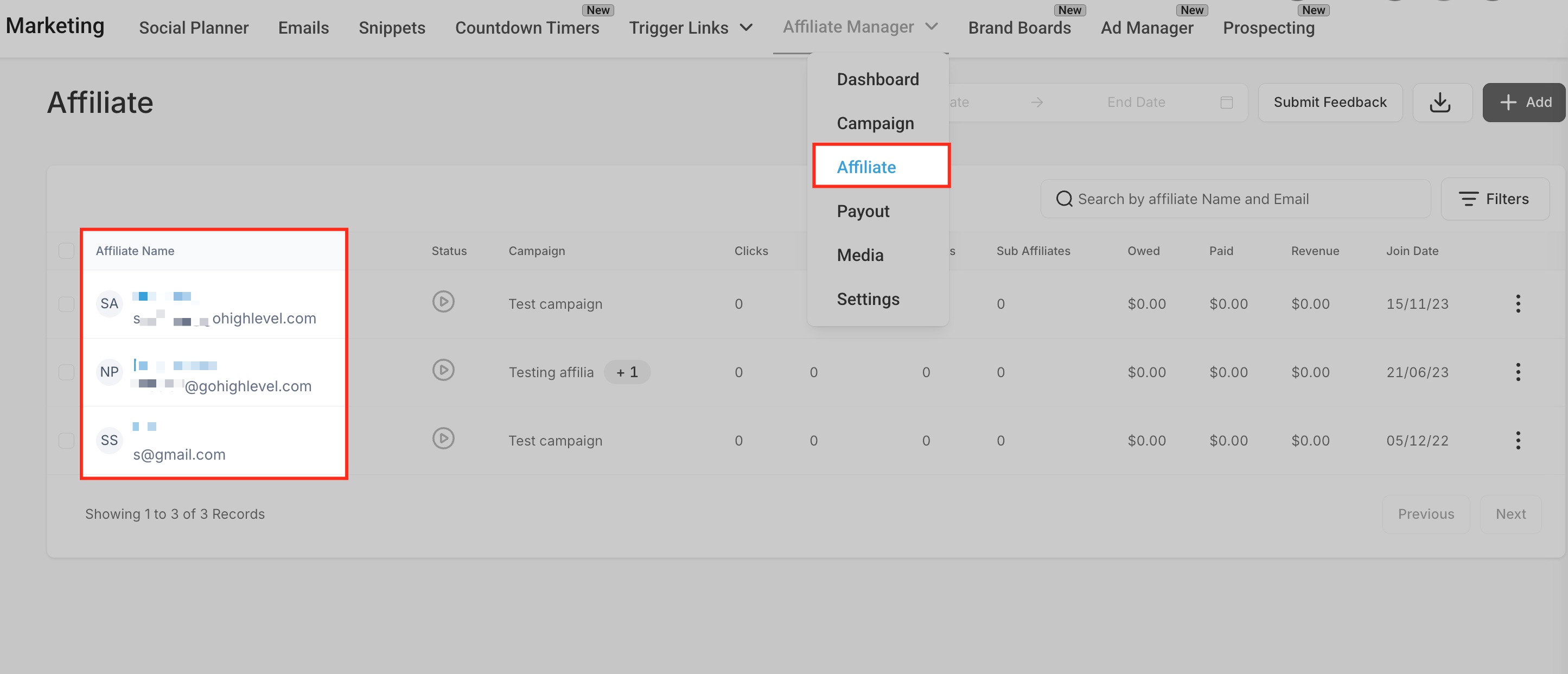
In the affiliate profile, open the Commissions tab.

Use the checkboxes to select one or more commissions.
Click the Bulk Actions button.
Choose the available bulk action:
- Approve to approve the selected eligible commissions.
- Deny to deny the selected eligible commissions.
- Delete to permanently remove selected Denied commissions.
Important: A commission must be denied before it can be deleted.
How To Use Bulk Actions from the Dashboard
You can also perform the same bulk operations from the global commissions dashboard—ideal for reviewing latest activities across all affiliates.
Navigate to the Affiliate Manager Dashboard.
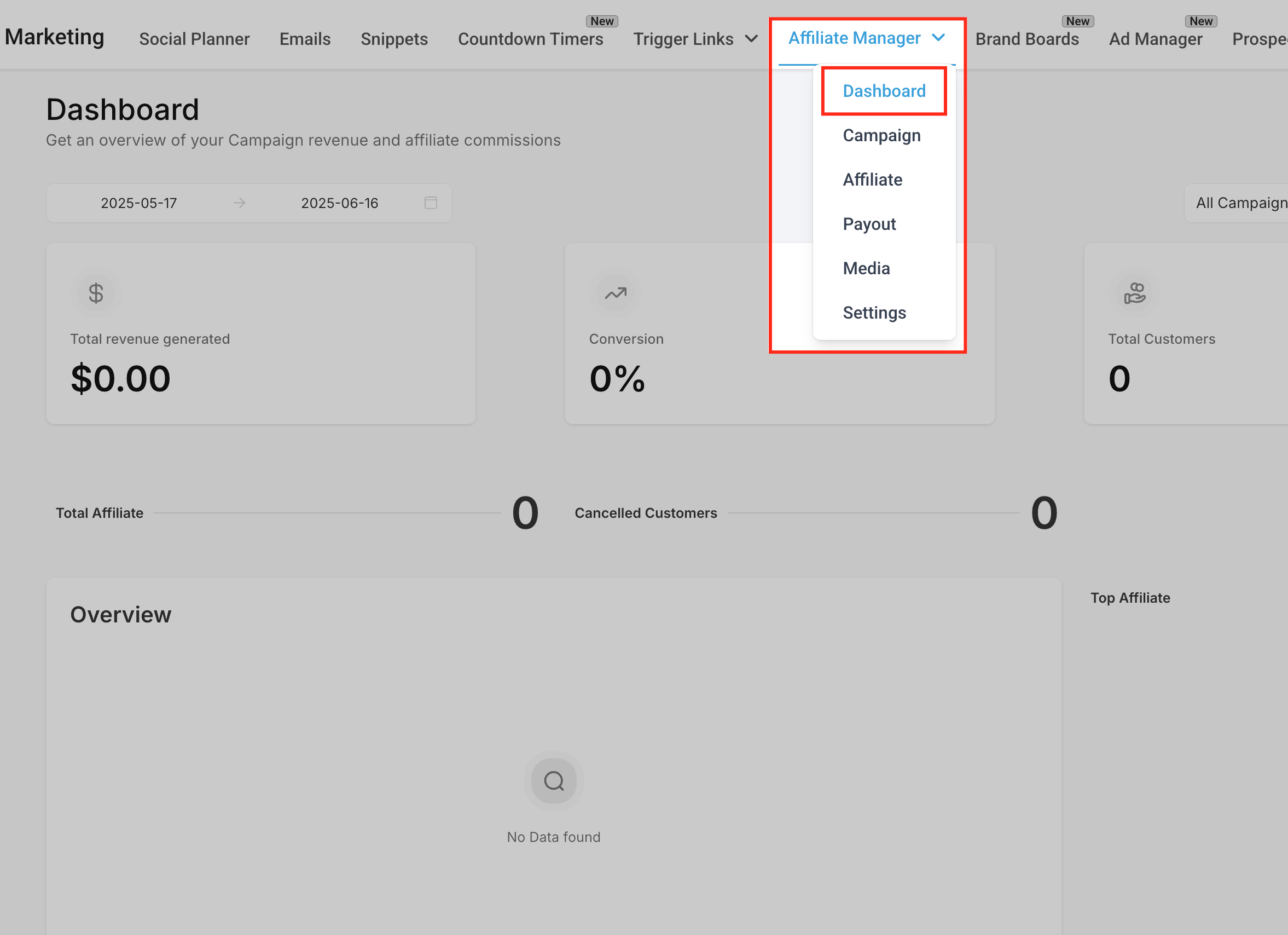
Scroll to the Latest Updates section and locate the recent commissions list.
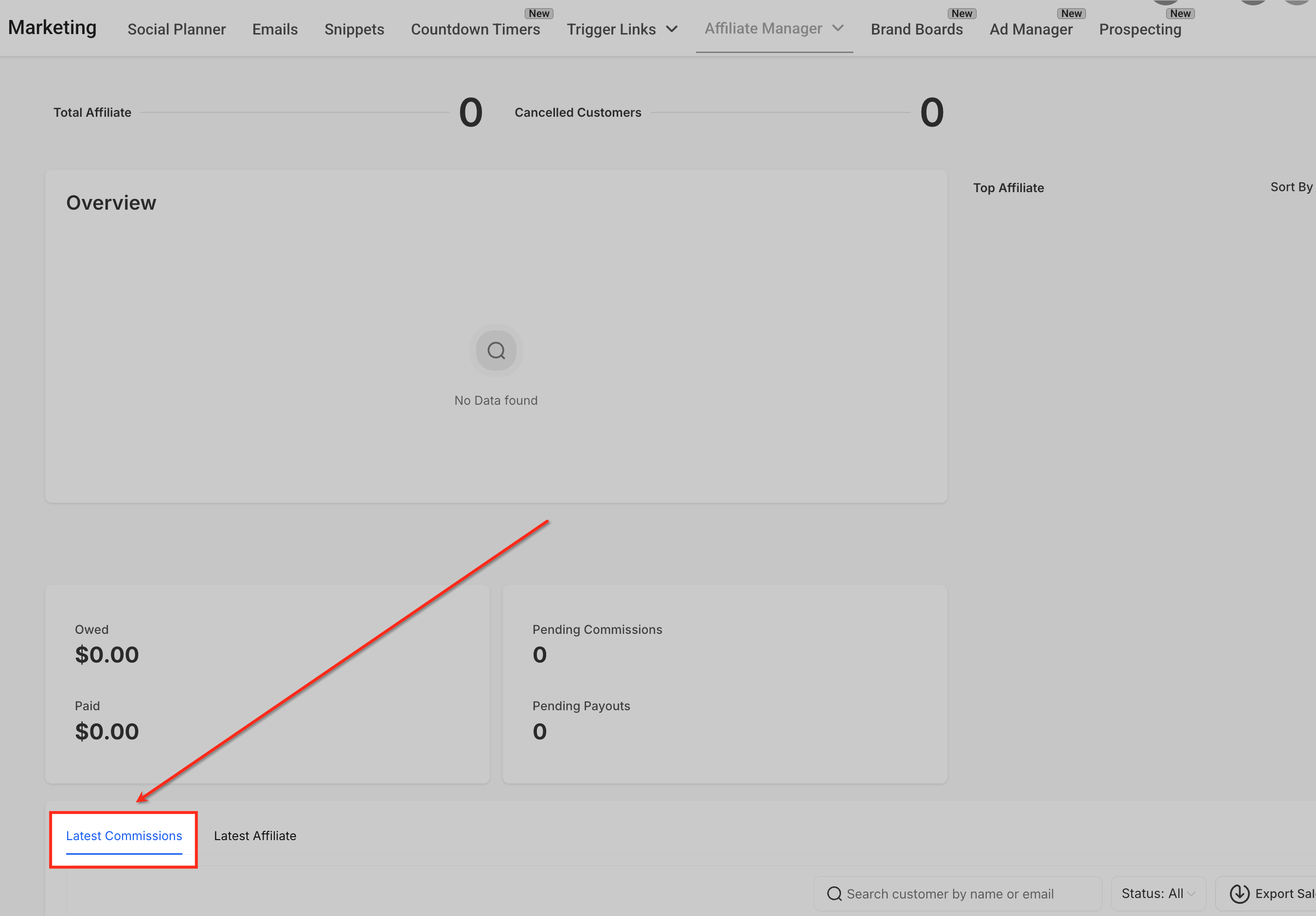
Use checkboxes to select multiple commissions.
Click Bulk Actions and select the appropriate action for the selected commissions. To delete commissions, make sure the selected commissions are already in Denied status.
Filtering Commissions by Status and Campaign
Filters help you quickly narrow down commissions so you can take action faster—especially useful when managing large affiliate programs.
Use the Status filter to narrow the list by commission status, such as Pending, Approved, or Denied.
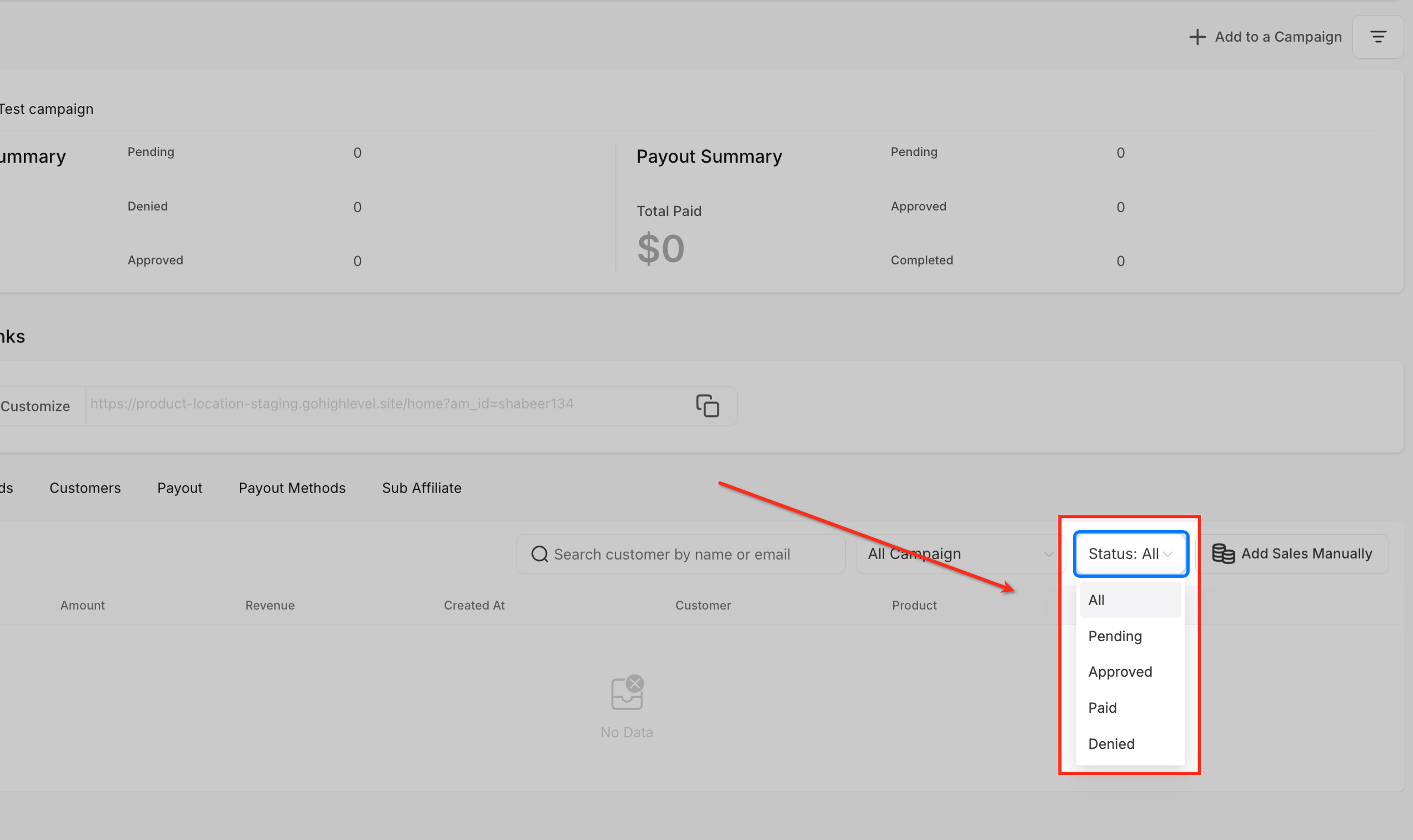
Use the Campaign filter to isolate commissions by affiliate campaign.
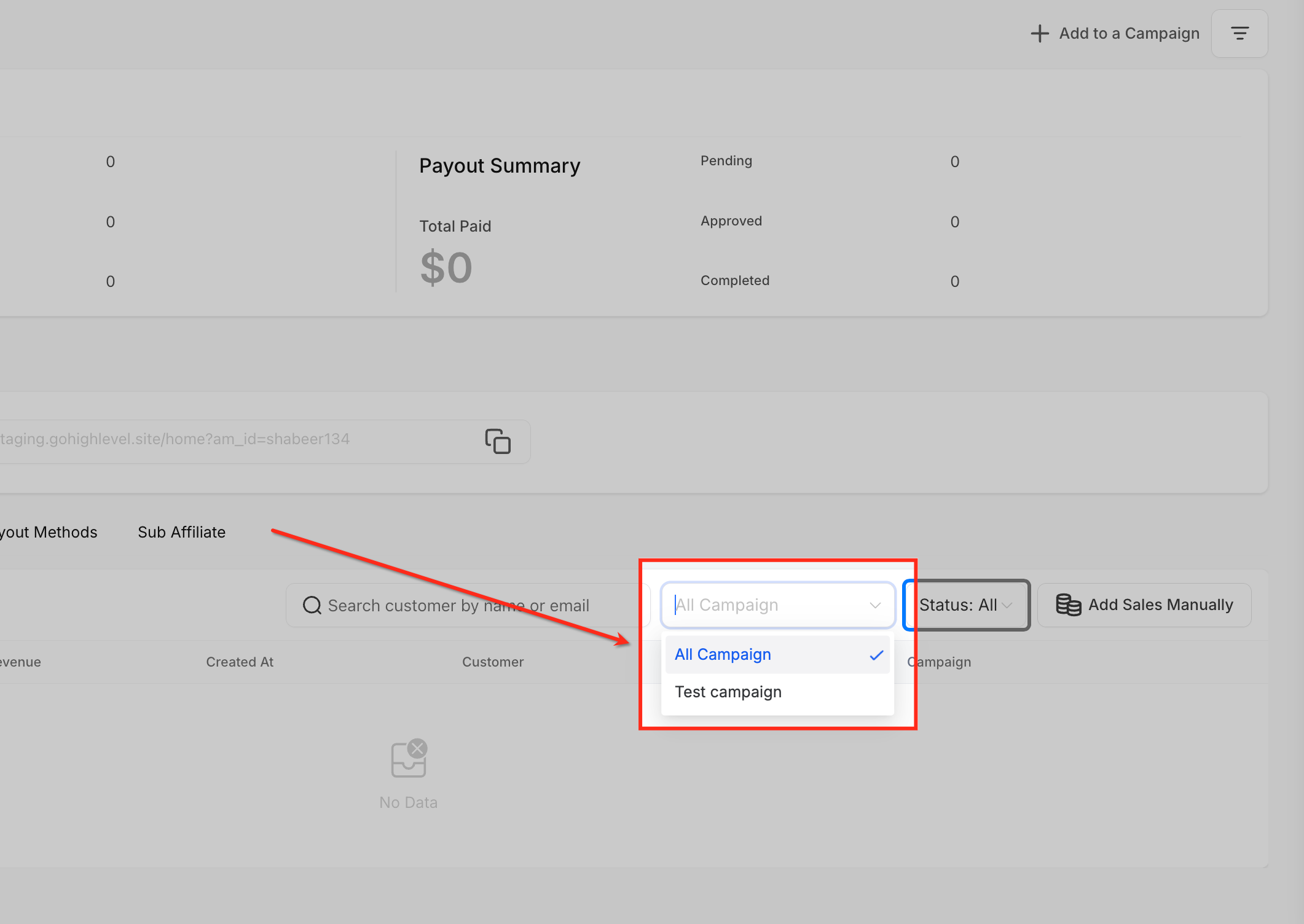
Combine filters for even more precise searches.
Frequently Asked Questions
Q: Can I undo a bulk action?
No. Once a bulk action is submitted, it is final. Make sure to double-check your selections before confirming.
Q: Are bulk actions available to all user roles?
Only users with permission to manage affiliate commissions can perform bulk actions.
Q: Can I apply bulk actions to commissions from different affiliates at once?
Yes, when using the dashboard view, you can select commissions across multiple affiliates.
Q: Do these bulk actions trigger any email notifications to affiliates?
Currently, bulk actions do not automatically trigger affiliate notifications.
Q: Is there a limit to how many commissions I can bulk approve at once?
There is no fixed limit, but large volumes may take a few seconds to process.
Was this article helpful?
That’s Great!
Thank you for your feedback
Sorry! We couldn't be helpful
Thank you for your feedback
Feedback sent
We appreciate your effort and will try to fix the article