HighLevel allows you to pay affiliates using PayPal Auto Payouts or a manual payment method of your choice, as long as manually processed payouts are marked as completed in HighLevel. However, HighLevel offers some faster, more efficient options to streamline the process.
TABLE OF CONTENTS
Payout Options Available in HighLevel:
- Auto Payouts via PayPal (Fastest): Automate affiliate payments directly from the HighLevel dashboard using PayPal Payouts API. No need to log in to PayPal or manually mark payouts as paid.
- Bank Payments: Use banks or other methods to pay affiliates manually, then mark the payouts as paid in HighLevel.
How Payouts Work:
There are two key steps to handling affiliate payouts:
- Generating Payouts: HighLevel generates payouts automatically based on the campaign commission settings and configured payout term. Payouts appear in the Pending tab for review.
- Paying Affiliates & Marking Payouts as Paid: You can choose between automated PayPal payouts or manual methods. Here's how each works:
1. Auto Payouts Using PayPal (Fastest Option)
PayPal Payouts API is the quickest and most cost-effective way to pay multiple affiliates at once. After a one-time setup, you can securely pay affiliates without leaving the HighLevel platform.
To learn how to configure PayPal Auto Payouts, click here.
2. Paying Affiliates Manually
For those who prefer bank payments, HighLevel allows you to process payouts and then mark them as paid. Here's how to do it:
- Go to the Payouts Page: Head to the payouts section within HighLevel.
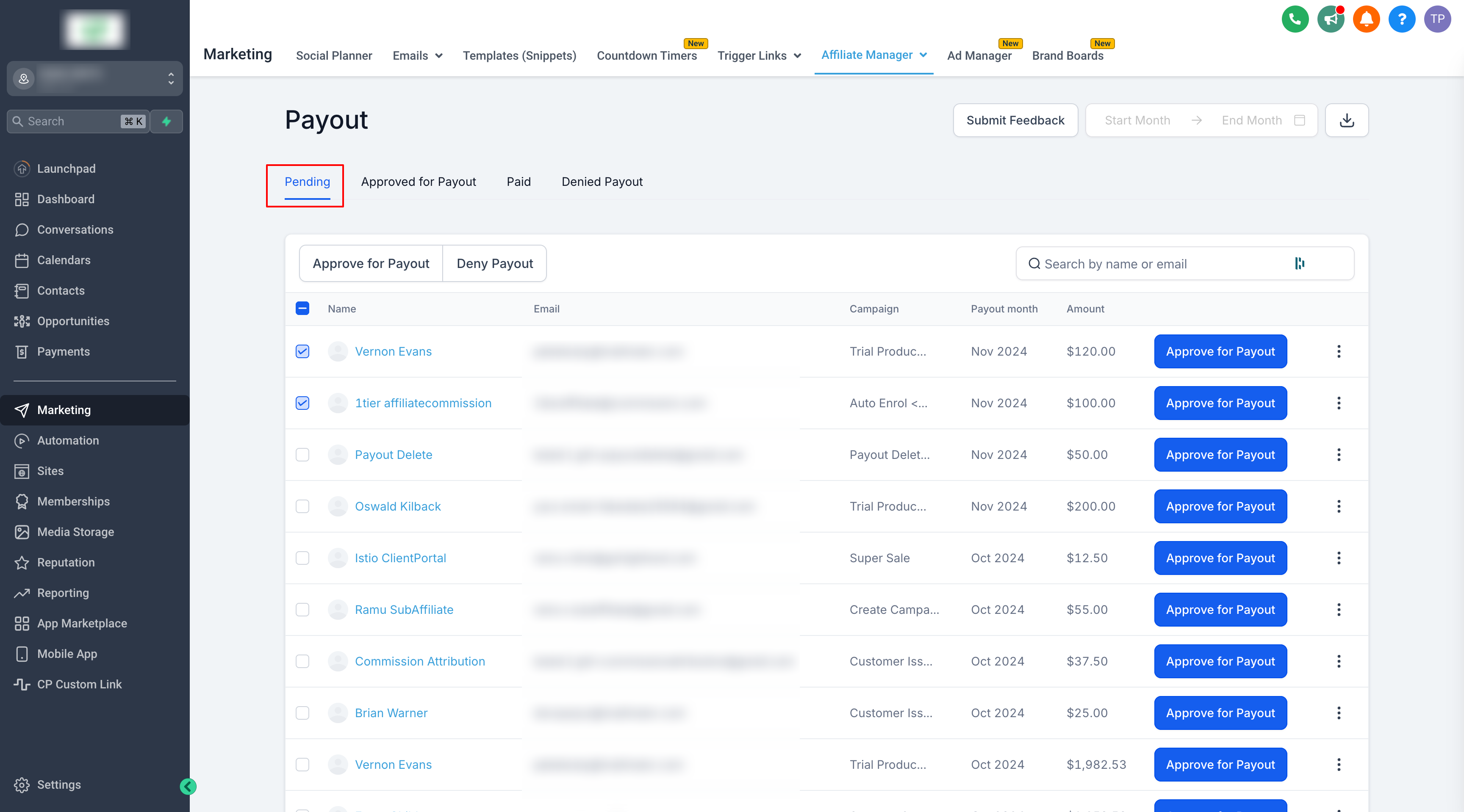
- Approve Payouts: In the "Pending" tab, approve the payouts you want to process.
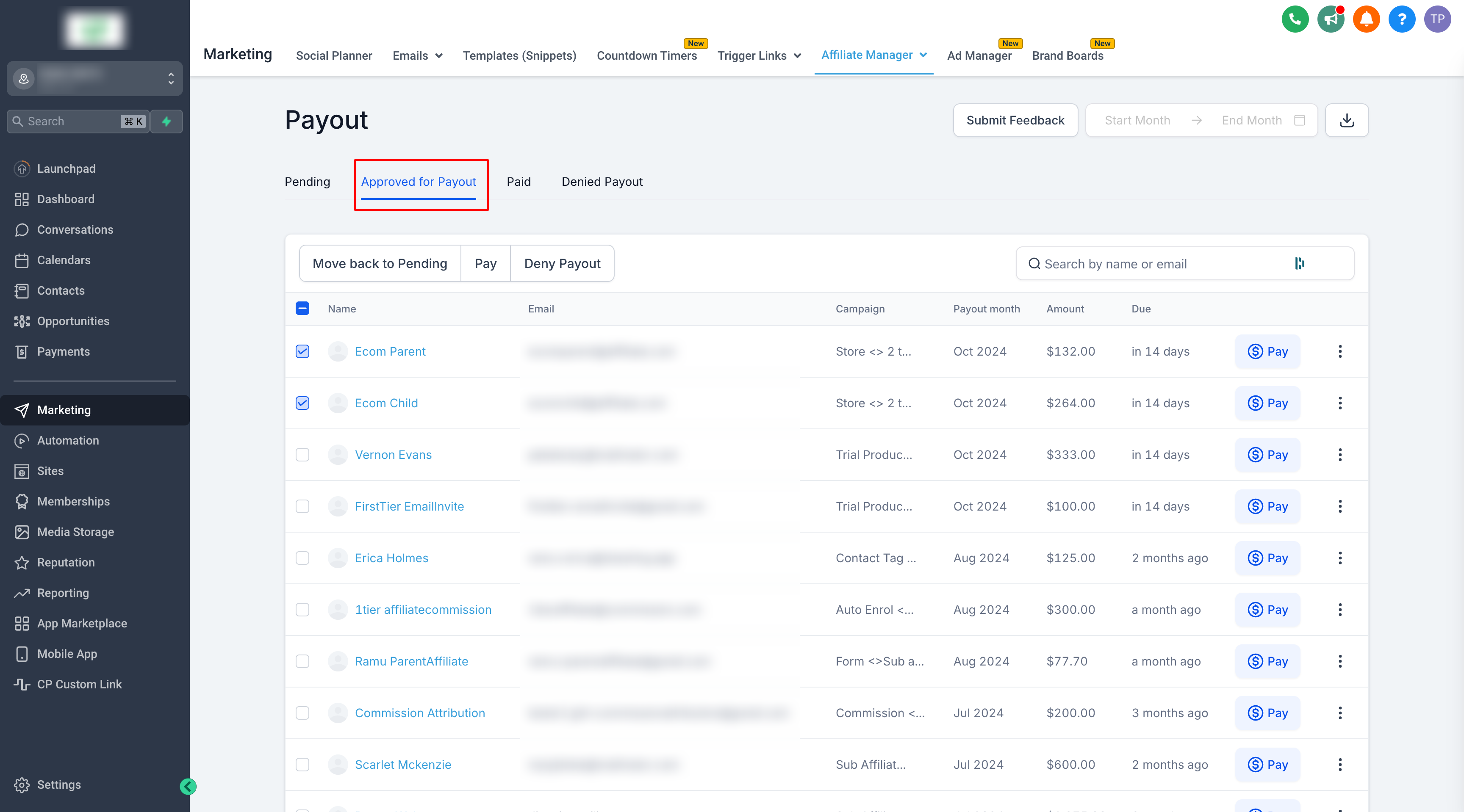
- Switch to Approved for Payout Tab: Navigate to the "Approved for Payout" tab where all approved payouts are listed.
- Select Payouts
- Click "Pay"
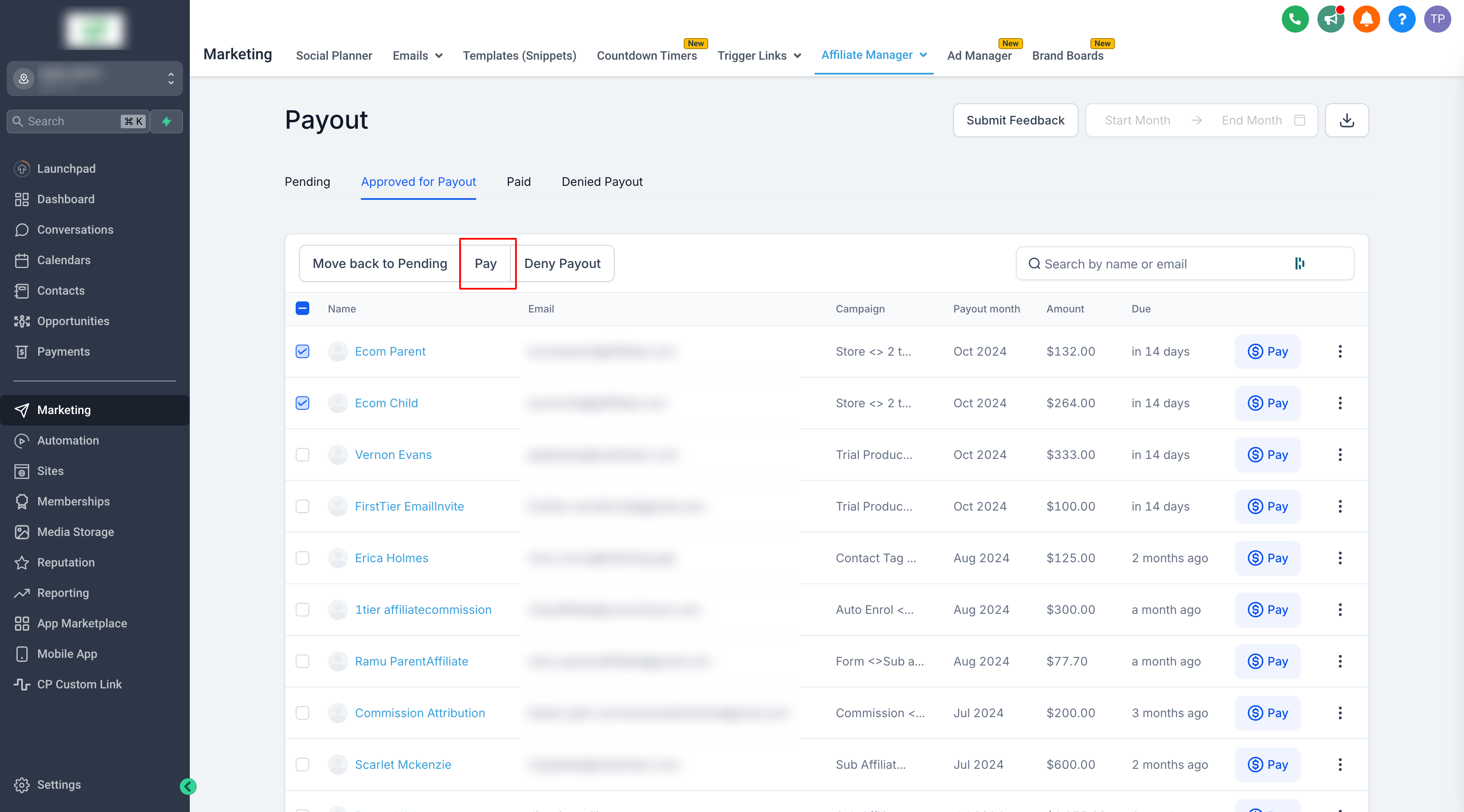
- Note: The **Pay** action is available only to admins with the **Pay Affiliate Manager Payout** permission. If this permission is disabled, the payout action is hidden.
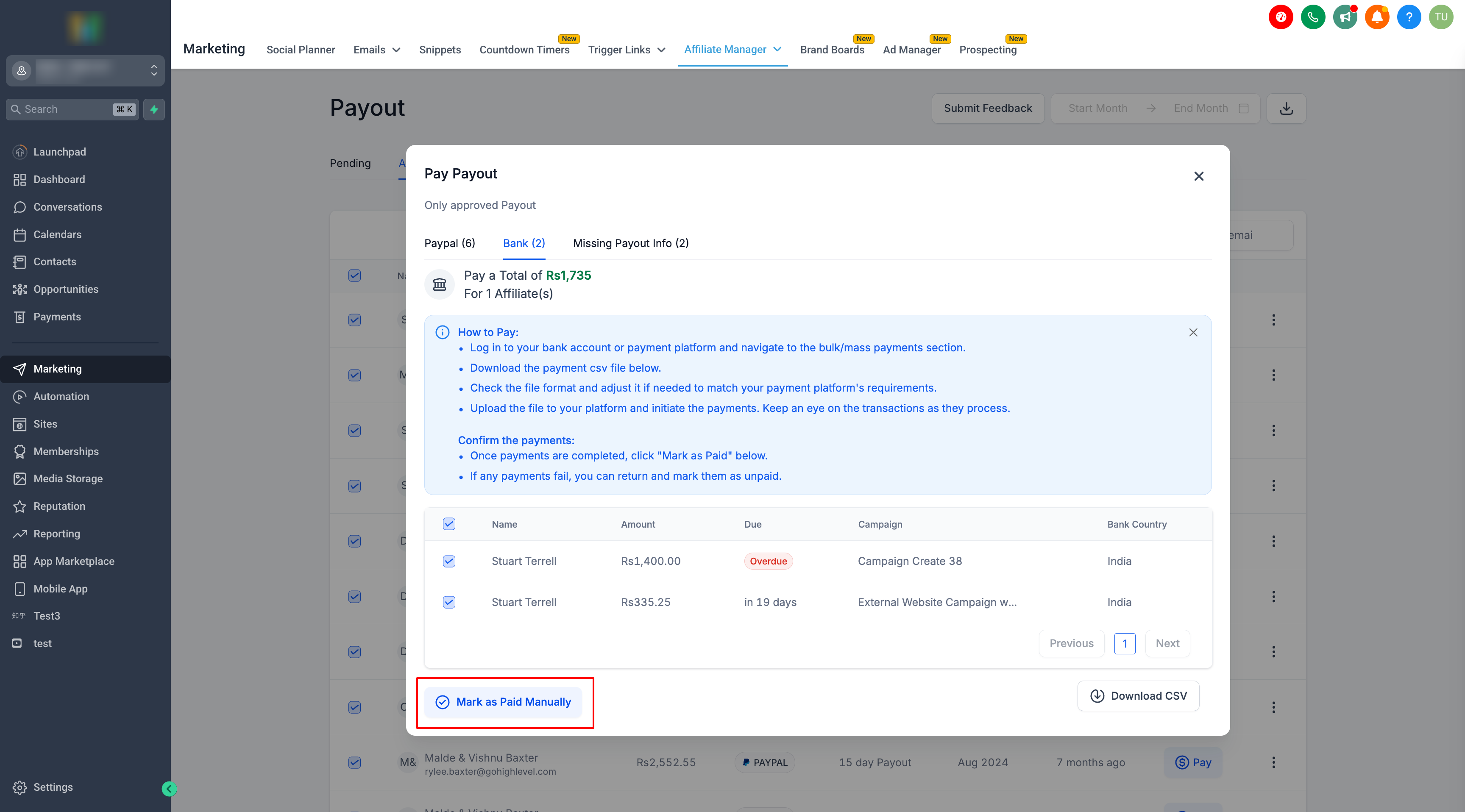
- Switch to the Bank tab.
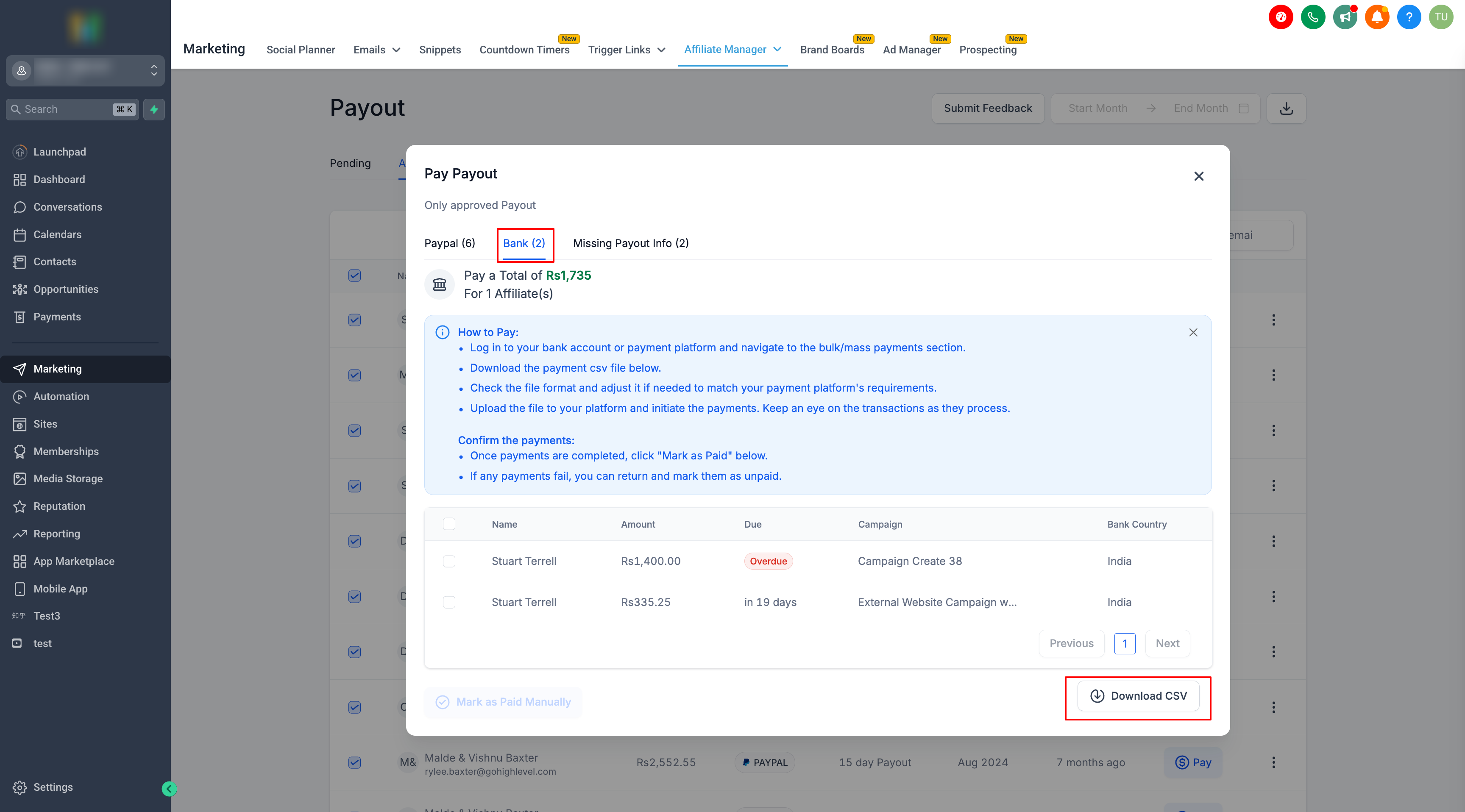
- Follow the on-screen instructions and download the CSV if needed to process the payments outside HighLevel.
- After the payments are completed, return to HighLevel and click Mark as Paid.
Important: Review refunds and chargebacks before approving payouts. Refunds for one-time products and subscriptions are not automatically reflected in Affiliate Manager commission payouts.
Important Note: Configuring Payout Methods for Affiliates
You can now control which payout methods (PayPal, Bank Transfer) are available to your affiliates.
How to Set It Up:
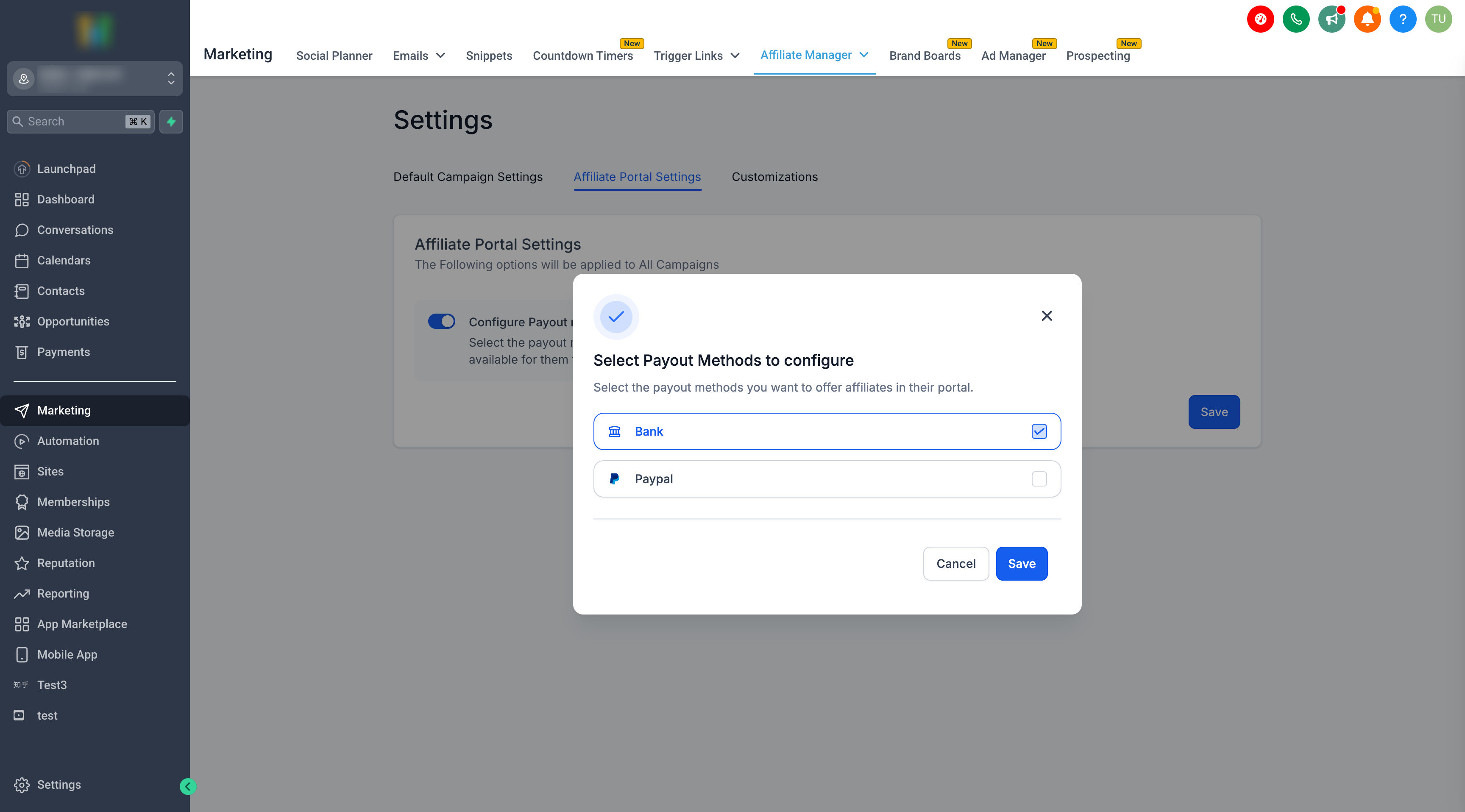
1. Go to Affiliate Manager → Settings
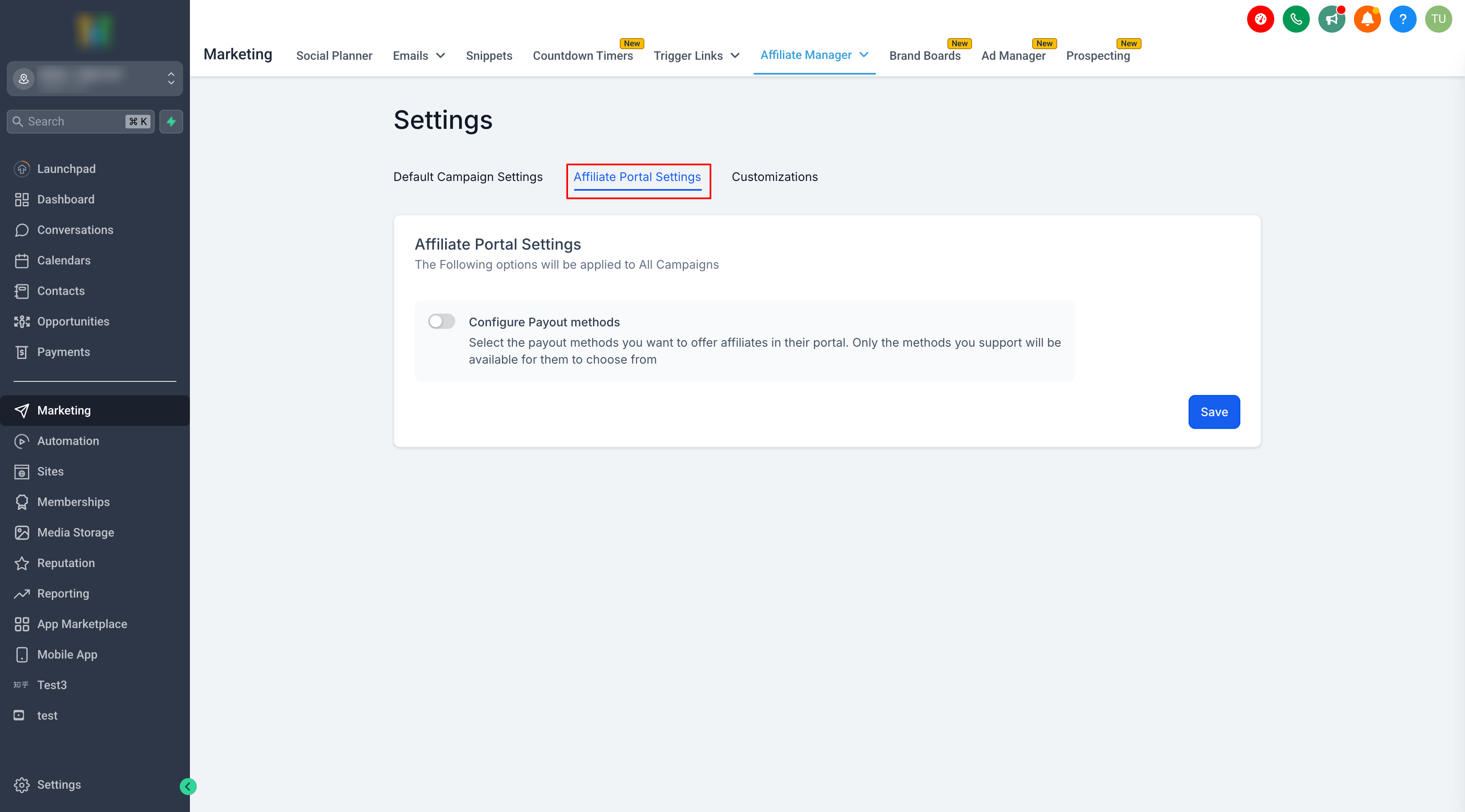
2. Click Affiliate Portal Settings → Configure Payout Methods
3. Select the payout methods you want to enable
4. Save your changes
Affiliates will only see the options you’ve enabled, ensuring a smoother and more streamlined payout process.Always enable at least one payout method so affiliates can configure how they want to receive payouts.
By following these steps, you can ensure timely and efficient payments for your affiliates, whether you choose the automated PayPal option or manual methods.
What's Next:
Was this article helpful?
That’s Great!
Thank you for your feedback
Sorry! We couldn't be helpful
Thank you for your feedback
Feedback sent
We appreciate your effort and will try to fix the article