HighLevel’s new Bulk Actions feature empowers agency admins to efficiently manage multiple client accounts (sub-accounts) at once. Whether enabling SaaS mode, pausing accounts, or reviewing action history, this tool saves hours of manual effort. If you handle multiple sub-accounts and need quicker ways to configure billing and subscriptions, this guide is for you.
TABLE OF CONTENTS
How to Enable SaaS Mode in Bulk
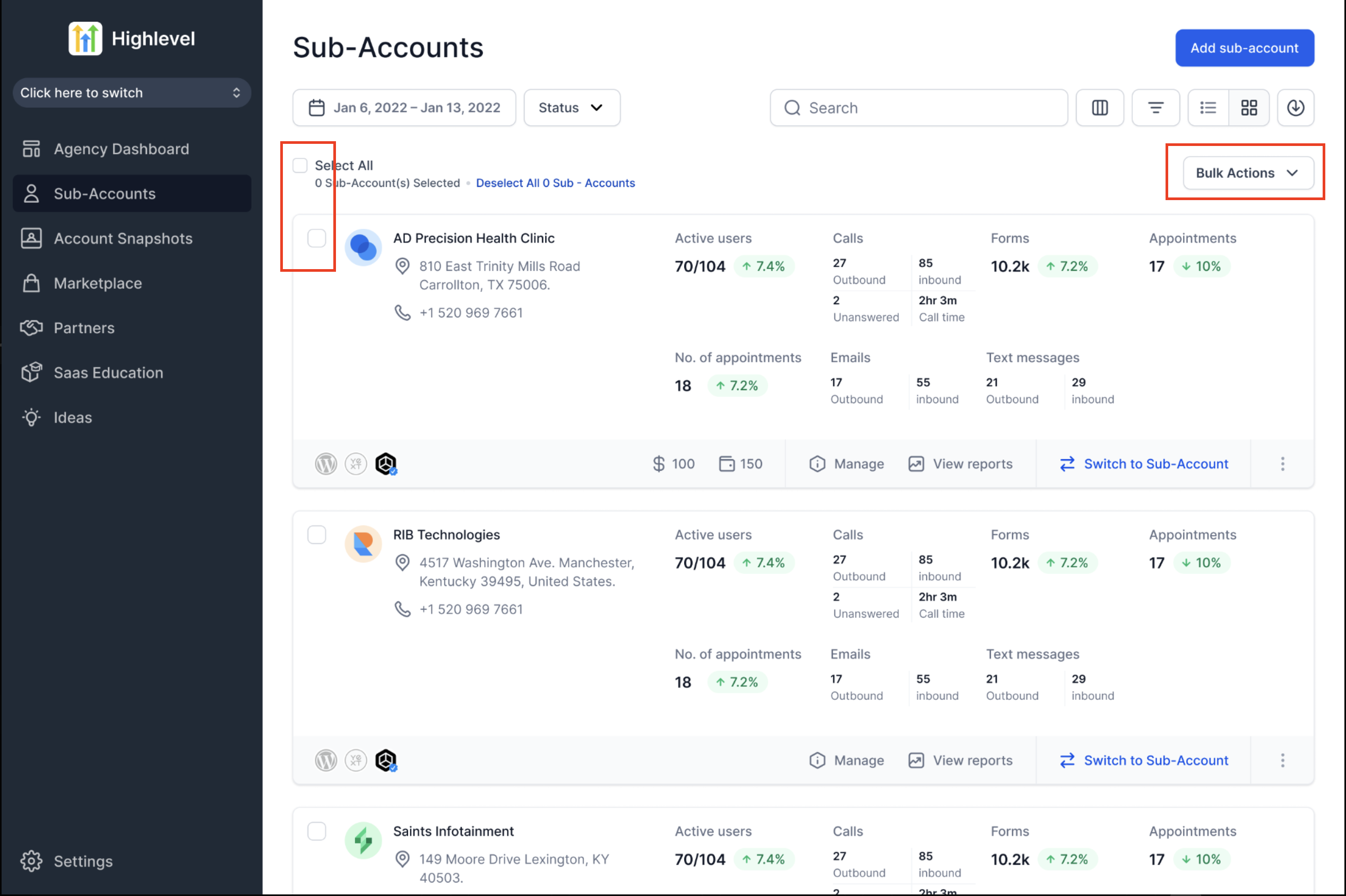
Step 1: Select sub-accounts for bulk action
- Use the Sub-Accounts section from the Agency Sidebar Menu to view your sub-account list.
- Use filters or search to locate the desired accounts and select multiple accounts via checkboxes, or use the 'Select All' option.
- Then click on the 'Bulk Actions' dropdown and choose 'Enable SaaS'.
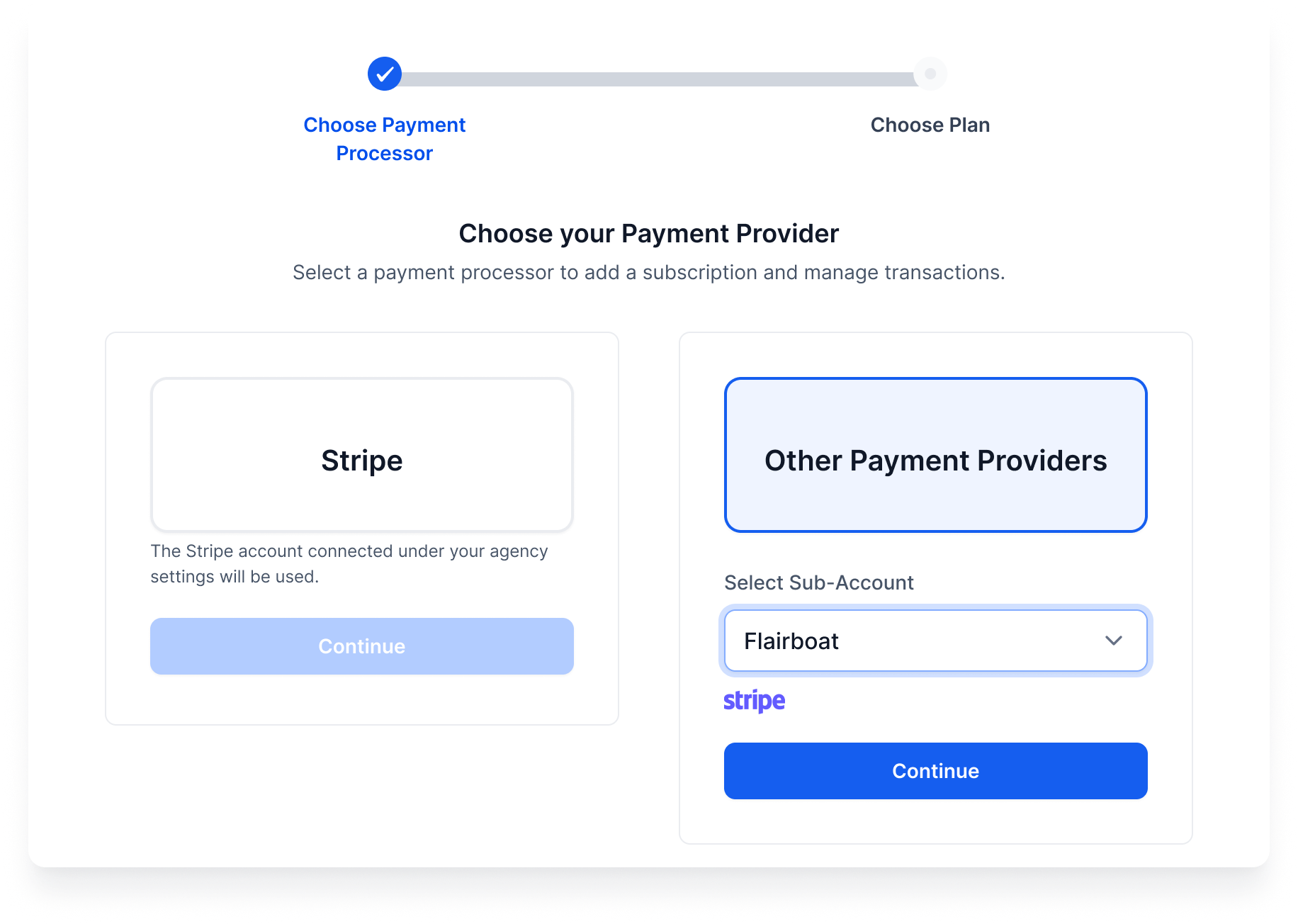
Step 2: Choose Payment Provider
Note: If using Stripe, the connected account under agency settings will be automatically used.
Selecting this step will create new customer profiles for each sub-account selected.
- You’ll be prompted to pick between your default Stripe setup or Other Payment Providers.
- In case choosing Other Payment Providers, you'll have to then choose the agency sub-account that you wish to use for managing SaaS mode.
Step 3: Select SaaS Subscription Plan
Important: A plan must be selected to activate SaaS mode. Clients must add payment methods for the plan to take full effect.Review plan details before you continue. In the Select Subscription Plan modal, HighLevel now shows more information about each plan so you can confirm what you are enabling.
- Click on the Show Full Details option above the select Plan button.

- You can review: Rebilling rates, Add-ons included in the plan, Marketplace apps included with the plan, Custom menu links included with the plan.

How to Pause Sub-Accounts in Bulk
Step 1: Select sub-accounts for bulk action & initiate pause action
- Use the Sub-Accounts section from the Agency Sidebar Menu to view your sub-account list.
- Use filters or search to locate the desiredaccounts and select multipleaccounts via checkboxes, or use the 'SelectAll' option.
- Then click on the 'BulkActions' dropdown and choose 'PauseSub-Accounts'.
[Use filters (like activity or plan status) to easily segment accounts for pausing.]
Step 2: Set Pause Preferences
You'll now choose how to manage SaaS subscriptions and phone/A2P campaigns for these accounts:
Pause active subscriptions: Prevent further billing.
Keep charging the clients: Pause sub-account access but keep billing.
LC Phone Numbers & A2P: Optionally disconnect and delete numbers/campaigns to avoid charges.
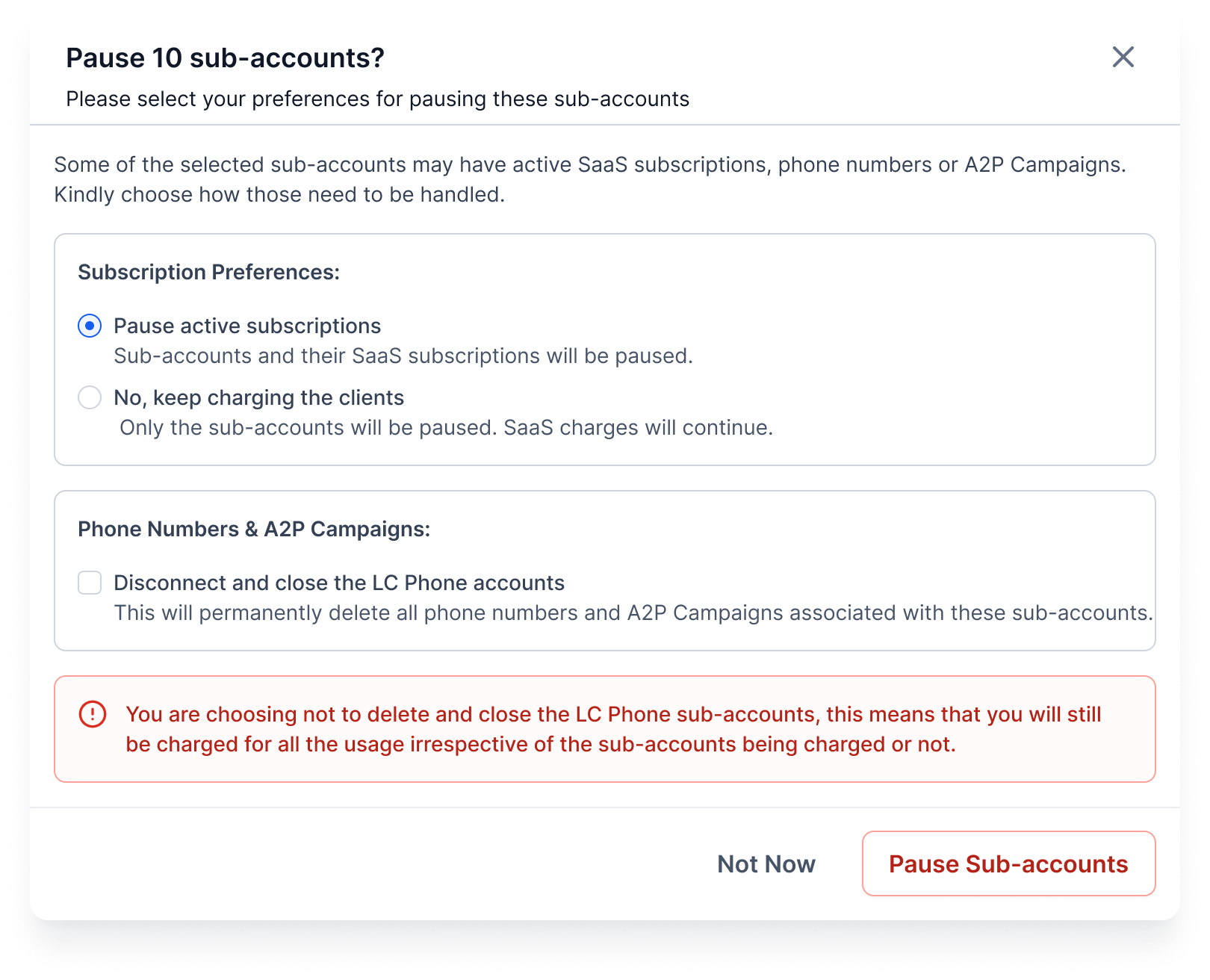
- Confirm and proceed.
Note: If you don’t disconnect LC Phone accounts, you may still be charged for usage.How to View Bulk Action History
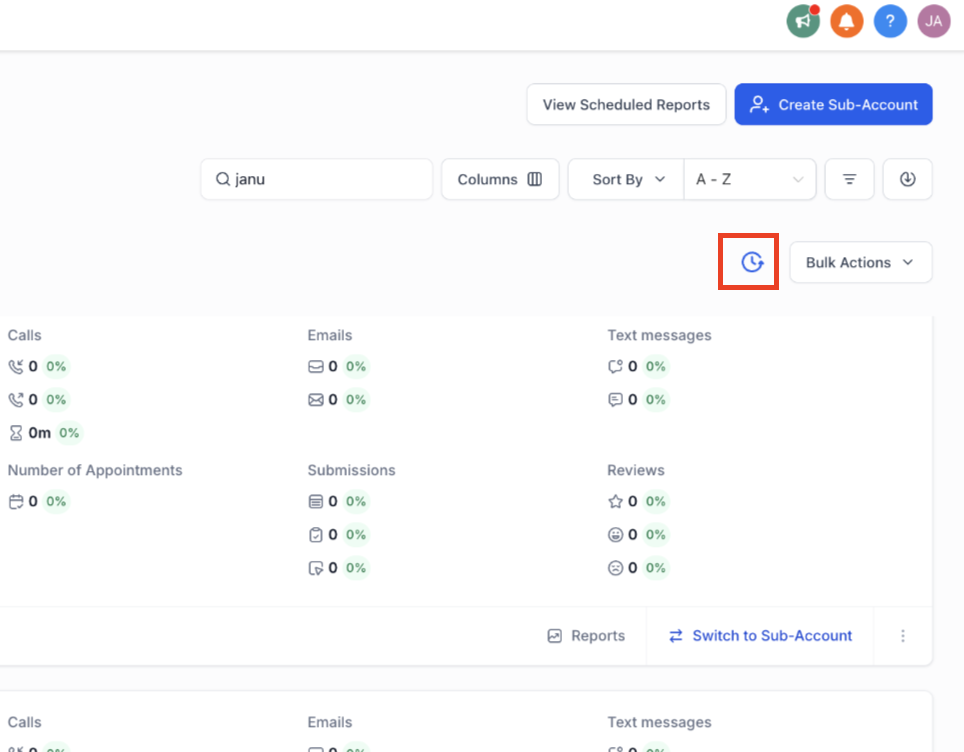
Step 1: Open Bulk Action History
- Navigate to the Bulk Action History screen under the Sub-Accounts section.
- Here you can view all recent bulk jobs performed, including action type, date, user, and status.
Step 2: Drill into Job Details
Click on any job row to see detailed results — which sub-accounts were successfully processed, which failed, and why. This helps quickly identify any accounts needing attention.
Was this article helpful?
That’s Great!
Thank you for your feedback
Sorry! We couldn't be helpful
Thank you for your feedback
Feedback sent
We appreciate your effort and will try to fix the article