Migrating your WordPress website to HighLevel is easier with LC Migrator. Instead of manually creating backups and transferring large files, you can migrate your website through a streamlined process. LC Migrator transfers your website files, database, and settings while keeping your original site accessible during migration.
TABLE OF CONTENTS
- What is LC Migrator?
- Key Benefits of LC Migrator
- LC Migrator Migration Options
- Migration Progress Tracking
- How to Set Up and Use LC Migrator
- How to Request White-Glove Migration
- Frequently Asked Questions
- Related Articles
What is LC Migrator?
LC Migrator is a WordPress plugin that simplifies transferring existing WordPress websites to HighLevel WordPress Hosting. It automates the migration process, reducing manual work and helping agencies move websites more efficiently.
HighLevel offers two migration options:
LC Migrator: Self-service migration using the LC Migrator plugin.
White-Glove Migration: Assisted migration handled by HighLevel's migration specialists.
Key Benefits of LC Migrator
LC Migrator simplifies website transfers while providing visibility into migration progress and reducing the need for manual file management.
Easy Migration: Transfer websites without manually downloading and uploading backups.
Minimal Downtime: Keep your original website live during migration.
Complete Transfer: Migrate website files, database, and settings.
Progress Tracking: Monitor migration progress through the plugin.
No Plugin File-Size Limit: Migrate larger websites, subject to your hosting plan's resources.
White-Glove Assistance: Request expert migration support when needed.
LC Migrator Migration Options
HighLevel provides two migration methods based on whether you prefer to manage the transfer yourself or request assistance.
Self-Service Migration
Use LC Migrator to initiate and monitor your WordPress migration. The plugin handles transferring website content and settings to HighLevel.
White-Glove Migration
Agency users can request an assisted migration from HighLevel's migration team. Most migrations are completed within 1–3 business days, depending on website size and complexity.
Migration Progress Tracking
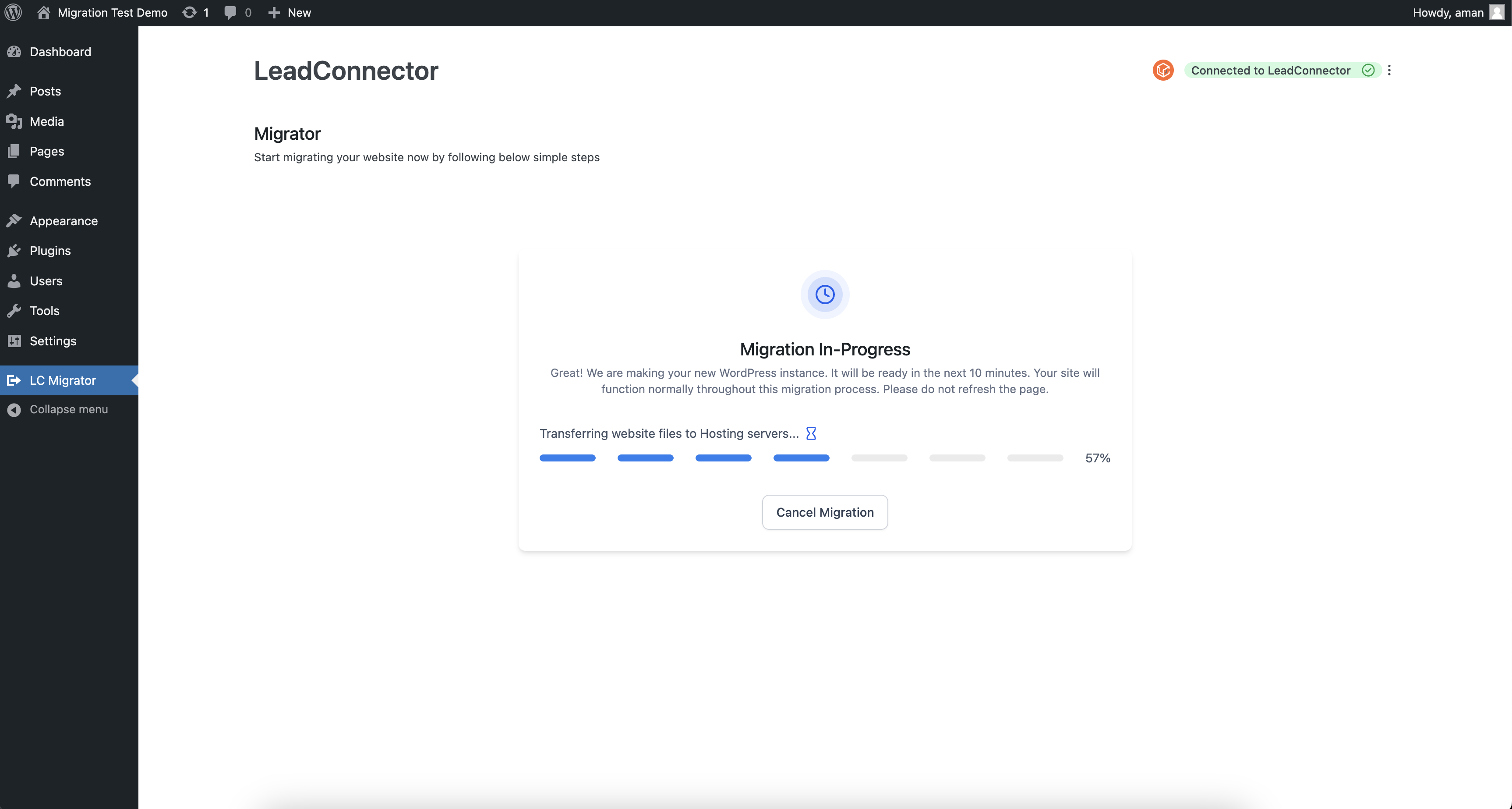
LC Migrator displays migration progress so you can monitor the transfer and identify when the website is ready for review.
View migration progress through the plugin.
Open the migrated website using View Your New Website after completion.
Agency users can access migration failure notifications and logs.
How to Set Up and Use LC Migrator
Proper setup helps ensure your WordPress website is transferred to the correct HighLevel hosting environment. You'll need agency access, administrator access to the existing WordPress website, and an appropriate WordPress Hosting destination.
Step 1: Download LC Migrator
Log in to your HighLevel agency account.
Navigate to Sites → WordPress.
Start a new migration and select LC Migrator.
Download the LC Migrator plugin.
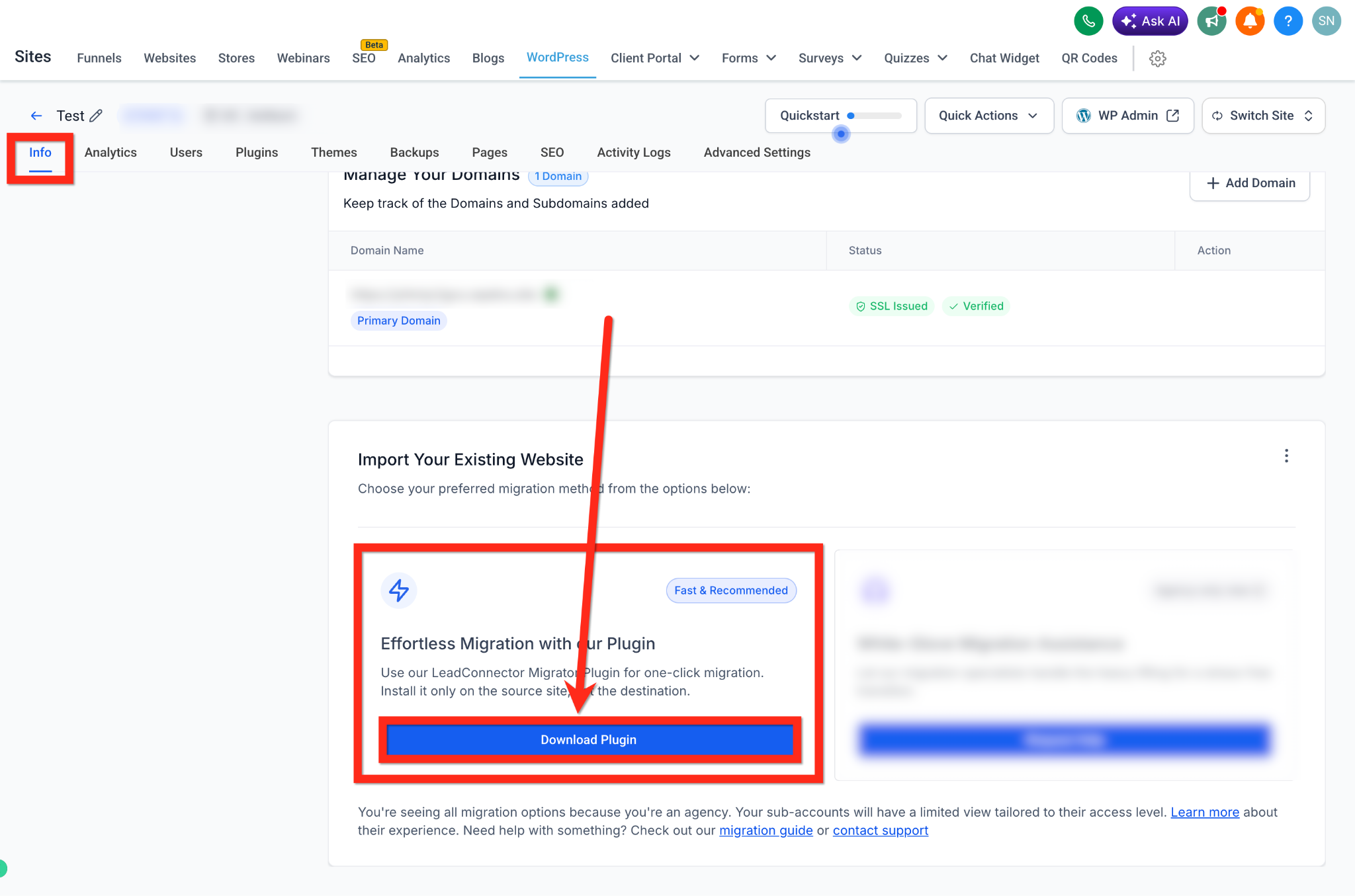
You can also obtain the plugin from the LeadConnector Plugin Hub.
Step 2: Install the Plugin
Log in to your original WordPress website.
Navigate to Plugins → Add Plugin → Upload Plugin.
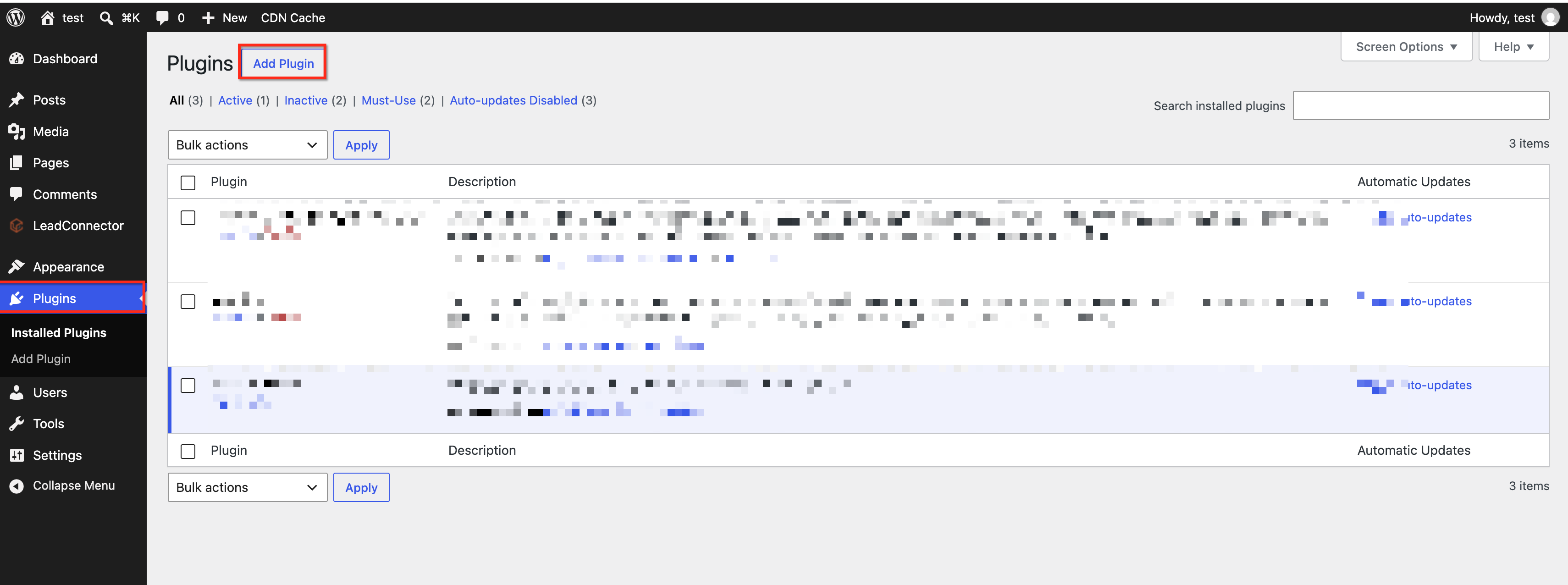
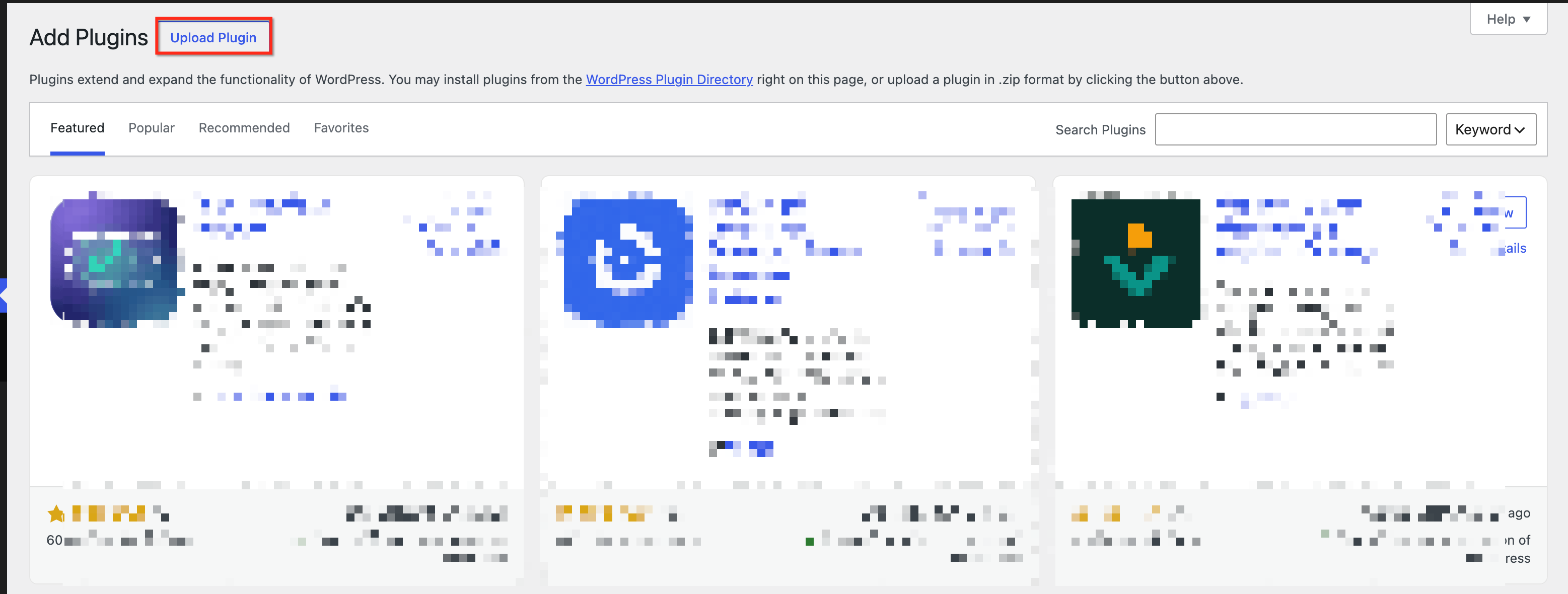
Upload the LC Migrator
.zipfile.Click Install Now, then Activate Plugin.
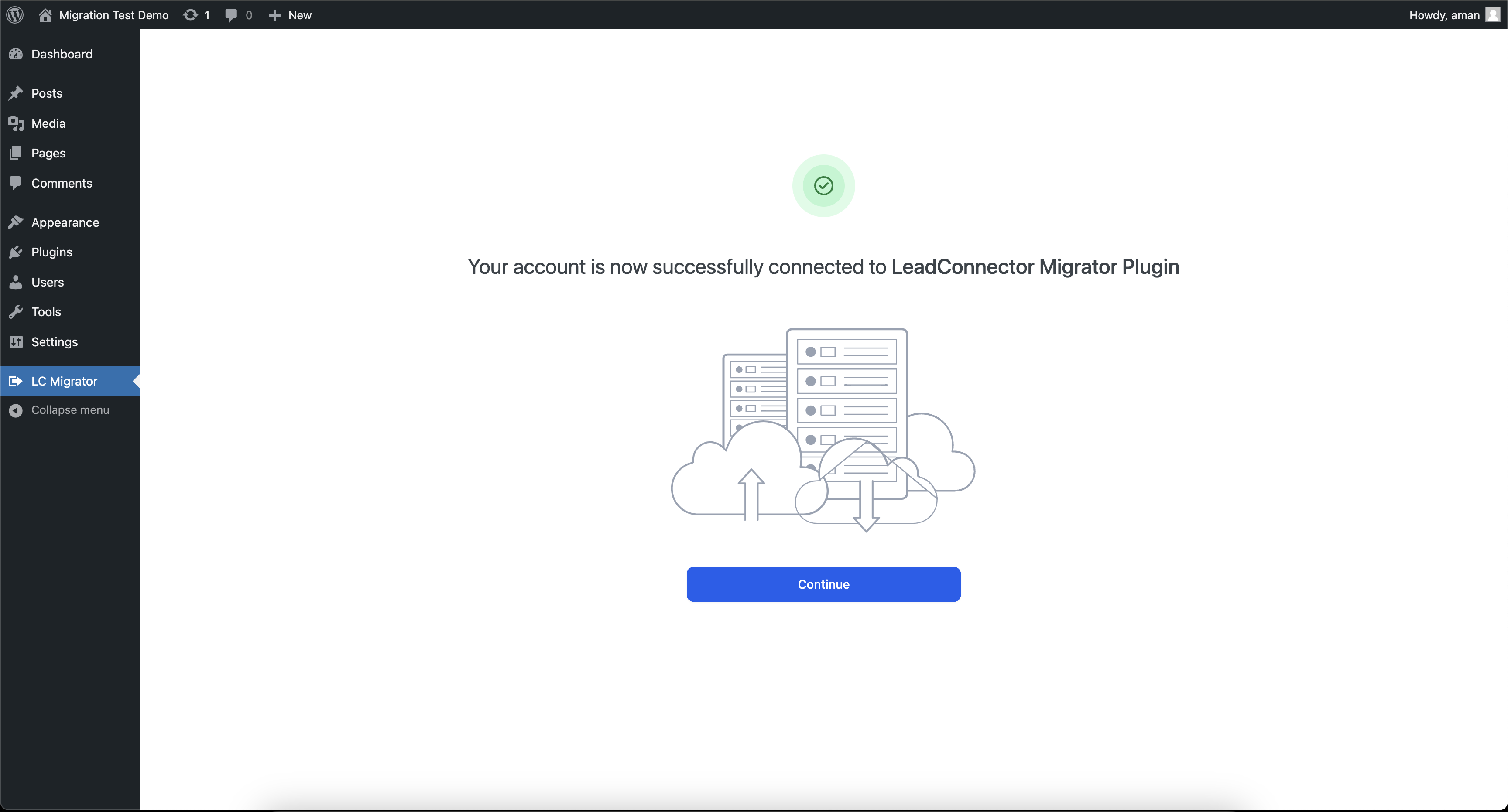
Step 3: Start the Migration
Return to the HighLevel migration workflow.
Log in to the CRM when prompted.
Select your destination WordPress site.
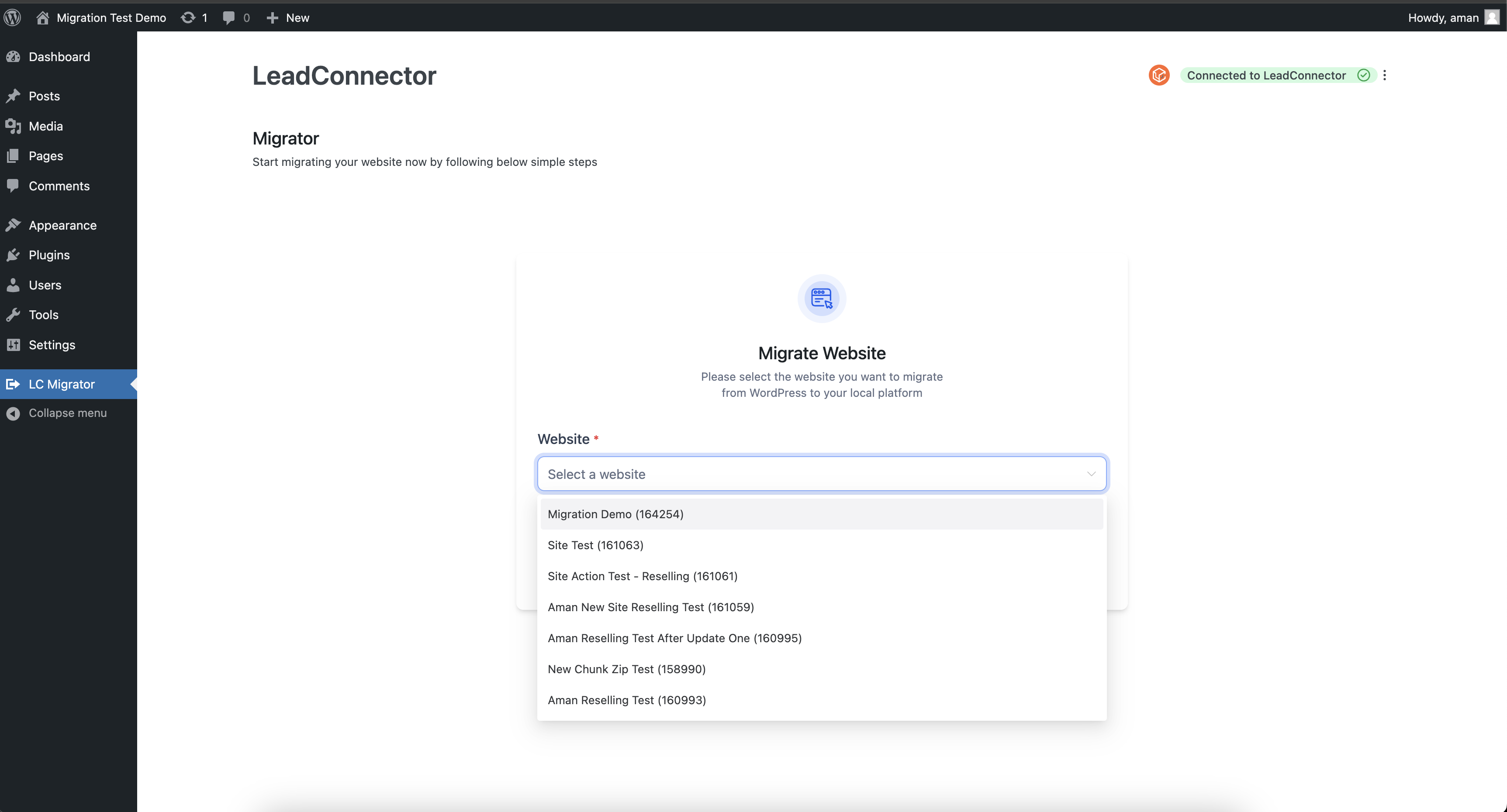
Click Start migration.
Monitor the progress bar until the transfer finishes.
Step 4: Verify Your Website
After migration finishes:
Click View Your New Website.
Check your pages, images, navigation, and links.
Test forms, plugins, and other important functionality.
Configure your domain and SSL settings if needed.
Important: Keep your original site accessible until you've verified the migrated website. DNS changes are separate from the migration process.How to Request White-Glove Migration
White-Glove Migration allows agencies to request assistance without sharing WordPress administrator passwords. The LC Migrator plugin generates a temporary, revocable link that provides secure access to the source website.
Step 1: Generate a Secure Access Link
Install and activate LC Migrator on the original WordPress site.
Open LC Migrator in WordPress.
Click Generate secure access link.
Select the link duration and confirm.
Secure links are valid for 24 hours to 7 days, with a default of 3 days. Links generated Friday through Sunday have a minimum duration of 4 days.
Step 2: Submit Your Request
Navigate to Sites → WordPress in HighLevel.
Start a new migration and select White-Glove Migration.
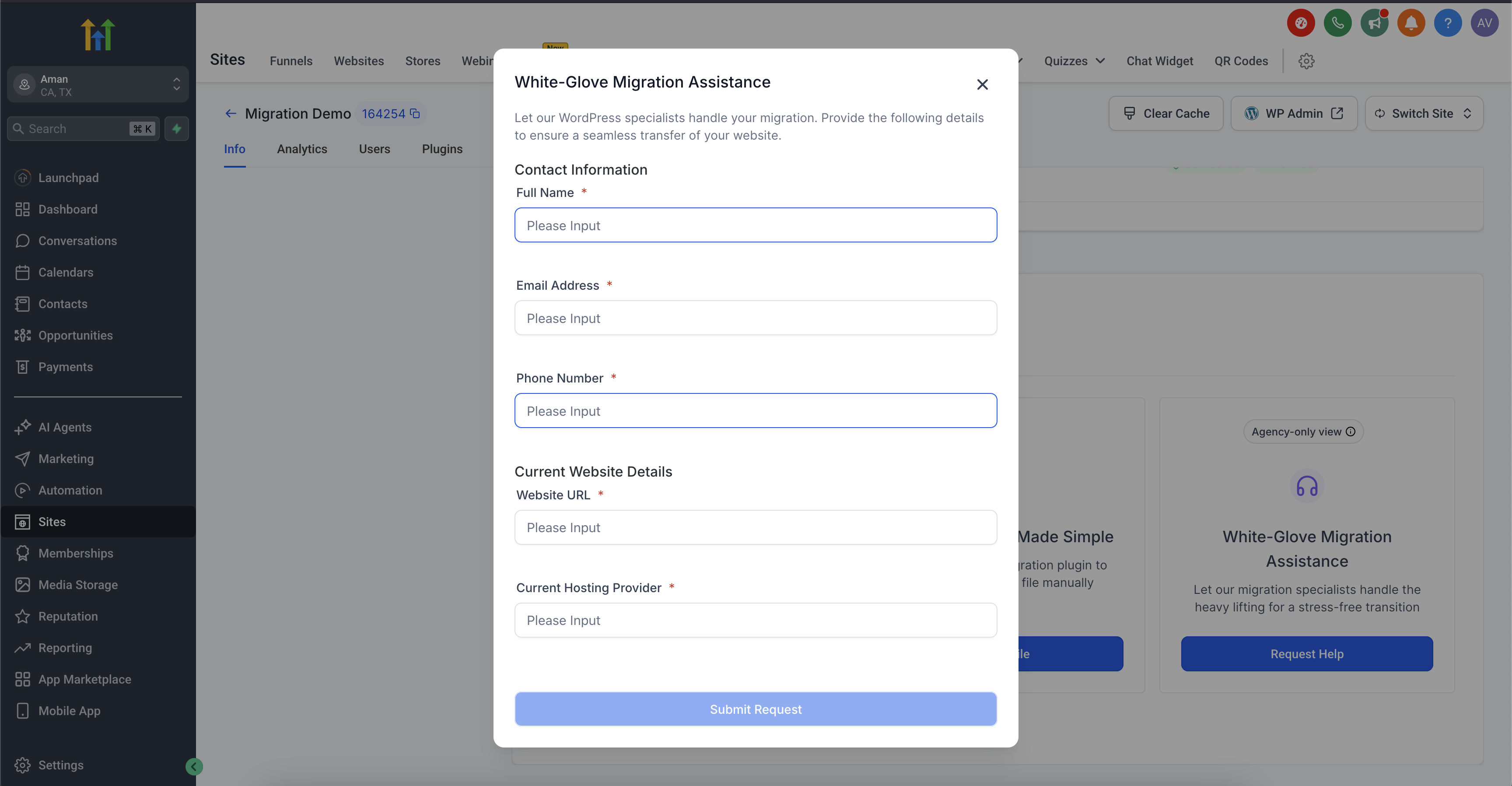
Complete the request form.
Paste your secure access link.
Submit the migration request.
Step 3: Monitor and Complete Migration
Track your request through the WordPress Hosting dashboard. After the migration finishes, review your website and revoke the secure access link if it is no longer needed.
Note: Only one secure access link can remain active at a time. Generating a new link invalidates the previous one.Frequently Asked Questions
Q: Does LC Migrator have a file-size limit?
No. The plugin does not impose a migration file-size limit, but your hosting plan's storage limits still apply.
Q: Will my original WordPress website remain live during migration?
Yes. The original website remains available during the transfer. Domain changes may require separate configuration.
Q: Does LC Migrator automatically transfer my domain?
No. Website migration and domain configuration are separate processes.
Q: What happens if my migration fails?
Agency users can review migration failure alerts and logs. Contact HighLevel Support if additional assistance is required.
Q: Is LC Migrator the same as the LeadConnector WordPress plugin?
No. LC Migrator transfers WordPress websites, while the standard LeadConnector plugin integrates WordPress with HighLevel CRM features.
Q: Can I revoke a White-Glove secure access link?
Yes. Open LC Migrator in WordPress and select Revoke to disable the active link.
Related Articles
Was this article helpful?
That’s Great!
Thank you for your feedback
Sorry! We couldn't be helpful
Thank you for your feedback
Feedback sent
We appreciate your effort and will try to fix the article