White-Glove Migration lets a LeadConnector Expert migrate your WordPress site for you. Instead of sharing your WordPress username and password, you create a secure access link with the LC Migrator plugin and provide that instead.
The link lets your LeadConnector Expert sign in to run the migration, expires automatically after a time you choose, and can be revoked at any time. For added security, only a LeadConnector Expert can use the link — even though it grants admin access, no one else can sign in to your site with it.
This guide walks you through creating and sharing the link.
Before you start
You'll need administrator access to the WordPress site you want to migrate.
Part 1 — Download and install the LC Migrator plugin
1. Download the LC Migrator plugin here. It saves as a .zip file — don't unzip it.
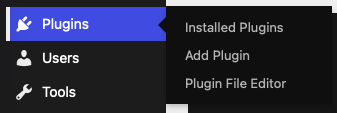
2. In your WordPress admin, go to Plugins → Add Plugin.
3. Click Upload Plugin.

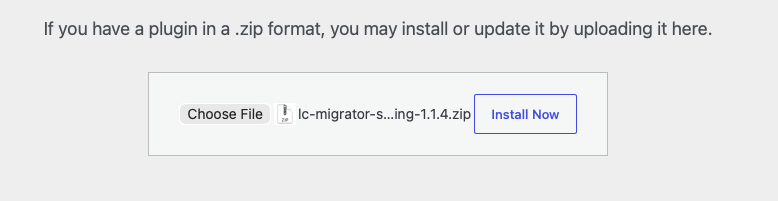
4. Click Choose File, select the .zip you just downloaded, then click Install Now.
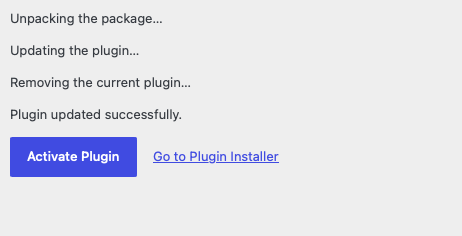
5. When the install finishes, click Activate Plugin.
Part 2 — Generate the secure access link
6.In your WordPress admin sidebar, open LC Migrator. You'll land on the Welcome screen.
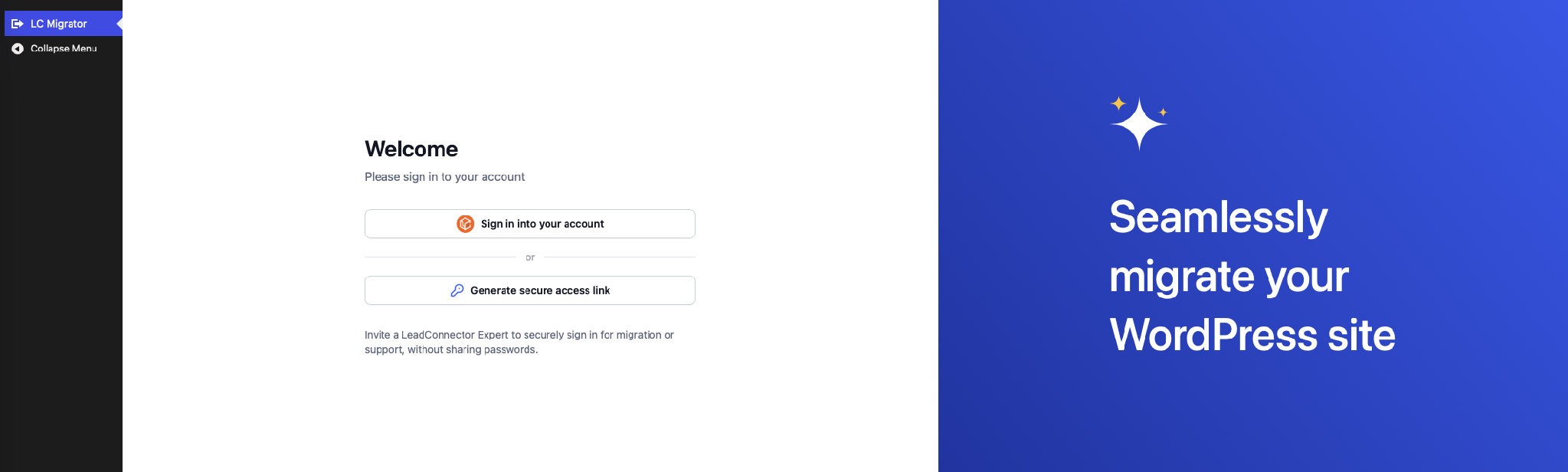
7. Click Generate secure access link. You don't need to sign in to an account to do this.
8. Under Link active for, choose how long the link should stay active — from 24 hours up to 7 days (3 days is the default). The link expires automatically after this period, and you can revoke it sooner anytime.
Weekend note: If you create the link on a Friday, Saturday, or Sunday, the minimum is 4 days so your LeadConnector Expert can still use it once the work week starts.
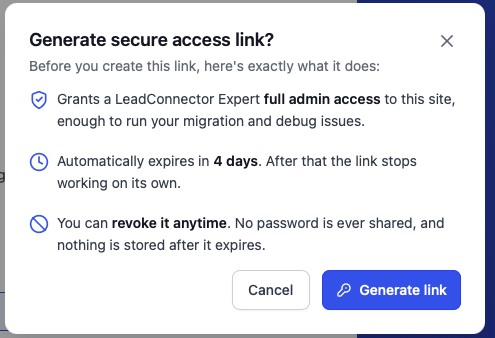
9. Review the note that the link grants full admin access and can only be used by a LeadConnector Expert — no one else can sign in to your site with it.
10. Click Generate secure access link.
11. A confirmation window appears explaining what the link does — full admin access, automatic expiry, and that you can revoke it anytime. Click Generate link to confirm.
Part 3 — Share the link and submit your request
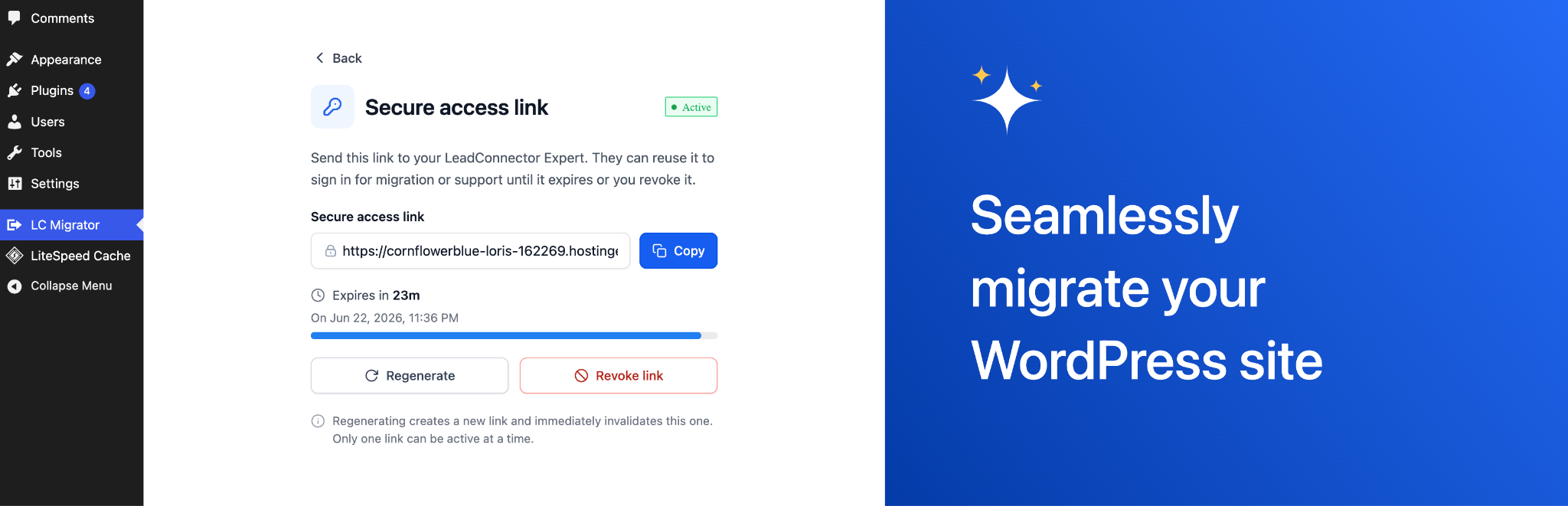
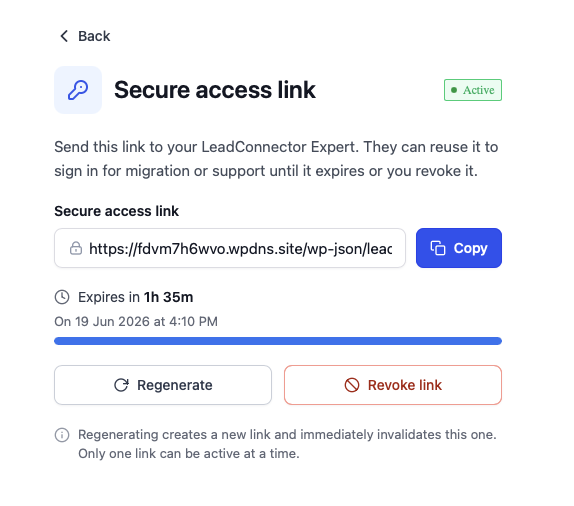
12. Your link is now active and is automatically copied to your clipboard. If you need it again, click Copy.
13. Paste the link into the Secure access link field on your White-Glove Migration request, then submit. Your LeadConnector Expert uses it to sign in and run your migration — no password is ever shared.
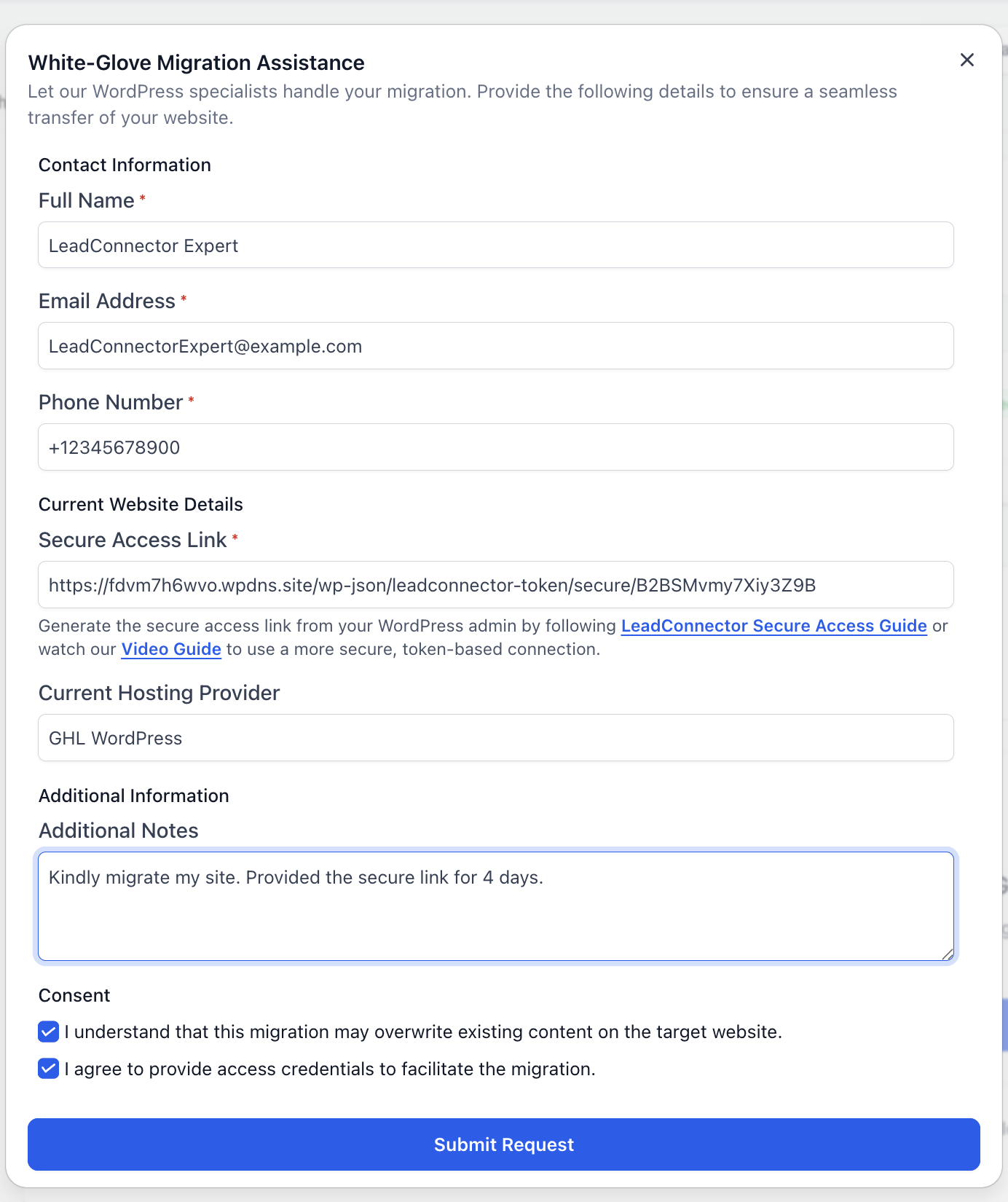
The link will look something like this:
https://your-wordpress-site.com/wp-json/leadconnector-token/secure/<token>
Part 4 — Manage your link
While your link is active you'll see a countdown showing when it expires. You can manage it anytime from the same screen:
Regenerate — creates a new link and immediately invalidates the old one. Only one link can be active at a time.
Revoke link — cuts off access immediately. In the confirmation window, choose Revoke link. To give access again afterward, generate a new link and share it.
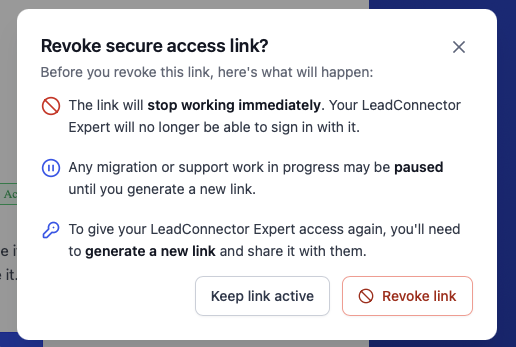
If you do nothing, the link simply stops working on its own when the timer ends.
Frequently asked questions
Is this safe?
Yes. Your WordPress password is never shared, the link only works for a LeadConnector Expert, it expires automatically, and you can revoke it at any time.
Do I have to share my WordPress username and password?
No. The secure access link replaces password sharing entirely.
I need more time for the migration. What do I do?
Generate a new link and choose a longer duration (up to 7 days).
How do I stop access right now?
Open the secure access link screen and click Revoke link.
What happens when the link expires?
It stops working automatically. If access is still needed, generate a new link and share it with your LeadConnector Expert.
Was this article helpful?
That’s Great!
Thank you for your feedback
Sorry! We couldn't be helpful
Thank you for your feedback
Feedback sent
We appreciate your effort and will try to fix the article