Bridging the gap between your CRM and your WordPress website has never been easier. The LeadConnector (LC) Plugin is a powerful tool designed to seamlessly integrate your HighLevel features directly into your WordPress environment.
Say goodbye to messy embed codes and clunky third-party connectors. With the LC Plugin, you can effortlessly deploy chat widgets, embed high-converting funnels, and utilize dynamic custom values all from within your WordPress dashboard.
Powerful Integration Features
The LC Plugin turns your standard WordPress site into a dynamic, CRM-powered lead generation machine.
? Live Chat Widget Integration: Turn website visitors into leads instantly. Enable your CRM's Chat Widget on your WordPress site with a single click—no manual code injection required! All chats route directly to your CRM's Conversations tab.
? Seamless Funnel Pages: Bring your high-converting CRM funnels directly into your WordPress domain. The plugin allows you to host funnel steps as native WordPress pages, ensuring a unified brand experience and faster loading times.
? Dynamic Custom Values: Personalize your WordPress site effortlessly. Use CRM Custom Values via shortcodes anywhere on your site. If you update a phone number, address, or promotional offer in your CRM, it will instantly update across your entire WordPress site.
? Forms, Surveys & Calendars: Easily pull your CRM assets into any page or post using dedicated WordPress blocks or simple shortcodes.
Installing & Connecting the Plugin
The installation process depends on where your WordPress site is hosted.
Scenario A: Hosted on HighLevel (Auto-Installed)
If your site is hosted through our integrated WordPress Hosting, the LC Plugin is automatically installed and configured for you!
1. Log into your WordPress Dashboard.
2. Locate the LeadConnector tab in the left-hand menu.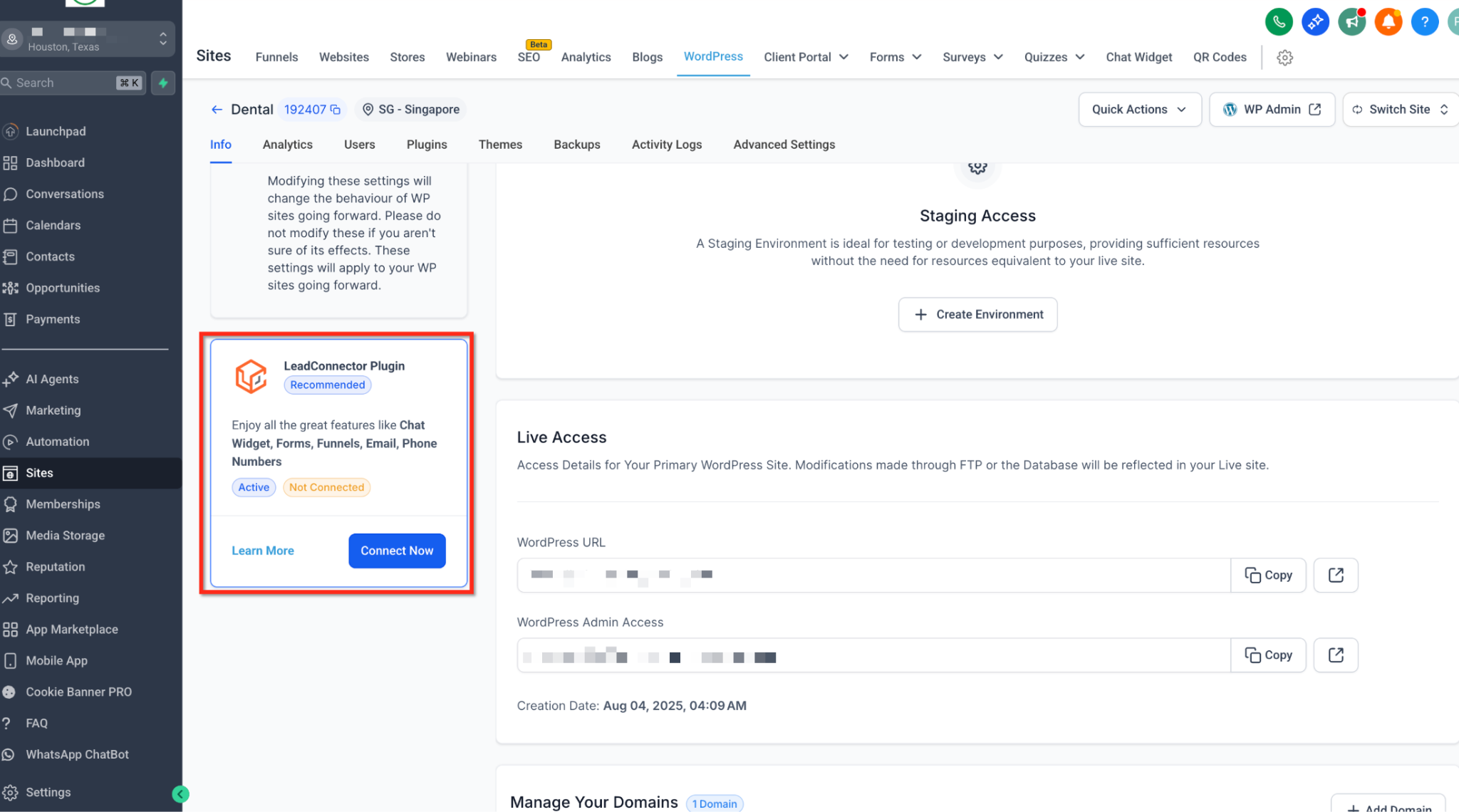
3. Verify the connection status shows as Connected.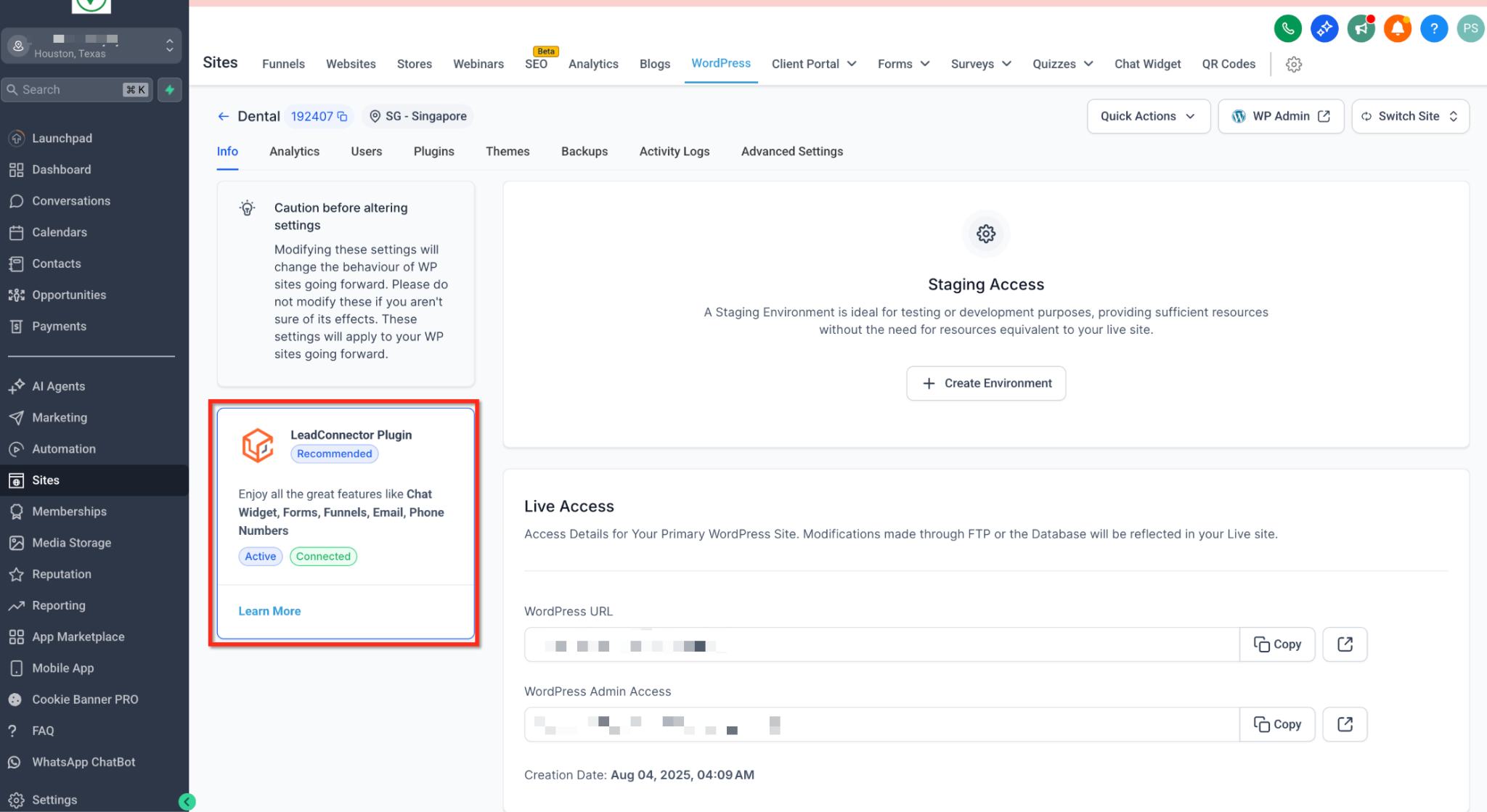
Scenario B: External WordPress Hosting
If you are managing a WordPress site hosted outside of our platform, you can easily install the plugin manually:
In your WordPress Dashboard, navigate to Plugins > Add New.
Search for "LeadConnector" in the plugin repository.
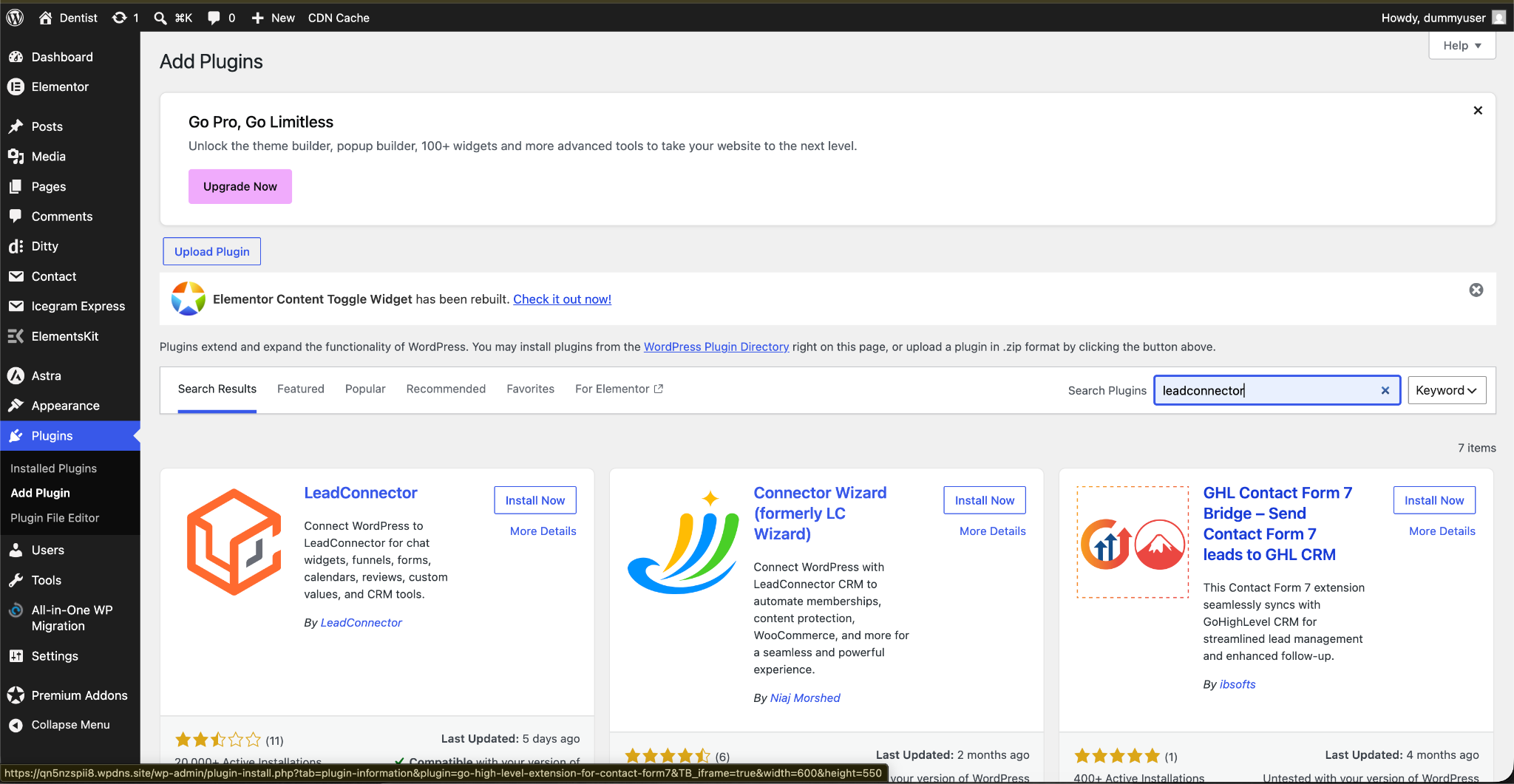
Click Install Now, then Activate.
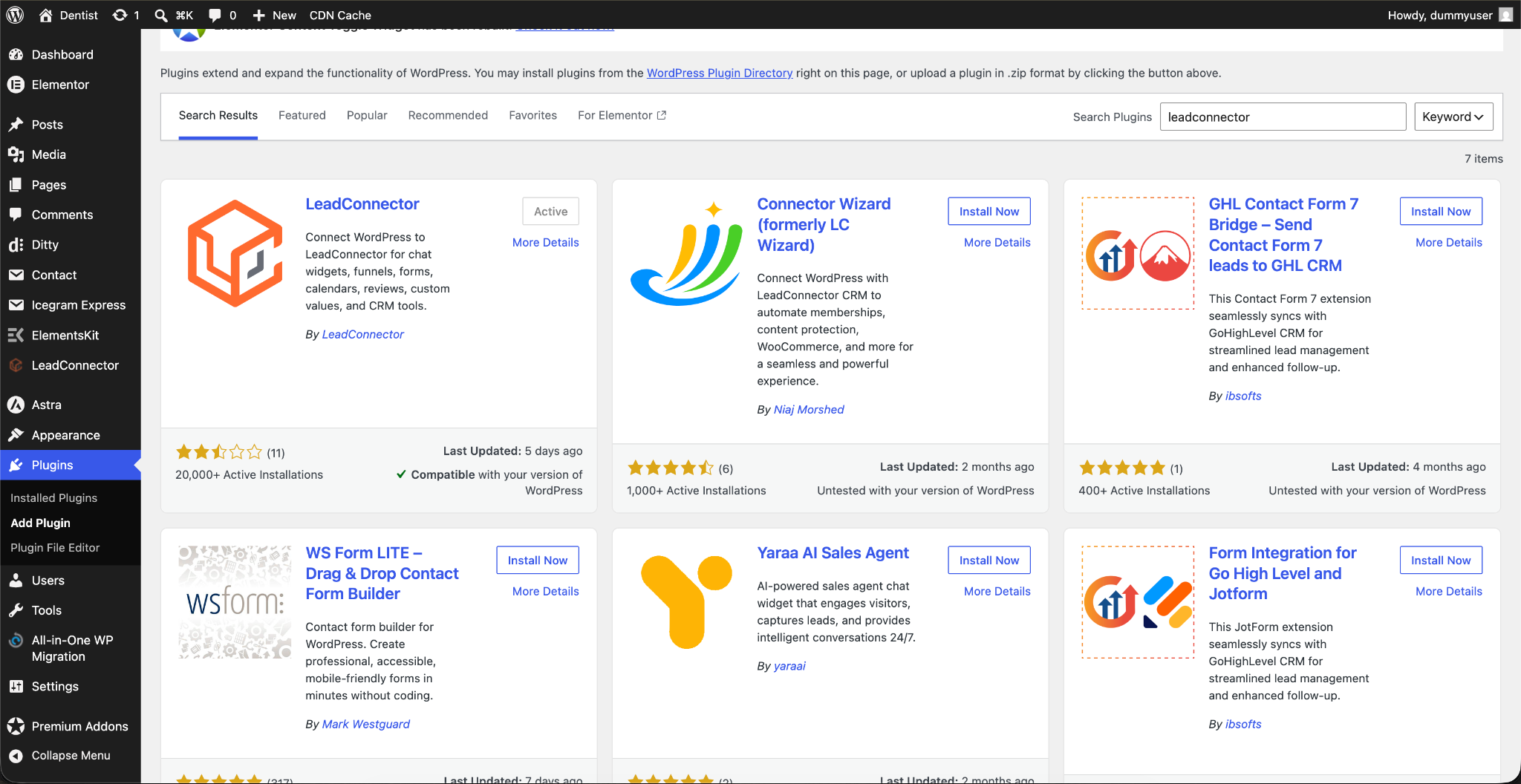
Now in the LeadConnector plugin click on sign in and sign in into your CRM.
How to Use the LC Plugin Features
Once connected, unlocking your CRM's power inside WordPress is simple.
1. Enabling the Chat Widget
You no longer need to copy and paste HTML scripts into your site's header to get your chat widget live.
Go to the LeadConnector plugin settings in WordPress.
Locate the Chat Widget settings.
Check the box to Enable Chat Widget.
Click Save. The widget you configured in your CRM will instantly appear on your site!
2. Embedding Funnels into WordPress Pages
Host your CRM funnels right on your WordPress domain to keep your URL structure clean and professional.
Navigate to LeadConnector > Funnels in your WordPress menu.
Click Add New.
Select the specific Funnel and Funnel Step from your CRM using the dropdown menus.
Assign a WordPress slug (e.g., yourdomain.com/special-offer).
Save your changes. Your funnel is now live on your WordPress domain!
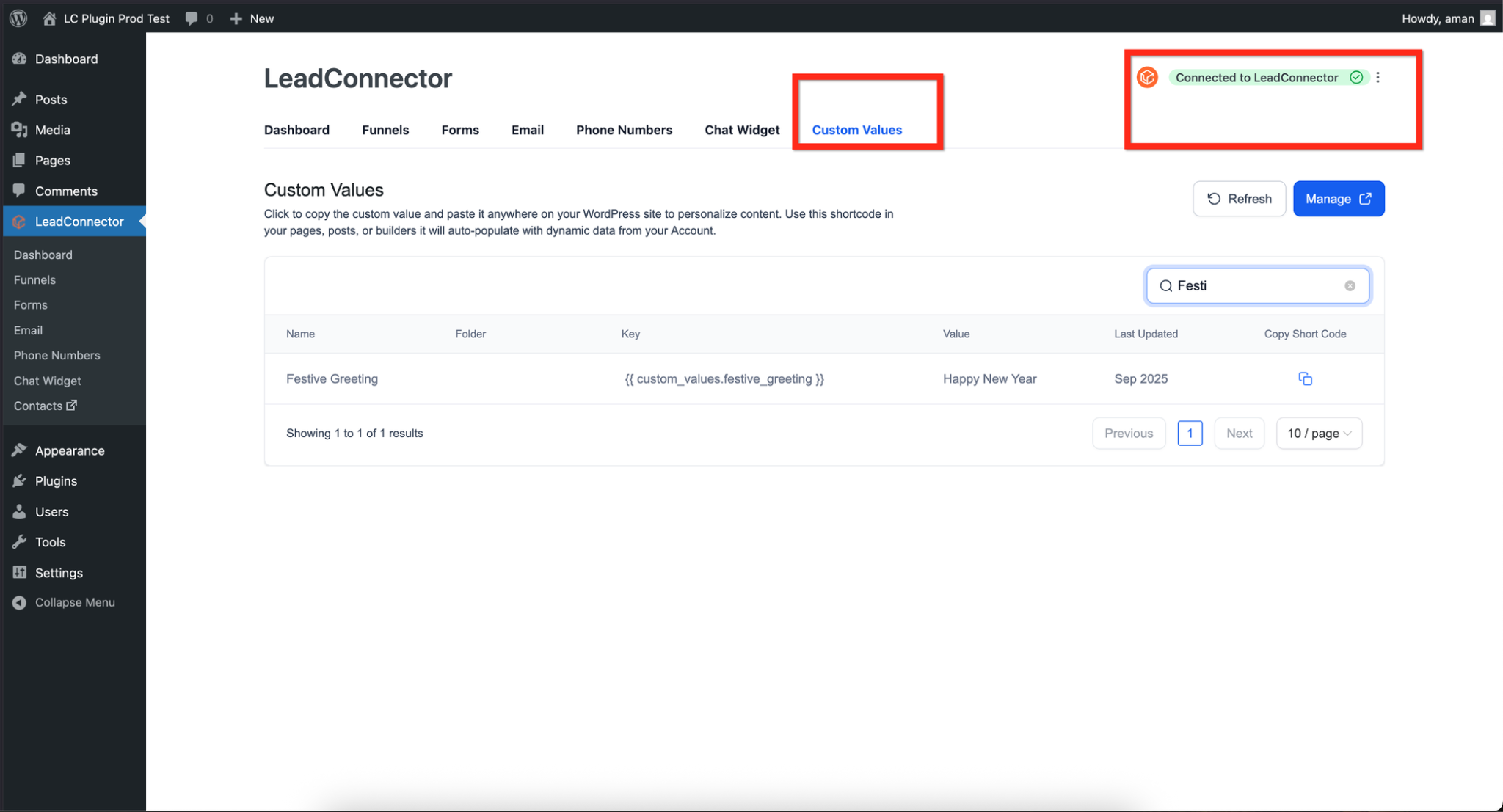
3. Using Custom Values via Shortcodes
Keep your site's data perfectly synced with your CRM using dynamic shortcodes.
In WordPress, you can use the shortcode format: [lc_custom_value key="your_custom_value_key"]
Example: If you have a Custom Value for your business phone number with the key {{custom_values.business_phone}}, you would type [lc_custom_value key="business_phone"] into your WordPress text editor.
Whenever that value is updated in the CRM, the text on your WordPress site updates automatically.
Troubleshooting & FAQs
Q: My Chat Widget isn't showing up on the live site after enabling it. What's wrong?
A: This is almost always caused by caching. Clear your WordPress caching plugin (like WP Rocket or W3 Total Cache), clear your server cache from the hosting dashboard, and do a hard refresh on your browser.
Q: My Custom Value shortcode is just showing blank text. Why?
A: Ensure two things: First, verify that the Custom Value actually has data assigned to it inside your CRM. Second, double-check that you are using the exact key name without the curly brackets {{ }} inside the WordPress shortcode.
Q: The plugin shows as "Disconnected." How do I fix it?
A: If you regenerated your API key inside the CRM recently, the plugin will lose connection. Simply go back to the LeadConnector tab in WordPress, clear out the old key, paste your newly generated API Key, and save.
? Still stuck? If your plugin isn't syncing properly after following these steps, please reach out and contact our support team for immediate assistance!
Was this article helpful?
That’s Great!
Thank you for your feedback
Sorry! We couldn't be helpful
Thank you for your feedback
Feedback sent
We appreciate your effort and will try to fix the article