When you purchase a domain through HighLevel, you can manage its DNS records and connect it to supported HighLevel Sites without leaving the platform. This article explains where to find your purchased domain, how to manage its DNS records, and how to connect it to a Funnel, Website, Store, or Blog.
Table of Contents
- What Is Purchased Domain Configuration?
- Key Benefits of Purchased Domain Configuration
- Supported DNS Records
- How to Manage a Purchased Domain
- How to Add a DNS Record
- How to Connect a Purchased Domain
- Using a Root Domain for More Than One Site
- Frequently Asked Questions
- Related Articles
What Is Purchased Domain Configuration?
Purchased Domain Configuration lets you manage a domain that was purchased directly through HighLevel. Because HighLevel manages the domain registration, you can view and update supported DNS records from the sub-account instead of signing in to a separate registrar.
You can use Purchased Domain Configuration to:
- Add, edit, or remove supported DNS records.
- Connect the domain to a Funnel, Website, Store, or Blog.
- Review the domain's status and renewal information.
- Manage the domain from the same HighLevel sub-account where it was purchased.
Key Benefits of Purchased Domain Configuration
Managing a purchased domain inside HighLevel keeps common domain tasks in one place and reduces the need to work between multiple platforms.
- Centralized DNS Management: Add and manage supported DNS records directly in HighLevel.
- Faster Site Connection: Connect the domain to supported HighLevel Sites using the guided connection flow.
- Clear Domain Status: Review whether the domain is still being configured or is active and ready to manage.
- No External Registrar Login: For domains purchased through HighLevel, common DNS changes can be completed without opening another registrar account.
Supported DNS Records
HighLevel supports managing the following DNS record types for purchased domains.
- A: Points a domain or hostname to an IPv4 address.
- CNAME: Points one hostname to another hostname.
- AAAA: Points a domain or hostname to an IPv6 address.
- MX: Identifies the mail servers responsible for receiving email for the domain.
- TXT: Stores text-based information commonly used for domain verification and email authentication.
How to Manage a Purchased Domain
Use the Purchased Domains area to open the domain's configuration and choose whether you want to manage DNS records or connect the domain to a HighLevel site.
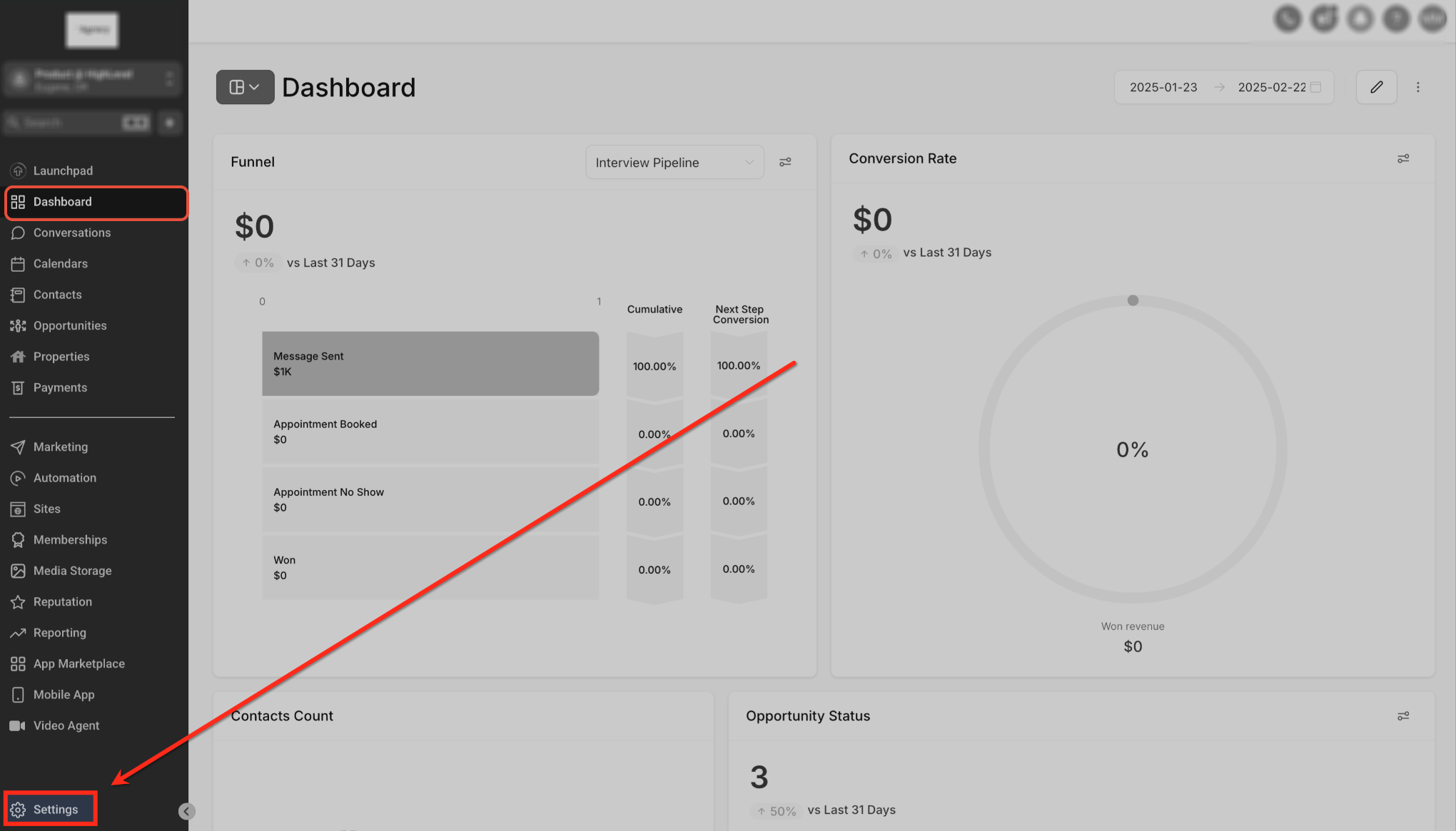
- From the sub-account, click Settings.
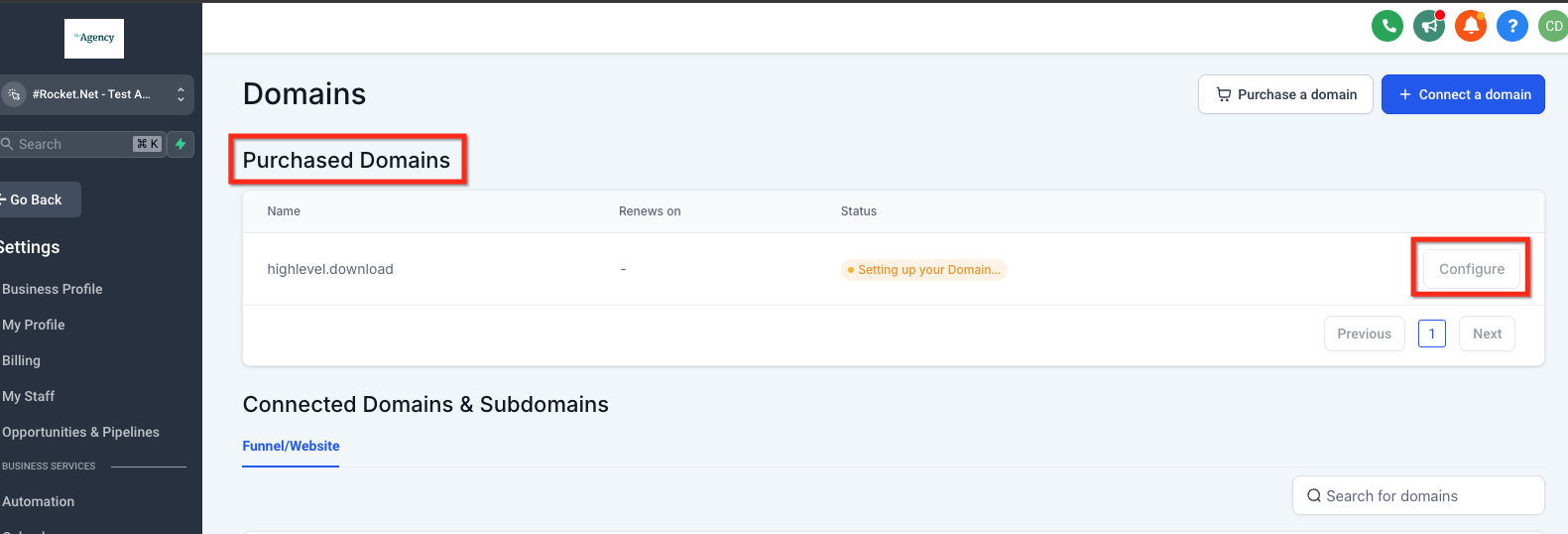
- Open Domains and locate the domain under Purchased Domains.
If the domain is still being prepared, its status may show Setting up your Domain and the Configure button may not yet be available.
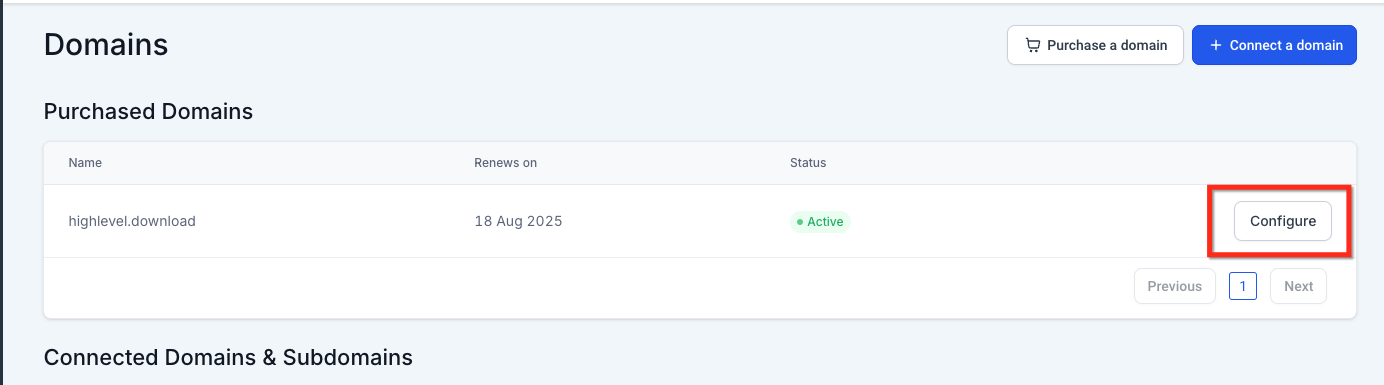
- Once the domain shows Active, click Configure.
- The domain configuration page gives you two primary options:
- Add Record: Manually add a DNS record.
- Connect this domain: Connect the domain to a supported HighLevel Sites asset.
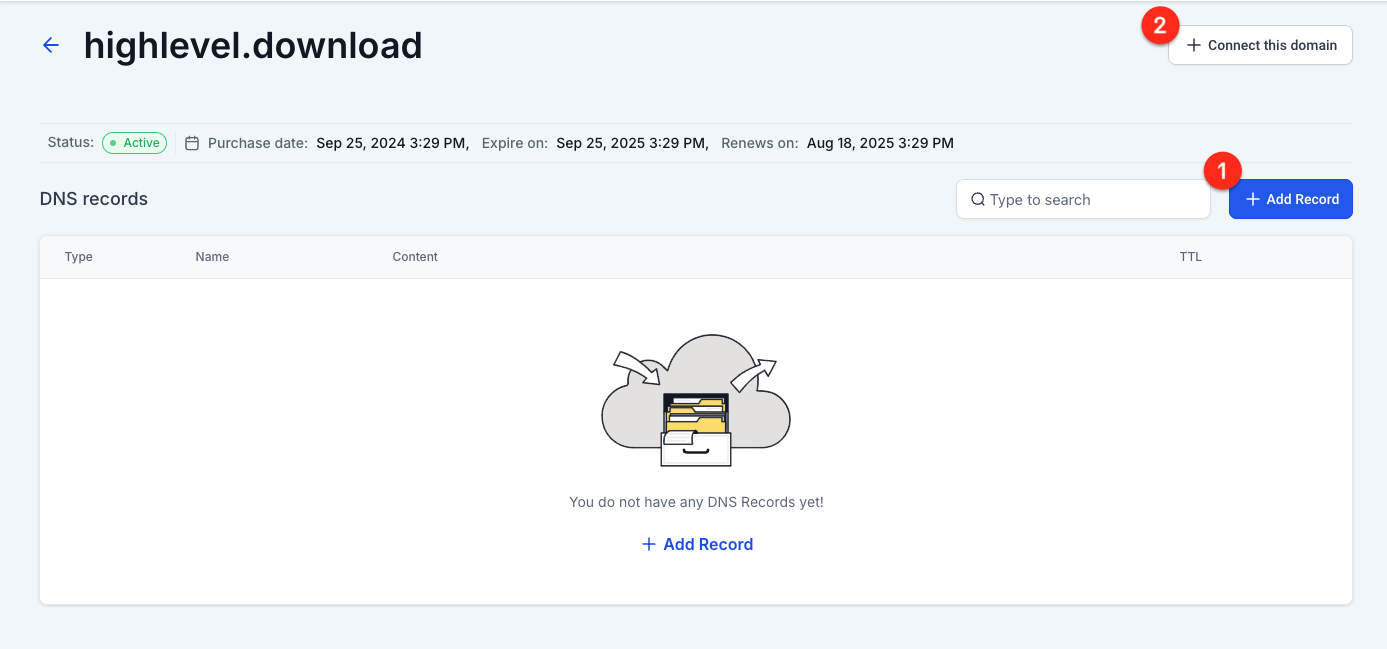
- Add Record: Manually add a DNS record.
Purchased Domain Status Troubleshooting
Expected Domain Status
After purchase, the domain may show Setting up your Domain.
Once setup is complete, the domain should show Active and the Manage option should become available.
HighLevel states that domain registration usually takes about 1 minute.
When Manage Becomes Available
The Manage option should appear after the domain becomes Active.
If the domain is still setting up, you may need to wait until provisioning is complete.
Screenshot placeholder: Show an Active domain with the Manage option.
What “Renews" on: -” Means
What to Check
Before contacting Support:
Confirm the domain appears under Settings > Domains > Purchased Domains.
Check the current domain status.
Refresh the page.
Check whether Manage is available.
Look for any error messages.
Note what appears next to Renews on.
When to Contact Support
Contact HighLevel Support if the domain stays in setup longer than expected, Manage does not become available, or you see an error.
Include the following:
Domain name
Screenshot of the domain status
What appears next to Renews on
Approximate purchase date and time
Any error message shown
This information helps Support review the domain provisioning status.
How to Add a DNS Record
Manual DNS management is useful when you need to add a specific record for a website, email service, verification process, or another connected service.
- From the purchased domain configuration page, click Add Record.
- Select the required DNS record Type.
- Enter the Name or host value.
- Enter the required destination or content value.
- Select the TTL value.
- Click Save.
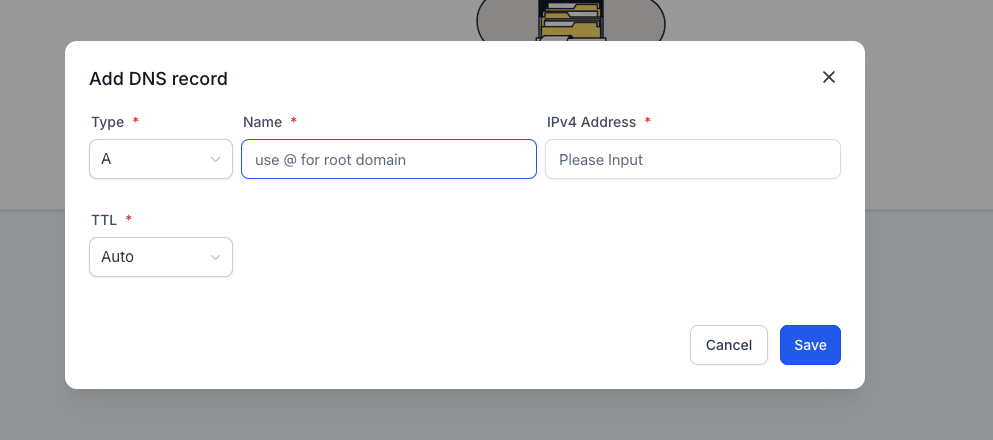
The fields shown can vary depending on the DNS record type you select.
Root Domain A Records
When pointing a root domain, avoid creating multiple A records for the same root hostname unless your configuration specifically requires them.
Multiple A records for the same root domain can create DNS resolution conflicts, especially when HighLevel needs to automatically add the required A record.
How to Connect a Purchased Domain
The Connect this domain option uses a guided flow to associate the purchased domain with content you built in HighLevel.
- From the domain configuration page, click Connect this domain.
- Confirm the domain you want to connect.
You can also choose whether to include the www version of the domain when that option is available.
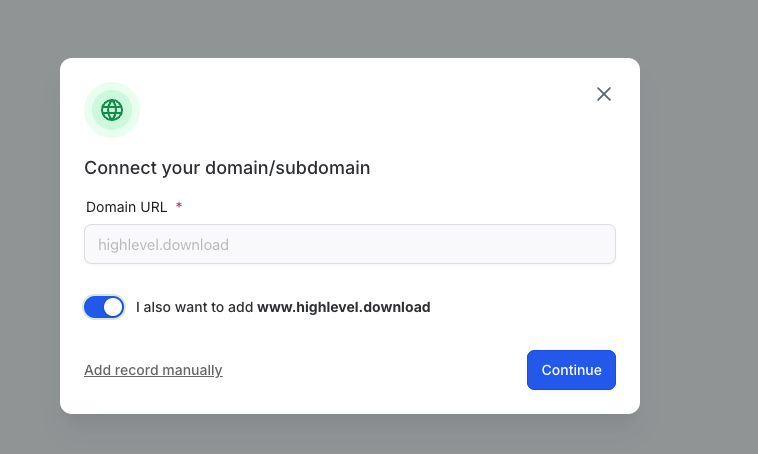
- Click Continue and follow the prompts to add the required DNS records.
- Select what you want to connect the domain to:
- Funnel
- Website
- Store
- Blog
- Funnel
- Choose the specific asset from the dropdown.
- Review any available additional options, then click Proceed to finish
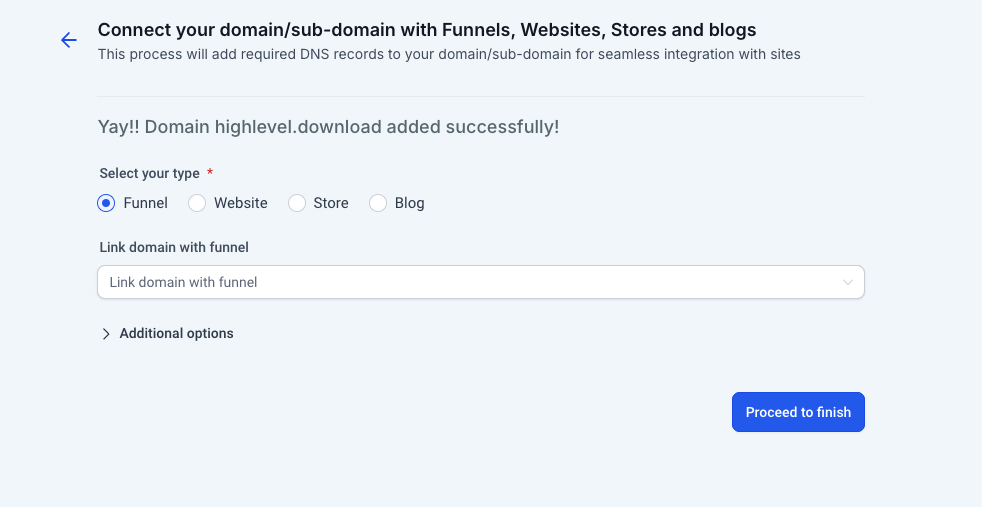
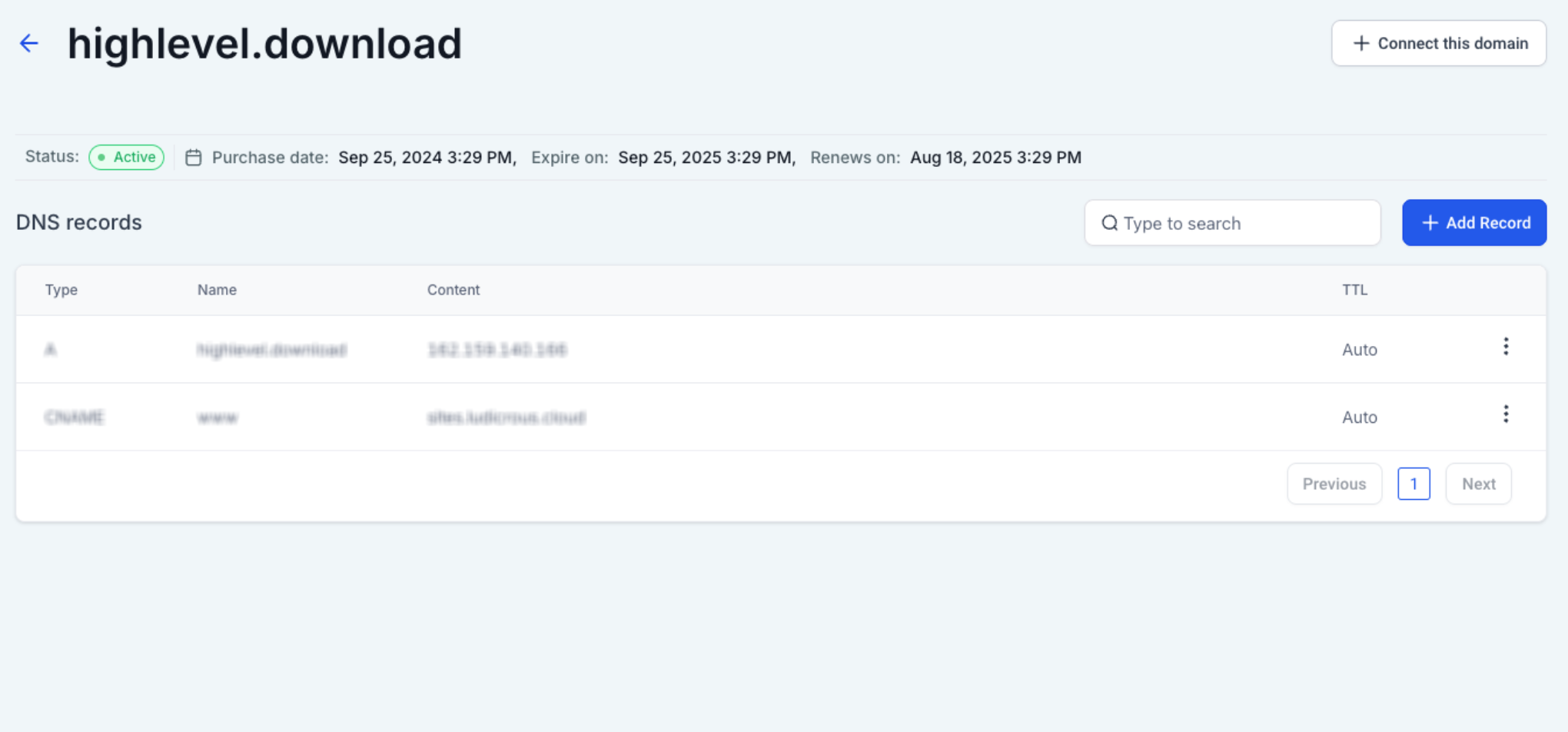
- After configuration is complete, return to the purchased domain page and review the DNS records.
Using a Root Domain for More Than One Site
A single root domain should normally be connected to one primary site type at a time. For example, you would not use the same root domain as the direct address for both a Website and a separate Store.
If you need different experiences on the same domain family, use subdomains such as:
This lets each subdomain point to a different destination without creating a conflict on the root domain.
Frequently Asked Questions
Q: Can I manage a domain in HighLevel if I purchased it somewhere else?
You can connect an externally purchased domain to HighLevel, but the Purchased Domain Configuration described in this article is specifically for domains purchased through HighLevel. External domains may require DNS changes at the registrar or DNS provider.
Q: What DNS records can I manage for a purchased domain?
You can manage A, CNAME, AAAA, MX, and TXT records from the purchased domain configuration area.
Q: Why is the Configure button unavailable?
If the domain is still being set up, configuration may not yet be available. Wait until the purchased domain shows an Active status, then open Configure.
Q: Do I need to verify a domain purchased through HighLevel manually?
Domains purchased directly through HighLevel are handled within the HighLevel domain-purchase system, so you do not need to complete the same external registrar verification process used when connecting a third-party domain.
Q: Can I connect the same root domain to both a Funnel and a Website?
A root domain should be connected to one site type at a time. Use subdomains when you need separate destinations for different assets.
Q: Why isn't my domain working immediately after I changed the DNS?
DNS changes are not always immediate. Propagation can take time, so wait for the DNS update to complete before assuming the configuration has failed.
Q: What happens if my HighLevel account is canceled but I still own a domain purchased through HighLevel?
If you can no longer access the domain management area after cancellation, use HighLevel's dedicated purchased-domain release process.
Related Articles
- How to Purchase a Domain in HighLevel | Step-by-Step
- Connecting Your Domain on HighLevel - A Guide
- How to Set Up a Root Domain/Subdomain for Funnels/Websites
Was this article helpful?
That’s Great!
Thank you for your feedback
Sorry! We couldn't be helpful
Thank you for your feedback
Feedback sent
We appreciate your effort and will try to fix the article