The Domain Purchase feature in HighLevel allows agencies to enable locations, and sub-accounts to buy and manage domains directly within the platform. This article will guide you through enabling, managing, and rebilling domain purchases.
Important: Domain purchases are final and cannot be refunded or canceled. Eligible purchased domains can later be transferred out using HighLevel's supported domain-transfer workflows.TABLE OF CONTENTS
- Overview of Purchasing a Domain
- Key Benefits of Purchasing a Domain in HighLevel
- Multi-Year Domain Registration
- How to Enable Domain Purchase
- How to Purchase a Domain
- Start a domain purchase from Funnels, Websites, Stores, or Webinars
- Domain Registration Confirmation Email
- After Purchasing Your Domain
- Frequently Asked Questions
- Related Articles
Overview of Purchasing a Domain
Domain Purchase allows eligible HighLevel agencies and sub-accounts to search for and register a new domain directly inside HighLevel. Instead of purchasing a domain from a third-party registrar and then connecting it separately, users can complete the registration process from within their HighLevel account and manage the domain alongside the products and sites that use it.
This makes it easier to move from purchasing a domain to using it with supported HighLevel products, including websites, funnels, stores, and other digital assets that require a connected domain.
HighLevel also supports multi-year registration for eligible TLDs during checkout. This gives users the option to secure a domain for a longer period upfront, helping reduce the need for annual renewals while providing more control over long-term domain ownership.
Note: Your domain automatically comes with WHOIS privacy protection, ensuring your personal details are not visible in public lookups.Important: If your account has been cancelled and you need to request the release or transfer of a purchased domain, submit the domain release request form here.Key Benefits of Purchasing a Domain in HighLevel
- Centralized domain management: Purchase and manage registered domains from the same HighLevel account.
- Multi-year registration: Register eligible domains for multiple years during checkout instead of renewing every year.
- Pricing transparency: Review the price for the selected domain and registration term before completing the purchase.
- Simplified setup: After purchase, configure the domain or connect it to supported HighLevel products from the Purchased Domains area.
Multi-Year Domain Registration
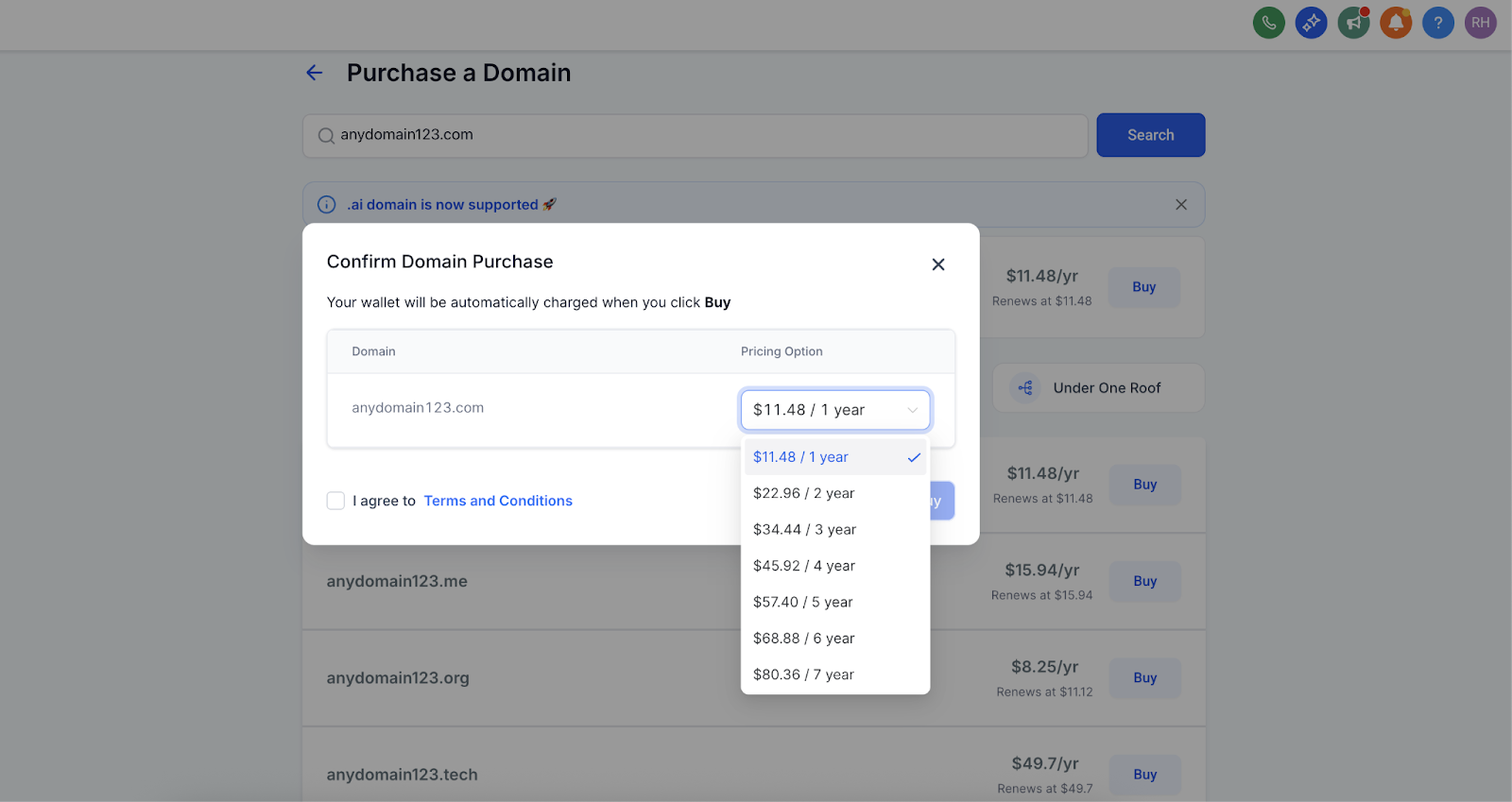
The multi-year domain purchase feature allows you to register a new domain for more than one year — up to 10 years (depending on the TLD). Instead of renewing your domain annually, you can choose to secure it for multiple years during the initial checkout process.
This feature is designed to help businesses and individuals manage their domains more proactively and ensure brand consistency without the hassle of yearly renewals.
To ensure you make the most of this feature, keep the following points in mind:
- Most TLDs (Top-Level Domains) can be registered for up to 10 years.
- The .co family of TLDs (.co, .com.co, .net.co, .nom.co) supports up to 5 years of registration.
- If the renewal price is different from the initial registration price for a given TLD, the domain can only be registered for 1 year at the time of purchase.
How to Enable Domain Purchase
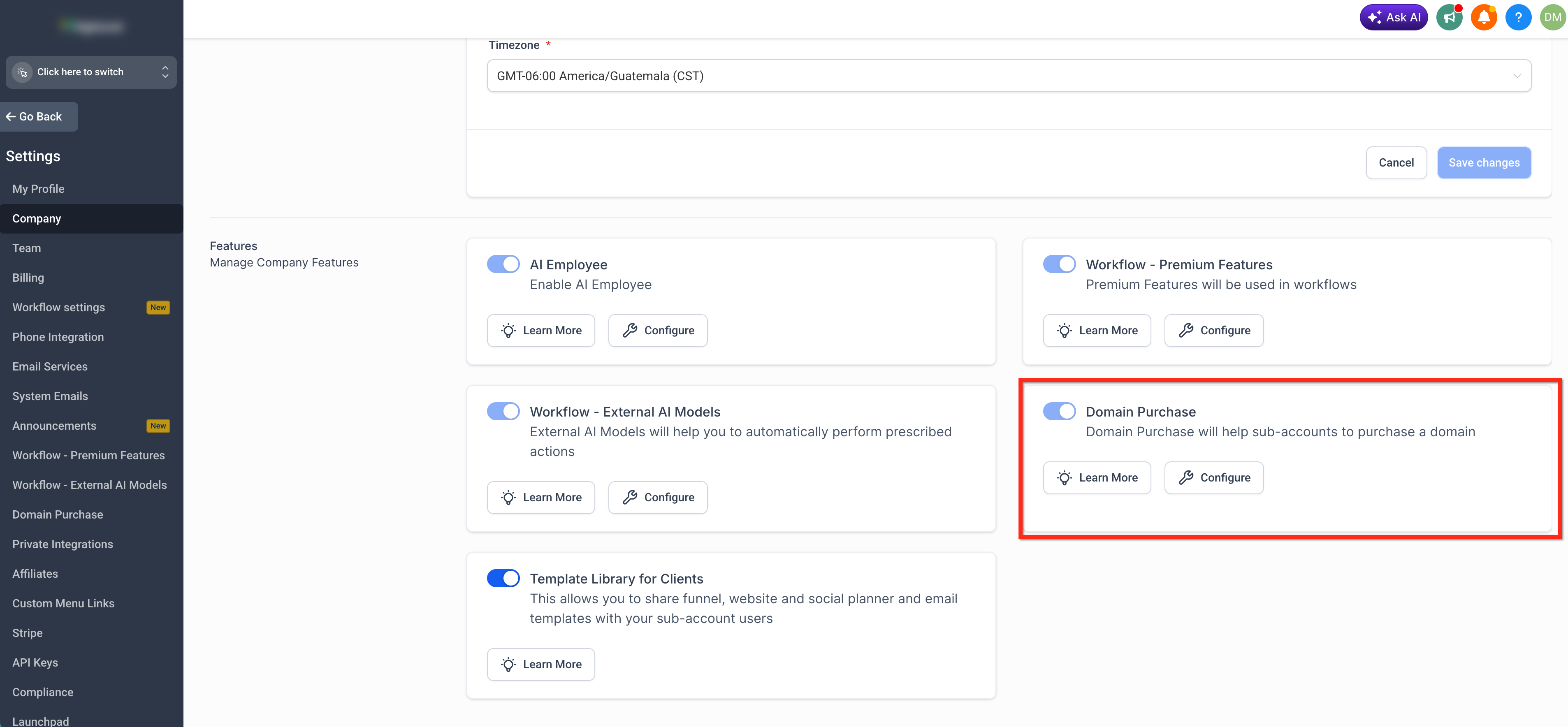
Domain purchasing must be enabled before sub-accounts can register domains through HighLevel. Agencies control this setting at the agency level, helping determine whether clients can access the built-in domain purchase experience.
To enable Domain Purchase:
- From the Agency View, navigate to Settings > Company and enable the Domain Purchase option. Review and accept the applicable Domain Purchase terms and confirm the change.
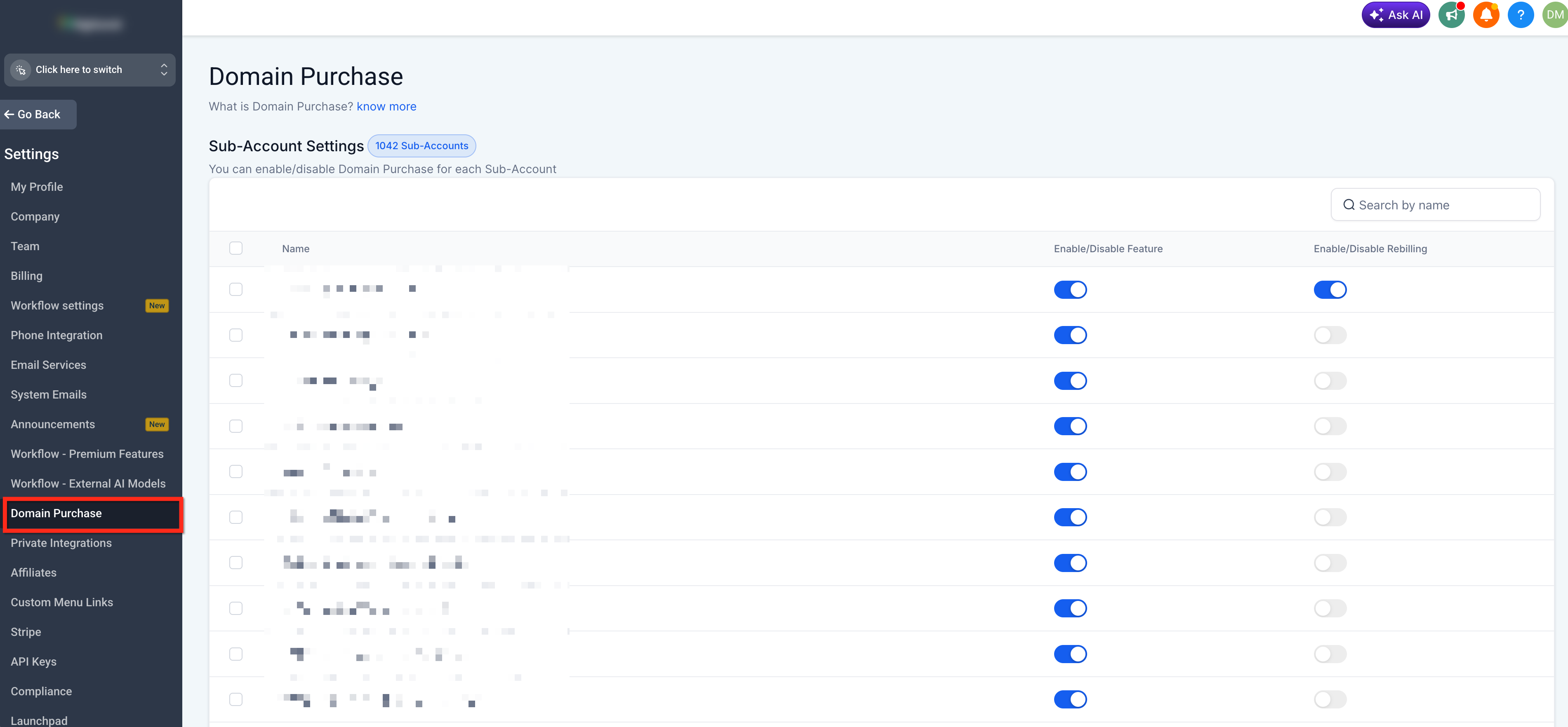
- You can enable or disable the Domain Purchase feature or rebill for each Sub-Account in Agency Settings > Domain Purchase. You can access Sub-Account Settings only if Domain Purchase is enabled at the Agency Level.
How to Purchase a Domain
Purchasing a domain involves searching for an available name, reviewing the registration options, and confirming the purchase. Carefully reviewing the domain name, registration period, and total cost before checkout is important because domain registrations are finalized once the purchase is completed.
Important: If your account has been cancelled and you need to request the release or transfer of a domain purchased through HighLevel, please submit the domain release request form here.Step 1: Open Domains
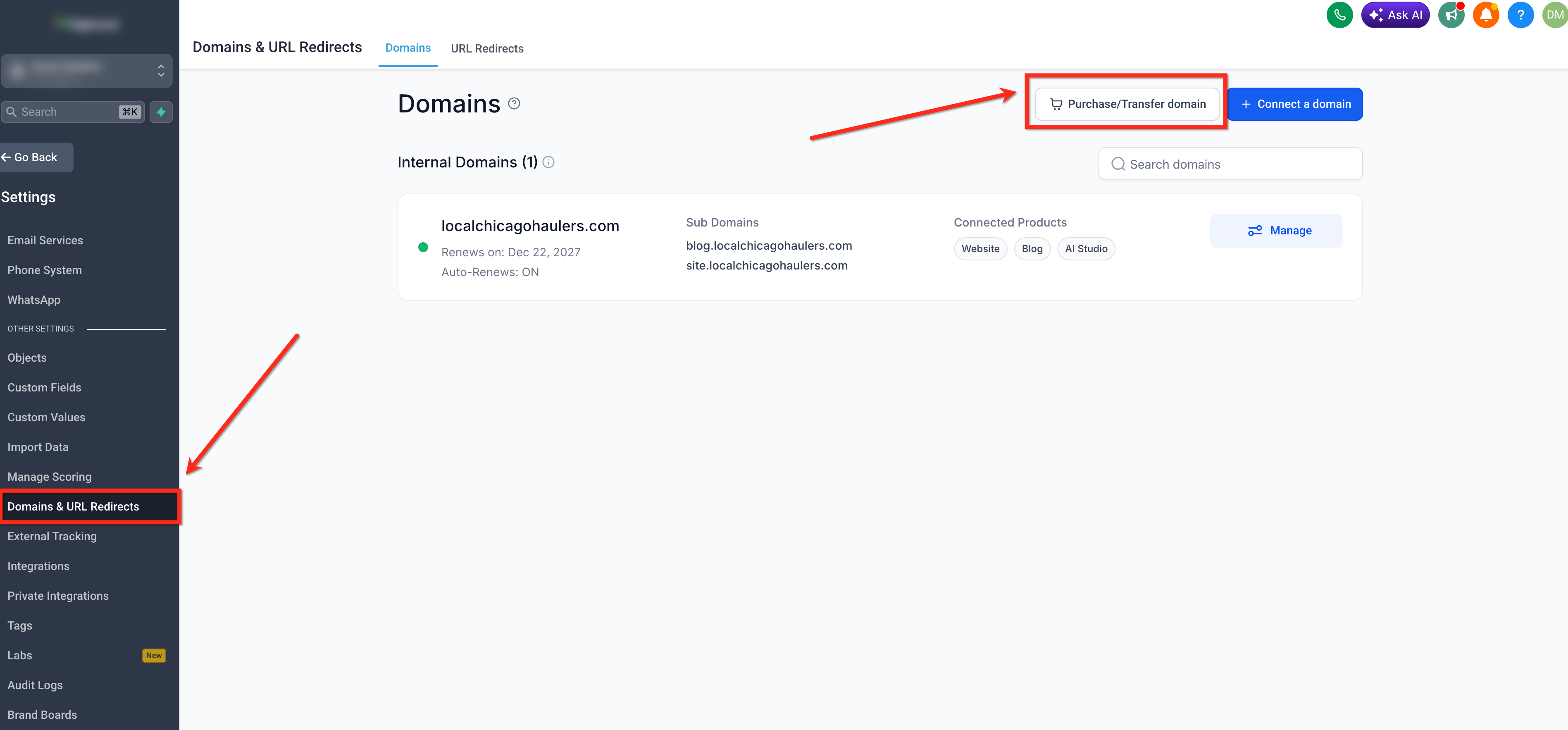
From the applicable sub-account, go to Settings > Domains & URL Redirects. Click on Purchase/Transfer Domain
Step 2: Search for a Domain
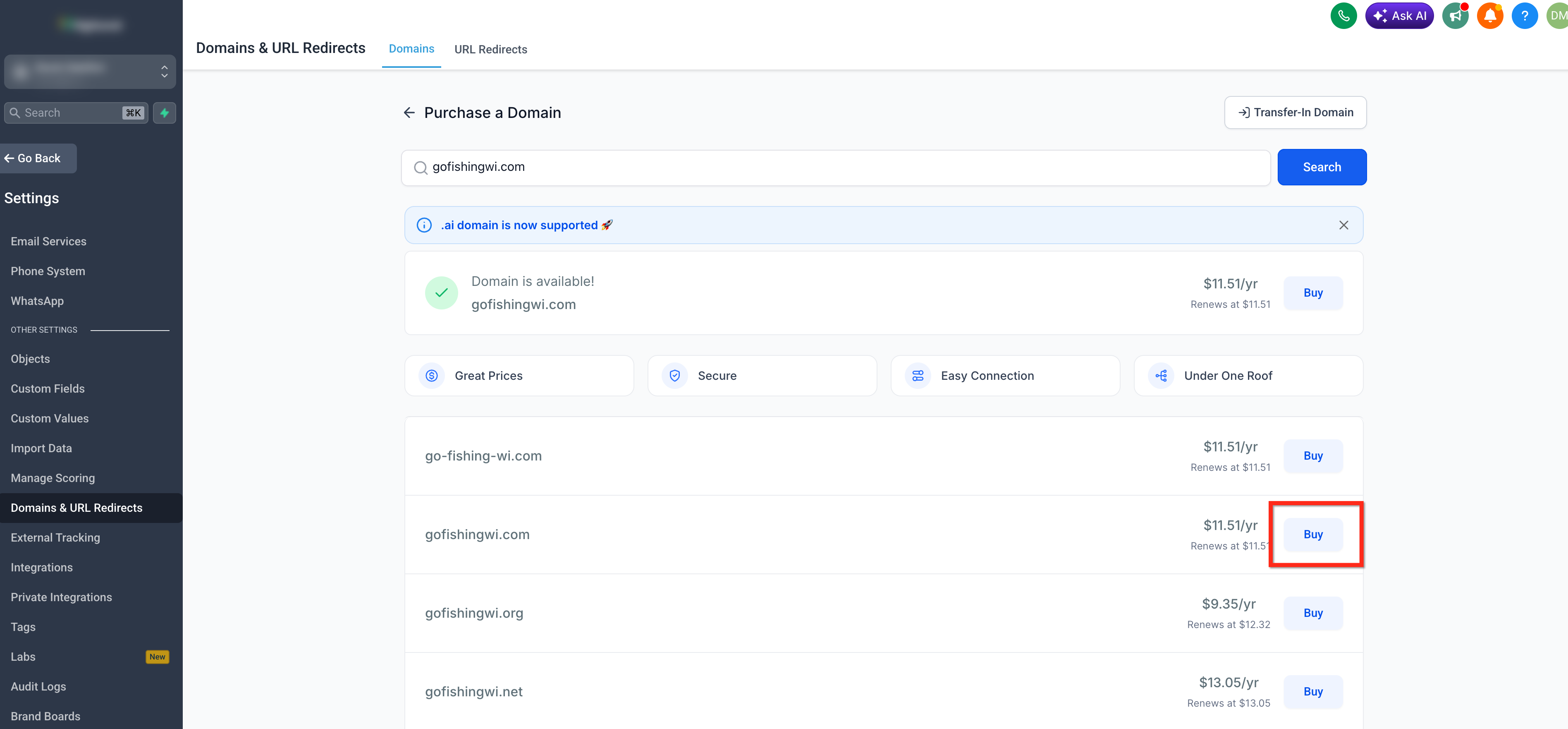
Enter the domain name you want to purchase. It will display whether the requested domain is available and may provide alternative domain suggestions.
Locate the domain you want and click Buy.
Step 3: Select a Registration Period
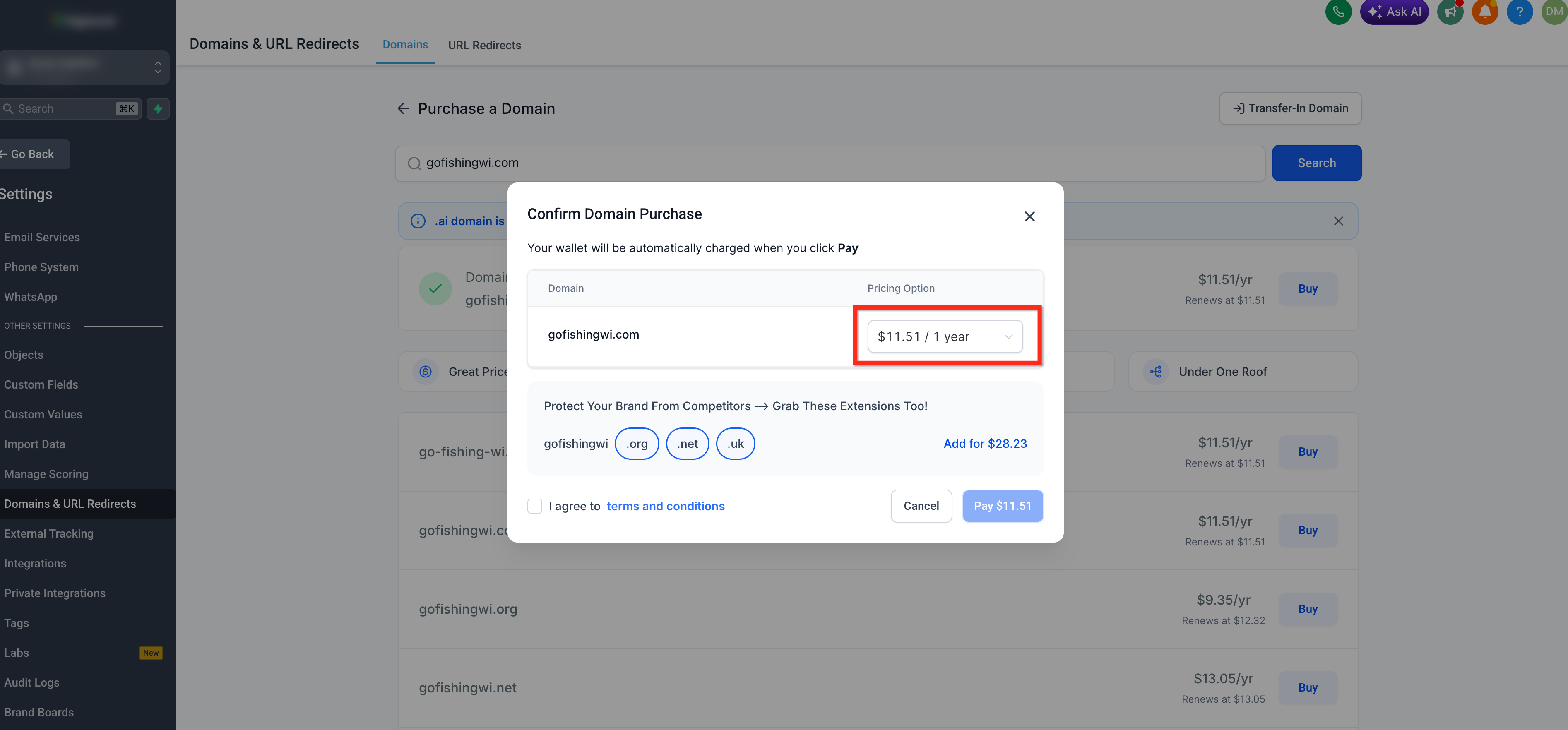
Open the Pricing Option dropdown for the primary domain.
Choose the number of years you want to register the domain for from the available options. Registration periods can be up to 10 years but vary based on the TLD. The displayed price updates based on the selected term.
Step 4: Add Additional Domain Extensions
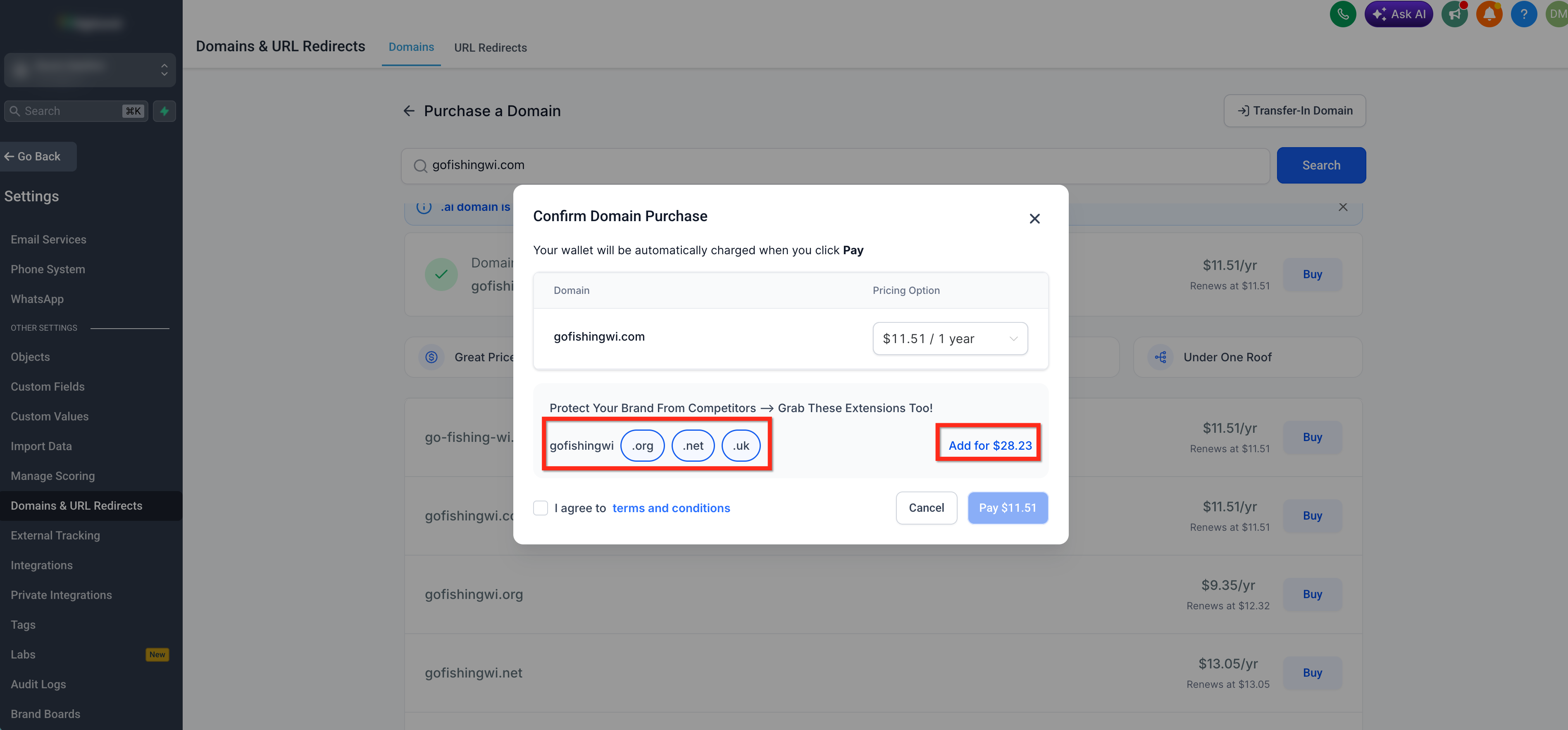
After you select the registration period for your main domain, you will see Protect Your Brand From Competitors — Grab These Extensions Too! with additional options such as .org, .net, and .uk. Select any extensions you want to add.
Each additional domain is added with a 1-year registration period by default. To change the registration period for an added domain, click its price and select the number of years you want. You can set a different registration period for each domain or remove an added domain using the delete icon.
Step 5: Complete the Purchase
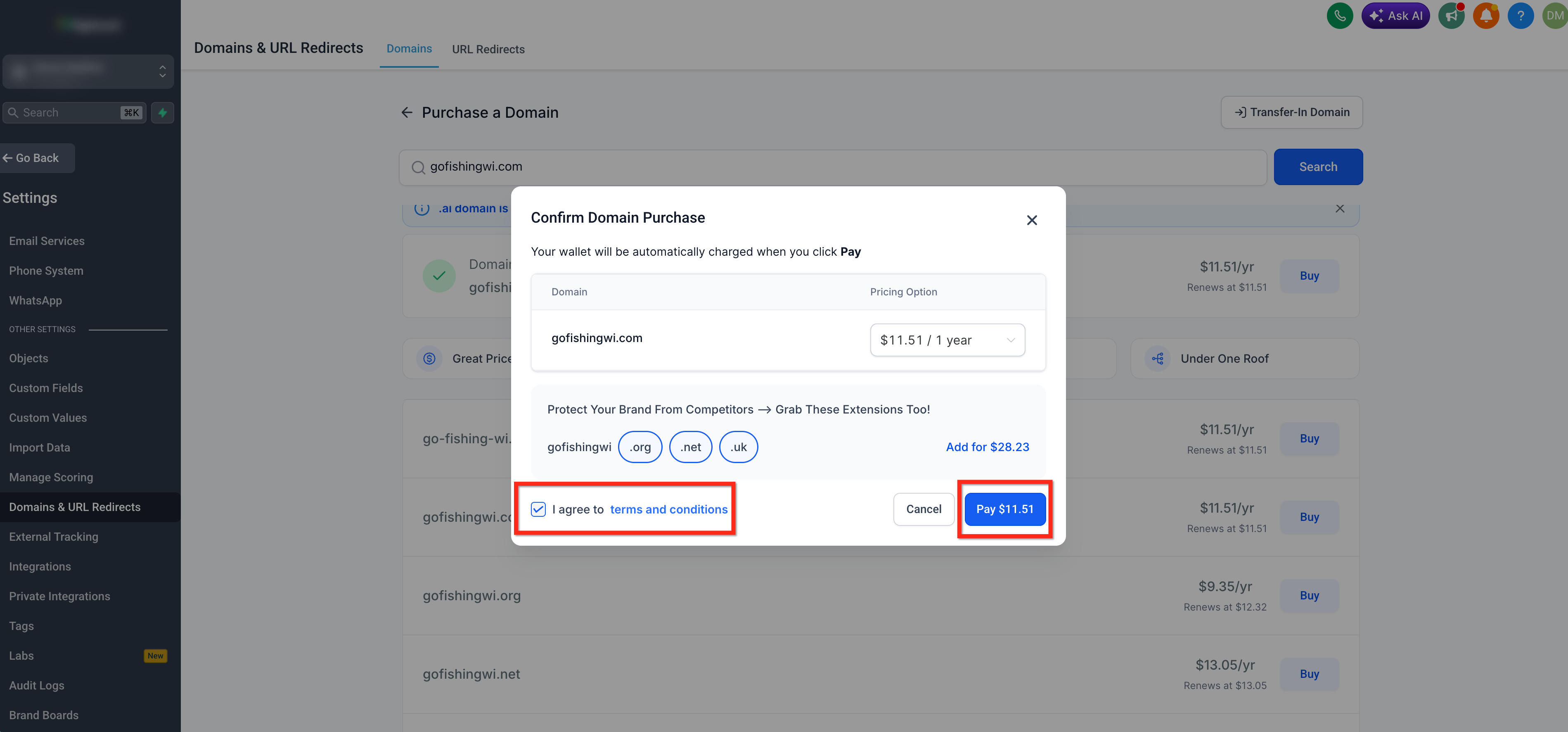
When you're ready, agree to the Terms and Conditions and click Pay. It takes about 1 minute to complete the domain registration process.
Start a domain purchase from Funnels, Websites, Stores, or Webinars
You can also start a domain purchase directly from the asset you are working on.
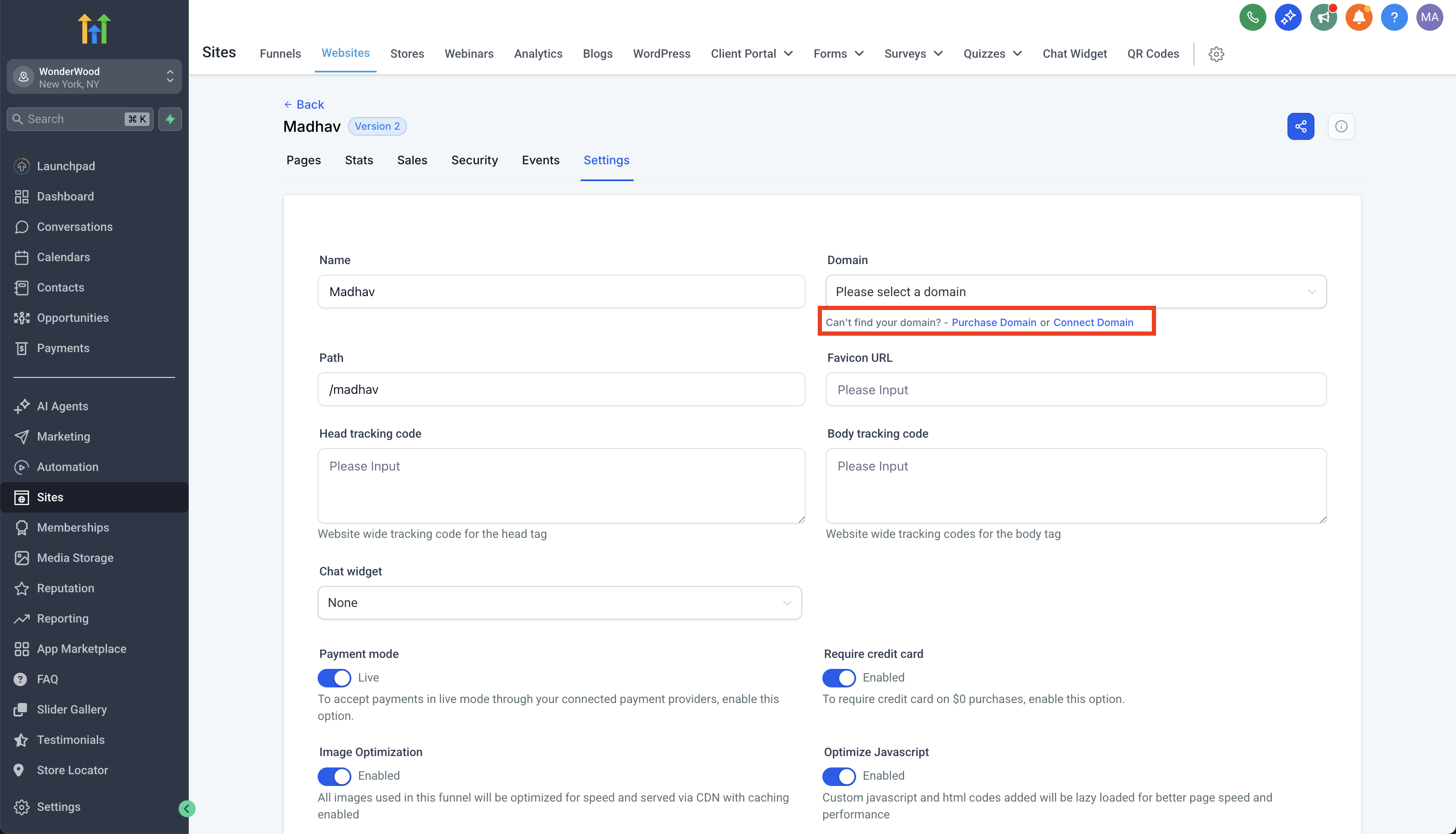
In a Funnel, Website, Store, or Webinar Settings screen, click Purchase Domain to open the domain purchase page and start a domain search.
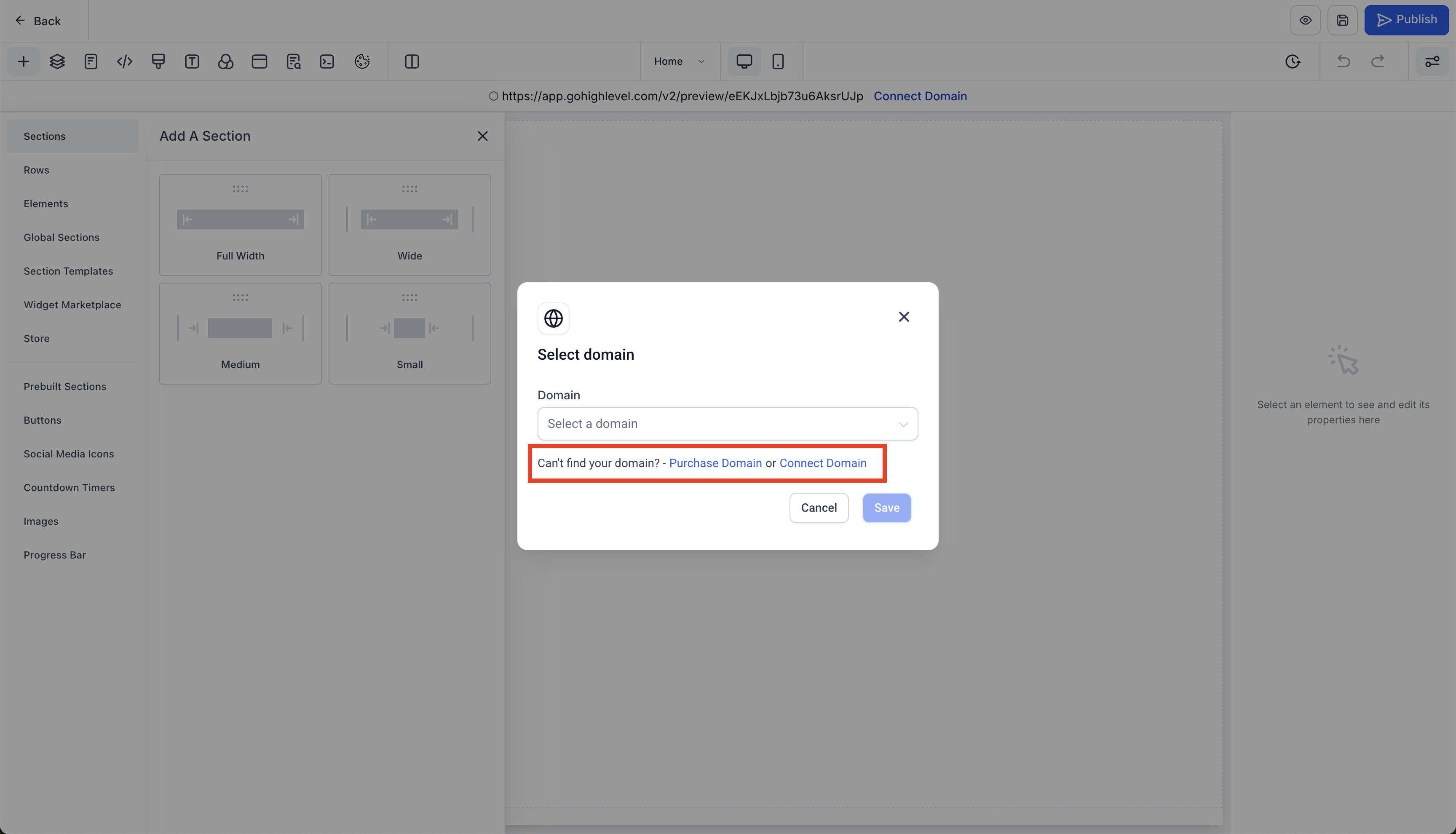
You will see similar options inside the builder:
- In the Funnel, Website, Store, or Webinar builder, click Connect Domain.
- Choose Purchase Domain when prompted. This opens the same domain purchase page in a new tab where you can search for and purchase a new domain.
After purchasing your domain, continue with the configuration and connection steps in this article to use it with your funnels, websites, stores, or webinars.
Domain Registration Confirmation Email
After your domain is successfully registered, you’ll receive a Domain Registration Confirmation email. The email confirms the registration and includes key details such as:
- Domain name
- Registration date
- Account name
- Email address used for the purchase

After Purchasing Your Domain
Once the domain registration is complete, the purchased domain appears under Settings > Domains > Purchased Domains.
To configure DNS records or connect the domain to a funnel, website, store, blog, or other supported product, see Configure & Connect Purchased Domains.
Frequently Asked Questions
Q: What happens if my account is cancelled but I still need access to a domain I purchased for multiple years?
If your account has been cancelled and you need to request the release or transfer of a purchased domain, submit the domain release request form here.
Q: Why can I only register some domains for 1 year?
Some TLDs do not support longer initial registration periods. If the renewal price differs from the registration price, the domain can only be registered for 1 year at purchase.
Q: Can I extend my domain registration later?
Yes. You can renew or extend the domain later based on the options available for that TLD at the time of renewal.
Q: Will I receive reminders before my multi-year registration ends?
Yes. HighLevel automatically sends a renewal reminder to the domain owner 67 days before the domain expires. It also sends a final expiration notice 10 days after the expiration date if the domain has lapsed. Both emails are sent regardless of whether auto-renew is enabled or disabled. No user configuration is required.
Q: Is WHOIS privacy included with domains purchased through HighLevel?
Yes. WHOIS privacy protection is automatically included so your personal registration details are not visible in public WHOIS lookups.
Q: Does purchasing for multiple years change my renewal price?
No. Your upfront payment covers the total cost of the selected registration period. Renewal pricing in future years will follow standard rates at that time.
Q: What domain extensions are supported for domain purchase in HighLevel?
HighLevel supports many common top-level domains (TLDs) for domain purchase, including .com, .net, .org, .co, .uk, .church, and more. Available extensions depend on the domain you search for.
Related Articles
Was this article helpful?
That’s Great!
Thank you for your feedback
Sorry! We couldn't be helpful
Thank you for your feedback
Feedback sent
We appreciate your effort and will try to fix the article