HighLevel's Cookie Consent Banner helps visitors control which cookie categories are allowed on your funnels and websites. You can configure consent choices, personalize the banner, select where it appears, and organize cookies by purpose. The banner can also support your tracking setup when analytics and advertising integrations are configured to respect visitors' choices. This guide explains how to set up the banner, manage cookies, and test the published experience.
Important: This article is general information, not legal advice. Your business is responsible for its notices, consent requirements, tracking configuration, and withdrawal process. Enabling a banner does not automatically make a website compliant or control every custom script.
TABLE OF CONTENTS
- What Is the Cookie Consent Banner in HighLevel?
- Key Benefits of the Cookie Consent Banner
- Before You Begin
- How to Set Up the Cookie Consent Banner in HighLevel
- Customize Appearance, Language, and Expiration
- Configure Regional Display
- Manage Cookie Categories and Your Cookie List
- Integrate Marketing and Analytics Tools
- Plan for Preference Changes and Withdrawal
- Test Your Published Site
- Align Your Notices with Your Data Practices
- Frequently Asked Questions
- Related Articles
What Is the Cookie Consent Banner in HighLevel?
The Cookie Consent Banner is a configurable privacy-control feature in the HighLevel Funnels & Websites Builder. It displays consent choices and provides category settings that visitors can use to indicate which cookies they allow. Available configurations include opt-in prompts, localized banner text, region-based display, and expiration settings. Actual protection depends on how your website's cookies, tracking scripts, and consent-handling processes are configured.
Key Benefits of the Cookie Consent Banner
Clear choices help visitors understand how a site uses cookies while giving businesses a more organized way to manage their tracking setup. Properly configuring the banner can support a transparent browsing experience and make cookie preferences easier to administer.
- Visitor Choice: Let visitors accept essential cookies, accept all configured categories, or choose available preferences.
- Configurable Regional Display: Decide whether to show the banner worldwide, in the EU and UK, or in selected countries.
- Organized Cookie Inventory: Group cookies by purpose and describe their duration, domain, and function.
- Customizable Experience: Adapt the banner's text, colors, layout, language labels, and consent expiration.
- Better Tracking Oversight: Review analytics and advertising integrations against the consent choices shown to visitors.
Before You Begin
A reliable setup starts with understanding which tracking technologies are in use and the requirements that apply to them. Identify the site's cookies and related services before choosing banner settings so visitors receive meaningful, accurate choices.
- Identify the cookies, pixels, local storage, tags, and embedded services used on your site.
- Assess the purposes, providers, and consent requirements for those technologies in the jurisdictions you serve.
- Publish your own privacy and cookie information, including purposes, providers, durations, and available choices.
- Decide how visitors will withdraw consent and how your site will enforce that change.
Cookie and similar-technology rules can apply even when the information is not personal data. GDPR requirements also apply where personal data is processed. Where prior consent is required, do not activate the relevant non-exempt tracking before an affirmative choice. Continuing to browse or closing a banner should not be treated as consent.
See the ICO's guidance on storage and access technologies. Requirements and exceptions depend on the applicable law and purpose.
How to Set Up the Cookie Consent Banner in HighLevel
The initial setup controls which choices visitors see and how the banner appears on your published funnel or website. Configure the consent type and policy information before publishing, then confirm the buttons behave as intended.
- Open the relevant funnel or website in the Funnels & Websites Builder.
- Open a page and select the Cookie Consent Banner Settings icon.
- Enable the banner.
- Select the appropriate compliance type. Ask to Opt-In displays consent choices. Don't Ask displays an informational OK button; it does not obtain affirmative opt-in consent.
- Add clear explanatory text and a working link to your own privacy or cookie notice.
- Configure the cookie list, categories, and visitor choices, then save and publish.
Where opt-in is required, offer a clear way to refuse non-essential cookies. Keep accepting and refusing choices easy to find and understand.
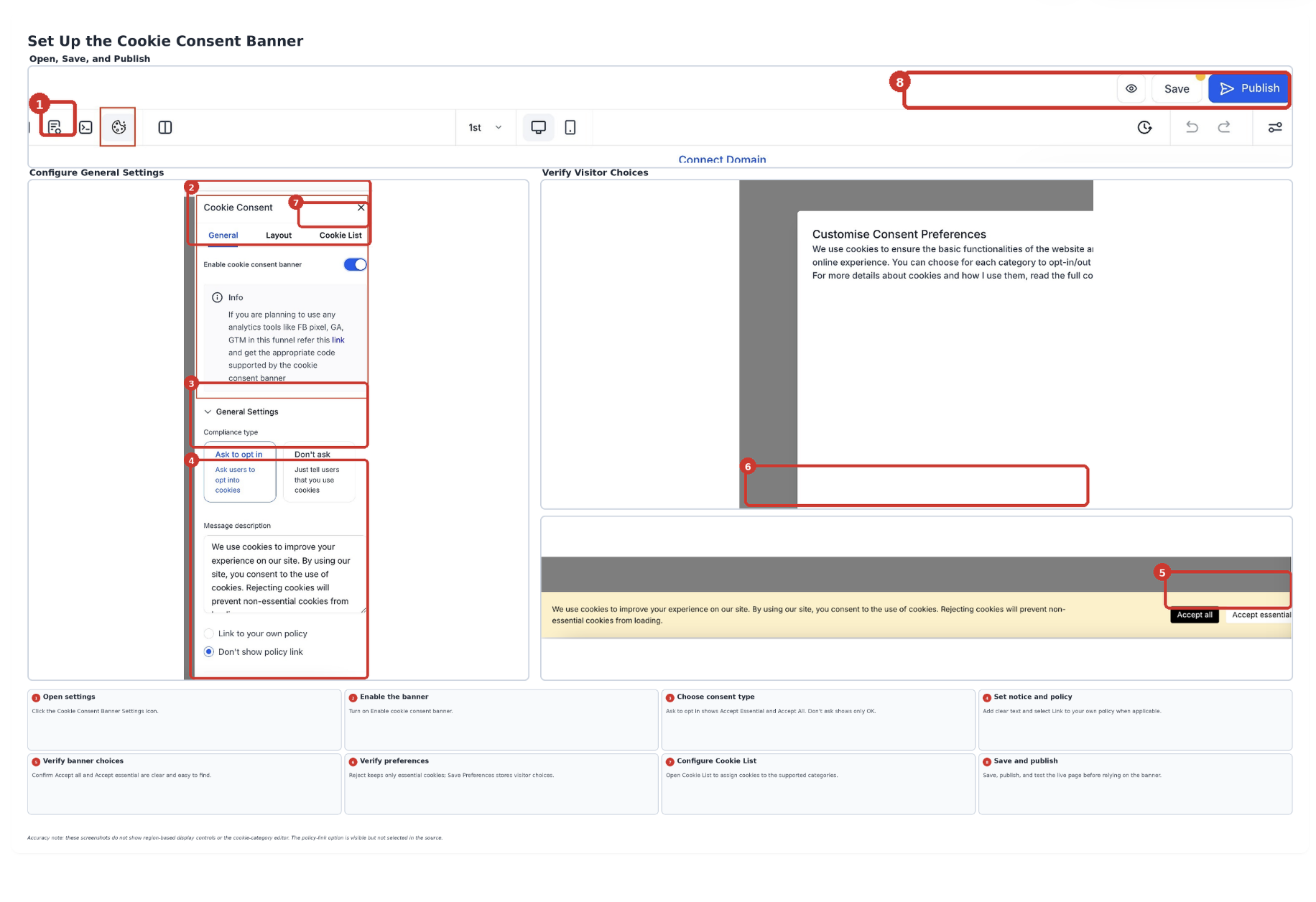
Banner and Preference Buttons
Each control represents a specific consent action. Understanding these differences helps you choose clear labels and test whether essential-only, all-category, and customized selections are applied correctly.
| Control | Documented Action |
|---|---|
| Accept Essential | Allows only essential cookies. |
| Accept All | Allows all configured categories, including analytics and advertising. |
| Customize | Opens the available category preferences. |
| Reject | Allows only essential cookies. |
| Save Preferences | Saves the visitor's selected categories. |
| Cancel | Closes the preferences popup and returns to the main banner. |
These choices must be connected to your actual tracking setup. Test custom scripts and integrations separately.
Customize Appearance, Language, and Expiration
Banner language, appearance, and expiration settings affect whether visitors can understand and revisit the choices you present. Customize these controls to match your site without changing the meaning of consent actions.
- General settings: Configure the description, policy link, cookie-list visibility, fonts, colors, and layout.
- Button labels: Customize banner labels such as Accept All, Accept Essential, Customize, and OK, and popup labels such as Reject, Save Preferences, and Cancel. Preserve each button's meaning.
- Translations: Customizing button labels disables their automatic translations. Add and test the translations needed for your supported languages.
- Consent Expiration: Set the number of days before the banner asks again. Choose a period appropriate to your purposes and applicable requirements.
The consent-expiration setting is separate from the lifespan of individual cookies. Reassess consent when introducing a new tracking purpose; a timer does not by itself address that change.
Configure Regional Display
Regional display determines where the banner is shown, not which privacy rules apply to your business. Match the visibility settings to your audience and verify tracking behavior in every region that matters.
Available display options are:
- Worldwide: Display the banner to visitors in all locations.
- EU & UK: Display it to visitors identified as being in the European Union or United Kingdom.
- Select Countries: Choose specific countries.
Choose coverage based on the jurisdictions you serve. Do not assume the EU & UK option includes Switzerland, other EEA countries, or every location with privacy requirements. Regional display controls where the banner appears; it is not a complete determination of your legal obligations.
Test behavior in targeted and non-targeted regions. Confirm what tracking runs when the banner is not displayed.
Manage Cookie Categories and Your Cookie List
A well-maintained cookie list tells visitors what different tracking technologies do and gives your team a basis for assigning them to the correct consent categories. Review every category against the scripts and services actually used on your site.
Enable the cookie list to show available categories and choices. The documented categories are:
- Essential: Required for core functionality; always enabled in the banner.
- Functional: Additional features and personalization.
- Analytics: Measurement of visitor behavior.
- Performance: Site-performance measurement or optimization.
- Advertising: Advertising, remarketing, and related tracking.
- Uncategorized: Cookies not yet assigned to a category.
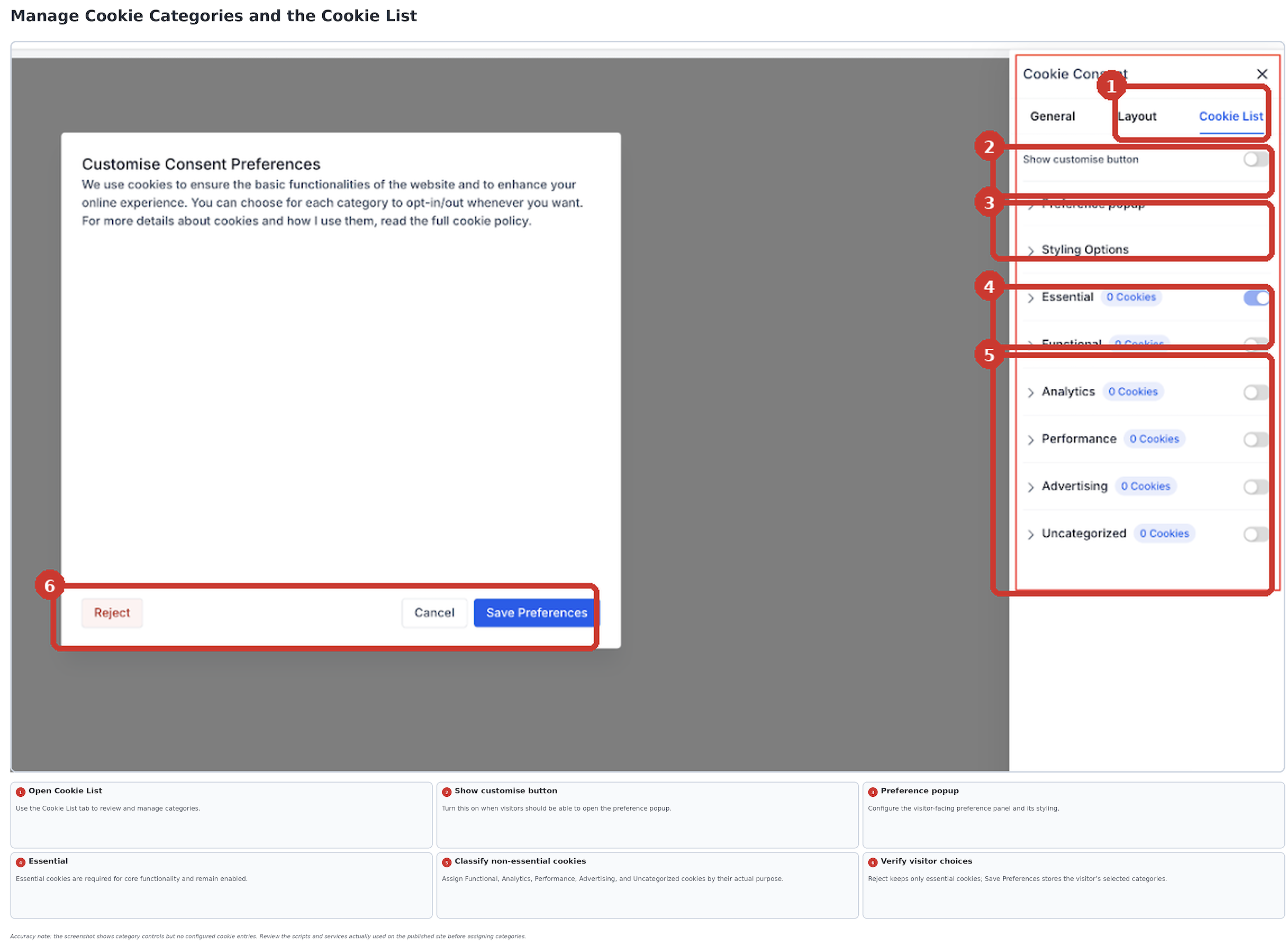
Classify technologies according to their actual purpose. Labeling a cookie Essential does not establish a legal exemption. Review Uncategorized items before launch.
Add Cookie Details
For each cookie, record its Cookie Key, Duration, Domain, and a plain-language Description. Check the actual provider configuration and browser behavior rather than assuming example names or durations apply to every site.
The Cookie Key supports regular-expression patterns. Use narrowly scoped patterns and test the matches. For example, ^_ga matches names beginning with _ga; it is an illustrative pattern, not an inventory of every Google cookie.
Inventory and Scan Your Site
Use browser tools or a cookie scanner to inspect your pages, then review the findings manually. Test important journeys such as booking, checkout, video playback, and chat. Scans may miss technologies that load only after interaction.
Inventory tracking in an isolated test environment where possible, including behavior after accepting categories. Keep the live site's consent controls enabled while visitors are using it.
Integrate Marketing and Analytics Tools
Adding a cookie to a category is not a substitute for integrating the script that creates it. Follow the official Marketing Tools and Cookie Banner integration guide for Meta Pixel, Google Analytics, and Google Tag Manager.
- Use the documented consent-aware setup in place of the corresponding existing tracking code. Avoid duplicate installations.
- Follow the guide's instructions for page-header or head-tracking placement.
- Review tracking-related
<noscript>fallbacks; the integration guide requires removing these because they can bypass the JavaScript consent mechanism. - For other custom scripts, check initial consent and respond to relevant consent changes using a tested implementation.
- Review each tag inside a tag manager. Loading a container does not establish consent for every tag it contains.
Test analytics and advertising choices independently. Confirm that permission for one category does not unintentionally enable another. Review network requests as well as cookies: an absence of cookies does not prove that no data is being transmitted.
Plan for Preference Changes and Withdrawal
Consent management includes honoring later changes, not just collecting a visitor's initial choice. Plan a workable withdrawal process because the documented banner does not provide a persistent native preference-change control.
Documented limitation: The currently published banner guide lists visitors changing their preferences later as unavailable. Do not assume that the native banner provides a persistent control for reopening and changing consent choices.
Where you rely on consent, provide an effective way to withdraw it as easily as it was given. Confirm the current feature behavior with Support and implement an appropriate consent-management mechanism if your requirements exceed the native controls.
Explain the process in your notice and test that withdrawal stops the affected tracking and updates relevant integrations. Consent expiration or instructions to clear browser cookies alone should not be treated as a complete withdrawal mechanism.
See the ICO's guidance on managing consent.
Test Your Published Site
Testing the live website helps you confirm that cookie preferences affect real tracking behavior rather than only the appearance of the banner. Check each consent scenario in a clean browser session and review relevant network requests.
Use separate clean browser sessions for these scenarios:
- Before a choice: Confirm tracking that requires consent has not activated.
- Essential only or Reject: Confirm the relevant non-essential cookies and tracking remain disabled.
- Custom preferences: Allow categories individually and check that only the intended technologies activate.
- Accept All: Confirm the configured tools work without duplicate firing.
- Return visits: Check the saved choice, configured expiration, and behavior across funnel steps and pages.
- Withdrawal: Test your implemented withdrawal process and its effect on scripts and integrations.
- Layout and coverage: Check mobile, desktop, translations, regional display, policy links, and overlapping widgets.
The published guide describes consent as managed at the domain level. Test your actual domains and subdomains; do not assume a choice automatically applies to every separate hostname, embedded service, or external site.
Keep records of your configuration, notice versions, integration changes, and test results. Retest when you add scripts or change providers or purposes.
Align Your Notices with Your Data Practices
Link to your business's own privacy and cookie information. Explain the technologies actually used, their purposes, providers and durations, and how visitors can exercise choices. Review HighLevel's official documents as supporting sources:
- Privacy Policy: Describes HighLevel's own processing activities; it does not replace your customer-facing notice.
- Customer DPA: Explains processor arrangements and contractual data-protection terms.
- Sub-Processors: Lists providers, processing activities, and locations. Assess your additional tracking vendors separately.
- Privacy & Security Center: Provides security and assurance resources; these do not establish that a particular tracking implementation has valid consent.
HighLevel's own Cookie Policy describes controls on its website, including privacy choices and Global Privacy Control. Do not assume those controls are automatically present on customer-built funnels and websites.
Frequently Asked Questions
Q: Does enabling the banner guarantee GDPR compliance?
A: No. Your notices, configuration, tracking integrations, consent evidence, and withdrawal process must meet the requirements applicable to your site.
Q: Is the Don't Ask mode enough where opt-in consent is required?
A: No. An informational OK button does not provide an affirmative opt-in choice for non-exempt tracking.
Q: Does Reject automatically remove previously collected information?
A: Do not assume so. Test how the choice controls future tracking and handle any separate deletion or privacy request through your request process.
Q: Does cookie consent also authorize marketing email or SMS?
A: No. Collect and record any required messaging consent separately for the relevant purpose and channel.
Q: Will a banner control server-side tracking and every embedded tool?
A: Do not assume it does. Assess and configure those data flows separately and verify that the visitor's choices are respected.
Related Articles
Was this article helpful?
That’s Great!
Thank you for your feedback
Sorry! We couldn't be helpful
Thank you for your feedback
Feedback sent
We appreciate your effort and will try to fix the article