Connect Google Sheets with HighLevel Workflows to automate spreadsheet tasks and reduce manual data entry. Use triggers to start workflows when spreadsheets or rows change, and actions to create, find, or update spreadsheet records. This guide explains how to configure, test, and troubleshoot Google Sheets workflow automation.
TABLE OF CONTENTS
- What are Google Sheets Workflow Triggers and Actions?
- Key Benefits of Google Sheets Workflow Triggers and Actions
- Available Google Sheets Workflow Triggers
- Available Google Sheets Workflow Actions
- Before You Begin
- How to Set Up Google Sheets Workflow Triggers
- How to Configure the Create Spreadsheet Row Action
- Testing Google Sheets Workflow Triggers
- Troubleshooting Google Sheets Workflows
- Frequently Asked Questions
- Related Articles
What are Google Sheets Workflow Triggers and Actions?
Google Sheets triggers and actions connect spreadsheet activity with HighLevel automations. Triggers start workflows when specific spreadsheet events occur, while actions perform operations such as adding, finding, or updating rows. HighLevel supports four Google Sheets triggers and nine workflow actions.
Key Benefits of Google Sheets Workflow Triggers and Actions
Google Sheets automation helps keep spreadsheet records organized and reduces the need to transfer information between systems manually.
Automated Workflows: Start automations when spreadsheet data changes.
Reduced Manual Entry: Automatically add and update spreadsheet information.
Improved Data Accuracy: Map workflow values to the correct spreadsheet columns.
Flexible Record Management: Create, find, update, or clear spreadsheet records.
Streamlined Operations: Connect spreadsheet activities with other HighLevel workflow actions.
Available Google Sheets Workflow Triggers
Google Sheets provides four triggers for monitoring spreadsheet events. All four are currently labeled Beta and use five-minute polling, meaning changes are checked approximately every five minutes rather than instantly.
| Trigger | Description |
|---|---|
| New Spreadsheet | Starts when a spreadsheet is created in the selected Drive. |
| New Spreadsheet Row | Starts when a row is appended to the selected worksheet. |
| Updated Spreadsheet Row | Starts when an existing worksheet row is modified. |
| New Worksheet | Starts when a worksheet tab is added to the selected spreadsheet. |
Important:
New Spreadsheet Row detects appended rows, not rows inserted between existing records.
Updated Spreadsheet Row detects changes to existing rows, not newly created rows.
Inserting or deleting worksheet rows may cause duplicate or skipped trigger events.
Available Google Sheets Workflow Actions
Google Sheets actions allow workflows to manage spreadsheet records automatically. Selecting the appropriate action depends on whether you need to create, retrieve, modify, or clear one or multiple rows.
| Action | Description |
|---|---|
| Create Spreadsheet Row | Adds a new row. |
| Create Multiple Spreadsheet Row(s) | Adds multiple rows from structured data. |
| Lookup Spreadsheet Row | Finds a matching row. |
| Lookup Multiple Spreadsheet Row(s) | Finds multiple matching rows. |
| Update Specific Spreadsheet Row | Updates a row using its row number. |
| Update Multiple Spreadsheet Row(s) | Updates multiple existing rows. |
| Update Spreadsheet Row Using Lookup | Updates a row found through Lookup. |
| Delete Specific Spreadsheet Row | Clears a specified row's contents. |
| Delete Spreadsheet Row Using Lookup | Clears a row found through Lookup. |
Note: Delete actions clear row contents without physically removing the row. Multiple-row operations require appropriately structured data. They do not automatically combine records from separate workflow executions.
For complete action instructions, see Guide to Google Sheets Premium Workflow Action.
Before You Begin
Proper account permissions and worksheet preparation help prevent configuration errors. Confirm the following requirements before creating a Google Sheets workflow:
Connect a Google account with access to the required spreadsheet.
Verify permissions for the selected Google Drive and spreadsheet.
Prepare the spreadsheet and worksheet tabs.
Add clear column headers in the first row when configuring actions that use column mapping.
Confirm the account has access to the required Premium workflow functionality.
Premium Usage: Google Sheets workflow features may be subject to premium execution charges. See How to Enable and Rebill Workflow Premium Features for current pricing and allowances.
How to Set Up Google Sheets Workflow Triggers
Configuring the correct trigger ensures that HighLevel monitors the intended spreadsheet event. The setup process is similar for all four triggers, although the required filters vary.
Navigate to Automation > Workflows in HighLevel.
Create a new workflow or open an existing one.
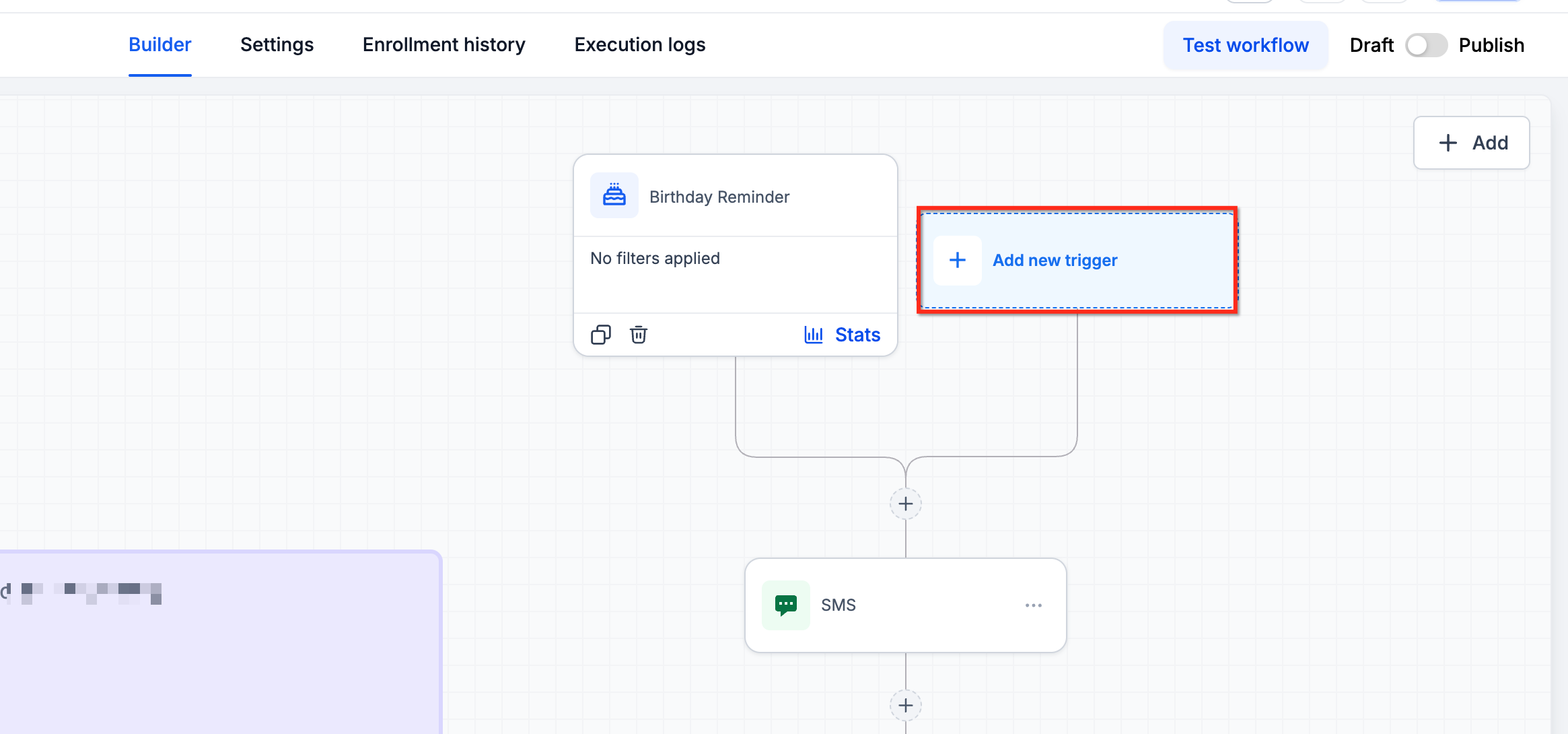
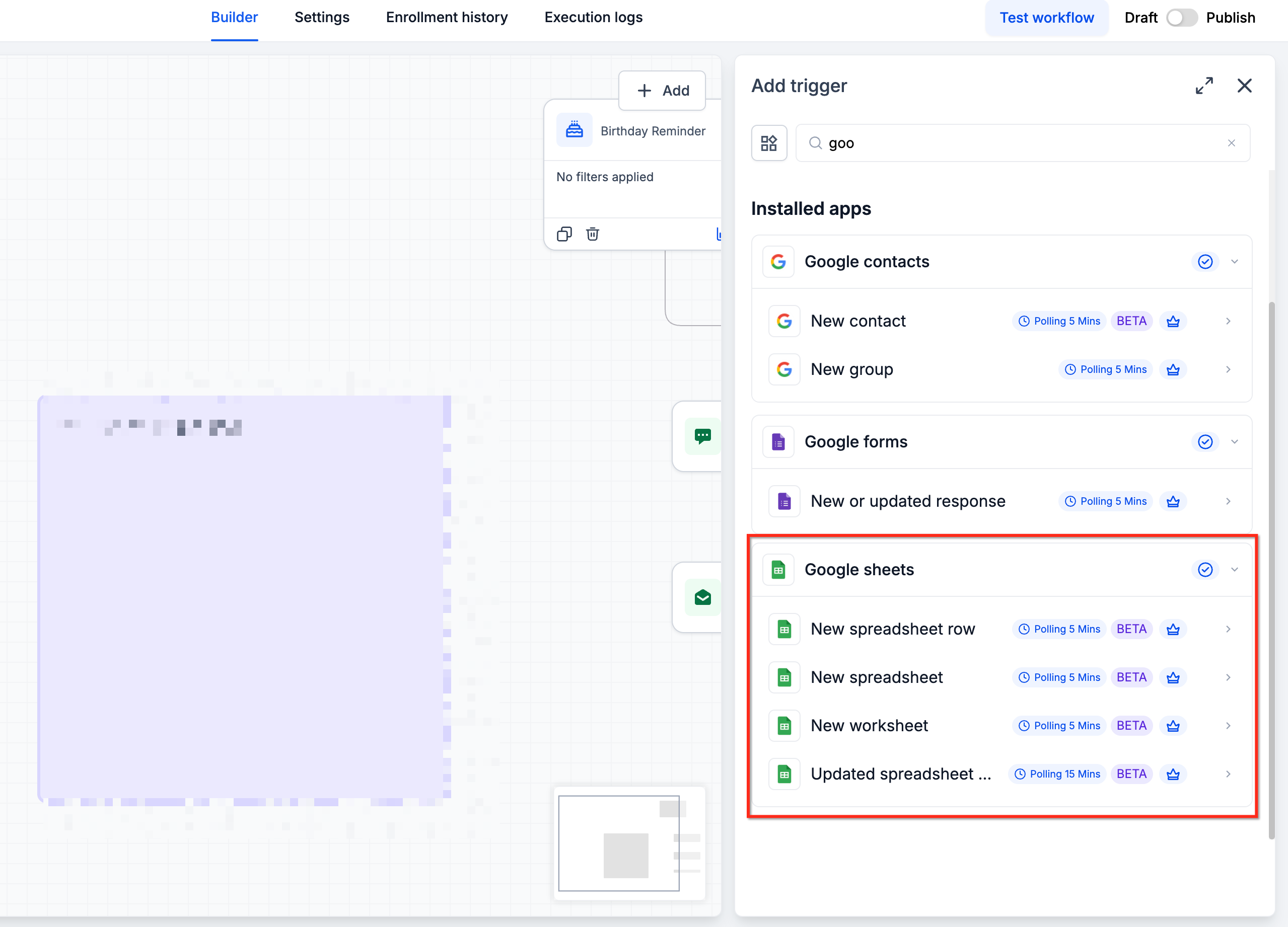
Click Add Trigger and search for Google Sheets.
Select the required Google Sheets trigger.
Under Choose an Account, select your connected Google account.
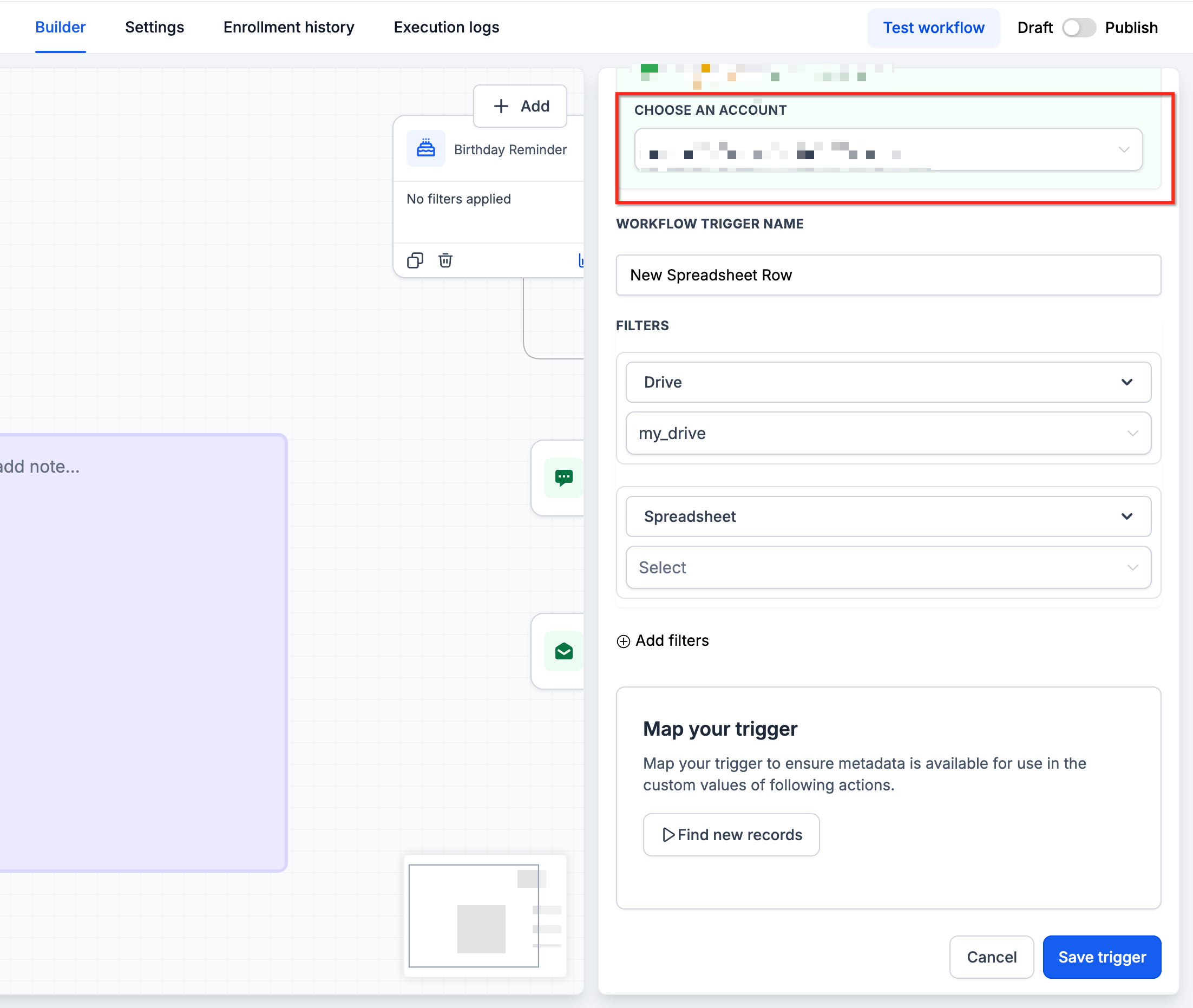
Enter a descriptive Workflow Trigger Name.
Click Add filters and select the required resources:
Trigger Required Filters New Spreadsheet Drive New Spreadsheet Row Drive, Spreadsheet, Sheet (Tab) Updated Spreadsheet Row Drive, Spreadsheet, Sheet (Tab) New Worksheet Drive, Spreadsheet Under Map your trigger, click Find new records and select a representative record.
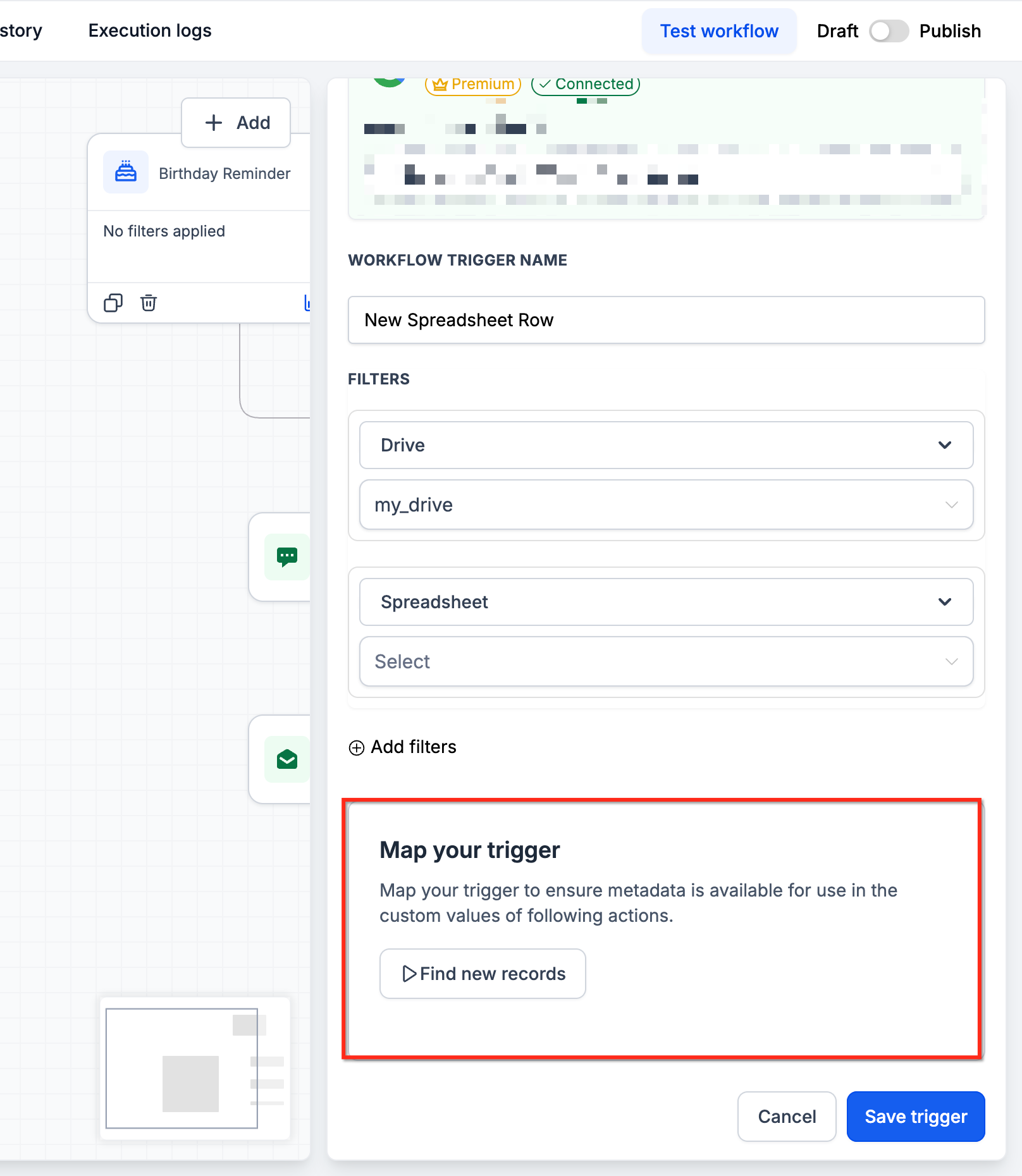
Click Save Trigger and save the workflow.
Test the trigger before publishing the workflow.
How to Configure the Create Spreadsheet Row Action
The Create Spreadsheet Row action automatically adds workflow information to Google Sheets. Correct spreadsheet selection and column mapping ensure that values appear in the intended worksheet.
Open your workflow and click the + icon to add an action.
Search for and select Google Sheets.
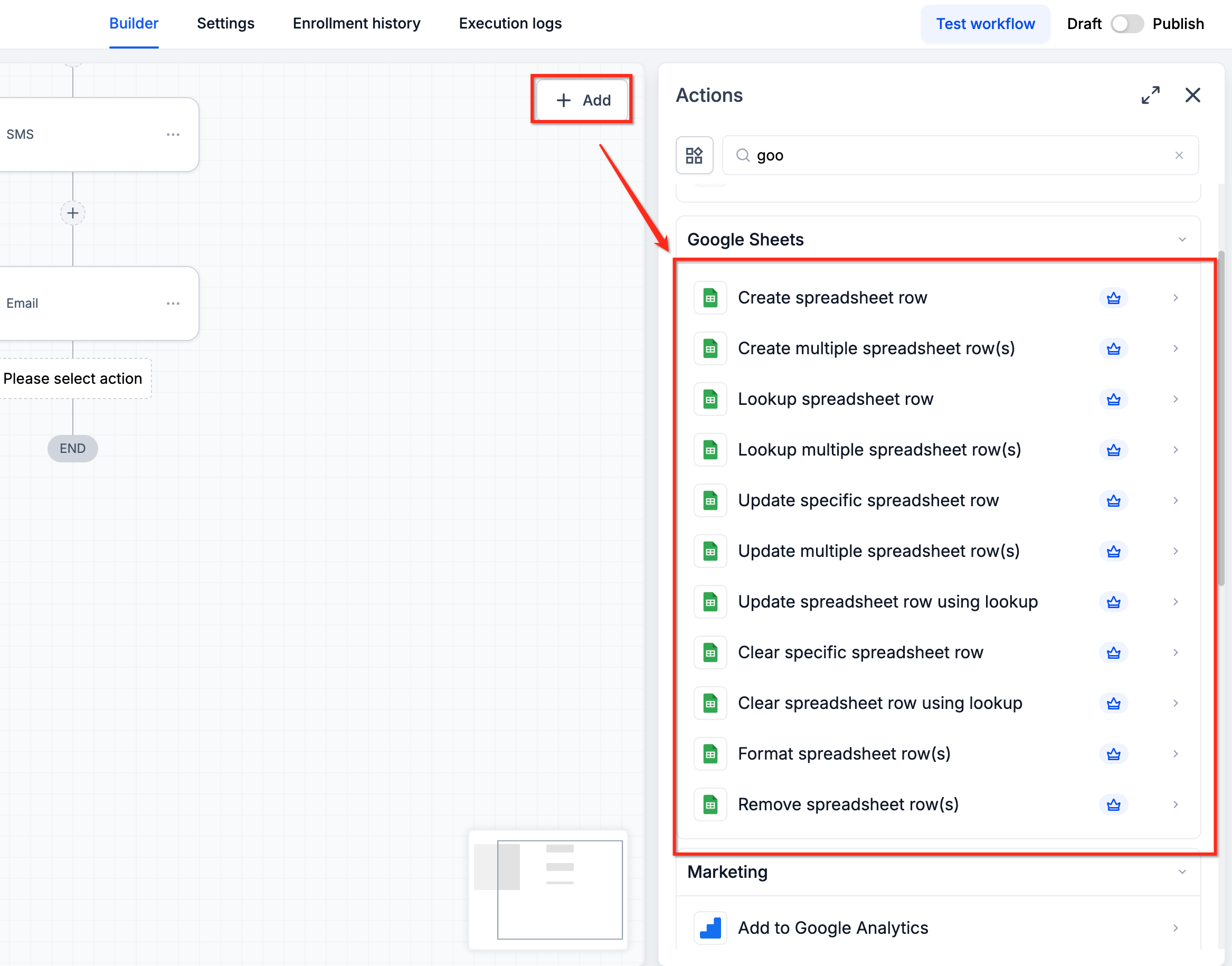
Choose Create Spreadsheet Row from the Action dropdown.
Select your Google account, Drive, Spreadsheet, and Worksheet.
Click Refresh Headers if the worksheet columns have changed.
Select the Starting Column and Ending Column.
Map workflow data to the corresponding spreadsheet columns.
Save the action and test the workflow.
Example: A support workflow can automatically create a spreadsheet row containing a Ticket ID and Subject whenever the required information is available.
Important: If you rename, add, or reorder worksheet columns, refresh the headers and review the mappings before running the workflow again.
For additional Google Sheets actions, refer to the Google Sheets Premium Workflow Action Guide.
Testing Google Sheets Workflow Triggers
Testing confirms that HighLevel can detect the selected spreadsheet event and process the corresponding data. Since Google Sheets triggers use polling, allow time for events to be detected.
Open the configured trigger's Test tab.
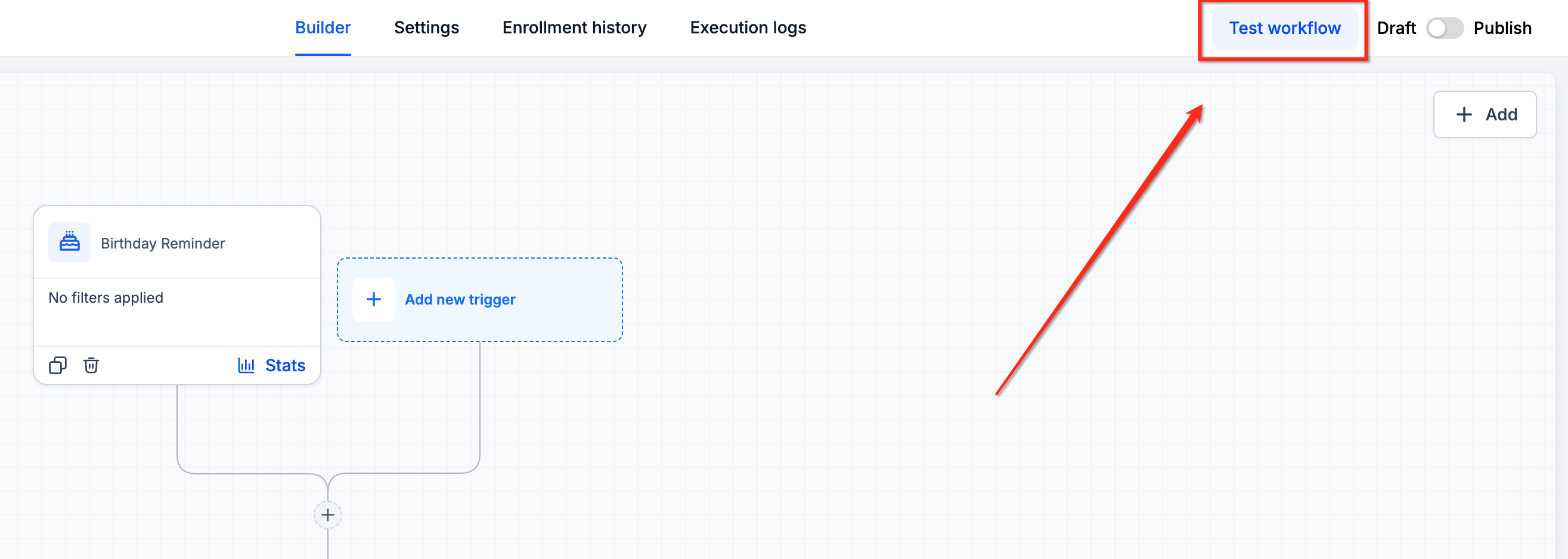
Select Test using events, where available.
Click Listen for events.
Perform the corresponding action in Google Sheets, such as adding or updating a row.
Allow approximately five minutes for detection.
Select the recorded event and review its details.
Check Execution Logs if the workflow does not run as expected.
Important: Event listening lasts 15 minutes. Restart listening if the window expires before an event is captured.
Workflow tests may execute real actions and modify records. Use appropriate test data.
For more details, see Test Workflow.
Troubleshooting Google Sheets Workflows
Google Sheets workflow issues often involve account permissions, incorrect filters, row-position changes, or outdated field mappings. Checking these settings can help identify problems quickly.
| Issue | Recommended Solution |
|---|---|
| Spreadsheet not appearing | Verify Google account permissions and Drive selection. |
| Trigger not activating immediately | Allow approximately five minutes for polling. |
| New rows not detected | Append records to the bottom of the worksheet. |
| Updated row trigger not detecting new rows | Use New Spreadsheet Row for appended records. |
| Duplicate or skipped triggers | Avoid inserting or deleting monitored worksheet rows. |
| Missing mapped values | Use Find new records to select a mapping reference. |
| Incorrect column mapping | Refresh Headers and verify the selected columns. |
| Action not updating a row | Check Lookup results and workflow Execution Logs. |
Frequently Asked Questions
Q: Can I use Google Sheets actions without a Google Sheets trigger?
Yes. Google Sheets actions can follow other supported workflow triggers, such as form submissions.
Q: Can a workflow contain multiple Google Sheets actions?
Yes. You can add multiple actions and configure different spreadsheets or worksheets for each.
Q: Can I create several spreadsheet rows in one workflow execution?
Yes. Use Create Multiple Spreadsheet Row(s) with the required array of row data.
Q: What happens if a Lookup action does not find a matching row?
Actions that depend on a matching Lookup result may be skipped. Review the execution logs to identify the issue.
Q: Can I update spreadsheet column names after configuring an action?
Yes. Refresh Headers, verify the mappings, and test the action after making changes.
Related Articles
Was this article helpful?
That’s Great!
Thank you for your feedback
Sorry! We couldn't be helpful
Thank you for your feedback
Feedback sent
We appreciate your effort and will try to fix the article