Workflows in HighLevel help automate repetitive tasks using triggers and actions. They allow businesses to manage leads, send follow-ups, schedule reminders, and update contact information automatically.
This article covers the fundamentals of workflow automation, common use cases, and how to create a workflow using the current HighLevel interface.
TABLE OF CONTENTS
- What is Workflow Automation?
- Key Benefits of Using Workflow Automation
- Common Workflow Automation Use Cases
- Triggers and Actions: The Core of Workflow Automation
- Workflow Creation Options
- Steps for Setting Up a Workflow
- Frequently Asked Questions
- Related Articles
What is Workflow Automation?
Workflow automation uses predefined triggers and actions to perform tasks automatically when specific events occur. In HighLevel, a workflow starts when a trigger condition is met and executes the configured actions in sequence.
For example, when a lead submits a form, a workflow can:
Update the contact's information.
Assign the lead to a team member.
Send a welcome email.
This helps ensure routine tasks are completed consistently without requiring manual intervention.
Key Benefits of Using Workflow Automation
Automating routine processes helps teams reduce manual work, maintain consistent communication, and manage increasing workloads.
- Increased Efficiency: Automate time-consuming tasks, freeing up your team for strategic priorities.
- Improved Accuracy: Eliminate manual errors by automating routine activities.
- Cost Savings: Save resources by reducing dependency on manual labor.
- Enhanced Customer Experience: Respond faster to customer interactions with automated actions.
- Scalability: Effortlessly handle higher workloads without additional resources.
Common Workflow Automation Use Cases
Workflows can automate everyday business processes based on customer activities and internal requirements. Some common applications include:
Lead Management: Capture leads, update contact records, and send follow-up messages.
Appointment Scheduling: Send booking confirmations and appointment reminders.
Customer Support: Assign tasks and notify team members about customer inquiries.
Marketing Campaigns: Send follow-up communications based on customer interactions.
Triggers and Actions: The Core of Workflow Automation
Workflow Triggers
A trigger is an event that starts a workflow when its configured conditions are met.
Common examples include:
A customer books an appointment.
A contact submits a form.
A contact replies to a message.
For additional details, refer to A List of Workflow Triggers.
Workflow Actions
Actions are the tasks a workflow performs after a trigger is activated. Multiple actions can be added to automate a sequence of tasks.
Common examples include:
Sending an email or SMS.
Updating contact information.
Assigning a lead to a team member.
For additional details, refer to What Are Workflow Actions? (Complete List).
Explore Triggers and Actions in Depth:

While this article introduces the concept of triggers and actions, each trigger or action has unique settings and use cases. Instead of diving deep into specifics here, you can explore individual articles dedicated to each trigger and action to better understand how to customize them for your workflows.
Workflow Creation Options
HighLevel provides multiple ways to create workflows, allowing you to start with a blank workflow, use a predefined template, or choose another available creation method.
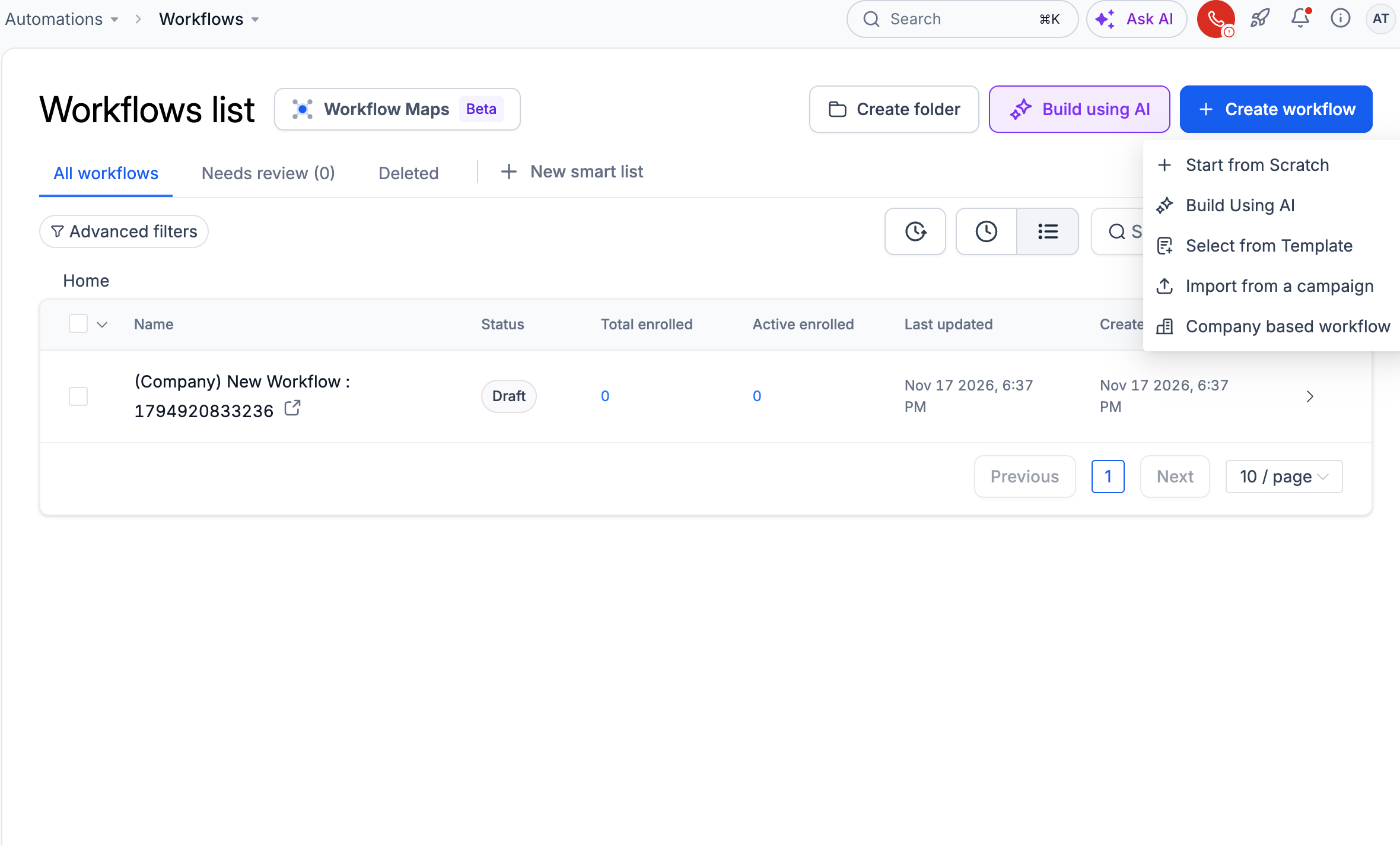
Navigate to Automation → Workflows and click Create workflow to view the available options.
| Option | Description |
|---|---|
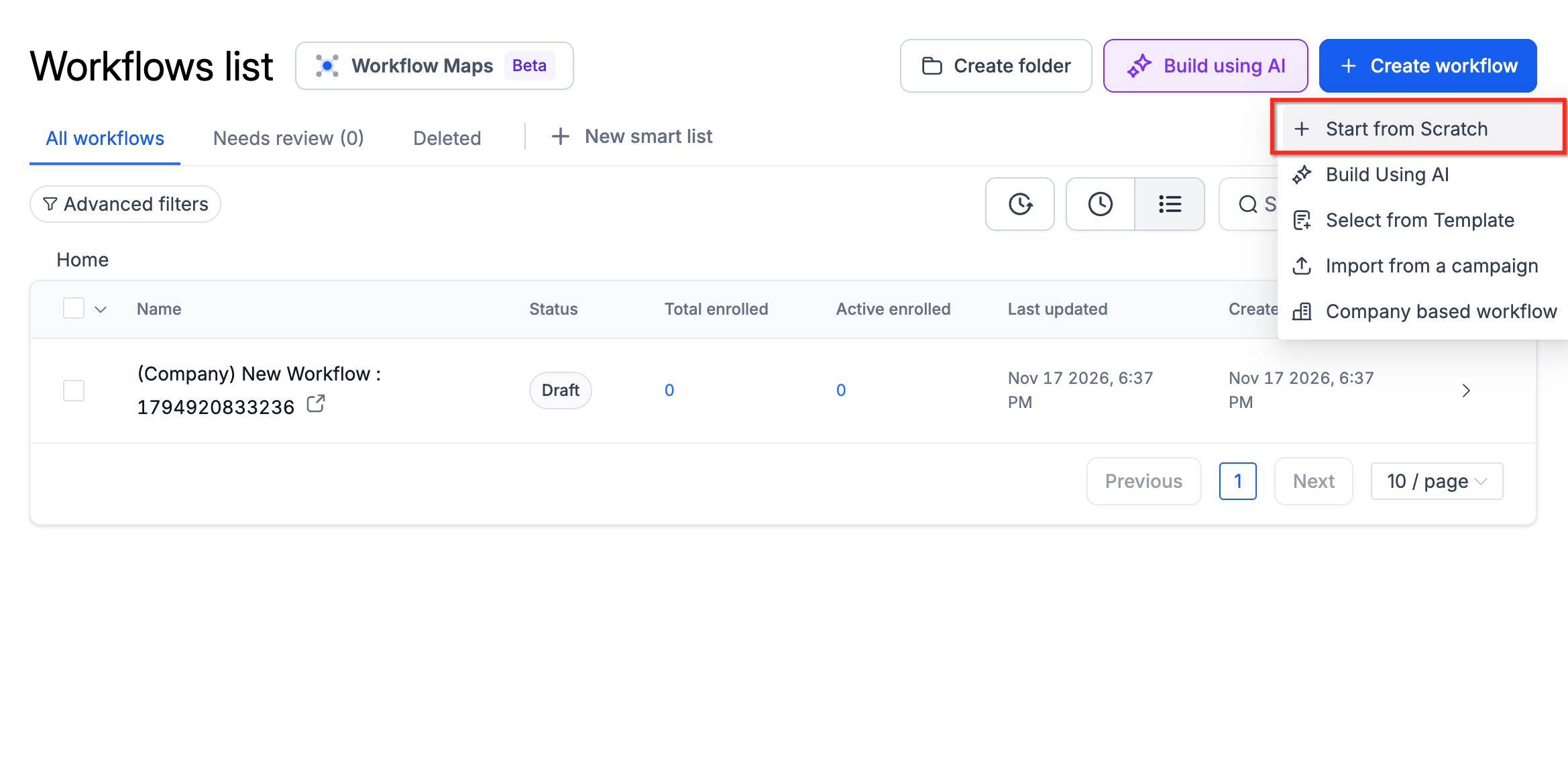
| Start from Scratch | Create a workflow by manually adding triggers and actions. |
| Build Using AI | Create a workflow using AI assistance. |
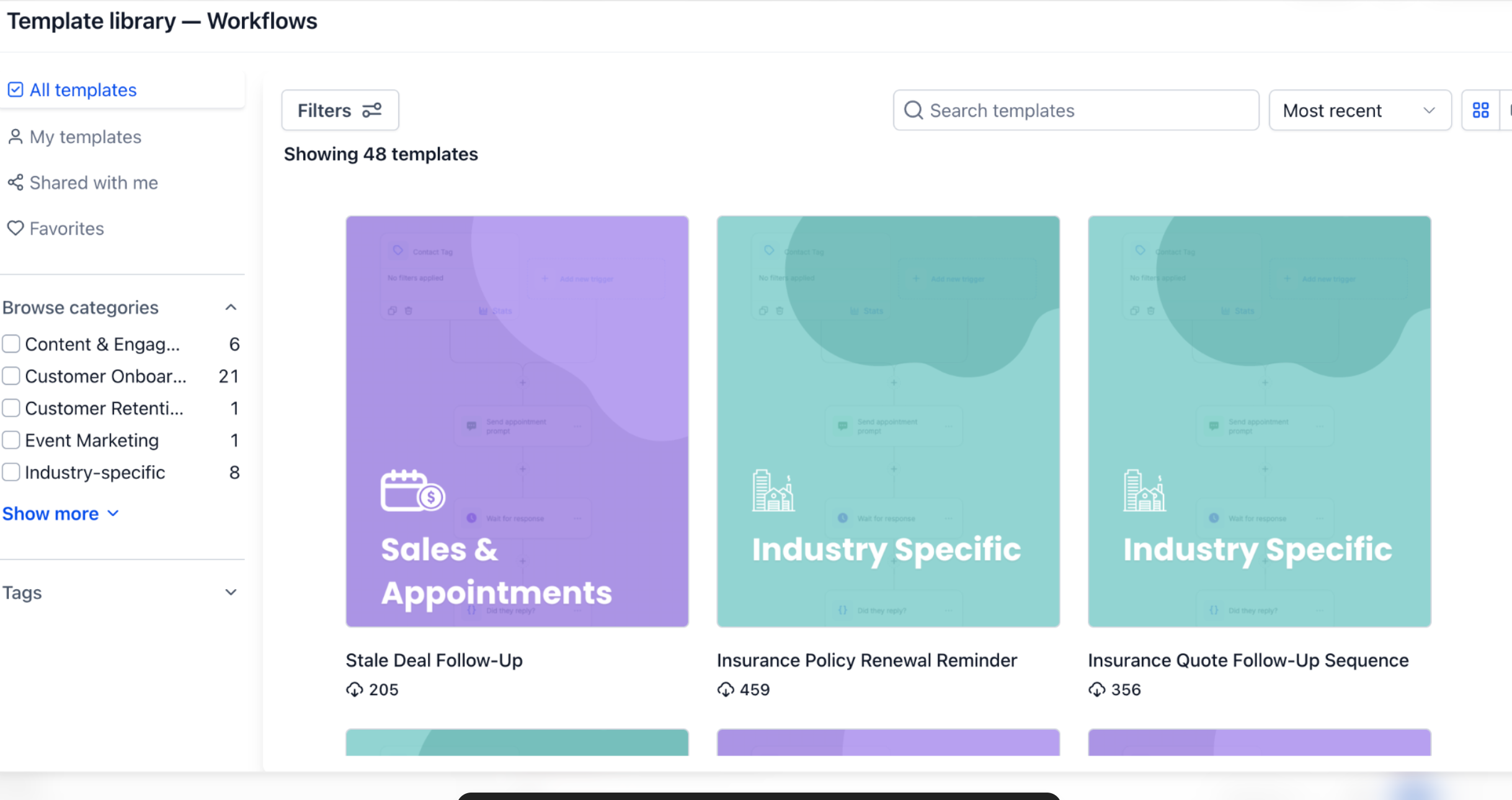
| Select from Template | Choose an existing template from the Workflow Template Library. |
| Import from a campaign | Import an existing campaign into a workflow. |
| Company based workflow | Create a company-based workflow. |
Steps for Setting Up a Workflow
Go to the "Workflows" area inside "Automation" section of your CRM.
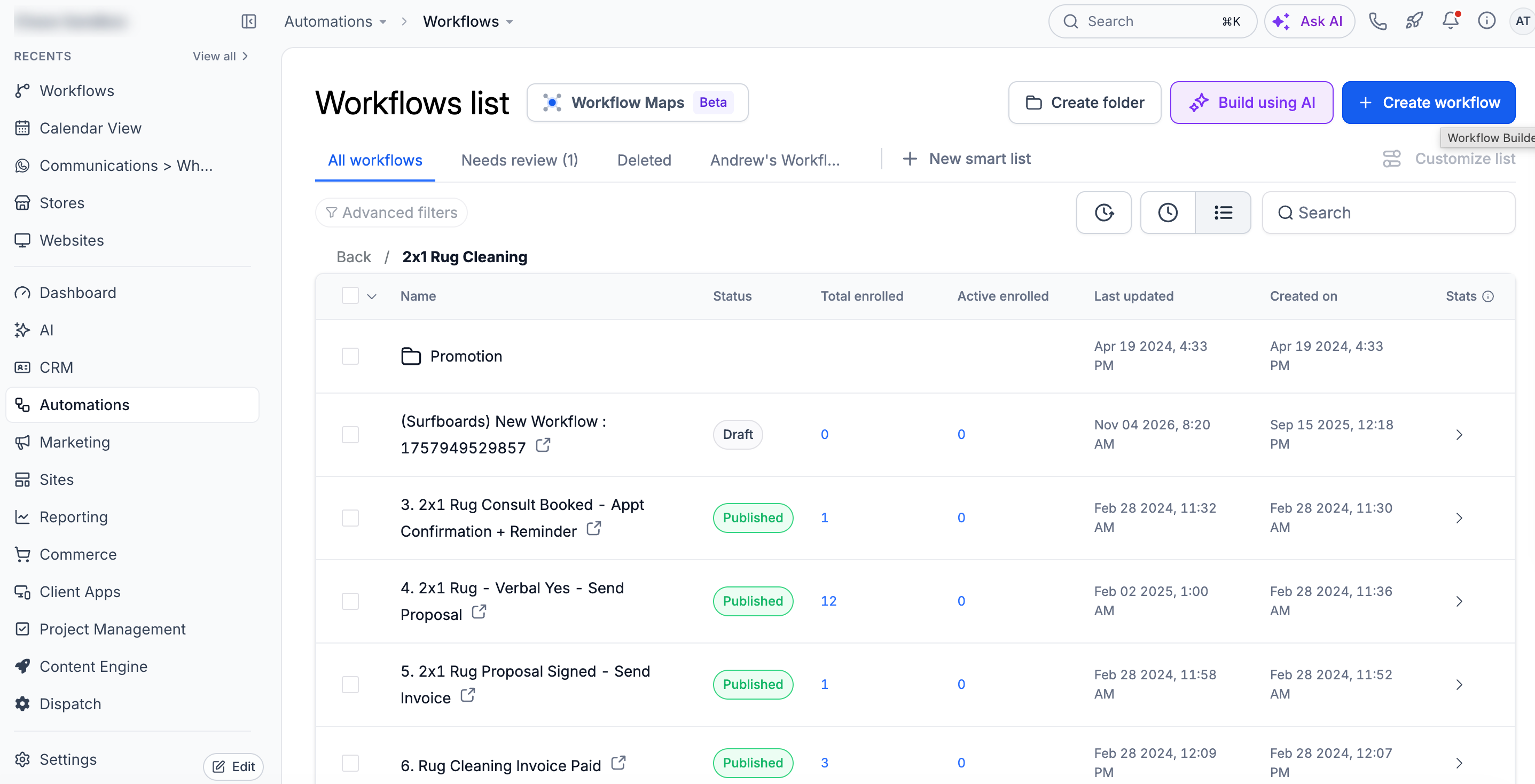
Click "+ Create Workflow"
When creating a new workflow, you have the option to create a new workflow from scratch, use existing templates or recipes.
Select from Template:
Use our premade templates to create your workflow. Click "Select from Template" option to view the template library.
Start from scratch
Create your own workflow automation from scratch. Add multiple triggers and actions to automate your entire business operations.
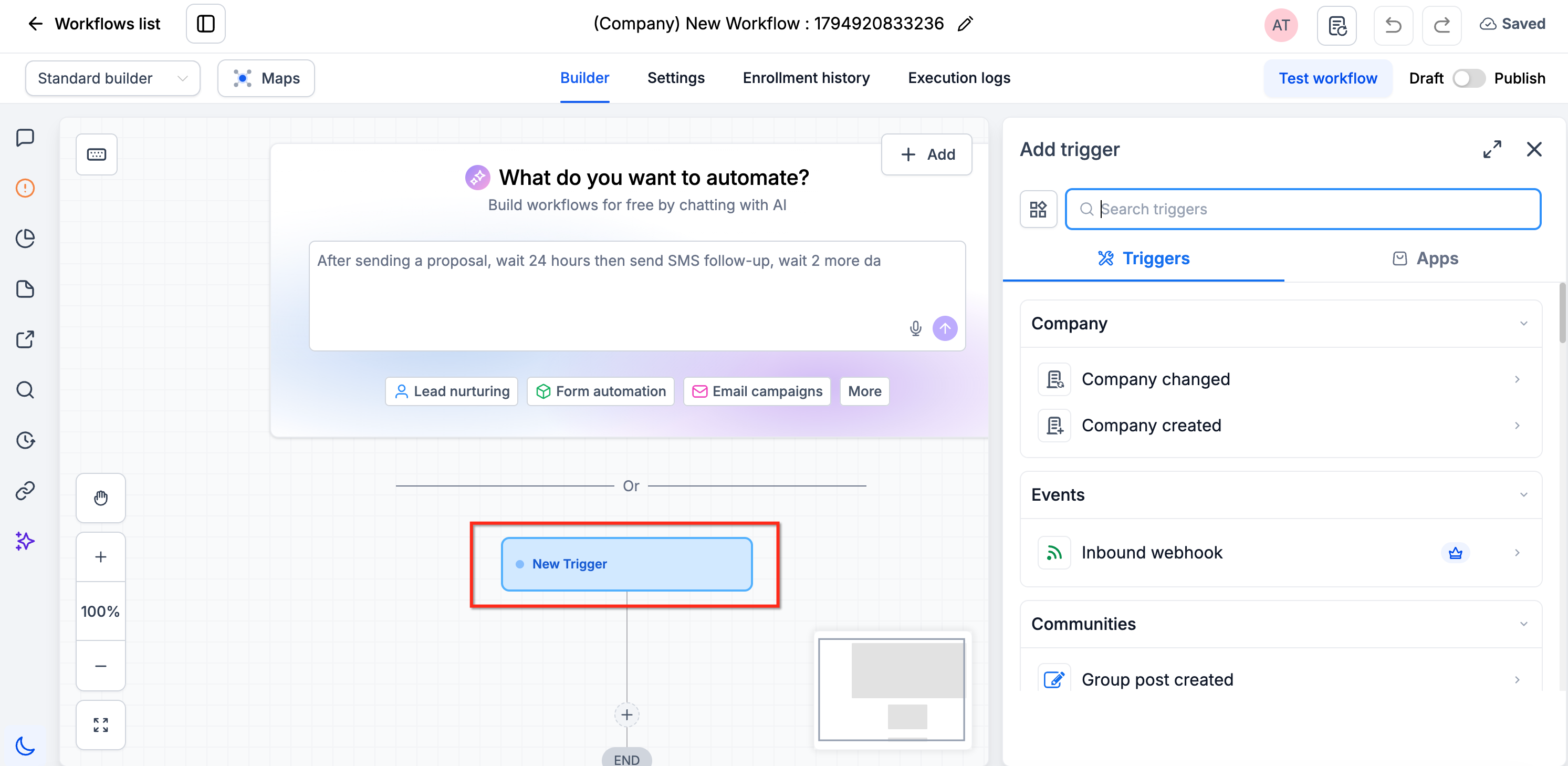
Choose a Trigger
Identify the event that initiates the workflow (e.g., a customer booking an appointment).
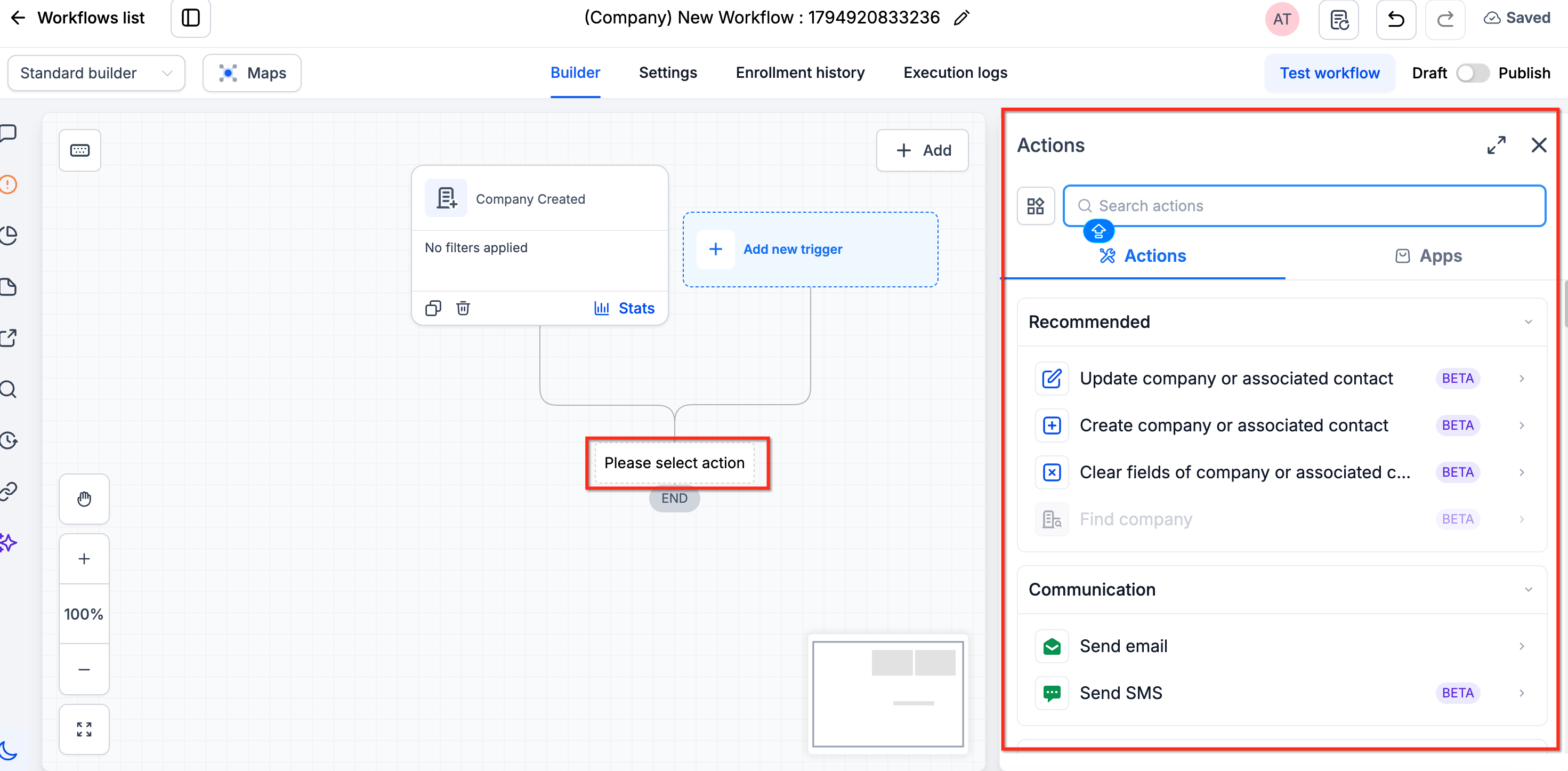
Add Actions
Specify the tasks to execute after the trigger (e.g., send a notification, update records).
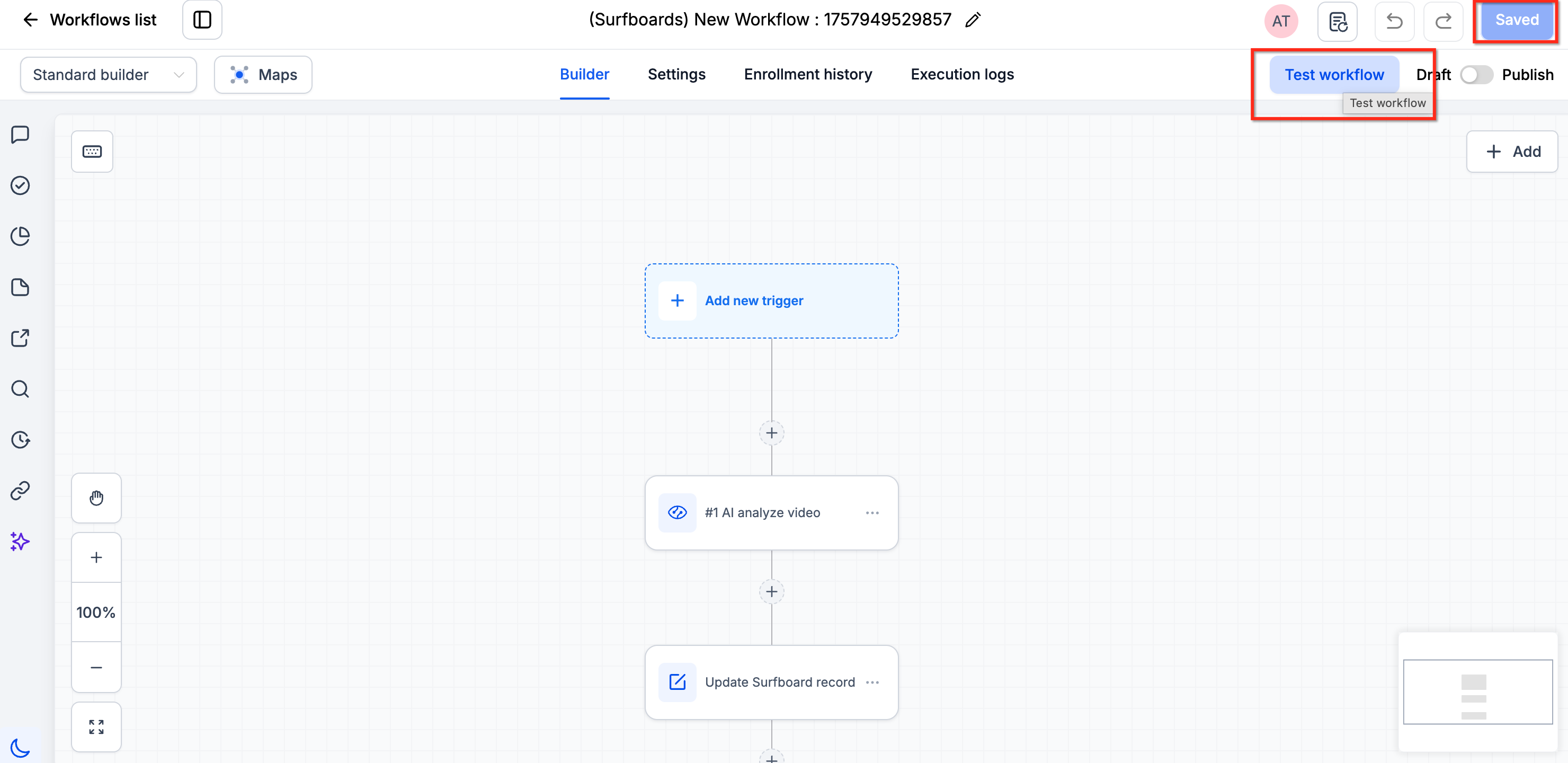
Save and Test
After you have added the triggers and actions, be sure to click "Save" button. Before you publish the workflow, you can test it with the help of "Test Workflow" button.
Frequently Asked Questions
Q: Can a workflow have more than one trigger?
Yes. You can configure multiple triggers to allow a workflow to start from different events.
Q: Are trigger filters required?
No. Trigger filters are optional and can be used to narrow the conditions under which a workflow starts.
Q: Can I modify a workflow created from a template?
Yes. You can customize the triggers, actions, and settings of a workflow created from a template.
Q: Does saving a workflow automatically activate it?
No. A workflow must be published to run automatically when its trigger conditions are met.
Q: Can I create workflows without using AI?
Yes. Select Start from Scratch to build a workflow manually, or Select from Template to customize a predefined workflow.
Q: How can I check whether my workflow is configured correctly?
Use Test Workflow to check the configured workflow before publishing it. Verify that the triggers and actions produce the expected results.
Related Articles
Was this article helpful?
That’s Great!
Thank you for your feedback
Sorry! We couldn't be helpful
Thank you for your feedback
Feedback sent
We appreciate your effort and will try to fix the article