TABLE OF CONTENTS
- What is Partial Payment?
- Impact of Partial Payment on Transactions & Orders
- How to Use Partial Payment?
- How to collect the remaining balance?
- Key Benefits
- FAQs
- Related Articles
What is Partial Payment?
Partial payment offers bookers the opportunity to secure bookings by paying a deposit upfront, with the remaining balance settled at a later time. Alongside collecting full payments, businesses now have the capability to collect deposit amounts from bookers. This feature has been seamlessly implemented across all calendar types and aids in reserving seats.
With this new feature, users have the flexibility to determine either a flat amount or a percentage of the total amount to be charged to the booker at the time of booking.
Impact of Partial Payment on Transactions & Orders

When partial payments are enabled, the deposit and remaining balance are recorded as follows:
Transactions: The deposit collected at the time of booking appears as a payment transaction.
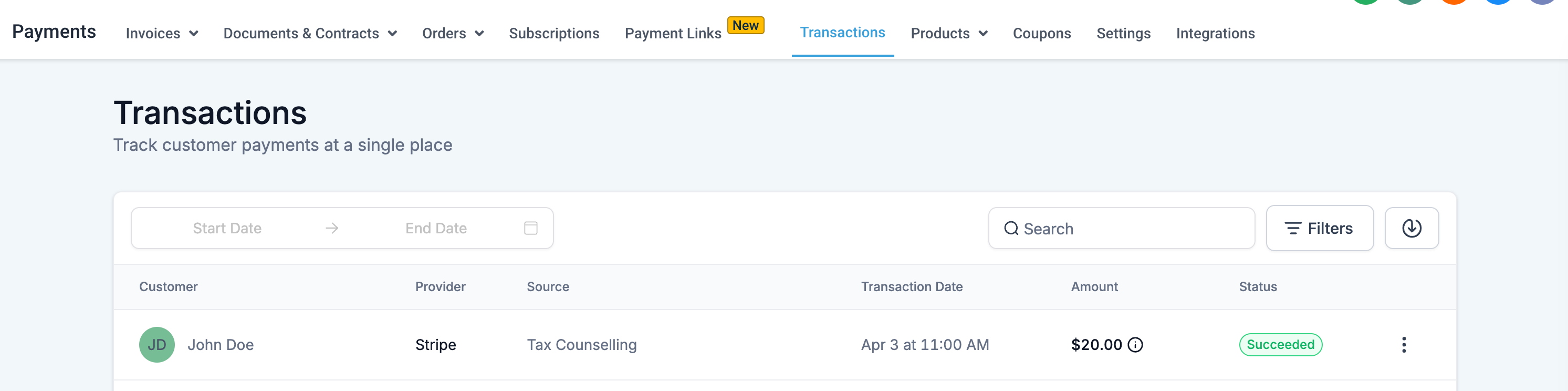
Orders: An order is created for the appointment. The deposit paid and remaining balance can be tracked through the appointment's Payments tab.
How to Use Partial Payment?
1. Integrate Payment Gateway: Ensure that you have integrated a payment gateway such as Stripe or Authorize.net. (Payments Module > Integrations)
2. Enable Payments: Navigate to Calendars > Calendar Settings, edit the required calendar, and open the Forms & Payments section. Enable the Accept Payments toggle.

3. Enter Total Amount and Currency: Specify the total amount for your service or appointment and select the desired currency.

4. Activate Partial Payment Option: Check the "Accept Partial Payment" box.

5. Select Amount Type: Choose whether to add a Flat Amount or a percentage. The percentage is calculated based on the total amount.

6. Enter Deposit Amount / Percentage: Specify the deposit amount / deposit percentage for your service or appointment. The percentage is calculated based on the total amount entered.

7. Add Description: Provide additional context by entering a description if needed.

8. Save Settings: Click on save to apply the changes.
How to collect the remaining balance?
You can collect the remaining balance using either of the following options:
Appointment Modal: Open the appointment, navigate to the Payments tab, and click Collect Payment to collect the outstanding balance.
Mobile App POS: Alternatively, use the Point of Sale (POS) feature in the HighLevel mobile app to collect the remaining payment directly from the customer.
Note: For detailed instructions on tracking payments and collecting outstanding balances, see Payments Tab in Calendars.
Key Benefits
This feature facilitates businesses in collecting deposit amounts, leading to a reduction in no-shows. By displaying the total cost of the appointment/service while offering the flexibility to pay only a deposit, businesses enhance the user experience without mandating upfront payments.
FAQs
Q: Which calendar type supports partial payments?
A: Partial payments can be enabled for all calendar types - Event, Round Robin, Collective, Class, Service Calendar and Service Menu.
Q: How do I manage pending payments?
A. Pending payments can be managed through the appointment's Payments tab. Users can view the outstanding balance and select Collect Payment to collect the remaining amount from the customer.
Q: Which payment gateways are supported for calendar payments?
A: Currently, the supported payment gateways for calendar payments are Stripe, NMI and Authorize.net.
Related Articles
Was this article helpful?
That’s Great!
Thank you for your feedback
Sorry! We couldn't be helpful
Thank you for your feedback
Feedback sent
We appreciate your effort and will try to fix the article