HighLevel allows you to manually issue certificates to contacts without requiring them to complete a course within the platform. This is useful for offline training, external courses, and recognizing achievements. You can customize certificate emails and track issued certificates in one place.
Note: With the new Custom Navigation, the location of this feature may have changed. To find it, navigate to Client Apps → Credentials → Dashboard.
TABLE OF CONTENTS
- What is Manual Certificate Issuance?
- Key Benefits of Manual Certificate Issuance
- Certificate Templates
- Certificate Delivery and Tracking
- How to Manually Issue Certificates
- Frequently Asked Questions
- Related Articles
What is Manual Certificate Issuance?
Manual Certificate Issuance allows you to send certificates directly to contacts using an existing or newly created certificate template. Unlike automated course completion certificates, manual certificates can be issued whenever you need to recognize an achievement.
Key Benefits of Manual Certificate Issuance
Manually issuing certificates offers more flexibility when recognizing achievements outside traditional course completion workflows.
- Flexible Issuance: Award certificates for offline training, external courses, or special achievements.
- Customizable Templates: Create branded certificates that match your organization.
- Personalized Delivery: Choose email templates and customize subject lines.
- Easy Tracking: View and manage previously issued certificates.
Certificate Templates
Certificate templates determine the appearance and content of your certificates. You can select an existing template or create a new design using HighLevel's Certificate Builder.
To learn more, see Create a Template.
Certificate Delivery and Tracking
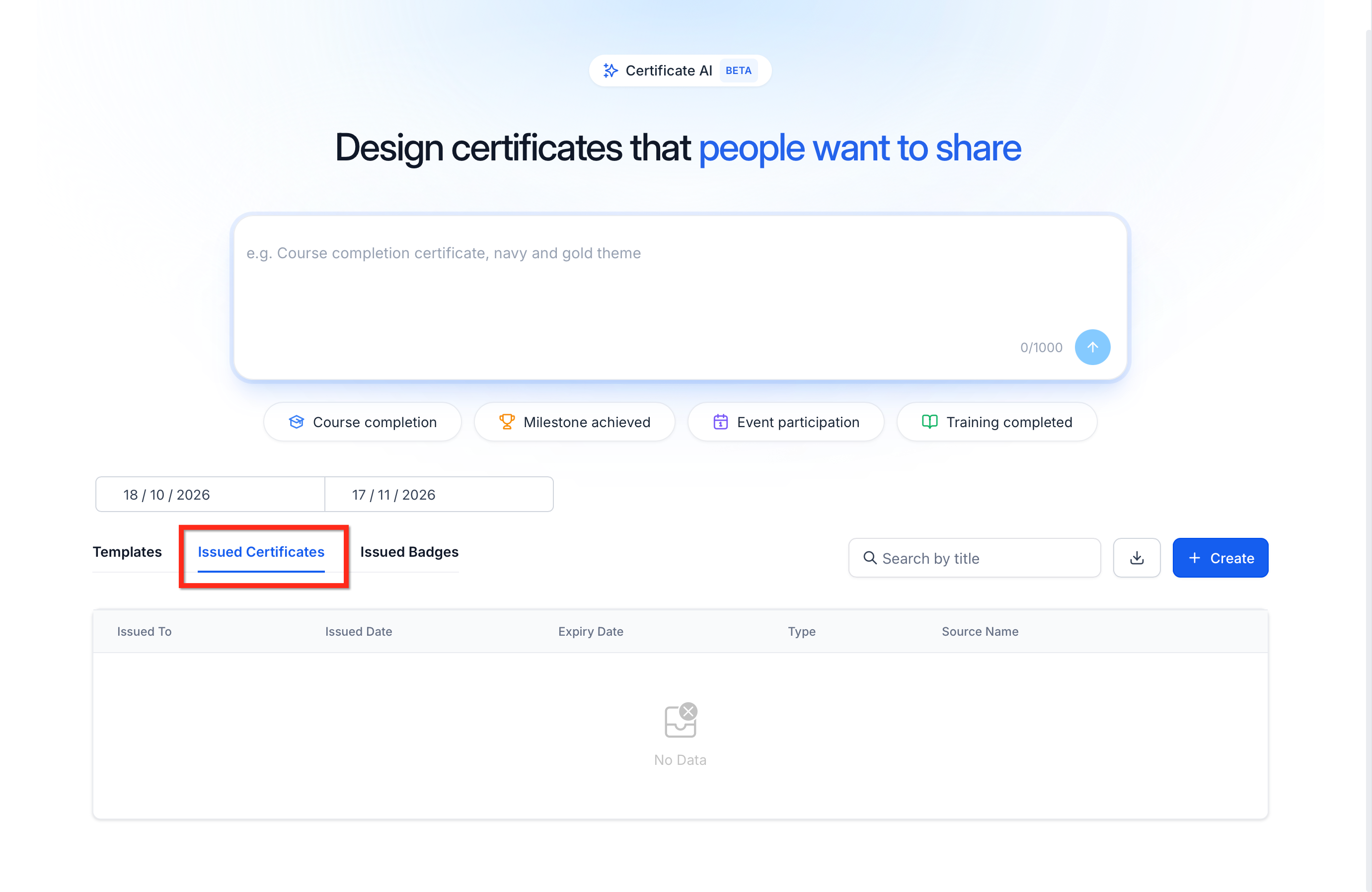
Once a certificate is issued, the recipient receives an email containing a link to access their certificate. Issued certificates can also be managed from the Credentials dashboard.
Certificates can be downloaded in PDF, PNG, or JPG formats through the credential preview interface.
How to Manually Issue Certificates
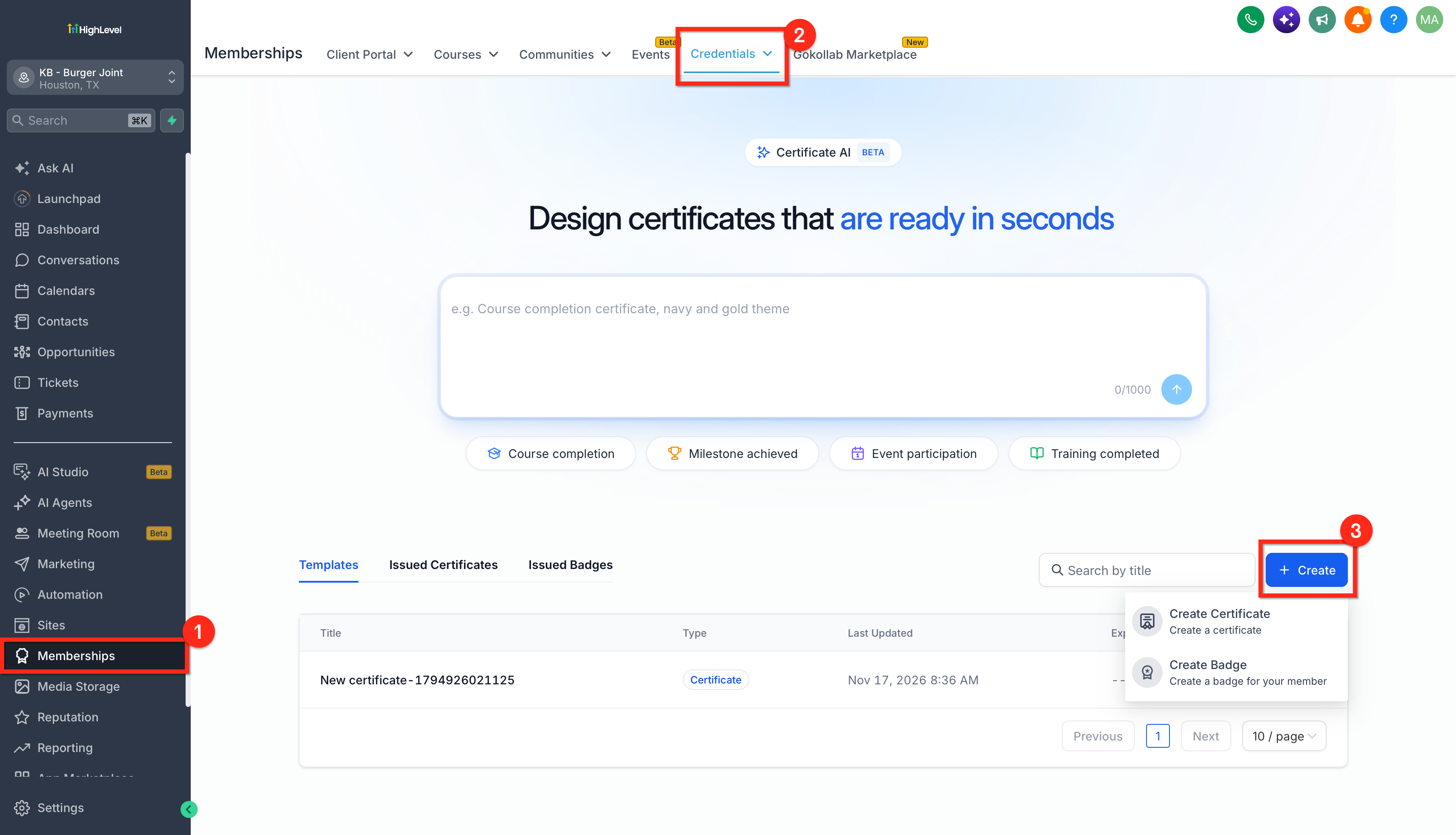
You can manually issue certificates by creating a new certificate or selecting a prebuilt template. Once your certificate is ready, you can choose recipients, customize the delivery email, and send it directly from the Certificate Builder.
- Navigate to Memberships → Credentials in your HighLevel sub-account. Under the Templates tab, click + Create → Create Certificate.
- In the Create New Certificates window, choose how you want to create your certificate:
- From Scratch: Enter a certificate name and build your own design.
- Certificate AI (Beta): Generate a certificate using AI.
- From Template: Start with a prebuilt certificate design.
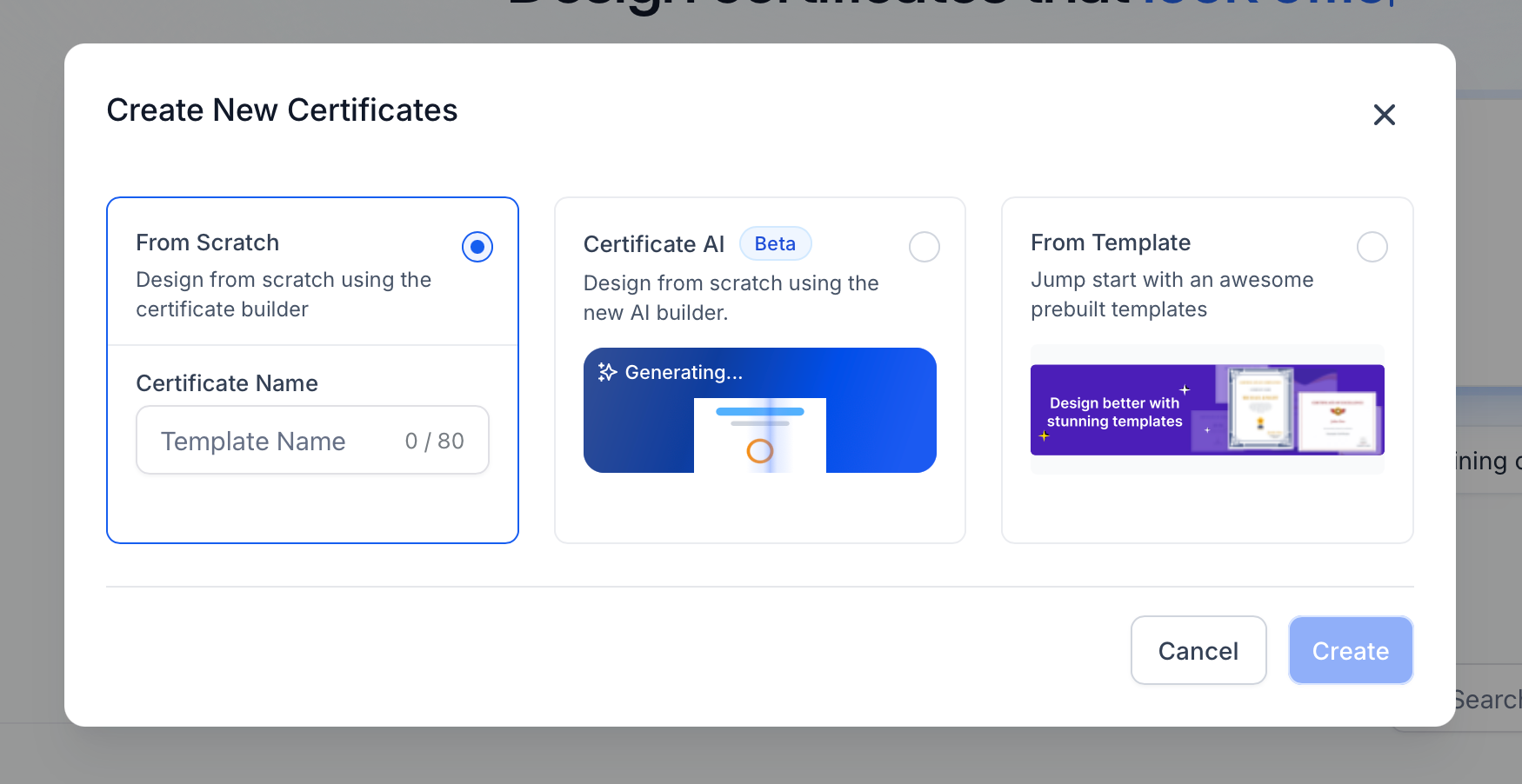
- From Scratch: Enter a certificate name and build your own design.
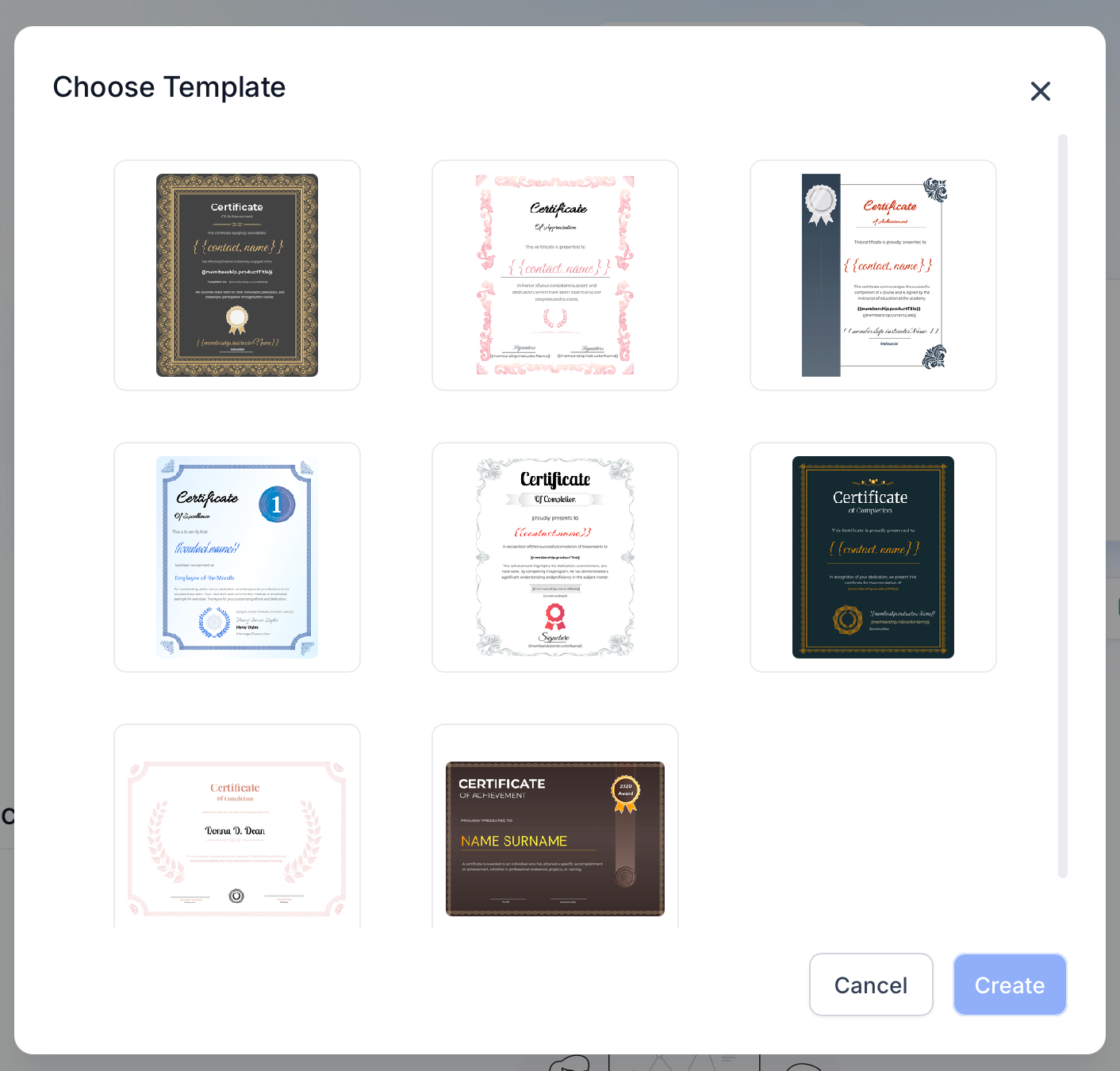
- If you selected From Template, choose your preferred design from the template gallery and click Create.
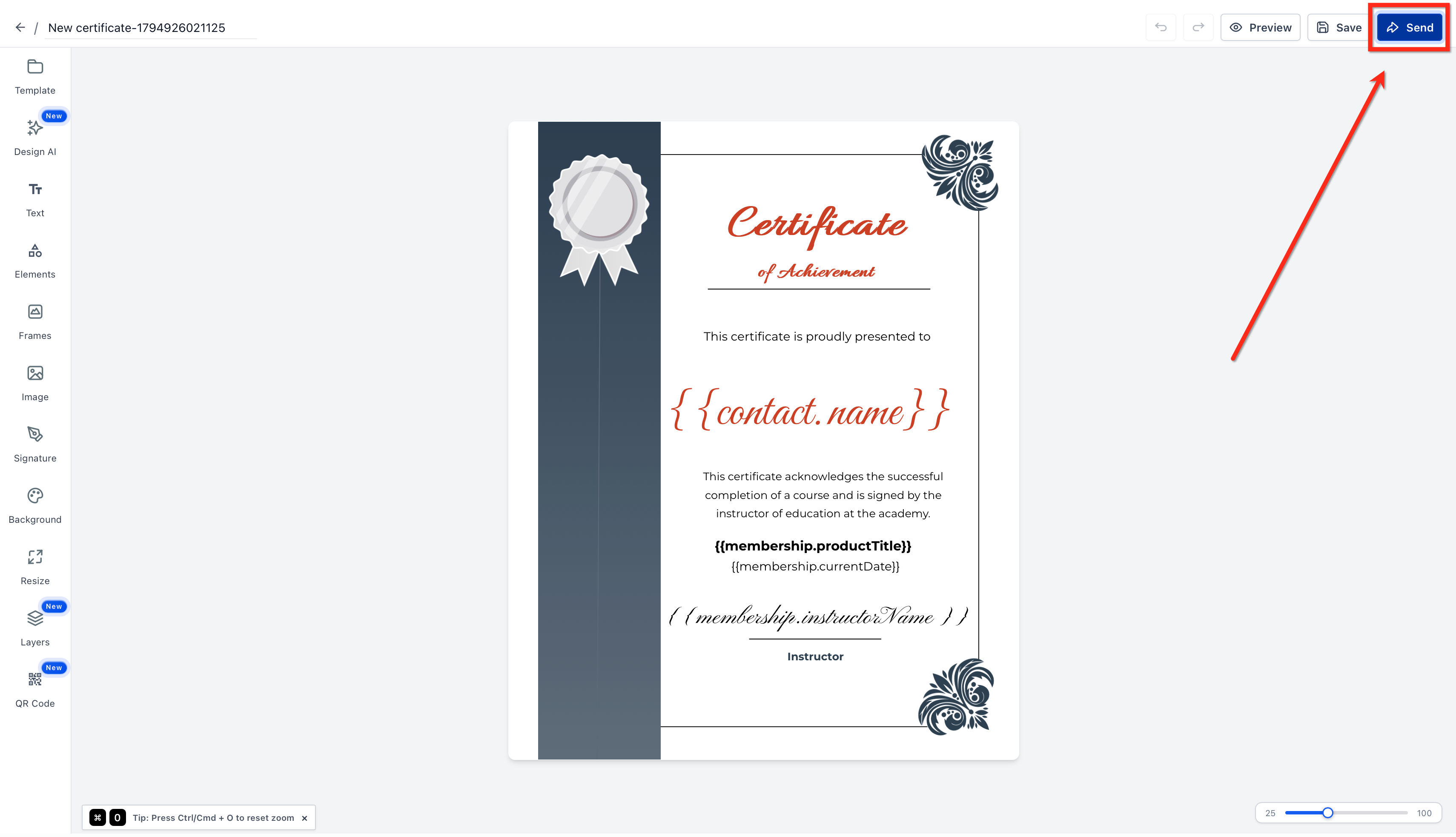
- Customize your certificate in the Certificate Builder, then click Send in the upper-right corner.
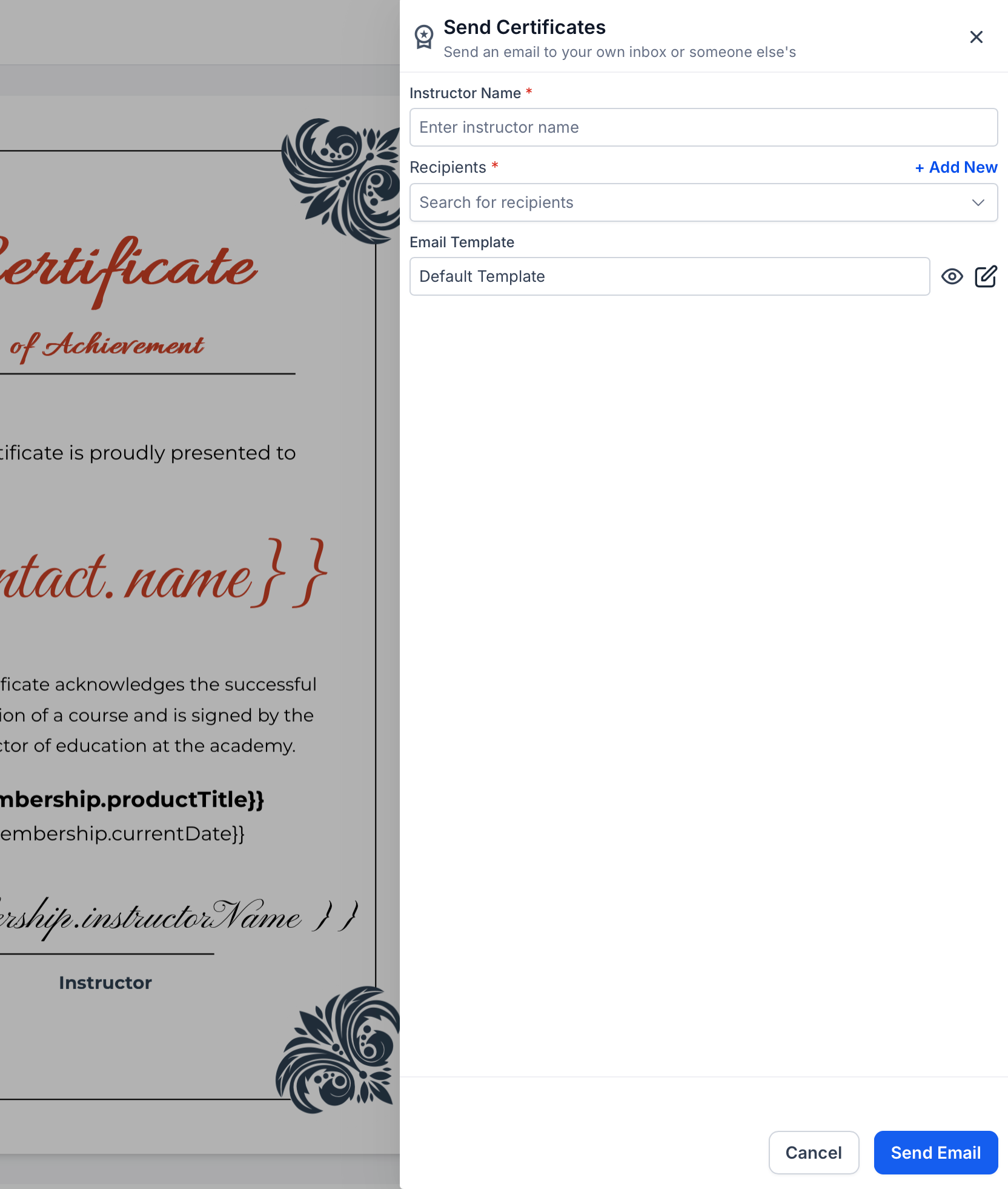
- In the Send Certificates panel:
- Enter the Instructor Name.
- Select the Recipients or click + Add New to add a contact.
- Choose an Email Template or use the default template.
- Use the preview or edit icons to review or customize the email.
- Enter the Instructor Name.
- Click Send Email to issue the certificate to the selected recipients.
- To view issued certificates, return to Memberships → Credentials → Issued Certificates.
Note: If no email template is selected, HighLevel uses the default certificate email template configured in Client Portal email settings.Frequently Asked Questions
Q: Can recipients access their certificates after receiving the email?
Yes. Recipients can view and download their certificates through the Client Portal.
Q: Can I download a certificate template before issuing it?
Yes. Certificate templates can be previewed and downloaded without being issued to a recipient.
Q: Can certificates be issued automatically instead?
Yes. HighLevel supports automated certificate issuance through workflows and course completion settings.
Q: Can I export issued certificate records?
Yes. You can export issued certificate records as a CSV file, including recipient information and issuance details.
Related Articles
Was this article helpful?
That’s Great!
Thank you for your feedback
Sorry! We couldn't be helpful
Thank you for your feedback
Feedback sent
We appreciate your effort and will try to fix the article