The HighLevel App Marketplace is a hub where you can seamlessly search for and integrate crucial apps into your HighLevel account. Assuring quality and functionality, every app is scrutinized by HighLevel’s expert developers. Only users with agency owner or admin privileges can integrate these apps into their HighLevel accounts.
The Agency-level App Marketplace is only available on 'Freelancer' and 'Agency Pro' plans.
TABLE OF CONTENTS
- How to Find an App
- App Collections
- Reviewing App Details
- Installing & Uninstalling Apps
- Install a Free App: Distribution Type - Agency
- Install a Paid App: Distribution Type - Agency
- App Distribution Types
- Install a Free App: Distribution Type - Agency & Subaccount
- Install a Paid App: Distribution Type - Agency & Subaccount
- How to Uninstall an App
How to Find an App
- In your HighLevel account, click on the App Marketplace option in the left menu bar.
- Use the search bar to input the app name or browse through the list.
- To streamline your results, utilize the left sidebar menu to filter results by category.
- Click on an app that catches your interest to view in-depth details about it.

App Collections
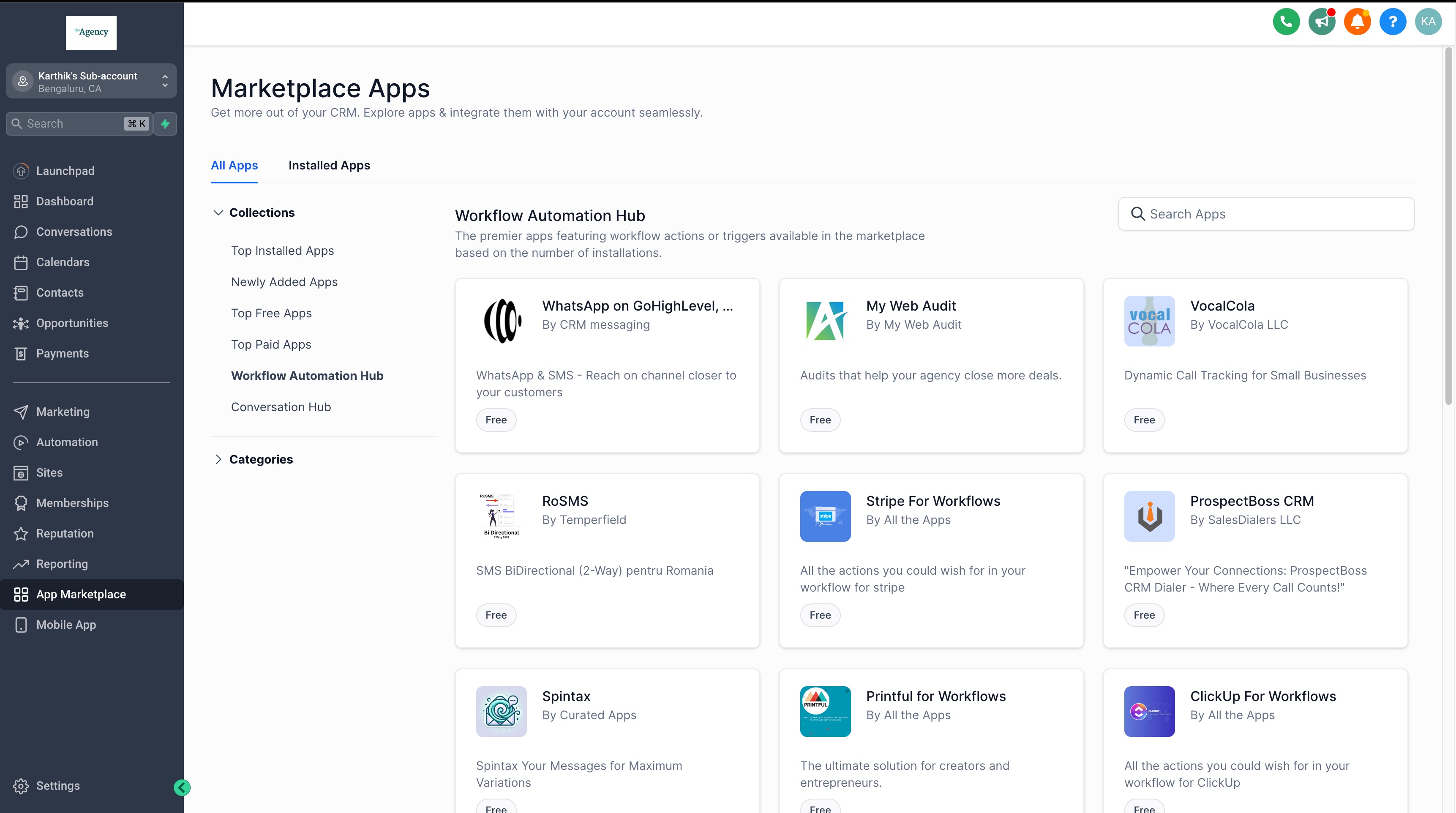
App Collections are curated app lists that help users easily discover top apps across various categories.
- Top Installed Apps
- Newly Added Apps
- Top Free Apps
- Top Paid Apps
- Custom Experience Hub - Top installed apps with custom JS/CSS scripts.
- Workflow Automation Hub - Top installed apps featuring custom workflow actions and triggers.
- Conversation Hub - Top installed apps supporting custom conversation providers.
Reviewing App Details
Select an app from the Marketplace to open its app details page. The page organizes key information into dedicated sections so you can evaluate the app before installing it.
Overview
The Overview section brings together key information about the app, including details that can help you decide whether it fits your needs.
Depending on the app, you may see information such as:
Rating
Install count
Target user
Install eligibility
White-label support
Pricing
App version
Developer information
Description
Categories
Screenshots
Videos
Use this information to understand what the app does, who it is designed for, and whether it is available for your account.
Pricing
The Pricing section shows the pricing options available for the app. Depending on how the developer has configured the app, pricing may include:
Monthly plans
Yearly plans
Free trials
Agency pricing
Sub-account pricing
Multiple pricing tiers
Usage-based charges
Review the available pricing options before installing the app.
Permissions
The Permissions section shows the access the app requests. Permissions are grouped by capability and include scope information where applicable. This can include:
Read access: The app can view supported data.
Write access: The app can create, update, or otherwise change supported data.
Review the requested permissions before installing the app so you understand what information and functionality the app can access.
Reviews
The Reviews section helps you evaluate feedback from other customers. Depending on the available review data, you can explore:
Overall ratings
Rating distribution
Individual reviews
Review sorting
Additional review insights may also appear for supported app listings. Use the available review information as part of your evaluation before installing an app.
Discover Related Apps
The app details experience can also help you discover other Marketplace apps.
You may see:
Similar Apps: Other apps related to the app you are viewing.
Other Apps from the Same Developer: Additional Marketplace apps published by the same developer.
These options can help you compare alternatives or explore other solutions from the same developer.

Installing & Uninstalling Apps
What Happens When a Marketplace App Payment Fails
Payment issues with paid Marketplace apps are now handled through a recovery flow designed to reduce service disruption and give users time to resolve billing problems.
If a payment fails:
- the app is not paused immediately
- a 30-day grace period begins
- the system attempts automatic retries during the grace period
- users receive alerts with steps to recover the payment, such as updating a payment method
This helps reduce unexpected interruptions while giving users a clearer path to keep the app active.
The exact retry schedule is managed automatically. If the payment is not resolved by the end of the grace period, app access may be affected.Use the Installed Apps Page
The Installed Apps page gives you a centralized view of apps already connected to your HighLevel account. This makes it easier to monitor app status, review plans, identify issues, and take action without reopening each app individually.
Depending on your account level and permissions, the Installed Apps page may show app activity across both agency and sub-account environments.
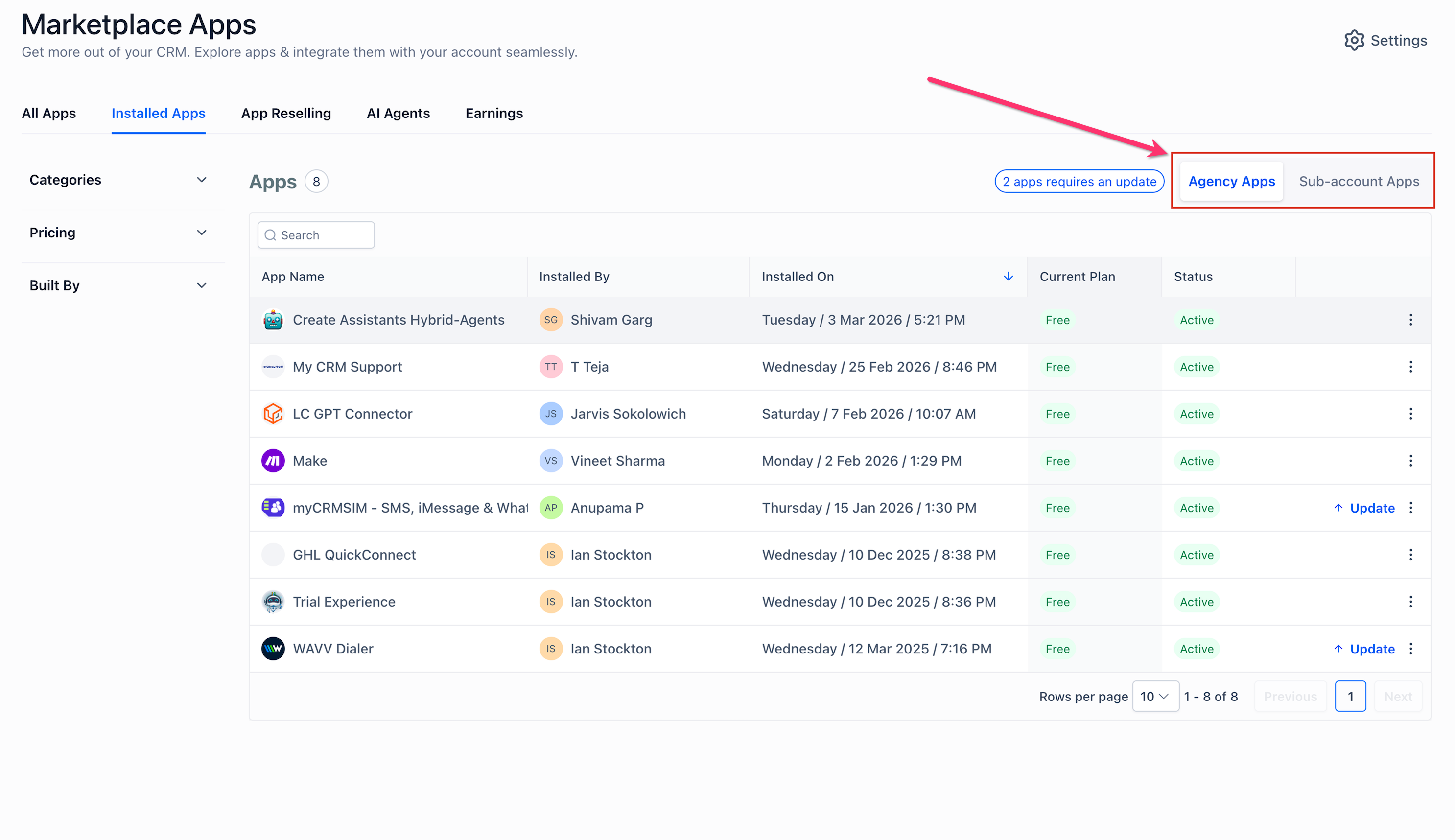
Switch Between Agency Apps and Sub-account Apps
Installed Apps now includes separate views for Agency Apps and Sub-account Apps.
- Agency Apps shows apps installed for agency-level use cases
- Sub-account Apps shows apps installed across sub-accounts
This split makes it easier to understand where an app is installed and manage installations at the correct level.
Filter and Take Action on Installed Apps
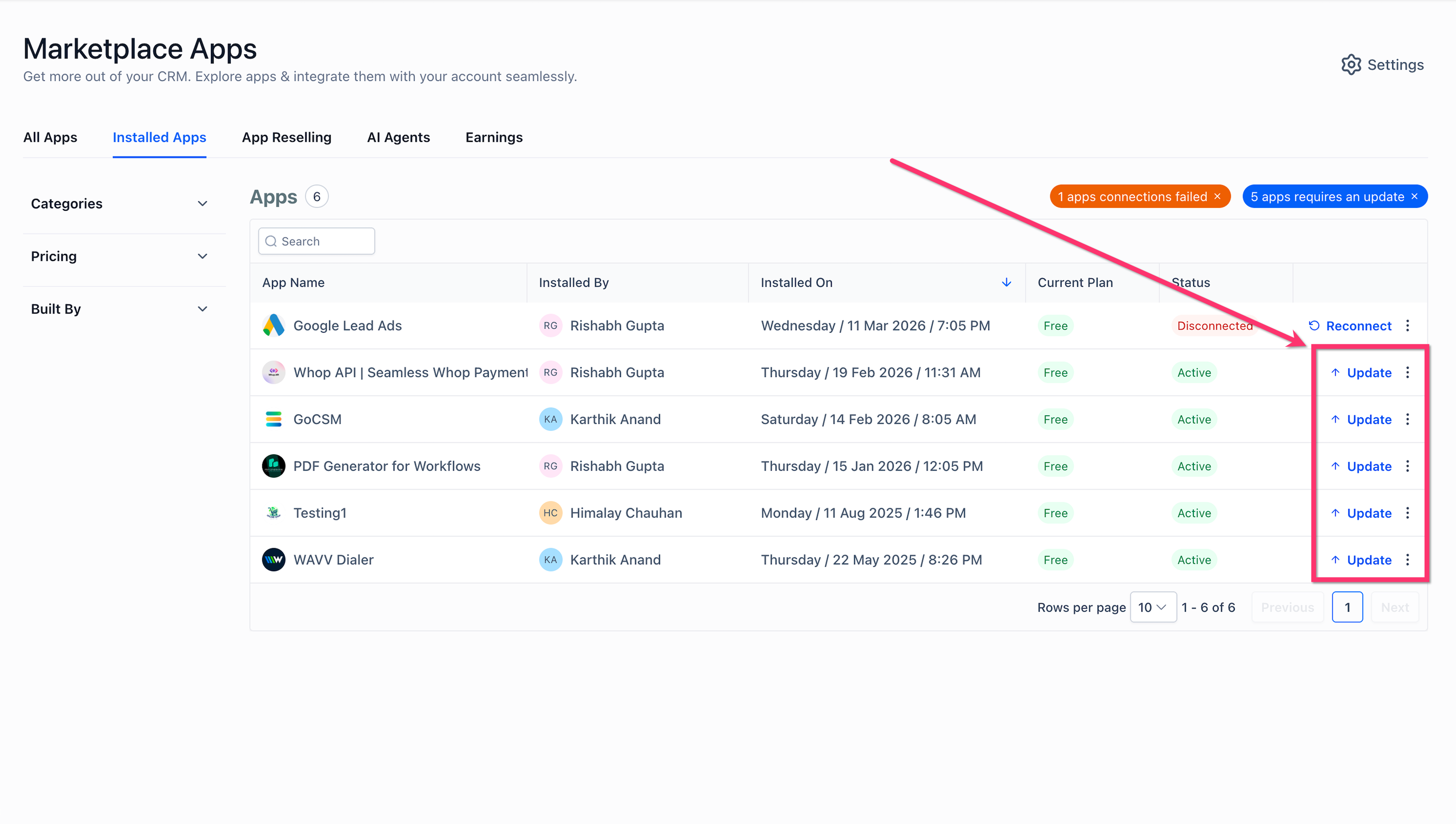
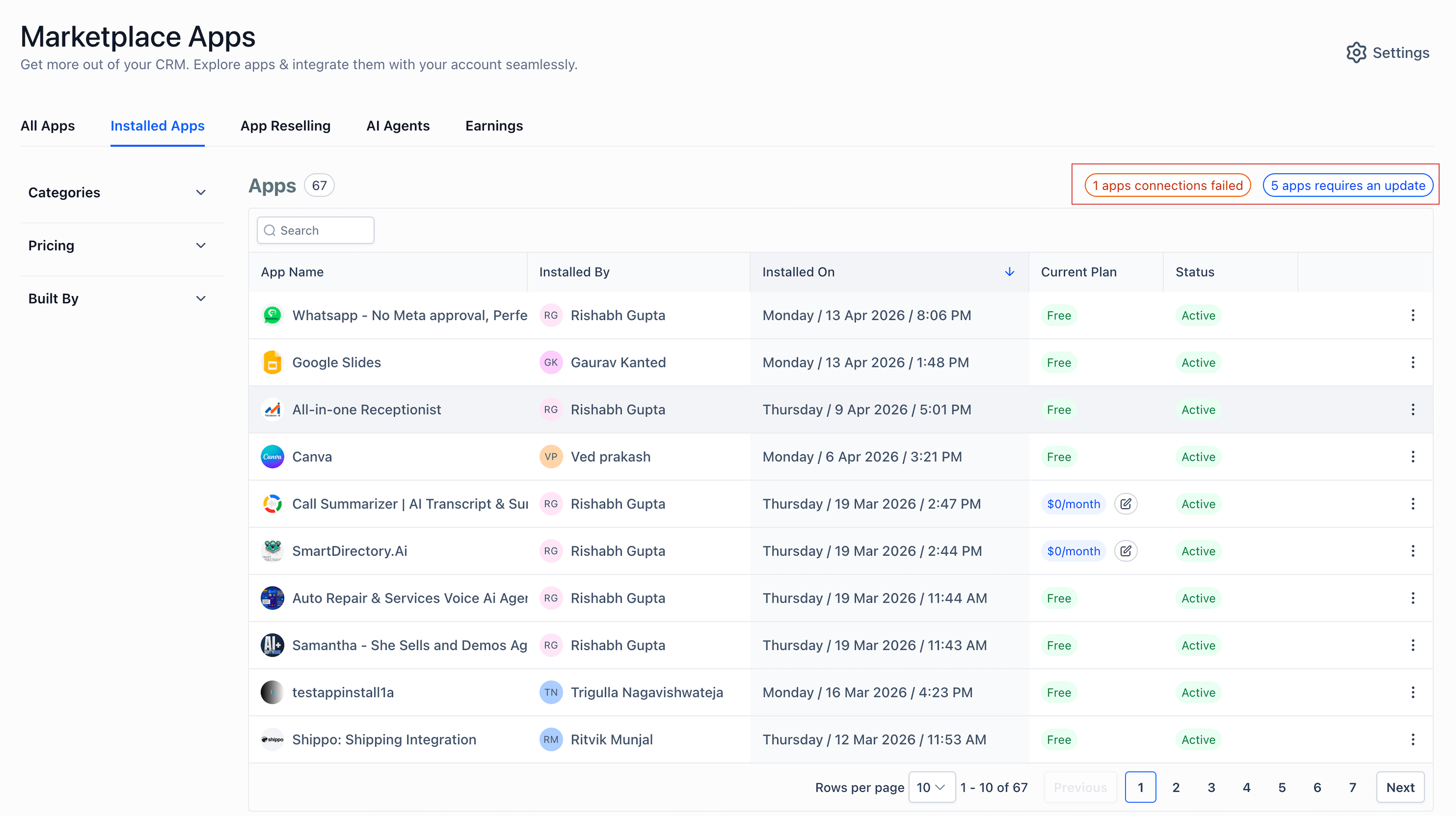
The Installed Apps page now includes faster ways to identify apps that need attention.
Depending on the app and connection state, you may see quick filters such as:
- apps requiring an update
- apps connections failed
You may also see direct actions in the list, such as:
- Reconnect
- Update
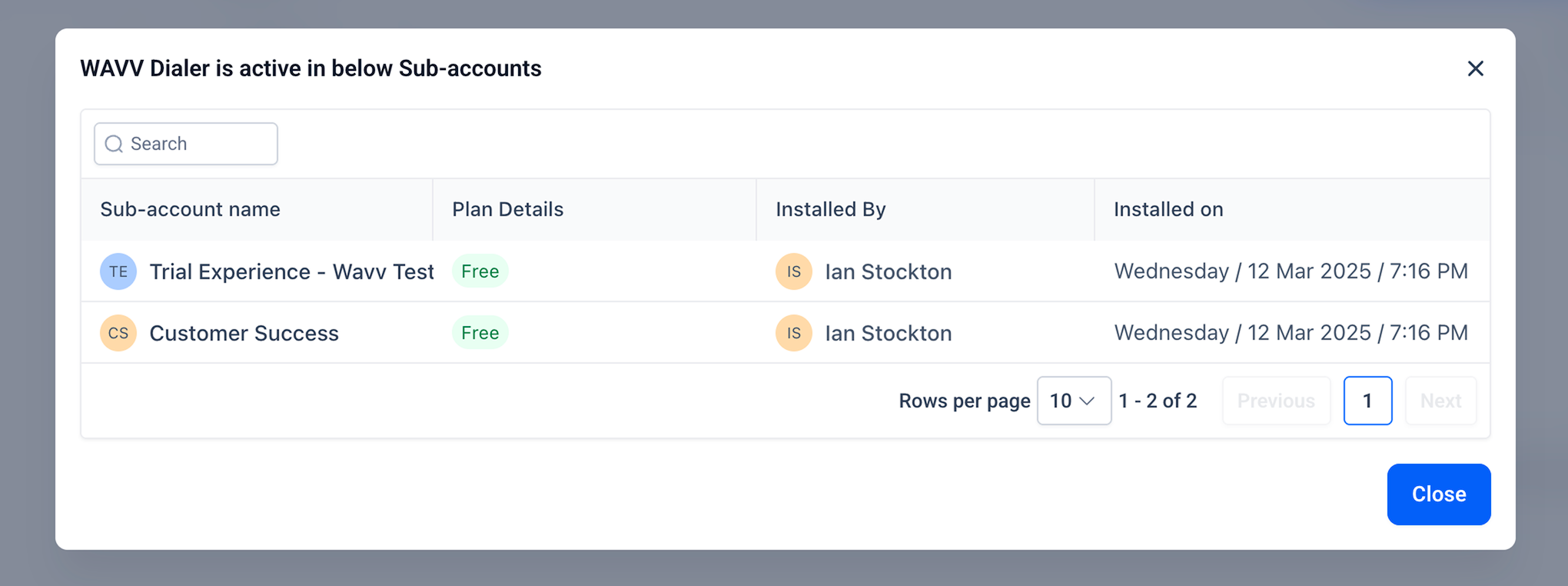
For apps installed across sub-accounts, you can review where an app is active and drill into sub-account installation details.
Install a Free App: Distribution Type - Agency
Apps with this tag are exclusively for agency-level installation, meaning subaccounts cannot install them.
- On the app listing page, click Install App in the top-right corner.
- Revisit the app's information and, if content, click ‘Allow & Install’.
- Follow the subsequent steps in the provider’s connection flow. This might involve logging into the app account and granting necessary permissions.
- If you see ‘uninstall’ instead of the Install App button, it means the app is already integrated with your account.

Install a Paid App: Distribution Type - Agency
Certain apps can be paid in nature. Depending upon the payment preference selected by the app provider (within the HighLevel platform or External payment page), the payment will be processed during the installation process.
- On the app details page, click Install in the top-right corner.
- Revisit the app's information and pricing details, if content, click ‘Allow & Install’.
- Select the plan you wish to proceed with and click on 'Confirm'

- On confirming, the app amount you opted for will be charged on your card on file and the installation will be successful.
- If the app payment needs to be done outside the platform, on clicking 'Allow & Install' during the installation process, you will be redirected to the app provider's pricing and payment page. Select the pricing type and complete the payment. On successful payment, you will be redirected to App Marketplace with the app being in 'Installed' state.
App Distribution Types
- Agency: Apps with this tag are exclusively for agency-level installation, meaning subaccounts cannot install them.
- Agency & Subaccount: Such apps are installable at both agency and subaccount levels. Installation and uninstallation actions for this distribution type must begin at the agency level. During installation, specify which or all sub-accounts you wish to introduce the app to. By default, it will be integrated at the agency level.
Install a Free App: Distribution Type - Agency & Subaccount
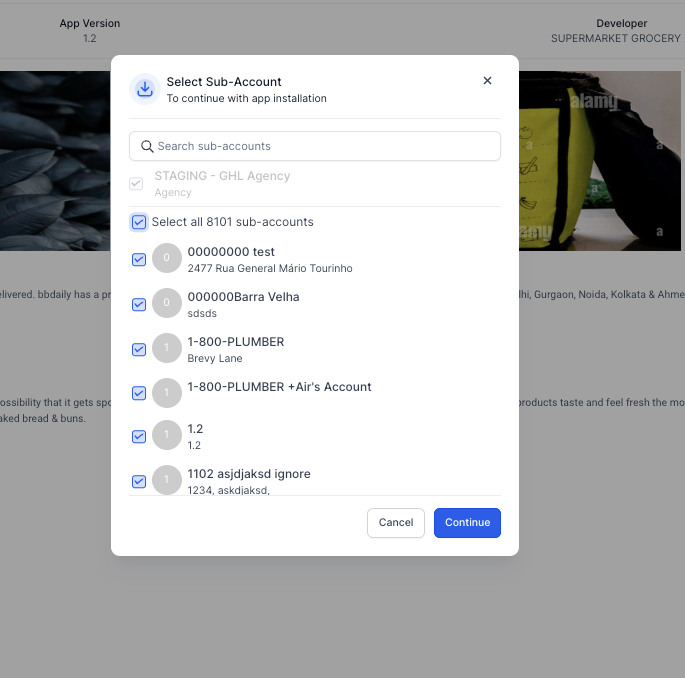
Such apps are installable at both agency and subaccount levels. Installation and uninstallation actions for this distribution type must begin at the agency level. During installation, specify which or all sub-accounts you wish to introduce the app to. By default, it will be integrated at the agency level.
- On clicking install, select all or specific sub-accounts to install the app.
- Follow the installation process and complete it. On successful completion the app will be installed in the sub-accounts selected. Sub-accounts can view these apps under the 'Installed tab' in sub-account level app marketplace.
Install a Paid App: Distribution Type - Agency & Subaccount
- If the app's payment preference is set to collect payment within the HighLevel platform, then upon selecting subaccounts and installing, the app amount will be charged to each subaccount's card on file.
- If selected sub-accounts have a card linked to their account, payment will be processed using that card. However, apps cannot be installed on sub-accounts without a card on file. In such cases, you can notify these sub-accounts and request that they update their card details. Afterward, you can retry the installation process for these previously ineligible sub-accounts.

Note: If you select 10 sub-accounts for app installation and only 5 of them have a card linked, the installation will proceed only for those 5 eligible sub-accounts with cards on file. The remaining 5 without card details will be skipped. Once these sub-accounts provide their card information, you can proceed to install the app for them.
How to Uninstall an App
- Click on the App Marketplace option.
- Navigate to ‘Installed Apps’.
- Choose the app you wish to disconnect.
- Click ‘Uninstall’ located in the top-right corner.
- For apps labeled as “agency & subaccount”, specify the uninstallation level: either selected subaccounts or the agency level.
- Confirm the action in the dialog box by selecting Uninstall.


Was this article helpful?
That’s Great!
Thank you for your feedback
Sorry! We couldn't be helpful
Thank you for your feedback
Feedback sent
We appreciate your effort and will try to fix the article