Bulk Delete lets you remove multiple Company records from the list view in a single action. Use it to clean up stale, test, or mis-imported Companies without deleting them one at a time.
TABLE OF CONTENTS
- What is Bulk Delete for Companies?
- Key benefits
- How to bulk delete Companies
- What happens when a Company is deleted
- How to recover deleted Companies
- Frequently Asked Questions
What is Bulk Delete for Companies?
Bulk Delete is a list-view action on Companies that lets you select multiple records using checkboxes and delete them in one go.
You can select records individually, select all records on a page, or apply filters and search first and then select from the filtered results.
Key benefits
- Remove multiple Companies in a single action.
- Clean up Companies directly from the list view without opening each one.
- Consistent select-and-delete experience across Companies, Custom Objects, and Tasks.
- Recover deleted Companies within 60 days from the Bulk Actions page.
How to bulk delete Companies
1. Go to Companies in your sub-account.
2. On the list view, use the checkboxes on the left of each row to select the Companies you want to delete. Use the header checkbox to select all records on the page.
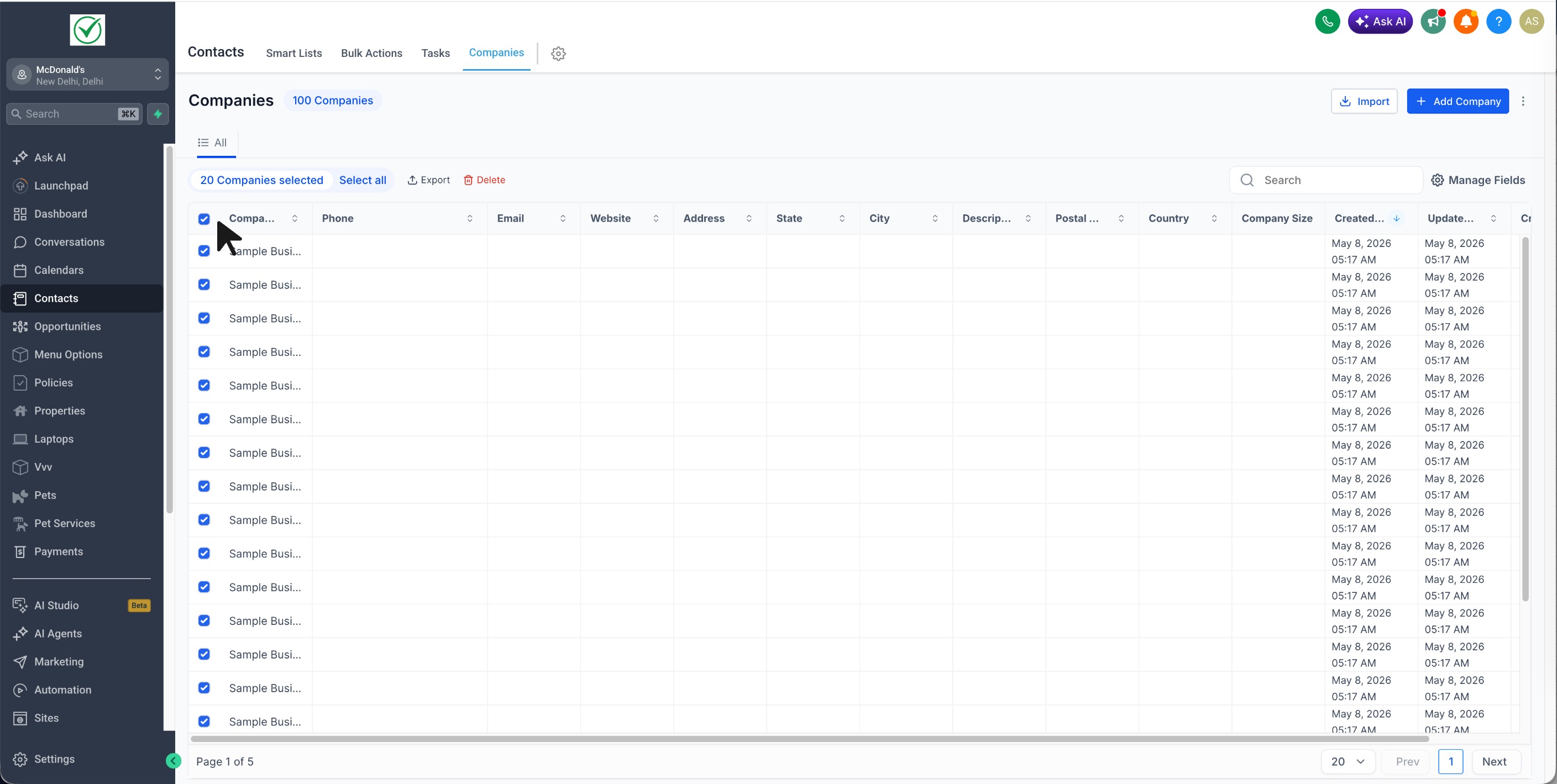
3. Click Delete from the bulk actions bar that appears.
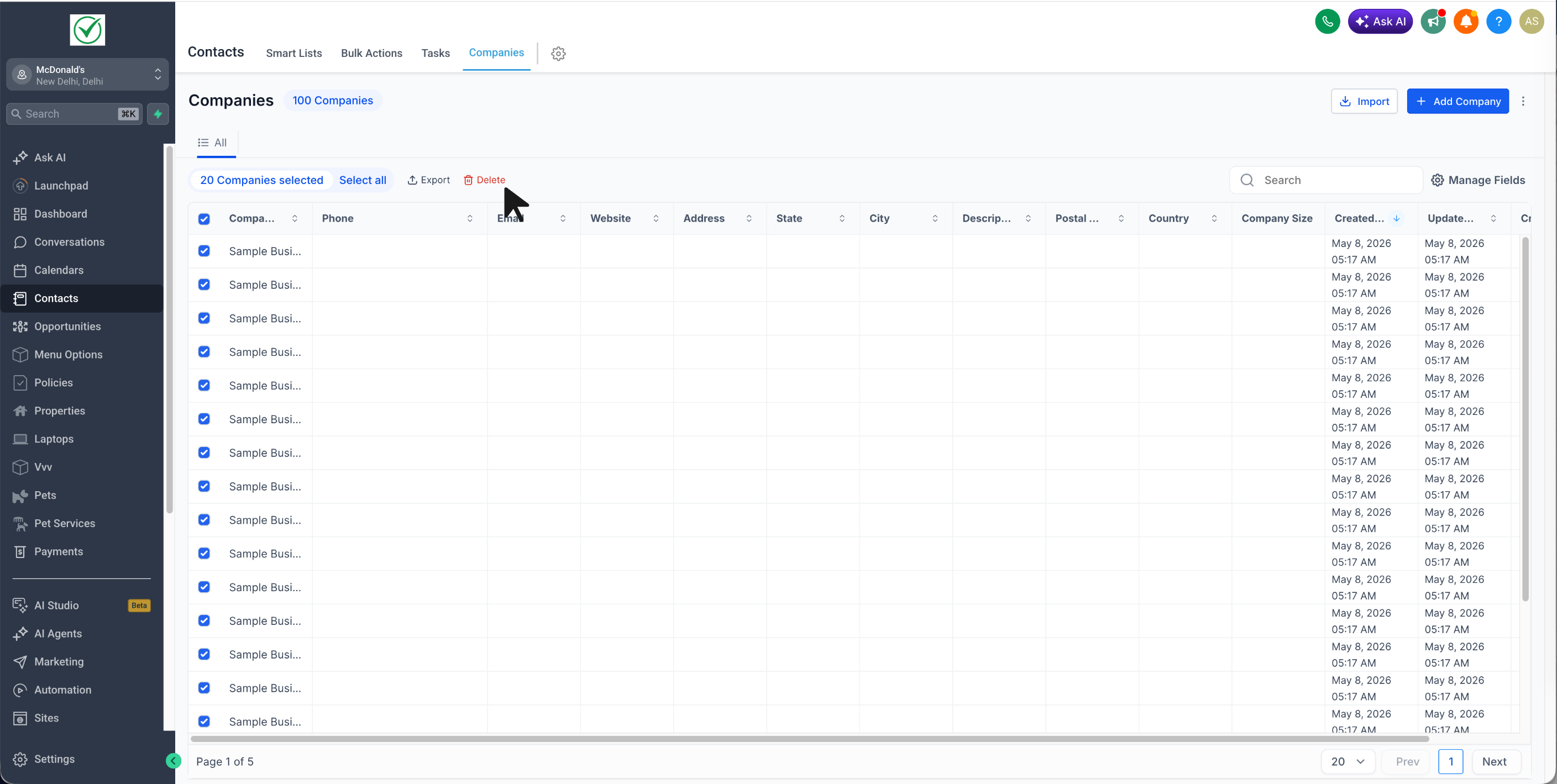
4. Confirm the action in the dialog.
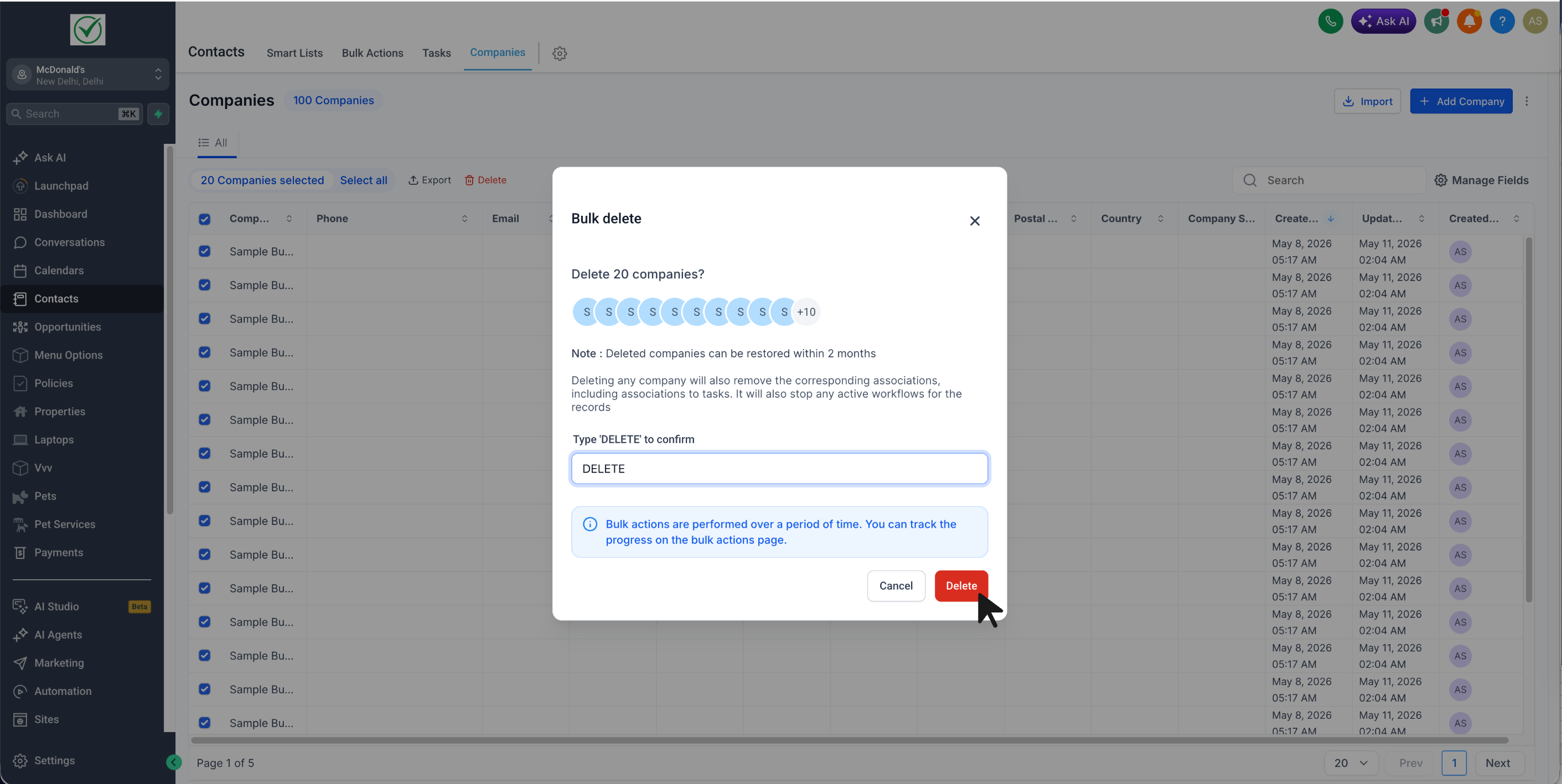
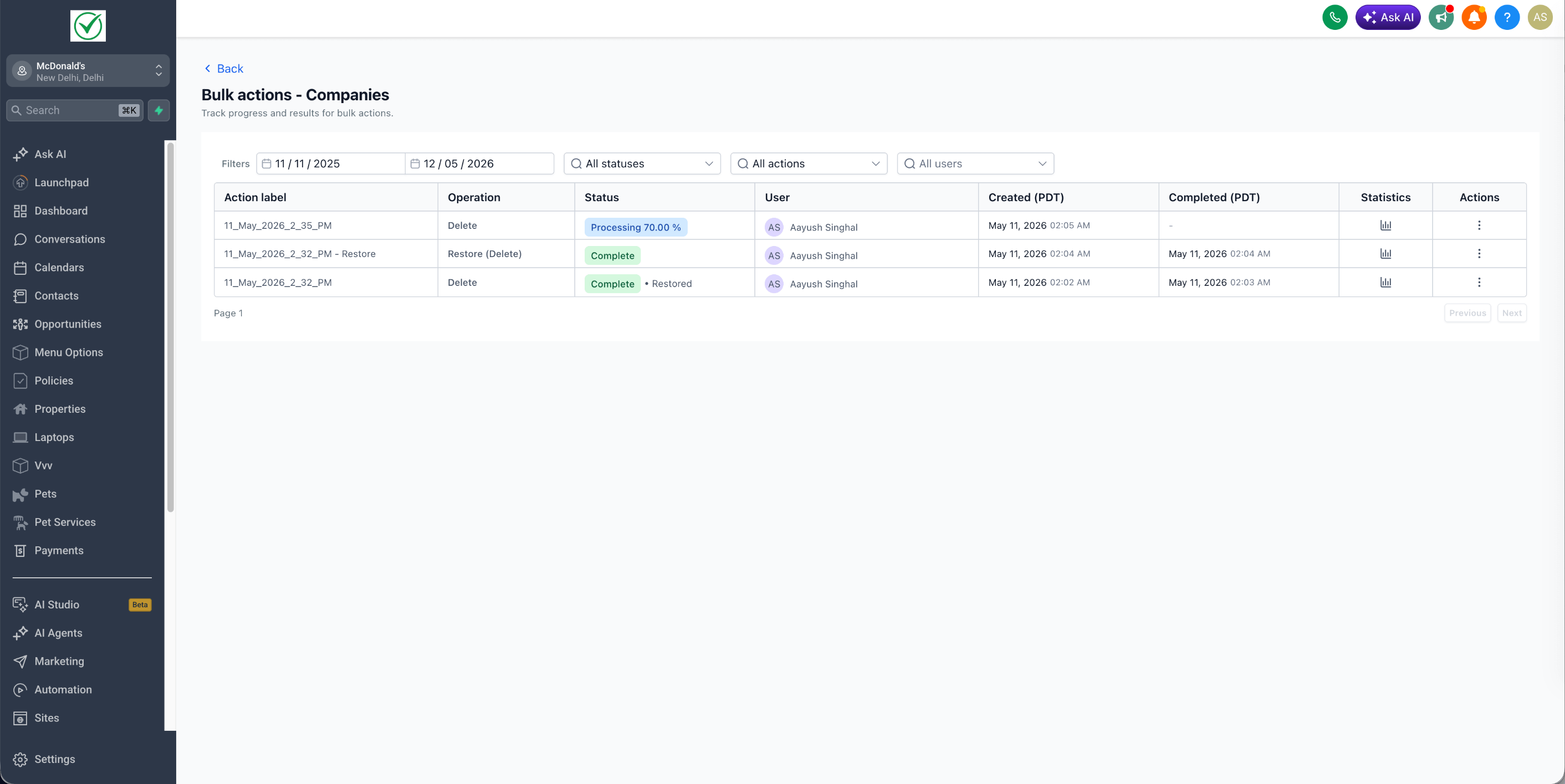
5. You can check the progress and logs in the bulk actions page
What happens when a Company is deleted
When you delete a Company, the Company record and all of its field values are removed.
All relations and associations on the deleted Company are also removed, including:
- Associations to related Contacts, Opportunities, and Custom Object records
- Associations to related Notes and Tasks
- Any association labels applied to those relationships
Existing cascade behavior for Companies applies to any directly owned data on the Company record.
How to recover deleted Companies
Bulk-deleted Companies can be restored within 60 days of deletion from the Bulk Actions page. After 60 days, the Companies are permanently removed and cannot be recovered.
To restore deleted Companies:
1. Go to Bulk Actions in your sub-account.
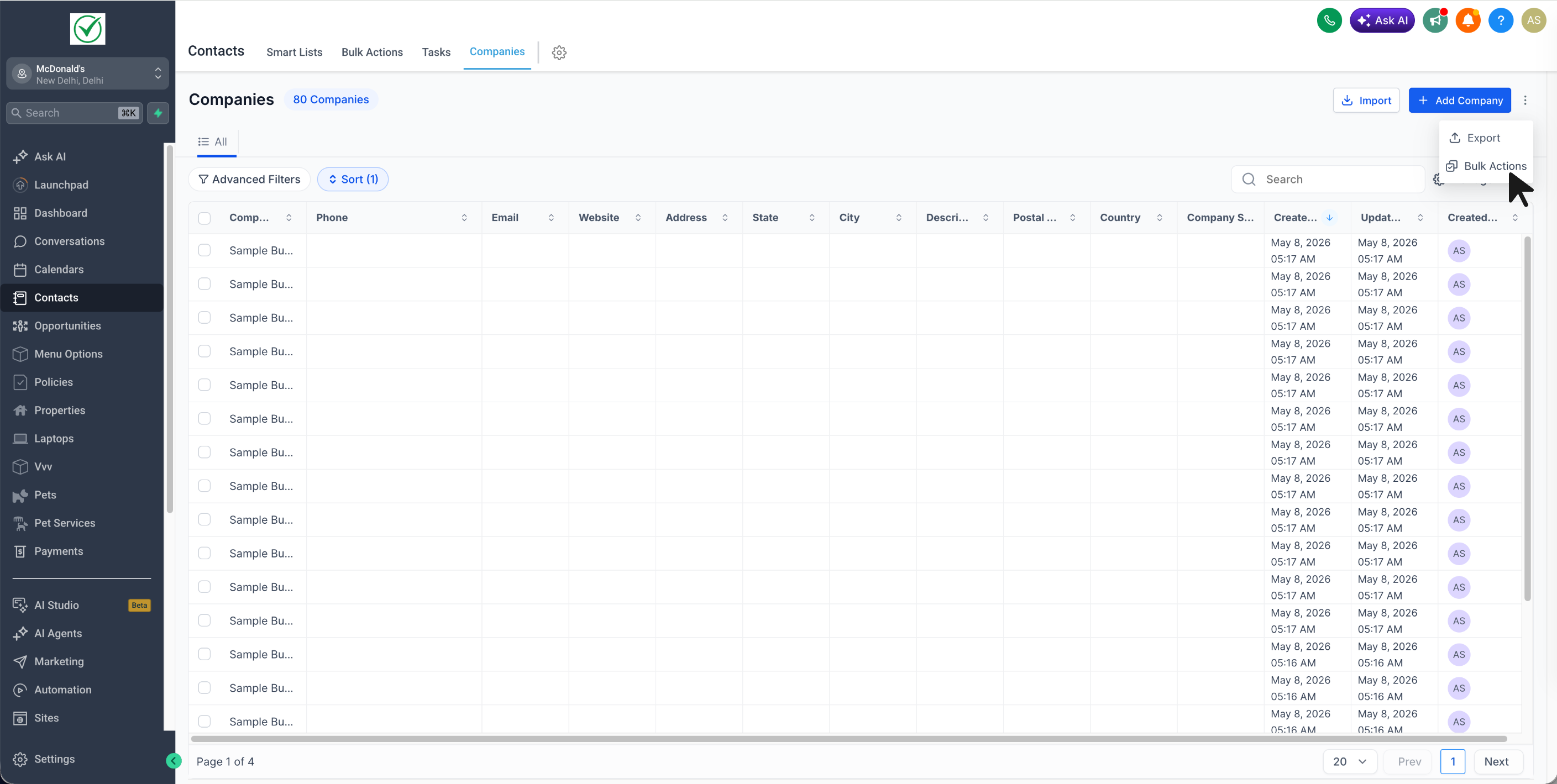
2. Locate the relevant job row and click the three-dot menu on the right. Click Restore.
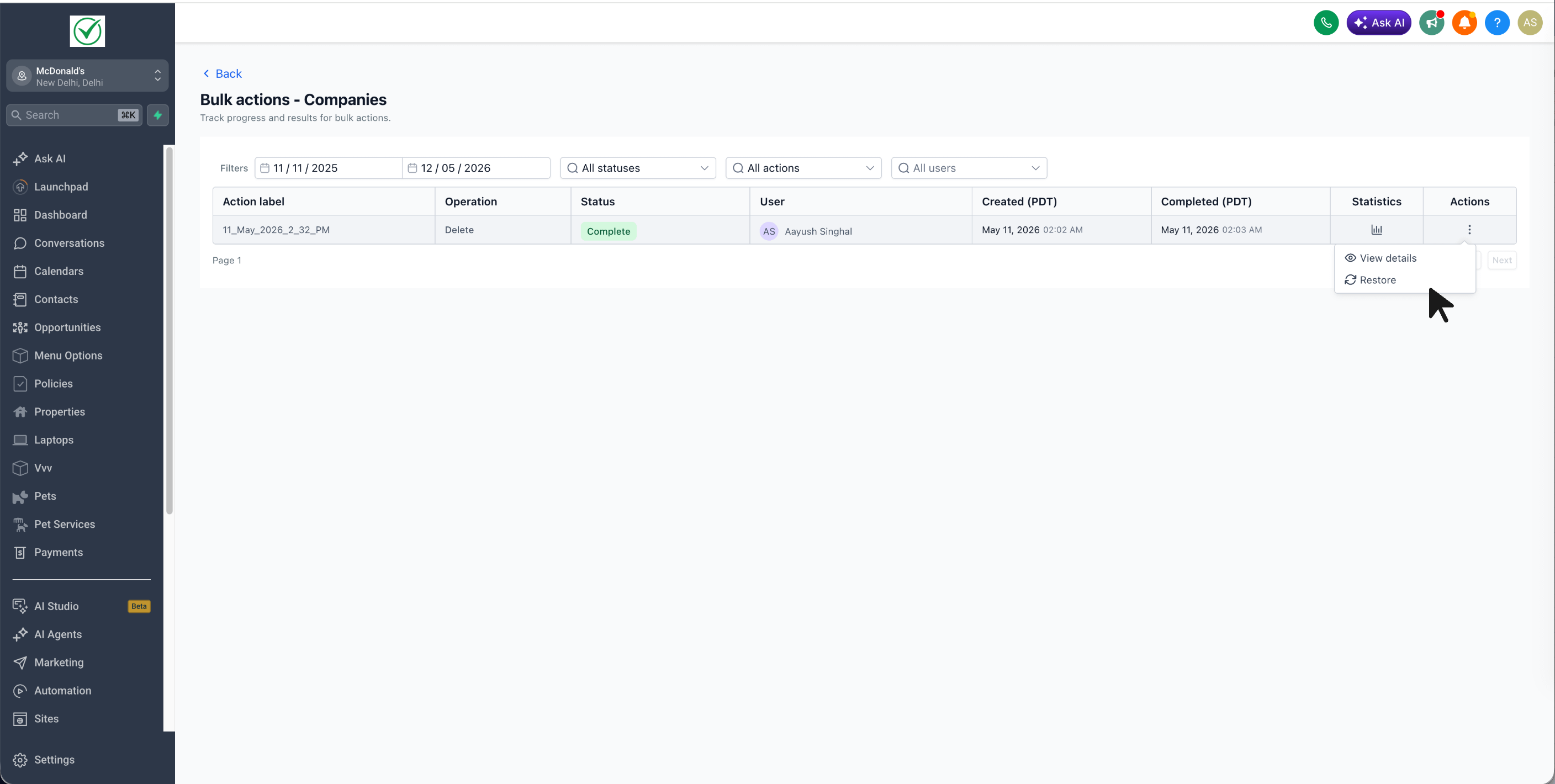
3. Confirm the action in the dialog.
The restore runs as a new job and will appear in the Bulk Actions table. Once it completes, the Companies will be back on the list view along with their field values and associations.
Frequently Asked Questions
Q: Can I bulk delete Companies from a filtered or searched list view?
Yes. Apply your filters or search first, then use the checkboxes to select records from the filtered results.
Q: How long do I have to restore deleted Companies?
60 days from the date of deletion. After that, the Companies are permanently removed.
Q: Are associations restored when I restore a deleted Company?
Yes. When you restore a Company from the Bulk Actions page, its previous associations and association labels are restored along with the record.
Was this article helpful?
That’s Great!
Thank you for your feedback
Sorry! We couldn't be helpful
Thank you for your feedback
Feedback sent
We appreciate your effort and will try to fix the article