Learn how to enable Company automation, choose the recommended matching settings, process existing records, understand the matching order, enrich Companies, and exclude domains.
Turning these settings off stops future automatic processing but does not reverse Companies, associations, domains, or logos that were already created. Remove an incorrect association or Company manually when needed.
2. Key Benefits
3. Prerequisites and Limitations
4. How To Set Up Automatic Company Creation
5. How Existing Companies and Contacts Are Processed
6. How Contacts Are Matched to Companies
7. Company Enrichment and Domain Exclusions
8. Troubleshooting
9. Frequently Asked Questions
10. Related Articles
What Is Automatic Company Creation and Enrichment?
Automatic Company Creation and Enrichment connects Contacts to Company records without requiring users to create and associate every Company manually.
Depending on the enabled settings, HighLevel can:
- Associate a Contact with an existing Company.
- Add the Contact's business email domain to an existing Company that does not have one.
- Create a Company when no suitable match exists.
- Populate the new Company's name and logo.
- Apply matching to eligible Contacts and Companies already stored in the sub-account.
Key Benefits
Automatic matching reduces manual CRM maintenance while helping preserve existing Company records and prevent unnecessary duplicates.
- Automatic Association: Connect Contacts to Companies using Business Name or business email domain.
- Automatic Company Creation: Create a Company when no appropriate record exists.
- Existing Record Preservation: Reuse established Companies before creating new records.
- Duplicate Prevention: Keep one Company per domain when duplicate prevention is enabled.
- Company Enrichment: Populate the Company Name and Logo when enrichment data is available.
- Existing-Data Processing: Add missing domains and associate eligible Contacts already in the CRM.
Prerequisites and Limitations
Review the matching and domain rules before enabling automation so Contacts are associated with the intended Companies.
- Company automation is configured under Settings → Objects → Companies → Automations.
- Contacts need business email addresses for email-domain matching.
- A Contact already associated with a Company is not automatically moved.
- Free email domains such as Gmail, Yahoo, Outlook, and iCloud are always excluded.
- Domain matching is exact. For example,
acme.comandmail.acme.comare different domains. - Each Company can hold one domain.
- Business Name matching ignores letter case, but spelling, spaces, punctuation, and legal suffixes still matter.
- Enrichment is best effort and does not prevent Company creation when a name or logo cannot be found.
How To Set Up Automatic Company Creation
Configure the automation settings that determine which Contact data is used, whether Companies are enriched, and whether duplicate domains are allowed.
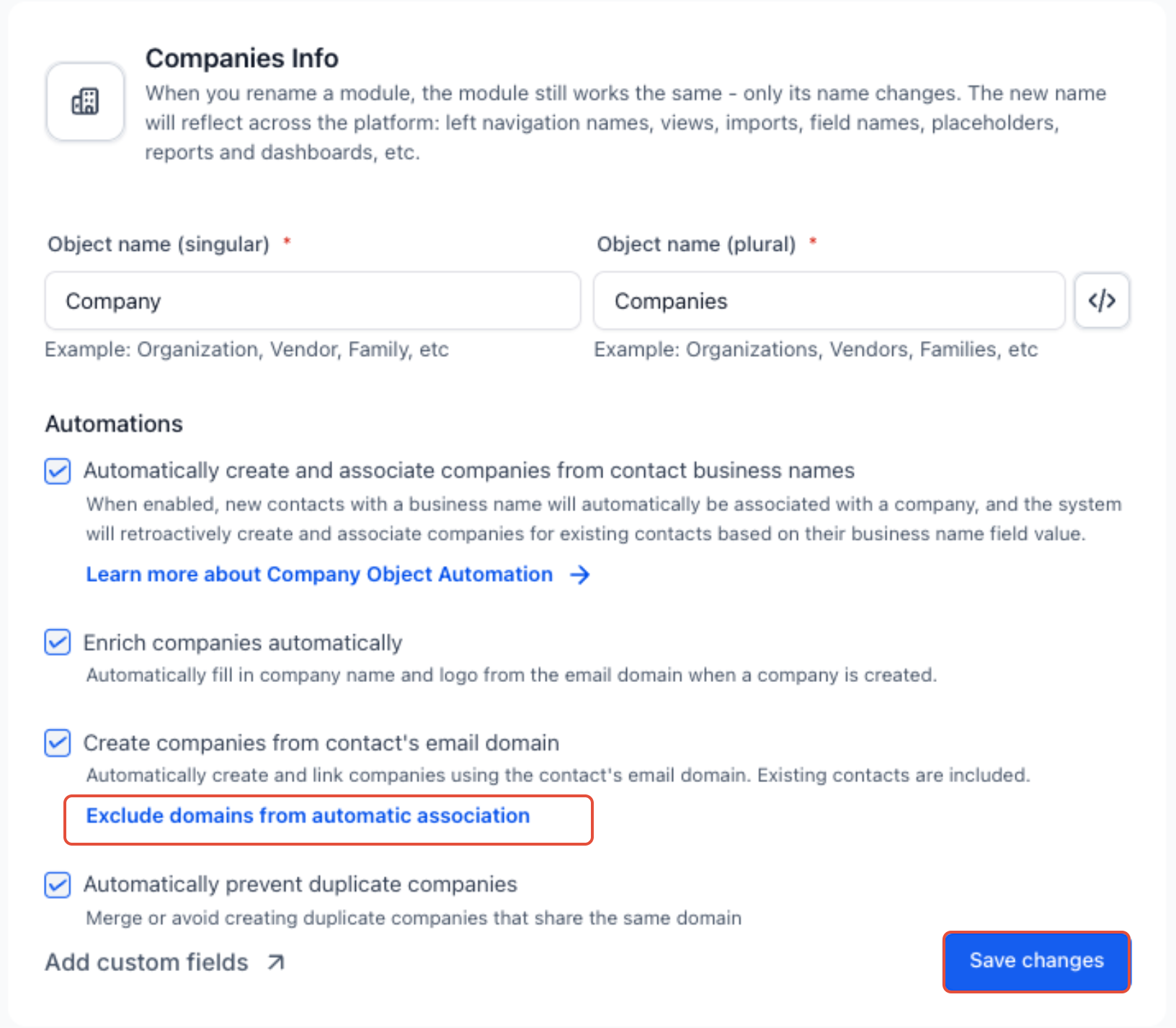
- Go to Settings → Objects → Companies.
- Under Automations, select the settings you want to use:
- Automatically create and associate companies from contact business names: Uses the Contact's Business Name.
- Create companies from contact's email domain: Uses the domain after the
@in the Contact's email. - Enrich companies automatically: Attempts to populate the Company Name and Logo.
- Automatically prevent duplicate companies: Prevents more than one Company from using the same domain.
3. Select Save changes.
Default settings: Create companies from contact’s email domain is turned on by default for new agencies. For existing agencies it stays off until an admin turns it on.
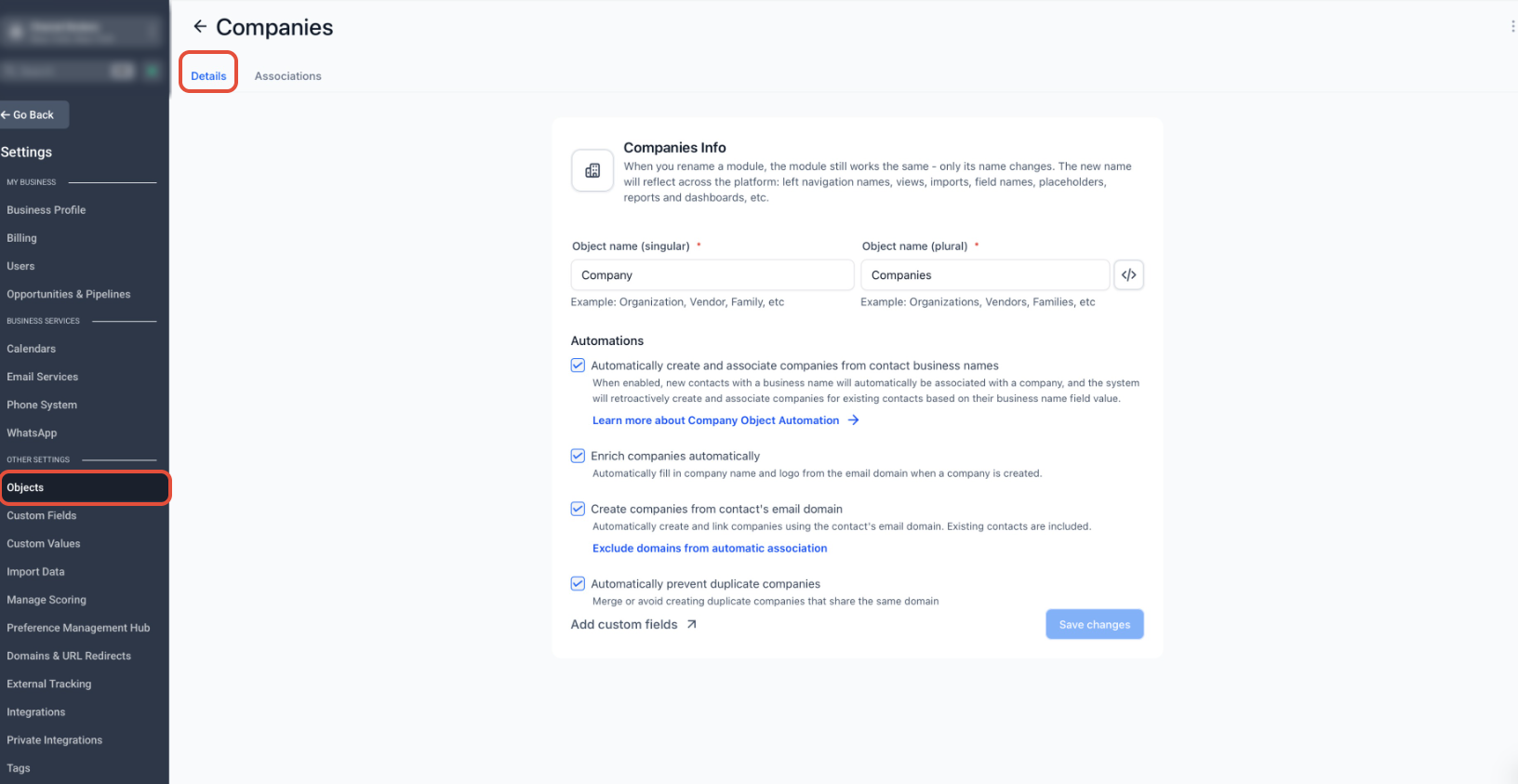
Recommended configuration: Enable Create companies from contact's email domain, Enrich companies automatically, and Automatically prevent duplicate companies. Leave Business Name automation off when you want domain matching to remain the primary method.
For details about the domain field and duplicate rules, see Company domain name field and duplicate prevention.
How Existing Companies and Contacts Are Processed
When email-domain matching is enabled, HighLevel can update eligible Company and Contact records that already exist in the sub-account. Both processing options are selected by default.
- Fill in domains for existing companies: Adds a domain to eligible Companies that do not already have one.
- Apply to existing contacts: Associates eligible Contacts with Companies and creates a Company when no suitable match exists.
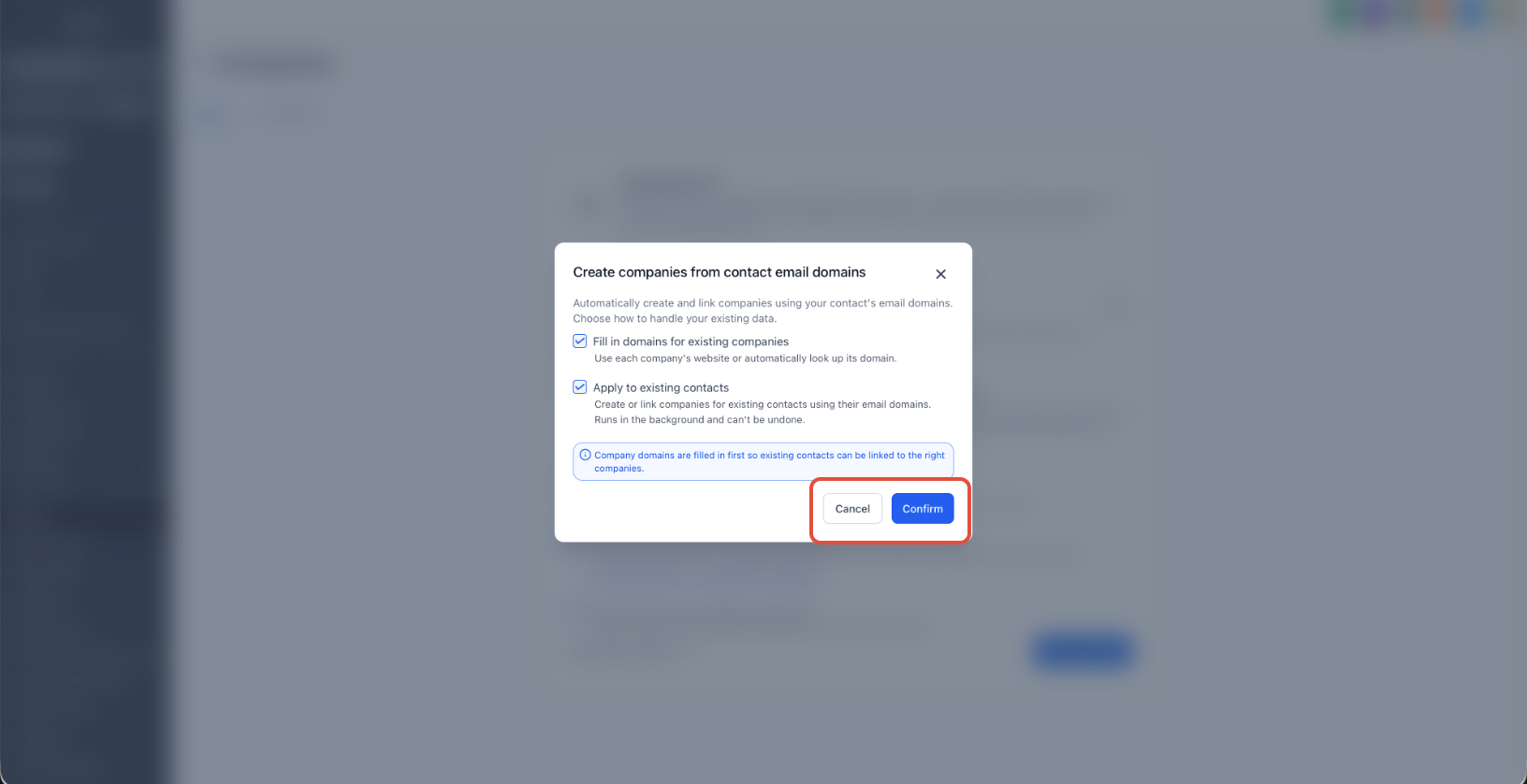
If both options are selected, HighLevel fills in Company domains first and processes Contacts afterward. This gives Contacts a better chance of matching Companies that already contain Opportunities, notes, associations, or other CRM history.
Domain backfill skips:
- Domains entered manually.
- Free email-provider domains.
- Social and website-builder addresses such as Facebook, LinkedIn, Wix, Squarespace, and Linktree.
- Values that are not valid domains.
- Companies that would conflict by sharing the same domain.
Background processing: Processing time depends on the number of records. You can continue working while the update runs.
How Contacts Are Matched to Companies
HighLevel checks available Contact and Company data in order and stops when the first suitable Company is found.
- Existing association: If the Contact is already associated with a Company, nothing changes.
- Business Name: If Business Name automation is enabled, HighLevel uses or creates a Company with the matching Business Name.
- Existing domain: If a Company already has the Contact's email domain, the Contact is associated with it.
- Existing Company without a domain: If the domain resolves to an existing Company name, HighLevel can reuse that Company and save the domain to it.
- No match: HighLevel creates a Company and stores the domain on the record.
Matching priority: If Business Name automation resolves the Company first, later email-domain steps do not run. The domain is not added through that match, which can leave the Company outside domain-based duplicate prevention.
Example
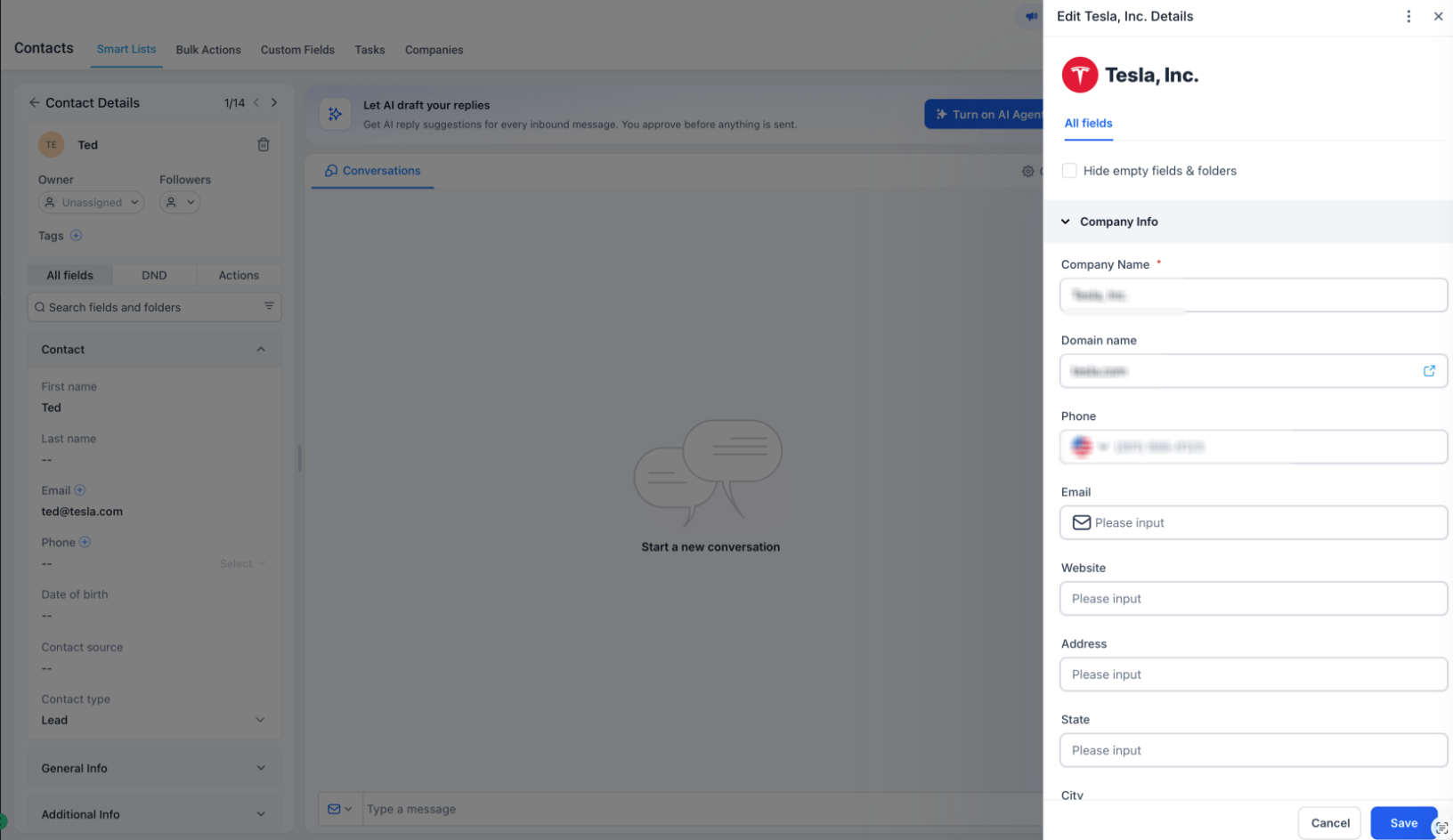
A Contact with a business email domain is automatically associated with the matching Company.
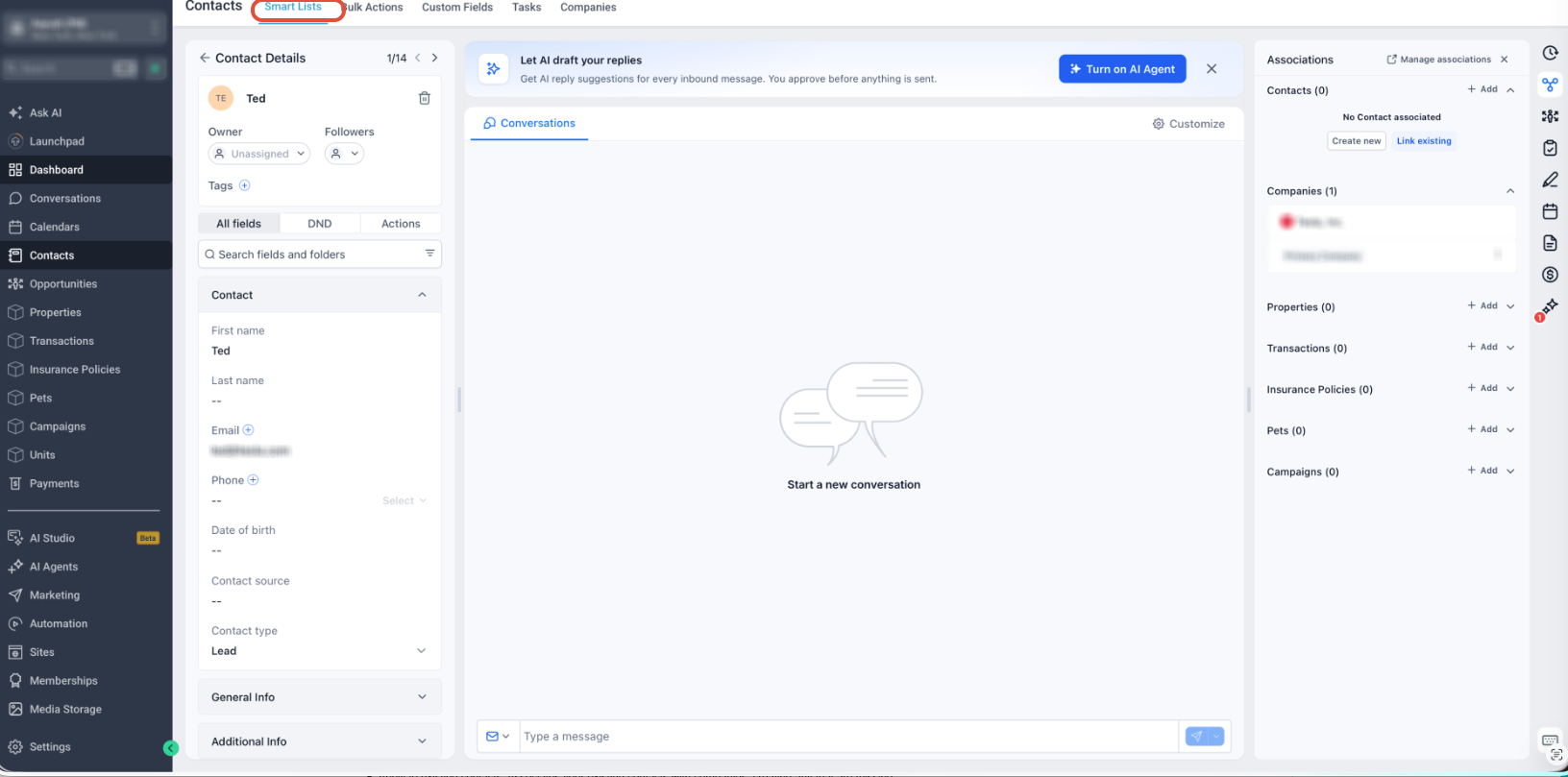
The Company record contains the matched domain and, when available, its enriched name and logo.
Company Enrichment and Domain Exclusions
Enrichment improves newly created Company records, while domain exclusions prevent internal, personal, shared, or unwanted domains from creating Companies.
Company Names and Logos
- When enrichment succeeds, HighLevel populates the Company Name and Logo from the domain.
- If the domain is not recognized, the Company is still created with its domain.
- When no enriched name is available, the Company name is derived from the domain.
- A missing logo does not prevent Company creation.
- To run a one-time enrichment update for existing Companies, turn Enrich companies automatically off, save the change, then enable and save it again.
Exclude Domains From Automatic Association
Add your own business domain, partner domains, testing domains, or other domains that should not create or associate Companies.
- Go to Settings → Objects → Companies.
- Under Create companies from contact's email domain, select Exclude domains from automatic association.
- Enter the domain by itself, such as
acme.com. - Add it to the exclusion list.
- Select Save changes.
Business Name exception: Domain exclusions apply to email-domain matching. If Business Name automation is also enabled, a Company can still be created from the Contact's Business Name.
Troubleshooting
Most unexpected results are caused by excluded domains, existing associations, Business Name priority, or incomplete Company domain data.
No Company was created
Confirm the Contact has a business email, the domain is not excluded or a free provider, and the Contact is not already associated with a Company.
A Company was created from an excluded domain
Check whether Business Name automation is enabled. The Company may have been created from the Business Name instead of the email domain.
A duplicate Company was created
Review the existing Company's domain and Business Name. Differences in spacing, punctuation, legal suffixes, or domain values can prevent a match.
A Company has no logo
The domain may not have been recognized, enrichment may have been disabled, or the Company may have existed before enrichment was enabled.
A Company still has no domain after backfill
The Company may not have a usable website, may use a free, social, or website-builder domain, or may conflict with another Company using the same domain.
Frequently Asked Questions
Was this article helpful?
That’s Great!
Thank you for your feedback
Sorry! We couldn't be helpful
Thank you for your feedback
Feedback sent
We appreciate your effort and will try to fix the article