Managing reviews across multiple platforms is essential for maintaining your online reputation. HighLevel makes it easy to integrate multiple review platforms so you can monitor, manage, and respond to reviews from one centralized location.
This guide walks you through how to connect supported review platforms to your account.
TABLE OF CONTENTS
- Key Benefits of Integrating Review Platforms
- Multi-Page Connections per Platform
- How to Integrate Review Platforms
- Page-Level Visibility and Review Filtering
- Supported Review Platforms
- Troubleshooting
- Summary
- Frequently Asked Questions
- Related Articles
Key Benefits of Integrating Review Platforms
Multi-Page Integrations are especially useful for agencies and multi-location businesses that manage reviews across several listings. By connecting multiple pages per platform, teams can reduce manual tracking, simplify onboarding, and monitor reputation activity at scale.
- Multiple pages per platform: Connect more than one business page, listing, or profile under the same supported review platform.
- No page connection limit: Add as many pages as needed under each platform as your business, locations, or client base grows.
- Centralized review management: Manage connected pages from one Reputation integrations area instead of tracking each listing separately.
- Page-level visibility: Review details such as page reference, connection status, review count, and last sync information.
- Better agency scalability: Support multiple clients, brands, branches, or franchise locations from a single sub-account setup.
- Broad platform coverage: Connect pages across 52 supported review platforms, including major general-review and industry-specific platforms.
Multi-Page Connections per Platform
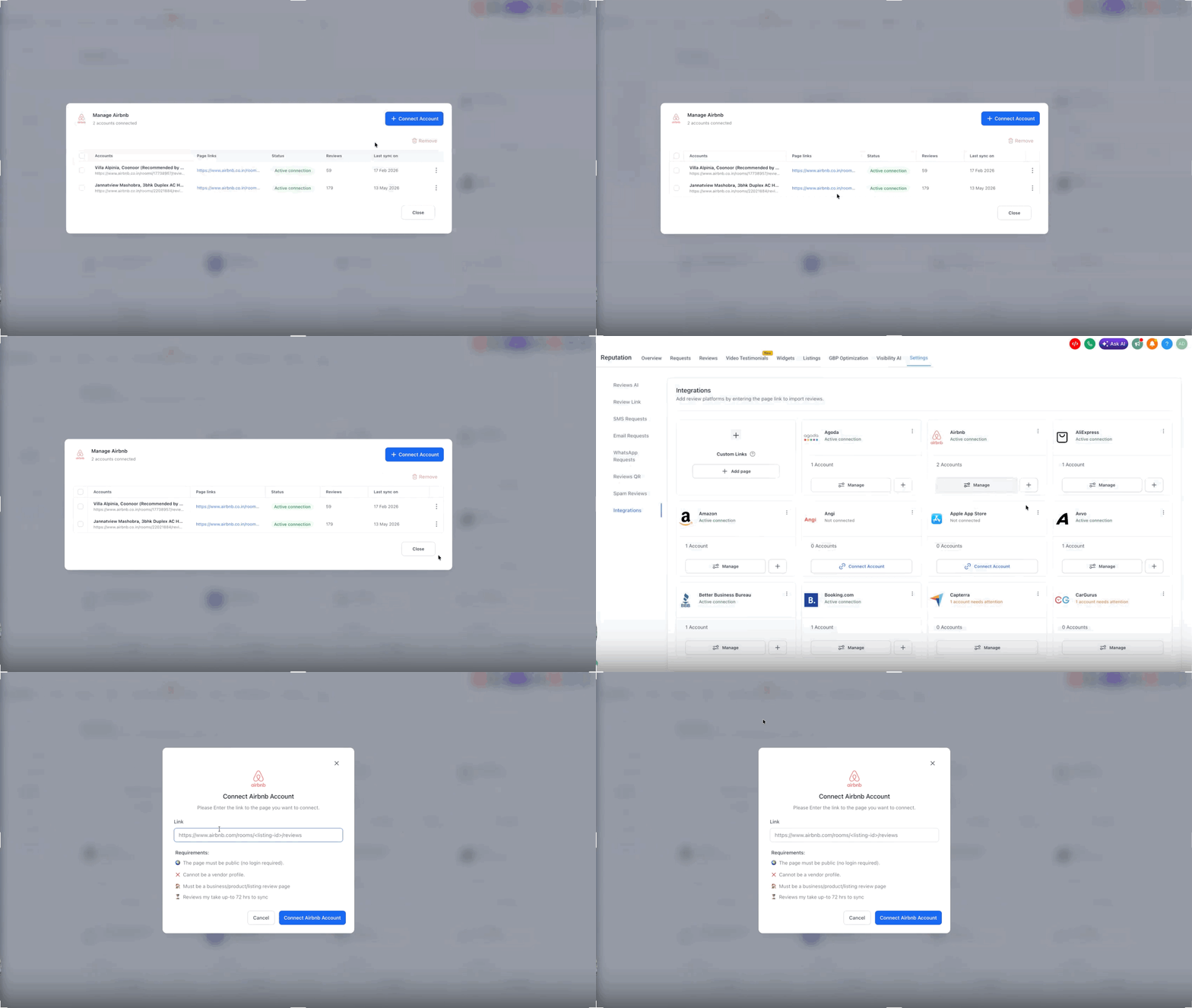
Multi-page connections give you the flexibility to manage more than one listing under a single review platform. This is helpful when one business has several locations or when an agency manages multiple listings for the same client.
You can use Multi-Page Integrations to:
- Connect multiple business pages under one supported platform.
- Add review listings for several locations inside one sub-account.
- Manage review pages for franchises, branches, properties, or service areas.
- Expand page connections as new locations or clients are added.
- Keep review platform management centralized instead of creating unnecessary duplicate setups.
How to Integrate Review Platforms
Step 1: Navigate to Integrations
Go to Reputation from the left-side menu
Click Settings from the top navigation bar
Select the Integrations tab
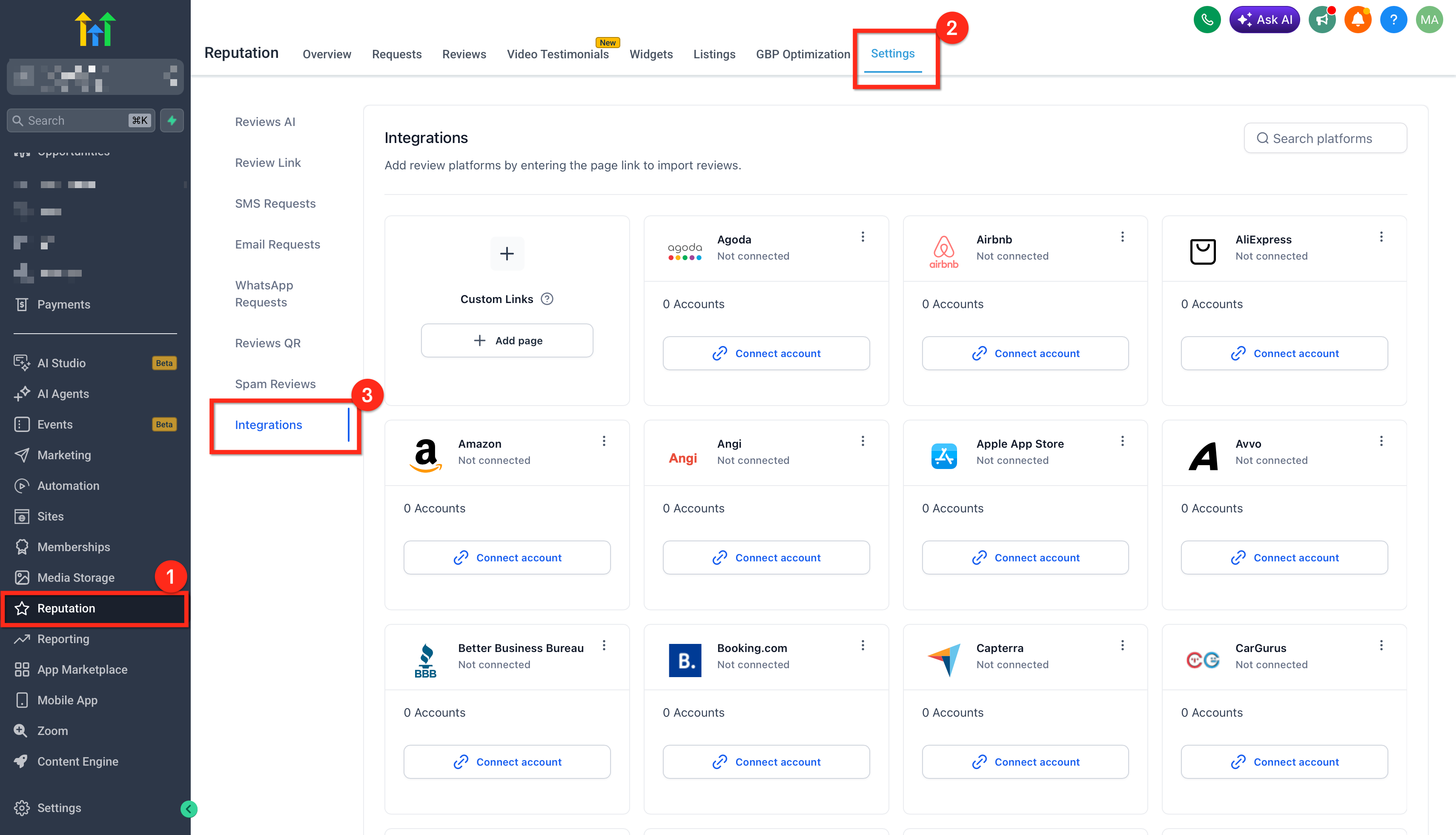
This page displays all available review platforms you can integrate.
Step 2: Configure Integrations
Click Connect account on the platform you want to connect
Enter your business review page URL
Click Connect
Example: Platform Integration Modal
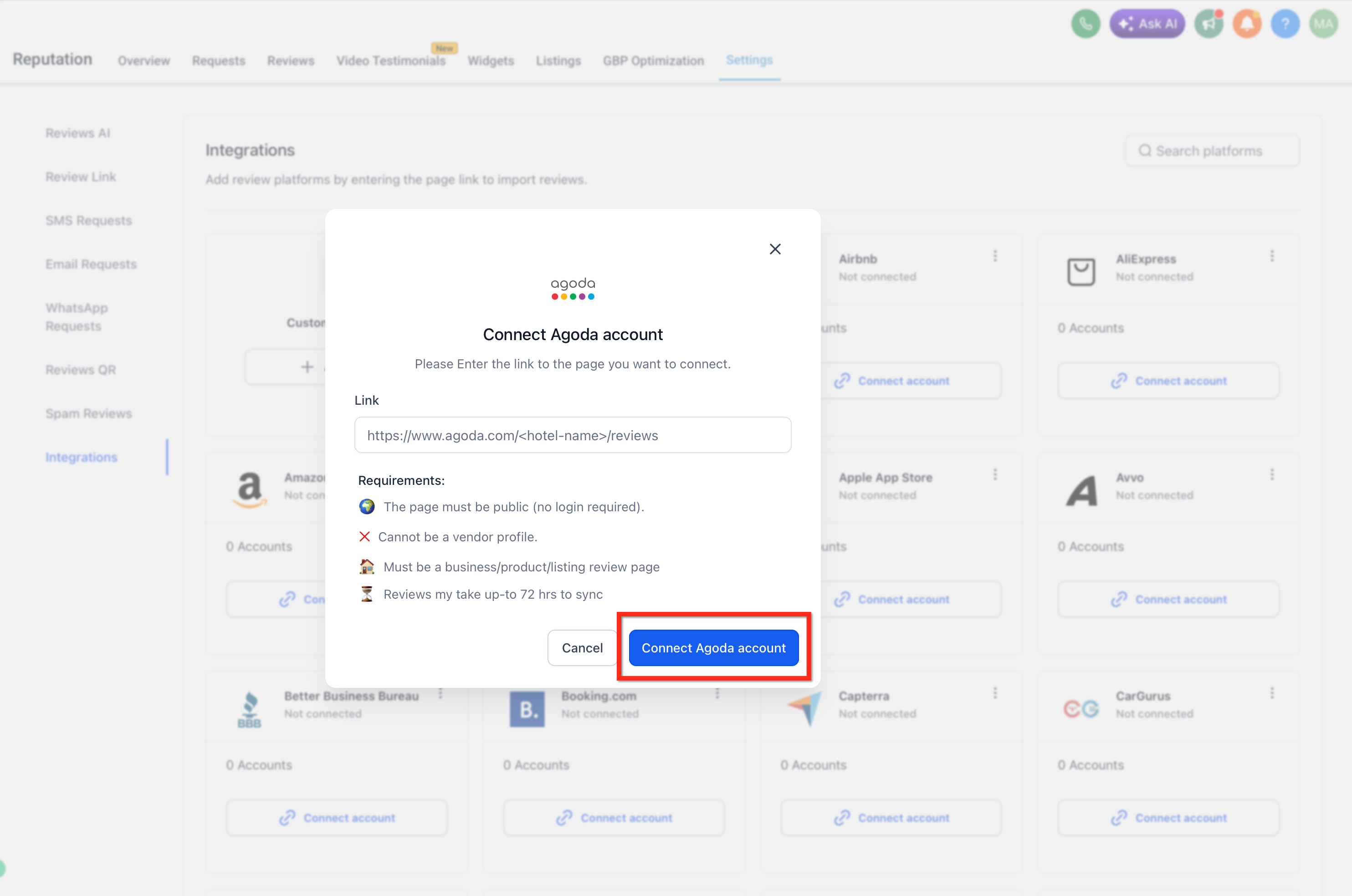
Make sure the URL points directly to your public-facing review page (e.g., Yelp, Google Business Profile, etc.).
Once connected, reviews will automatically sync into your dashboard.
Page-Level Visibility and Review Filtering
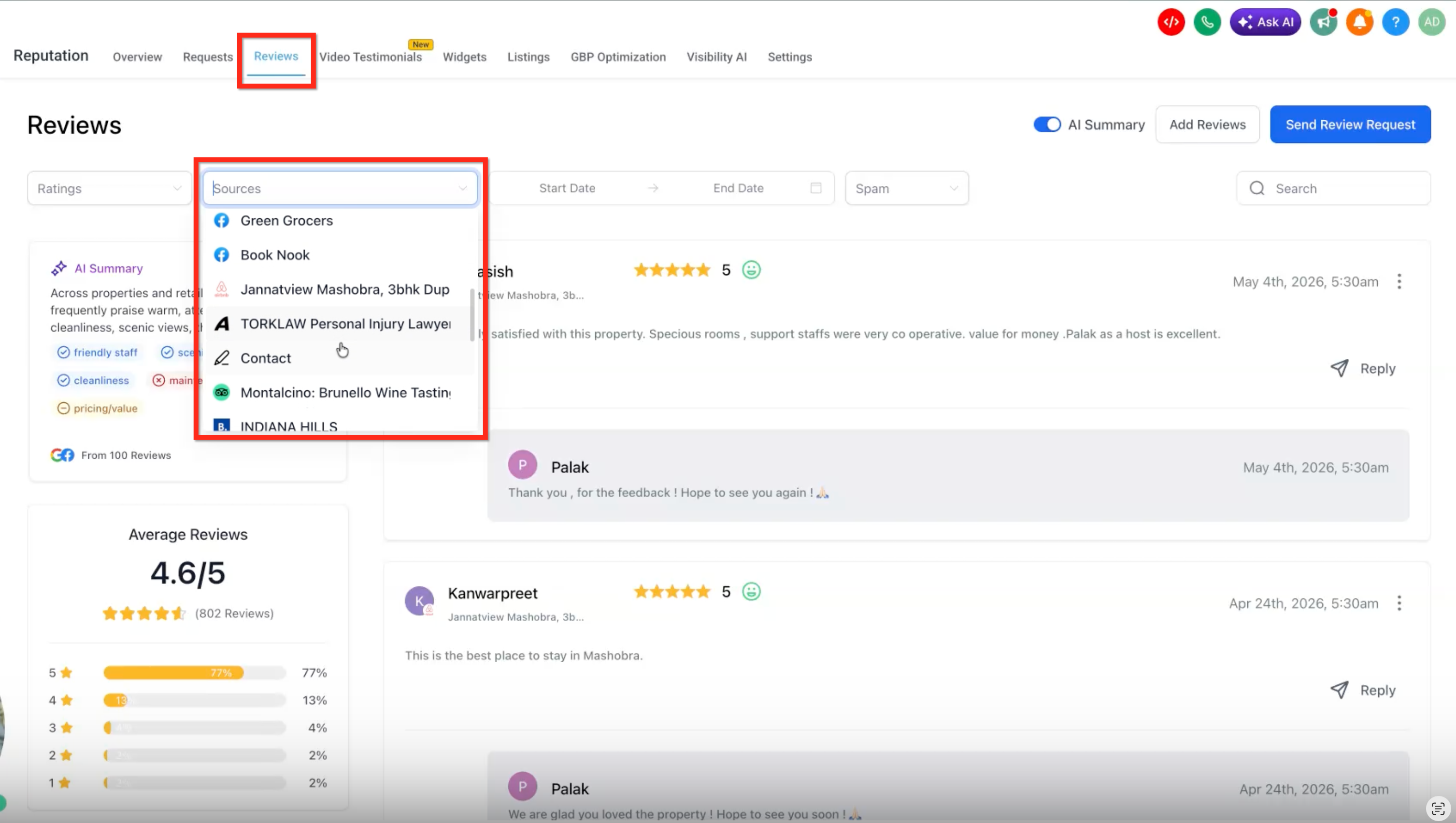
Page-level visibility helps users confirm that reviews are being pulled from the correct connected pages. When multiple pages are connected under the same or different review platforms, users can filter the Reviews tab by individual sources or select multiple sources to review feedback from several pages at once.
From the Reviews tab, users can:
- Open the Sources dropdown to view connected review pages.
- Select one connected page to review feedback from that specific listing.
- Select two or more connected pages to view reviews from multiple listings in the same Reviews view.
- Use selected source filters to compare review activity across locations, properties, brands, or pages.
Selected pages appear as source filter chips above the review list, making it easy to see which pages are currently being reviewed. This is especially helpful for agencies and multi-location businesses that need to monitor feedback for specific listings without leaving the main Reviews tab.
Supported Review Platforms
You can integrate with the following platforms:
- Agoda
- Airbnb
- AliExpress
- AlternativeTo
- Amazon
- Angi (formerly Angie’s List)
- ApartmentRatings
- App Store
- Avvo
- Better Business Bureau (BBB)
- Booking.com
- Capterra
- CarGurus
- Caring.com
- Cars.com
- Citysearch
- ConsumerAffairs
- DealerRater
- DoorDash
- eBay
- Etsy
- Expedia
- FindLaw
- Foursquare
- Glassdoor
- Goodreads
- Google Play
- Google Shopping
- Healthgrades
- HomeAdvisor
- Hotels.com
- Houzz
- Indeed
- Lawyers.com
- OpenTable
- Product Hunt
- ProductReview
- RateMDs
- The Knot
- Thumbtack
- TripAdvisor
- Trustpilot
- TrustRadius
- Uber Eats
- Vitals
- VRBO
- WebMD
- WeddingWire
- Yell
- Yellow Pages
- Yelp
- Zillow
- Zocdoc
Note: Each platform requires a valid public-facing review page URL. If you’re unsure, refer to that platform’s help documentation.
Troubleshooting
If you experience issues while integrating a review platform:
Check the URL: Ensure it points to your public review page
Verify Access: Confirm your account has permission to access the page
Clear Cache: Try clearing your browser cache
Contact Support: Reach out if the issue persists
Summary
By integrating multiple review platforms, you can centralize your review management, improve response time, and maintain a strong online reputation across all channels.
Frequently Asked Questions
Q: Do I need to connect multiple pages per platform?
No. You can keep a single page connected if your business only uses one listing for that platform. Multi-Page Integrations are useful when you need to manage multiple pages, locations, or listings under the same platform.
Q: Is there a limit to how many pages I can connect under one platform?
No. The release supports adding multiple pages per platform without a page connection cap.
Q: Can I connect multiple platforms and multiple pages under each platform?
Yes. You can connect multiple supported review platforms and add multiple pages under each platform where applicable.
Q: Where can I see the pages connected under a platform?
Go to Reputation → Settings → Integrations, select the platform, and open the Manage option to view connected pages and page-level details.
Q: Can I view reviews from more than one connected page at the same time?
Yes. In the Reviews tab, open the Sources dropdown and select two or more connected pages. The Reviews view will show feedback from the selected sources, allowing you to monitor multiple listings together.
Q: Why do reviews not appear immediately after I add a new page?
Newly connected pages may take some time to sync review data. Check the page status, review count, and last sync details in the Manage view to confirm when data has been updated.
Q: Will Multi-Page Integrations change my review request messages?
No. Multi-Page Integrations primarily affect which review pages are connected for monitoring and management. Review request messages, Review Links, and balancing settings should still be reviewed separately to confirm they route customers correctly.
Q: Can agencies use this for multiple clients?
Yes. Agencies can use Multi-Page Integrations to manage several pages, brands, branches, or client listings from a more centralized setup.
Related Articles
- How to Integrate Multiple Review Platforms in HighLevel
- Reputation Management – Adding Multiple Review Links to Emails
- Review Request Balancing Across Platforms
- How to Customize the Review Request Messages (SMS/Email)
- Guided Review Setup Wizard (Reputation Management)
- Reputation – Breaking Down the Reputation Overview Tab
Was this article helpful?
That’s Great!
Thank you for your feedback
Sorry! We couldn't be helpful
Thank you for your feedback
Feedback sent
We appreciate your effort and will try to fix the article